Read your analytics
What every number on Analytics counts: revenue, covers, no-shows, how busy each hour gets, returning guests, and which games get played.
Last verified
Analytics shows how your venue is doing: the money you have collected online, how many guests came, how many didn't, how busy each hour gets, how many guests come back, and which games get played or gather dust. Everything is worked out from your bookings and table sessions, live, each time you open the page.
This guide goes through each tab and says exactly what each number counts, so you know what to trust and what to do when a card is empty.
Where to find it
Click Analytics in the admin sidebar. On a phone, open the menu (top left) first.
Owners and admins always see Analytics. Staff only see it if you tick View on Analytics in their permissions, and new staff start without it. See Team and permissions.
Pick a period and a tab
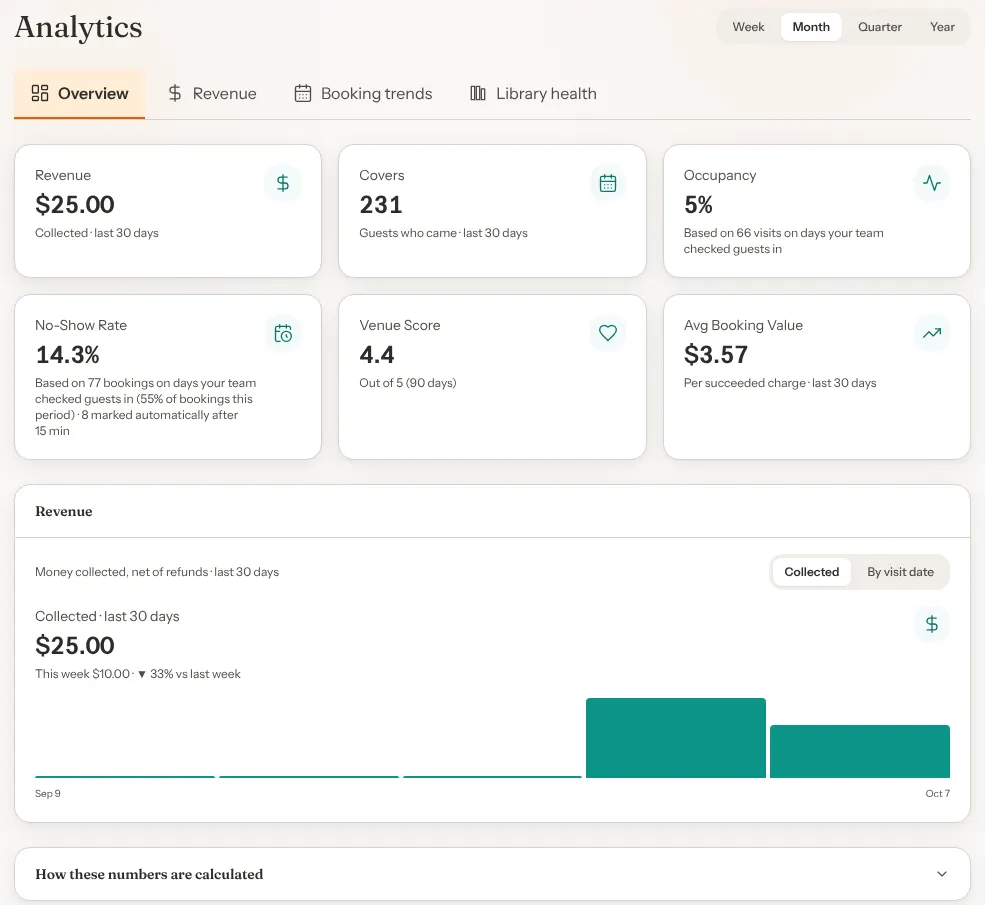
The page has four tabs: Overview, Revenue, Booking trends and Library health. The buttons at the top right, Week, Month, Quarter and Year, set the period for every tab. Month is picked when you arrive, and your choice stays when you change tab.
| Button | Period |
|---|---|
| Week | The last 7 days |
| Month | The last 30 days |
| Quarter | The last 90 days |
| Year | The last 12 months |
A few numbers always look at a fixed stretch, whatever you pick, because a week would be too short to mean anything:
- Venue Score, Utilization, The Graveyard and Hidden Gems always cover the last 90 days.
- Pending payout (est.) always covers the last 7 days.
Booking numbers follow your venue's time zone, so "today" is today where your café is. Check it under Settings → Venue → Location, in Timezone.
At the bottom of every tab, open How these numbers are calculated for a one-line definition of each number on that tab and which ones ignore the period.
Check guests in, or some cards stay empty
GameLedger can only tell who came if your team says so. No-Show Rate, Occupancy and No-show trend count only the days when your team marked at least one guest Arrived or seated them. GameLedger marks every booking still waiting to be checked in as a no-show once your no-show grace has passed. On days nobody checked anyone in, it can't tell which of those parties really stayed away, so those days are left out.
These cards also wait until the period has at least 20 bookings on those days. Until then they say "Not enough check-in data yet. Mark guests Arrived or seat them as they come in." The No-Show Rate tile, and Occupancy on Overview, show "—" above it. On Booking trends, the Occupancy and No-show trend cards add a link to this section.
- Tap Arrived or Seat as parties come in, on Tonight, the Dashboard or Bookings. See Run Tonight From Your Phone.
- A guest checking themselves in doesn't count. Your team still needs to tap Arrived or Seat.
- Check guests in as they arrive. Any booking not checked in by the end of your no-show grace is marked a no-show automatically, even if the guest came. The No-Show Rate says how many it marked that way.
Overview
Six tiles, then the Revenue card from the Revenue tab.
| Tile | What it counts |
|---|---|
| Revenue | Money guests paid online for bookings in the period, less refunds, by the day the money was taken. Food and drink, and anything paid at your counter, are not included. With no online payments it reads $0.00. |
| Covers | Guests who came: the party sizes of bookings marked arrived, seated or completed, by visit date. No-shows, cancellations and bookings nobody checked in are left out. |
| Occupancy | How full your tables were in the open hours that had guests, on days your team checked guests in. See Occupancy. |
| No-Show Rate | No-shows as a share of bookings that were due, on days your team checked guests in. The line under it says how many bookings it is based on, and how many were marked no-show automatically. |
| Venue Score | The average rating guests gave their visit, out of 5, at checkout or from the email after their visit, for table sessions started in the last 90 days. See Guest feedback and reviews. |
| Avg Booking Value | Revenue divided by the number of online payments taken in the period. A payment refunded in full still counts as one payment. |
Revenue
The Revenue card
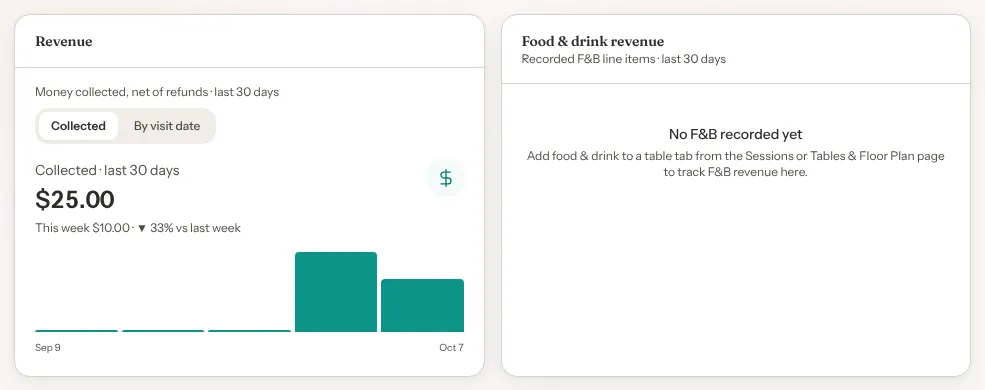
The Revenue card shows what guests paid online for their bookings, less refunds. Switch between two views at the top of the card:
- Collected groups the money by the day it was taken. The line under the total compares the latest week with the week before, for example "▲ 12% vs last week". On Year the bars are months, so it compares months. If the week before had nothing, it reads "No revenue last week". On Week there is only one bar, so it reads "No prior week to compare".
- By visit date groups the same money by the visit it paid for. Bars after the dashed line (Today, or Month end on Year) are hatched: money already paid for visits that haven't happened yet, as far ahead as guests can book.
Each bar is a week, or a month on Year. Hover over a bar to see its amount.
If your venue doesn't take online payments, the card reads "No online payments yet". The venue owner also gets a Connect Stripe in Settings link to the Stripe card, once online payments are open for your venue; nobody else does, since only the owner can connect Stripe. To start taking deposits or full payment when guests book, see Connect Stripe and take booking payments.
Food & drink revenue
Food & drink revenue adds up the food and drink your team puts on a table's tab, from Sessions or a table on Tables & Floor Plan, by the day each item was added. It is kept apart from booking revenue. Until anything is added, it reads "No F&B recorded yet".
Payments
Until your venue's Stripe account is active, a card in its place reads "No online payments yet". The venue owner sees "Connect Stripe to see payment analytics" instead, with an Open Stripe settings link, once online payments are open for your venue.
When your venue's Stripe account is active, a Payments section follows. It shows charges as Stripe sees them, before refunds:
| Number | What it counts |
|---|---|
| Gross revenue | Successful card charges taken in the period, before refunds. The line under it shows how much was refunded. |
| Refund rate | How many of those charges were refunded, in full or in part, as a share of all of them. |
| Pending payout (est.) | Charges from the last 7 days with no refund. It's an estimate: your Stripe balance and payout schedule have the real figure. |
| Avg booking value | Gross revenue divided by the number of charges, before refunds. It's higher than the Overview tile when you have refunds. |
| Revenue trend | Charges per day, or per week on Quarter and Year. |
Payments counts days in UTC, not your venue's time zone, so a late-evening charge can land on the next day's bar. On Year it shows the last 90 days. If your Stripe account can't pay out yet, a note says so until Stripe finishes checking your details.
Booking trends
This tab starts with the same No-Show Rate tile as Overview, then three cards.
Occupancy
A grid with a row for each day of the week and a column for each hour you're open. The darker the square, the more of your tables were in use then. Hover over a square to see its percentage, such as "Fri 7p: 82% occupied".
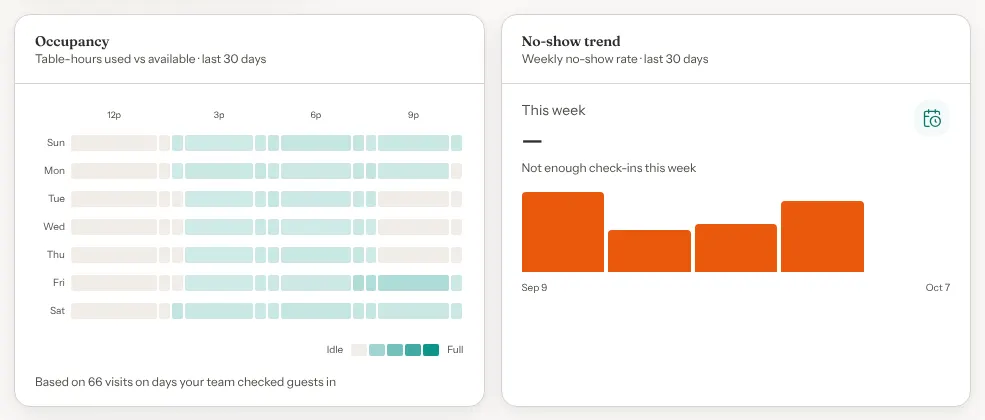
- It counts bookings marked arrived, seated or completed, from their booked start to booked end time, as one table each.
- It compares them with your opening hours and the number of tables you have now.
- Each square is averaged over the dates that hour actually had guests, so it shows how full you are when you're busy, not across every week.
- It only counts days your team checked guests in. See Check guests in.
If you haven't set opening hours or added tables, the card says so and links to the right page: Hours & Closures in Settings, or Tables & Floor Plan. Someone who can't open that page sees where it is instead.
No-show trend
Your no-show rate per week, or per month on Year, as orange bars. The number at the top is the latest week or month, with how many bookings it covers. Until that week or month has 20 bookings due on days your team checked guests in, it shows "—" and "Not enough check-ins this week" (or "this month"). Hover over a bar to see its rate and how many bookings it covers. It follows the same check-in rules as the No-Show Rate tile.
Customer split
How many different guests visited in the period, and how many of them are Returning (two or more visits ever) or First-time (exactly one).
- A visit here is any booking dated today or earlier that wasn't cancelled and isn't waiting for payment. No-shows count.
- Guests are matched by email address or phone number. A guest who booked once with only an email and once with only a phone counts as one guest only if another of their bookings had both.
- Guests who booked without an email or phone aren't counted.
This works a little differently from the Visits column on Customers, which matches on email only and counts upcoming bookings. The two pages' numbers won't line up exactly. See Your customer list.
Browse-only sessions
When it isn't zero, a note reads for example "4 browse-only sessions (last 30 days)": table sessions that ended without anyone picking a game. A party your team seated without a game, who never picked one on their table's page, counts here too.
Library health
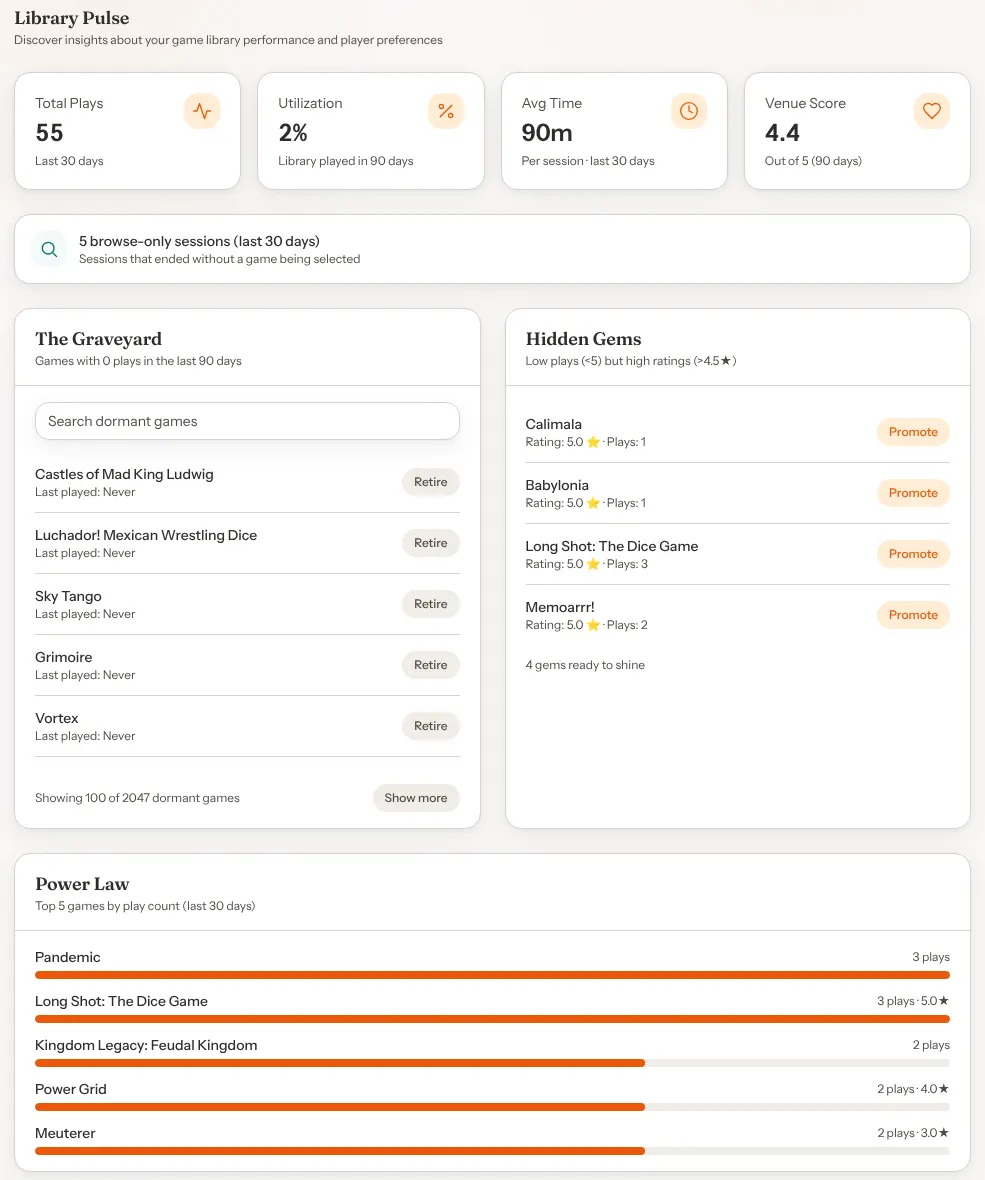
This tab, headed Library Pulse, shows which games get played. A play is a table session with a game on it, whether a guest picked it from the table's QR page or your team assigned it in Sessions. If a table changes game, the session counts for the last game picked.
| Number | What it counts |
|---|---|
| Total Plays | Sessions with a game, started in the period. |
| Utilization | The share of games in rotation that were played at least once in the last 90 days. |
| Avg Time | How long sessions with a game lasted, on average, counted from when the table picked its last game. Sessions under 5 minutes or over 6 hours are ignored. |
| Venue Score | The same as on Overview. |
Then three lists. Click a game's name in any of them to open it in your Library.
The Graveyard lists games in rotation that nobody played in the last 90 days, never-played games first, then the longest untouched, with when each was last played. Search the list by name, and click Show more to load more. Retire takes a game out of play: confirm with Yes, Retire. It stays in your library with the status Retired, and you can put it back in rotation from the Library at any time.
Hidden Gems lists games played one to four times in the last 90 days that guests rated above 4.5 out of 5. Promote makes the game a staff pick, so guests see it highlighted when they look for a game at their table: confirm with Yes, Promote.
Power Law lists your five most-played games in rotation in the period, with how many plays each had and its average guest rating over the last 90 days.
Retire and Promote change your library, so they need Edit on Library. Without it, clicking them says you don't have permission.
Game ratings come from guests who rate the game when they check out of their table. See Guest feedback and reviews.
Good to know
- Numbers are live. Every visit to the page reads your latest bookings and sessions. Bookings are marked completed and no-shows are flagged once an hour, so those can lag by up to an hour.
- There is no export. To keep a record, take a screenshot. Your guest list can be downloaded from Customers.
- Hover for exact figures. Bars and squares show their numbers when you hover with a mouse. On a phone or tablet, use the totals at the top of each card.
- "Unavailable" means GameLedger couldn't load that number just then, not that it's zero. Reload the page.