Games to Set Aside
Pull the games guests reserved before they arrive, tick each one off, and see early when a reserved copy is not free.
Last verified
When guests book a game with their table, the box has to be on hand when they sit down. GameLedger lists every game reserved for today, lets you tick each one off as you pull it from the shelf, warns you early when a reserved copy is not free, and shows staff where every copy is when they hand one out.
Use it at the start of a shift to pull everything in one go, or through the day to pull each game shortly before its party arrives. Nothing needs setting up, and it works with the table QR code your guests already use.
Where to find it
You can reach today's list from three places.
- Dashboard. The Games to pull number in the strip under the greeting. Tap it to open the list. See The Dashboard During Service.
- Coming up on the Dashboard. Each party's reserved game is a chip on their row. You can tick it there.
- Tonight. The Games to set aside group. See Run Tonight From Your Phone.
All three show the same list, so ticking a game on one screen updates the others.

Today's list
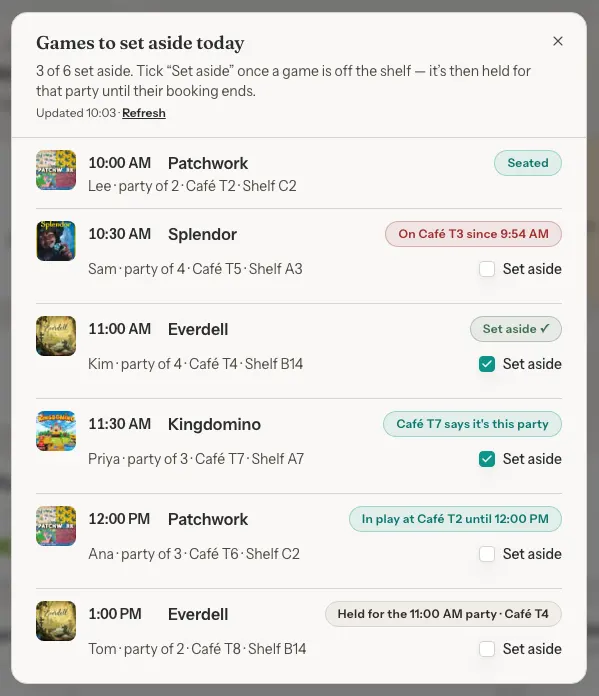
The Games to pull number is how many reserved games still need pulling today. Two parties who both reserved Catan count as two. While any game still needs pulling, the number is orange and says "Set these aside for your reserved guests". Once you have ticked some, that line changes to, for example, "2 of 6 set aside". It stays that way until every game is handled.
Step 1: Tap Games to pull
On the Dashboard, tap the Games to pull cell in the strip under the greeting.
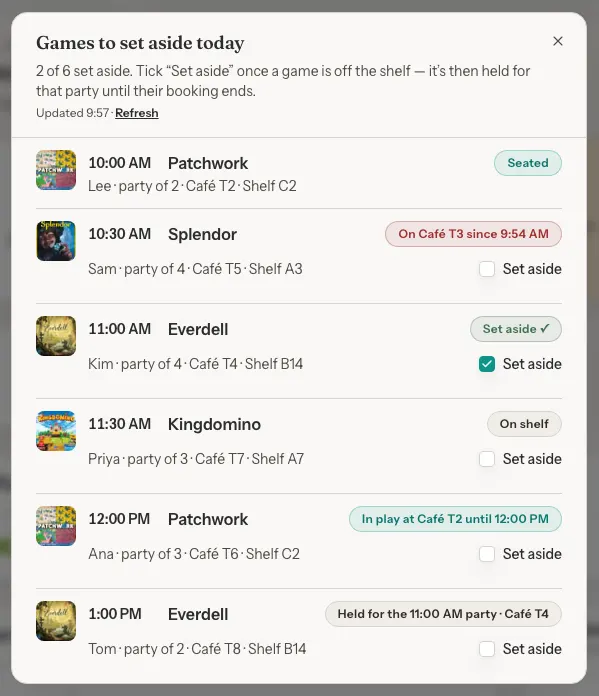
Today's reserved games open in time order. Each row shows the time, the game, the party's first name and size, their table (or "No table"), where the game lives on your shelves, and where the copy is right now.
Step 2: Tap a game's title to open the booking
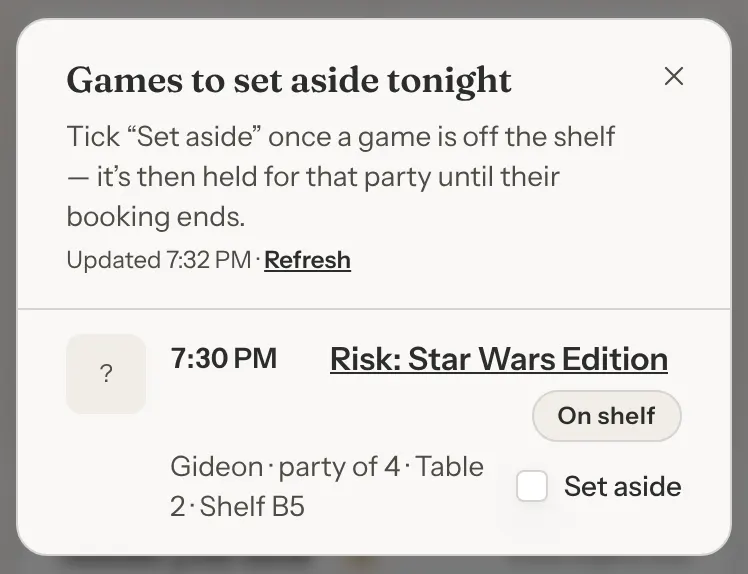
The title is a link. It opens the Bookings page with that party's booking open.
The list opens with the heading Games to set aside today, or Games to set aside tonight from 5 PM. At the top it shows when it was last read, for example "Updated 9:57". Tap Refresh to read it again. The Dashboard's 30-second refresh pauses while the list is open.
Tick them off
Pull the box, then tick Set aside. A tick holds the copy from that moment until the booking ends. If it is your only free copy, walk-in tables cannot start it in the meantime. Without a tick, GameLedger holds the copy automatically from shortly before the booking. See the timings below.
Step 1: Take the game off the shelf
Put it somewhere safe for the party.
Step 2: Tick Set aside
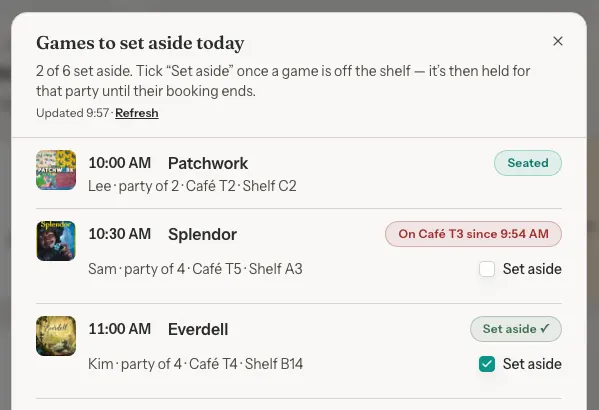
In the list, tick Set aside on that row. The row reads Set aside ✓ and the count goes up, for example "2 of 6 set aside". Parties already seated with their game, or who have claimed it at their table, count too.
From the moment you tick, the copy is held for this party until their booking ends. If it is your last free copy, guests at other tables see it as reserved and are asked whether it is their party before they can start it.
Step 3: Untick it if you change your mind
Put the box back and untick it. The copy is free again for other tables, unless the party's arrival is close enough that GameLedger is already holding it for them automatically.
Tick from Coming up
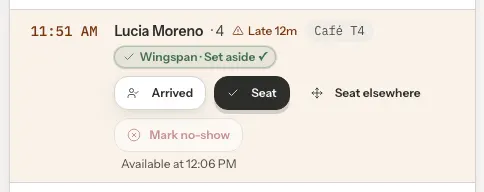
On the Dashboard, a party's reserved game also shows as a chip in Coming up. If it reads On shelf, pull the game and tap the chip. It changes to Set aside ✓, and Games to pull goes down by one. Tap it again to undo.
When everything is ready
Once every reserved game is set aside, or the party already has it at their table, the Games to pull number reads 0 and turns green, with, for example, "5 of 5 set aside" beside it. A ticked row that shows a problem, such as the copy still being out at another table, is not counted until the problem clears.
Read the status
Every row has one status. It updates when you open the list, after every tick, and when you tap Refresh. Tables show with the names from your floor plan.
- On shelf
- A copy is free. Pull it and tick Set aside.
- Set aside ✓
- Pulled. Held for this party until their booking ends.
- In play at Table 2 until 6:00 PM
- Another table has it, and finishes before this party arrives. Collect it then.
- Held for the 5:00 PM party · Table 4
- An earlier reservation has the copy first, and it is back in time. If the label is amber or red, that booking runs past this one's start, so plan another copy or a swap. When two bookings start at the same time, it reads Held for another 5:00 PM party.
- On Table 7 since 6:12 PM
- Another table has it and may not finish before this party arrives. It turns red once the game is held for this party, or once you tick the row. Ask for it back, or plan a swap.
- Table 5 says it's this party
- Guests at Table 5 tapped Yes, that's us on their QR page. Seat the booking to confirm them.
- On their table (Table 3) since 6:12 PM
- The game is at this party's own table, but the booking is not seated. It is probably them, so seat the booking if it is.
- Played at Table 8 · left 9:40 PM
- They played it and checked out. The copy stays held until the booking ends, and the row says so. A seated party's copy is free as soon as their table checks out.
- Seated
- You seated the booking, so their table has the game. No tick box.
- Ended 9:00 PM
- The booking has ended. It counts as done. No tick box.
- Out of service
- The game is out of rotation, marked Problematic, or hidden for missing pieces. Fix the game or contact the party.
- Can't check right now
- GameLedger could not read where copies are. Ticks still work. Try Refresh.
Early warnings
A warning in Needs you now, up to 90 minutes ahead
If a party arriving in the next 90 minutes will not have their game, Needs you now on the Dashboard says so and names where the copy is, for example "Splendor is reserved for Sam's party at 10:30 AM. Its only copy is on Café T3 (since 9:54 AM)". Within 30 minutes of the booking it becomes urgent. The alert clears by itself once the copy is free.
Step 1: Open the booking or notify the table
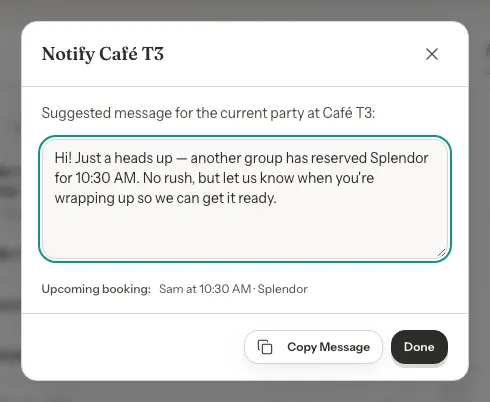
Tap View booking to open the reservation. Or tap the button named for the table that has the game, for example Notify Café T3.
Step 2: Read out the suggested message
The Notify window shows a suggested message for that table. Read it out or tap Copy Message, and edit it first if you like. GameLedger does not send it anywhere. The message mentions the game and when it is needed, never the other party's name. The booking line below the message is just for you.
You also get an alert when a reserved game has been taken out of rotation or flagged in the Library, even if you had already set it aside. Its button is View in Library. When a guest has claimed the reservation at a table, or the game is already being played at the party's own table, you get a quieter row instead, so you can seat them.
Library changes ask first
In the left menu, choose Library. A change that would leave upcoming reservations without their game asks before it saves. That covers taking the game out of rotation, marking it Problematic, hiding it for missing pieces, or lowering its copies below what overlapping bookings need.
Step 1: Make the change
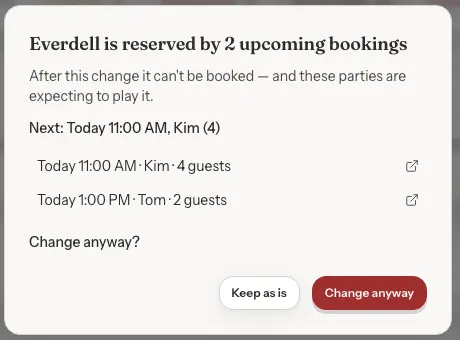
For example, open a game with Edit game and set Condition to Problematic. A window says, for example, "Everdell is reserved by 2 upcoming bookings", and lists up to five of them, soonest first. Each one opens in a new tab.
Step 2: Choose Keep as is or Change anyway
Tap Keep as is to leave the game unchanged, or Change anyway to save.
Games flagged in the Library also show a "Reserved by 1 upcoming" label under Games to fix in the Dashboard's Back office, so you can see which problem games guests are waiting on.
Handing out games
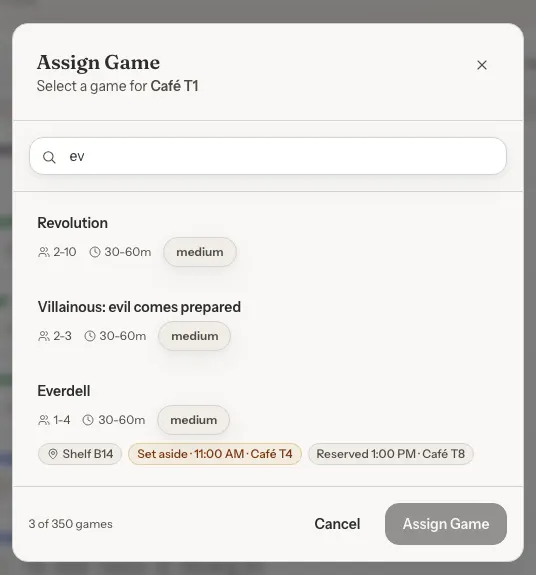
When you assign a game to a table, from Sessions or from the Dashboard, each game in the list shows where its copies are.
- Shelf B14
- Where the game lives, when you have set a shelf location.
- 1 of 1 out · Table 7
- How many copies are in play, and at which tables.
- Reserved 7:00 PM · Table 4
- An upcoming reservation of this game, soonest first.
- Set aside · 7:00 PM · Table 4
- A reservation you have already ticked.
- +2 more today
- More reservations of this game than fit on the line.
Games with a free copy come first. If every copy is spoken for, GameLedger asks before assigning, and you can still go ahead. A reservation whose party already played and left reads, for example, "Reserved 7:00 PM · Table 4 · already played". Its copy stays held until their booking ends.
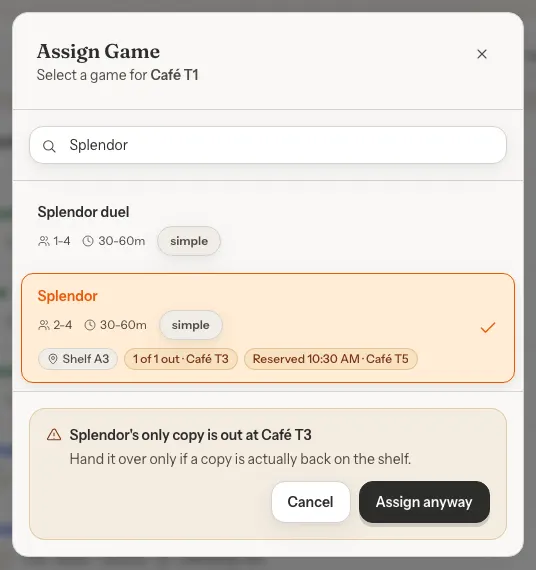
When the reservation is for this very table
If the game is reserved for the table you are assigning, the warning says so and offers Seat their booking. If you cannot edit bookings, it asks you to get someone who can seat them. Seating links the party to their reservation, so their copy is not held twice.
Change a playing table's game
In the left menu, choose Sessions. Under Live sessions, a table that is already playing has Change game. Tap it to pick a different game. The table's current game is marked Now playing in the list.

More than one table waiting for a game
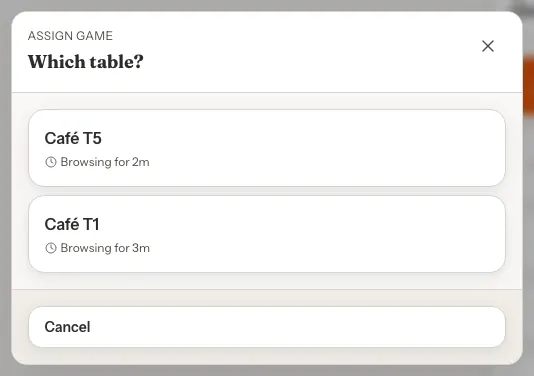
On the Dashboard, Assign game asks Which table? first when several tables are browsing.
What your guests see
Guests never see another party's name. They see the time and table a game is reserved for.
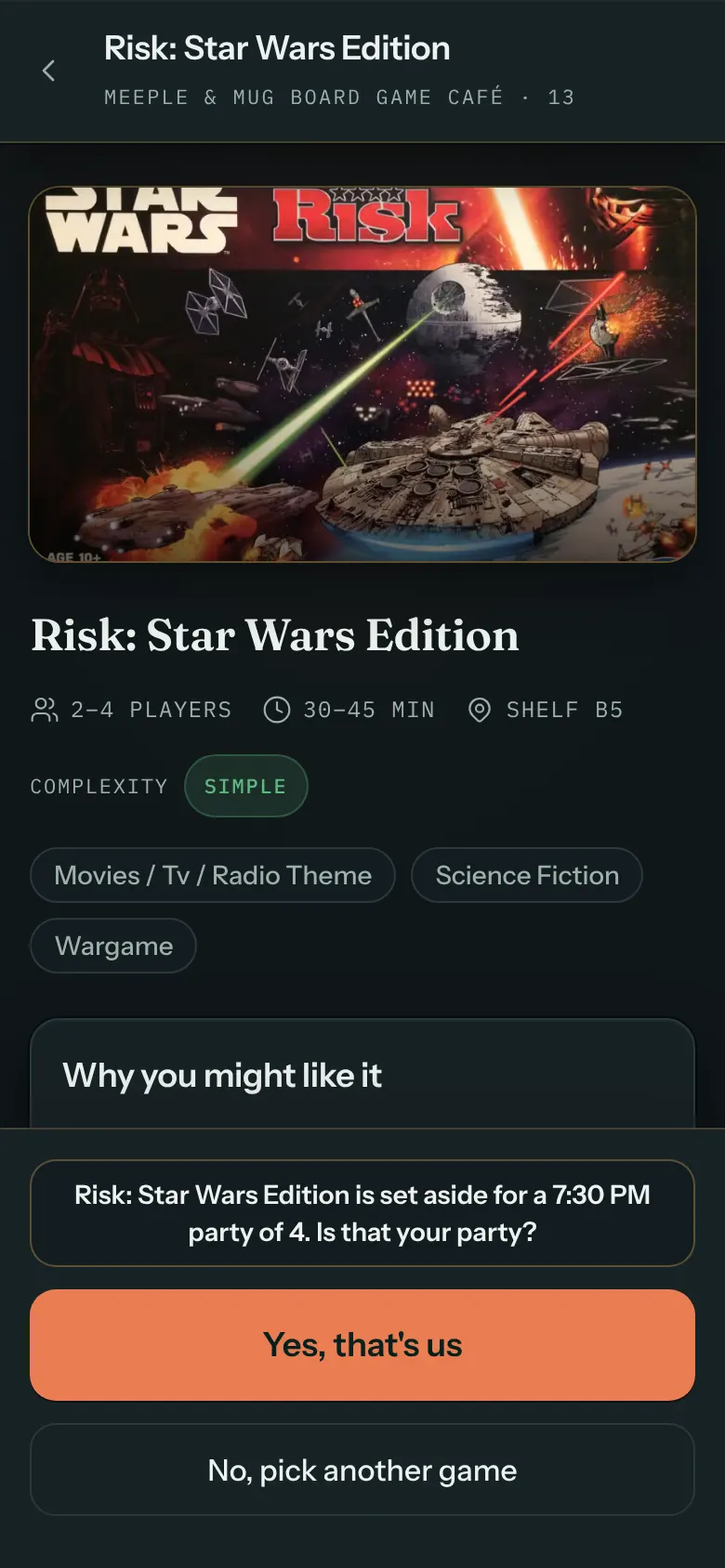
- At the reserved table itself, the page asks as they scan in, with Yes, start Everdell and No. It asks from the game's pull time until the booking ends, while the table has no session or is browsing. The pull time is about an hour before the booking, longer for long games, up to 3 hours.
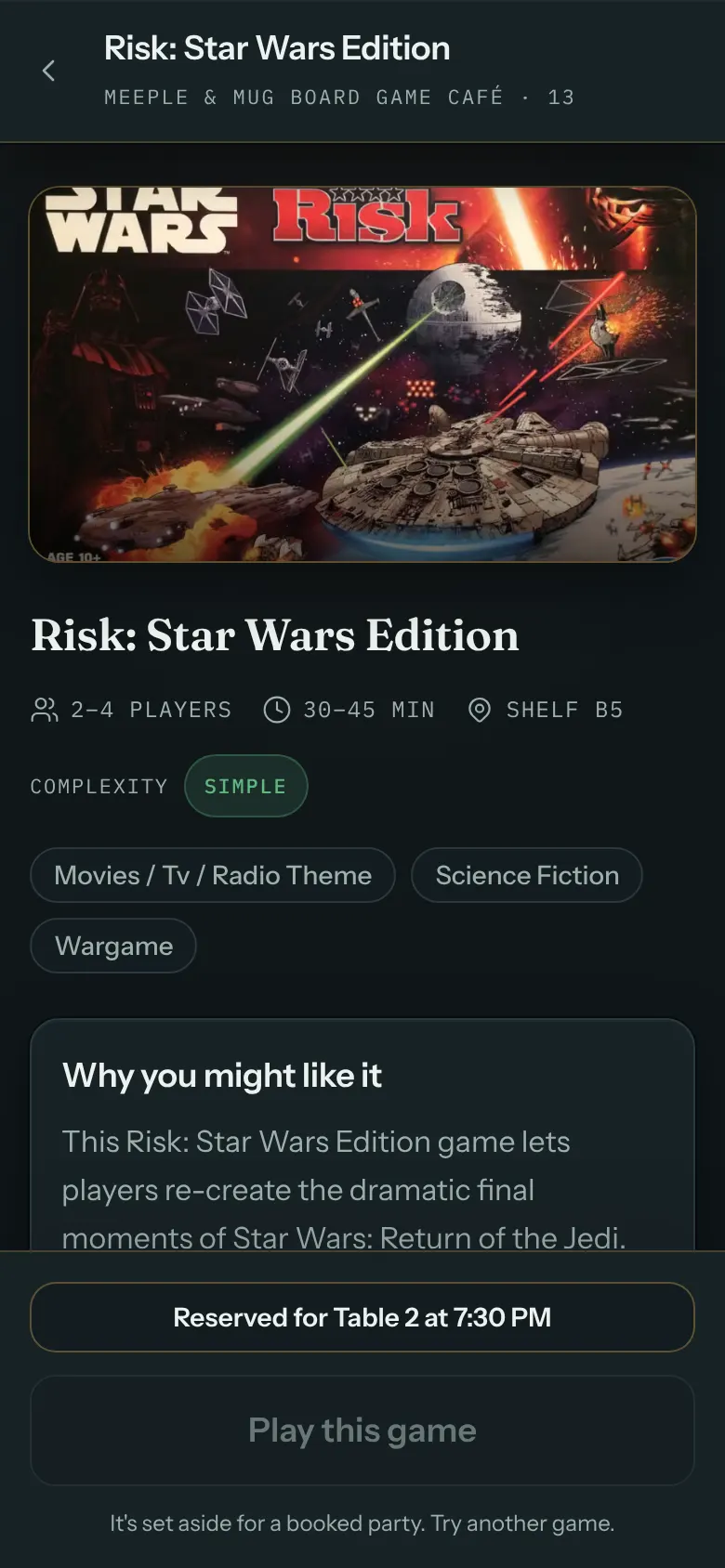
- In the game list, a game whose last free copy is reserved shows Reserved · 11:00 AM. Once the booking has started it reads Held · until 1:00 PM. On the game's own page, the longer wording reads Reserved for Café T4 at 11:00 AM, then Held for Café T4 until 1:00 PM.
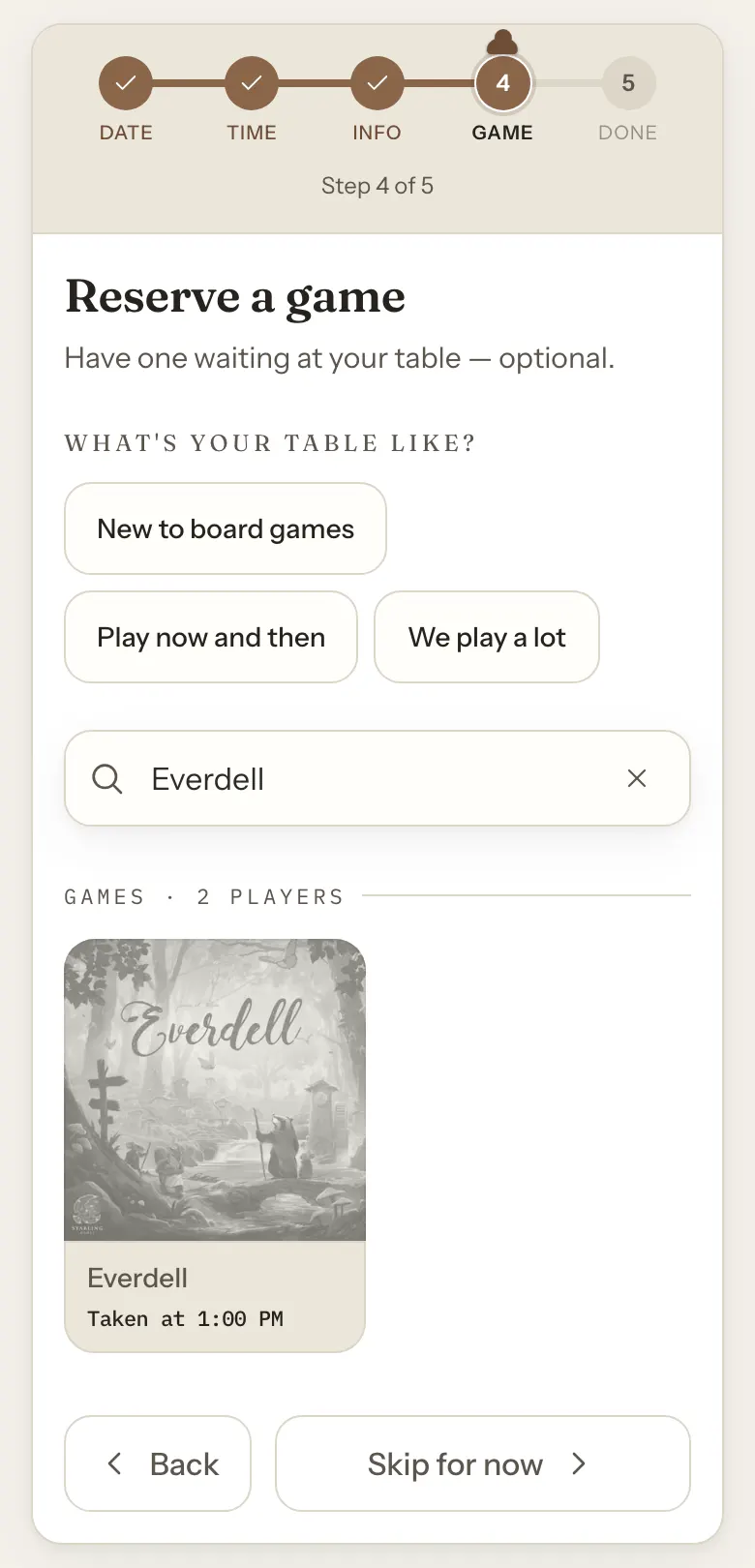
- When guests book online, a game that is already taken at the time they chose is marked Taken at 1:00 PM, so they can pick another.
Timings and permissions
These timings are built in. There is nothing to set up.
| Option | What it does | Default |
|---|---|---|
| Automatic hold | A reserved game is held from 60 minutes before the booking. Longer for long games: up to the game's play time, at most 3 hours. It ends when the booking ends. | Default: On, 60 minutes before |
| Set aside hold | From your tick until the booking ends. Unticking releases it only until the automatic hold starts. | Default: From your tick |
| Warning in Needs you now | Appears when a party arriving soon will not have their game. Urgent within 30 minutes of the booking. It clears itself. | Default: 90 minutes before |
| Who sees the list | Staff with View on Bookings. Everyone else sees the count only. | Default: Staff with View on Bookings |
| Who can tick | Staff with Edit on Bookings. Assigning and changing games needs Edit on Sessions. | Default: Staff with Edit on Bookings |
| Guest names in alerts | First names only, shown to staff with View on Bookings. Everyone else sees something like a party of 4. | Default: First names only |
Good to know
- Yes, that's us is on trust. Guests are not asked for a code. Every claim shows in your list, and you confirm by seating the booking.
- If guests claimed their game with Yes, that's us and you never seated them, the copy stays held for their booking until its end time, even after they leave. Seated parties free their copy when their table checks out.
- The list covers today only. Ticks do not carry over to another day, and a tick drops if the booking's game changes.
- Only confirmed reservations that include a game appear, including arrived and seated ones. A booking still waiting for payment appears, and holds its game, once it is confirmed.