Managing bookings
Find a booking, add one for a guest who phoned, move or lengthen it, check the party in and finish or cancel it from the Bookings page.
Last verified
The Bookings page is where you look after every reservation at your venue. From here you find a booking, add one for a guest who phoned, change its time or table, check the party in, and finish or cancel it. Hosts use it all through a shift, and owners use it too, to look ahead and tidy up.
During a busy service, the Dashboard and the Tonight screen put the next few arrivals in front of you. See The Dashboard During Service and Run Tonight From Your Phone. This page covers everything else.
Where to find it
Click Bookings in the menu on the left. A number next to it counts the parties due in the next hour.
At the top of the page you see:
- Bookings: Live (or Bookings: Paused). This shows whether guests can book online right now. Click it to open the booking settings. If bookings are on but a payment policy you saved asks guests to pay at booking while Stripe isn't active, it reads Bookings: Can't book online instead of Live, and clicking it opens Deposits & Payment. The Share booking link window and an empty List say the same, with a link to where you fix it.
- Configure booking rules, a link to the same settings.
- How this page works, which opens this guide.
- Three view buttons: Timeline, List and Waitlist.
- Share booking link, which shows your public booking link to copy.
- New Booking, for adding a booking yourself.
The views
Timeline
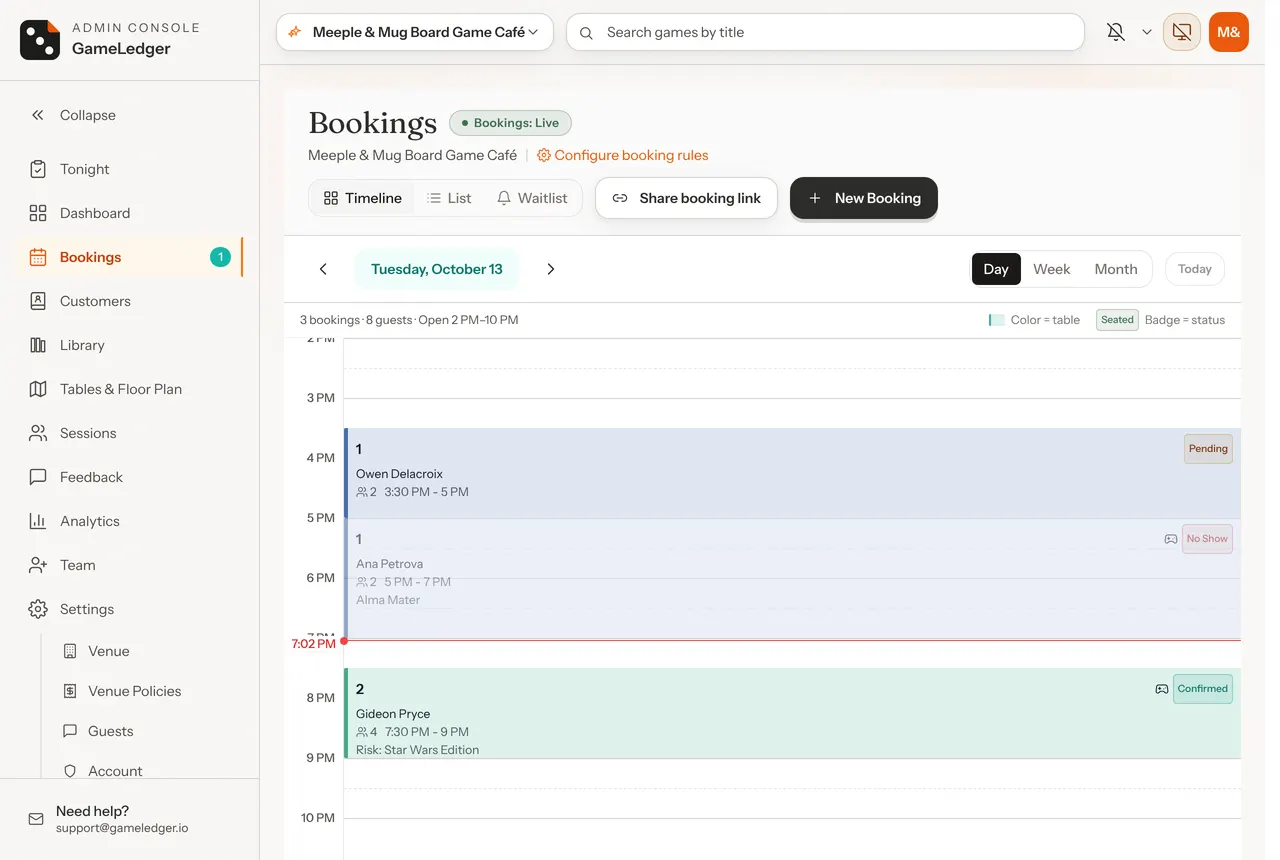
Timeline opens first. It shows one day on a clock that runs down the page, with each booking as a block at its start time. Bookings at the same time sit side by side. The colour of a block tells you its table, and the badge on it gives its status. A red line marks the time now.
Above the blocks, a line sums up the day, for example "14 bookings · 52 guests · Open 12 PM–11 PM". If two bookings overlap on the same table, a red bar at the bottom says how many conflicts there are.
Use Day, Week and Month at the top right to change how much you see. Week shows seven days from Sunday. Month shows how busy each day is. Click a day in Month to open it in Day.
List
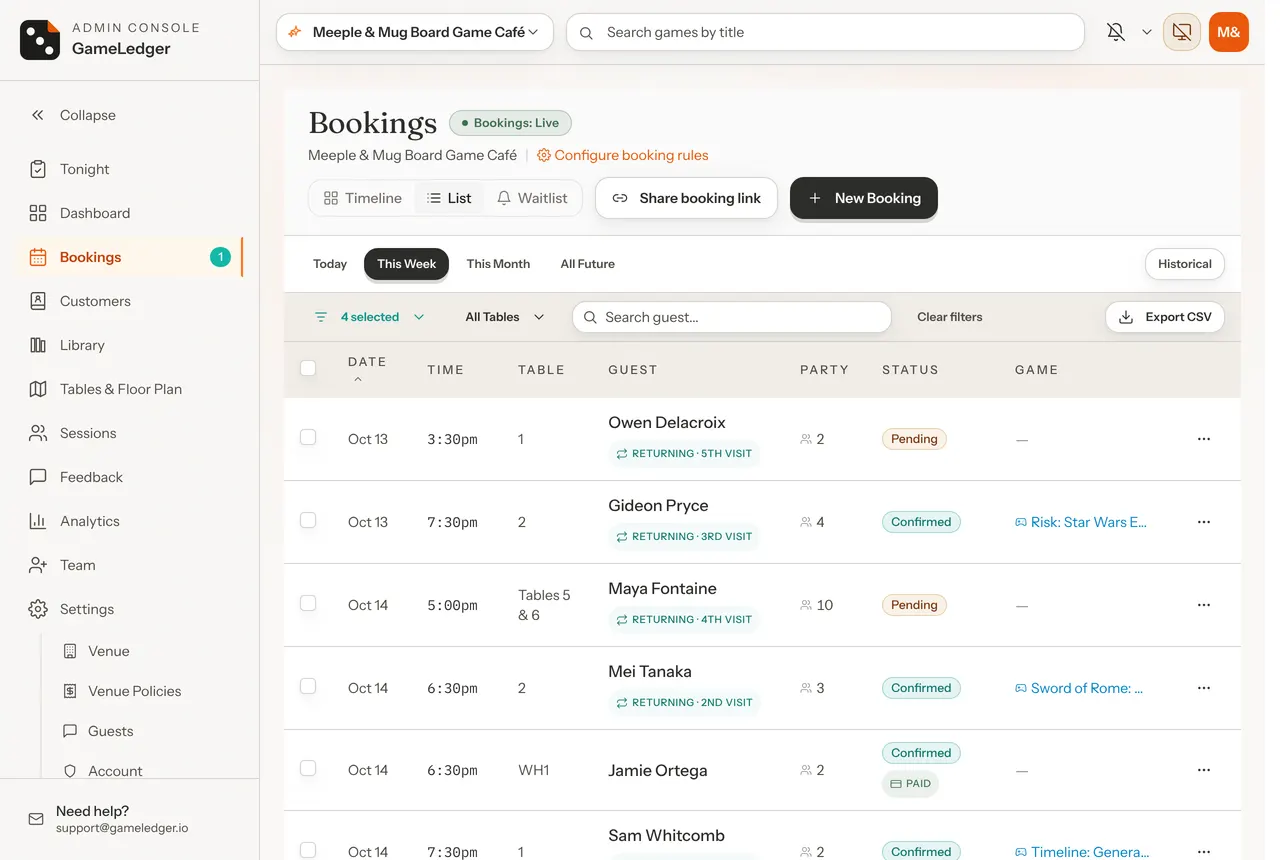
List shows bookings as rows: Date, Time, Table, Guest, Party, Status and Game. A small icon before a name, such as a party popper for a birthday, marks a special occasion. A Returning badge shows a guest's second or later visit. The line at the bottom says how many bookings match, for example "Showing 25 of 61 bookings". More rows load as you scroll.
Use List when you want to search, filter, cancel several bookings at once, or export.
Waitlist
The Waitlist button opens your waitlist for the day you are viewing. See The waitlist.
Find a booking
On the Timeline
- Use the arrows either side of the date to go back or forward one day.
- Click the date itself to pick any day from a calendar.
- Click Today to come back to today.
- Click a block to open that booking.
In the List
Step 1: Choose a date range
Click Today, This Week, This Month or All Future. This Week is selected when you open the list, and covers today and the next seven days. Historical shows everything before today.
Step 2: Narrow it down
On the row below:
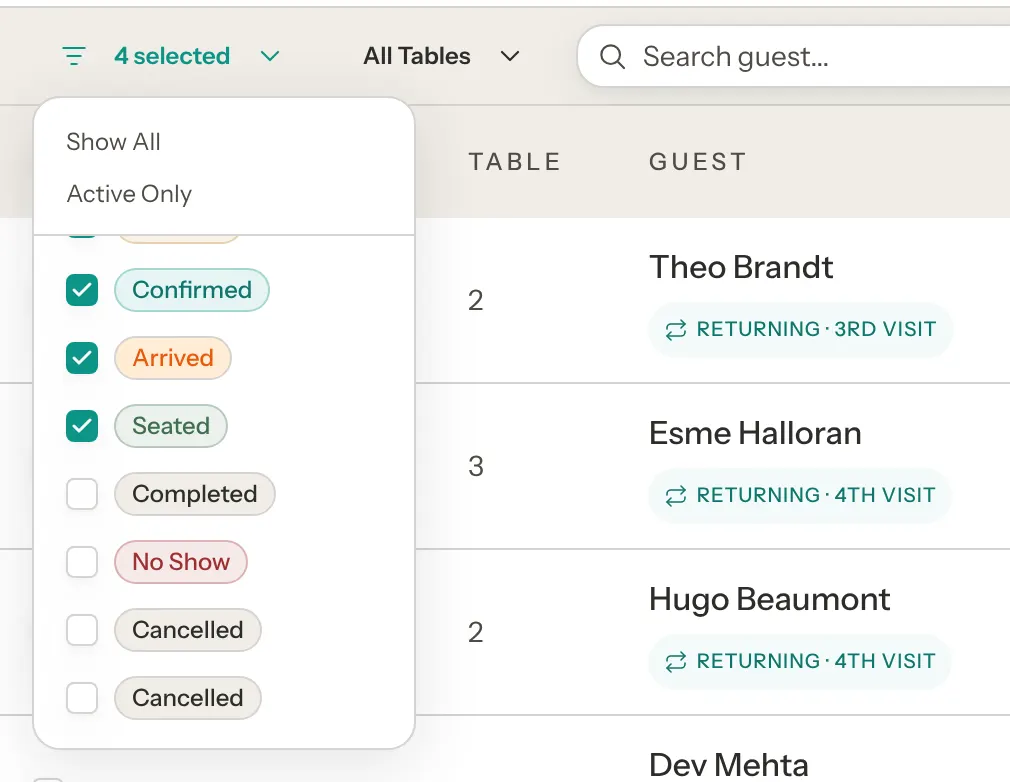
- All Statuses lets you tick the statuses you want. Active Only picks Pending, Confirmed, Arrived and Seated. Show All clears it. There are two Cancelled boxes: the first is cancelled by the guest, the second by you. An unpaid online booking that GameLedger cancelled counts as cancelled by you.
- All Tables lets you pick one table.
- Search guest... finds bookings by the guest's name. Part of a name works.
Clear filters appears once you have filtered. It also puts the range back to This Week.

Step 3: Open it
Click a row. The booking opens in a panel on the right.
The newest date is at the top; click Date to put today first. You can also sort by Guest or Status: click the heading, and click again to reverse the order.
Read a booking
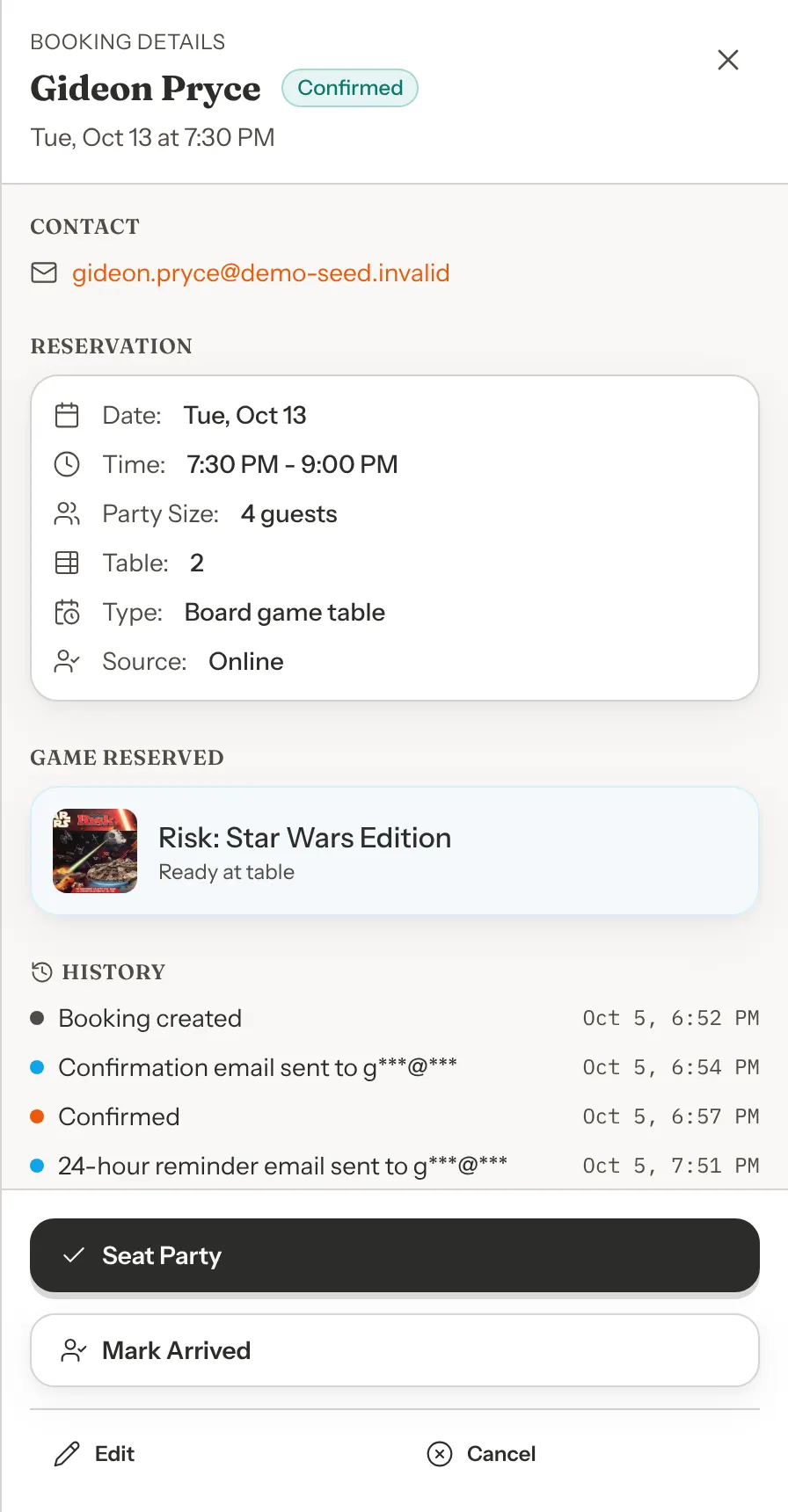
The panel shows the guest's name with the booking's status, then the date and time. When the guest gave an email, click their name to see them on the Customers page. Below that:
- Contact: the guest's email and phone.
- Reservation: Date, Time, Party Size, Table, Type (the reservation type), Source (Online, Phone or Walk in) and Occasion, if one was set. If you use seating tags, a tagged booking also has a Seating line, and labels such as Preference not met or Add 2 chairs can show. See What your team sees and, for chairs, Extra chairs.
- Game Reserved: the game they asked for, if any, and whether they want the rules taught.
- Notes: the note the guest can see. See Booking notes.
- History: every step so far with its time, such as "Booking created", "Confirmed" and "Guest arrived", plus changes made to the booking.
The buttons at the bottom change with the booking's status. The next sections cover them.
Add a booking for a guest who phoned
Step 1: Open New Booking
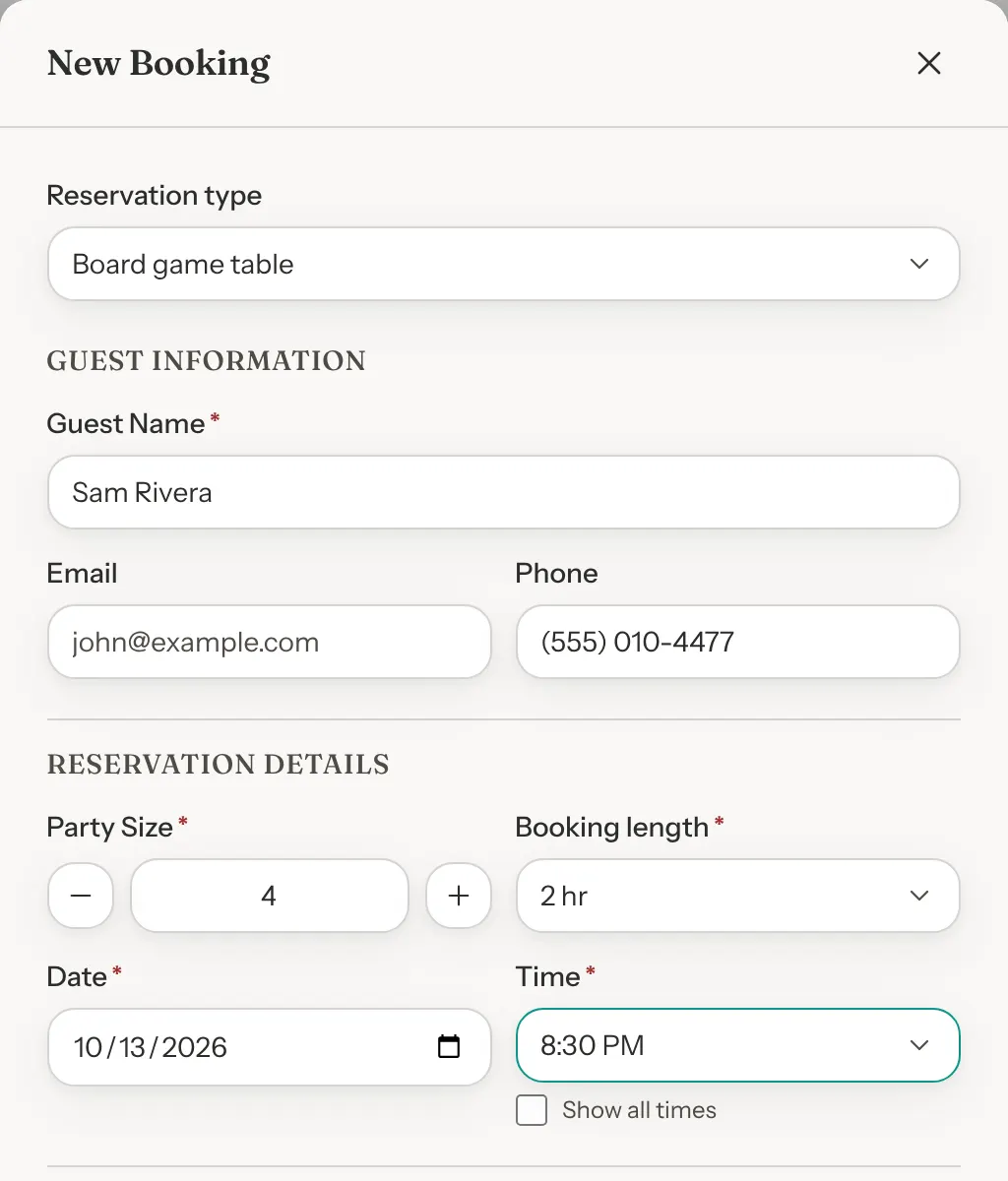
Click New Booking at the top of the page. The New Booking window opens. If you have more than one reservation type, choose one in Reservation type first. The first type in your list is picked to start.
Step 2: Enter the guest
Type the Guest Name, then an Email, a Phone number, or both. You need at least one of the two.
If the email matches a guest with earlier bookings, an empty name or phone is filled in for you. From their second booking on, a line such as "Returning guest — 3 visits, last Sep 12." appears.
Step 3: Set the party, length, date and time
Set Party Size with the minus and plus buttons, or type it. Choose a Booking length. Pick Other… to type a length in minutes, in 15-minute steps, up to 24 hours. Date starts on the day you are viewing and cannot be in the past. Today means your venue's today, in your venue's time zone, even if your computer is set to another one. Choose a Time. The list follows your opening hours for that date and reservation type, in the same steps guests see, and only offers times that end by closing for the length you chose. If you are closed that day, or no time fits the length, the form says so. To book outside your hours on purpose, tick Show all times: it lists every 15 minutes of the day. A time marked "outside opening hours" starts while you're closed, and one marked "runs past closing" starts while you're open but ends after you close. Times that would run past midnight for the length you chose aren't listed.
Step 4: Pick a table
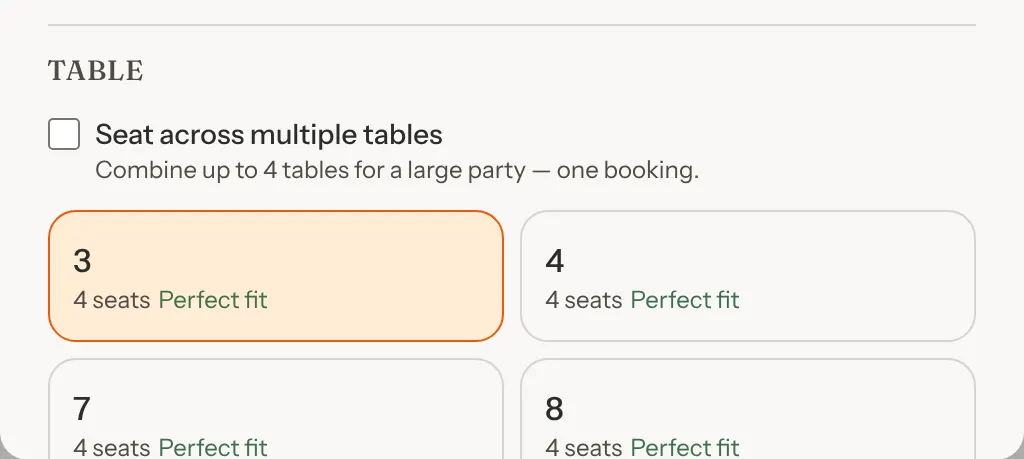
Once you have a date and time, the Table section lists the tables that are free for the whole booking and fit the party. Perfect fit means the table seats exactly the party, and Tight fit, in orange, means it has one seat to spare. Click a table to choose it. If you use seating tags, the order follows the booking's tag: see Bookings your team makes.
If no table fits, the window tells you why: the party is bigger than any one table, or the tables that fit are all booked at that time. When your venue allows it, tick Seat across multiple tables to put a large party on several tables in one booking, then click two to four tables until Seats selected reaches the party size.
Step 5: Add the rest
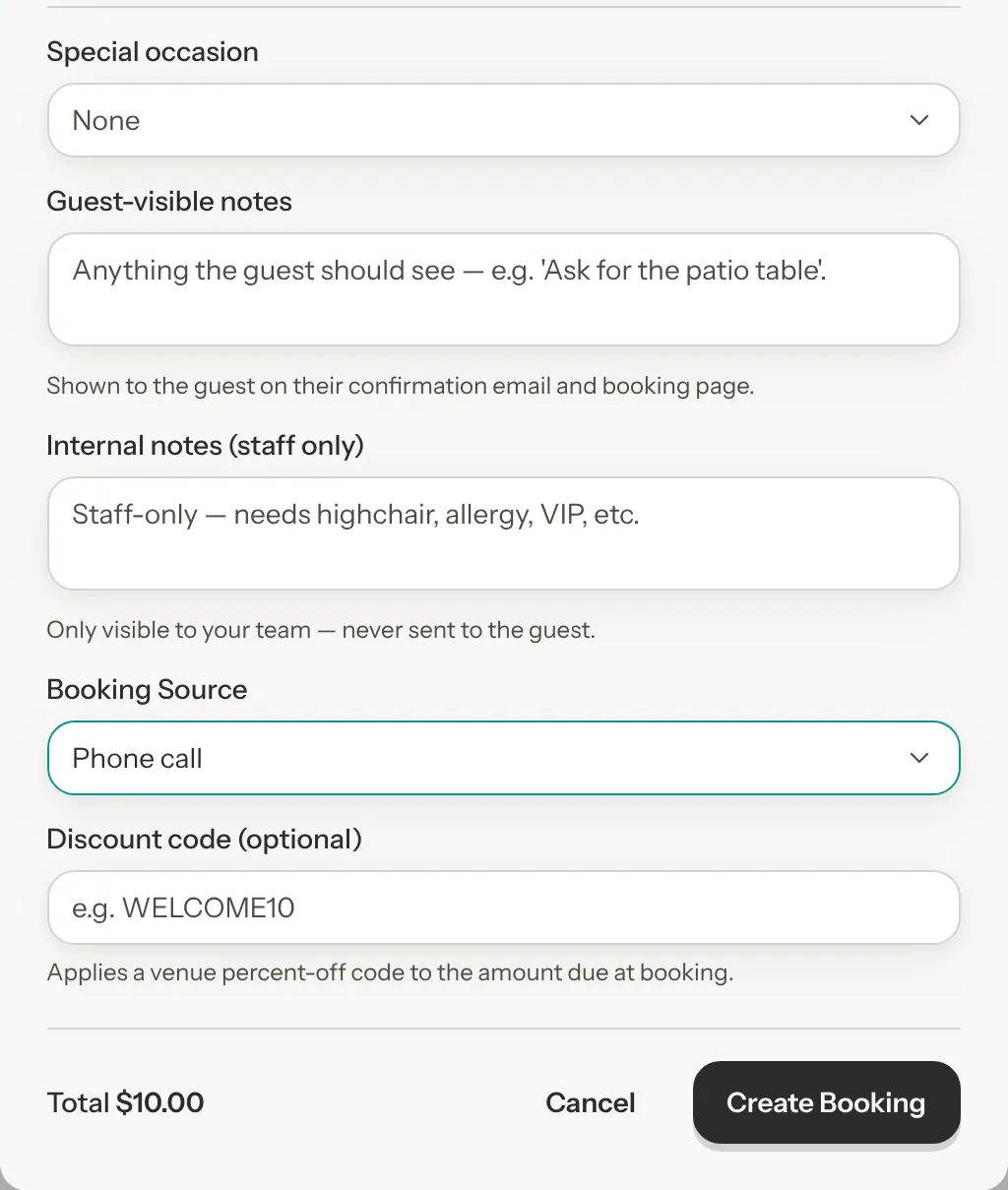
If the guest asked for a game, search for it under Game Reservation (Optional). Then fill in anything else you need: Special occasion, Guest-visible notes, Internal notes (staff only) and Booking Source. Leave Booking Source on Phone call for a guest who phoned.
Step 6: Click Create Booking
Create Booking stays greyed out until the window has a name, an email or phone, a time and a table (or enough seats, for types that sell seats). When you click it, the window closes and the new booking opens in the side panel, so you can check it.
Every field in New Booking
| Option | What it does | Default |
|---|---|---|
| Reservation type | Which of your reservation types this booking is. Only shows when you have more than one. The type sets the booking lengths on offer and whether a game can be picked. | Default: The first type in your list |
| Guest Name | Required. | Default: Empty |
| Needed for the guest to get any email from you. You need an email or a phone. | Default: Empty | |
| Phone | You need an email or a phone. | Default: Empty |
| Party Size | How many people are coming. | Default: 2 |
| Booking length | How long the table is held. Other… lets you type any length in 15-minute steps. | Default: The type's default length (2 hr for a new venue) |
| Date | Your venue's today or later. | Default: The day you are viewing, or your venue's today if that day has passed |
| Time | The start times your opening hours give for that date and reservation type. Show all times lists the whole day, with times outside your hours marked. | Default: None |
| Table | A free table that fits the party. Types that sell seats instead of tables show the seats left at that time instead. | Default: None |
| Game Reservation (Optional) | A game from your library. Hidden for types that do not ask for a game. | Default: None |
| Special occasion | Birthday, Anniversary, First date, Corporate or Other. Shows as an icon in the list and in the side panel. | Default: None |
| Guest-visible notes | Shown to the guest on their confirmation email and booking page. | Default: Empty |
| Internal notes (staff only) | Only your team sees this. | Default: Empty |
| Booking Source | Phone call or Walk-in. | Default: Phone call |
| Discount code (optional) | One of your venue's percent-off codes. It only matters if your venue takes payment at booking. | Default: Empty |
What happens when you save
A booking you add yourself is Confirmed straight away. GameLedger emails the guest a confirmation with a calendar invite if the booking has an email address and Send confirmation email is on. That switch is in Settings → Guests → Notifications, under Email Confirmations, and it starts on. If the booking has only a phone number, the guest gets no confirmation from GameLedger, so tell them the details on the call.
Walk-ins
To seat a party that walks in now, use Seat walk-in on the Dashboard. It finds a free table, creates the booking and seats the party in one go. See Seat a walk-in at the table you choose.
If someone walks in to book for later, add it with New Booking and set Booking Source to Walk-in.
Booking statuses
- Pending
- An online booking waiting for the guest's payment. You only see this if your venue takes payments online. If the guest doesn't pay, GameLedger cancels it about 30 minutes after it was made.
- Confirmed
- Booked and expected. Every booking you add yourself starts here.
- Arrived
- The party is here but not at a table yet.
- Seated
- The party is at their table and the table's session has started.
- Completed
- The visit is over.
- No Show
- The party did not turn up.
- Cancelled
- Cancelled by the guest or by you. The history and the export say which. An unpaid online booking that GameLedger cancelled counts as cancelled by you.
What changes a status
You change most statuses with a button. Some changes happen on their own:
- Pending to Confirmed: happens on its own when the guest pays. The panel's Confirm Booking button is for payment cases, covered separately.
- Confirmed to Arrived: you click Mark Arrived. If you let guests check themselves in, a guest can do it too. See Let guests check themselves in.
- Confirmed or Arrived to Seated: you click Seat Party (or Seat Party Now once they have arrived). This also starts the table's session.
- Arrived or Seated to Completed: you click Done. If nobody does, GameLedger completes the visit on its own. Once an hour it finishes any Arrived or Seated booking whose end time and no-show grace period have both passed, as long as no table session is still open for it.
- Confirmed to No Show: GameLedger does this on its own once an hour, for any booking still Confirmed after its start time plus your no-show grace period. You can also do it yourself with Mark no-show. The grace period is No-Show Grace Period in Settings → Venue Policies → Cancellations & No-Shows (owners and admins see this tab, and team members who can view payments). It starts at 15 minutes.
- No Show back to Arrived: you click Arrived late — restore. This only works on the day of the booking.
- To Cancelled: you cancel it, or the guest cancels from their booking page. GameLedger also cancels an online booking that is still Pending about 30 minutes after it was made, so its table is free again. See A guest says their payment didn't go through.
Check in, seat and finish a party
Open the booking and use the buttons at the bottom of the panel:
- Mark Arrived when the party walks in.
- Seat Party when they sit down. If the booking's table still has someone's session open, GameLedger asks what to do before it seats them. It can offer another free table, such as Seat at Table 6 instead, or offer to end the other session.
- Done when they leave. You confirm with Finish visit, or Not yet to go back. This also ends the table's session, and it cannot be undone. Done shows only for team members who can edit both Bookings and Sessions.
- Mark no-show appears once the start time has passed. Until the grace period runs out it is greyed out, with "Available at" and a time under it, and a line saying how many minutes guests get to arrive first. If you can see payment settings, that line links No-Show Grace Period, where you change it. It asks you to confirm.
- View Session opens the table's session on the Sessions page, once the party is seated.
For types that sell seats, there is no Seat Party: use Mark Arrived, then Done.
You do not always need to open the panel:
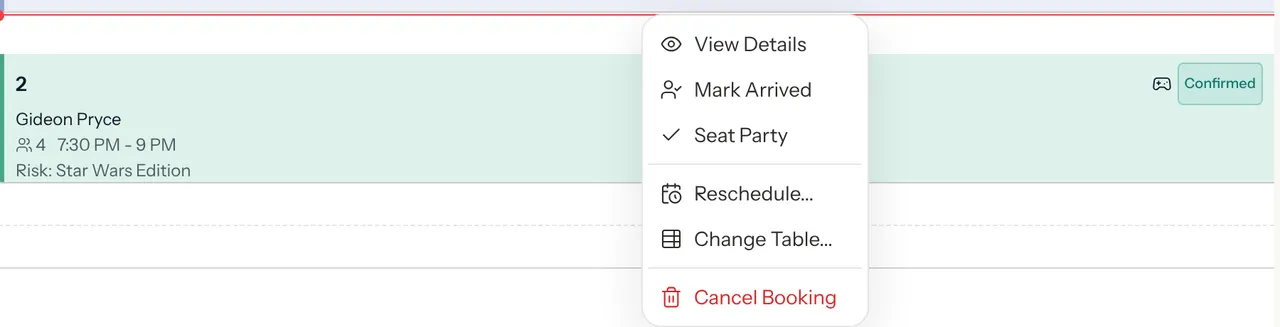
- On the Timeline, hover over a block for quick buttons: Arrived and Seat on a Confirmed booking, Seat Now on an Arrived one. Right-click a Confirmed block for its menu: View Details, Mark Arrived, Seat Party, Reschedule..., Change Table... and Cancel Booking. On a Seated booking it also has Mark complete, which asks you to click a second time. Reschedule..., Change Table... and Cancel Booking open the booking's panel, where you finish the job.
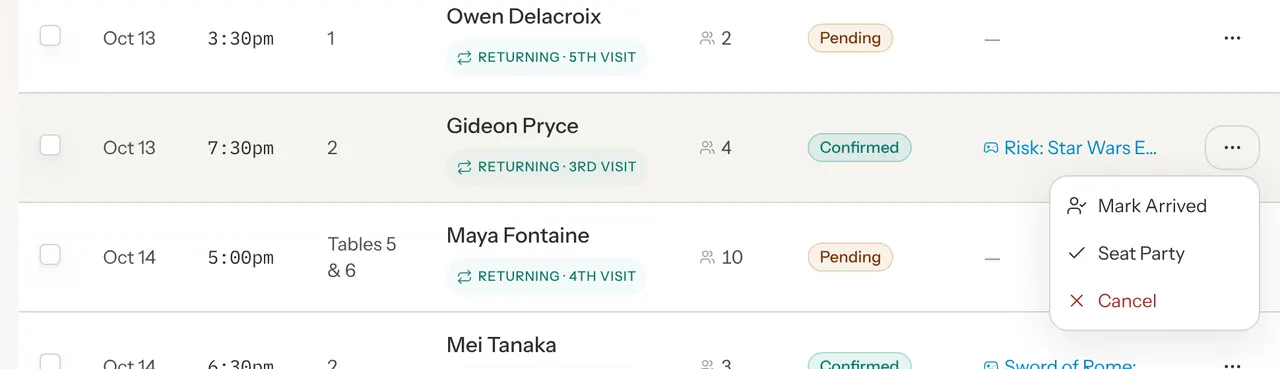
- In the List, click the ⋯ at the end of a row for Mark Arrived, Seat Party and Cancel.
Change a booking
You can change a booking while it is Pending or Confirmed. Once the party has arrived, it can no longer be edited.
Step 1: Open the booking and click Edit
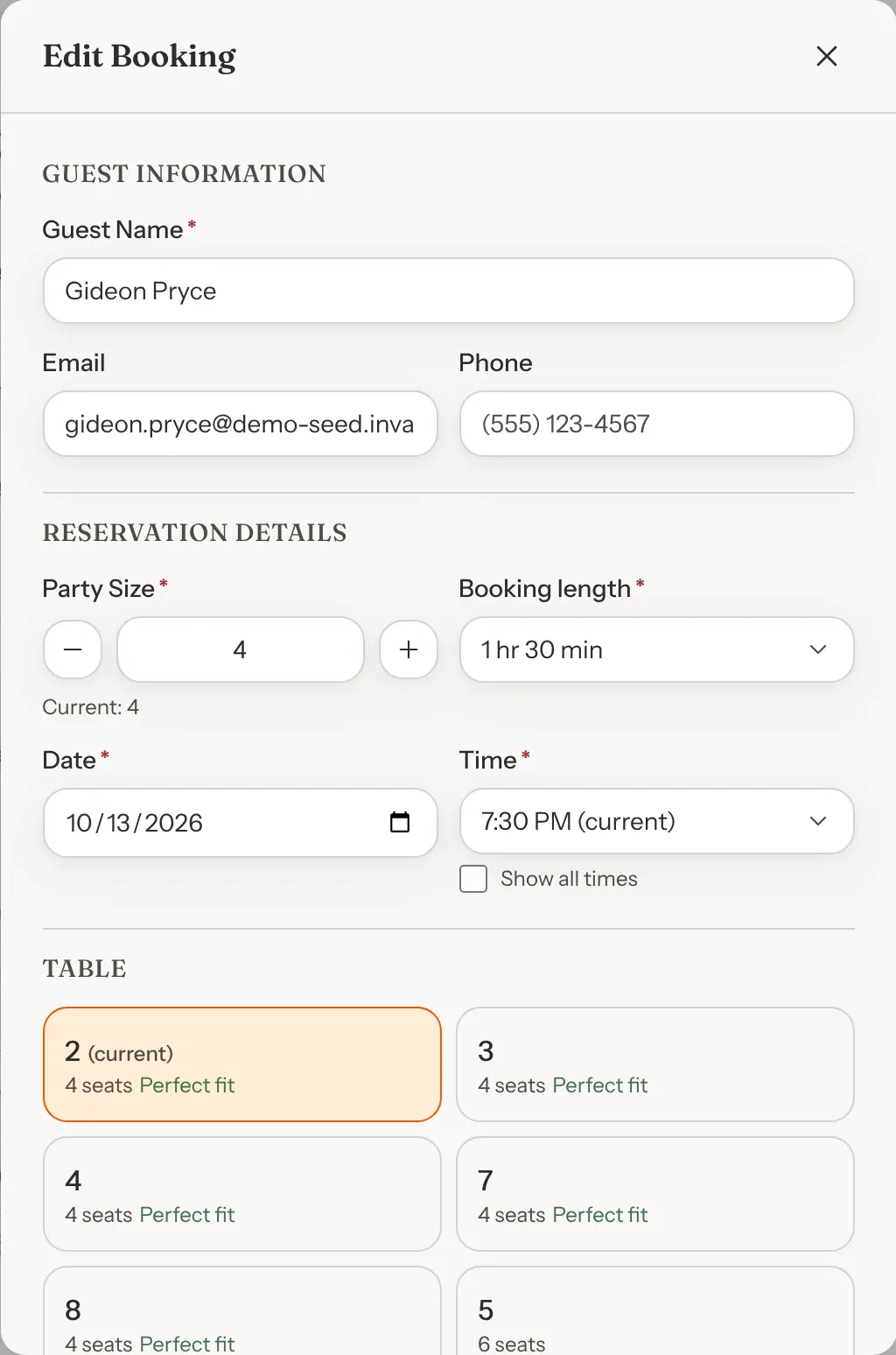
The Edit Booking window opens with the booking's details filled in. It has the same fields as New Booking, apart from the reservation type. "Current" labels show what the booking had before.
Step 2: Make your changes and save
Change what you need and click Save Changes. A message says Booking updated. If you moved the booking to another day, the Timeline jumps to that day and the message reads "Moved to" and the new day instead, for example "Moved to Wed Sep 9 · 6 PM". Click View in the message to open the booking again.
GameLedger does not email the guest about the change. If the date, time or table matters to them, let them know yourself.
When the booking has an amount due
At a venue that takes payment at booking, a booking can carry an amount, for example one your team added for a guest who will pay later. Its Edit Booking window shows Amount due and the amount at the bottom, next to Save Changes. Changing the party size or the booking length can change the price. Moving the booking to another day, time or table doesn't.
- The price changes. The line reads, for example, Amount due $20.00 → $40.00, with "Saving changes the amount due from $20.00 to $40.00." Click Save Changes and the new amount is saved.
- The amount has to stay. Save Changes opens a panel that says why the amount stays, with Back and, for example, Save, keep $20.00. The amount stays when a payment has already been started for the booking (collect any difference at the venue), when you can't manage payments, or when today's prices give the booking no charge. Click Save, keep $20.00 to save your other changes, or Back to keep editing.
- The guest has already paid. The line reads Paid and the amount. Changing the booking doesn't charge or refund the difference.
Changing only the discount code doesn't change the amount due.
Move it to another table
- Before the party arrives: open the booking, click Edit, and choose another table in the Table section. Only tables that are free for the booking's time and fit the party are listed. Change Table... on the Timeline's right-click menu opens the booking so you can do this.
- When you seat them: if their table is still in use, Seat Party offers other free tables, such as Seat at Table 6 instead.
To add tables or change how many people a table seats, see Build your floor plan.
Give a party more time
- Before they arrive: click Edit and choose a longer Booking length, or type one with Other…. Only tables free for the new length are offered.
- Once they have arrived: the booking can no longer be edited. When a seated table asks for 30 more minutes from their table's page, you approve or decline it. See A table asks for 30 more minutes.
Cancel a booking
You can cancel a booking that is Pending or Confirmed from its panel. For an Arrived booking, use the List (see below).
Step 1: Open the booking and click Cancel
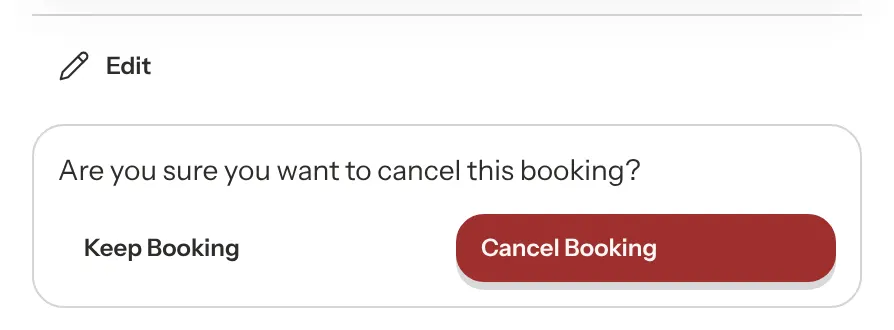
The panel asks "Are you sure you want to cancel this booking?".
Step 2: Click Cancel Booking
Click Cancel Booking to cancel, or Keep Booking to leave it as it is. A message confirms "Booking cancelled".
Other ways to cancel:
- In the List, click ⋯ and then Cancel on a row. A window asks the same question, with Keep booking and Cancel booking. This also works for an Arrived booking, which the panel cannot cancel.
- Several at once: in the List, tick the boxes at the start of the rows, then click Cancel Selected, then Cancel & Refund. Nothing is refunded unless the guest paid. If your venue takes no payments and none of the selected bookings was paid, the button reads Cancel Bookings (or Cancel Booking for one) and the window does not mention refunds.
What the guest is told
If the booking has an email address, GameLedger emails the guest. The subject says their booking was cancelled, with your venue's name. The email apologises that your venue had to cancel, repeats the date, time and party size, and links to your booking page so they can book again. This email goes out even when Send confirmation email is off. A guest with only a phone number is not told, so call them.
If your venue takes payments, cancelling can also refund the guest. Payments and refunds are covered separately.
Booking notes
Each booking has two notes:
| Note | Who sees it | Where you see it |
|---|---|---|
| Guest-visible notes | The guest, on their confirmation email and booking page, and your team | Under Notes in the booking's panel, and in the export |
| Internal notes (staff only) | Only your team. It is never sent to the guest. | In the Edit Booking window, so only while the booking is Pending or Confirmed |
A note a guest writes when they book online is a guest-visible note.
Export the list as CSV
Step 1: Set up the List
Open List and choose the range and filters you want. The export uses exactly what the list shows: the date range button, the statuses, the table and the name search.
Step 2: Click Export CSV
Export CSV is at the right of the filter row. It is greyed out when the list is empty. The file, named with today's date, downloads the matching bookings, not just the rows loaded on screen.
The file has these columns: Date, Time, End Time, Table, Guest Name, Guest Email, Guest Phone, Party Size, Status, Game, Notes, Source and Created At. Notes holds the guest-visible note. Internal notes are not exported. Status says Cancelled (Guest) or Cancelled (Venue) for a cancelled booking. Table lists every table for a booking spread over several tables. Source is Online, Phone or Walk-in. Created At is in your venue's time zone, with the zone's short name at the end. Some zones show as an offset, such as GMT+1, instead of letters.
If you can only view bookings
Your owner or an admin decides what each team member can do. See Team and permissions.
- With view access to Bookings, you can open every view, search and filter, open any booking, and export CSV. Everything else is read-only: the buttons that change a booking are hidden. That includes Confirm Booking, Mark Arrived, Seat Party, Mark no-show, Edit, Cancel, Issue refund, Done and Mark complete, the timeline's quick buttons and every right-click menu item except View Details, the row menu and tick boxes in the list, and the waitlist's Notify, Convert and remove buttons. New Booking is hidden too. Ask a teammate who can edit bookings to make a change for you, or ask your owner for edit access.
- End Session on the timeline follows your access to Sessions, and Send payment link follows your access to Payments.
- Without view access, Bookings, Tonight and Customers are not in your menu. If you open the Bookings page, it says "Access to bookings is restricted" and asks you to ask your venue owner for access.
Good to know
- Search guest... only looks at guest names. It does not search by email, phone number or booking code.
- In Edit Booking, a booking already set outside your hours keeps its time. The list opens with Show all times on and the time marked "(current)".
- A booking that spans more than one table keeps its tables when you edit it. To seat it differently, cancel it and book it again.
- Changing a booking does not email the guest. Cancelling does, if they gave an email.
- The All Tables filter does not find bookings spread over several tables.