Ask or Search Settings
Type what you want to change in your own words and jump straight to the setting, or ask why something happens and get an answer from your own settings.
Last verified
Can't remember where a setting lives? Type what you want to change in your own words, such as "time between bookings" or "reminder emails", and GameLedger shows the settings that match. Choose one and you land right on it, highlighted, ready to change.
The same box answers common "why" questions, such as "why can't a big group book?". It takes you to the setting behind it and explains, from your own settings, why it works that way. Settings cards also have an info button beside their title that tells you what the setting does.
None of this changes anything by itself, and there is nothing to turn on. Owners and team members can both use it.
Where to find it
Open Settings. The Ask or search settings box sits beside the Settings title on every tab, so you can search from wherever you are. On a phone it sits on its own row just under the title.
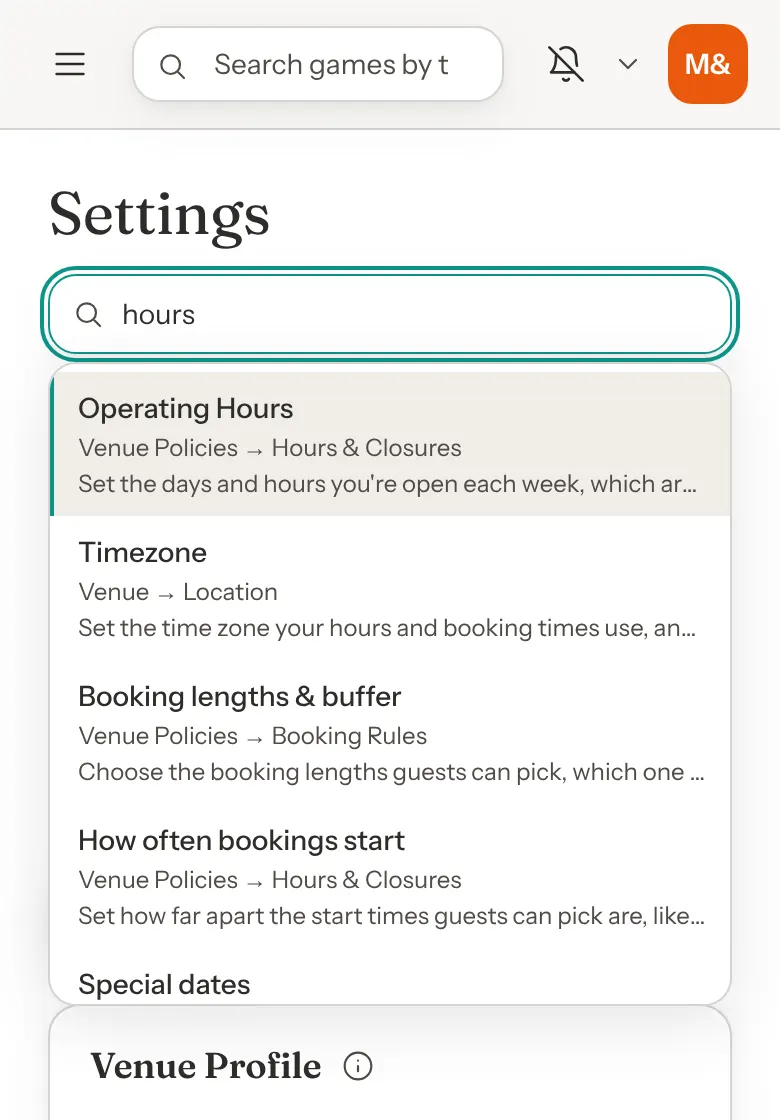
Find a setting
Step 1: Type what you want to change
Click the box and type a few words, for example time between bookings. Short phrases work best.
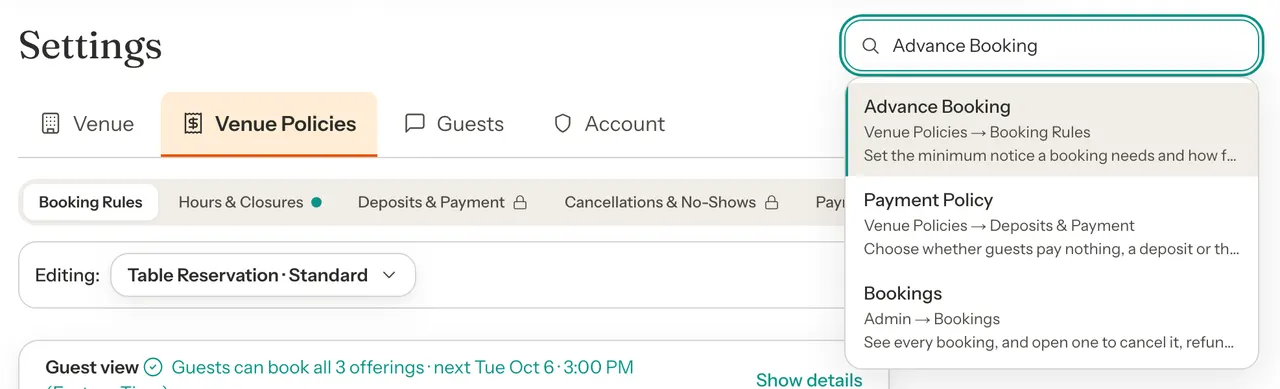
Up to six matching settings appear as you type. Each one shows its name, where it lives (for example Venue Policies → Booking Rules) and one line about what it does.
Step 2: Choose a result
Press Enter to open the highlighted result, or click any result. You can also use the arrow keys to move through the list, and Escape to close it.
Settings opens on that exact setting, scrolls it into view and outlines it in teal for a few seconds so you can spot it.
Step 3: Make your change
Change the setting. Most settings then need that section's Save button. A few switches and buttons, such as turning your games page on or turning on bookings for a type, save as soon as you click them.
If you have unsaved changes
If you search while you still have unsaved changes on the page, GameLedger asks Leave without saving? before it takes you anywhere. Choose Stay to keep editing, or Leave without saving to go to the setting you picked.
Things that live outside Settings
Some tasks happen on other admin pages, like refunding a booking or adding a table. Search for those too. Searching add a table lists Admin → Tables & Floor Plan, and choosing it opens that page.
Settings for one booking type
If you are editing one of your booking types in the Editing bar when you search, a setting that each type can set for itself opens for that type. Settings that apply to the whole venue open with Standard selected. See Setting Up Your Booking Types.
What the results tell you
- A highlighted first result
- It is a clear match. Press Enter to go straight there.
- A list with nothing highlighted
- There is no single clear match. Pick the one you want with the arrow keys or a click. Pressing Enter on its own tells you to choose from the list.
- Admin → a page name
- The task is on another admin page, like Bookings, Tables & Floor Plan or Team.
- Ask the venue owner to change it
- That setting exists, but your role cannot open it. The venue owner, or someone with that permission, can change it for you. For an admin page your role cannot open, the result says Ask the venue owner for access.
- Online payments are coming to your venue soon.
- Deposits, prices, refunds and payment processors are not open to your venue yet. The result is shown so you know the setting exists, but it cannot be opened.
- No setting matches that
- Try a shorter word, or a different word for the same thing. You can also click email us your question to send it to support.
A result you cannot open is shown greyed out, with the reason in place of its description, so you know it exists and who can change it.
Press Enter to look it up
At venues where it is switched on, the box can also work out what you mean when you press Enter, even when your words are nothing like the setting's name, such as stop people booking same day or make private party need a deposit. Results still appear as you type, and you can click one as usual, but none is highlighted until you press Enter.
The box shows Looking… for a moment, then does one of these:
- Took you to …
- It found the setting and opened it, outlined in teal, just as if you had chosen it. A message at the bottom of the screen says where it took you. Click Not it? on that message to bring your question back with the next closest settings.
- The answer to your why question
- You asked why something happens, and it is clear which question you mean. Settings opens on the setting behind it with the answer just above it, as if you had chosen the question yourself. See Ask why something happens.
- Which one did you mean?
- Your question could mean more than one setting. The closest ones are listed first, then the settings that match your words. When you asked why, the likely questions come before the settings. Pick the one you want.
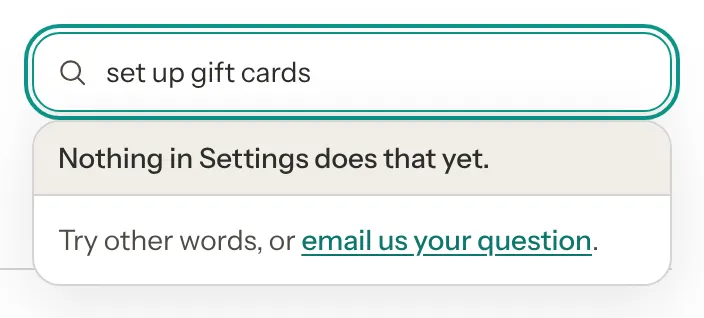
- Nothing in Settings does that yet.
- GameLedger has no setting for that. Any settings that match your words are still listed, and you can click email us your question.
- A greyed-out first result
- It found the setting, but your role cannot open it. The result says why, as described above.
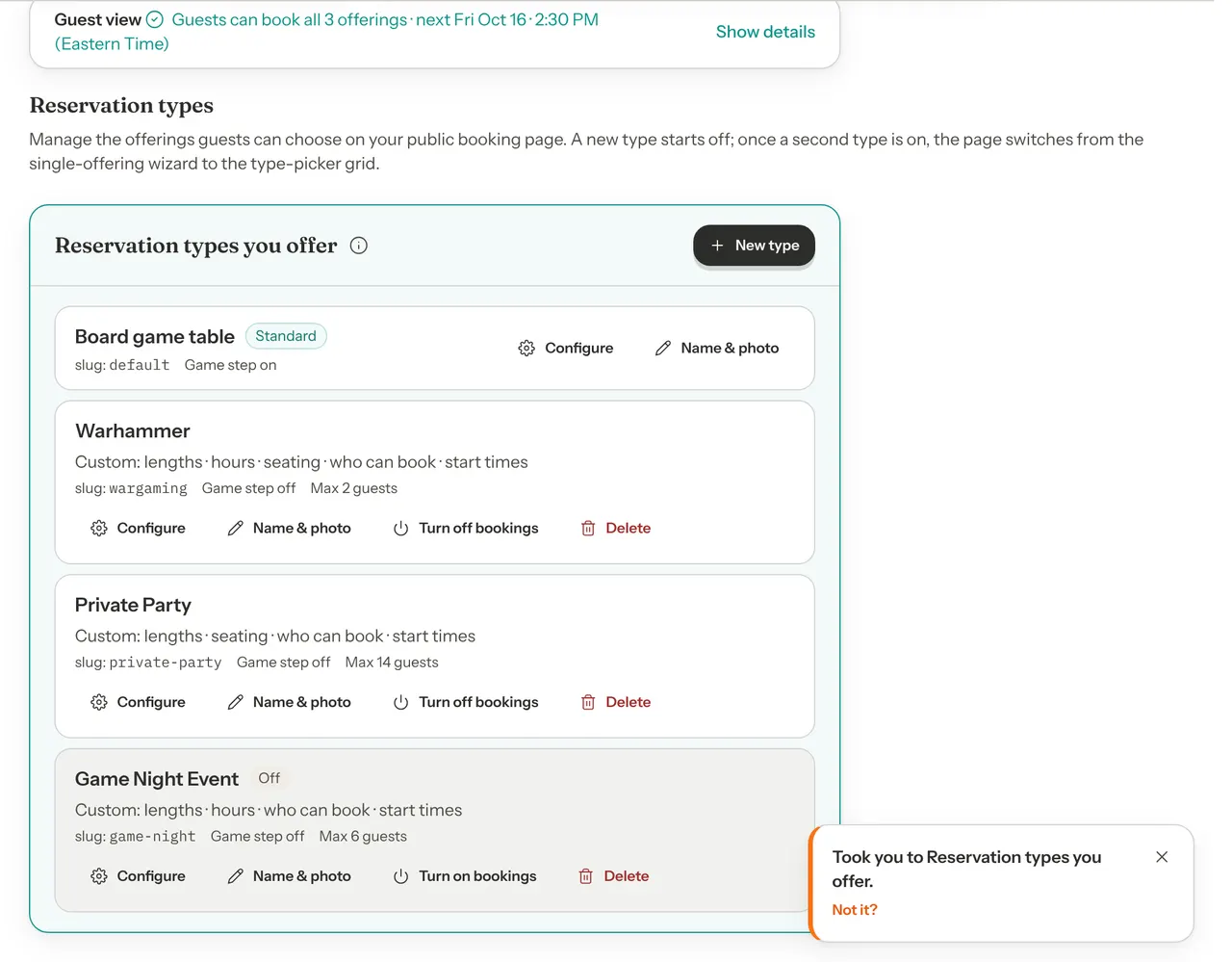
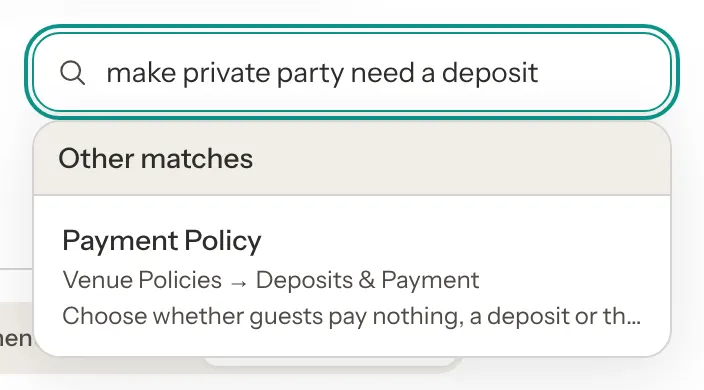
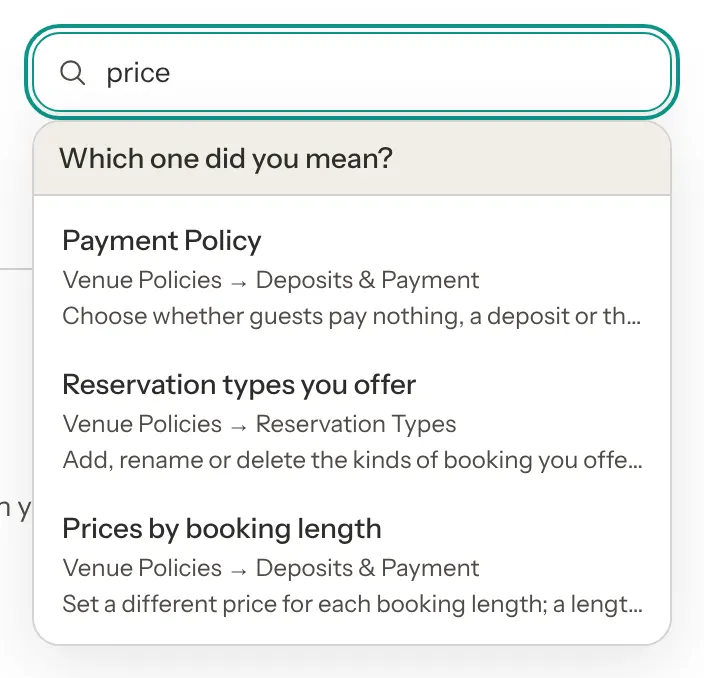
When your question names one of your booking types, and the setting can be different for each booking type, it opens for that booking type.
To stay where you are, press Esc while it says Looking…. If the lookup is slow or not available, nothing goes wrong: the results you typed stay, and Enter works as described in Find a setting.
To look it up, your question, the Settings page you are on and the names of your booking types are sent to TypeSafe, an outside service GameLedger uses to find the right setting. Emails and phone numbers are removed first, but anything else you type, such as a guest's name, is sent as you typed it.
Words that work
You do not need to know what a setting is called. The box understands everyday words, British spellings and small typos in longer words. A few examples:
| You type | You are taken to |
|---|---|
time between bookings | Booking lengths & buffer, under Booking Rules |
slots | How often bookings start, under Hours & Closures |
hours | Operating Hours, under Hours & Closures |
close early | Special dates, for different hours on one day |
bank holiday | Holiday closures |
max party size | Who can book, under Booking Rules |
reminder emails | Reminder Emails, under Guests → Notifications |
colours | Accent Color, under Venue → Branding |
games page | Games page, under Guests |
add a table | Admin → Tables & Floor Plan |
Ask why something happens
When guests see something you did not expect, ask the box why. Type a question such as why only 2 hour bookings, why can't a big group book or why aren't guests asked for a deposit. Choose the matching question, and Settings takes you to the setting that controls it, with a short answer worked out from your saved settings.
Step 1: Ask your question
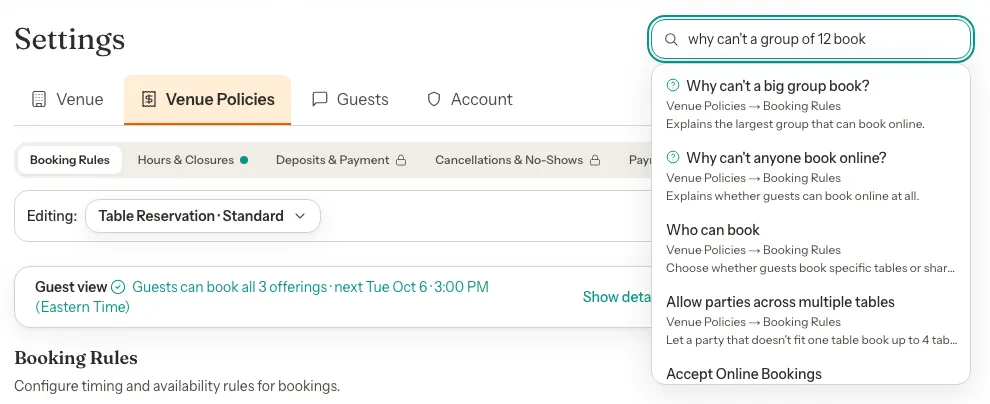
Type your question in the Ask or search settings box. As you type, questions show up only when your words ask why: use why or how come, or a word such as can't, isn't or doesn't.
Up to two matching questions appear in the results, each marked with a question-mark icon. Like a setting, each one shows where it lives and one line about what it explains. The settings that match your words are listed with them.
At venues where pressing Enter looks your question up (see Press Enter to look it up), you can press Enter instead of choosing. When it is clear which question you are asking, the answer opens straight away, as in step 2. When it is not, the box asks Which one did you mean? with up to two likely questions first.
Step 2: Choose the question
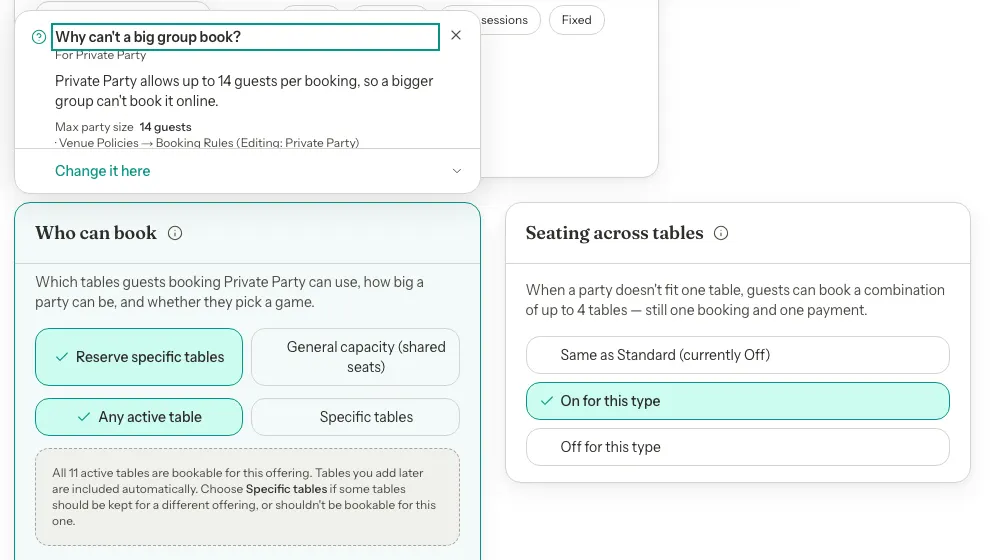
Click the question, or move to it with the arrow keys and press Enter. Settings opens on the setting behind it, outlined in teal, and the answer opens just above it. The answer shows:
- your question (and For a booking type, when you named one);
- a short answer that explains, from your settings, why it works that way;
- the settings behind the answer, with their current values and where each one is set;
- at the bottom, Change it here, which closes the answer and puts you on the setting, ready to change.
When the setting to change is somewhere else, the link says where, for example Change it in Special dates or Change it in Venue Policies → Booking Rules. When it is further down the page you are on, the answer says It's set further down this page. instead. If your role cannot change it, you see Ask the venue owner to change it.
Close the answer with its × button, or press Escape while you're in it. When it sits above a setting, clicking anywhere outside it closes it too; clicking or typing in the setting below keeps it open.
If you have unsaved changes and the question's setting is somewhere else in Settings, choosing it asks Leave without saving? first. Leave without saving goes on to the answer; Stay keeps you where you are, without an answer.
Step 3: Change it, or leave it
The answer only explains; it never changes anything. To change the setting, change it as usual: most settings need that section's Save button, and a few switches, such as turning your games page on, save as soon as you click them.
Questions it can answer
You do not have to type a question word for word. Your own words work too, such as why no deposit or why is my games page 404. Some questions and answers call your booking types offerings.
| Question | Takes you to |
|---|---|
| Why can't anyone book online? | Accept Online Bookings, under Booking Rules |
| Why isn't one of my offerings on my booking page? | Reservation types you offer, under Reservation Types |
| Why only these booking lengths? | Booking lengths & buffer, under Booking Rules |
| Why do bookings only start at certain times? | How often bookings start, under Hours & Closures |
| Why is the first time guests can book so late? | Operating Hours, under Hours & Closures |
| Why can't guests book on some days? | Operating Hours, under Hours & Closures |
| Why can't guests book same-day or months ahead? | Advance Booking, under Booking Rules |
| Why can't a big group book? | Who can book, under Booking Rules |
| Why doesn't my venue page show hours? | Operating Hours, under Hours & Closures |
| Why is my games page not found? | Games page, under Guests |
| Why does a booking cost this much? | Prices by booking length, under Deposits & Payment |
| Why is there no price on my booking page? | Payment Policy, under Deposits & Payment |
| Why aren't guests asked for a deposit? | Payment Policy, under Deposits & Payment |
| Why does the cancellation text say that? | Cancellation Policy, under Cancellations & No-Shows |
Ask about one booking type
Name a booking type in your question and the answer is about that type. For example, why can't a group of 20 book private party answers for Private Party: the answer says For Private Party under the question, and the setting opens with Private Party selected in the Editing bar.
A few answers are always about your whole venue, whichever type you name: whether online bookings are on, how far ahead guests can book, whether your venue page shows your hours, and whether your games page is on. The answer about how far ahead guests can book still says For the type you named, and adds that it is the same for every type.
If you are editing a booking type in the Editing bar and do not name one, a question about a setting that each type can set for itself is answered for the type you are editing.
Otherwise most answers are about your Standard type. If another type sets its own value, the answer ends with a note such as "Other offerings may differ: Game Night Event sets its own."
Apart from those whole-venue answers, if you named a type and the For line is missing, the name was not picked up. This can happen with a one-word name that is also a common settings word, such as Party or Event.
If there is nothing to explain
If nothing in your settings causes what you asked about, the answer says Nothing to explain here right now. For example, you ask why guests can't book on Mondays, and you are open on Mondays. If you ask why a booking type you named isn't on your booking page and it is, the answer says so instead, for example Private Party is on your booking page. When the answer sits above a setting, that setting still shows what you have set.
If an answer does not load, it says Couldn't load the answer. Click Try again.
Questions about payments
Questions about prices, deposits and the cancellation text read your payment settings.
- Until online payments open to your venue, these questions are greyed out and cannot be opened. They show "Online payments are coming to your venue soon."
- If no payment processor is connected, these answers open at the top of the page, and most point you to Connect Stripe in Venue Policies → Payment Processors.
Guest view answers some of these too
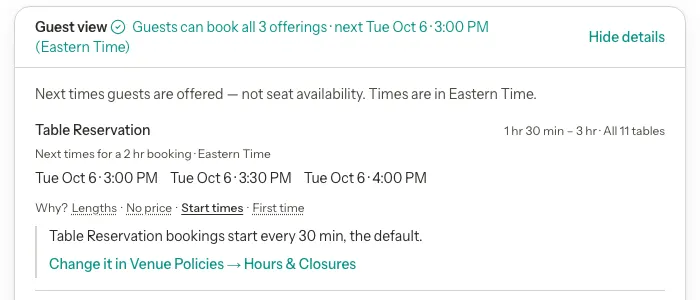
Click Show details on the Guest view card in Settings. Each booking type it lists has a Why? line with buttons such as Lengths, Price (or No price), Start times and First time. Click one for the same kind of answer, with a link to where you change it. See Check what guests are offered.
About this setting
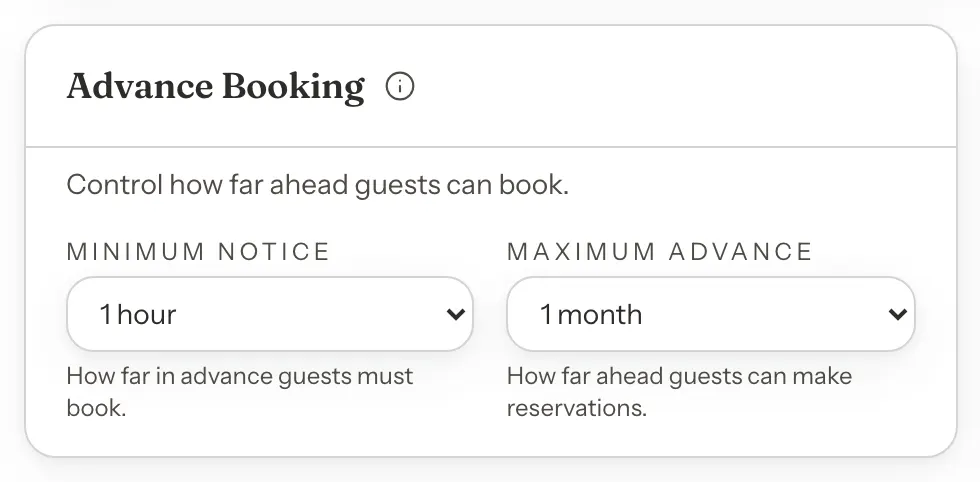
Settings cards have a small info button, an i in a circle, beside their title. It tells you about that setting without leaving the page.
Step 1: Click the info button
Click or tap the info button beside a card's title. With a keyboard, press Tab until it is focused, then press Enter.
Step 2: Read about the setting
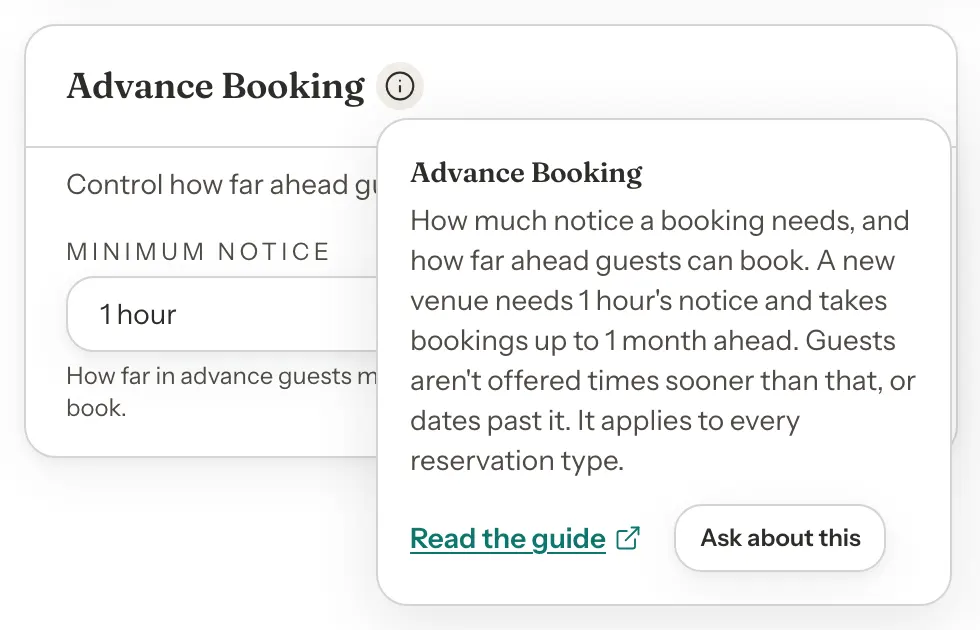
A short note opens. It says what the setting does, what a new venue starts with, and what guests see. When you are editing a booking type, most notes add a line on how the setting works for that type, for example whether the type can follow Standard or sets its own.
Under the note:
- Read the guide opens the help page for that setting in a new tab, so your Settings page and anything you have not saved stay as they are. Settings without a help page do not show it.
- Ask about this puts the setting's name in the Ask box (see the next step).
Press Escape or click outside the note to close it.
Step 3: Ask about this
Ask about this closes the note, puts the setting's name in the Ask or search settings box and lists what matches it. If the box is out of sight, the page scrolls up to it. Nothing is opened or changed, and unsaved changes on the page stay as they are. Choose a result, or change the words to look for something else.
Good to know
- It finds settings by matching words, and answers a set of common "why" questions.
minimum noticeworks better than a long sentence. The answers are worked out from your own settings, for the questions listed under Questions it can answer. It does not answer other questions: you get the settings that match your words instead. - Payment settings may be locked. Searches such as
deposit,promo codeorcancel policylist the payment settings, but until payments are available on your account they show the greyed-out reason and cannot be opened. - Your role decides what opens. A team member without access to a setting sees it listed with a note to ask the venue owner.
- Answers about payments follow the same rules. A team member without access to payment settings sees the questions about prices, deposits and the cancellation text greyed out with Ask the venue owner to change it, and is never shown those answers.
- Nothing changes by itself. Finding a setting, reading an answer or opening an info button never changes anything.
- Stuck? If nothing matches, click email us your question under the box, or write to support@gameledger.io.