The waitlist
See who joined the waitlist for a fully booked day, email a guest when a table opens, turn an entry into a booking, or take someone off the list.
Last verified
When a day is fully booked for a guest's party, your booking page lets them join a waitlist for that day. Your team sees everyone waiting in the Waitlist view of the Bookings page. From there you email a guest when a table opens, turn their entry into a booking, or take them off the list.
GameLedger doesn't hold tables for the waitlist or book anyone from it on its own, and it doesn't tell you when someone joins. Check the waitlist for busy days, and whenever a booking is cancelled.
How guests join
A guest can only join when every time on the day they picked is taken for their party, at the booking length they've chosen. On the times step they see Fully booked, "Sorry, all time slots are booked for 4 guests on this date.", a Try a different date button and a Join the waitlist button.
When they tap Join the waitlist, a short form asks for their Name, Email and Phone (optional), with the line "We'll email you if a table opens up for 4 guests." Anything they typed earlier in the booking is filled in. They tap Join waitlist and see "You're on the waitlist!" with "We'll email [their email] if a table opens up on [the date]. No action needed from you right now."
They also get an email, "You're on the waitlist at" followed by your venue's name, with the date and party size. It says being on the waitlist doesn't guarantee a table.
Some things to know about joining:
- Guests can't join when one time is full but others are free. They just pick another time. If you offer several booking lengths, a day can be full at 3 hr but still have 2 hr times. The guest can switch length on the same step, or join the waitlist for the day.
- Guests can't join when no table seats their party, unless the reservation type lets parties sit across multiple tables. If your tables are too small for the party, they see No table seats and their party size instead. With parties across tables allowed, they see Fully booked and can join, even when no combination of your tables could seat them. See Why can't guests book?.
- Guests can't join while online bookings are off. See Pause online bookings. Your team can still convert entries that are already on the list.
- One entry per guest per day. If the same email joins the same day again while they're still on the list, nothing changes and no second email is sent. Once you convert or remove their entry, they can join that day again.
- The guest waits for the whole day. No reservation type is saved with their entry. If they had picked a time earlier in the booking, it is saved as their preferred time.
Where to find it
Click Bookings in the left-hand menu, then Waitlist in the row of view buttons beside Timeline and List. On a phone these buttons show icons only, and Waitlist is the bell. The Waitlist shows one day at a time: the day you were last viewing on the Timeline. The heading says which, for example "Guests waiting for a table on Friday, October 16."
To see another day, click Timeline, go to that day, then click Waitlist again.
Read the waitlist
Each guest waiting for that day has a card, with the guest who joined first at the top. A card shows:
- the guest's name, email and phone, if they gave one;
- the party size, for example "4 guests";
- the time they'd like, or Flexible when they didn't give one.
The list shows guests who are still waiting, including those you've already notified. Once you convert or remove someone, their card goes. If nobody is waiting, the view says No one on the waitlist. While online bookings are paused, it also says guests can't join, because the waitlist is closed too.
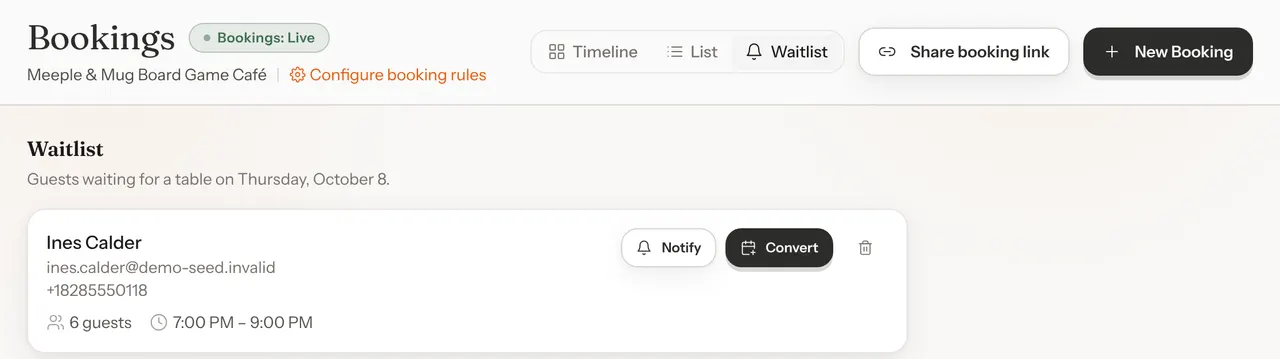
Tell a guest a table is free
When a cancellation or a change frees a table, click Notify on the guest's card.
GameLedger emails the guest "A table may be open at" and your venue's name, with the date, their party size and a Book your table button that opens your booking page. The email says spots are first come, first served. Notifying doesn't hold the table: the guest still has to book it, and anyone else can book it first.
A message confirms it, for example "Emailed Sam Rivera that a spot may be open." If no email could be sent, the message says "Marked Sam Rivera as notified. (No email was sent — check the guest's email address.)" The guest is still marked as notified.
The guest stays on the list after you notify them, so you can still convert them, or notify them again. The card doesn't show who you've already notified, so keep track yourself if several tables open up.
If a notified guest books the table themselves, their entry stays on the waitlist. Remove it once you see their booking.
Turn an entry into a booking
When you've found the guest a time, for example after they called back, convert the entry and GameLedger creates the booking for you.
Step 1: Click Convert
The card opens Create a booking for and the guest's name. To close it without booking, click the same button, which now reads Close.
Step 2: Choose the start time and table
Start time starts on the guest's preferred time, if they gave one. Under Table, leave Auto (best free table) to have GameLedger pick the best free table that seats the party, or choose a table yourself. Each table shows its seats.
Step 3: Click Create booking
The message "Booked Sam Rivera from the waitlist." appears, the card leaves the list, and the new booking opens so you can check it.
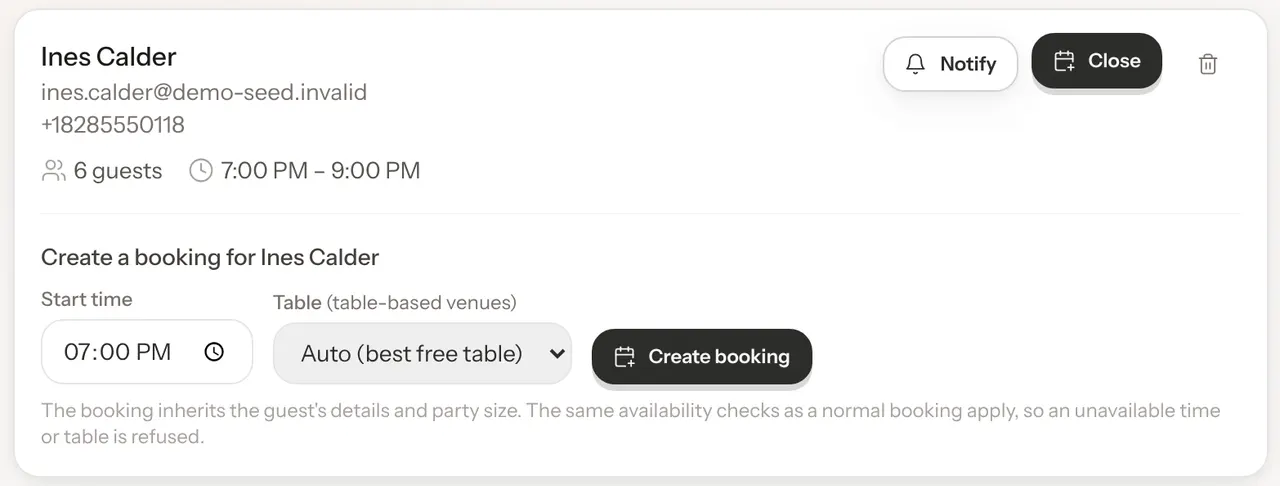
The new booking:
- has the guest's name, email, phone, party size and the waitlisted day;
- is your Standard reservation type, at Standard's starred booking length (change the length afterwards with Edit if you need to);
- is recorded as a phone booking and confirmed straight away, like one you add yourself. The guest gets your confirmation email, if confirmation emails are on. See What happens when you save.
- isn't charged online, even if your venue takes payment at booking. To have the guest pay ahead, open the booking and click Send payment link. See Payment links for bookings your team adds.
GameLedger checks the table is free for the whole booking and seats the party. If it isn't, nothing is booked and you see why, for example "No table that seats 6 is free at that time. Pick another time, or choose a table." Like any booking your team adds, it isn't held to your opening hours, closed dates, buffer, minimum notice or Max party size, so check the date and time before you click.
A converted booking always sits at one table. For a party bigger than any one table, add the booking with New Booking and Seat across multiple tables, then remove the guest from the waitlist. See Add a booking for a guest who phoned.
Remove someone from the waitlist
Click the bin icon on the guest's card. GameLedger asks, for example, "Remove Sam Rivera from the waitlist?" with "Party of 4 for Friday, October 16. They won't be notified, and this can't be undone." Click Remove from waitlist to remove them, or Cancel to keep them.
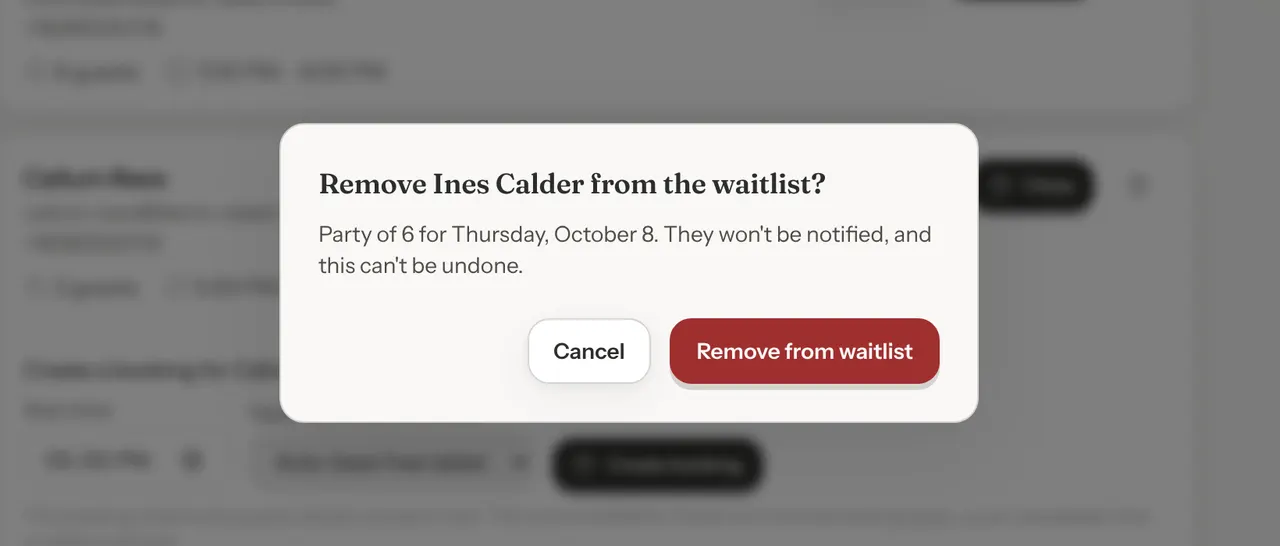
The guest isn't emailed. If you want them to know, contact them yourself.
Who can use it
Anyone who can view bookings can read the waitlist. Notify, Convert and the bin icon only show for team members who can edit bookings. See Team and permissions.