Table QR codes
Print a QR code for each table and put it out. Guests scan it to start a session, find a game and ask for help, and your team sees each table in Sessions.
Last verified
Every table gets its own QR code. A guest scans it with their phone camera and lands on that table's page, where they can start a session, get a game recommendation, look up the game they grabbed, and ask your team for a hand. Nothing to install, and no account to create.
Print the codes once, put one on each table, and your team can see which tables are playing, which are still choosing, and which need help.
Where to find it
Open Tables & Floor Plan in the left-hand menu. The Print QR Codes button is at the top right of the page, next to Test Guest View. It is there on both the Table List and the Visual Map.
Anyone on your team who can view Tables & Floor Plan can print the codes.
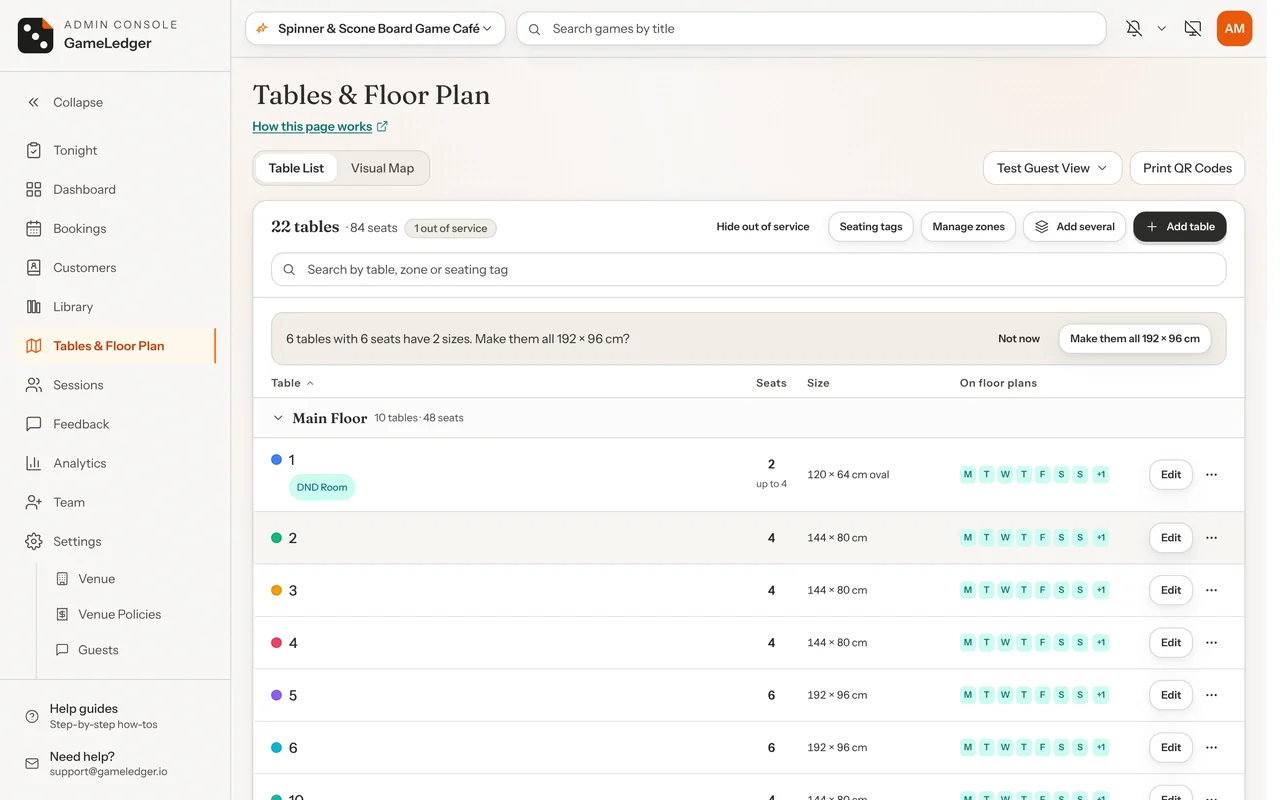
Print your codes
Step 1: Open the print window
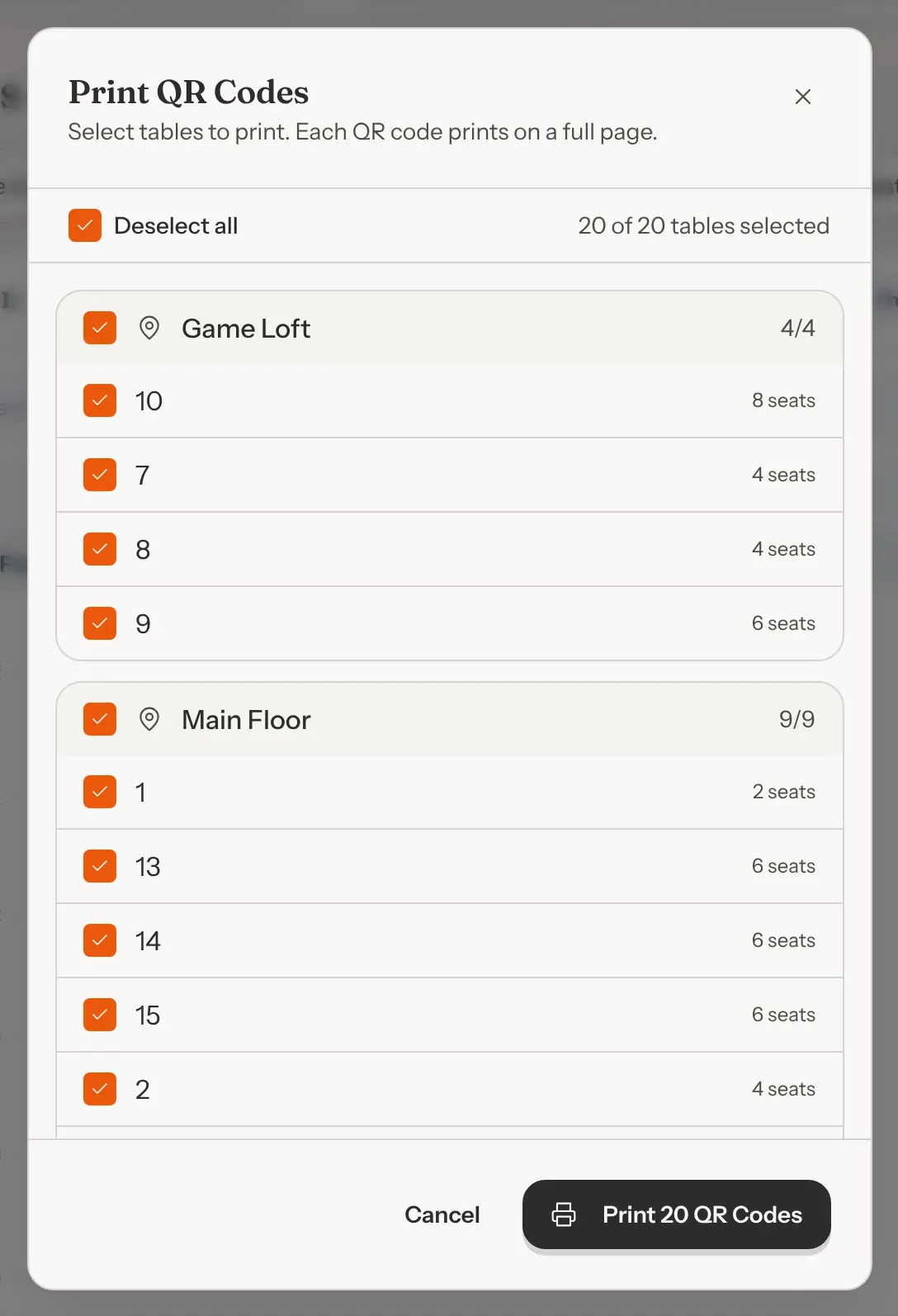
Click Print QR Codes. The Print QR Codes window lists your active tables, grouped by zone. Zones are in alphabetical order, and tables without a zone come last under Unassigned. Each table shows its number of seats.
Every active table is ticked to start with. The line at the top says how many are selected, for example "20 of 20 tables selected".
Step 2: Choose the tables
Leave everything ticked to print a full set. To print fewer, for example to replace one damaged card:
- Click Deselect all to untick everything, then click each table you want. Select all ticks them all again.
- Click a zone's name to tick or untick all its tables at once. The count next to the zone, such as 2/6, shows how many of its tables are ticked.
Step 3: Print
Click Print 20 QR Codes (the number matches what you ticked). A new window opens with one card per page, and your browser's print dialog opens on top of it. Choose your printer, or save the cards as a PDF from the same dialog if you want to send them to a print shop.
If your browser blocks the pop-up, you see "Please allow popups for this site to print QR codes." Allow pop-ups for GameLedger and click the button again.
Step 4: Check a card
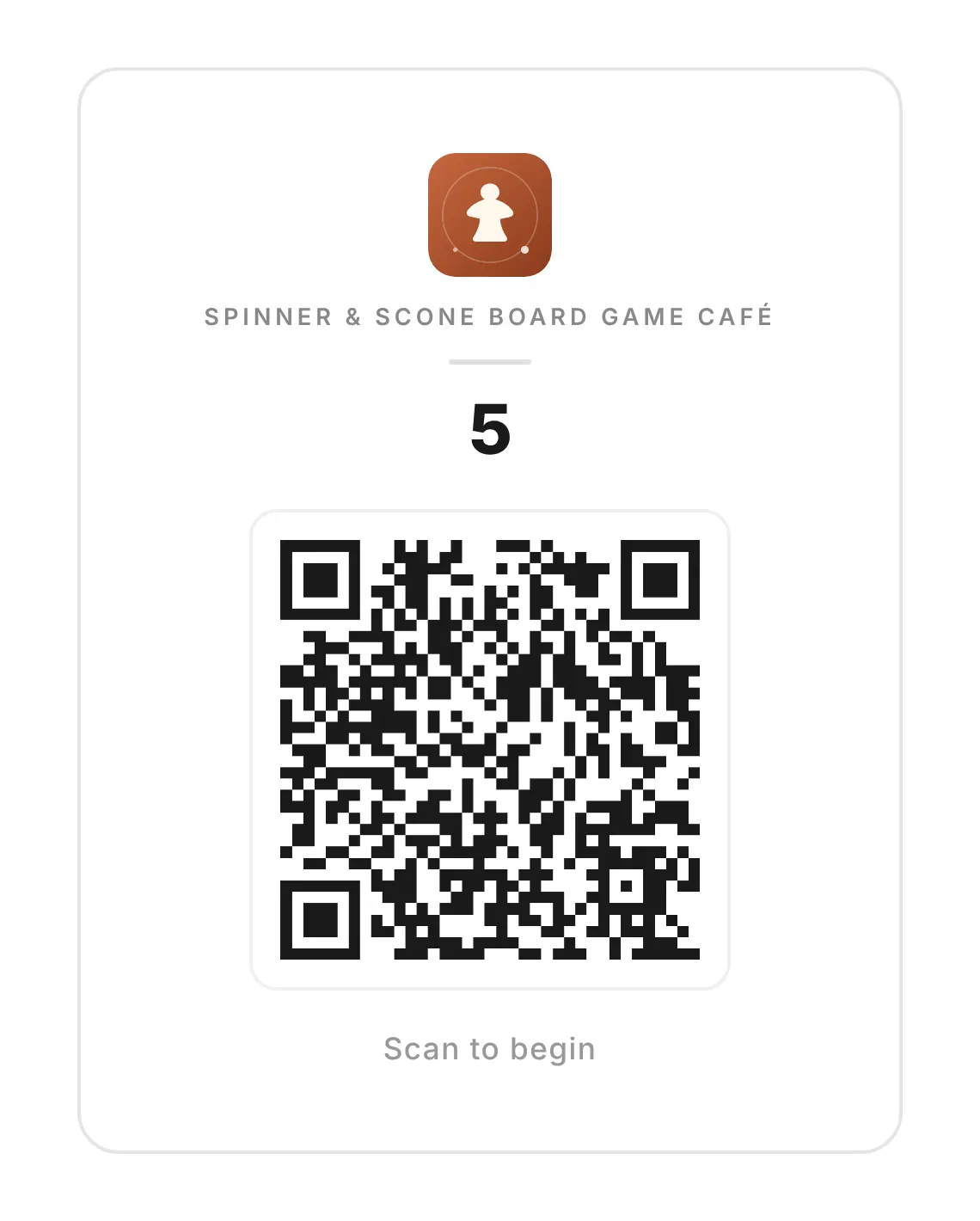
Scan a printed card with your own phone before you put the cards out. It opens that table's page, with the table's name under your venue's name. That is what success looks like.
What is on each card
Each card prints on its own page, set up for A4 paper:
- your venue logo, if you uploaded one in Settings → Venue → Branding
- your venue name, in small capitals
- the table's name, in large type
- the QR code
- the words Scan to begin
The card is about 13 cm (5 in) wide, centred on the page. Trim around its border to fit a stand. Cards print in the same order as the list (table names sort as text, so 10 comes before 2).
The window has no other options. There is no size or layout setting, and there is no download button apart from saving the print as a PDF.
| Option | What it does | Default |
|---|---|---|
| Tables to print | Which active tables get a card. Click a table to tick or untick it, or a zone name for the whole zone. | Default: Every active table |
| Select all / Deselect all | Ticks or unticks every table in the list. | Default: Everything ticked |
| Opens the cards in a new window, one per page, and starts printing. The button shows how many cards you ticked. | Default: Not available until at least one table is ticked |
If you have no active tables yet, the window says "No active tables to print." Add your tables first: see Build Your Floor Plan.
Where to put them
- One card per table, on that table. Each code opens one table's page, and your team sees requests by table name. If a card for table 5 ends up on table 6, your team sees table 6's requests under table 5.
- Match the card to the table. The table's name is printed large on the card so you can check it when you place it. Put it where guests sitting there see it: in a stand or table tent in the middle, or stuck to the table edge.
- Keep spares. Print a second set, or save the PDF, so you can swap out a stained or bent card in a minute.
- Not on the door or counter. A table's code always opens that table. For the door, the counter or a flyer, use your booking link instead. See Add booking to your website.
Check a table's page yourself
You do not need to print anything to see what guests see. On Tables & Floor Plan, click Test Guest View (once you have tables) and pick a table. Its page opens in a new tab. The top of the list links the settings that shape that page: Table help, Find a Game, ordering (when Square is connected) and your logo. On the Table List, Preview guest page in an active table's ⋯ menu opens the same page.
What you tap there is real. If you tap Start Session on a preview, that table gets a live session in Sessions, the same as a guest's. End it from Sessions when you are done: click End on its row, then End session to confirm.
What guests see
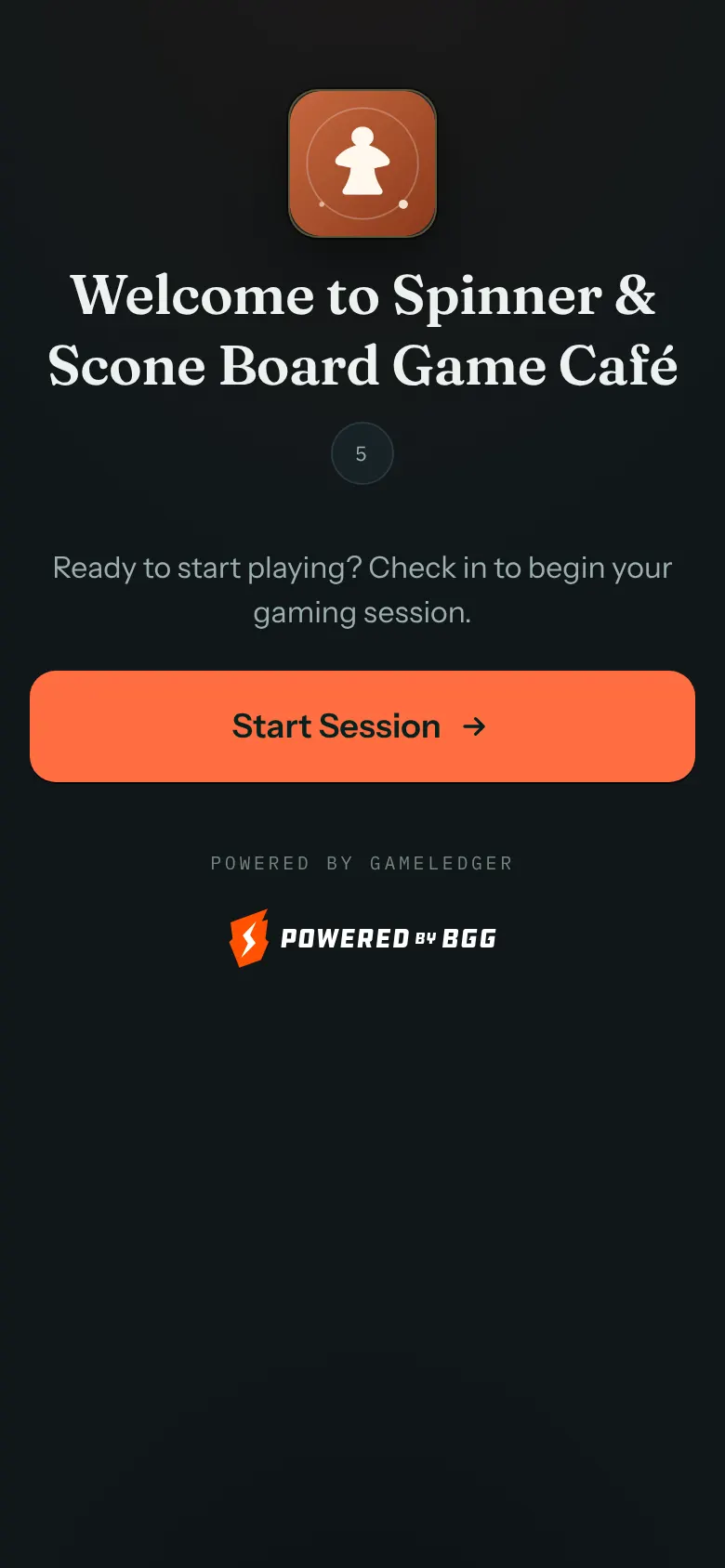
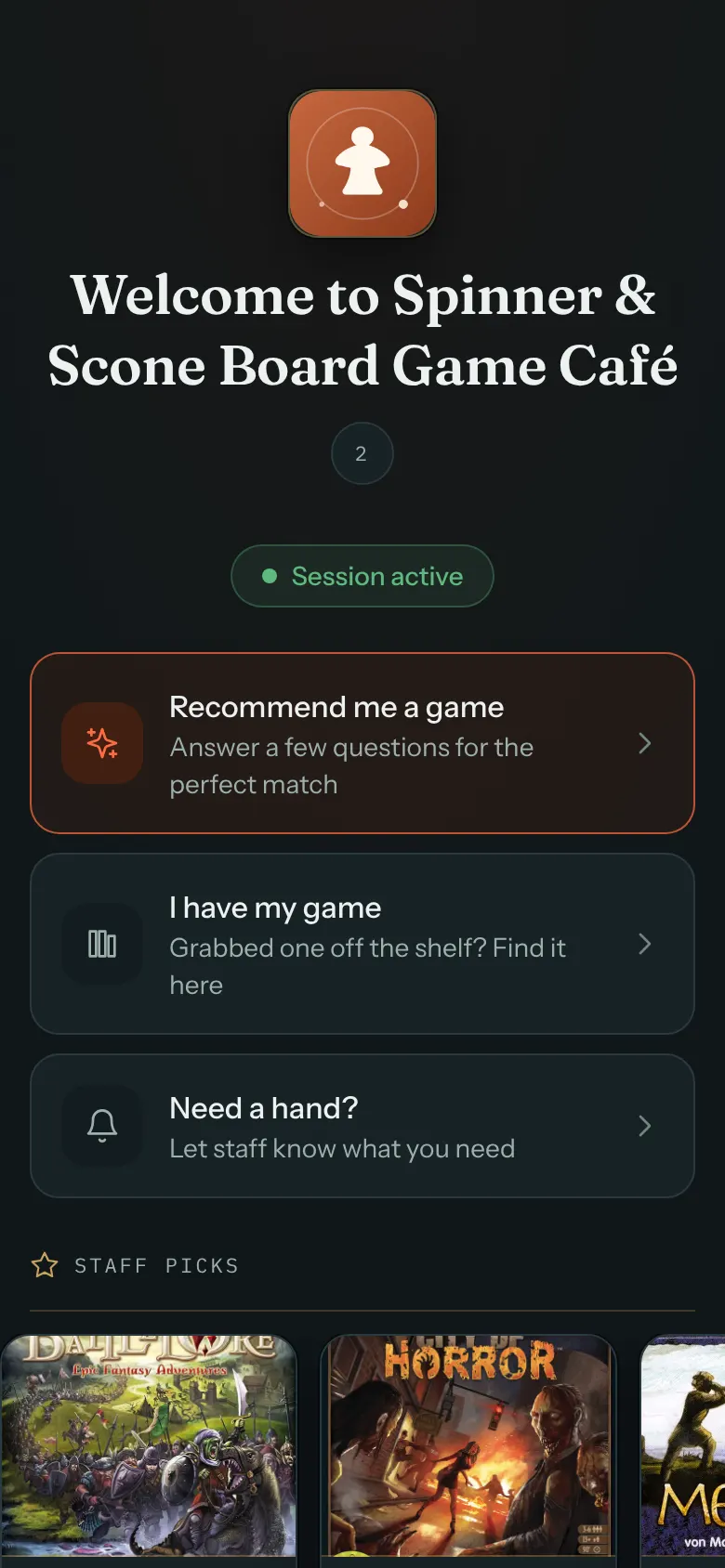
Table pages are built for phones. They use a dark theme with your accent color, your logo and "Welcome to" your venue name at the top, and the table's name just below.
Before a session starts
When nobody is using the table, the page says "Ready to start playing? Check in to begin your gaming session." and shows one button, Start Session.
A guest does not need a booking, an account or anything from your team to start. Tapping Start Session opens a session for that table, shows "Session Started!", and the page changes to the table's console. If the table already has a session, for example because a friend scanned first or your team seated the party, scanning shows that session straight away and nobody has to start one.
If a booking with a reserved game is assigned to that table and its time is close, the page may ask first, for example "This table is reserved at 7:00 PM with Wingspan. Is that your party?" Yes, start Wingspan starts that game at the table. No hides the question. See Games to Set Aside for how reserved games work.
Once the session has started
The page shows Session active and a short list of choices:
- Recommend me a game: "Answer a few questions for the perfect match"
- I have my game: "Grabbed one off the shelf? Find it here"
- Need a hand?, to call your team
- End Session & Check Out, at the bottom
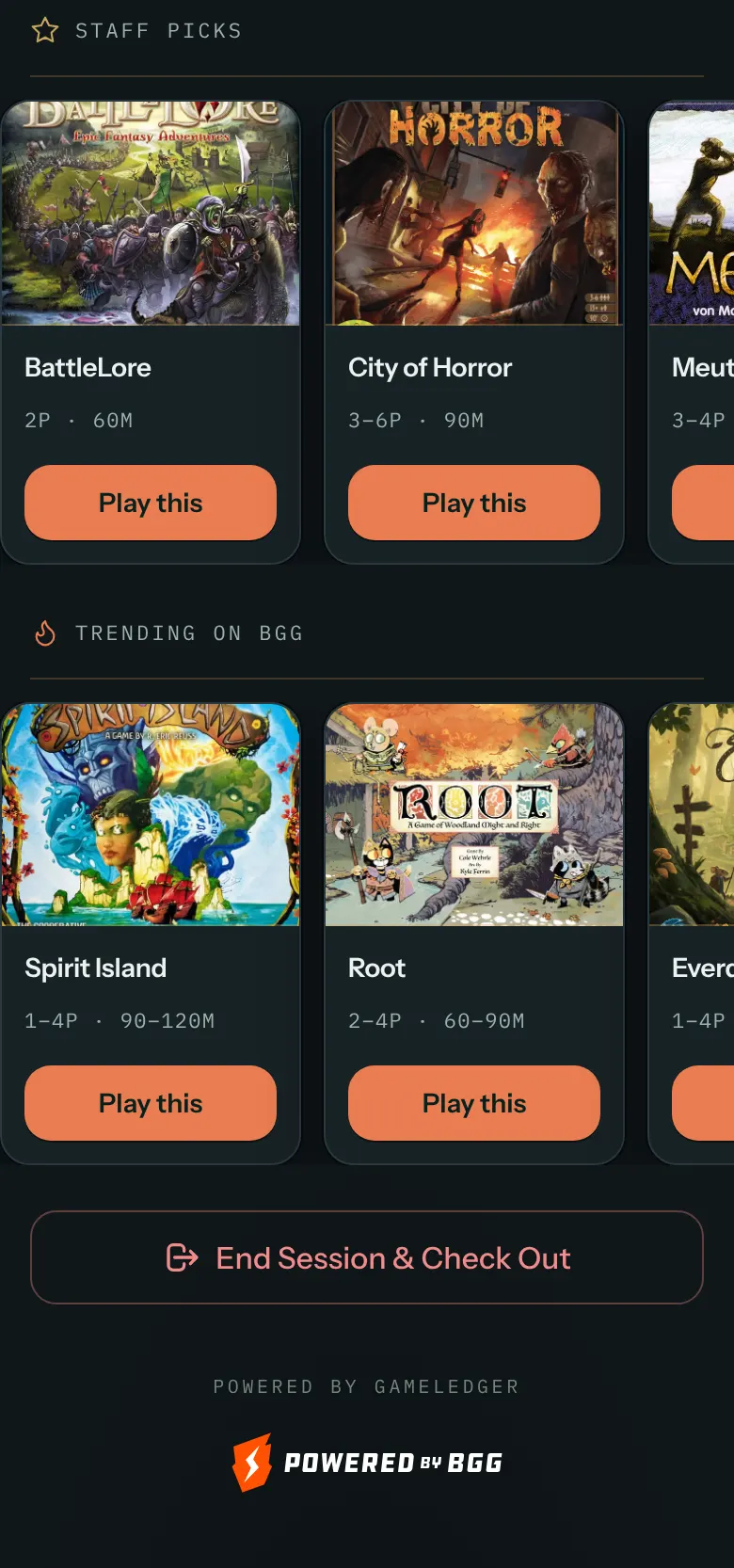
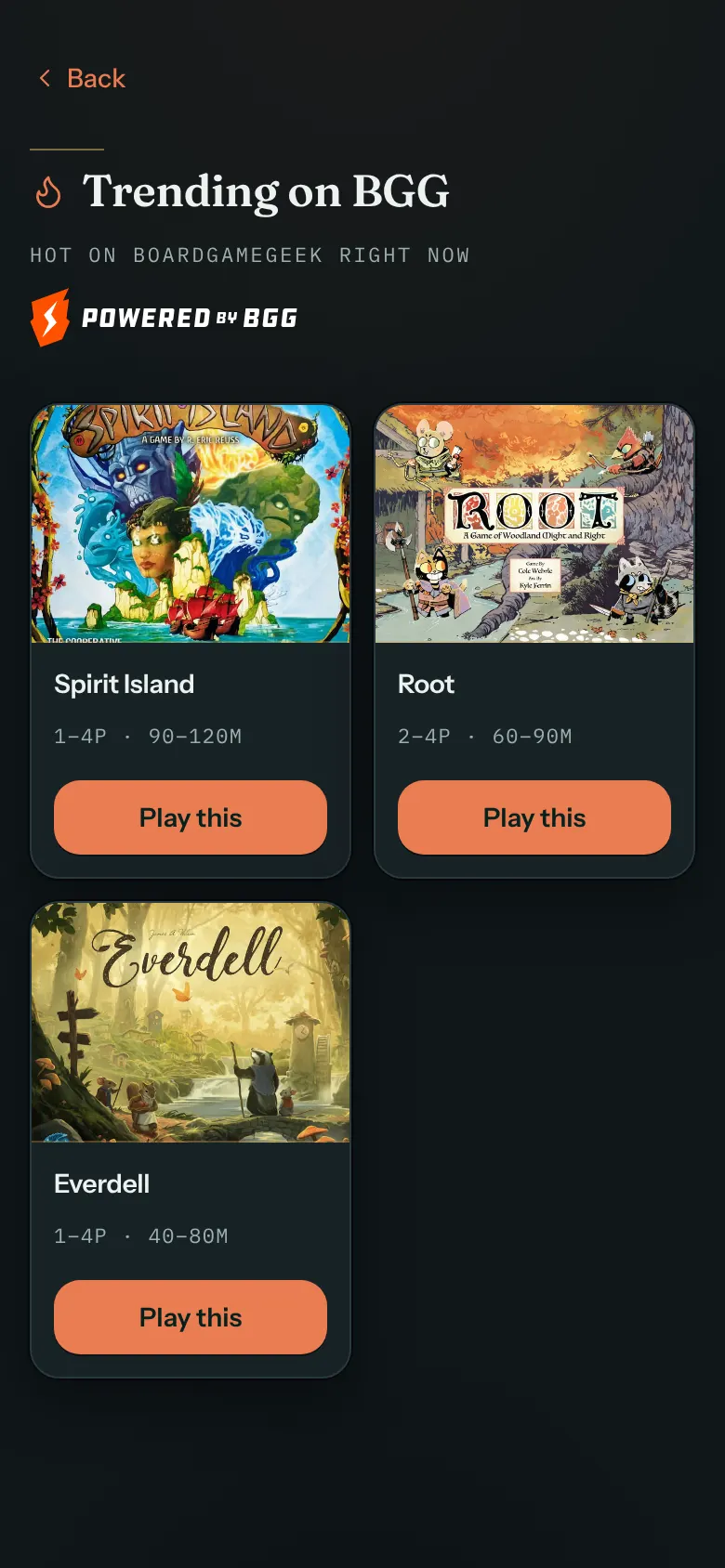
Below the choices are two rows of game covers that guests swipe sideways: Staff Picks (games you mark as a Staff Pick in your Library), and Trending on BGG. A row appears only when it has games. Each row shows up to eight games, and a See all link opens the full list when there are more than six.
Recommend me a game
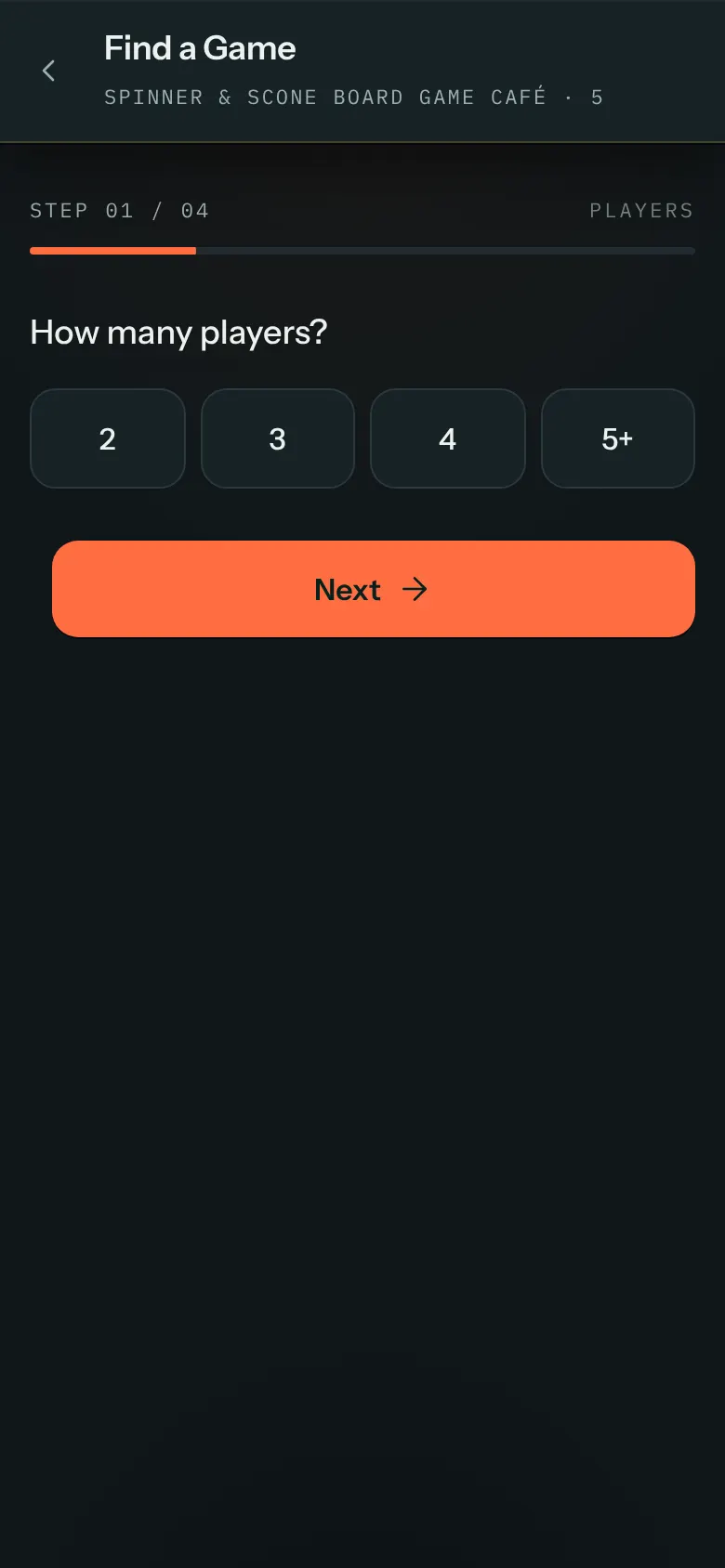
Recommend me a game opens Find a Game, a few questions one at a time. Out of the box they are:
- How many players? (2, 3, 4 or 5+). Guests must answer this one.
- How much time do you have?
- How complex can the game be?
- What vibe are you going for? The answers are taken from the games in your library: the five tags that appear on the most games, such as Card Game or Fantasy. They keep following your library until you save your own questions in Settings.
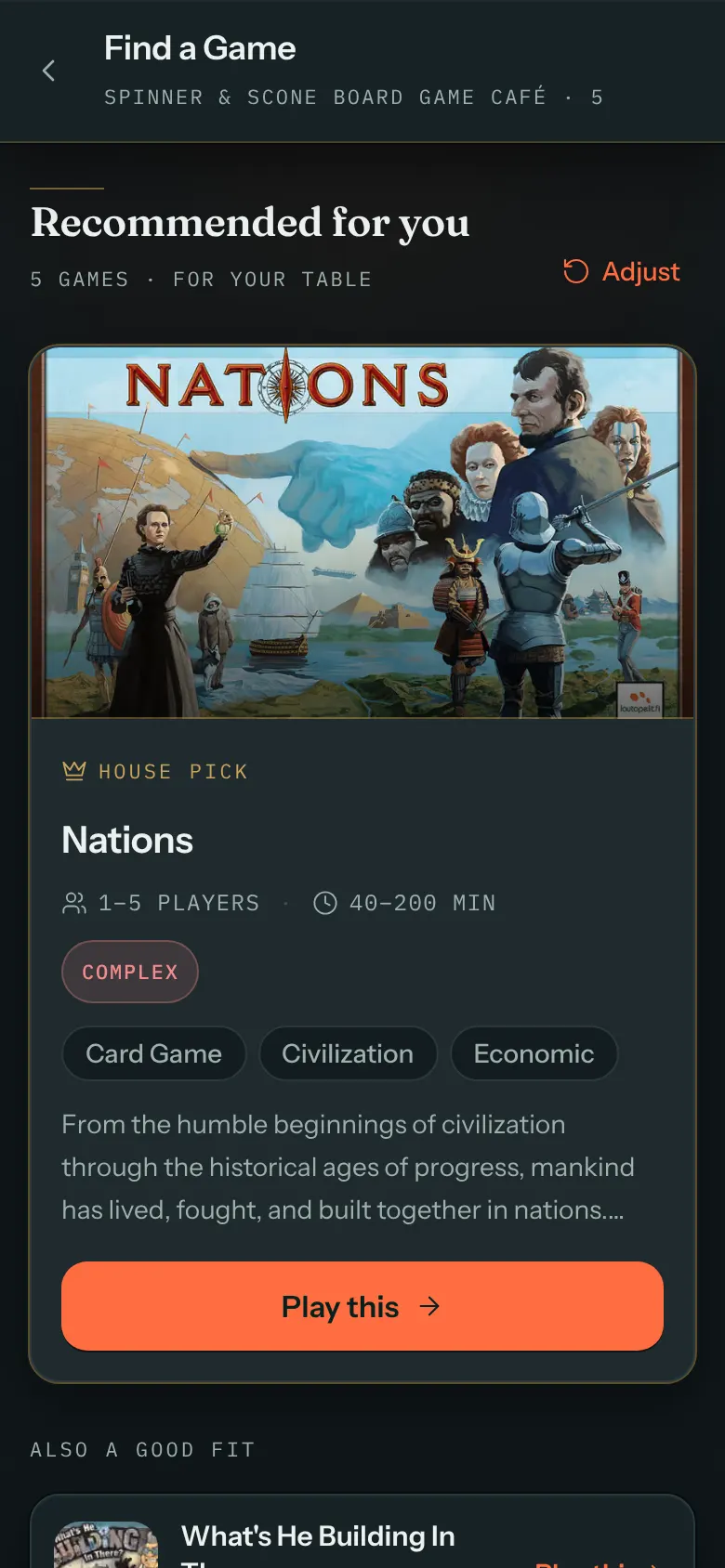
Guests tap Next to move on (it reads Almost there on the second-to-last question) and Show me games on the last one. The results show the best match on top, with up to four more under Also a good fit. Only games with a free copy are suggested. Adjust goes back to the questions.
You can change the questions, or hide this option altogether, in Settings → Guests → Find a Game. When Show "Find a Game" to guests is off, the Recommend me a game row disappears. To set the questions up so guests get the right games, see Set up Find a Game.
I have my game
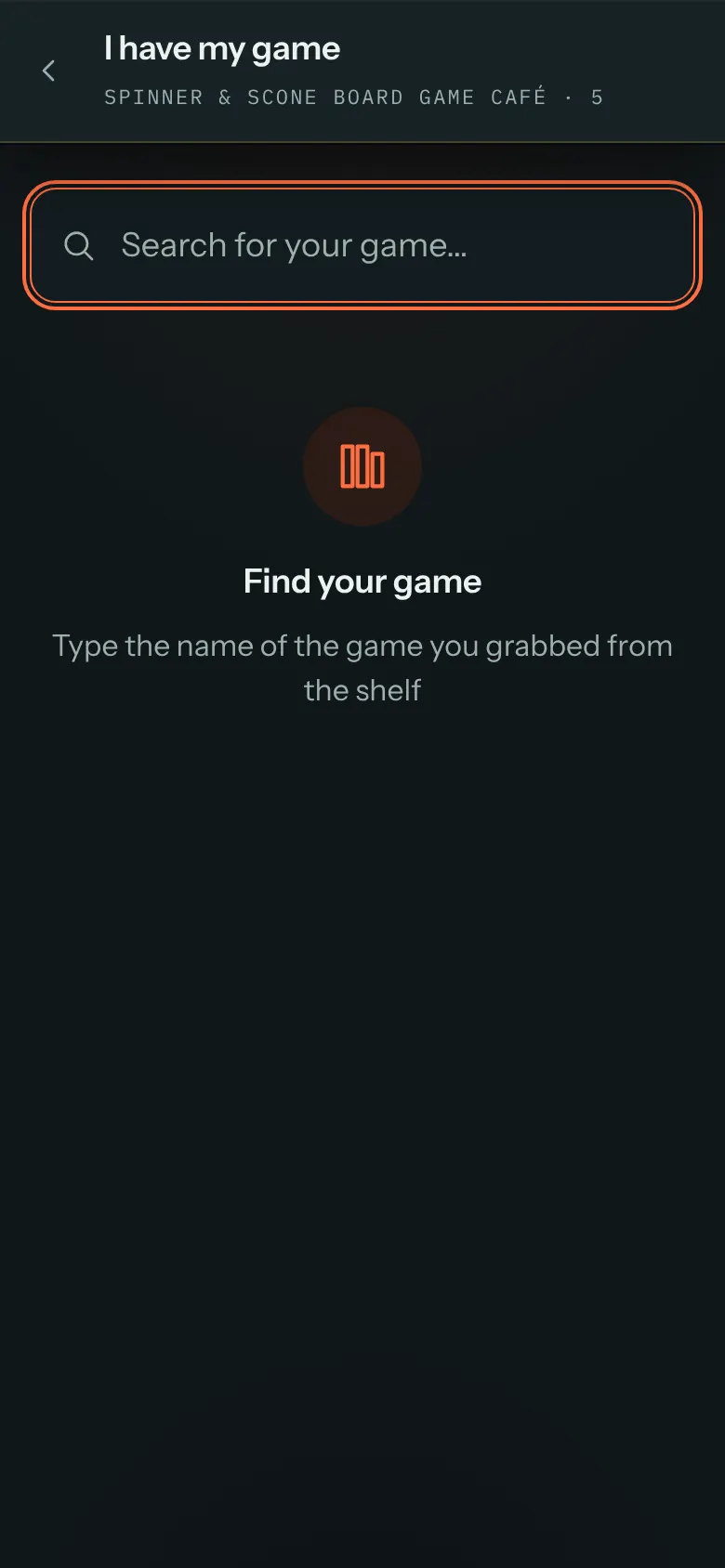
For guests who already took a game off the shelf. They type at least two letters of its name and tap it in the results. A game that is set aside for a booked party shows a label such as "Reserved · 7:00 PM".
A game's page
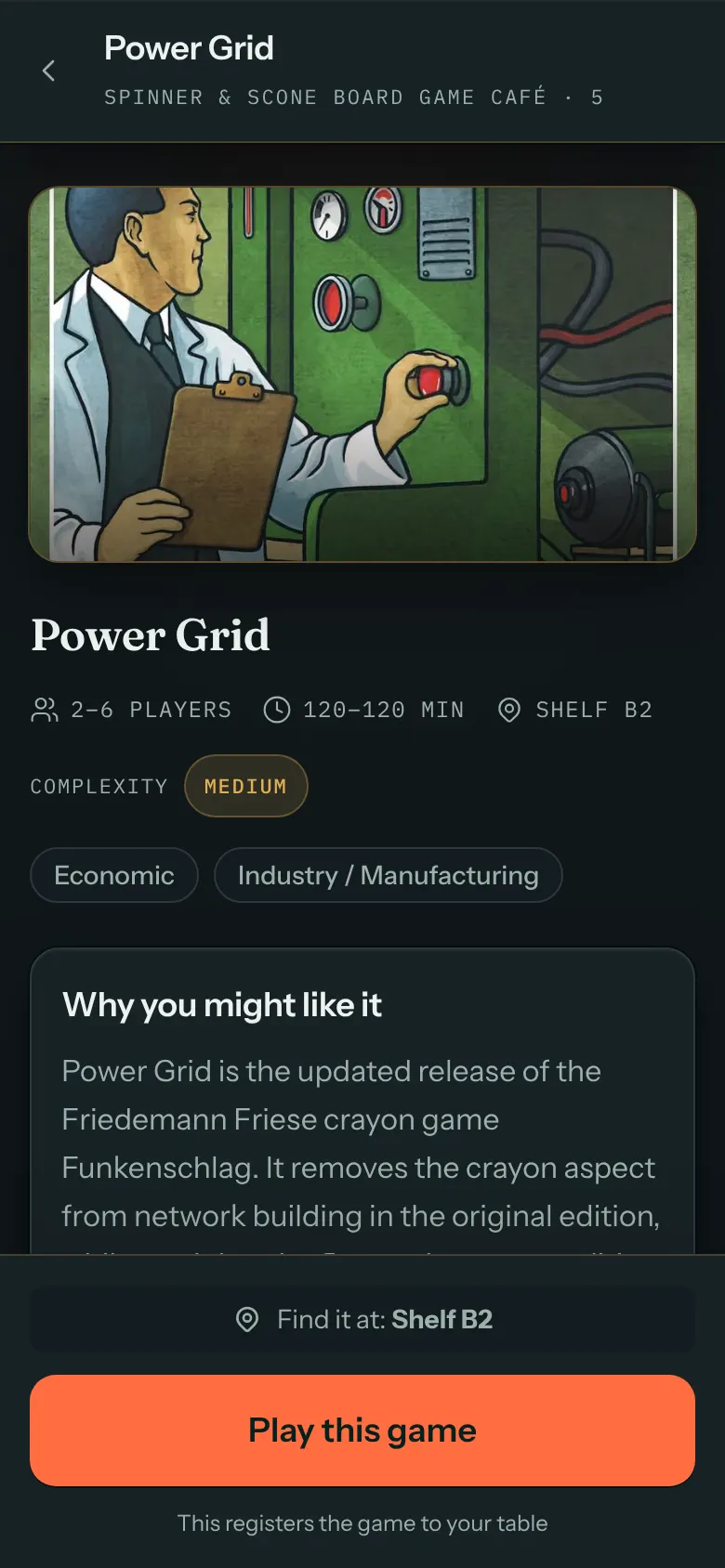
Every game a guest taps, from a recommendation, a search, Staff Picks or Trending, opens that game's page. It shows the cover, players, playing time, complexity, and where it lives on your shelf, plus your pitch, setup steps, how to play and a video link if you have added them in your Library. See Build your game library. Report a problem with this game lets guests tell you about missing pieces or damage.
At the bottom, Play this game puts the game on the table. The guest sees "Session started!" and goes back to the table's page, which now shows the game under Now Playing. If the guest had not started a session yet, this starts one too.
Instead of Play this game, guests may see:
- In use right now: every copy is out at another table.
- Play this game greyed out, with "It's set aside for a booked party. Try another game."
- You're playing this game: it is already on their table.
While they play
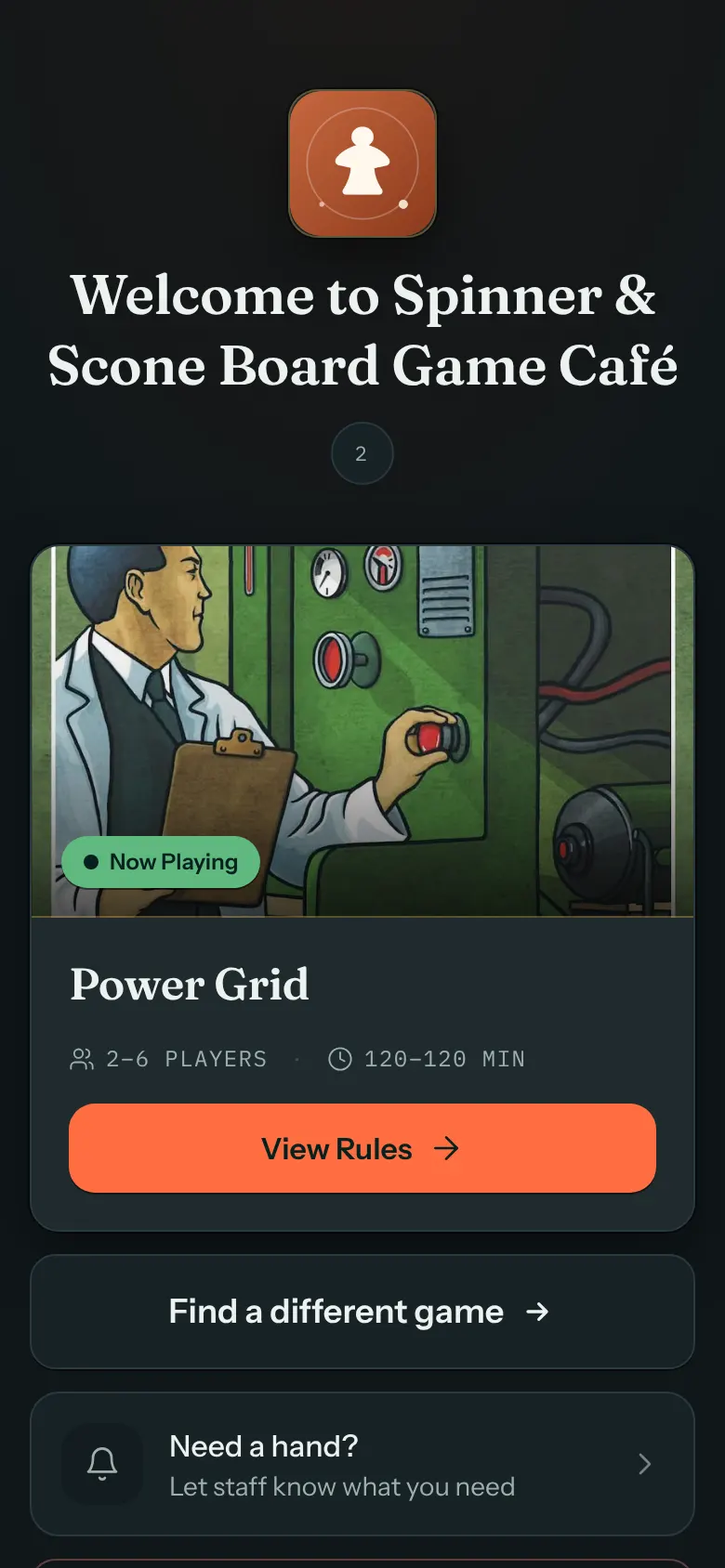
With a game on the table, the page shows the game under Now Playing, with View Rules, Find a different game, Need a hand? and End Session & Check Out. If your team seated a booked party here, the top of the page also shows how long they have left, and guests can ask for 30 more minutes near the end.
Asking for help
Need a hand? lets guests ask for help picking a game, a rules teach, food and drinks, the bill, or something else. You choose the options in Table Help Options. How your team answers is in Table Help Alerts.
Ordering at the table
Ordering at the table is available when your venue connects Square. When it is on, guests in the session see an Order food & drinks row on the table's page.
When they leave
End Session & Check Out opens Quick feedback, which asks about their visit, and about the game if they played one. Guests tap Submit & Check Out, or Skip feedback to leave without rating. Either way the session ends, and they see a thank-you with links for next time, such as booking again. The table is free for the next party. Their answers appear on your Feedback page.
Only a phone that took part in the session can check out: the one that tapped Start Session, picked a game or asked for help at that table. Any other phone, for example when your team seated the party, sees "This phone didn't start the session at this table, so it can't check it out. Ask a staff member to end the session for you." Your team can end the session from Sessions.
The BoardGameGeek logo
Game facts, the Trending on BGG list and BoardGameGeek's box art come from BoardGameGeek, which asks that its logo appears where its data is shown. BoardGameGeek's "Powered by BGG" logo sits at the foot of every table's page, at the top of the Trending on BGG and Staff Picks lists, under the Find a Game results and the I have my game search results, and near the bottom of each game's page. Guests can tap it to visit BoardGameGeek. You do not need to do anything for it.
What your team sees
Every session started from a QR code shows up in Sessions, under Live sessions, within about 10 seconds and without reloading the page:
- A table that has started but not picked a game shows Browsing... and how long it has been deciding. Team members who can edit Sessions can tap Assign game to hand it one. After 20 minutes it is marked Stale.
- A table with a game shows the game's name and how long it has been playing. Team members who can edit Sessions can tap Change game to swap it.
- A table that asked for help shows what it asked for, with On my way.
- End closes the session, for example when a party leaves without checking out. It asks first, for example End the session at Table 5?, and warns that the session can't be reopened. Click End session to confirm, or Cancel to leave it running.
The filter buttons at the top, All, Browsing and Playing, narrow the list.
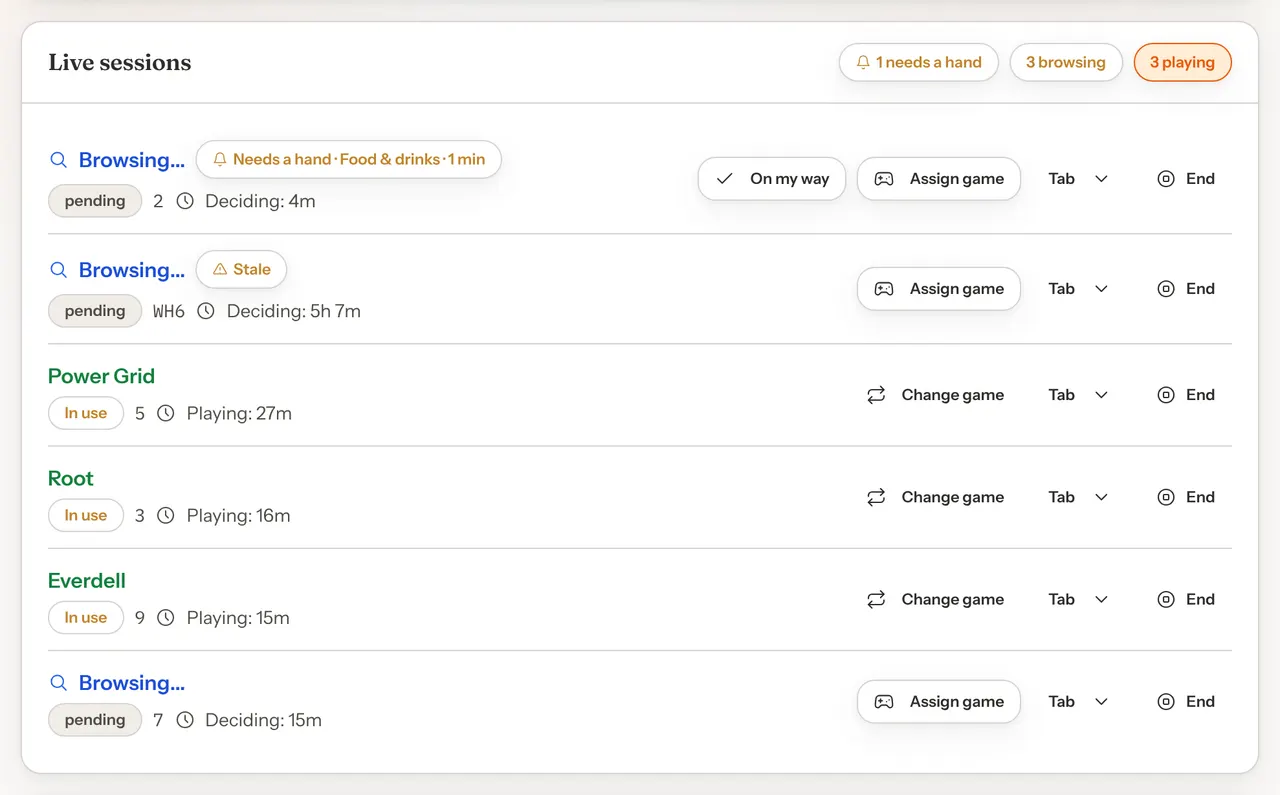
The same tables appear on your Dashboard, on The Floor, and in Needs you now when a table has been browsing for a while or asks for help. Help requests also show a banner on every admin page: see Table Help Alerts.
When a table is out of service
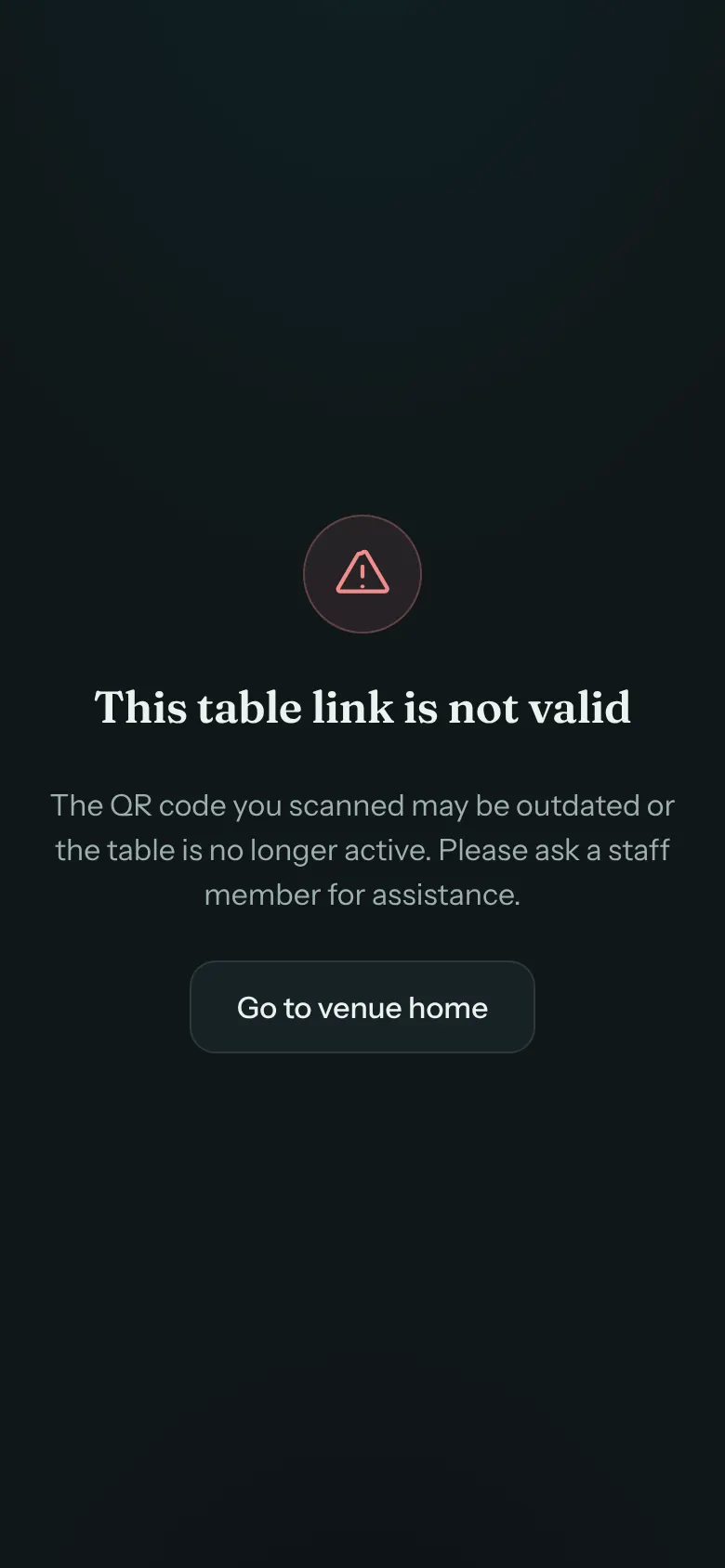
When you deactivate a table, its code stops working until you activate it again. A guest who scans it sees "This table link is not valid", with "The QR code you scanned may be outdated or the table is no longer active. Please ask a staff member for assistance." and a Go to venue home button that opens your venue page.
Archiving a table is final: its code never works again. Out-of-service tables are also left out of the print window. To deactivate, reactivate or archive a table, see Build Your Floor Plan.
Good to know
- Renaming a table keeps its code. The code points to the table itself, not its name, so the old card still works. Reprint it so the name on the card matches.
- Changing your venue's slug breaks every printed code. The codes include your venue's web address. If you change the Slug in Settings → Venue → Profile, every printed code and any link you've shared stop working, and old links don't redirect to the new address. A warning appears under the Slug box as soon as you type a different one, before you save. If you go ahead, reprint all your codes and update any links you've shared.
- End sessions when parties leave. If a party walks out without checking out, the next guests to scan that table see their session and their game. End it from Sessions. A session nobody ends closes on its own after about 12 hours.
- Anyone with the code can open the page. A code works from any phone, inside or outside your venue, so guests could take a photo of it and open it later. Your team can end any session from Sessions.