Bookable in 10 minutes
After setup, fill in your café from Google, add offerings from a starting point, and check exactly what guests can book.
Last verified
This guide starts where the setup wizard ends. You already have an account and you have finished onboarding, so it does not repeat the wizard's steps. It shows how to take a new venue from "set up" to a booking page guests can use: fill in your café's details from Google, add reservation types from ready-made starting points, check what guests are offered, add your tables, and switch on online bookings. The first three tools take about ten minutes. Adding your tables is separate, and takes as long as you have tables to enter.
Every path in this guide starts with Settings in the menu on the left of your admin screen. For example, Settings → Venue → Profile means: click Settings in that menu, open the Venue tab, then the Profile sub-tab.
What you have after setup
When the wizard finishes, your venue already has:
- One reservation type named Table Reservation. Settings calls it Standard. It follows your venue-wide settings, and every other type you add is compared with it. Its booking length starts at 2 hours.
- A starting opening week: 10 am to 10 pm, until 11 pm on Friday and Saturday, closed on Monday. If you imported hours from Google in the wizard, you have those instead.
- One zone called Main Floor, and no tables. Guests cannot book until you add at least one table.
- Online bookings switched off. Until you switch them on, anyone who opens your booking link sees "Reservations Not Available".
Fill in your café's details from Google
Type your café's name once. GameLedger reads your public Google listing and shows you what it found: name, phone, website, address, country, timezone and opening hours. You untick anything that is not right, save, and the details land in the right places across Settings.
Where to find it
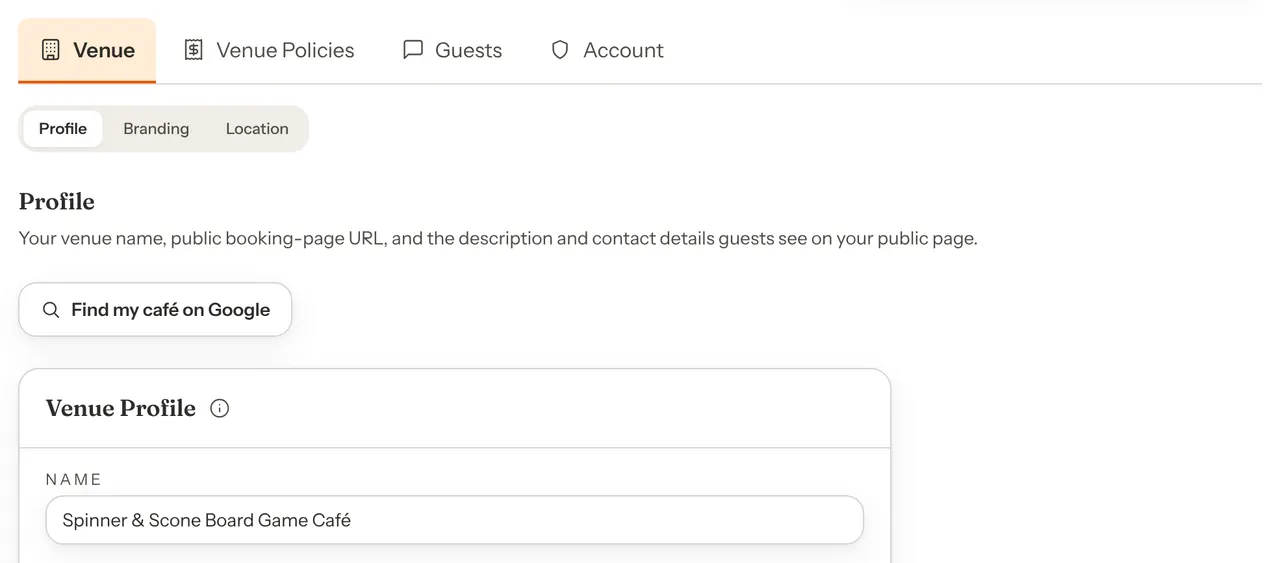
Click Settings in the left-hand menu, open the Venue tab, then Profile. The Find my café on Google button sits just above the Venue Profile card.
How to use it
Step 1: Open the lookup
Go to Settings → Venue → Profile and click Find my café on Google. If you have unsaved changes anywhere in Settings, the button is switched off and tells you to save or discard them first.
Step 2: Search for your café
Your venue name is already in the Café name box. Change it if Google knows you by another name, and add your city if the name is common. Press Enter or click Search.
You see up to five matches, each with its street address so you can pick the right one.
Step 3: Pick your listing and review it
Click your listing. The review screen opens with the address Google has and an Open in Google Maps link, so you can check it is the right place.
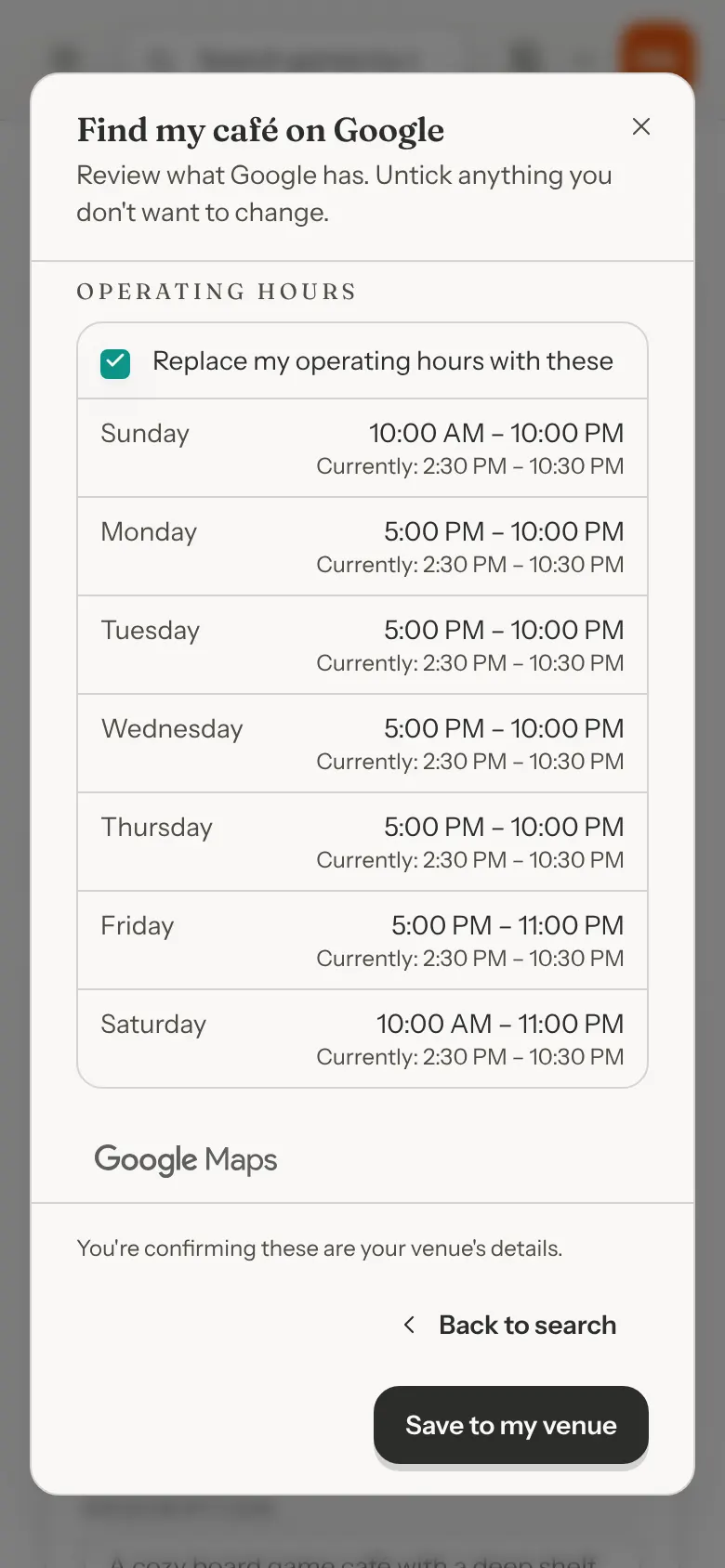
Under Details, each item is a ticked row. It shows what Google has and, underneath, what you have now: Currently: …, Same as current, or Currently empty. Untick any row you do not want to change.
Opening hours are a single row, Replace my operating hours with these, followed by the week Google lists.
Step 4: Save
Click Save to my venue. The page reloads on the Venue tab.
Check your work: Venue → Location now shows the imported address and timezone, and Venue Policies → Hours & Closures shows the imported week.
The Google Maps logo appears under the search results and under the review, because the details come from Google.
Every row in the review
A row appears only when Google supplies that value.
| Option | What it does | Default |
|---|---|---|
| Venue name | Your venue's name on your pages. Your booking link does not change. | Default: Ticked |
| Phone | The phone number guests see, when Google provides it. | Default: Ticked |
| Website | Your website link, when Google provides it. If Google's link is not a normal web address, it is left out and a note says so. | Default: Ticked |
| Street address, City, State / region, Postal code | Up to four separate rows, each when Google provides it. They fill the address on the Location tab. | Default: Ticked |
| Country | Your venue's country. Once you have created a Stripe account the country is fixed: the row is greyed out, unticked, and explains why. | Default: Ticked, or locked and unticked once a Stripe account exists |
| Timezone | The zone every offered time is shown in. If it differs from your current zone, the row warns that opening hours and future booking slots will be read in the new zone, while existing bookings keep their times. Saving it ticked also marks your timezone as confirmed. | Default: Ticked |
| Google Place ID | Shown when Google provides it. Stored so Review Links (Settings → Guests → Review Links) can build a Google review link for you. | Default: Ticked |
| Replace my operating hours with these | Replaces your weekly hours with one window per day. Days Google lists as closed stay closed. If Google has no hours for the place, this row is missing and your hours stay as they are. | Default: Ticked |
Notes that can appear under the hours
Your venue schedule keeps one opening window per day, on the half hour. When Google's listing does not fit that, GameLedger adjusts it and tells you under the day:
- Open 24 hours: set to 12:00 AM to 11:30 PM.
- Closes after midnight: closing time set to 11:30 PM. Bookings past midnight are not supported yet.
- Split hours: two windows are merged into one, from the first opening to the last closing. Adjust the day afterwards if the break matters.
- Rounded to the nearest half hour: opening rounds later and closing rounds earlier, so a time is never offered while you are closed.
- Hours too short to book: a day that collapsed after rounding is marked closed.
- Google shortened these hours: check that day. Google flagged its own listing as cut short.
What your guests see
Your public venue page shows the imported name, address, phone and website. Your booking page offers times inside the imported opening hours, in the imported timezone.
Add a reservation type from a starting point
A reservation type is something guests can book: a table, a ticketed night, a set of showtimes. (Some screens call it an offering.) When you add one, you begin from a starting point: a ready-made set of choices for a common kind of booking. There are five, and you can change any of what a starting point sets afterwards. You only name the type, and give a seat count where it needs one.
Where to find it
Click Settings in the left-hand menu, open the Venue Policies tab, then the Reservation Types sub-tab. It is the last sub-tab in the row. Its list is titled "Reservation types you offer", with a New type button at the top right of the list.
How to use it
Step 1: Click New type
On Settings → Venue Policies → Reservation Types, click New type. A window titled New type opens with the prompt Choose a starting point.
Step 2: Pick a starting point
You see five cards: Café table, Fixed showtimes, Event night, Open seating, and a dashed Start from scratch card. Each of the first four shows a short description and a line beginning "Guests will see:" followed by the start times guests would get. When your venue offers more than one booking length, that line reads "For a 1 hr booking (the shortest option), guests will see:" instead.
If your role cannot edit payments, Fixed showtimes and Event night are greyed out, because they set a price. The table below says what each starting point sets.
Click the card you want. The window changes to a short form, headed with the starting point's name.
Step 3: Type a name
Type a Name (required, up to 80 characters). It starts empty.
Step 4: Enter the seats, if asked
Event night and Open seating also show Seats: how many guests can book at once, shared across the room. It starts empty and must be a whole number from 1 to 10,000. The other starting points do not show this field.
Step 5: Add a description, if you like
Description (optional) starts empty. Guests see it on this type's card when your venue has two or more types guests can book.
Step 6: Check the address name, if you like
Advanced starts closed. Open it to see one field labelled Slug. This is the address name: the last part of this type's own booking link, after /book/. Leave it empty and one is made from the name. It cannot be changed later, and "manage" and "default" are not allowed. Most owners never open this.
Step 7: Click Create type
Click Create type. You arrive on Venue Policies → Booking Rules, with an Editing: selector at the top set to your new type. Under it, a one-time line beginning "Set up" and the type's name says what the type starts with, and ends "It's off, so guests can't book it yet." The line has Turn on bookings and Dismiss buttons.
On the Booking Rules, Hours & Closures, Deposits & Payment and Cancellations & No-Shows tabs, a line under the selector reads "Changes here apply only to" and the type's name. Cards that can differ from Standard let you choose Same as Standard, which means the type follows your venue-wide setting, or Custom for this type, which gives it a value of its own.
Step 8: Check what the starting point set
Open the tabs listed under "Changing what a starting point set" below, and check the lengths, hours and price the starting point chose before you turn the type on.
Step 9: Click Turn on bookings
When the type looks right, click Turn on bookings on the "Set up" line. You can do the same later from the Reservation Types list, where a type that is off carries an Off tag and its own Turn on bookings button.
If turning it on is refused, a red message under the line, or above the list, gives the reason, and the type stays off. If online bookings are still off for your venue, the line tells you so and links to Turn on online bookings. The last section of this guide covers that.
The starting points
| Starting point | You enter | What it starts with |
|---|---|---|
| Café table | Name | Guests pick a game and book a table. Any table. Follows your venue's opening hours, booking lengths and payment settings. |
| Fixed showtimes | Name | One start time, Friday 7:00 PM, for a fixed 2 hours. Any table. A flat price for the booking, set to what your venue charges today. Its own weekly hours, which hold only that start time. No game step. |
| Event night | Name, Seats | One weekly event, Friday 6:00 PM to 10:00 PM, booked as a whole. A shared seat count instead of tables. A price per guest, set to what your venue charges today. No game step. |
| Open seating | Name, Seats | A shared seat count instead of tables, during your opening hours. Follows your venue's booking lengths and payment settings. No game step. |
| Start from scratch | Name | The same as Standard. If your venue's Standard differs from a new type's defaults, for example in how often bookings start, the card says what is different. |
"Game step" is the part of booking where a guest picks a game to play. A starting point does not change your payment policy. Prices on Fixed showtimes and Event night are charged under the policy your venue already has.
Changing what a starting point set
All of these are on the Venue Policies tabs, with the Editing: selector set to your type. Pick the type from that selector if you have left it.
- Booking lengths, who can book, game step: Booking Rules.
- Start times and weekly hours, special dates: Hours & Closures. Fixed showtimes and Event night start with their own hours, so change the day or time here.
- Price: the Pricing card on Deposits & Payment. That tab is not available on every account yet. Where it shows a lock, the price stays as the starting point set it.
What your guests see
When your venue has one reservation type that is on, guests go straight into booking. When it has two or more, your booking page opens on Pick what you'd like to reserve, with one card for each type. Each card shows the type's photo if you added one (otherwise a coloured band with its first letter), its name, its description if you wrote one, its booking length, and its price when you charge one. To add a photo, see Give a type a photo. A Fixed showtimes type shows exactly one start time for each showtime you set, for example 7:00 PM on a Friday.
Check what guests are offered
Guest view answers the question you would otherwise open your own booking page to check. For each reservation type that is on, it shows the next three times guests are offered, the price, and the tables it uses. When something stops a type from being bookable, a red flag names the problem and links to the setting that fixes it.
On a brand-new venue, expect three flags until you finish this guide: online bookings are off, your timezone is not confirmed, and there are no active tables.
Where to find it
Guest view sits under the tabs on four Settings pages: Venue → Location, and Venue Policies → Booking Rules, Hours & Closures and Reservation Types. It is the same card on each, and it stays open or closed as you move between them.
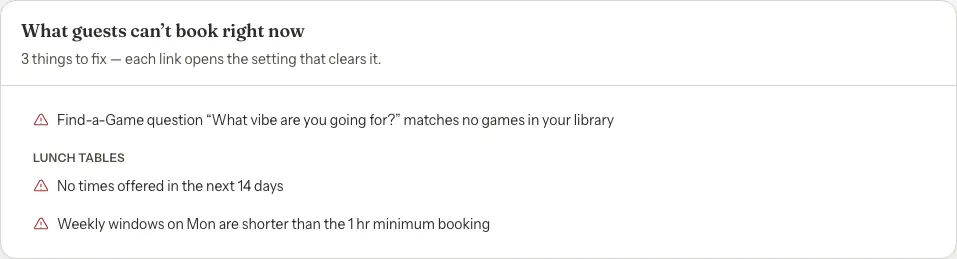
The dashboard shows a shorter version, titled What guests can't book right now, under the setup checklist. It lists only the flags, and only while there is something to fix.
How to read it
Step 1: Open Guest view
Go to Settings → Venue Policies → Booking Rules. Guest view is the card under the sub-tabs. When nothing needs fixing it is one line, such as "Guests can book all 3 offerings · next …". When something needs fixing, it opens by itself and says how many things to fix, for example "3 things to fix".
Step 2: Click Show details
Click Show details (it becomes Hide details). You see each type that is on, with its price, its booking length and its tables, and under that the next three times guests are offered for the type's default length. Flagged types sort to the top. If you have more than four, click Show all for the rest.
Step 3: Ask Why?
Under a type, a quiet Why? line has buttons: Lengths, Price, Start times and First time. When a type has no price, the price button reads No price. Click one to read, in a sentence, where that value comes from, with a link to change it.
Step 4: Click a flag to fix it
Each red flag is a link. Click it and Settings opens at the card that clears the problem, with that card highlighted. The table below lists each flag.
The flags
| Flag | What it means | Where the link goes |
|---|---|---|
| Online bookings are off — guests see 'Reservations Not Available' | Your booking page is closed to guests. New venues start this way. | Booking Rules, the Accept Online Bookings card. |
| No times offered in the next 14 days | Nothing is bookable for this type in that stretch. If your Maximum Advance on Booking Rules (the Advance Booking card) is shorter than 14 days, the number is that shorter period. | Hours & Closures. |
| No active tables in this offering’s table pool | Every table you chose for this type is inactive. | The type's Who can book card on Booking Rules. |
| No active tables — nothing for guests to book | The type can use any table, and none of your tables is active. A new venue has no tables at all. | Tables & Floor Plan. |
| Opening hours on Mon are shorter than the 1 hr minimum booking | A day's opening hours are shorter than the shortest booking length, so no start time fits. For a type with its own hours it says "Weekly windows" instead of "Opening hours". | Hours & Closures. |
| Find-a-Game question “…” matches no games in your library | One of the questions guests are asked when they look for a game to play has answers that match none of your games. This flag waits until your library has tagged games. | Settings → Guests → Find a Game. |
| Timezone not confirmed — every time below assumes … is right | Your timezone was detected automatically during setup and nobody has confirmed it. | Venue → Location, the Timezone card. |
Types that use a shared seat count never show a tables flag.
Confirm your timezone
Step 1: Open the Timezone card
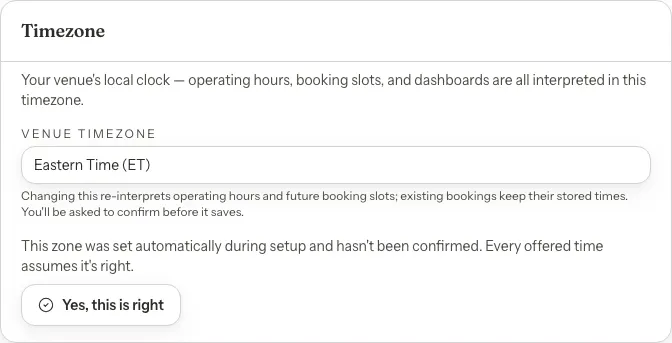
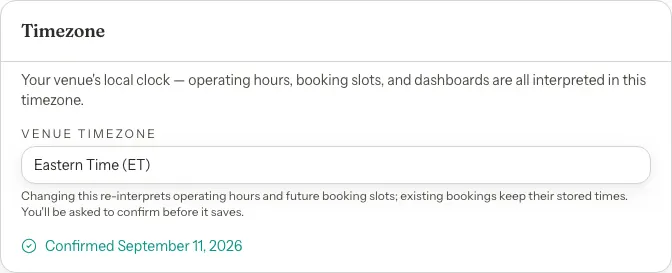
Open Settings → Venue → Location and find the Timezone card. If the zone is right, click Yes, this is right.
If it is wrong, choose the right zone and save. You are asked to confirm before it saves, because changing the zone re-reads your hours and future booking slots. Existing bookings keep their times.
Step 2: See it confirmed
The card now shows the date you confirmed, and the flag disappears from Guest view and from the dashboard.
Add your tables
A new venue has no tables, so guests who try to book are told that no table fits their party, for example "No table seats 2 guests", and asked to try a smaller party. That happens on every date. Add your tables before you turn online bookings on.
Step 1: Open Tables & Floor Plan
Click Tables & Floor Plan in the left-hand menu. The page opens on Table List.
Step 2: Click Add table
Click Add table at the top of the list. An Add Table window opens.
Step 3: Fill in the table and save
Type a Table label such as "Table 1" or "Booth A". Choose a Zone; your venue starts with one called Main Floor. Capacity starts at 4, so change it to how many guests the table seats. Color, Description and Seating tags are optional. Seating tags send the right groups to the right tables: see Send the right groups to the right tables. Click Save table.
Step 4: Repeat for each table
Add one entry per table. Each table you add appears in the list, and the "No active tables" flag in Guest view clears once you have one.
Turn on online bookings
Step 1: Tick Accept Online Bookings
Open Settings → Venue Policies → Booking Rules and tick Accept Online Bookings. It is near the top of the page.
If your venue has no tables, a warning under the box says guests can't book a table, with an Add tables link. Guests who try are told that no table seats their party (or Fully booked if you have turned on Allow parties across multiple tables). Add your tables first.
Step 2: Save
Click Save Changes. The online-bookings flag clears, and your booking page now offers the times Guest view lists. Your team can add phone bookings and walk-ins whether this is on or off.