Set up Find a Game
Get Recommend me a game suggesting the right games: check your library, set what each answer means, choose the tags behind each vibe, and add your own questions.
Last verified
Find a Game is the Recommend me a game option on each table's page. Guests answer a few quick questions, such as how many are playing and how long they have, and GameLedger suggests games from your shelves that are free right now. Every venue starts with it switched on and four questions ready to go.
Its suggestions are only as good as what it has to work with: the details on your games, and what each answer means. This guide shows what to set up so Find a Game recommends games the way you would. To see what guests see at the table, read Table QR codes.
What you need to do
- Get your library ready. Find a Game reads each game's player count, play time, complexity and tags. See Get your library ready.
- Check the built-in answers. Make sure the player counts, play times and complexity levels behind each answer suit your shelves. See Set up the built-in questions.
- Choose the tags behind each vibe answer. Tags count for the most when GameLedger ranks games, so this step changes results the most.
- Add your own questions, if you want to ask guests something else. See Add your own questions.
- Save, then try it from a table. See Try it yourself.
Find a Game works before you change anything, so you can do these one at a time.
Where to find it
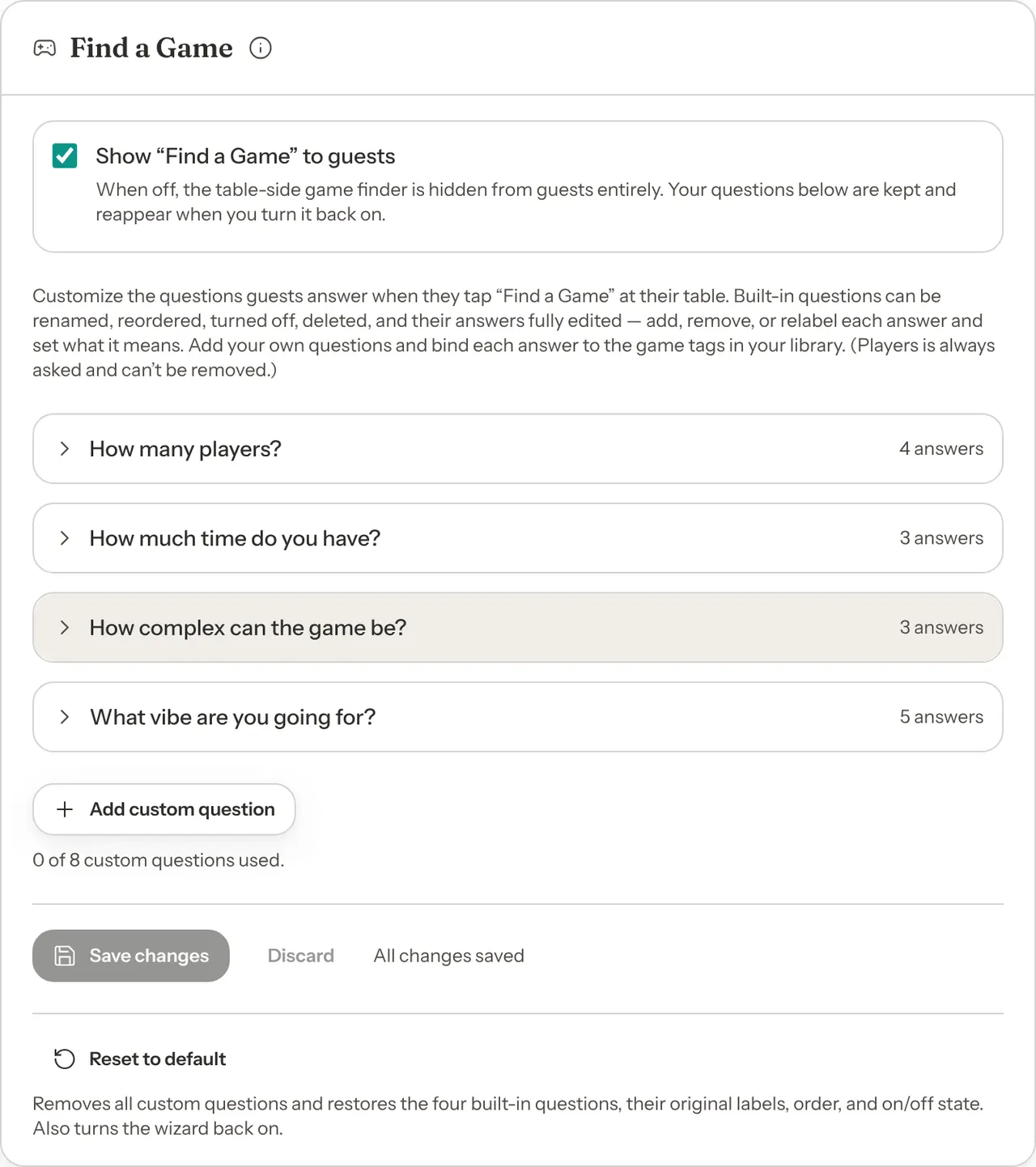
Open Settings, choose Guests, then the Find a Game tab. Everything is on one card, also called Find a Game: the on/off switch at the top, then your questions, then the Save changes and Reset to default buttons.
You need permission to edit settings to change anything here. See Who can change it.
How Find a Game picks games
Knowing this makes the rest of the guide easier. GameLedger works in three steps every time a guest taps Show me games.
1. It finds the games guests could play right now. A game can only be suggested when:
- its Status is In rotation, its Condition is not Problematic, and Missing pieces is not Hide from guests;
- Hide from public games page is off; and
- at least one copy is free: not at another table, and not held for a booking (see Games to set aside). A game held for the guest's own booking still counts as free for their table.
2. It keeps the games that fit the party. The answer to How many players? is the only answer that takes games out. A game stays in when its player count overlaps the answer. With the answer 5+ set to 5 to 8 players, a game for 2 to 5 players stays in, because five people can play it.
3. It ranks what is left. The other answers never take a game out. They move games up the list:
- Tags count the most. Each tag a game has that matches the guest's vibe answers, or their answers to your own questions, moves it up. A game with one matching tag always ranks above a game with none, whatever its play time or complexity. A game with two matching tags ranks above a game with one.
- Complexity and play time are smaller nudges. Each complexity answer favours the most complex level it ticks, then its other ticked levels, then the rest. A game whose whole play time fits inside the time answer's range gets a nudge, and a game whose play time only overlaps it gets a smaller one.
- A question the guest skips changes nothing.
- When games still tie, the one with more free copies comes first, then the one you added to your library most recently.
Guests see the best match on top, and up to four more under Also a good fit. If no game fits the party with a free copy, they see No matches found and "No games are available for your table size right now."
Get your library ready
Find a Game reads these details on every game. Check them in your Library, on each game's Edit Game form. Build your game library covers every field.
| On the game | What Find a Game does with it |
|---|---|
| Players | Takes the game out when the party doesn't fit. A wrong range means the game is suggested to groups who can't play it, or never to groups who can. |
| Playtime (minutes) | Ranks games that fit the guest's time higher. |
| Complexity | Ranks games at the level the guest asks for higher. A game added from BoardGameGeek gets a level from how heavy BoardGameGeek players rate it, or Medium when nobody has rated it. Change it if your regulars would disagree. |
| Vibes / Tags | Matched against the tags behind your vibe answers and your own questions. A game with no tags never gets this boost. |
| Status, Condition, Missing pieces, Hide from public games page and Number of copies | Decide whether the game can be suggested at all. |
A few things to know about tags:
- Tags have to match exactly. "Party" and "party" are two different tags, and so are "Party" and "Party Game". Fix Data in the Library header rewrites every tag in Title Case so the same word lines up.
- Games added from BoardGameGeek come with tags, taken from BoardGameGeek's categories, such as "Card Game", "Party Game" or "Deduction". You can add your own on the Edit Game form under Vibes / Tags, for example "date night".
- Tags you add on the form are saved in lower case, quick picks included, while BoardGameGeek's are in Title Case. Run Fix Data after adding your own so they line up.
- Run Fix Data before you choose tags for your answers. If you run it afterwards, a tag it renames no longer matches your answer. The answer's count drops, and once none of its tags match, the card shows a warning.
- A tag on only a few games makes a narrow answer. Group a few related tags into one answer instead, as step 5 of Set up the built-in questions shows.
Set up the built-in questions
Find a Game starts with four questions. Each answer carries a meaning that GameLedger uses to pick games. You can rename every question and answer, add and remove answers, and change what each one means.
| Question | Answers to start with | What each answer means |
|---|---|---|
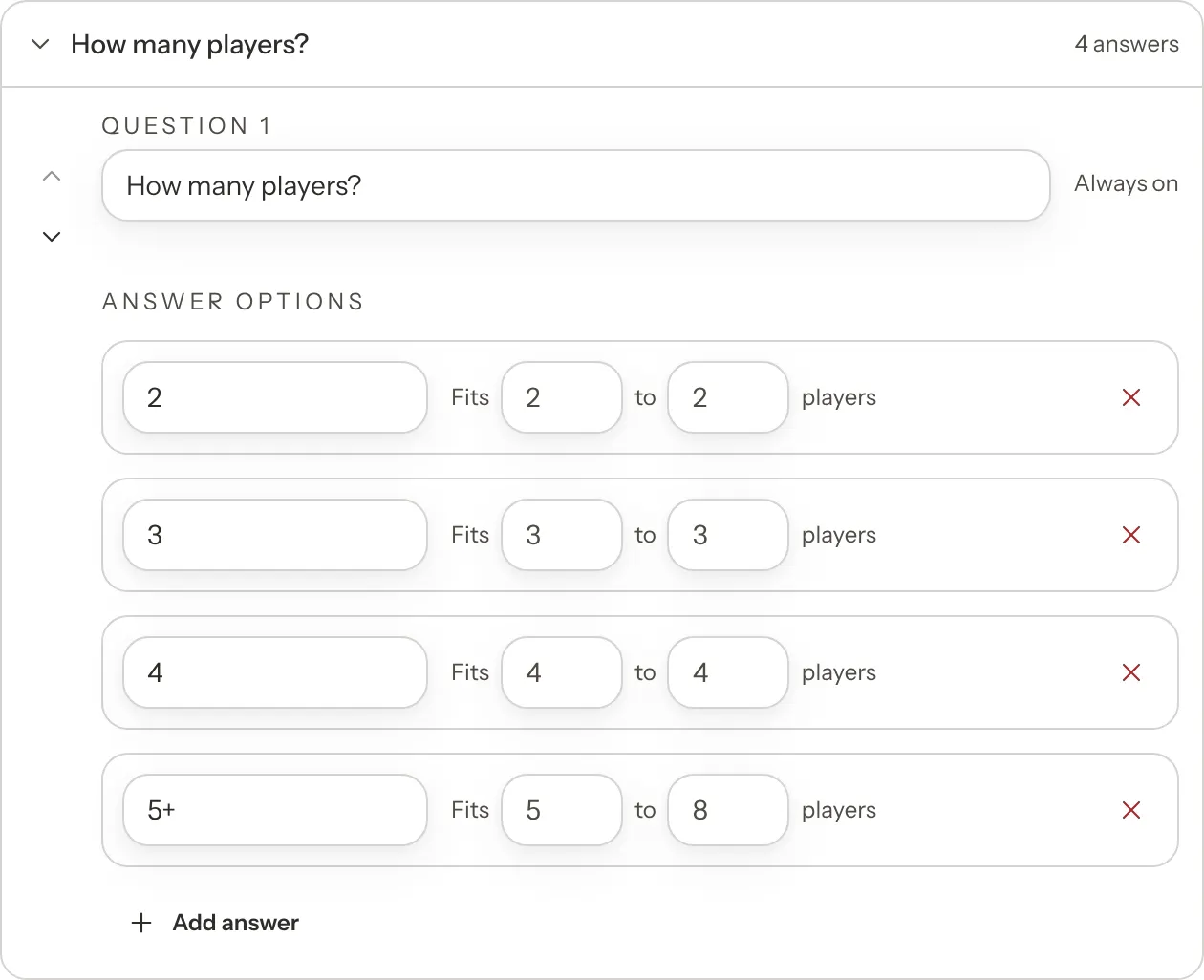
| How many players? | 2, 3, 4, 5+ | Fits 2 players, 3 players, 4 players, and 5 to 8 players. Guests must answer it. |
| How much time do you have? | 30–45 min, 1–2 hours, 2+ hours | 0 to 45 minutes, 45 to 120 minutes, and 120 to 999 minutes. |
| How complex can the game be? | Keep it simple, Some strategy, Bring it on | Simple; Medium, then Simple; Complex, then Medium. |
| What vibe are you going for? | The five tags most games in your library have | Each answer matches games with its tag. Guests can pick several. |
Guests can skip every question except How many players?. The others show "(optional)".
If your games have no tags yet, the vibe answers are placeholders: Light & Silly, Competitive, Co-op, Deep & Thinky and Family Friendly. They change nothing until you tag your games and choose tags for them. A library with fewer than five tags gets one answer for each tag it has.
Step 1: Open a question
Click a question's row to open it, and click it again to close it. Inside are the question's name, its Answer options, and the buttons to move, hide and delete it.
Step 2: Check the players answers
Each answer reads Fits [2] to [2] players. Change the numbers so the answers suit your shelves. Whole numbers from 1 to 99 work, and the first number can't be bigger than the second.
Remember that a game stays in when its player count overlaps the answer, so a range lets in every game that fits its smallest number. With 5+ set to 5 to 8, a game for 2 to 5 players is suggested to a group of eight. For closer fits, give each party size its own answer, for example 5, 6, 7 and 8+ (8 to 20). A game for 2 to 5 players then only comes up for a party of five.
Click Add answer to add one. A new answer starts as 2 to 2 players, so set its numbers and give it a label. The × next to an answer removes it. Every question keeps at least one answer.
Step 3: Check the time answers
Each answer is a range of minutes, for example 0 – 45 min. Use whole minutes from 0 to 999, and make the second number bigger than the first. A game ranks highest when its whole play time, as set on the game, fits inside the range.
If your sessions are booked by the hour, it helps to match the answers to your session lengths, for example Under an hour (0 to 60) and An hour or two (60 to 120).
Step 4: Check the complexity answers
Each answer has three tick boxes: Simple, Medium and Complex. Games at a ticked level rank above games at the others, and the answer favours the most complex level you tick. For example, Some strategy ticks Medium and Simple, so Medium games come first, then Simple ones. Tick at least one. A new answer starts with Simple ticked.
Step 5: Choose the tags behind each vibe answer
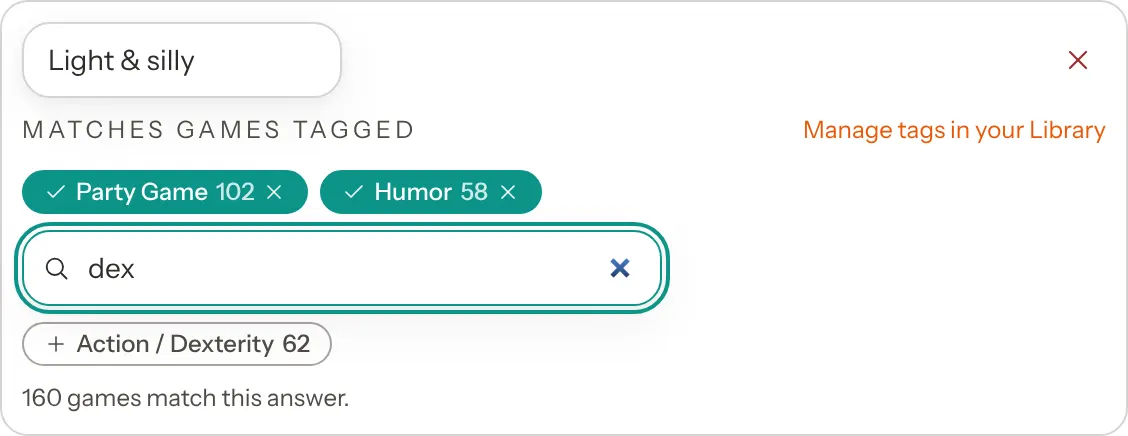
Open What vibe are you going for?. Each answer has a label, which is what guests see, and its tags under Matches games tagged.
- The answer's tags show as teal chips, with how many of your games have each one. Click a chip to remove that tag.
- Type in Search game tags… to find more of your library's tags, then click one to add it. You can give an answer up to 24 tags.
- Under the tags is a count of the games that match. A game with two of the answer's tags counts twice. When none match, it warns "No games currently match this answer".
Group related tags into answers that mean something to guests. For example, an answer labelled Light & silly could match "Party Game", "Humor" and "Action / Dexterity". Aim for answers that each match a good handful of games.
Step 6: Reword the questions
Type in the box at the top of a question to rename it, and in an answer's box to rename the answer. Guests see your words exactly. Names can be up to 120 characters, but short ones read best on a phone.
Step 7: Click Save changes
Nothing you change in the questions applies until you click Save changes at the bottom of the card. Until then the card says "Unsaved changes — click Save to apply", and Discard puts everything back the way it was.
If something is missing, such as an answer with no label, the card says "Fix the highlighted fields before saving." and marks each field to fix. When the save works, it says "Find a Game questions saved."
Add your own questions
Ask guests anything that maps to tags on your games, for example a theme, or who they are playing with. Your own questions work exactly like the vibe question: each answer matches games with its tags, and every matching tag moves a game up the list.
Step 1: Click Add custom question
The button is under your questions. A new question appears at the end of the list.
Step 2: Name the question
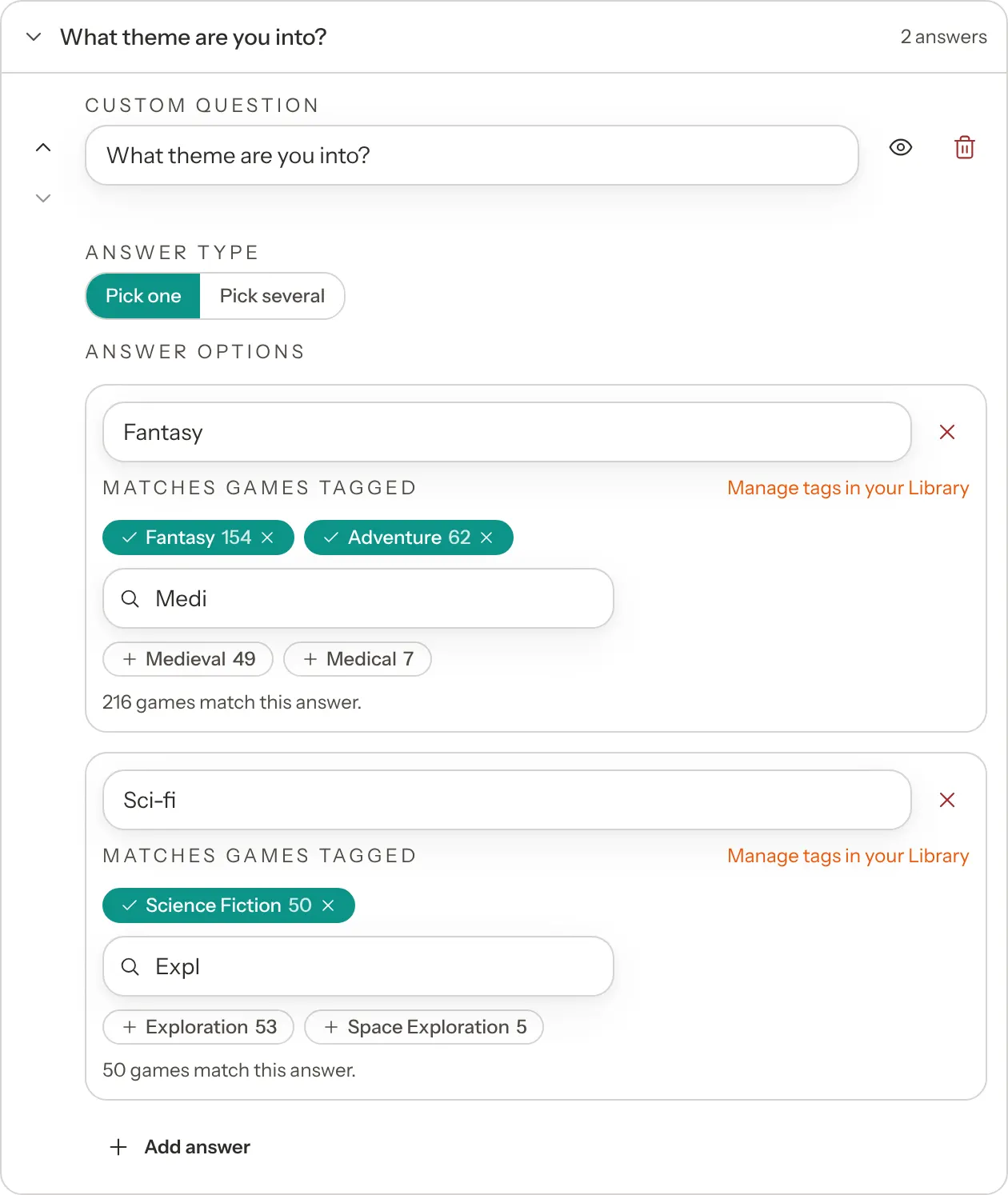
Type the question guests see, for example "What theme are you into?".
Step 3: Choose Pick one or Pick several
Under Answer type, choose Pick one if guests choose a single answer. They tap it and go straight to the next question. Choose Pick several to let them tap as many as they like, then tap Next.
Step 4: Add the answers and their tags
Click Add answer, type the label guests see, and choose its tags the same way as for a vibe answer. For a theme question, Fantasy could match "Fantasy" and "Adventure", and Sci-fi could match "Science Fiction".
Step 5: Click Save changes
Good to know:
- Guests can skip your own questions. They show "(optional)".
- An answer with no tags changes nothing. That is useful for an answer such as "No preference", which can safely show the "No games currently match this answer" warning.
- Limits: up to 8 of your own questions, 12 answers on each, and 24 tags on each answer. The card shows how many you have used, for example "2 of 8 custom questions used."
Fix answers that match no games
GameLedger warns you when an answer, or a whole question, can't change the suggestions:
- On a question's row: for example 1 answer matches no games.
- Under the answer: "No games currently match this answer", with a Manage tags in your Library link.
- At the top of a question whose answers all match nothing: "This question won’t change recommendations right now — none of its answers match any games in your library. Bind each answer to tags your games actually have."
- On your dashboard, in the What guests can't book right now card: "Find-a-Game question “…” matches no games in your library". This only appears while Find a Game is on, for a question guests are asked, once your library has tags. See Bookable in 10 minutes.

To fix one, open the answer and choose tags your games actually have. The search only offers tags that are in your library. Or go to your Library and add the answer's tag to the games it should match.
The counts include every game in your library, including ones guests can't be offered right now, such as games that are out of service. An answer can match a few games and still bring up none of them on a busy night.
Change the order, hide or delete questions
- Change the order with the up and down arrows beside a question. Guests are asked in the order on the card.
- Hide a question with the eye button. Guests aren't asked it, and it keeps its answers for later. Its row says Hidden from guests. Click the eye again to show it.
- Delete a question with the bin button, then Delete question to confirm. It goes when you save.
- How many players? is always asked. It has no eye or bin button and reads Always on, but you can rename it, change its answers and move it.
If you delete one of the built-in questions, a button such as Add “Play time” appears next to Add custom question to bring it back. It comes back at the end of the list, switched on, with its original answers. Move it with the arrows. For the vibe question those are Light & Silly, Competitive, Co-op, Deep & Thinky and Family Friendly, which usually match none of your games. Choose tags for each one, or use Reset to default instead.
Start again with Reset to default
Reset to default at the bottom of the card puts Find a Game back to how it started:
- every question you added is deleted;
- the four built-in questions get back their original wording, answers, order, and on or off state;
- the vibe answers are your library's most common tags again, and keep up with your library;
- Find a Game is switched back on.
Click Reset to default, read what it will delete, and click Reset to default again to confirm, or Cancel. It happens straight away, not when you save, and you can't undo it.
Turn Find a Game off
Untick Show “Find a Game” to guests at the top of the card. It saves straight away and says "Find a Game is off." Your questions are kept for when you turn it back on.
While it is off, Recommend me a game disappears from your table pages. Guests can still browse and search your games with I have my game, and see your staff picks. A guest who opens an old link to the questions sees "Game finder unavailable".
Try it yourself
The best check is to play the guest. On Tables & Floor Plan, click Test Guest View and pick a table. Its page opens in a new tab. Tap Start Session, then Recommend me a game, and answer the questions as a guest would.
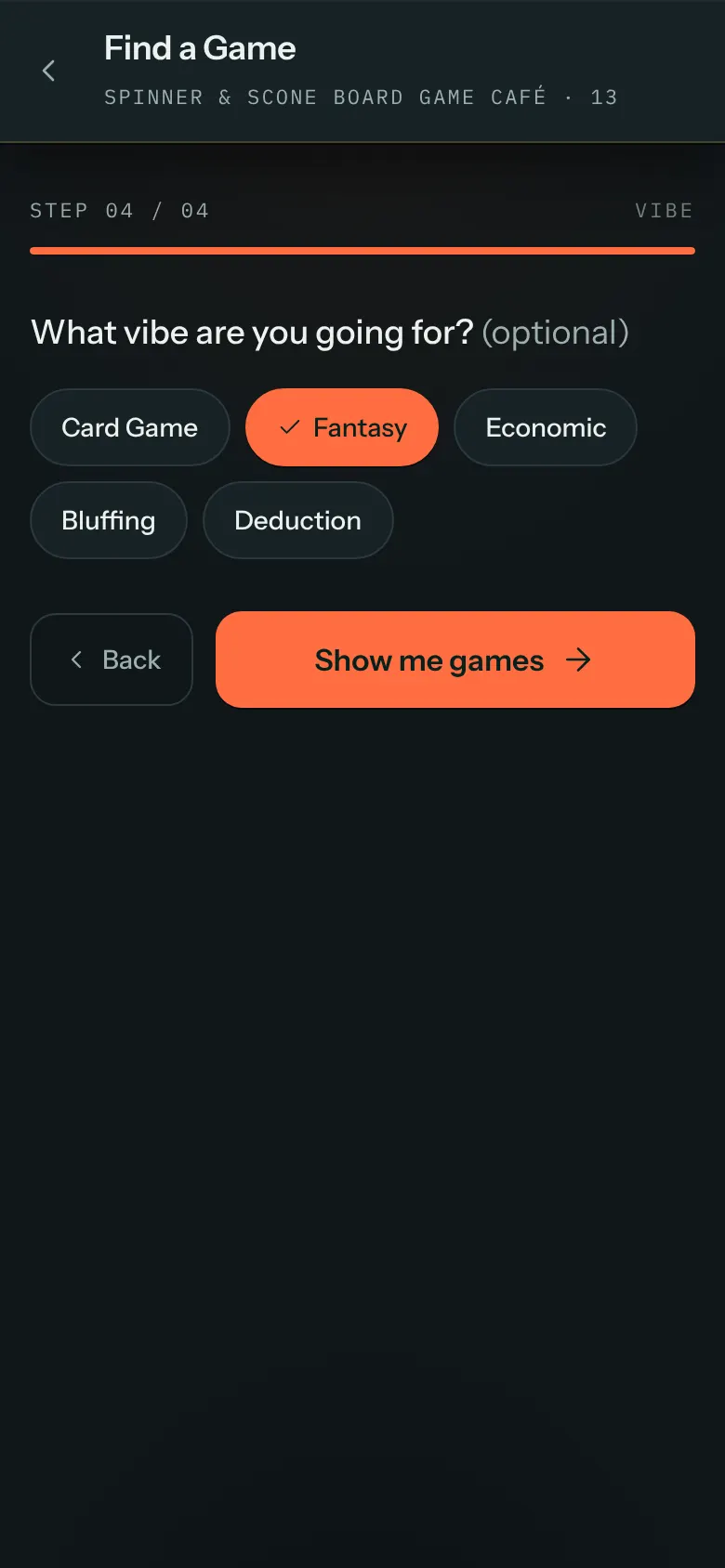
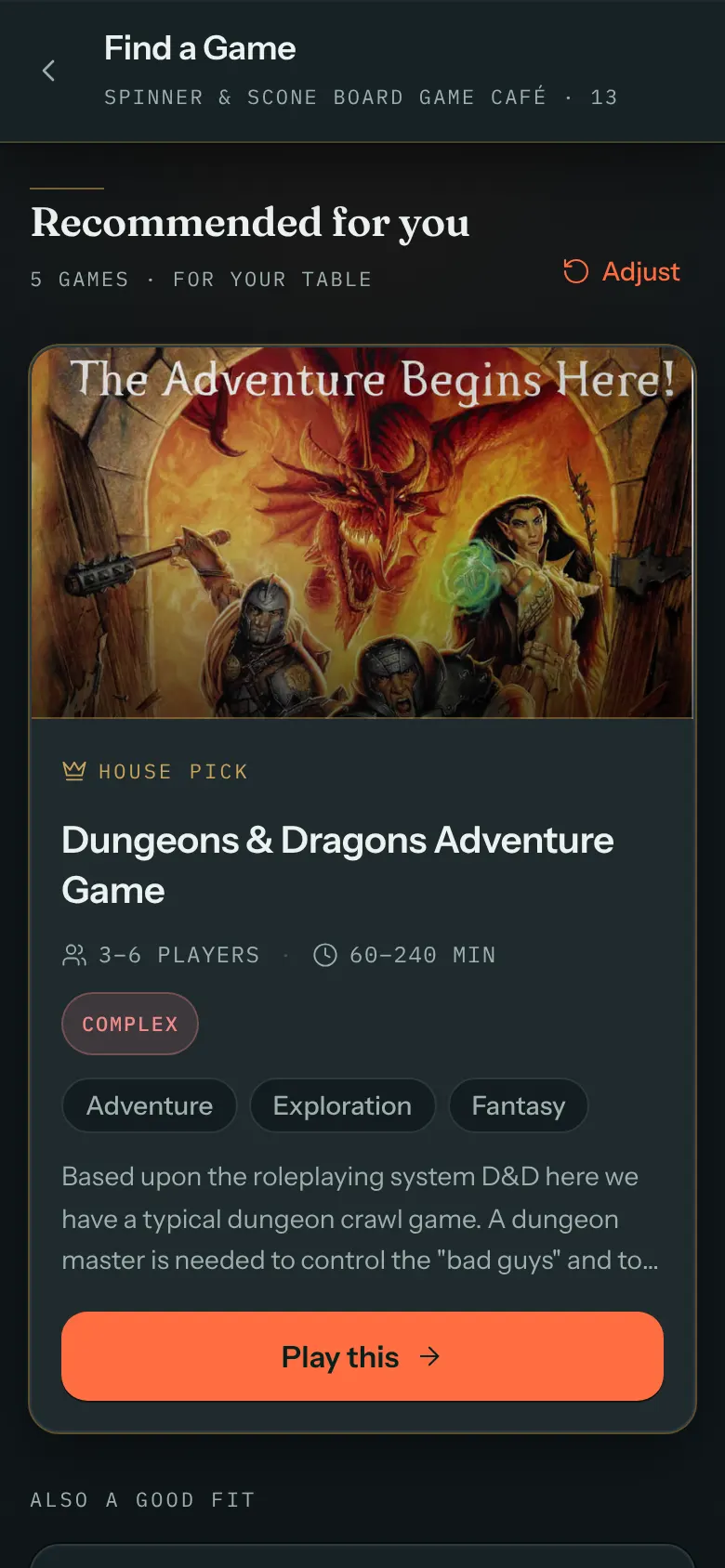
Try the same party size with different vibe answers. The games at the top should change. If they don't, see Troubleshooting.
The session you start is real, the same as a guest's. End it from Sessions when you are done.
Who can change it
Owners and admins can always change Find a Game. Other staff need the Edit box for Settings on the Team page. Staff who can only view settings see the card with its boxes greyed out, and without the add, delete, save and reset buttons. See Team and permissions.
Troubleshooting
Guests get the same games whatever vibe they pick. The answers' tags match none of your games, or very few. Look for the warnings above, and check that the games you expect carry the exact tags the answers use. Also check those games are free and fit the party size: tags only reorder games that passed the first two steps of How Find a Game picks games.
A game I'd recommend never comes up. Check its Status, Condition, Missing pieces, Hide from public games page and copies, and that its Players range fits the party. Then check its tags. Only five games are shown, so a game that ties with many others can miss out.
Big groups get small games. A range lets in every game that fits its smallest number, so an answer of 5 to 8 lets in games for up to five. Give each party size its own answer, as step 2 of Set up the built-in questions shows.
A new tag doesn't show up as a vibe answer. Your vibe answers were saved, so they no longer follow your library. Add the tag to an answer yourself.
Warnings appeared after I ran Fix Data. Fix Data renamed some tags, so your answers now point at the old names. Open each warned answer, remove the old tag and add the new one.
Guests see "No matches found". No game that fits their party size has a free copy right now. Check your player counts, and whether your games for that size are all at tables.