The Dashboard During Service
What needs you right now, who is arriving next and where to seat them, and the jobs that can wait until it is quiet, all on one page.
Last verified
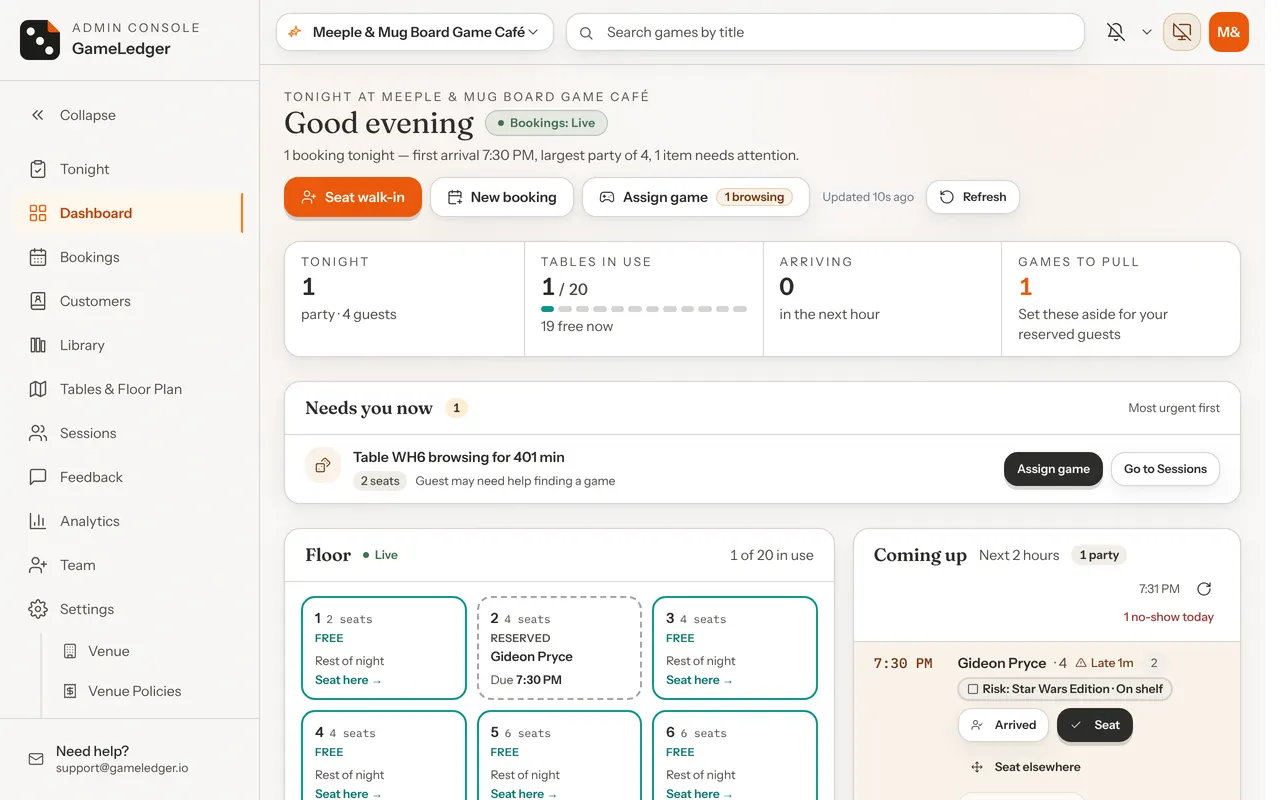
The Dashboard is the page you land on when you sign in. During service it answers three questions in order. Does anything need me right now? Who is arriving next, and where can I seat them? What can wait until it is quiet? From top to bottom, the page shows what needs you, then your tables (the Floor, a tile for each table) beside the next two hours of parties (Coming up), then the jobs that can wait in a folded section called Back office.
Use it as your main screen at the host stand. If you run service from a phone instead, see Run Tonight From Your Phone.
Where to find it
Sign in and you are on it, unless you have set that device to open on the Tonight page. That is a separate screen in the sidebar, built for running the night from a phone. From anywhere else, choose Dashboard in the sidebar. Nothing needs turning on. The page keeps itself up to date.
A new venue also sees a setup checklist above the numbers until the basics are set up.
The page, top to bottom
The page always runs in the same order.
- Your buttons and tonight's numbers. Seat walk-in, New booking and Assign game in the header. Under them, one strip: parties and guests, tables in use, arriving in the next hour, games still to pull.
- Needs you now. Only what cannot wait, each with its buttons. One line when nothing does.
- Floor and Coming up. Every table's state beside the next two hours of parties. Side by side on a wide screen. On a narrower one, Coming up comes first.
- Back office. Games to fix, games with every copy out, guest feedback. Folded while you are busy.
Needs you now and the Floor shrink to a line when there is nothing to show, so a quiet night looks quiet and a busy one puts its problems on top.
The header buttons

| Option | What it does | Default |
|---|---|---|
| Seat walk-in | Asks for a party size, then shows the tables that are free for a walk-in right now. You pick one and the party is seated. | Default: Shown to staff who can create bookings |
| New booking | Opens the new booking form, set to today. | Default: Shown to staff who can create bookings |
| Assign game | Hands a game to a table that is browsing, meaning a table with no game yet. The count on the button is how many tables are browsing. With none, it opens Sessions instead. | Default: Shown to staff who can manage sessions |
The Tonight strip

The first cell reads Tonight from 5 PM in your venue's time, and Today before that. It is only a label for the day. It is not the Tonight page in the sidebar, which is a separate screen.
- Tonight or Today shows parties and guests booked. It opens Bookings.
- Tables in use shows tables with someone at them, out of your active tables, and how many are free. It jumps down to the Floor. With no tables yet it reads "No tables yet" and opens Tables & Floor Plan, where you add them.
- Arriving shows parties due in the next hour. It opens Bookings.
- Games to pull shows reserved games still to take off the shelf. It opens the list of games to set aside. See Games to Set Aside.
Needs you now
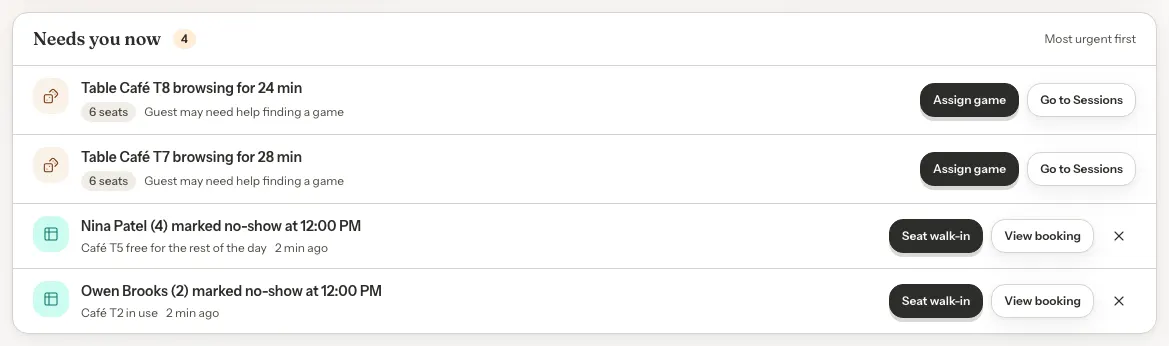
This list holds only things that are time-sensitive, most urgent first. Each row has its buttons in view. The count on the panel matches the line under the greeting, for example "2 items need attention". With nothing urgent, the panel says so. Under that, a note says guest requests come from the page each table's QR code opens, with a link to print the codes, and while self check-in is off, that guests booked to a table who check themselves in show up here once it's on, with a link to the setting.
- A guest asked for help
- A guest pressed Need a hand? at their table. Press On my way. For a request for more time, press Approve +30 or Decline.
- A guest checked in
- A guest booked to a table checked themselves in and has not been seated. Press Seat, or Choose a table if they have no table yet. Open booking shows their booking. A party booked by seats does not get this row. You get a short pop-up instead, with no Seat button. The party shows as Arrived on the Tonight page, where you press Done when their visit ends.
- A party is late
- The party is past your no-show grace. A party booked to a table has the same buttons as a guest who checked in: Seat or Choose a table, and Open booking. A party booked by seats gets Arrived instead of Seat, and Open booking.
- A table is running over
- A table is running into the next booking. Press Notify Table to message the table, or View Booking.
- A reserved game is still in play
- A party's reserved game is in use at another table. Press View booking, or the Notify button named for the table that has it, for example Notify Table 3. A reserved game can raise other alerts too, such as being held for an earlier party, being out of service (with View in Library), or being claimed at a table. See [Games to Set Aside](/docs/games-to-set-aside) for each one.
- A table is browsing
- A table has been browsing for more than 15 minutes without a game. Press Assign game.
- A party was marked no-show
- A party became an automatic no-show and freed their table. Seat walk-in opens with that table picked. View booking opens theirs. Press the × to hide the row on this device.
The Floor
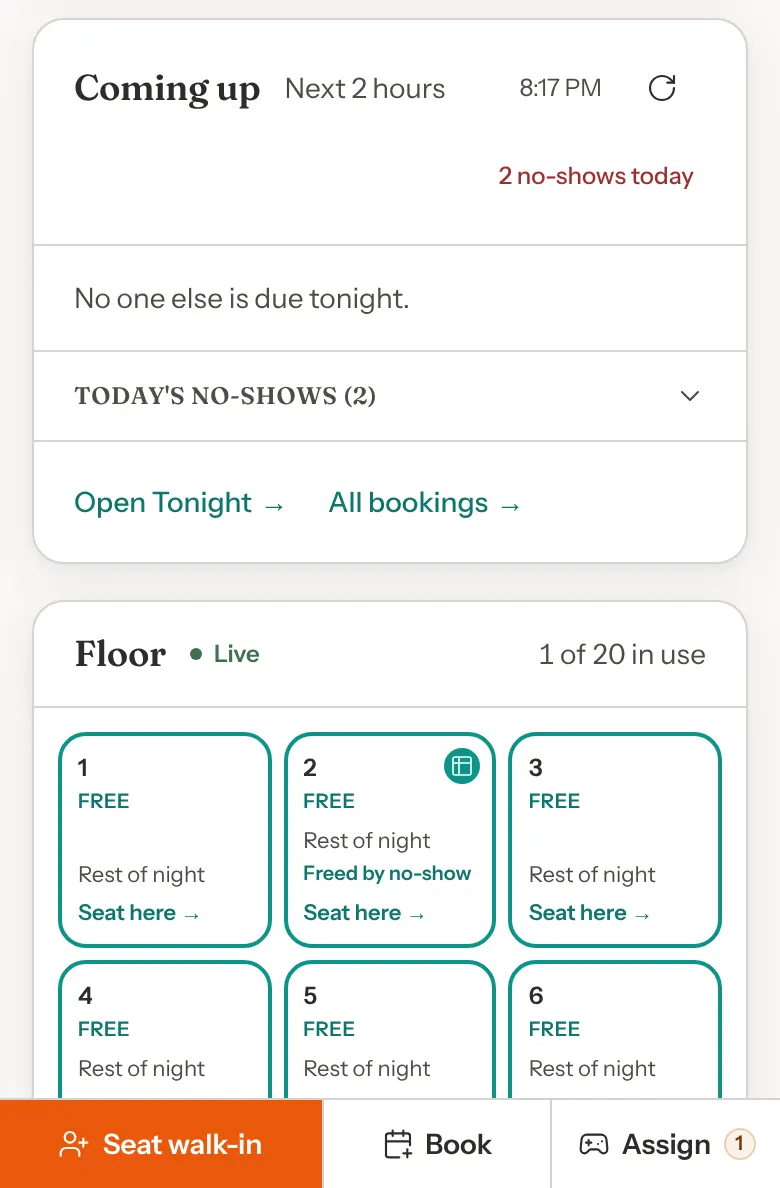
The Floor shows every active table as a tile. Together with Coming up it answers who is next and where to seat them.
- Free
- Nobody is there. The tile shows when the next booking needs the table, for example Until 8:15 PM, or Rest of night. It offers Seat here to anyone who can create bookings, like the Seat walk-in button.
- Playing
- A party with a game. The tile shows the game, how long they have been at the table, and the next booking.
- Browsing
- A party without a game yet. The tile shows how long they have been at the table and the next booking.
- Reserved
- Held for a party due within 30 minutes, or for a party whose time has started but who is not seated yet, until their booking would have ended. The tile shows their name and when they are due.
- Flags. When something in Needs you now is about a table, its tile gets a small badge and a coloured edge, with a few words such as Asked for a hand, Wants more time, Running over, Game needed, Late, Checked in or Freed by no-show.
- Out of service. Tables you have turned off are named in one line under the tiles instead of taking a tile.
- Taps. A free table opens Seat walk-in with that table picked. A table with a party opens it on the Sessions page. A reserved table opens the booking.
- The header reads Floor, Live, and how many tables are in use.
- A quiet stretch. When every table is free and nobody is due in the next two hours, the Floor shrinks to one line, "All tables are free", and a row of table names. Tap any name to seat a walk-in there.
Coming up
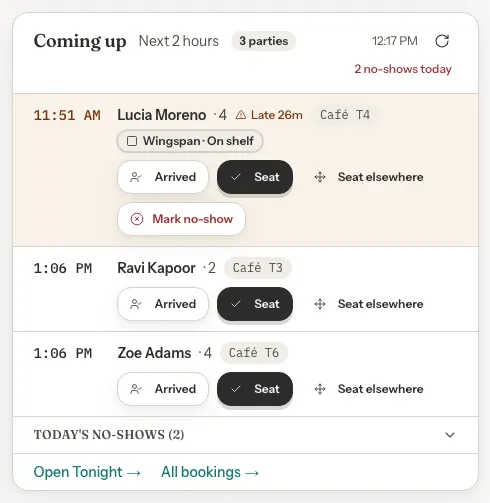
- The next two hours of parties: time, name and party size, table, and their reserved game. Late parties stay pinned at the top with how late they are.
- When nobody is due in the next two hours, for example before doors open, it lists the next six parties due later today under First arrivals. It doubles as your prep list.
- Each party's buttons. Arrived, Seat and Seat elsewhere. Once you tap Arrived, the party stays in the list, marked Arrived, until you seat them. Seat then reads Seat Party Now and Done appears. After you seat a party, their row leaves Coming up and their table shows on the Floor. A late party also gets Call, when you have their number, and Mark no-show, which reads "Available at …" until your no-show grace has passed. A party booked by seats has no table to seat, so it gets Arrived, then Done, and no Seat. Done asks "Finish Jamie's visit?", and a finished visit can't be undone.
- Today's no-shows sit folded below the list, each with Arrived late — restore.
- Self check-in. When a guest checks themselves in, you get one pop-up with a Seat button.
The footer links to Open Tonight →, which opens the Tonight page from the sidebar, and All bookings →, for the whole day.
Reserved games in the list
A party's reserved game shows as a chip. If it reads On shelf, pull the game and tap the chip. It changes to Set aside ✓ straight away, and Games to pull in the strip goes down by one. Tap it again to undo.
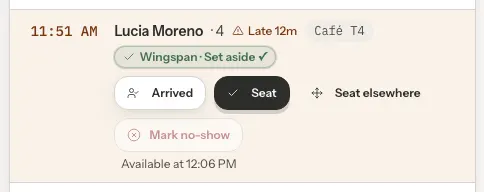
Other states, such as the copy being in play at another table or the party already seated, are shown for information. Handle them from the full list of games to set aside. If you cannot edit bookings, the chip is for information only.
Seat a walk-in at the table you choose
When a party walks in and you can see the table you want on the Floor, tap it, pick the party size and confirm.
Step 1: Tap a free table
Tap any free tile (Seat here →) or a table name on the all-free row. Seat Walk-In opens with that table named under the title and asks how many are in the party.
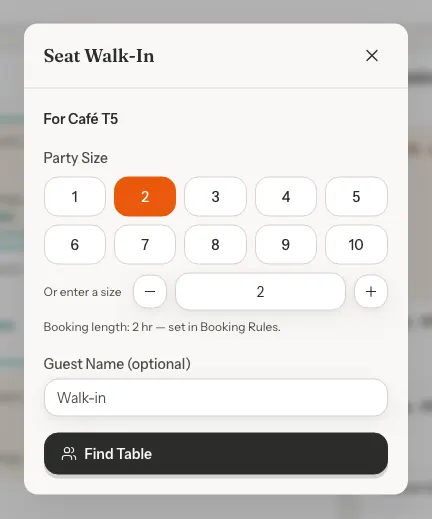
Step 2: Pick the party size and press Find Table
Optionally type a guest name. If the table seats the party and is free for a walk-in's full length, you go straight to one confirmation.
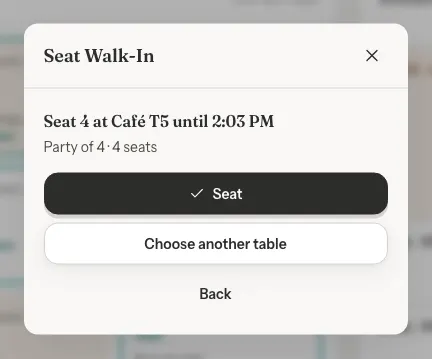
Step 3: Press Seat
The party is seated at that table and the tile turns to Browsing. Use Choose another table to see the full list instead, or Back to change the party size.
GameLedger checks the table once more at the moment you press Seat. If someone has just sat down there, you see who. You can end their session and seat the new party, or pick another free table.
When that table cannot take them
You land on the normal list of tables, with one line saying why the table you tapped is not there.
| Option | What it does | Default |
|---|---|---|
| Café T6 is booked at 1:06 PM | A booking starts before the walk-in would finish. | Default: Table is not offered |
| Café T5 is booked until 12:56 PM | A booking already under way still holds the table. | Default: Table is not offered |
| Café T5 seats 4 | The party is bigger than the table. | Default: Table is not offered |
| Café T5 isn't free for a walk-in right now | Anything else, such as a table you have just turned off. | Default: Table is not offered |
Tables someone is already sitting at, such as a party that checked in with the QR code, are listed last and marked In use now. Tap one only if this walk-in is that party, or to end their session.
The header's Seat walk-in button works without a table picked. After the party size you choose from the list. Walk-ins have no seating tag, so if you use seating tags, untagged tables come first. See Bookings your team makes.
Back office
The band at the bottom holds the jobs that can wait.
- Games to fix. Games marked problematic, or reported by guests.
- All copies out. Games with every copy in use.
- Guest feedback. Your rating over the last 30 days, any recent low ratings, and the three latest pieces of feedback.
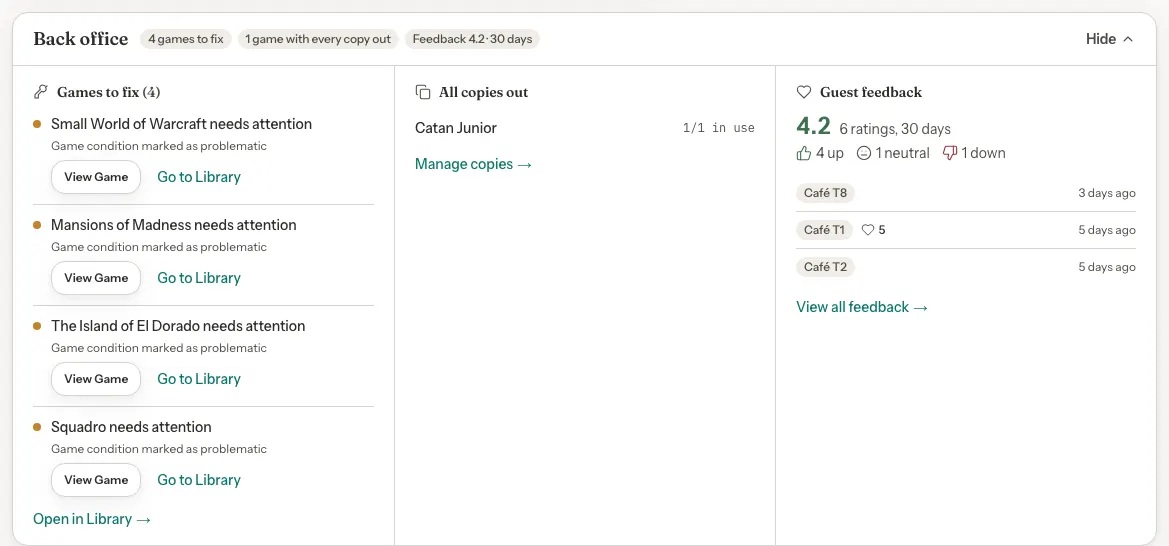
It starts folded while something needs you or a party is due within the hour, and open otherwise. Folded, it still shows a count for each.

Press Show or Hide to change it. It stays that way until you reload.
On a phone
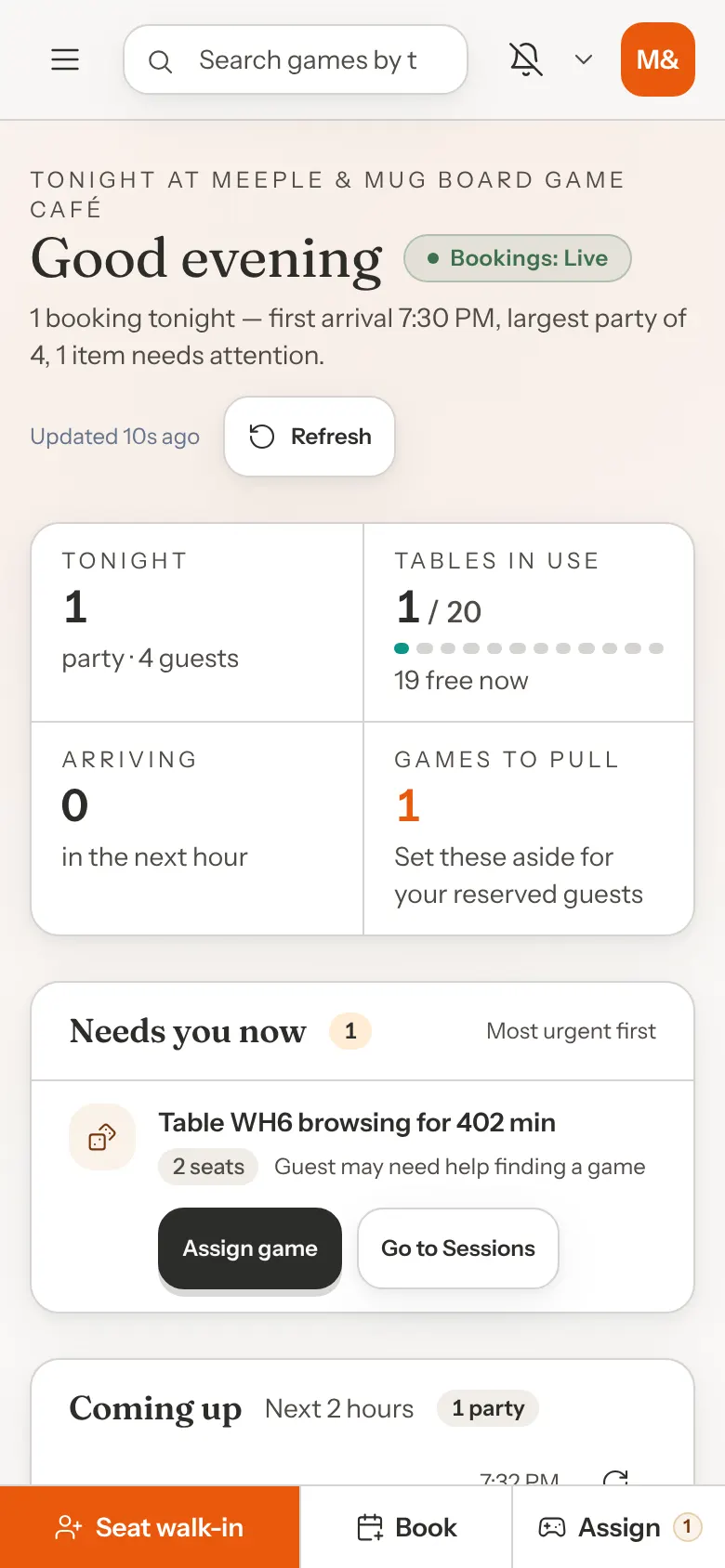
The page keeps the same order, sized for one hand. The three buttons move to a bar along the bottom (Seat walk-in, Book and Assign) that stays put while you scroll. The strip becomes a two-by-two block, Coming up sits above the Floor, and table tiles shrink to the name, state and next time.
What your guests see
Nothing changes for them. Everything on this page is on your staff screens. When a guest checks themselves in or presses Need a hand? at their table, it shows up here for you.
Good to know
- The page refreshes every 30 seconds, or press Refresh. It holds still while a window such as Seat Walk-In is open. Coming up and new guest requests keep updating.
- A party shows as late in Coming up as soon as their time passes. It moves into Needs you now, and their table gets a Late flag, once your no-show grace is up. That is the same moment Mark no-show becomes available. The grace is 15 minutes unless you change the Grace period dropdown in the No-Show Grace Period card, under Settings, then Venue Policies, then Cancellations & No-Shows.
- The Floor and Coming up cover today, in your venue's time zone. Coming up looks two hours ahead. For the whole day, use Open Tonight → (the Tonight page) and All bookings →.
- A seat from the Floor books the same length as any walk-in. Seat Walk-In shows it under the party size, for example "Booking length: 2 hr", and you set it under Booking lengths in Settings, then Venue Policies, then Booking Rules.
- A walk-in can't run past midnight. Late in the evening, Seat Walk-In shortens the booking to end at 11:59 PM and says that a full-length walk-in would run past midnight. At 11:59 PM itself it's too late to seat a walk-in until after midnight.
- If a party leaves early and you press Done, their table can still read "booked until" their booking's end time when you try to seat a walk-in there.
- Staff without access to bookings see each table's state and booking times on the Floor, without guest names. They see no late-party or check-in rows in Needs you now, and Coming up asks for bookings access.