Table Help Options
Choose what guests can ask for when they tap Need a hand? at their table: turn options off, add your own and change the order.
Last verified
When guests tap Need a hand? on their table's page, they pick what they need: help choosing a game, a rules teach, food and drinks, the bill, or something else. Your team sees exactly what was asked. It works with no setup, and you can change the list of options in Settings.
Change the list when some options do not suit your venue, when you want your own, for example "Extra chairs", or when you want the options in a different order.
Where to find it
Open Settings, choose Guests, then the Table help tab. The options are on the What guests can ask for card. You need permission to edit settings to change them. Without it you can look at the list but not change it.
What your guests see
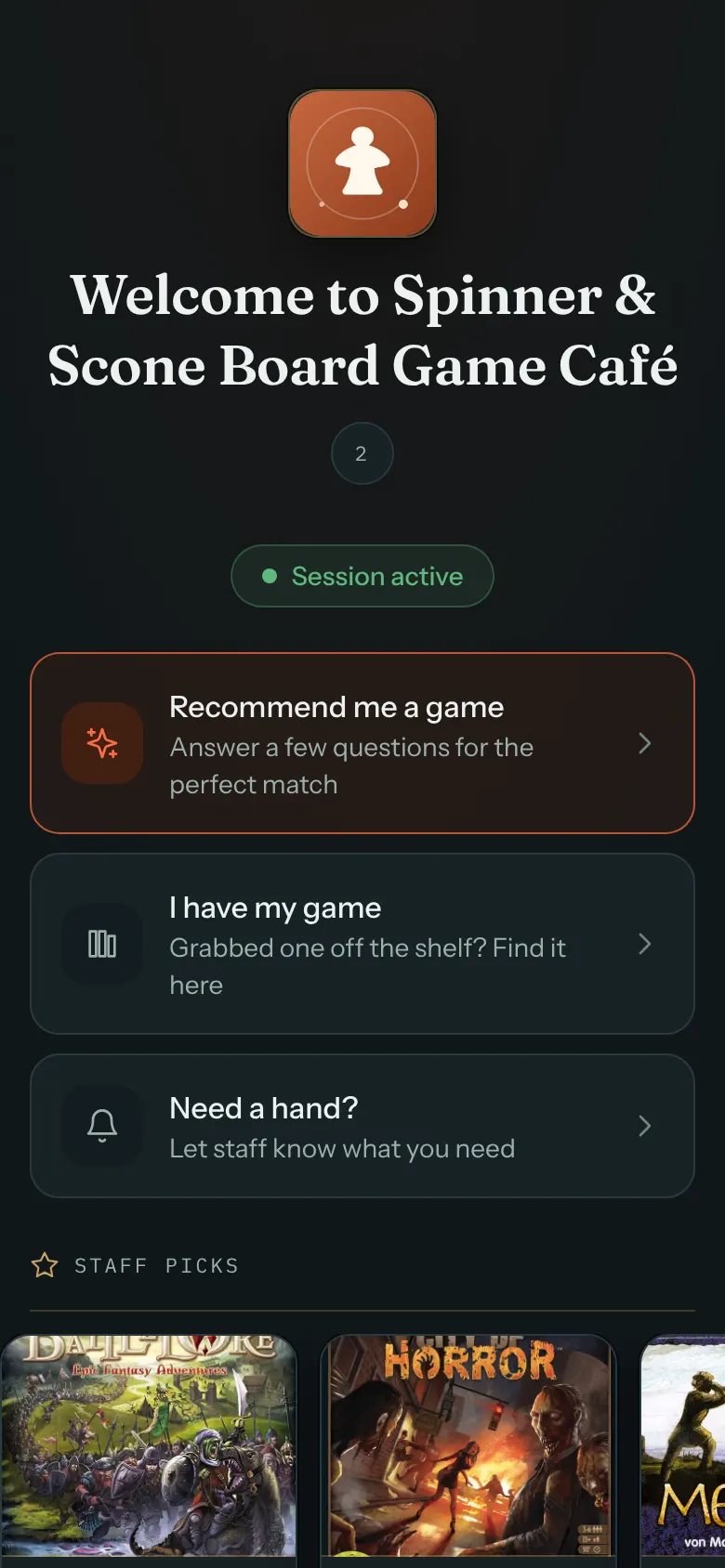
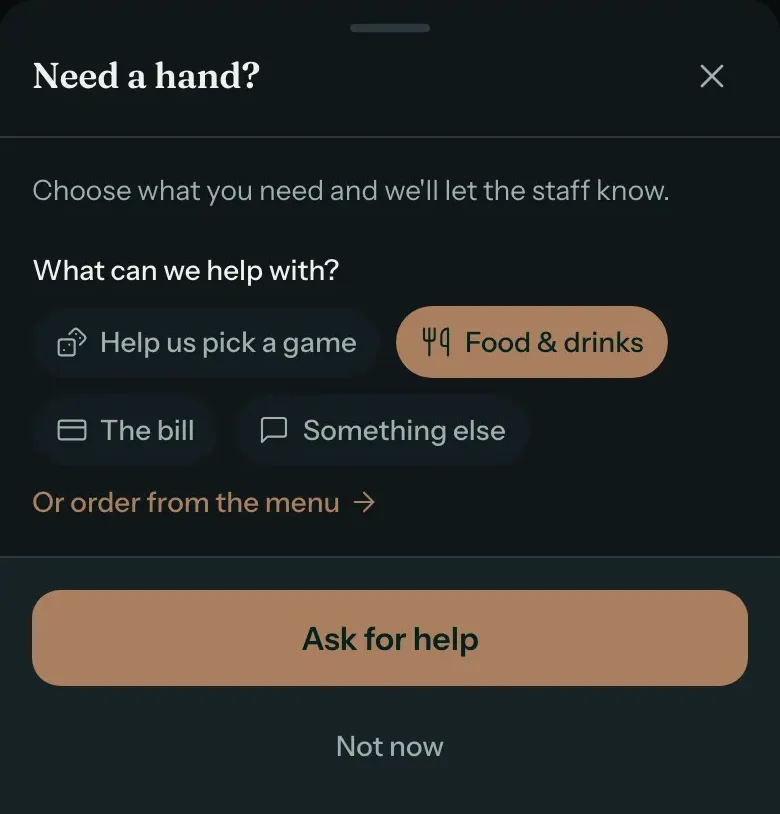
Once guests start their session at a table, the table's page shows a Need a hand? button. When a guest taps it, they see a short list that fits what the table is doing: still choosing a game, or already playing.
What happens when a guest asks for help
This part is what guests and your team do. You do not need to do anything to set it up.
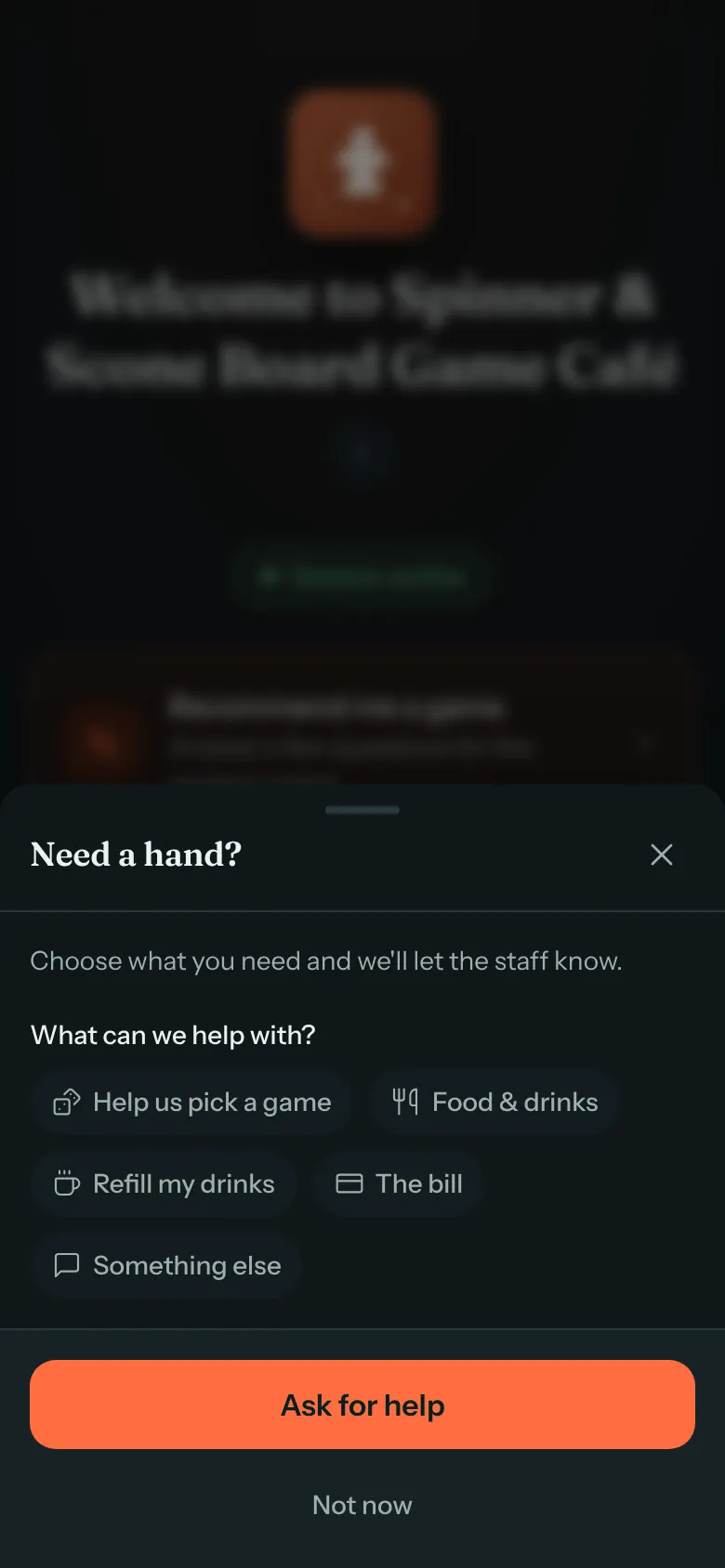
The guest taps Need a hand?, picks one option, and taps Ask for help. They can tap Not now to close the sheet without asking.
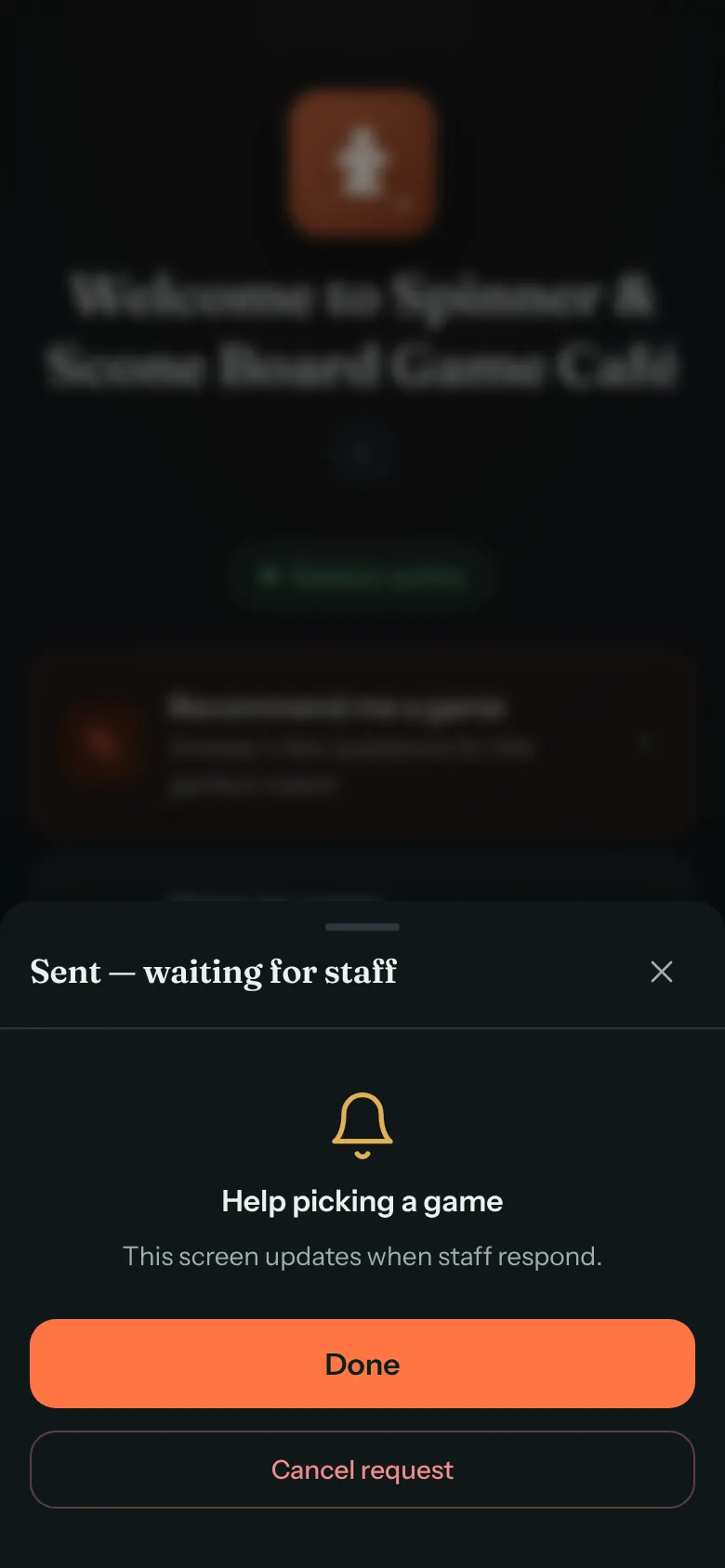
Their screen then shows Sent — waiting for staff and what they asked for. They can tap Cancel request to withdraw it, or Done to close the sheet. Nothing on their screen says someone is coming until a team member answers. Your team sees the request in a banner and on the Sessions page, described under What your team sees below.
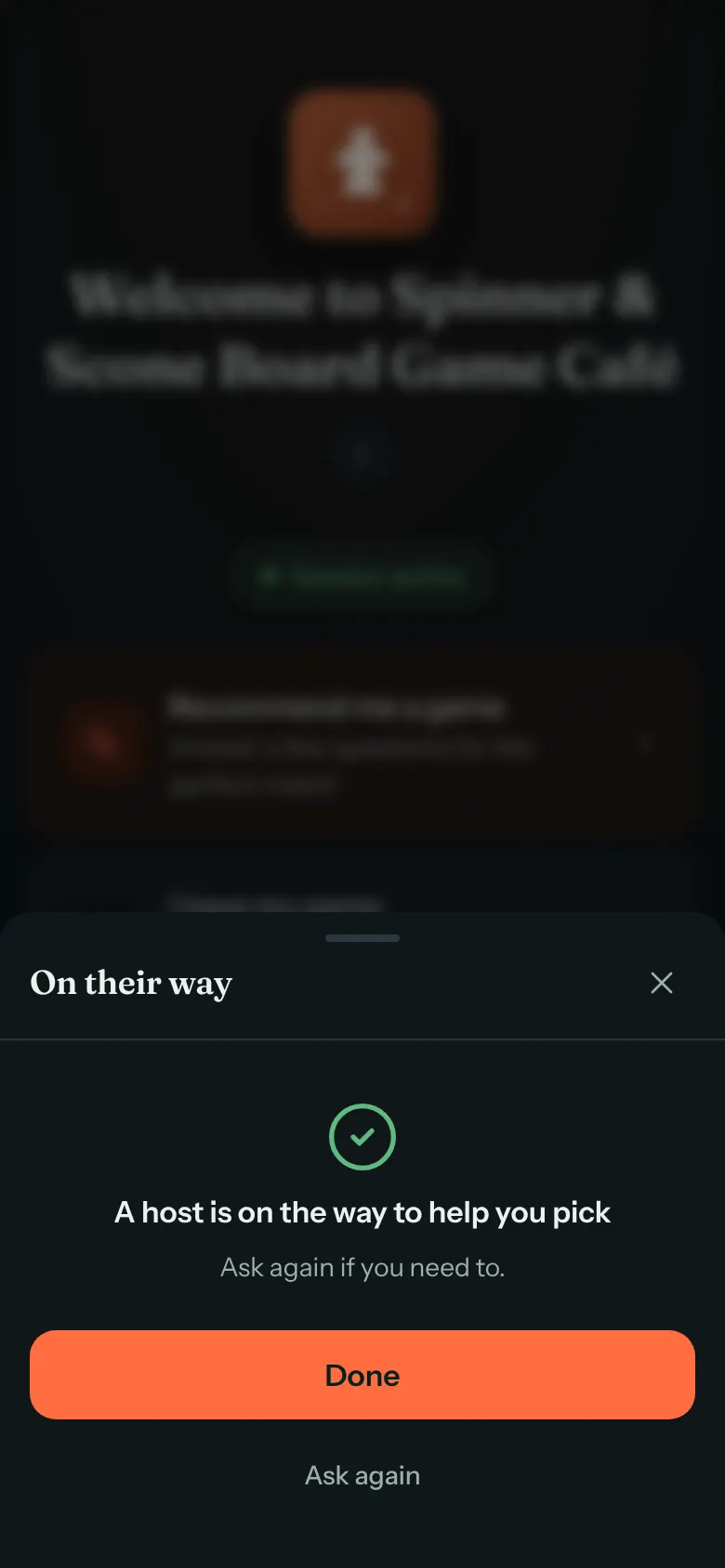
When a team member taps On my way, the guest's screen changes within about 20 seconds to On their way, for example "A host is on the way to help you pick". It keeps saying so for 10 minutes. The guest can tap Ask again to start over.
Once a game is on the table
After the table picks a game, Help us pick a game is replaced by Teach us and the game's name, for example Teach us Catan.
If guests can order from your menu at the table
Food & drinks always sends a request to your team. If your venue also takes food and drink orders on the table's page, choosing Food & drinks shows a link, Or order from the menu, so guests can order themselves instead. Not every account takes orders at the table, and without it the link does not appear.
What your team sees
Requests appear in the banner at the top of every admin page, on the dashboard and on the Sessions page. Each one says what the guest asked for, for example Needs a hand · Help picking a game, Needs a hand · Food & drinks or Needs a hand · The bill. A custom option shows its own name, for example Needs a hand · Extra chairs.


For what your team does with these requests, see Table Help Alerts and Your Dashboard During Service.
Choose your options
Step 1: Open Table help
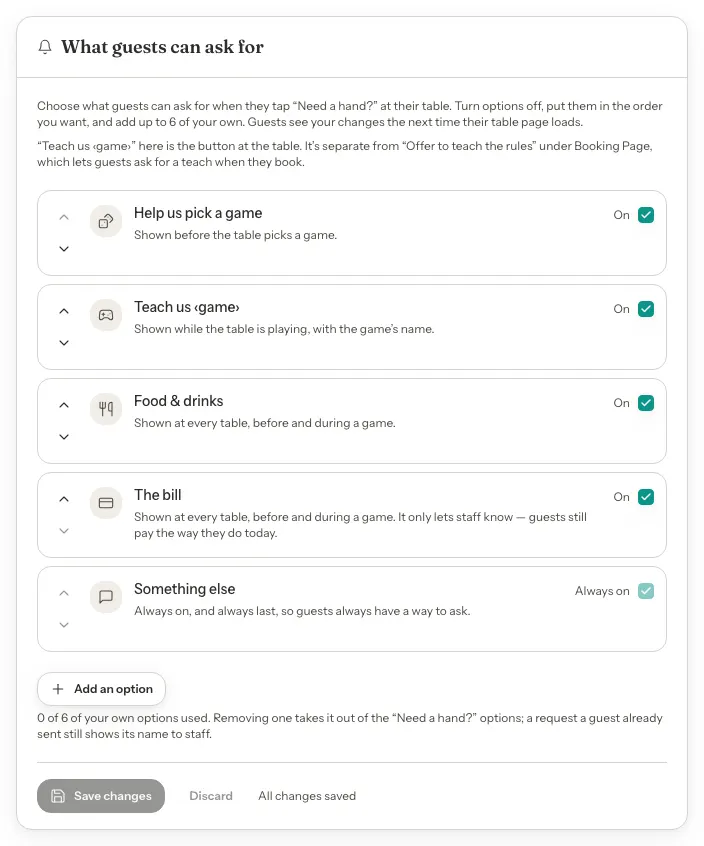
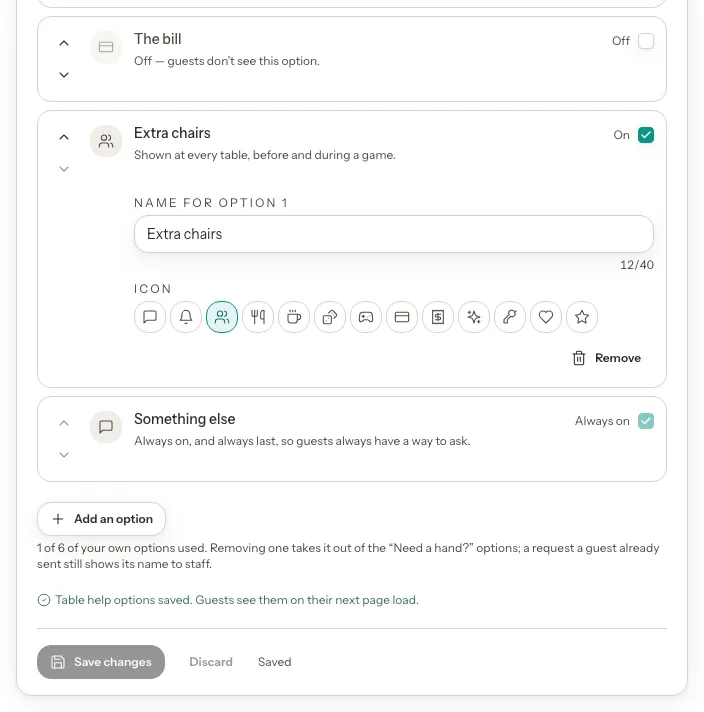
Open Settings, choose Guests, then the Table help tab. You see the built-in options, each with an On checkbox. Something else is marked Always on, so guests can always ask for anything. It is always last.
Step 2: Turn an option off
To hide an option from guests, clear its On checkbox. The option then reads "Off — guests don't see this option."
Step 3: Add your own option
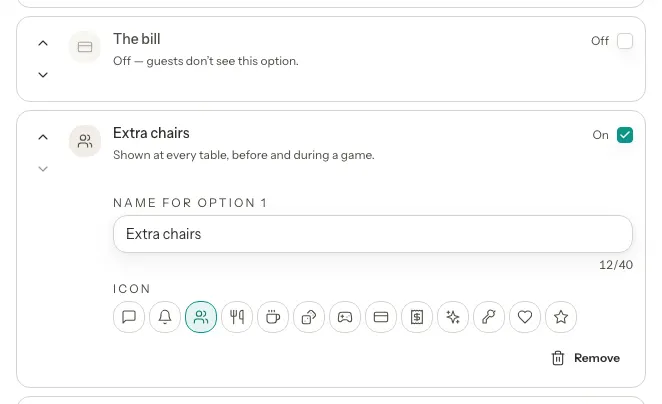
Click Add an option, type a name, for example Extra chairs, and choose an icon from the row of icons. A counter under the name shows how many of the 40 characters you have used.
Step 4: Rename or remove your own option
To rename one of your own options, edit its name. To remove it, click Remove. The removal takes effect when you save.
Step 5: Put the options in order
Use the up and down arrows on each row to change the order guests see. Nothing can be moved below Something else.
Step 6: Check what guests see
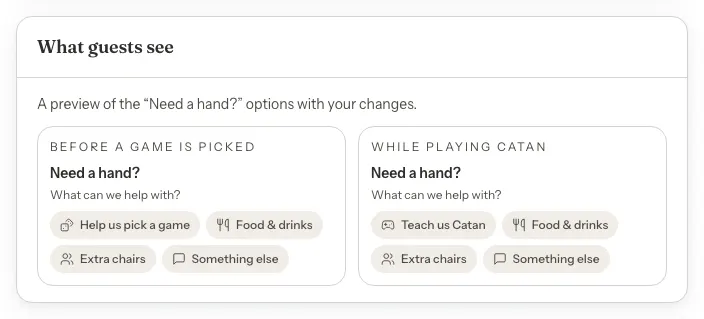
Look at the What guests see card below the list. It shows the options while guests are choosing a game and while they are playing, and it updates as you make changes, before you save.
Step 7: Save
Click Save changes. To undo everything since your last save, click Discard instead. Guests see your list the next time their table's page loads. If you try to leave the page with unsaved changes, GameLedger asks before you go.
Every option and its default
Every option sends your team a request. None of them takes a payment or places an order by itself.
| Option | What it does | Default |
|---|---|---|
| Help us pick a game | Guests see it before they have chosen a game. Staff read: Needs a hand · Help picking a game. | Default: On |
| Teach us (game name) | Guests see it once a game is on the table, with the game's name. Staff read: Needs a hand · Teach, then the game's name. | Default: On |
| Food & drinks | Guests see it before and during a game. Staff read: Needs a hand · Food & drinks. | Default: On |
| The bill | Guests see it before and during a game. It only lets your team know, and guests pay the way they do today. Staff read: Needs a hand · The bill. | Default: On |
| Something else | Always shown, last in the list, so guests always have a way to ask. Staff read: Needs a hand. | Default: Always on |
| Your own options | Shown before and during a game. Staff read: Needs a hand, then the option's name. | Default: None until you add them |
Good to know
- Guests choose from your list. They cannot type a message. You can add up to 6 options of your own, with names of up to 40 characters. A name cannot repeat a built-in option or another of your own.
- Removing or renaming an option does not change a request that is already open. Your team still sees the option's name as it was when the guest asked.
- Teach us is not the same as Offer to teach the rules. The Teach us option here is the button at the table. Offer to teach the rules is under Settings → Guests → Booking Page and lets guests ask for a teach when they book.
- Each table has one open request at a time. A guest who wants something else can cancel the request and ask again.
- Changes are not instant. Guests see a new list the next time their table's page loads.