When guests can book
Set your weekly hours and how often bookings start, close for holidays and special dates, choose how far ahead guests can book, and pause online bookings.
Last verified
Your booking page only offers times when you say guests can book. You set that with your weekly opening hours, how often bookings start, the dates you close, and how far ahead guests can book. This guide covers each of those settings, what it defaults to, and what a guest sees on your booking page as a result.
Use it when you first set your hours, before a holiday, when one date needs different hours, or when you need to stop online bookings for a while.
Where to find it
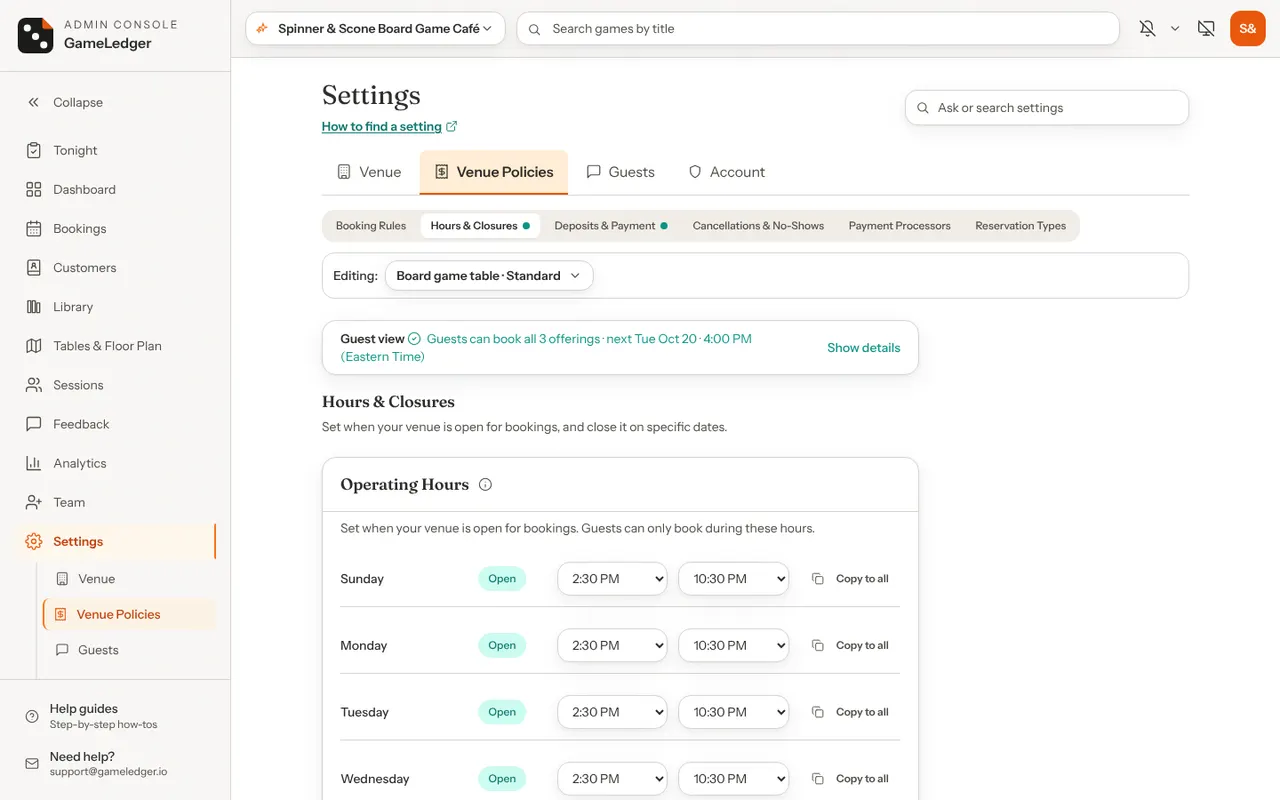
Click Settings in the left-hand menu, then open the Venue Policies tab. Two of its sub-tabs hold everything in this guide:
- Hours & Closures: the Operating Hours, How often bookings start, Holiday closures and Special dates cards, in that order.
- Booking Rules: the Accept Online Bookings, Advance Booking and Who can book cards.
Both sub-tabs open with the Guest view card at the top. Its summary line shows the next time guests can book; open it for more. It updates after you save.
Booking lengths, the buffer between bookings and Allow parties across multiple tables are also on Booking Rules. See Booking lengths, buffers and large parties.
Set your weekly hours
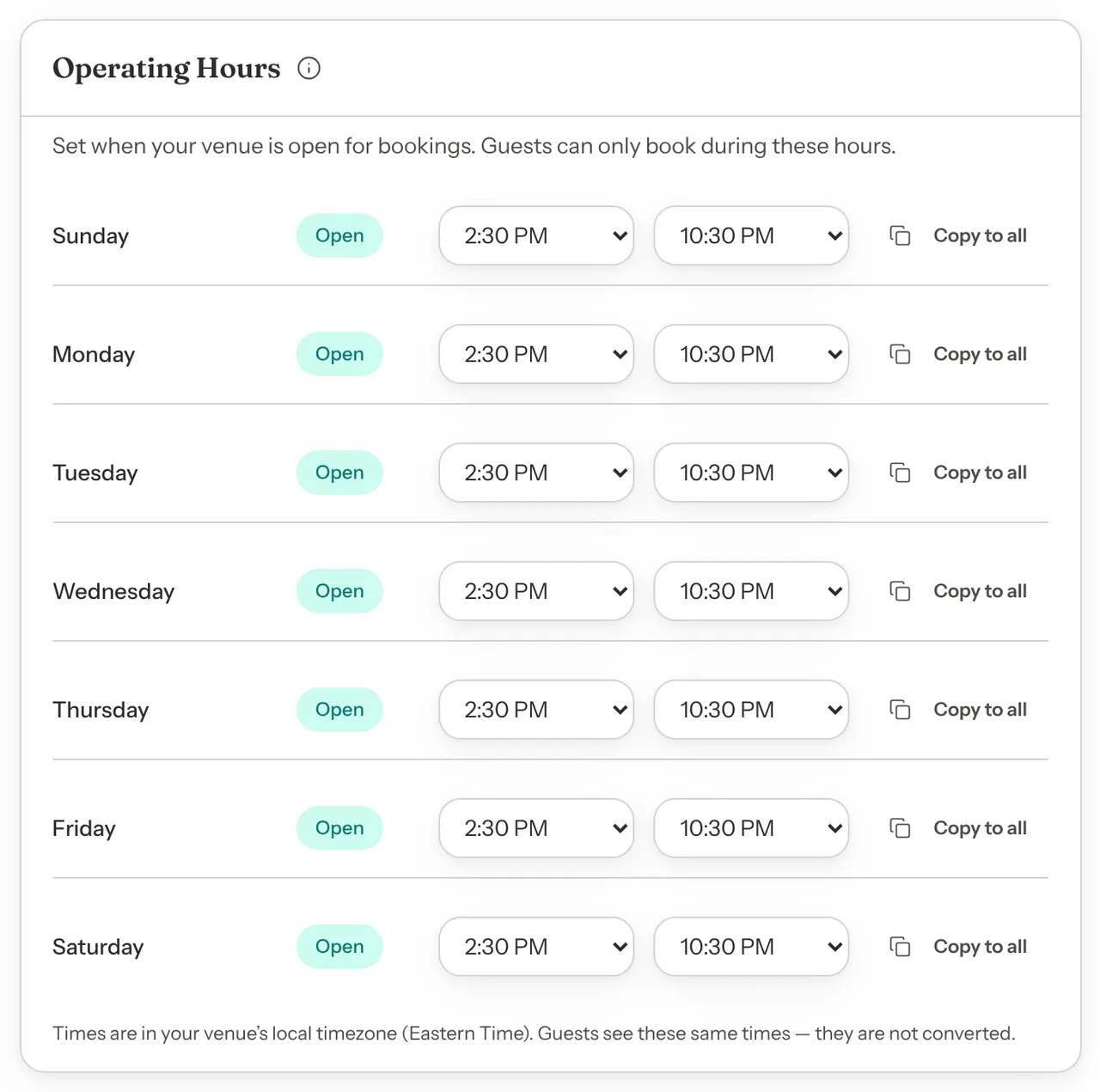
The Operating Hours card is your venue's opening week. Guests can only book inside these hours.
Step 1: Open Hours & Closures
Go to Settings → Venue Policies → Hours & Closures. The Operating Hours card lists the days from Sunday to Saturday.
Step 2: Open or close each day
Each day has a button that reads Open or Closed. Click it to switch. A closed day shows "No bookings accepted" instead of times.
Step 3: Choose the opening and closing times
On an open day, choose the opening time in the first box and the closing time in the second. Times go in half-hour steps, from 12:00 AM to 11:30 PM.
To give every open day the same hours, set one day and click Copy to all on that day's row. If this would change other days' times, you are asked to confirm with Copy to all open days. Closed days are not changed.
Step 4: Click Save Changes
Save Changes is at the bottom of the tab, under the other cards.
If the new hours leave out times that already have bookings, a Booking Conflict Warning lists them. These bookings are not cancelled. Click Save Anyway to keep the new hours, or Cancel to go back and adjust them.
When it works, "Last saved" and the time appear beside the button, and the Guest view card shows times from your new hours.
Some notes you can see on this card:
- You're on default hours. A new venue starts with a ready-made week. Until you click Save Changes once, the card says "You're on default hours. Review them and click Save to confirm — guests won't see your hours until you do." Save, even with nothing changed, to confirm them.
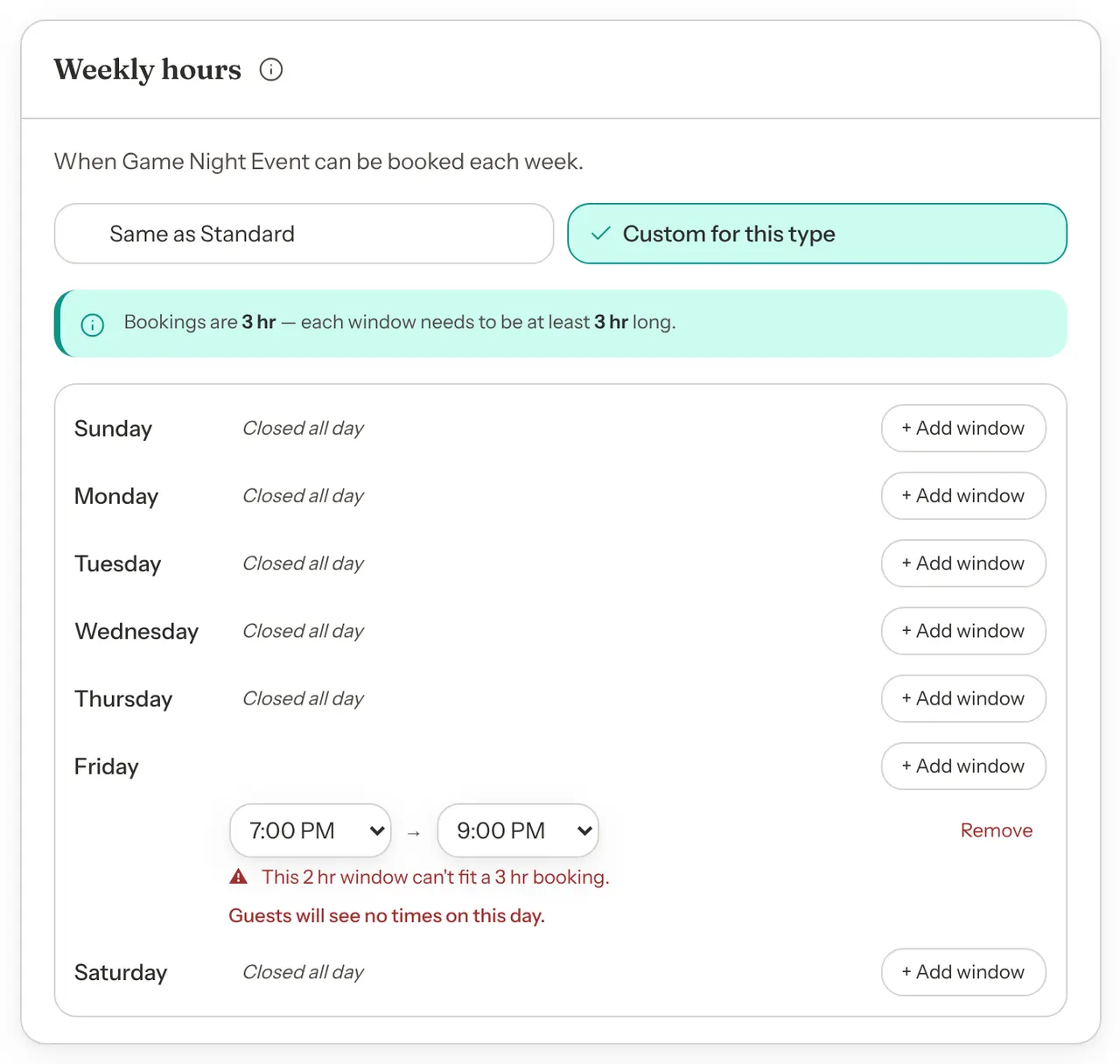
- A day too short for a booking. If a day's hours are shorter than your shortest booking length, a red line appears under that day, for example "This 1 hr window can't fit a 2 hr booking. Guests will see no times on this day." You can still save.
- Closing time before opening time. Saving is refused with a message such as "Friday must have a closing time later than its opening time." Hours cannot run past midnight.
Choose how often bookings start
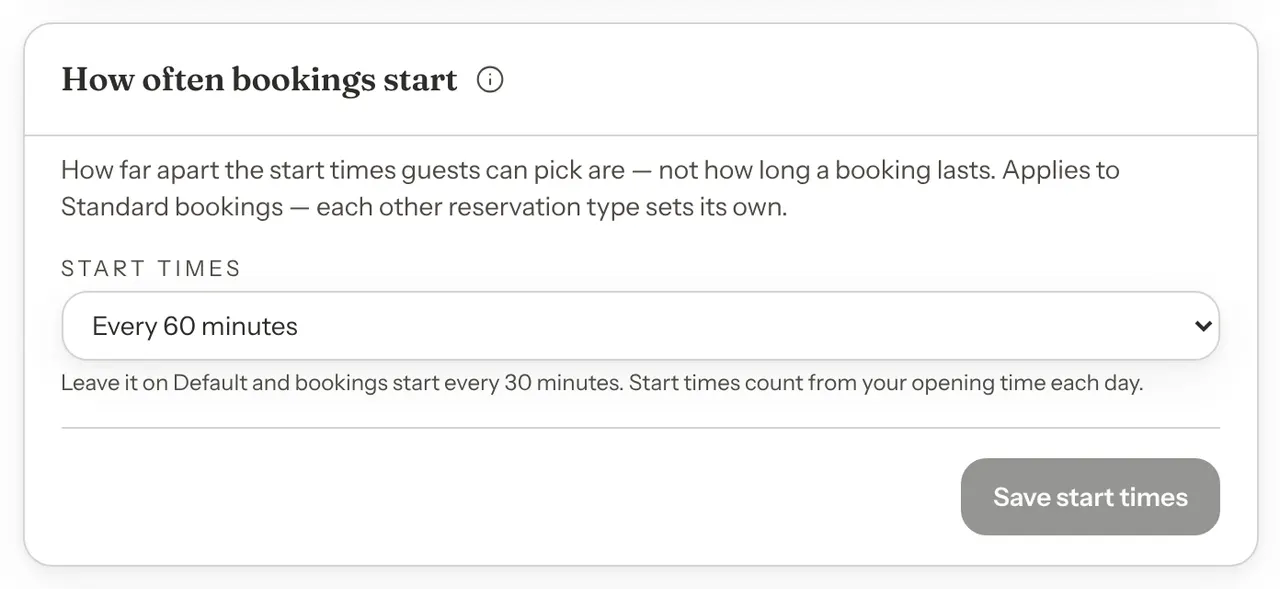
The How often bookings start card sets how far apart the start times guests can pick are. It is not how long a booking lasts.
Step 1: Pick Start times
On Hours & Closures, find How often bookings start under the Operating Hours card. Choose an option from Start times.
Step 2: Click Save start times
This card has its own Save start times button. Save Changes at the bottom of the tab does not save it.
| Option | What it does | Default |
|---|---|---|
| Start times | How far apart start times are. Choose Default (every 30 minutes), Every 15 minutes, Every 30 minutes, Every 60 minutes or Every 120 minutes. | Default: Default (every 30 minutes) |
Start times count from your opening time. The last start time of the day is the latest one that still lets the booking finish by closing time. For example, open 3:00 PM to 11:00 PM with 2-hour bookings and Every 60 minutes gives guests 3:00 PM to 9:00 PM.
Close for a holiday
A holiday closure closes the whole venue for one date. Every reservation type is closed that day, whatever your weekly hours or special dates say.
Step 1: Pick the date
On Hours & Closures, scroll to Holiday closures. Choose the Date.
Step 2: Add a reason, if you like
Reason (optional) is a note for your team, such as "Christmas Day". It does not show on your booking page.
Step 3: Click Add closure
The closure saves straight away. You do not need Save Changes.
If bookings already exist on that date, Bookings on this date lists them first. They are not cancelled. Click Add closure anyway to close the day, or Cancel.
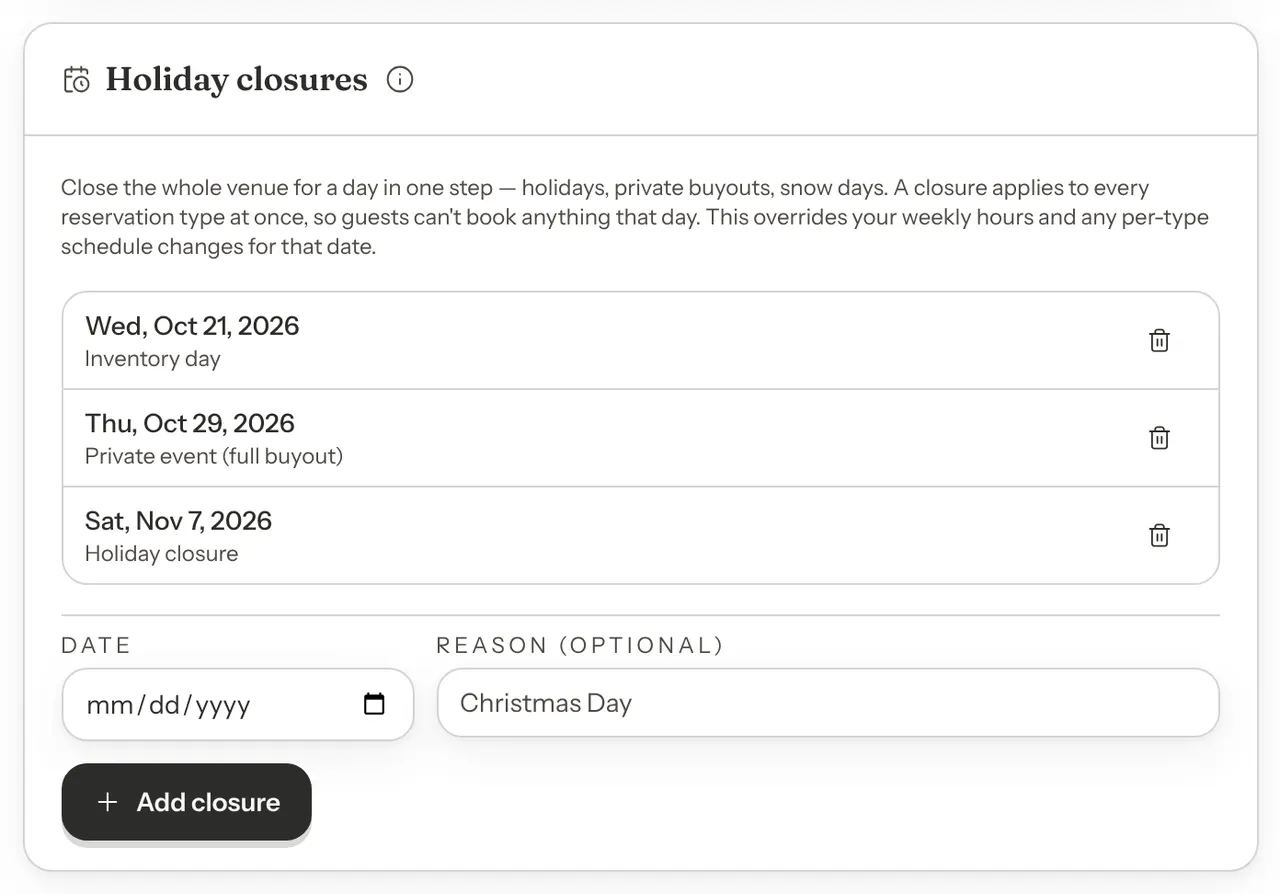
Closures are listed by date. To reopen a day, click the bin icon on its row, then Reopen day. Guests can book that day again under your normal hours.
Set different hours on one date
Special dates change your hours for one date: close early, open late, or close for the day. Unlike a holiday closure, a special date belongs to one reservation type (see "Settings for one reservation type" below). On a venue with one type, that is all your bookings.
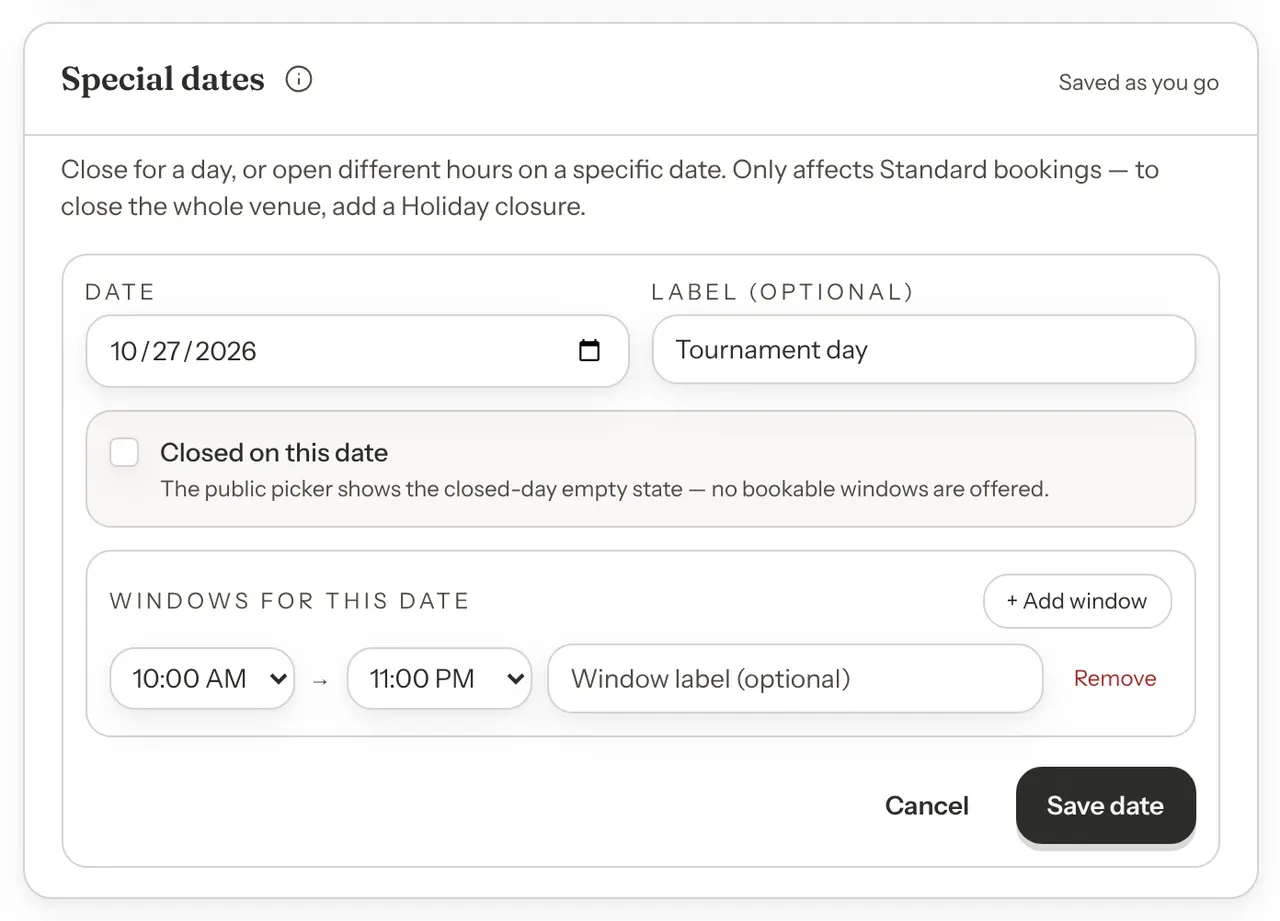
Step 1: Click + Add special date
On Hours & Closures, scroll to Special dates and click + Add special date. A small form opens.
Step 2: Choose the date and a label
Pick the Date. Label (optional) is a note for your team.
Step 3: Close the date, or set its hours
To close for the day, tick Closed on this date.
To open different hours, leave it unticked and click + Add window. A new window is set to 6:00 PM → 10:00 PM. Change the two times to the hours you want. Each window can also have its own label in Window label (optional). Add a second window for a split day, for example a lunch window and an evening window. Remove deletes a window.
Step 4: Click Save date
The date saves straight away. The card says "Saved as you go": you do not need Save Changes.
The list shows each date with its Label and Status: "Closed", how many windows it has, or "Closed (no hours set)" for a date saved with no windows and Closed on this date unticked. Guests can't book that date either. Click Edit to change one, or Delete to remove it. You are asked to confirm with Remove date, and bookings that day go back to your usual hours.
The windows on a special date follow How often bookings start, counted from the start of each window.
Settings for one reservation type
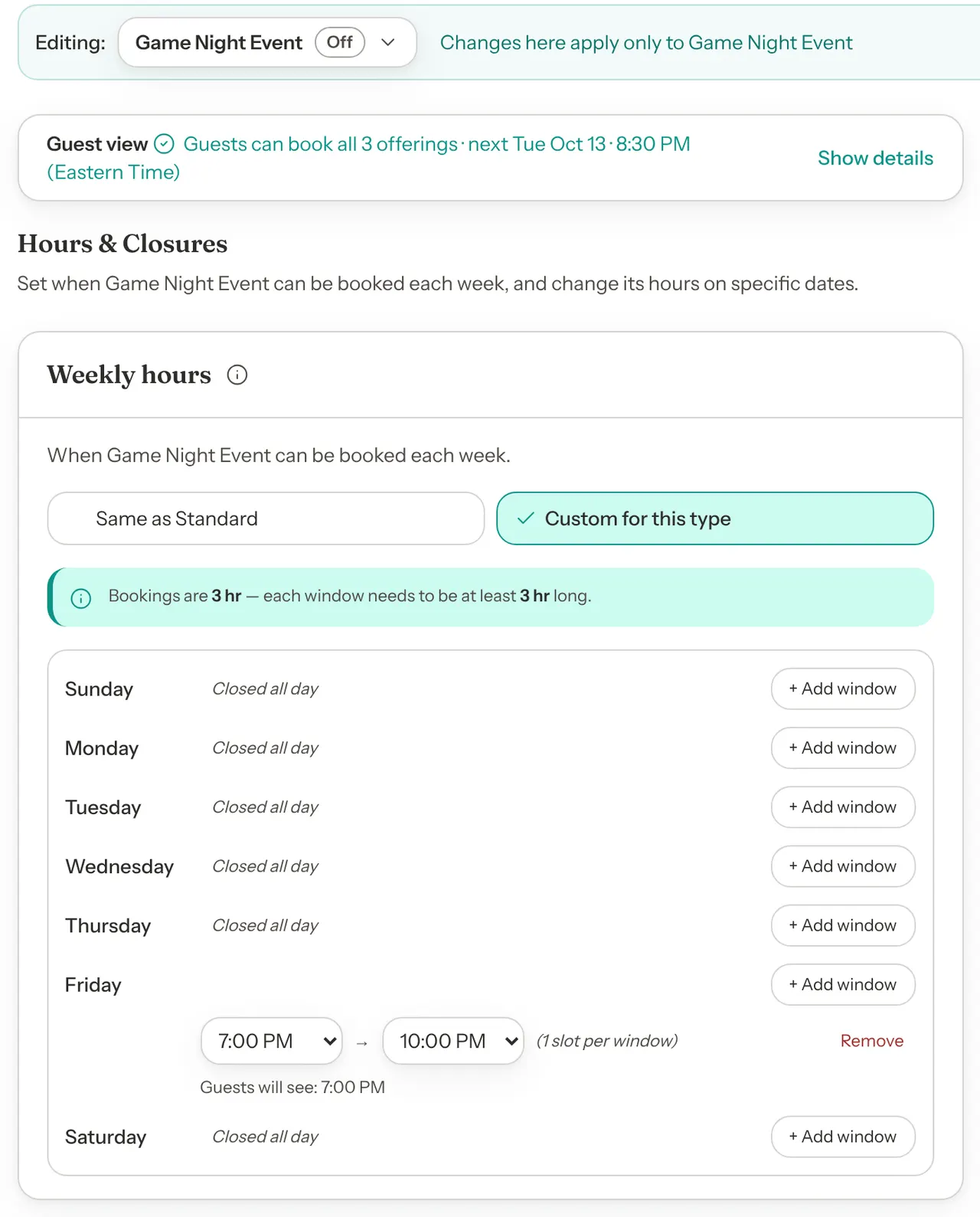
If your venue has more than one reservation type (on or off), for example a table booking and a game night, an Editing: selector appears at the top of Booking Rules and Hours & Closures. Your first type is labelled Standard there, for example "Table Reservation · Standard". Standard uses your venue's settings. Pick another type to change settings for that type only. A line beside the selector then reads "Changes here apply only to" and the type's name. Booking types explains types in full.
With a type other than Standard selected, Hours & Closures shows:
- Weekly hours: choose Same as Standard to follow your venue's Operating Hours, or Custom for this type to give the type its own booking windows.
- How often bookings start: the type's own start times. It never follows Standard's. A new type usually starts on Default (every 30 minutes). A type made from Fixed showtimes starts once per booking length.
- Holiday closures: "Holiday closures close every type", with a Switch to Standard to edit link. Closures are always venue-wide.
- Special dates: the type's own dates. Standard's special dates do not apply to it.
Click Save for followed by the type's name to save its weekly hours and start times. Its special dates save as you go.
On Standard, when other types exist, the start-times and special-dates cards say they apply to Standard bookings only.
Custom booking windows
Step 1: Select the type
On Hours & Closures, open the Editing: selector and pick the type.
Step 2: Choose Custom for this type
On Weekly hours, choose Custom for this type. The card fills in with your venue's opening hours, one window on each open day.
Step 3: Set the windows
Change a window's start and end times to adjust that day. Remove every window on a day to close it; the day then reads "Closed all day". Click + Add window to add another window on the same day. Windows on one day cannot overlap.
Under each day, a line shows the start times guests will see, such as "Guests will see: 7:00 PM".
Step 4: Save for the type
Click Save for and the type's name, at the bottom of the tab.
How far ahead guests can book
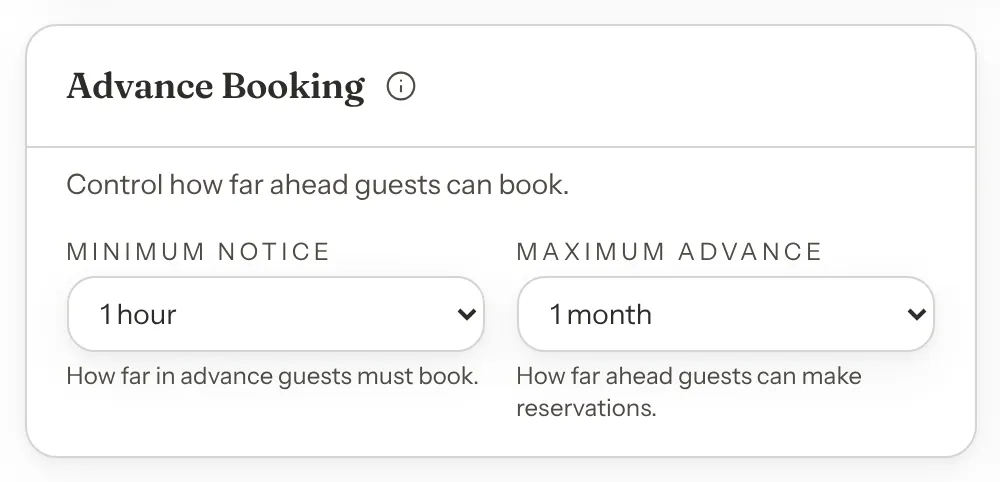
The Advance Booking card on Booking Rules sets the earliest and latest a guest can book online. It applies to every reservation type.
Step 1: Choose the notice and the window
Go to Settings → Venue Policies → Booking Rules. On Advance Booking, choose Minimum Notice and Maximum Advance.
Step 2: Click Save Changes
Save Changes is at the bottom of the tab.
| Option | What it does | Default |
|---|---|---|
| Minimum Notice | How far in advance guests must book. Choose No minimum, 1 hour, 2 hours, 4 hours, 24 hours or 48 hours. | Default: 1 hour |
| Maximum Advance | How far ahead guests can make reservations. Choose 1 week, 2 weeks, 1 month, 2 months or 3 months. | Default: 1 month |
Who can book
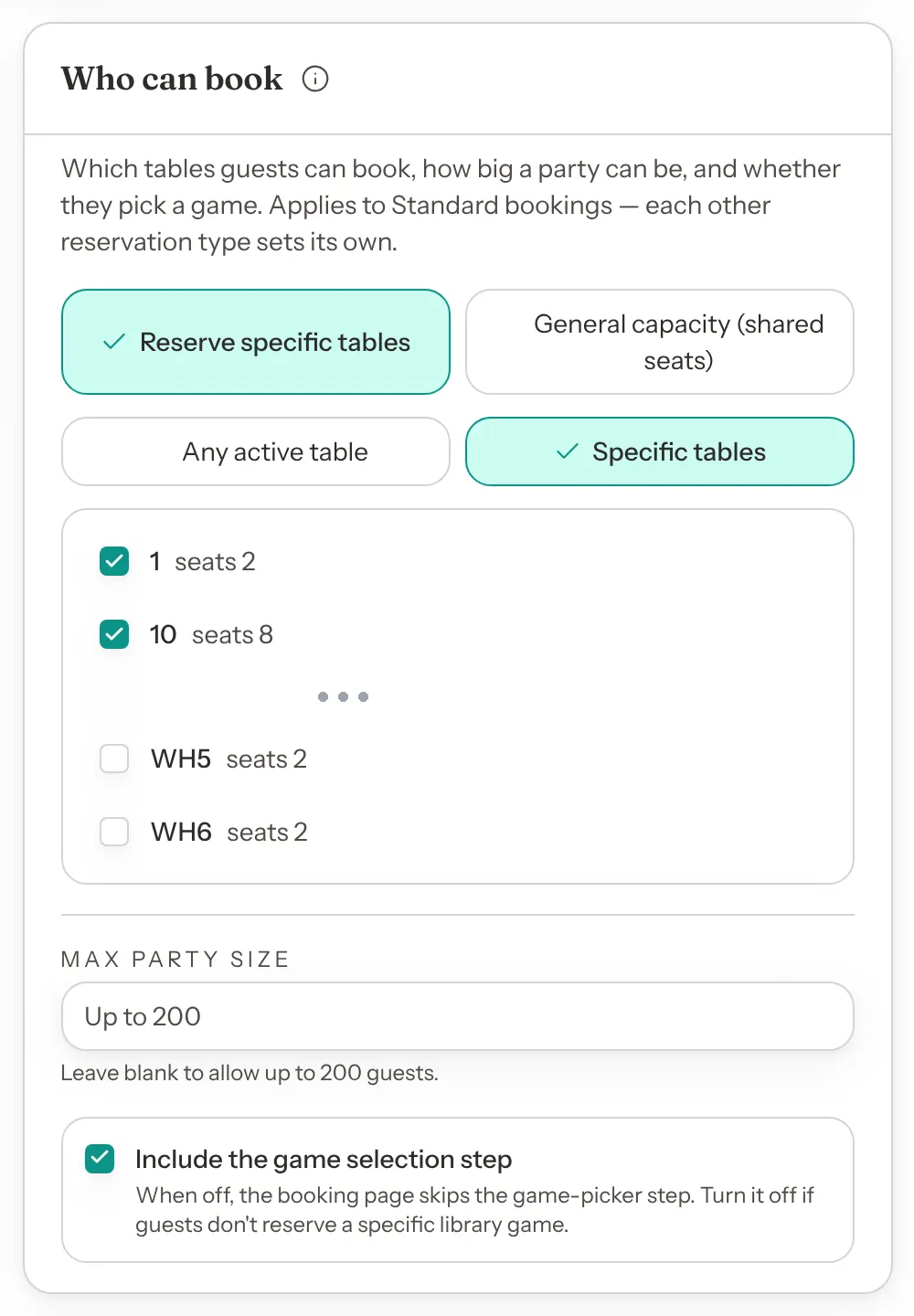
The Who can book card on Booking Rules sets how guests are seated, the largest party, and whether guests choose a game. Each reservation type has its own, so there is no Same as Standard choice. Click Save Changes (or Save for and the type's name) when you are done.
| Option | What it does | Default |
|---|---|---|
| Reserve specific tables | Each booking takes one of your tables. | Default: Selected |
| General capacity (shared seats) | Bookings share one seat count instead of tables. Enter the Total seats. | Default: Not selected |
| Any active table / Specific tables | With tables, choose whether bookings can use any active table or only the tables you tick. | Default: Any active table |
| Max party size | The largest party guests can book. Leave it blank to allow up to 200 guests. | Default: Blank (up to 200) |
| Include the game selection step | When off, the booking page skips the game-picker step. | Default: On |
Adding and arranging tables is covered in Build your floor plan.
Pause online bookings
Accept Online Bookings is the switch for your whole booking page. It is the first card on Booking Rules. New venues start with it off. To switch it on for the first time, follow Turn on online bookings.

Step 1: Untick Accept Online Bookings
Go to Settings → Venue Policies → Booking Rules and untick Accept Online Bookings.
Step 2: Click Save Changes
Guests can no longer book online. Your team can still add phone bookings and walk-ins. Tick the box and save again to reopen.
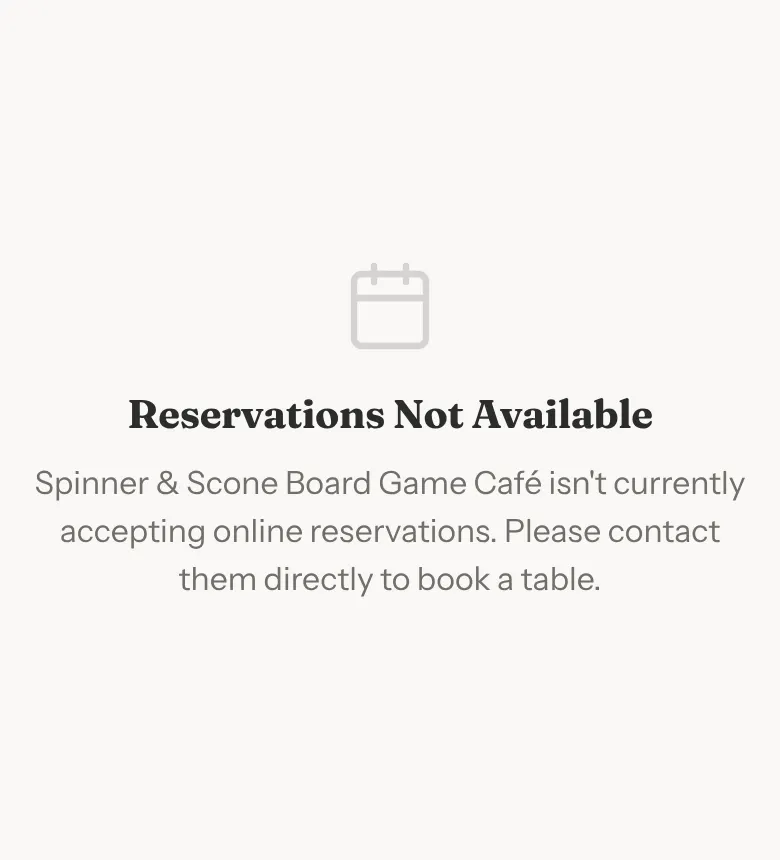
While it is off, your booking page and website button show that reservations are not available, and table QR codes stop offering a booking link. Anyone who opens your booking link sees Reservations Not Available and the line "[Your venue] isn't currently accepting online reservations. Please contact them directly to book a table."
What guests see
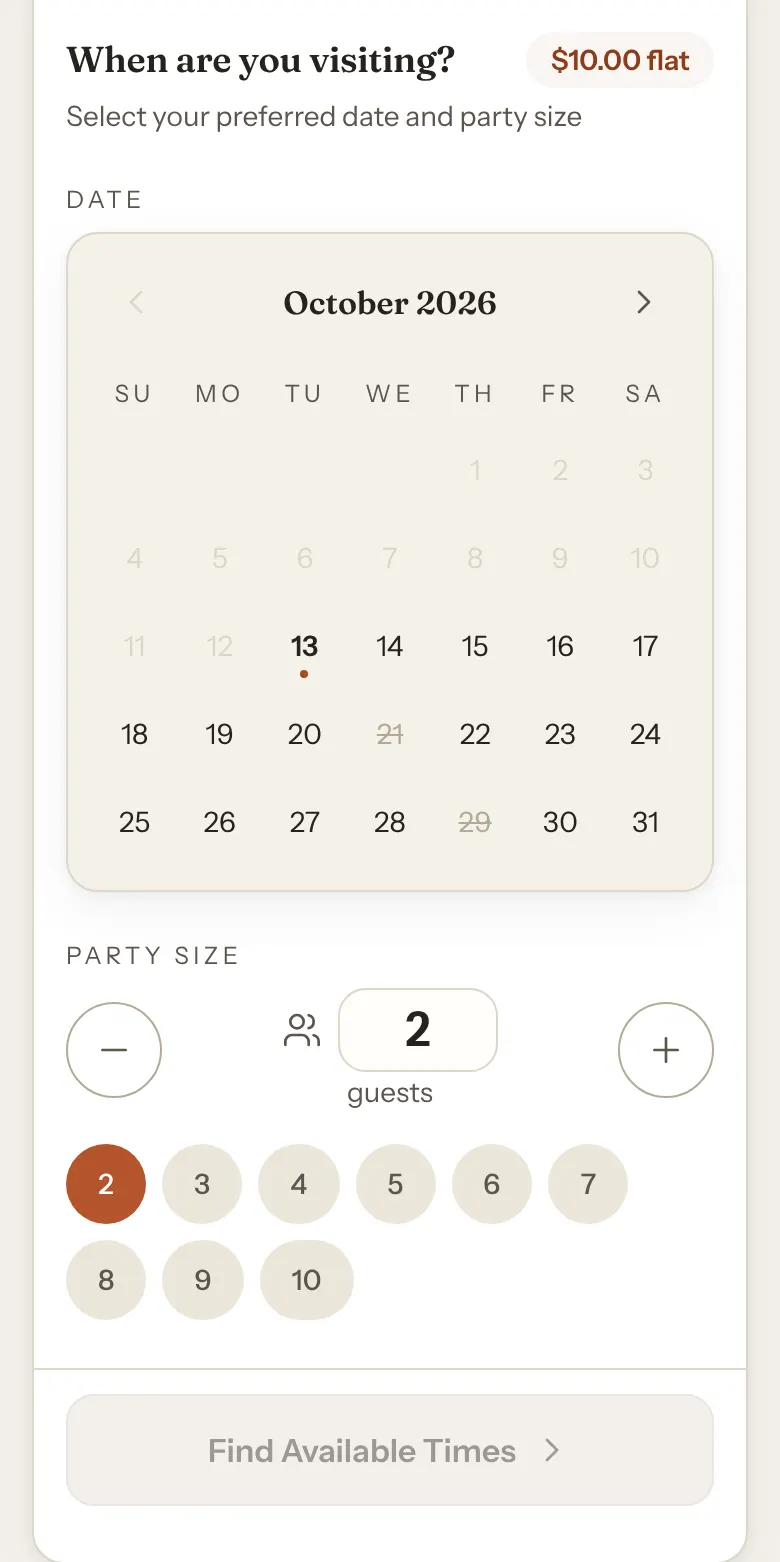
- Closed days are struck through on the booking calendar and cannot be picked. Tapping one shows the date followed by "closed". This covers closed weekdays, holiday closures, closed special dates, and days where no window is long enough for a booking.
- Days past your Maximum Advance are greyed out and cannot be picked.
- On the day itself, when the remaining times are inside your Minimum Notice, guests see "No more times today" and, for example, "Bookings need at least 1 hour's notice."
- With 24 or 48 hours' notice, the next day or two can still be picked. If every time on that day is inside your notice, guests see "Closed on this date".
- Times are shown in your venue's time zone, at the start times you set.
- Your notes don't show on your booking page. Guests never see a closure reason or a special date label there.
If guests cannot find any times, see Why can't guests book?.