Guest feedback and reviews
How guests rate their visit and their game, how to read and reply to feedback, and how to send happy guests to Google for a public review.
Last verified
Guests rate their visit, and the game they played, when they check out at their table. Guests your team seated can also rate their visit from the email you send after it. Everything they say lands on your Feedback page, where you can read it, tag it and reply by email. Guests who had a great time can be pointed to Google to leave a public review.
What you need to do
- Add your review links, so happy guests can be sent to Google, Yelp or Facebook. See Set up your review links.
- Choose who is asked for a Google review. See Send happy guests to Google.
- Read your feedback now and then, and reply to guests who had a problem. See Read feedback.
Feedback at the table works from day one, with nothing to set up.
How guests leave feedback
When they check out at the table
When a guest taps End Session & Check Out on their table's page, a Quick feedback sheet opens:
- How was your overall experience? One to five stars, from Poor to Excellent. This is the venue rating.
- Add details about your visit (optional), a comment about the visit, up to 500 characters.
- If they played a game, Rate the game you played opens more questions: how they enjoyed the game (one to five stars, the game rating), Complexity felt (Too simple, Just right or Too complex), Would you play again? (Definitely, Maybe or No), a comment about the game, and Anything missing or damaged? (optional) (Missing piece(s), Damaged or Other, with a note). A missing or damaged report also puts an alert about the game on your Dashboard, such as "Catan: missing pieces reported".
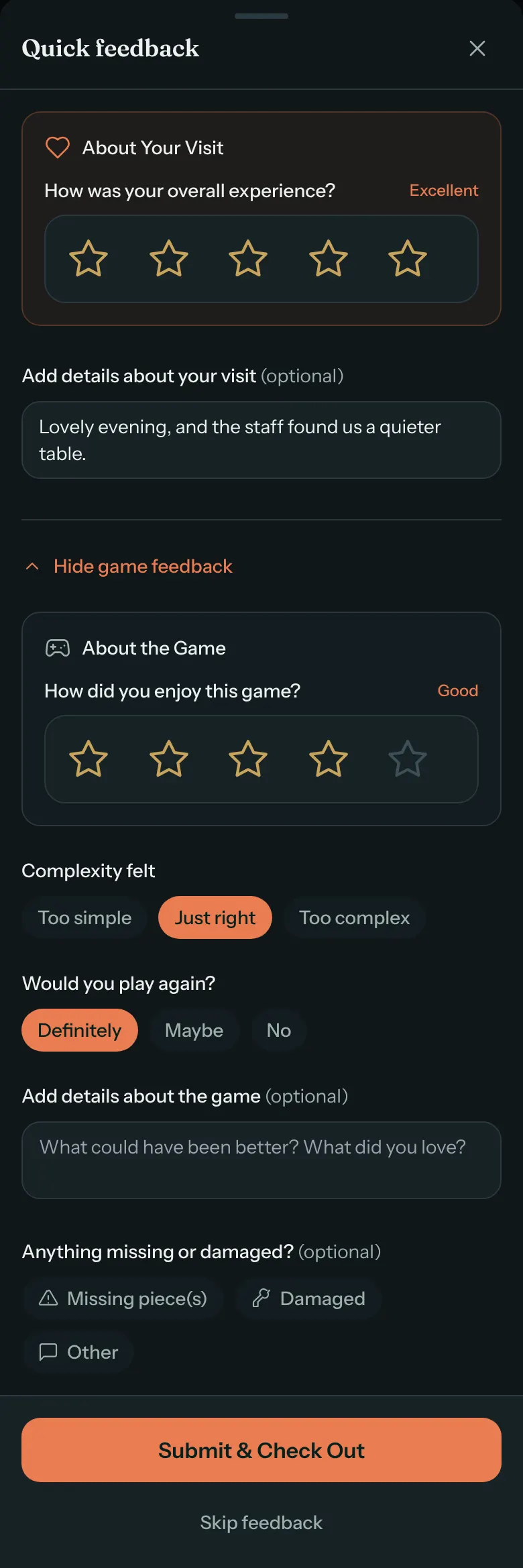
Nothing is required. Submit & Check Out saves what they filled in and ends the session. Skip feedback ends the session without saving anything, and nothing shows on your Feedback page. Closing the sheet keeps them checked in.
After they submit, they see a thank-you. What it says depends on your Google Review Nudge.
Only a phone that took part in the session can check out: the one that tapped Start Session, picked a game or asked for help. When your team seats a party, a guest who never did any of those on their phone can't check out, so many seated guests are asked by email after their visit instead.
When they put a game back
When a table swaps one game for another, the guest is asked "How was Catan?" with Liked it or Not for us, and why not: Too long, Too complex or Too simple. These quick answers don't appear on the Feedback page. They show on the game's feedback in your Library, for example "Put back: 12 👍 · 3 👎 (2 too long)".
After their visit, by email
A few hours after a booking ends, GameLedger emails the guest a thank-you, "Thanks for visiting" followed by your café's name. It goes to guests your team marked arrived or seated, never to cancellations or no-shows, and only once per booking.
- If your team seated them at a table in GameLedger, their table's session has ended (they checked out, or your team tapped End or Done), and they haven't given feedback yet, the email has a Share your feedback button. It opens their booking page, where they rate their visit from one to five stars and can add a comment. These ratings come in as visit ratings, with no game rating.
- If you've added a Google Place ID, the email also invites them to leave a Google review, whatever they thought of the visit. When they can't give feedback, for example because they already did at the table, the Google review is the main button.
- Every email also invites them to book their next game night.
Turn this email on or off under Settings → Guests → Notifications, with Send post-visit thank-you email. It starts on. If the card says "Test mode", emails aren't being sent to guests yet.
Read feedback
Click Feedback in the admin sidebar. Each piece of feedback is one table's checkout, or one guest's answer from their booking page.
A line above the numbers says whether guests who rate their visit are sent to Google: who gets the Share on Google button, that the nudge is off, or that no Google Place ID is set yet. If you can open Settings, it links the card to change. See Send happy guests to Google.
While there's no feedback yet, the list says where it comes from, and says so if the post-visit email is off or still in test mode. The same note shows when After visit finds nothing.
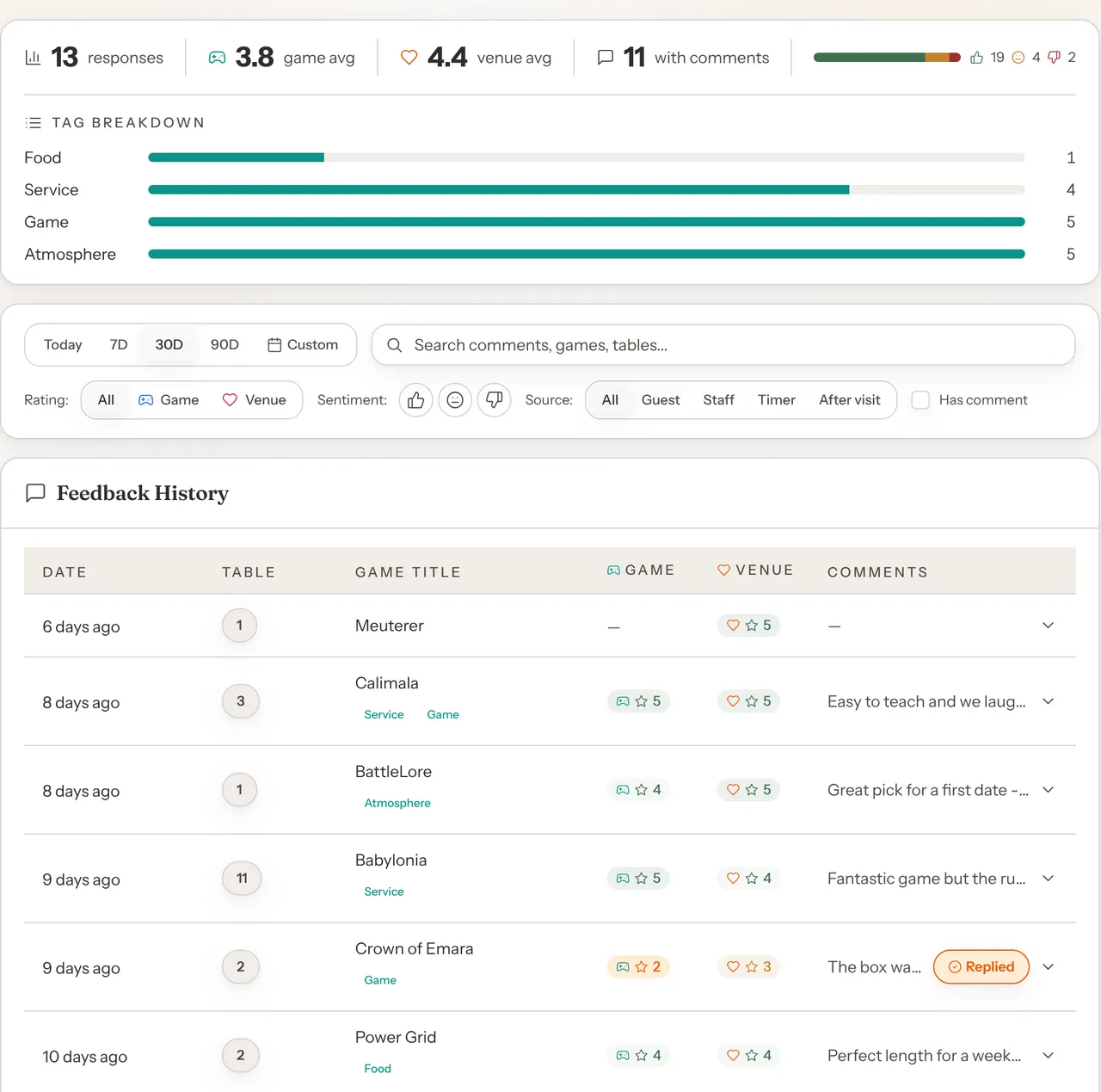
The numbers at the top
| Number | What it counts |
|---|---|
| responses | Feedback received in the date range. A guest who submitted without rating still counts. |
| game avg | The average game rating, out of 5. |
| venue avg | The average venue rating, out of 5. |
| with comments | Responses with a comment about the game. |
Under them, a bar splits every rating into positive (4 or 5 stars), neutral (3) and negative (1 or 2). A game rating and a venue rating from the same guest count separately. Tag breakdown counts the tags your team has added.
These numbers follow the date range and Source only. The other filters narrow the list, not the numbers.
Filters
- Today, 7D, 30D and 90D set how far back to look, by when the feedback came in. The page opens on 30D. Custom lets you pick two dates.
- Search comments, games, tables... finds words in comments, game names and table names. It searches the most recent feedback in your date range, so to find something older, pick Custom dates around when it came in.
- Sentiment is the three icons: a thumbs up for Positive, a face for Neutral and a thumbs down for Negative. They match 5-star, 3-star and 1-star ratings exactly, so 4-star and 2-star ratings don't appear under any of them. Click the same one again to turn it off.
- Rating chooses whether the sentiment looks at the Game rating, the Venue rating, or either (All).
- Source shows feedback from one place: Guest (checkout at the table) or After visit (the booking page form from the email). Staff and Timer are there too, but nothing comes in through them yet.
- Has comment keeps feedback with a comment about the game or the visit.
- Clear filters goes back to the last 30 days with nothing else set.
The page address changes with your filters, so you can bookmark a view or send it to a teammate.
The list
Newest first. Each row shows when it came in, the table, the game ("No game selected" if they didn't pick one) with any tags under it, the game and venue ratings ("—" when they didn't rate), and the start of their comment about the game. Replied means someone has already replied by email. Click a game's name to open it in your Library. Load more at the bottom shows older feedback.
Click a row to open it:
| In the row | What it shows |
|---|---|
| Duration | How long the session ran, from when the table picked its last game (or checked in, if it never picked one) to when it ended. |
| Complexity felt and Play again? | Their answers about the game. Yes means they tapped Definitely. |
| Source | Guest checkout or After-visit email. |
| Guest | The name on the booking, when the party was seated from a booking. Click it to open their customer details. |
| Game Feedback and Venue Feedback | Their full comments. A comment about the visit only shows here. |
| Tags | Your team's tags. See below. |
Tag feedback
Tags let you sort feedback by what it's about. Open a row, then under Tags click Food, Service, Game or Atmosphere to add it, and the × on a tag to remove it. Changes save straight away. The four tags are fixed, and guests never see them.
Reply to a guest
You can reply by email when GameLedger has the guest's email address. That means feedback from a party your team seated from a booking with an email, or feedback sent from the email after their visit. Walk-ins who only scanned the QR code show "No contact on file for this guest."
Step 1: Open the feedback and click Reply to guest
Step 2: Write your reply
The reply opens with the guest's comment at the top for reference. The email goes to the address on their booking. Subject starts as "Thanks for your feedback", and Message starts with "Hi" and their name. Change both as you like.
Replies go by Email, the only channel.
Step 3: Add a review link, if you want
Under Public review links, tick Include Google review link (or Yelp, or Facebook) to add the link to the end of your message, after "If you have a moment, we'd love a public review". Ticking one also opens that site's review page in a new tab and copies the guest's comment. You can close that tab: the link goes into your message either way. You only see the sites you've set up under Review Links.
Step 4: Click Send reply
The reply closes and the row shows Replied. If the email can't be sent, the window shows the error instead, and nothing reaches the guest.
What the guest receives:
- From "GameLedger", noreply@gameledger.io. When they reply, it goes to the Contact Email under Settings → Venue → Profile. Without one, their replies go to GameLedger's no-reply address and you never see them.
- Your subject and message, as you wrote them.
GameLedger keeps that a reply was sent, but you can't read the reply again later, so keep a copy if you need one. You can reply more than once.
Set up your review links
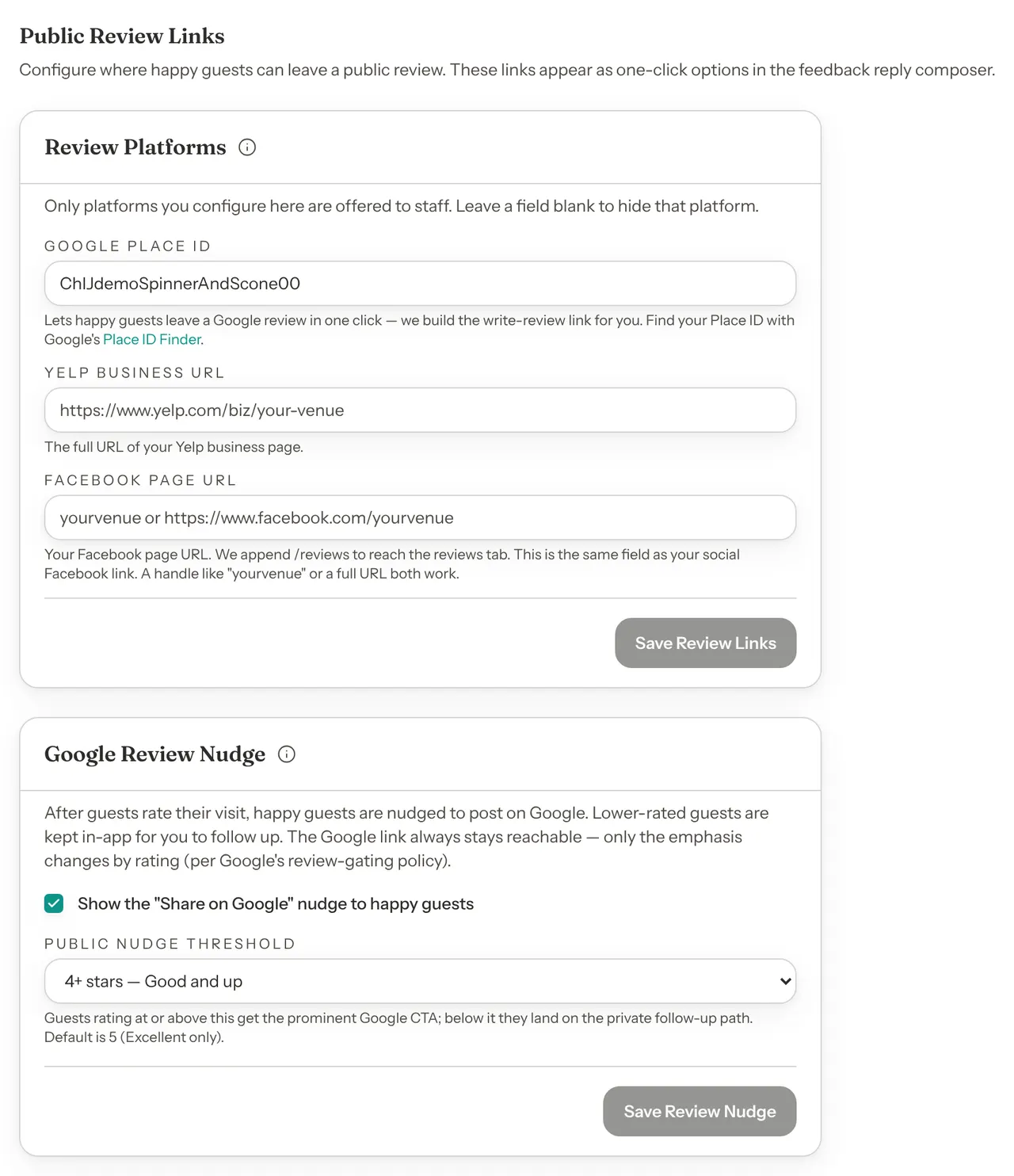
Go to Settings → Guests → Review Links. The Review Platforms card holds a link for each site. Leave one blank to hide that site.
| Field | What to enter |
|---|---|
| Google Place ID | Your café's Place ID, which starts with "ChIJ". GameLedger builds the Google write-a-review link from it. It's filled in for you if you found your café on Google, during setup or later in Settings. Otherwise, look it up with Google's Place ID Finder, linked on the card. |
| Yelp business URL | The full address of your Yelp page, starting with https:// or http://. |
| Facebook page URL | Your Facebook page's address or handle. GameLedger adds /reviews to it. This is also the Facebook link on your venue page. |
Click Save Review Links. The button only works once you've changed something.
GameLedger doesn't check that a Place ID you type is right. To check it yourself, open this address in your browser, with your Place ID at the end instead of YOUR_PLACE_ID. Google's review form for your café should open.
https://search.google.com/local/writereview?placeid=YOUR_PLACE_ID
Send happy guests to Google
The Google Review Nudge card, under the review links, decides which guests are asked for a Google review after they rate their visit.
- Show the "Share on Google" nudge to happy guests is on to begin with.
- Public nudge threshold sets how happy is happy: 5 stars — Excellent only (the default), 4+, 3+, 2+ or 1+ stars — Any rating.
Click Save Review Nudge. The nudge needs a Google Place ID. Without one, no guest is ever asked for a Google review.
What guests see after rating their visit:
| The guest's venue rating | What they see |
|---|---|
| At or above your threshold | "So glad you had a great time!" and a Share on Google button. If they wrote a comment, GameLedger copies it so they can paste it into Google. |
| Below it, or the nudge is off | At the table, "Thanks for the honest feedback — we'll make it right. The owner sees this directly and will follow up." On the booking page, "Thanks for the honest feedback." Both keep a smaller link to Google: "You can also leave a public Google review" at the table, "You can also leave a Google review" on the booking page. |
| No Google Place ID | "Thanks for your feedback!" |
Only the venue rating counts. A guest who rates the game but not their visit sees the follow-up message.
The to Google count in the Venue pulse card on Sessions shows how many guests tapped through to Google in the last 7 days.
Where else feedback shows
- Dashboard: the Back office band shows your average visit rating over 30 days, recent low ratings and the latest feedback, and alerts you to ratings of 2 or less in the last 24 hours. See The Dashboard During Service.
- Library: each game shows its average game rating over the last 90 days and how many responses mention it, such as "★ 4.3 (12)". Click it to open the Feedback page for that game. The eye button opens the game's feedback: its ratings, play-again answers, put-back answers and recent comments.
- Sessions: the Venue pulse card and the ratings on Recent sessions. See The Sessions page.
- Analytics: Venue Score is your average visit rating over 90 days, and Hidden Gems lists little-played games that guests rate highly. See Read your analytics.
Who can see it
| Permission | What it allows |
|---|---|
| View on Feedback | Open the Feedback page and the feedback on each game in the Library. |
| Edit on Feedback | Also reply to guests and tag feedback. |
| Edit on Settings | Change review links and the Google Review Nudge. |
Owners and admins can do everything. Staff start with View on Feedback and no Edit. See Team and permissions.
Average ratings and recent comments also show on the Dashboard, and ratings on Sessions and the Library, to staff without access to Feedback.