The Sessions page
See every table that is playing or still choosing, hand a table a game, keep a food and drink tab, answer help requests and end a session when the party leaves.
Last verified
A session is one party's time at a table, from the moment they check in until they leave. The Sessions page lists every table with a session going right now: what each one is playing, how long they've been there, and whether they need you. From each row you can hand the table a game, keep a food and drink tab, answer a request for help and close the table when the party leaves.
Further down, Recent sessions lists the sessions that have ended, with what guests thought of their visit.
Where to find it
Click Sessions in the admin sidebar. On a phone, open the menu (top left) first. A red number on Sessions in the sidebar counts the tables waiting for help.
Other pages take you straight to a table's row, which flashes so you can spot it:
- a table on the Floor of your Dashboard,
- View Session on a seated booking,
- View or Open in Sessions on a help alert.
How a session starts
- A guest scans the table's QR code and taps Start Session. The table shows up straight away as browsing. Everyone at the table who scans the code joins the same session. See Table QR codes.
- A guest opens a game on the table's page and picks it. If the table had no session yet, this starts one with the game already on it.
- Your team seats a booking or a walk-in, from Tonight, the Dashboard or Bookings. Each table the party sits at gets a session. If they reserved a game, it starts with that game. If a session is already going at that table, GameLedger asks first: link it if it's the same party, seat them at another table, or end it and seat them. If you end it, a message tells you which session it ended.
You can't start a session from the Sessions page itself. While nothing is running, the list says how a session starts, with links to print your table QR codes and to Table help, where you choose what guests can ask for.
Read the live sessions
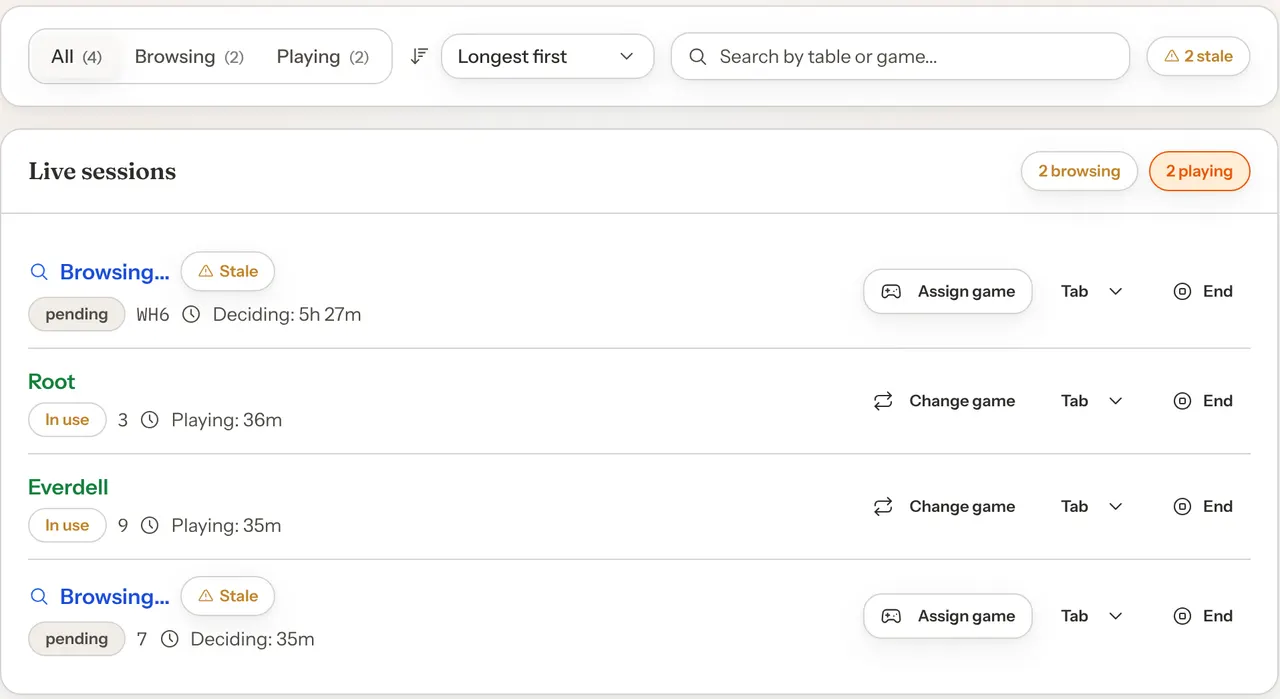
The Live sessions list has one row per table.
| On the row | What it means |
|---|---|
| Browsing... | The party has checked in but hasn't picked a game. |
| pending or In use | The same thing as a tag: pending while the table is still choosing, In use once it has a game. It has nothing to do with bookings or payments. |
| The game's name | What the table is playing. |
| Deciding: 12m or Playing: 1h 5m | How long they have been choosing, or how long they have had their current game. The clock starts again when the table changes game. |
| until 9:00 PM | When a seated party's booking ends, for bookings you seated today. |
Labels on a row flag what needs a look:
- Stale
- The table has been browsing for 20 minutes or more without picking a game. Someone could help them choose.
- Long session
- The table checked in 3 hours or more ago and is still playing.
- Needs a hand · The bill · 3 min
- The table asked for help, what for, and how long ago. These tables move to the top of the list.
- Wants 30 more min
- A seated party asked to stay longer. The line under it says whether they can.
- Still open since Oct 3 — check
- The session has been open for more than a day, so the party has probably gone. End it.
To narrow the list:
- All, Browsing and Playing show every table, only the ones still choosing, or only the ones with a game. Each shows how many there are.
- Longest first puts the tables that checked in earliest at the top. Pick Newest first to reverse it. Tables asking for help stay at the top either way.
- Search by table or game... finds a row as you type.
- "2 stale" next to the search appears when tables have been browsing for 20 minutes or more.
The page keeps itself up to date: new check-ins, game picks and requests show up within about 10 seconds while the page is open. Refresh, top right, reloads it straight away.
Hand a table a game
Use this when a guest asks you to bring a game over, or to put the game they're playing on record.
Step 1: Click Assign game or Change game
On a browsing table, click Assign game. On a table that's already playing, click Change game.
Step 2: Pick the game
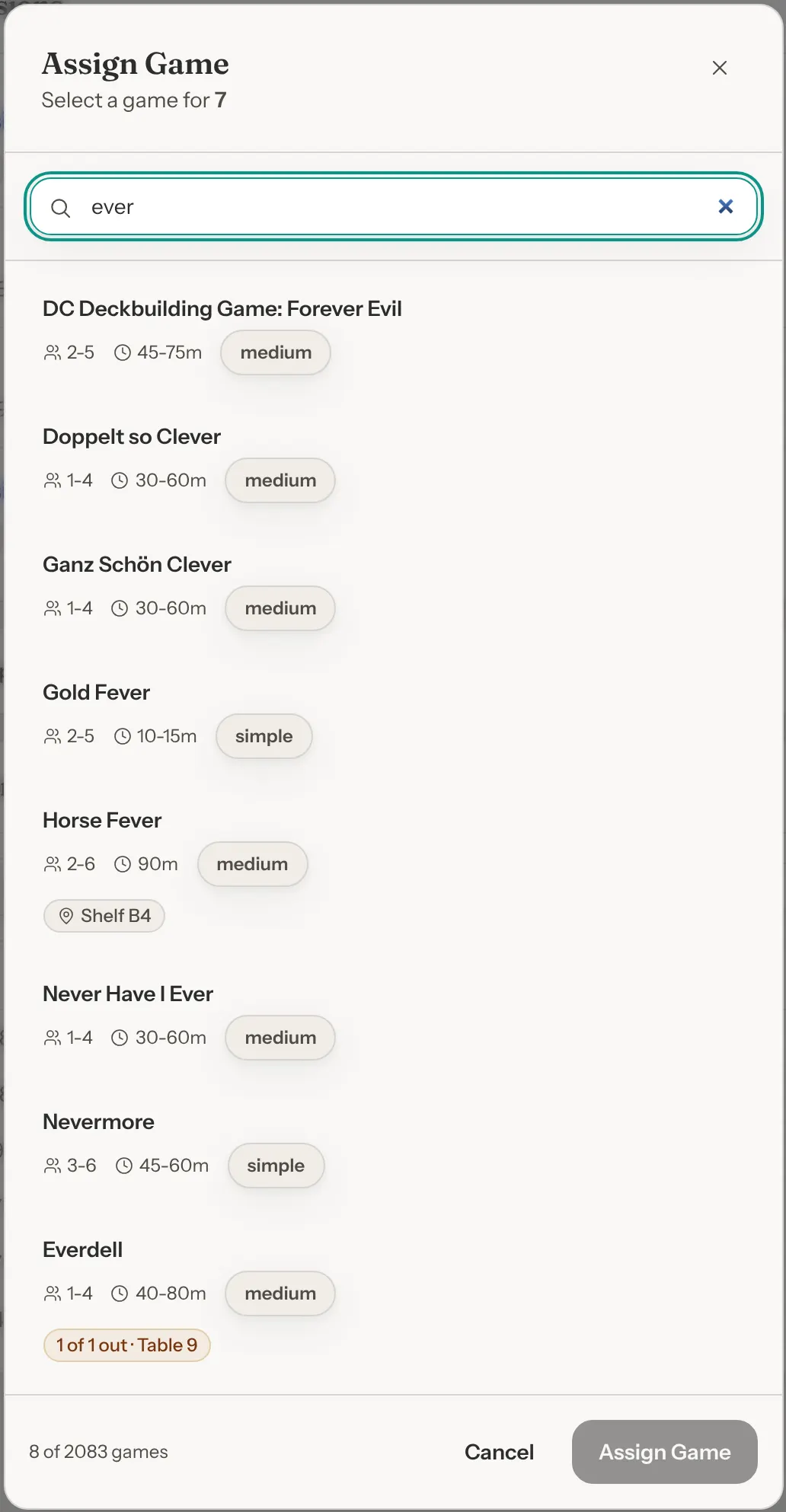
Start typing in Search games by title.... The list shows games that are in rotation, not marked Problematic, with at least one copy. Games with a free copy come first. Each game shows where its copies are, for example "Shelf B14" or "1 of 2 out · Table 7", and whether a copy is reserved for a booking later today. The game a table already has reads Now playing.
Up to 20 games show at a time, so search to find one further down. Use the arrow keys and Enter, or double-click a game.
Step 3: Confirm
Click Assign Game or Change game. You see "Game assigned" or "Game changed", and the row shows the game.
If every copy is out at another table, or the last free copy is reserved for a booking, GameLedger says so before anything changes, for example "Catan's only copy is out at Table 7". Click Assign anyway (or Change anyway) only if a copy really is on the shelf. If the copy is reserved for this very party, it offers Seat their booking instead, so the reservation knows they've arrived.
The guest's table page shows the game under Now Playing the next time it loads. Changing a game replaces the old one on the session, so in Analytics the visit counts as a play of the last game picked.
Keep a food and drink tab
Click Tab on a row to open the table's Food & drink tab under it. Only one tab is open at a time.
- Click Add item.
- Type what it is, such as "Latte", the quantity and the price for one.
- Click the tick to add it. The tab's total updates.
Items your team adds are marked Manual. Click the pencil on one to change it, or the bin to remove it, then confirm Remove item. If your venue uses Square, its orders can show on the tab too, marked Square, Square QR or Refund, and those can't be changed here.
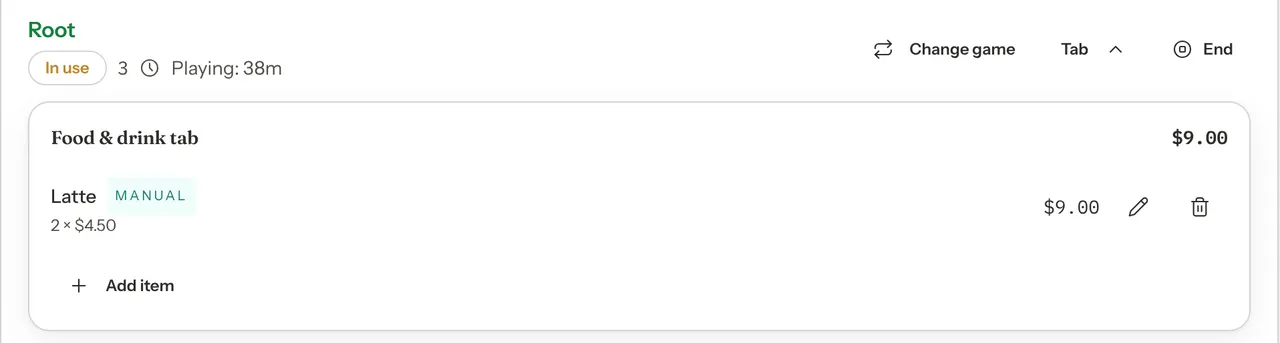
The items you add are a record for your team. Adding them doesn't take payment, and guests don't see them, so ring the total up at your counter as usual. What you add counts towards Food & drink revenue on Analytics. You can open the same tab from a table on Tables & Floor Plan.
Once a session ends, its tab is no longer shown on this page.
Answer a table that needs a hand
When a guest taps Need a hand? on their table's page, the row moves to the top with what they need, and the buttons to answer appear on it:
- On my way tells the guest someone is coming. Their screen shows "On their way" for 10 minutes.
- Approve and Decline answer a request for 30 more minutes. Approve adds 30 minutes to their booking, but it doesn't charge them, so add it to their bill at the counter. Approve is greyed out when the table can't stay longer, and the line under the request says why, such as "Table free until 9:00 PM".
The same requests show in a banner on every admin page, so you don't need to keep Sessions open. See Table Help Alerts.
End a session
End a session when a party leaves without checking out on their phone. Until you do, the next guests to scan that table's code join the old session, with its game.
Step 1: Click End on the table's row
Step 2: Confirm
GameLedger asks, for example, "End the session at Table 4?", tells you what they were playing, and warns that "Ending it closes the session on the party's table page too, and it can't be reopened." Click End session.
The row disappears and you see "Session ended". The table's page offers Start Session again the next time someone opens it.
Sessions also end without you:
- The guest checks out. End Session & Check Out on their phone ends the session and asks for their feedback. See Guest feedback and reviews.
- Your team taps Done on the party's booking, in Tonight or on Bookings.
- Your team seats another party at that table and chooses to end this session.
- Nobody ends it. A session closes on its own about 12 hours after it started, or after the table last changed game.
Only the guest's own checkout asks them for feedback at the table. A party your team seated can also be asked by email after their visit, if you have that turned on.
Venue pulse
When guests have rated their visit in the last 7 days, a Venue pulse card sits between the live and recent sessions. It shows the average rating guests gave their visit, out of 5, and how many ratings that is. When there are any, it also shows:
- how many were low (2 stars or fewer),
- how many guests went on to Google to leave a review, if you've set that up,
- a comments button that opens the latest comments about visits.
View all opens the Feedback page with the last 7 days. The comments and the Feedback page need View on Feedback in your permissions.
Recent sessions
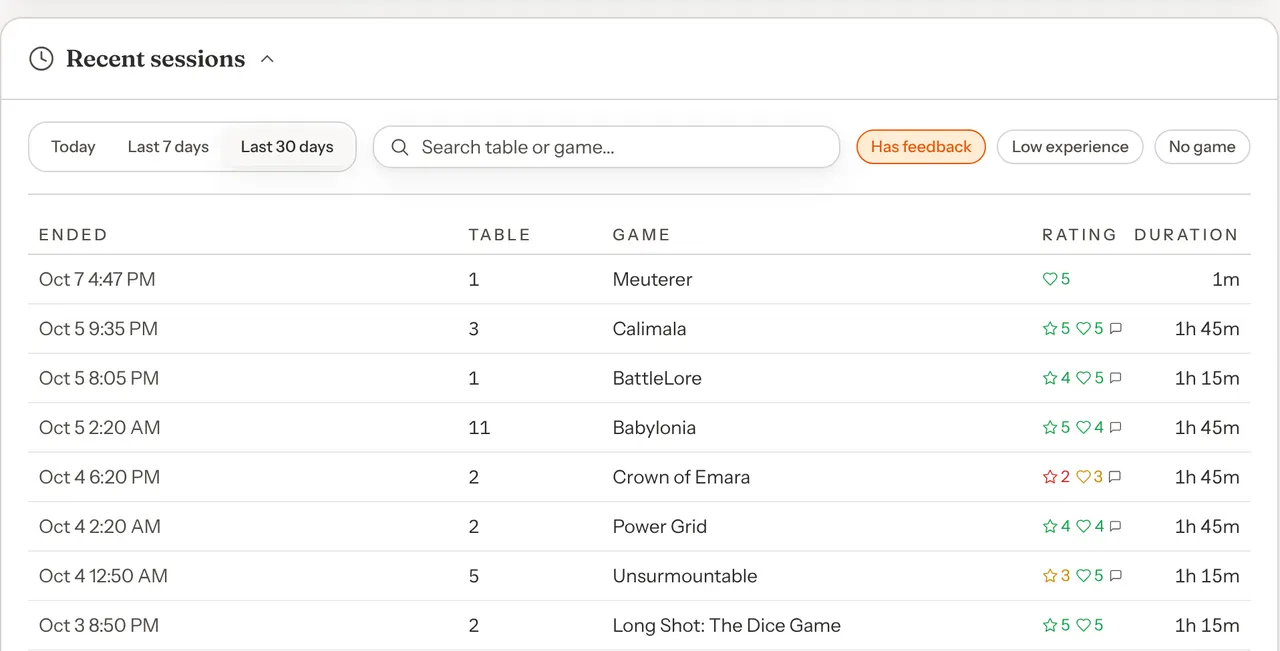
Recent sessions lists sessions that have ended, the latest first. Click its heading to fold it away.
- Today, Last 7 days and Last 30 days set how far back it goes. It starts on the last 7 days.
- Search table or game... finds sessions by table or game.
- Has feedback, Low experience (a visit rated 2 stars or fewer) and No game narrow the list.
- Load more at the bottom loads older sessions.
Each row shows when it ended, the table, the game ("—" if they never picked one), the ratings and how long it lasted. A star is the guest's rating of the game, and a heart their rating of the visit: green for 4 or 5, yellow for 3, red for 1 or 2. A speech-bubble icon means they left a comment about the game. Read all their comments on the Feedback page. Left open >24h — check marks a session that was only closed a day or more later.
Who can use it
Sessions follows the Sessions boxes in your team's permissions. Owners and admins can do everything, and staff start with View and Edit. See Team and permissions.
| Permission | What it allows on Sessions |
|---|---|
| View on Sessions | See live and recent sessions, read each table's tab, and get help alerts. |
| Edit on Sessions | Assign and change games, add to tabs, On my way, Decline, and End. |
| Edit on Sessions and on Bookings | Approve a request for more time. |
| View on Feedback | Open the Venue pulse comments and View all. |
Without View on Sessions, the page is missing from the menu and opening it shows "Access to sessions is restricted".
On a phone
Sessions works on a phone. Each row's buttons sit under the table's details, full width, so they're easy to tap. In Recent sessions, each session is a small card with its details labelled.