Send the right groups to the right tables
Tag tables such as "Back room", ask guests a yes/no question or link a game, and GameLedger seats each party at a matching table when one is free.
Last verified
Some tables suit some groups better: a back room for a D&D campaign, a quiet corner, a big table for a long game. Give those tables a seating tag, then tell GameLedger which parties belong there. You can ask guests a yes/no question when they book, or link a game in your library to a tag. When a table with the party's tag is free, GameLedger books the party at it.
Tags change which table a party gets. They never change prices or how many tables a party gets. They only change which times guests can book when you give a table extra chairs. Guests never see your tags.
How it works
There are three parts.
- Seating tags on your tables. You add them in Tables & Floor Plan. A table can have several tags, and a tag can be on as many tables as you like.
- Something that gives a booking a tag. The guest answers Yes to a seating question, or reserves a game that has a preferred seating tag. A booking has at most one tag.
- The table GameLedger picks. When a guest books one table online, GameLedger takes the best free table in this order:
- A table that seats the whole party. For a party with a tag, that includes a table with its tag that seats the party with extra chairs.
- A table with the party's tag. A party with no tag gets untagged tables first, so your tagged tables stay free for the groups who need them.
- A table that needs no extra chairs, then the one that needs the fewest.
- A table exactly the party's size.
- The smallest table.
- The table whose name comes first, so Table 2 comes before Table 10.
GameLedger only picks from the tables the booking type uses, so a tagged table the type doesn't book is never picked. It makes the final choice when the guest confirms, because it only knows their game once they have picked one. If no table with the party's tag is free at that time, the booking still goes through at the best other table, and your team sees it flagged. See What your team sees.
Bookings your team makes by hand keep the table your team picks. See Bookings your team makes.
Tag your tables
Step 1: Open a table's Edit form
In Tables & Floor Plan, find the table in the Table List and click Edit on its row. The Add Table window has the same field, so you can also tag a table as you add it.
Step 2: Add a tag
Under Seating tags, type a name such as "Back room" and click Add tag. The tag is created straight away and ticked for this table.
Your other tags show as chips above the box. Click a chip to tick it for this table, and click a ticked chip to untick it.
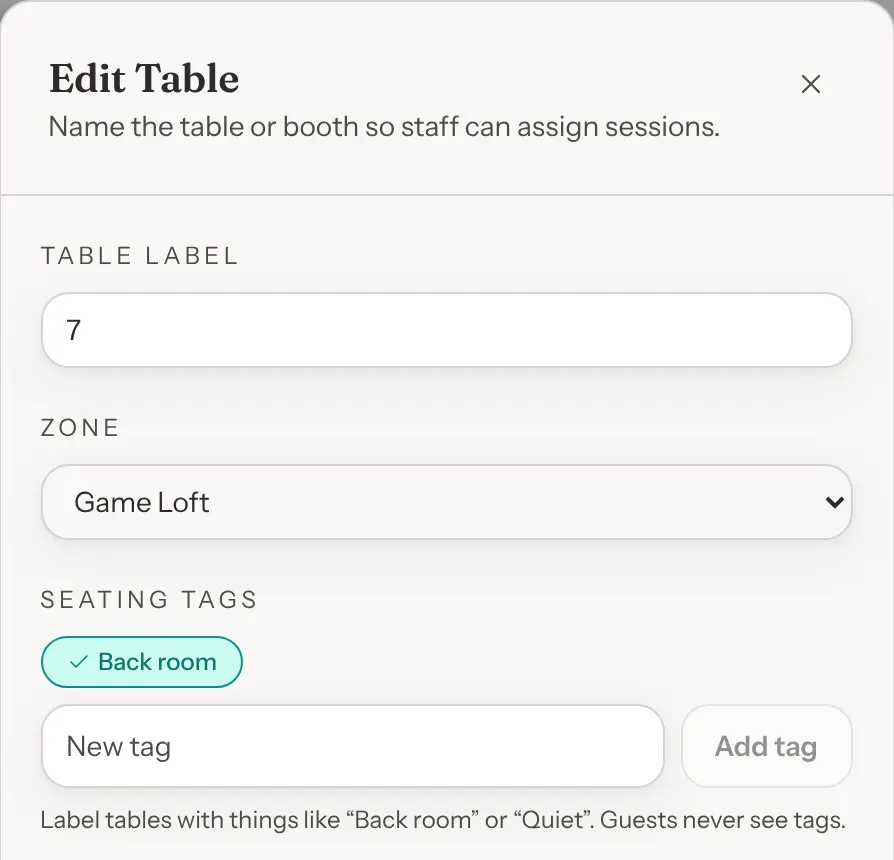
Step 3: Click Save changes
The table gets its ticked tags when you save. A tag you created in step 2 stays in your list of tags even if you close the window without saving.
Tagged tables show their tags under the table's name in the Table List, and you can type a tag's name in the search box to find its tables. Tags don't show on the Visual Map. Once you have a tag, a Seating tags button appears above the list, next to Add table. See Rename or delete a tag.
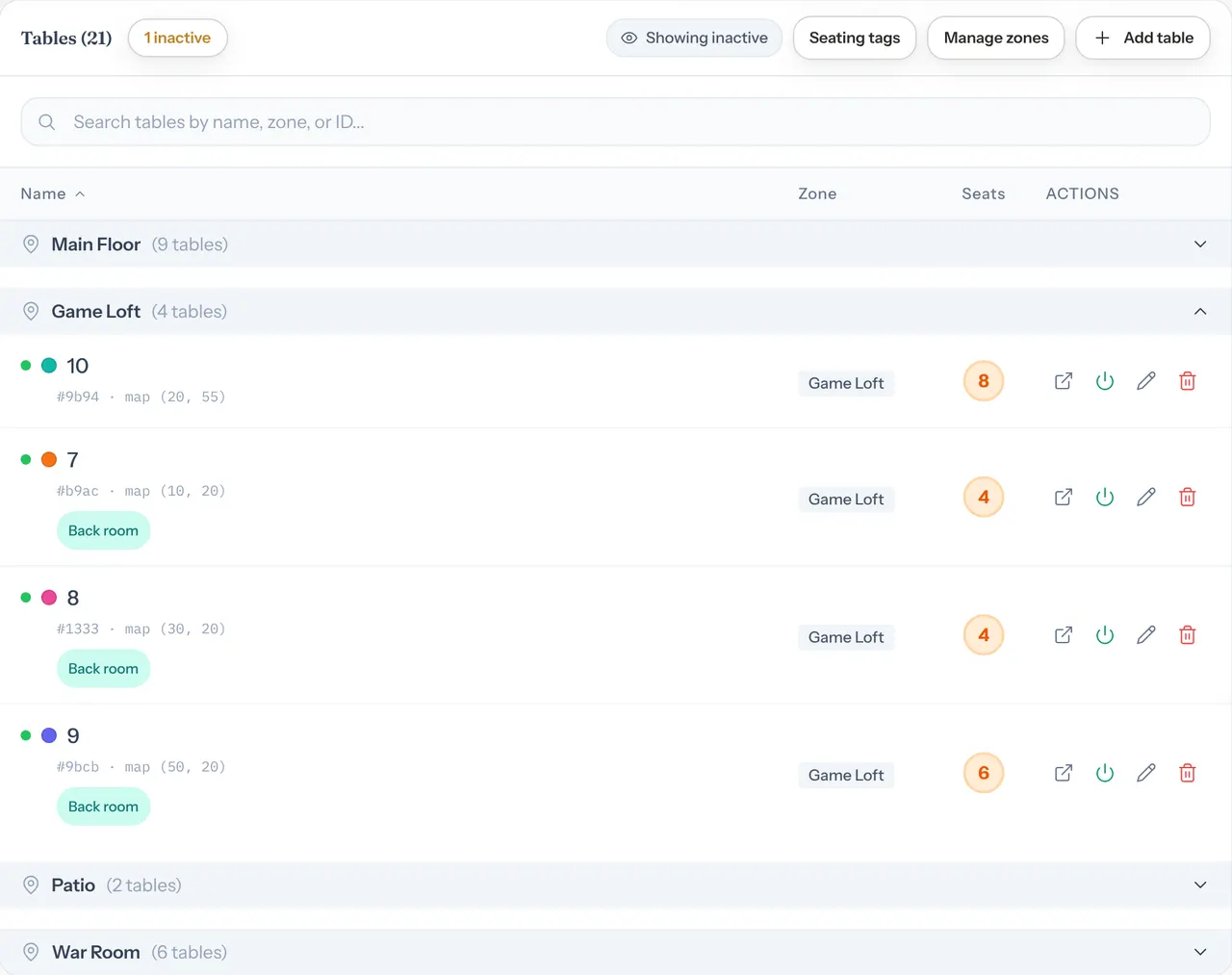
A tag name can be up to 40 characters, and you can have up to 30 tags. Two tags can't share a name, even with different capitals, and GameLedger tells you when a tag with that name already exists.
Leave enough untagged tables for everyone else. When GameLedger picks one table for a party without a tag, it only uses a tagged table when no untagged one that seats them is free. Joined-table options and tables your team picks don't follow this.
Ask guests a question
A seating question is a yes/no question guests answer on the first step of booking, under party size. A Yes gives the booking the question's tag. You can ask up to two.
You need at least one tag first. Until you have one, the card says "Questions send guests to tables by seating tag. Add a tag to your tables first in Tables & Floor Plan."
Step 1: Open the Seating questions card
Go to Settings → Guests → Booking Page and find the Seating questions card. You can also click seating question in the Seating tags window on Tables & Floor Plan.
Step 2: Click Add a question and fill it in
Click Add a question. Type the question, choose the tag a Yes gives, and choose which booking types it is asked for. Every field is described below.
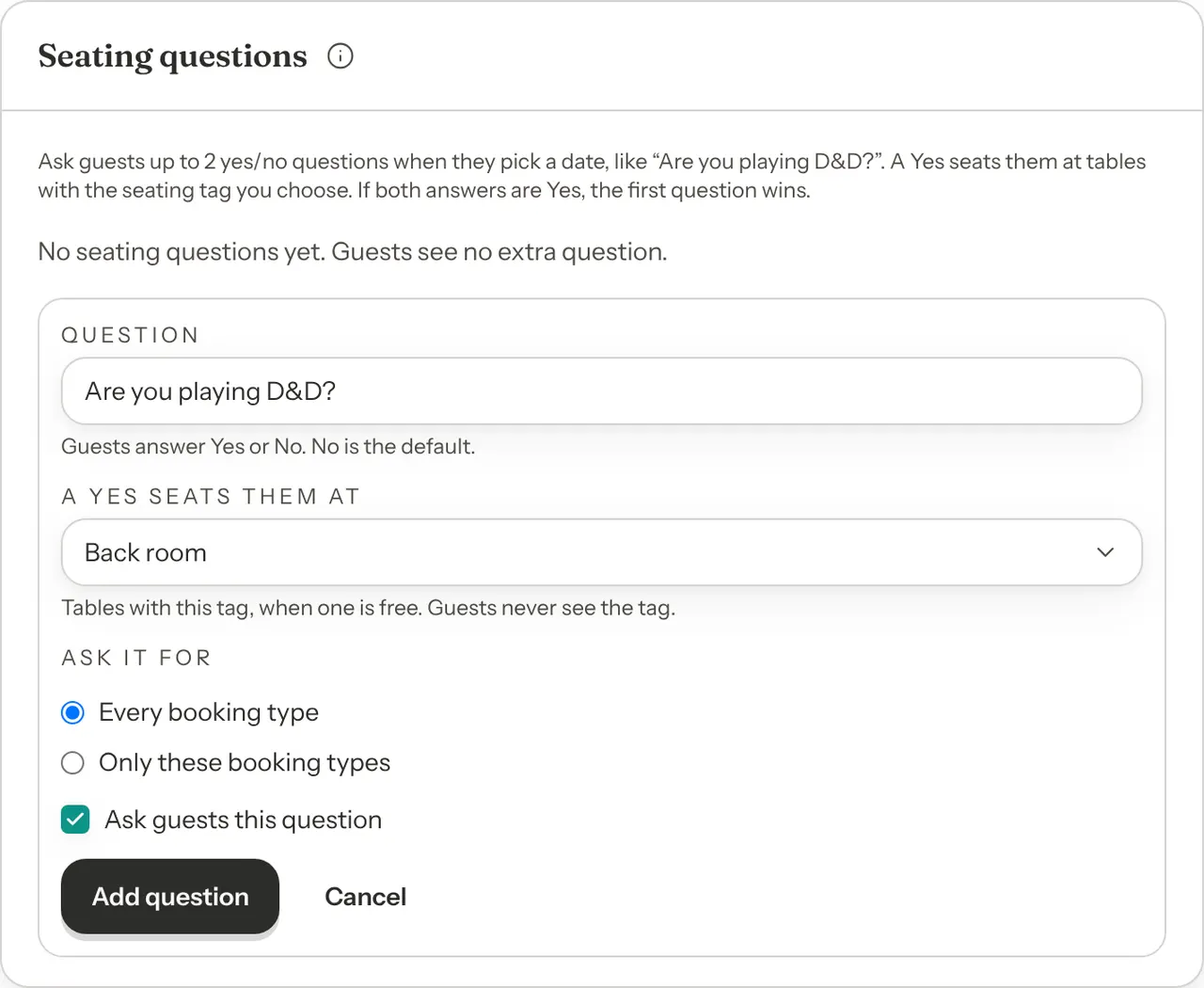
Step 3: Click Add question
The question is listed with its tag and booking types, for example "Yes: Back room · Every booking type". Guests see it from their next visit to your booking page.
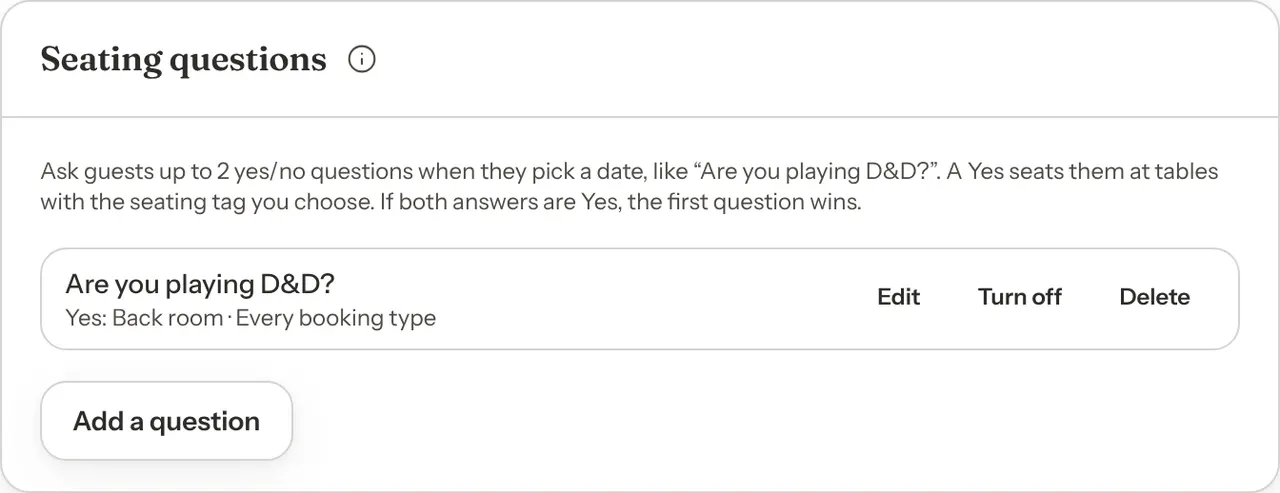
Each question in the list has three buttons:
- Edit opens the form again. Click Save question when you are done.
- Turn off stops asking it, and Turn on asks it again. Bookings already made keep their tag.
- Delete asks you to confirm. Click Delete question, or Keep to leave it.
You can have two questions switched on at once. A third can only be saved switched off: untick Ask guests this question, or turn another question off first.
If a guest answers Yes to both questions, the first question in the list wins. Questions are listed in the order you added them.
The question fields
| Option | What it does | Default |
|---|---|---|
| Question | What guests are asked, such as "Are you playing D&D?". Up to 120 characters. Guests answer Yes or No. | Default: Empty |
| A Yes seats them at | The seating tag a Yes gives the booking. The party gets a table with this tag when one is free. | Default: Your first tag |
| Ask it for | Every booking type, or Only these booking types, where you tick the types to ask it for. | Default: Every booking type |
| Ask guests this question | Untick it to save the question switched off. | Default: Ticked |
What guests are asked
On the first step of booking, under party size, guests see each question with Yes and No buttons. No is picked until they change it. Guests who answer No book as usual.
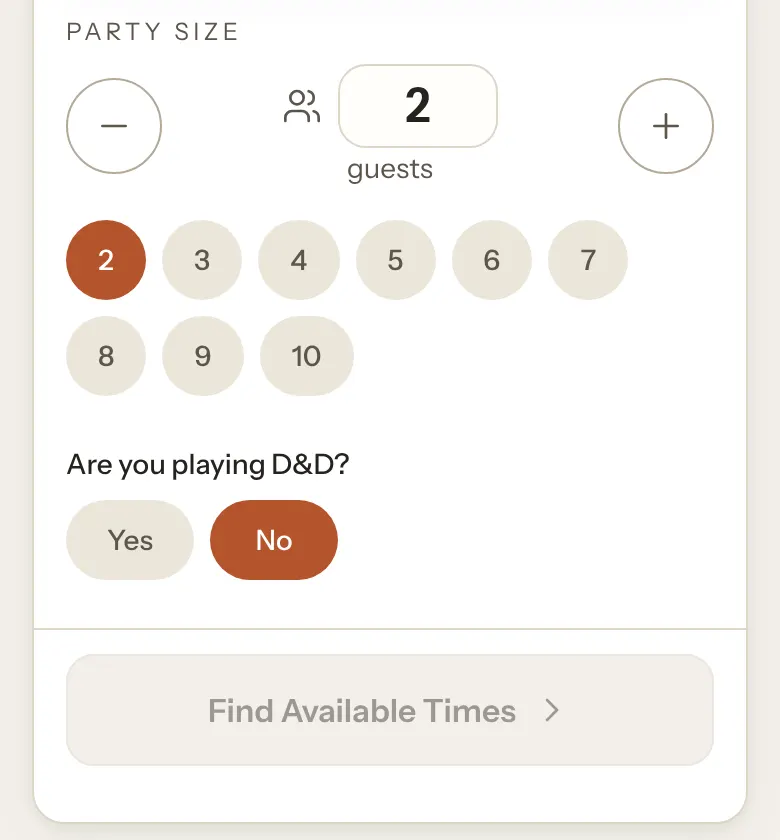
A booking type that sells shared seats instead of tables has no tables to steer. A Yes there only records the tag on the booking, where your team sees it on the Seating line. If you have such a type, choose Only these booking types and leave it unticked, so its guests aren't asked. See Booking types.
Link a game to a tag
When a game has a Preferred seating tag, a guest who reserves that game with their booking gets that tag. For example, link your miniatures games to your big tables.
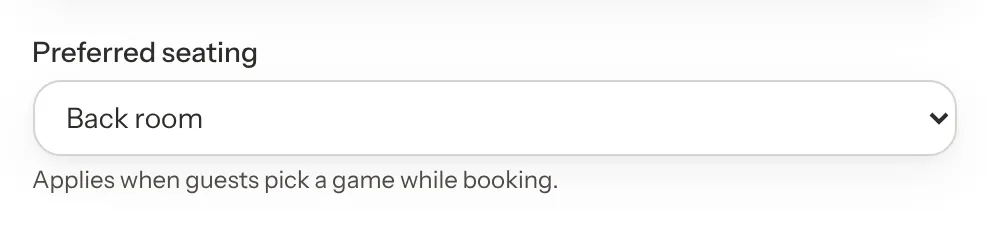
Open the game's Edit Game form in your Library. Under Location / Shelf, choose a tag in Preferred seating and click Save Changes. The field only shows once you have at least one tag, and it starts on No preference.
A guest's answer beats the game. If the guest answered Yes to a seating question, the booking gets the question's tag, whatever game they pick.
A booking gets its tag when it is made. Changing its game later doesn't change its tag or its table.
An entry that isn't a game
For a group that brings its own game, such as a D&D campaign, add an entry to your library like "Bring your own D&D campaign", set its Preferred seating, and tick Hide from public games page. Fill in the required fields as you would for any game. See Build your game library.

A hidden entry doesn't show on your public games page, in the app guests use at the table, or in game suggestions. Guests can still choose it as the game for their booking. In your Library, its row shows a Not public label.
What guests see
- Guests never see your tags or their names. They only see your questions.
- Once you have at least one tag, guests don't see a table number while they book, or on their booking page until they are seated, because GameLedger makes the final choice when they confirm. If you delete your last tag, table numbers show again.
- With table numbers hidden, a party too big for one table chooses between options such as "2 tables" with "4 + 2 seats", and the summary reads "Your party will sit across 2 tables."
- Booking emails don't name a table, with or without tags.
When a guest changes their booking's date or time from their booking page, the new table is picked the same way, using the tag their booking already has.
What your team sees
The Seating line on a booking
Open a tagged booking and its Reservation details show a Seating line with the tag and where it came from:
- "Back room · answered Yes to “Are you playing D&D?”" when a question gave the tag.
- "Back room · game: Gloomhaven" when the game gave it.
- Just "Back room" when the question was deleted or now gives a different tag, or the game no longer prefers that tag. If you only reworded the question, the line shows the new wording.
Untagged bookings have no Seating line.
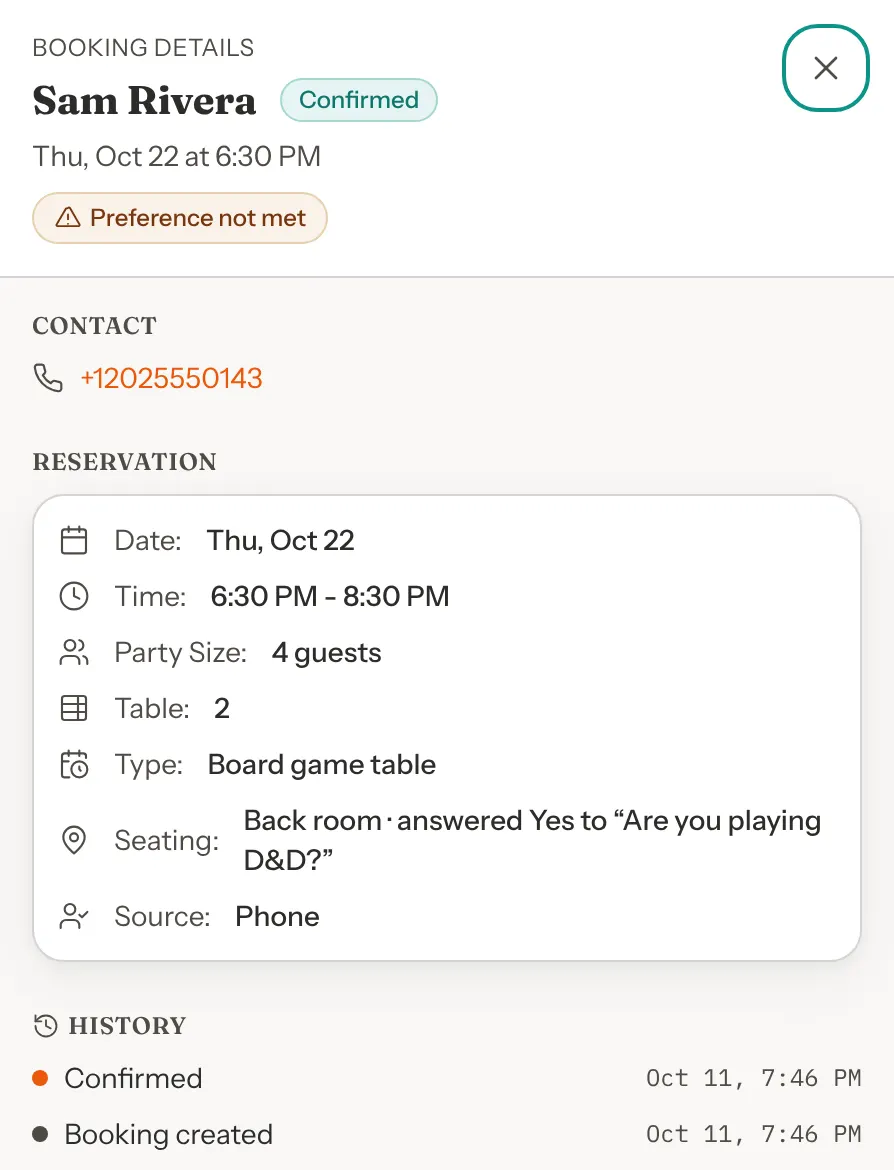
Preference not met
When a booking's table doesn't have its tag, the booking shows an amber Preference not met label. You see it at the top of the booking, on its row in Tonight, and in the List view on the Bookings page. On the booking itself, hover over the label to read, for example, "Booked for Back room, but its table isn't tagged Back room. Move the booking to a Back room table to clear this."
It shows while the party still holds its table: pending, confirmed, arrived or seated. A party at joined tables only counts as matched when every one of its tables has the tag.
To clear it, move the booking to a table with the tag. See Move a booking to a matching table. Adding the tag to the booking's table clears it too: when you change a table's tags, the label updates for that table's bookings from today on.
Bookings your team makes
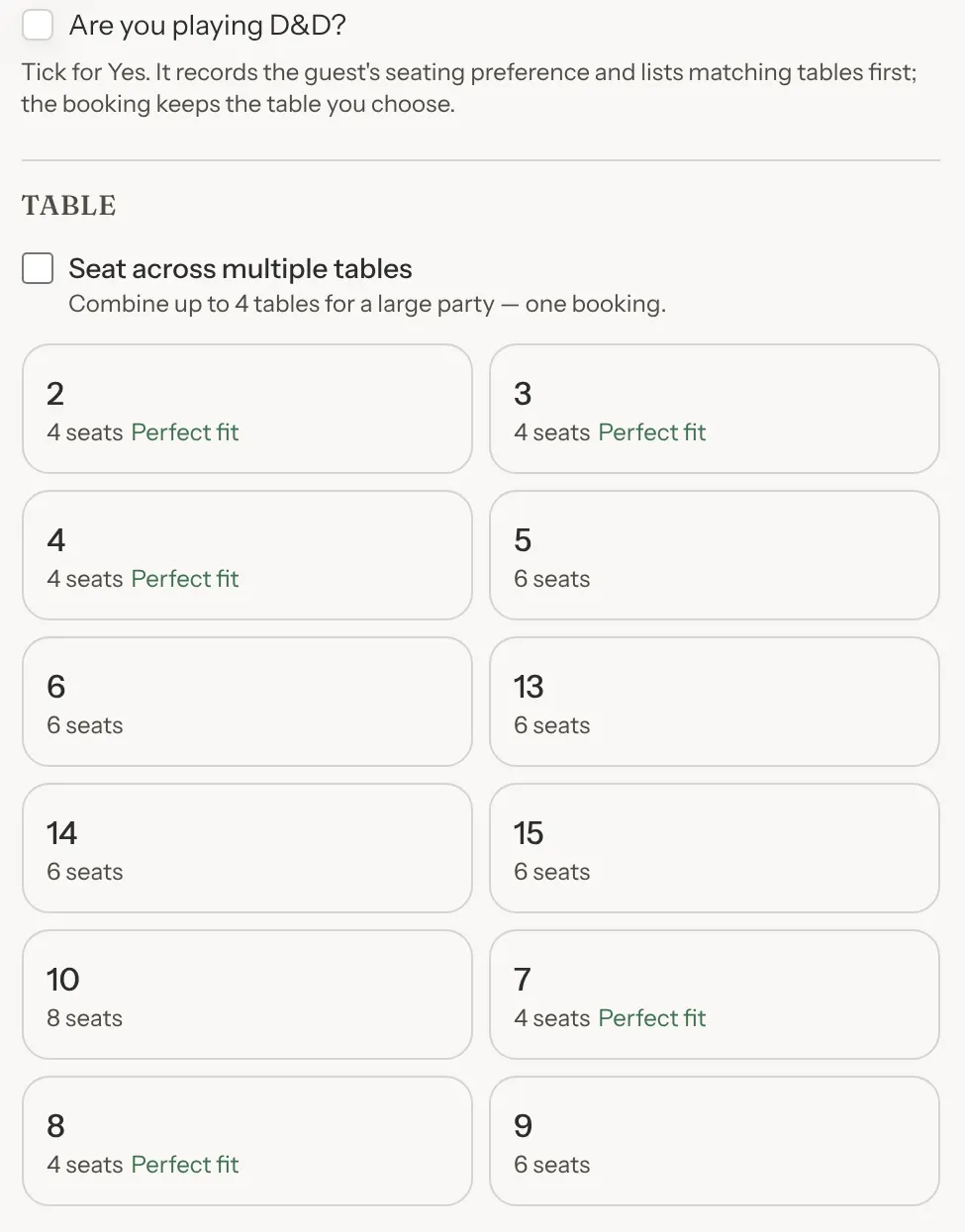
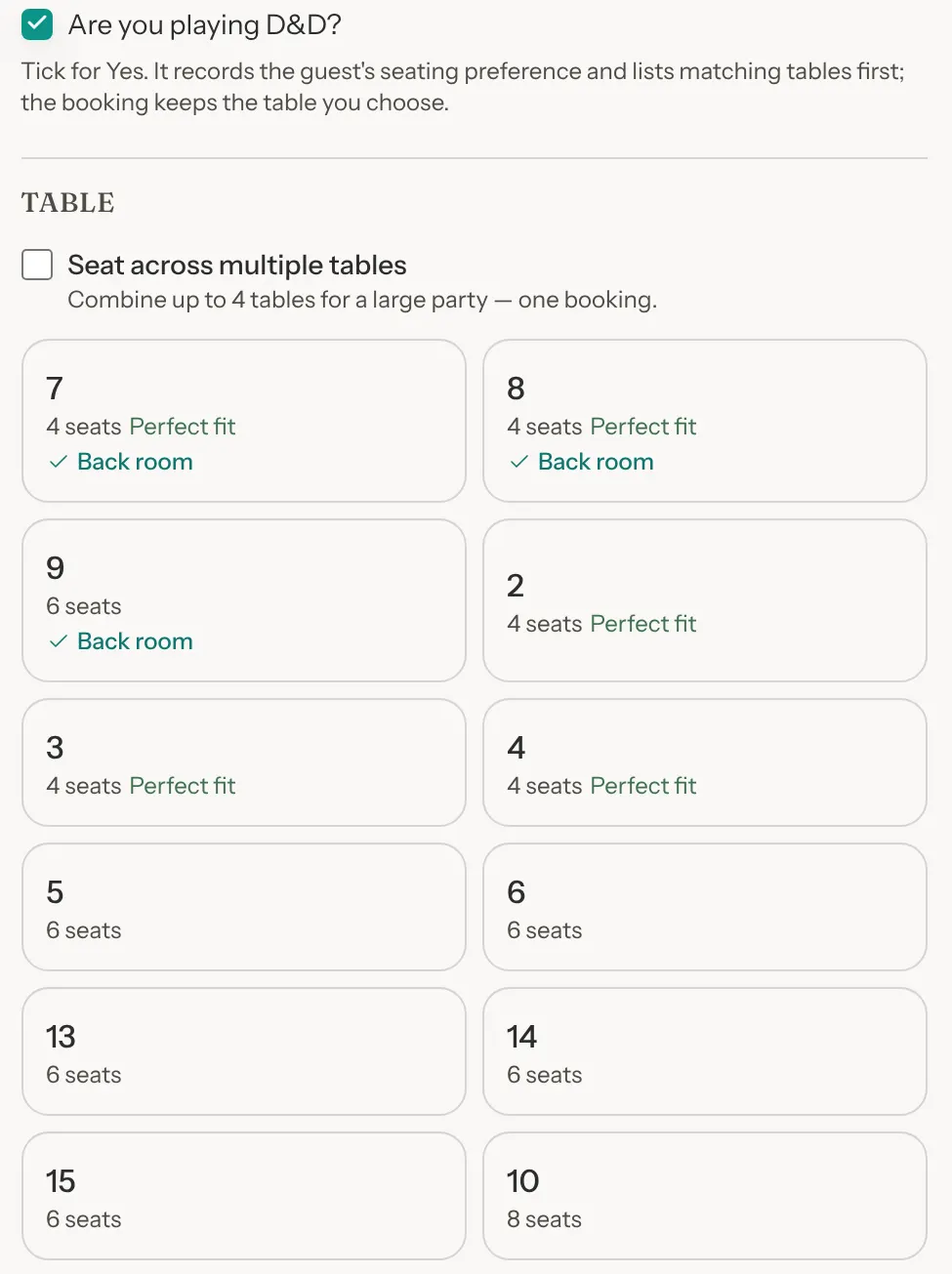
In New Booking and Edit Booking, the Table section lists tables with the booking's tag first, each marked with a tick and the tag's name. A booking without a tag lists untagged tables first. The order is only a suggestion: the booking keeps the table you choose.
In New Booking, your seating questions show as tick boxes. Tick one when the guest says Yes. It records their answer and lists matching tables first. When no ticked question gives a tag, picking a game with a Preferred seating tag gives the booking that tag and lists its tables first.
When you seat a party whose table is still in use, Seat Party offers other free tables. Tables with the booking's tag come first, with the tag after the seats, for example "6 seats · free until 9:00 PM · Back room".
Walk-ins have no tag, so the free tables offered for a walk-in list untagged tables first. On the waitlist, converting an entry with Auto (best free table) works the same way: it takes the best free untagged table that seats the party, then tagged ones. If none is free, it says, for example, "No table that seats 6 is free at that time. Pick another time, or choose a table."
Move a booking to a matching table
Open the booking, click Edit, and choose a table marked with the tag in the Table section. Click Save Changes. The Preference not met label goes away once the booking's table has its tag. See Move it to another table.
A booking at joined tables can't be moved in Edit Booking, which keeps its tables as they are. Tag all of its tables, or cancel and rebook it.
Extra chairs
Some tables take a bigger group when you pull up a few chairs. Give a tagged table an extra chairs limit, and a party with one of its tags can book it with up to that many guests. For example, a Back room table that seats 4, set to take up to 6, can take a D&D group of 6 who answered Yes. Every other party sees the table at its capacity.
Set a table's extra chairs
Step 1: Open the table's Edit form
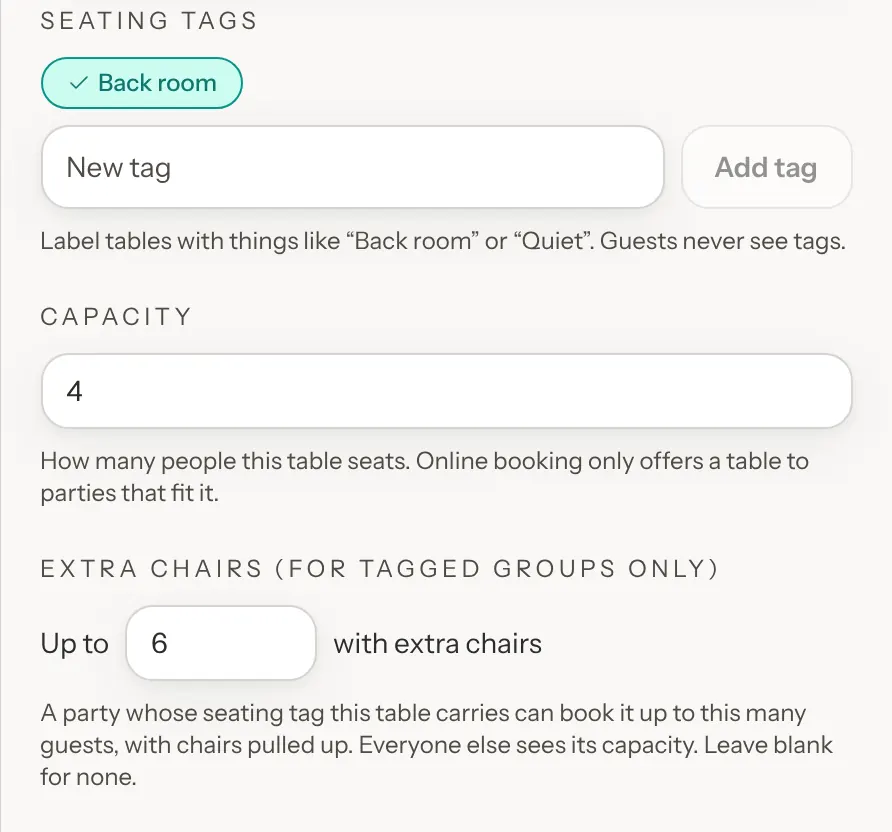
In Tables & Floor Plan, click Edit on the table's row in the Table List. The Extra chairs (for tagged groups only) field shows under Capacity once the table has a seating tag ticked. The Add Table window has it too.
Step 2: Type the most guests it takes with extra chairs
In Up to … with extra chairs, type the most guests the table takes with chairs pulled up, such as 6 for a table that seats 4. It must be more than the table's capacity, and 200 at most. Leave it blank for no extra chairs.
Step 3: Click Save changes
In the Add Table window the button is Save table. The Table List then shows "up to 6" under the table's seats.
A number that isn't more than the table's capacity can't be saved: the box asks for a bigger one. To stop offering extra chairs at a table, clear the box and save. Bookings that already have extra chairs there keep their table, so move them in Edit Booking if they no longer fit.
Who gets extra chairs
- Only a party with the table's tag. A party gets extra chairs only at a table that has its seating tag, and only up to the table's limit. A party with no tag always needs a table that seats it as it is. That includes walk-ins seated with Seat walk-in on the Dashboard, and waitlist entries.
- Only at one table. A party at joined tables never gets extra chairs.
- Never above the booking type's max party size. This holds for guests and your team alike. You set it with Max party size on the Who can book card under Settings → Venue Policies → Booking Rules. Your team can still book a bigger party by hand, at a table that seats it as it is.
- The price doesn't change. The party still books one table.
- The tag's tables come first. A party with a tag gets a table with its tag that seats it as it is, then one with extra chairs (fewest chairs first), then any other table. So a party of 6 who answered Yes gets the Back room 4-top with 2 extra chairs before a free 6-seat table elsewhere.
What guests see
When a guest answers Yes on the first step of booking, the times they can book include those when a table with the question's tag is free and takes their party with extra chairs. On a new booking, a game's Preferred seating is only known once the guest has picked their game. It can move the party to a table with extra chairs when they confirm, but it doesn't add times.
When a guest changes their booking's date or time from their booking page, the times include extra chairs for the tag the booking already has, whether a Yes or a game gave it.
Guests never see extra chairs or a table's limit.
What your team sees
A booking that takes extra chairs shows an Add 2 chairs label next to its table, on the Table line of its Reservation details and on its row in Tonight. Hover over it to read, for example, "Party of 6 at a table that seats 4: pull up 2 extra chairs." It shows while the party still holds its table: pending, confirmed, arrived or seated.
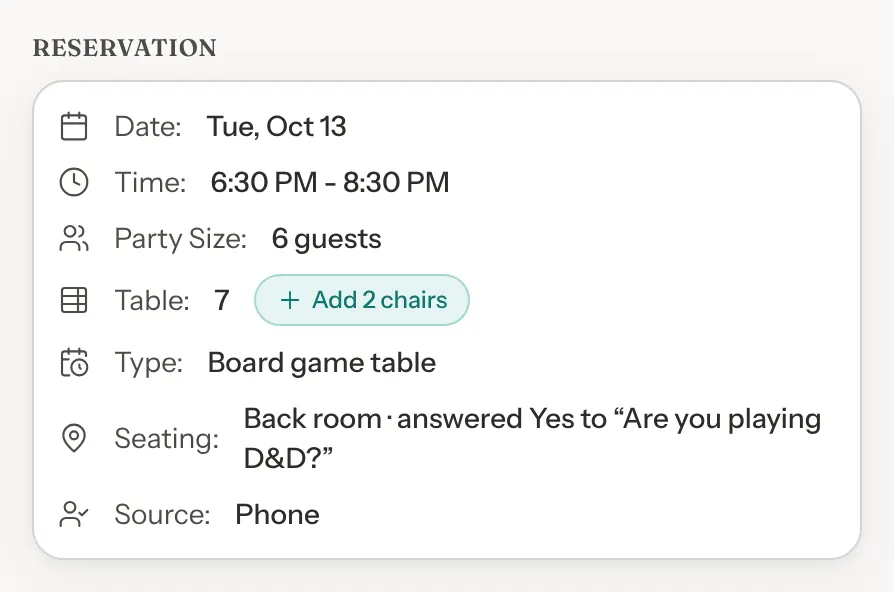
The count comes from the table's capacity as it is now. If you change the table's capacity, the label follows, and it goes away once the table seats the party as it is, or the party moves to a table that does.
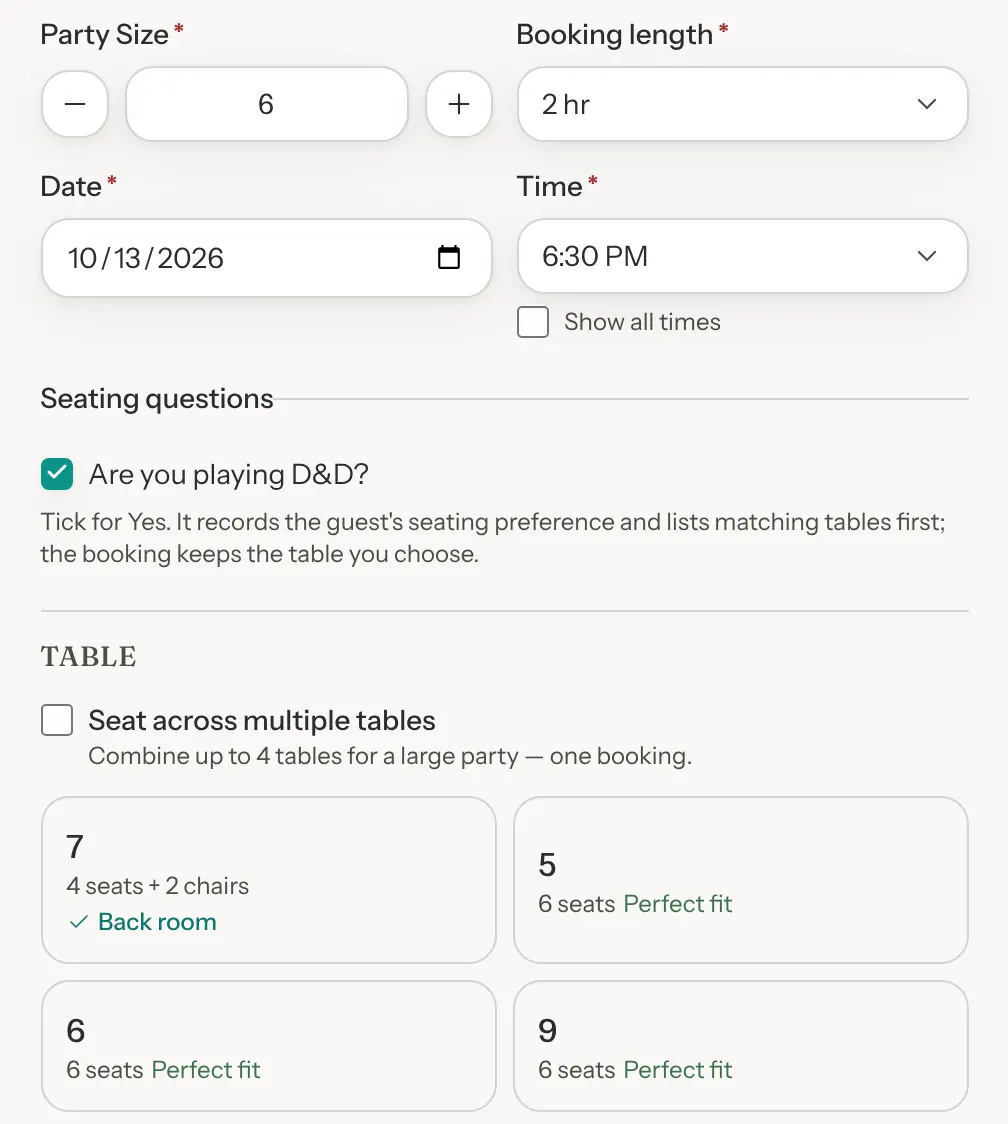
Your team's screens list a table with extra chairs by its seats and chairs, for example "4 seats + 2 chairs":
- New Booking lists it once the booking has the table's tag: tick a seating question that gives the tag, or pick a game with that Preferred seating.
- Edit Booking lists it for a booking that has the tag. Raise the party size past the table's limit and the table drops off the list, so choose another.
- When you seat a party whose table is still in use, Seat Party offers it among the other free tables. So do Seat elsewhere, and Arrived late — restore when a no-show's table is taken. It comes after the tables with the tag that seat the party as it is, for example "4 seats + 2 chairs · free for the rest of the day · Back room". Each shows up to three tables, so it doesn't show when three better ones are free.
Rename or delete a tag
Click Seating tags above the Table List. The window lists every tag with the number of tables that have it. Changes save as you make them. To add a tag, use a table's Edit form.
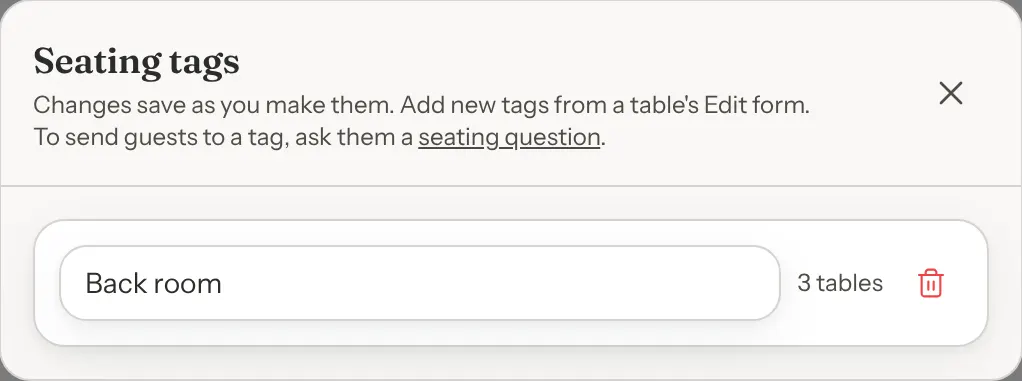
- Rename: change the name and press Enter, or click away. Tables, questions, games and bookings keep the tag under its new name.
- Delete: click the bin button. GameLedger asks you to confirm and says how many tables the tag comes off. Click Delete tag.
Good to know
- Tags never change a price or how many tables a party gets. They only change which times are open when a table has extra chairs, which can open times for a guest who answered Yes, or for a booking that already has the tag. A party that wants the back room when it is full still books, at another table.
- The tag counts for more than size. A party of 2 who answered Yes can get a 6-seat Back room table even when a 2-seat table is free elsewhere.
- GameLedger picks the table itself for a guest's online booking at one table, when a guest changes the date or time of a one-table booking from their booking page, and when you convert a waitlist entry with Auto (best free table). Otherwise a booking keeps the tables chosen for it: by your team for phone bookings and walk-ins, and by the guest for joined tables.
- For a party at joined tables, options where every table has the party's tag come first, but only among options with the same number of tables and seats. A game's preferred seating doesn't change which tables are joined, because guests choose them before they pick a game.
- Booking types that sell shared seats have no tables, so tags never steer them. A tag on such a booking only shows on its Seating line.