Your Public Games Page
Publish your game library as a searchable web page, make it look like your café, and share the link. The page is off until you turn it on.
Last verified
GameLedger can publish your game library as its own web page: every game in rotation, searchable by player count, play time and mood. Guests can decide what they want to play before they arrive, and your venue page gets a Browse our games button that leads there. You can give the page your photo, your colors and your own words, so it feels like your café.
The page is off until you turn it on. Nothing is public until you do. This guide shows where to turn it on, how to make it yours, and where to find its link.
Where to find it
The switch lives in Settings → Guests → Games page. The main switch, Publish a "What's on the shelf" page, turns the page on or off at any time. You are also nudged to turn it on in two places, so you can do it without opening Settings:
- Library: a strip under the page title offers it.
- Dashboard: a one-time card offers it once your setup checklist is finished or closed.
Turn it on
Step 1: Open the Library
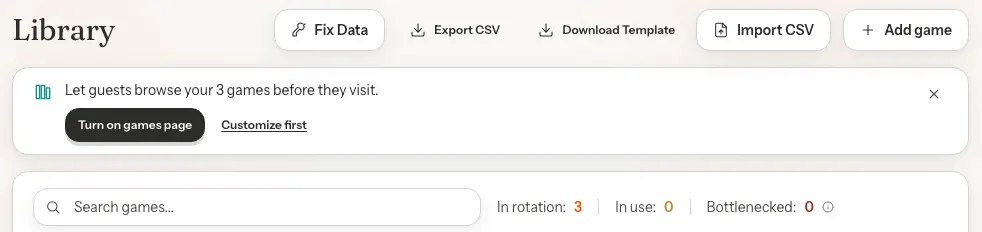
Open Library. Under the page title you see a short strip: Let guests browse your 3 games before they visit. The number is how many games guests will see on the page. The strip only appears once at least one game would be listed.
Step 2: Click Turn on games page
Click Turn on games page. If you would like to choose what the page shows first, click Customize first instead. The button reads Turning on… for a moment.
Step 3: Copy your link
The strip changes in place to Your games page is live and shows the page's address, with Copy link, View page, Customize and Add to your website. Add to your website opens the code for showing your game list on your own website: see Show your game list. Your search and filters on the Library page stay as they were.
Not ready yet
Click the × on the strip. It shrinks to a small Games page: off link under the page title, so you can always find your way back. It stays small on this browser until you turn the page on.
On your dashboard
If your games page is off and your setup checklist is finished or closed, your dashboard shows a one-time card, New: a public page for your game library. It has the same Turn on games page button, plus See the options. It never appears while your setup checklist is still showing. Once you turn the page on from this card, or close it with ×, it does not come back.

Choose what shows
Open Settings → Guests → Games page, or click Customize on the Library strip. The first card, Games page, holds the switches. Each switch saves as soon as you click it. Turning a detail off hides it from every game on the page and removes its filter.
| Option | What it does | Default |
|---|---|---|
| Publish a "What's on the shelf" page | Turns the whole page on or off. When it is off, the address shows a not-found screen and search engines are not sent to it. | Default: Off |
| Player count | "2–4 players" on each game, plus the "We're" group-size filter. | Default: On |
| Play time | "30–45 min" on each game, plus the length filter. | Default: On |
| Weight | The Light, Medium or Heavy badge, plus the weight filter. | Default: On |
| Vibes | Mood chips on each game, plus the row of mood filters. | Default: On |
| Staff picks | The Staff pick badge, plus the picks row at the top. | Default: On |
| BoardGameGeek rating | Shown on a game's own page when your library has a rating for it. | Default: On |
| Show "Book a table" button | The button under the shelf and on each game's page. It only ever shows while guests can book online. | Default: On |
| Page heading | The big title at the top of the page, up to 80 characters. Save it with Save heading & message. | Default: Blank, which shows “What’s on the shelf at” and your venue's name |
| Welcome message | Your words above the shelf, up to 500 characters, plain text. Your line breaks are kept. If it is over the limit, the card says so and Save waits until it fits. | Default: None |
Make it look like your café
None of this needs any code. Your cover photo, logo and accent color are set once in Settings → Venue → Branding and used on all your guest pages. The rest lives with the other games page settings in Settings → Guests → Games page.
Your photo at the top
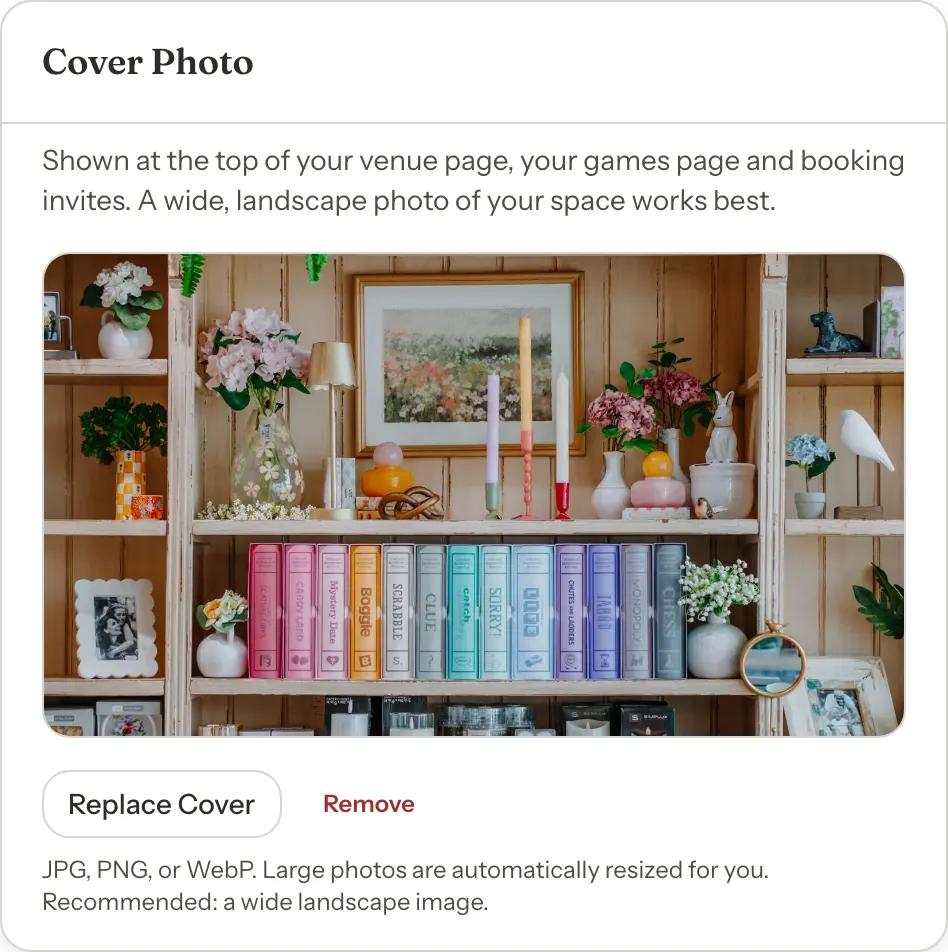
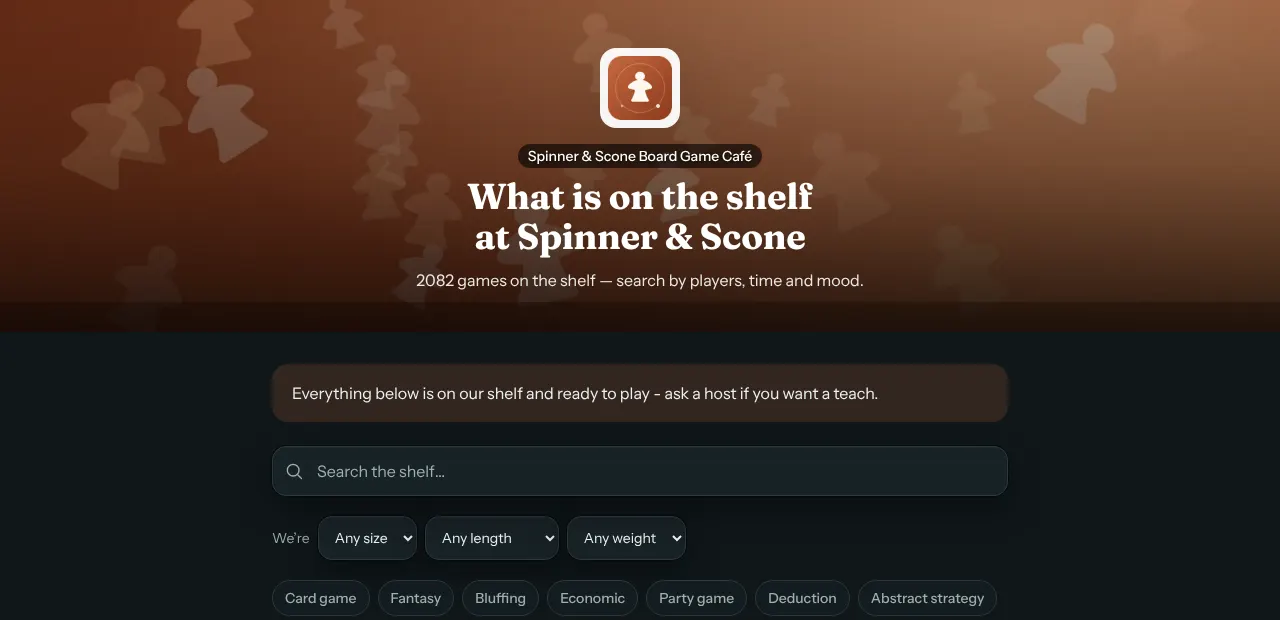
The games page opens with the same photo band as your venue page: your cover photo, your logo, the page heading and how many games are on the shelf. Open Settings → Venue → Branding and upload a Cover Photo. A wide, landscape photo of your space works best. With no cover photo yet, the page shows a designed color pattern instead, so it never looks empty.
A different photo, or a simple header
In Settings → Guests → Games page, the Header card shows what guests see right now and lets you choose.
- Header style: Photo opens the page with a photo band, like your venue page. Simple opens it with a slim bar showing your logo and name, with the heading just above the shelf. The default is Photo.
- Games page photo: click Upload photo and choose a JPG, PNG or WebP up to 5 MB. Large photos are resized for you. The page then uses this photo, and your venue page keeps its own cover. This photo is also the picture shown when someone shares the page link. Click Remove to go back to your cover photo.
Your header choice saves as soon as you click it.
Light or dark
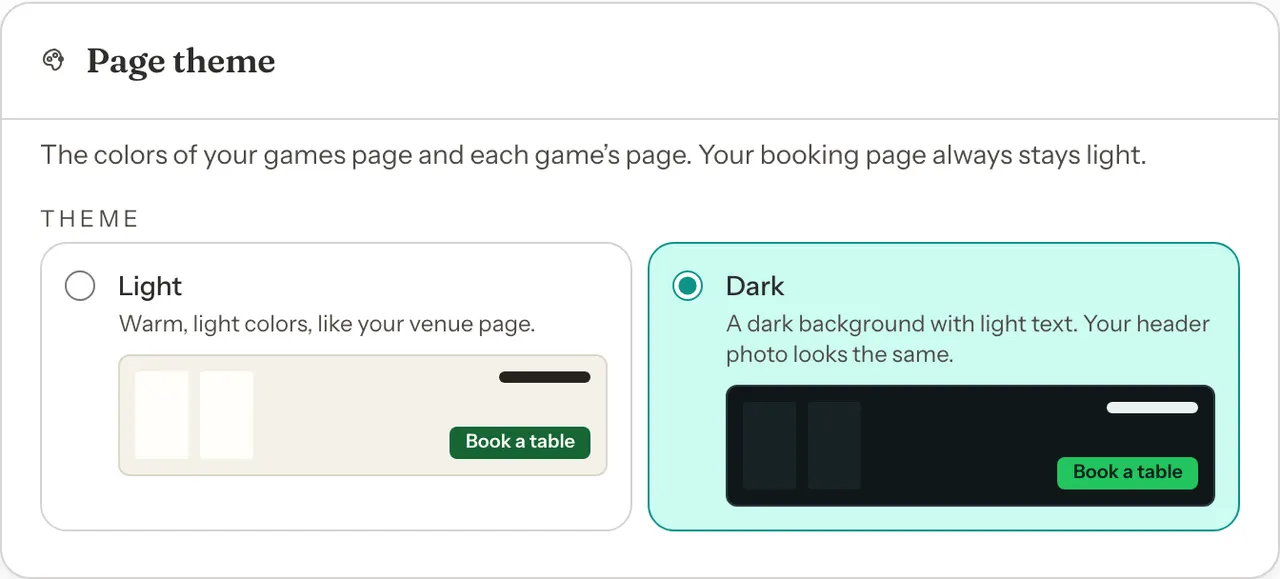
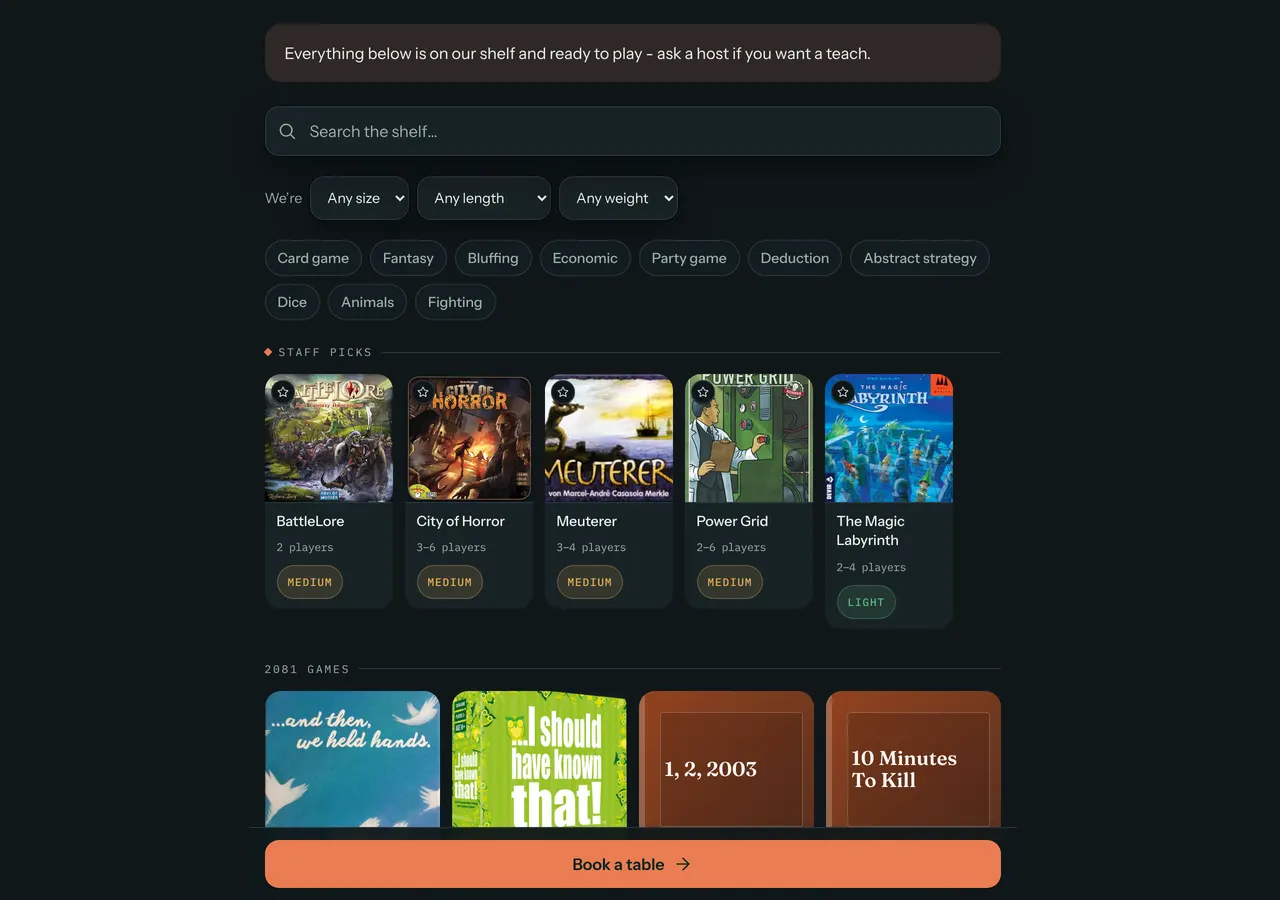
The Page theme card switches your games page and every game's own page between Light, the warm look of your venue page, and Dark, a dark background with light text. Your header photo looks the same in both. The default is Light. Your booking pages always stay light, and a guest who taps Book a table on a dark games page lands on your usual booking page.
Your brand color
In Settings → Venue → Branding → Accent Color, pick one of the eight ready-made colors, or choose Custom to use your exact brand color.
Step 1: Choose Custom and enter a color
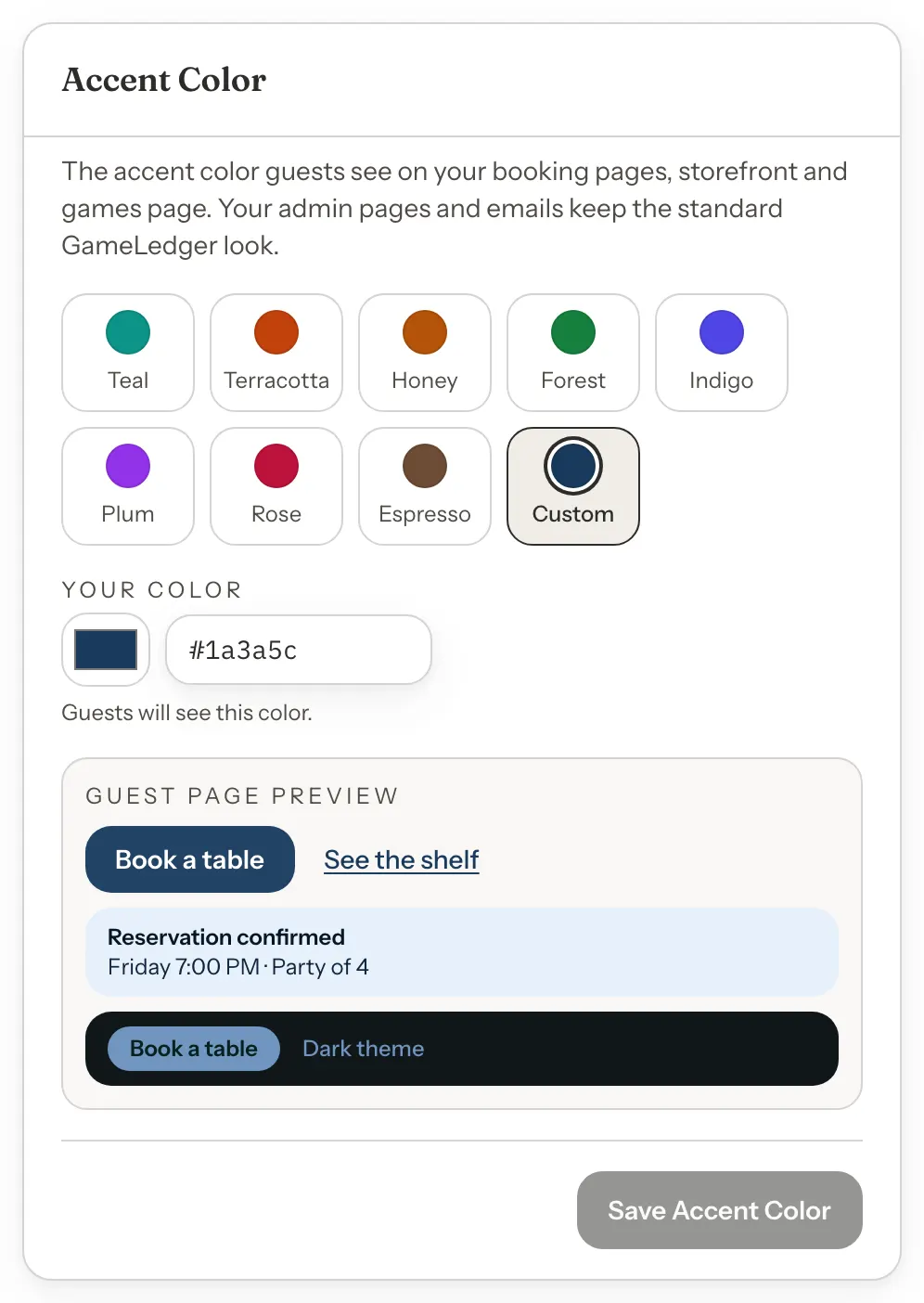
Click Custom, then type your color's hex code, for example #1a3a5c, or pick it with the color picker. The preview shows a button, a link, a tinted panel and the dark theme in your color.
Step 2: Save it
Click Save Accent Color. Your color now appears across your guest pages: your venue page, your booking pages, your games page and the table pages guests open from a QR code. To go back to a ready-made color, pick it and save. That replaces your custom color.
If your color is too light for white button text to stay readable, GameLedger uses a deeper shade of it and tells you which one, next to your color. Your color itself is saved as you entered it.
Your own words
The Welcome message appears under the page heading, above the search box. Use it for house rules, an invitation to ask for a teach, or anything else guests should read before they browse. Save it with Save heading & message. Guests see it in a tinted panel right above the search box.
Book a table
The Book a table button at the bottom of your games page, and the one on each game's page, only appear when a guest can actually book. That means Accept Online Bookings is on and at least one of your booking types is turned on and can be booked. If you do not take bookings online, the button stays hidden, so guests never land on a closed door. See Setting Up Your Booking Types.
You can also hide the button yourself with the Show "Book a table" button switch, for example on nights when you are walk-in only.

Share it
Once the page is live, GameLedger offers its link wherever you already go to grab your booking link. Put it on your website, your Instagram bio, your Google Business Profile or a printed sign.
- Library: Copy link or View page on the strip.
- Bookings: the Share booking link button at the top lists your booking link and your games page link, each with Copy link and Open.
- Settings → Guests → Booking Page: the Your booking page card lists both links too.
- Settings → Guests → Games page: the Your games page card has the link, Copy link and View page.
- Your dashboard's setup checklist, while you are still setting up.
To show the list on your own website, see Show your game list.
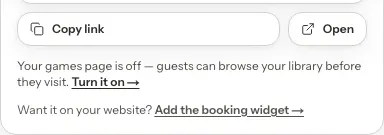
If the page is off, those places show one quiet line instead of the link: Your games page is off — guests can browse your library before they visit. Turn it on →. It takes you to the Games page settings.
The games page address always uses your permanent GameLedger address, in the form www.gameledger.io/v/your-venue/games. It keeps working as long as the page is on.
What your guests see
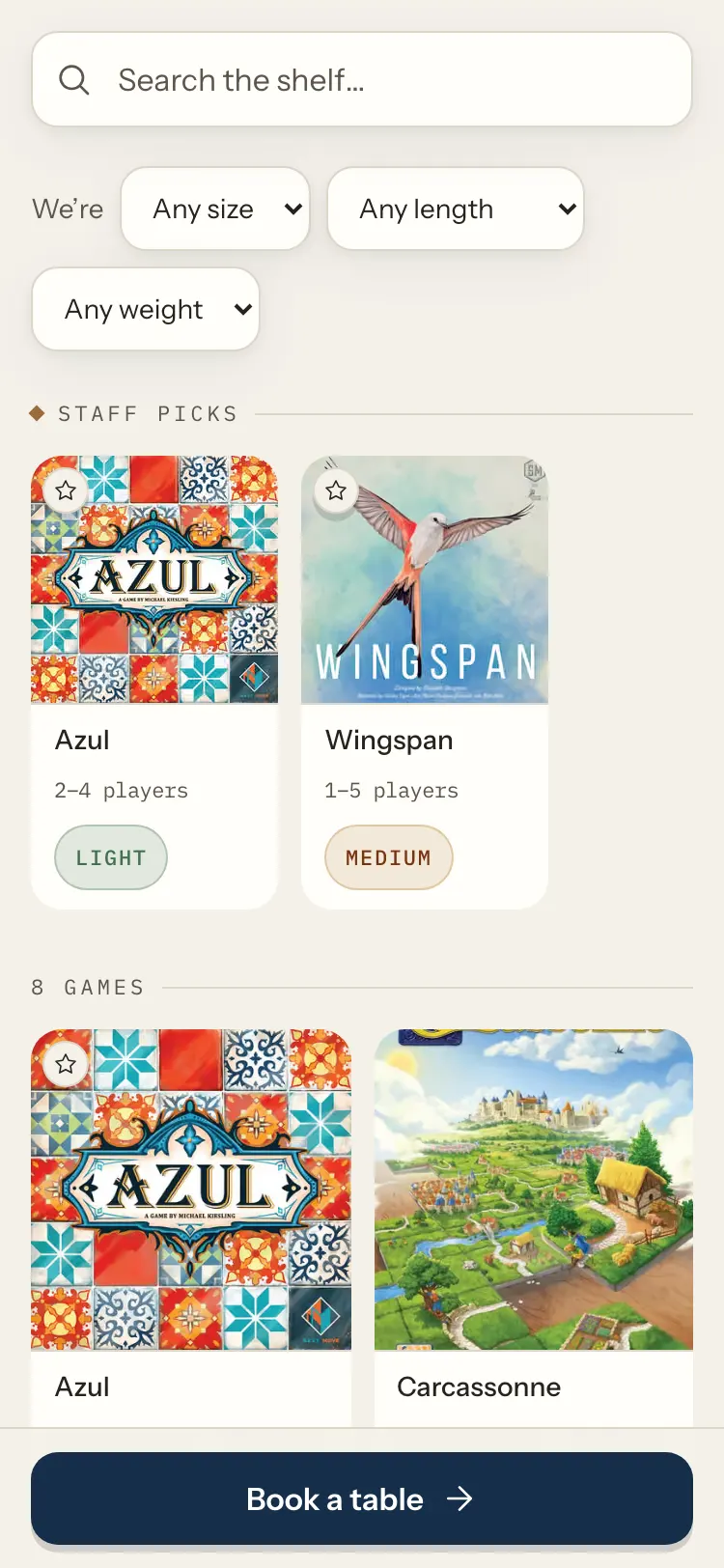
Guests get a page with your whole shelf, under your photo and in your colors. They can search, filter by group size, length, weight and mood, and open a game for details. While you take bookings online, a Book a table button stays at the bottom of the screen. The page footer carries the Powered by BoardGameGeek logo, which cannot be turned off.
Right after they book
While your games page is on, guests who book are pointed to it at the moment they are planning the visit. You do not need to share anything for this to happen.
- The booking confirmation screen shows See what's on the shelf (348 games) →. It opens in a new tab, so their confirmation stays on screen.
- The confirmation email and the reminder emails include a Browse our games before your visit link, just above Manage or cancel booking.
Good to know
- Which games are listed. Games in rotation, except any marked as in problem condition, hidden because pieces are missing, or set to Hide from public games page in the Library. A game that appears twice under the same title is shown once. Library changes can take up to 5 minutes to show on the page.
- Turning it off is immediate. The address shows a not-found screen right away, and guests stop seeing the games link after booking.
- The Library strip and dashboard card need at least one listed game. With none, they stay hidden, and so does the live strip.
- Who can turn it on. Only people who can edit your venue's settings. Other team members see the live link once the page is on, but no turn-on buttons.
- Your photo and color are shared with your venue page. Changing the cover photo or the accent color in Branding changes them on every guest page. A games page photo and the page theme only affect the games pages.
- Emails keep GameLedger's look. Emails to your guests keep GameLedger's colors, whatever accent you choose. Your admin pages do too.
- Sharing the link. When someone shares your games page, the preview picture is your games page photo if you set one, otherwise your cover photo, otherwise your logo.
- Hidden suggestions are per browser. Hiding the Library suggestion or the dashboard card only affects the browser you did it on. The page itself stays off until someone turns it on.