Setting Up Your Booking Types
Add a second booking type, such as a game night with its own hours or seat count, and set each rule to match Standard or differ.
Last verified
A booking type is one thing guests can reserve at your venue. Your venue starts with one type, called Standard, and its settings are your venue's settings. When you also run something different, such as a Friday game night with its own hours or its own seat count, you add it as a second type. You set it up on the same Venue Policies pages as everything else, one setting at a time. Each setting either stays the same as Standard or gets its own value for that type.
Use booking types when part of what you offer needs different rules from your everyday table bookings. If every booking follows the same rules, you do not need a second type.
Where to find it
Open Settings in the left-hand menu, then Venue Policies, then Reservation Types. Every type you have is listed there, and Standard carries a Standard tag. The tabs next to it, Booking Rules and Hours & Closures, hold the settings that each type can set for itself.
Add a type
Step 1: Choose a starting point
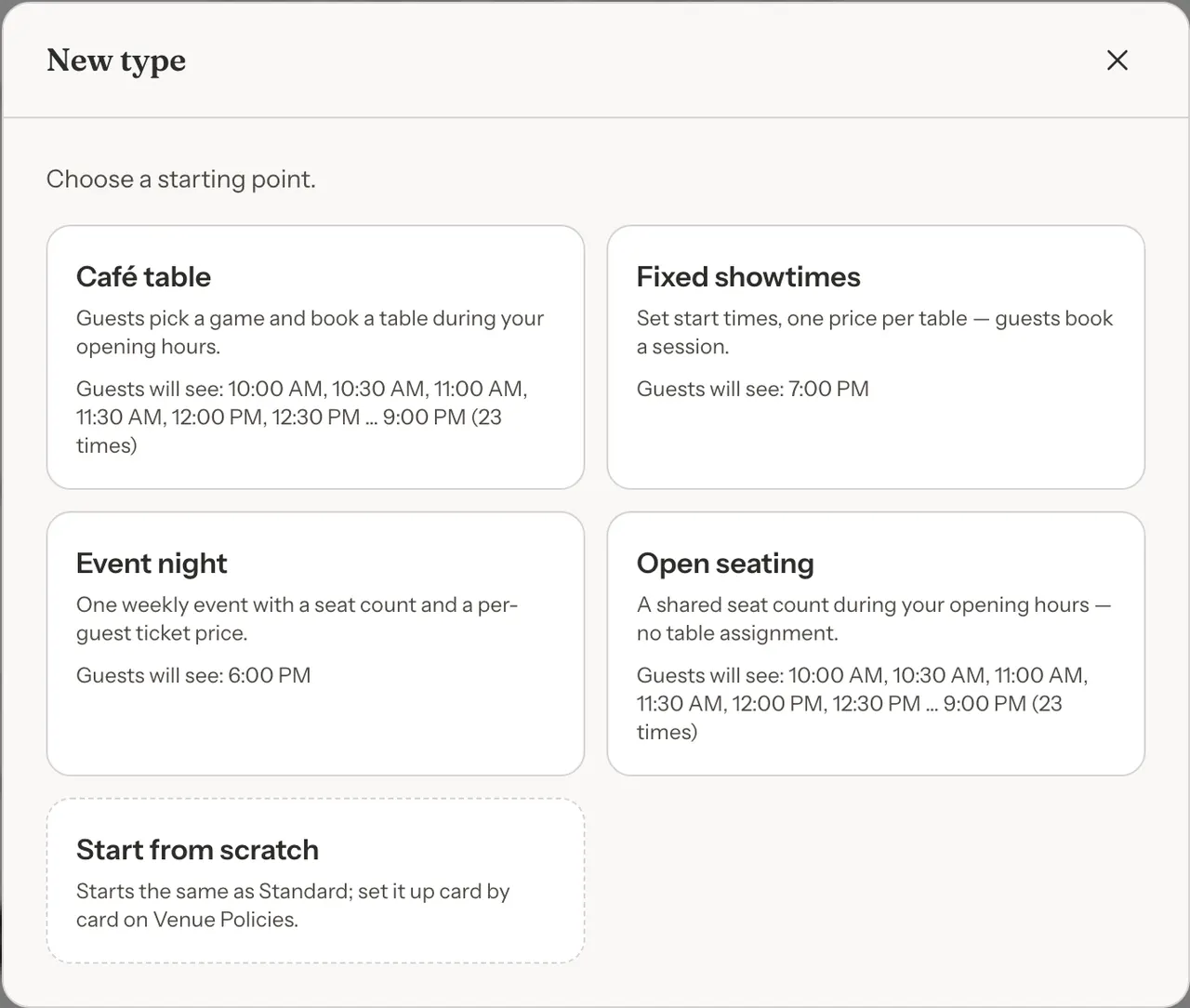
On the Reservation Types tab, click New type. The dialog asks you to choose a starting point:
- Café table: guests pick a game and book a table during your opening hours. It uses Standard's lengths and hours.
- Fixed showtimes: one set start time, a Friday at 7:00 PM to begin with, and guests book a session of a fixed length. It carries a price, "one price per table".
- Event night: one weekly event, Fridays from 6:00 to 10:00 PM to begin with, with a shared seat count. It carries a price too, a per-guest ticket price.
- Open seating: a shared seat count during your opening hours, with no table assignment.
- Start from scratch: starts the same as Standard. You set it up card by card afterwards.
You can change everything about a starting point afterwards on Venue Policies. Fixed showtimes and Event night are greyed out, with the note "Setting a price needs permission to edit payments", for team members who cannot edit payments.
Step 2: Name it
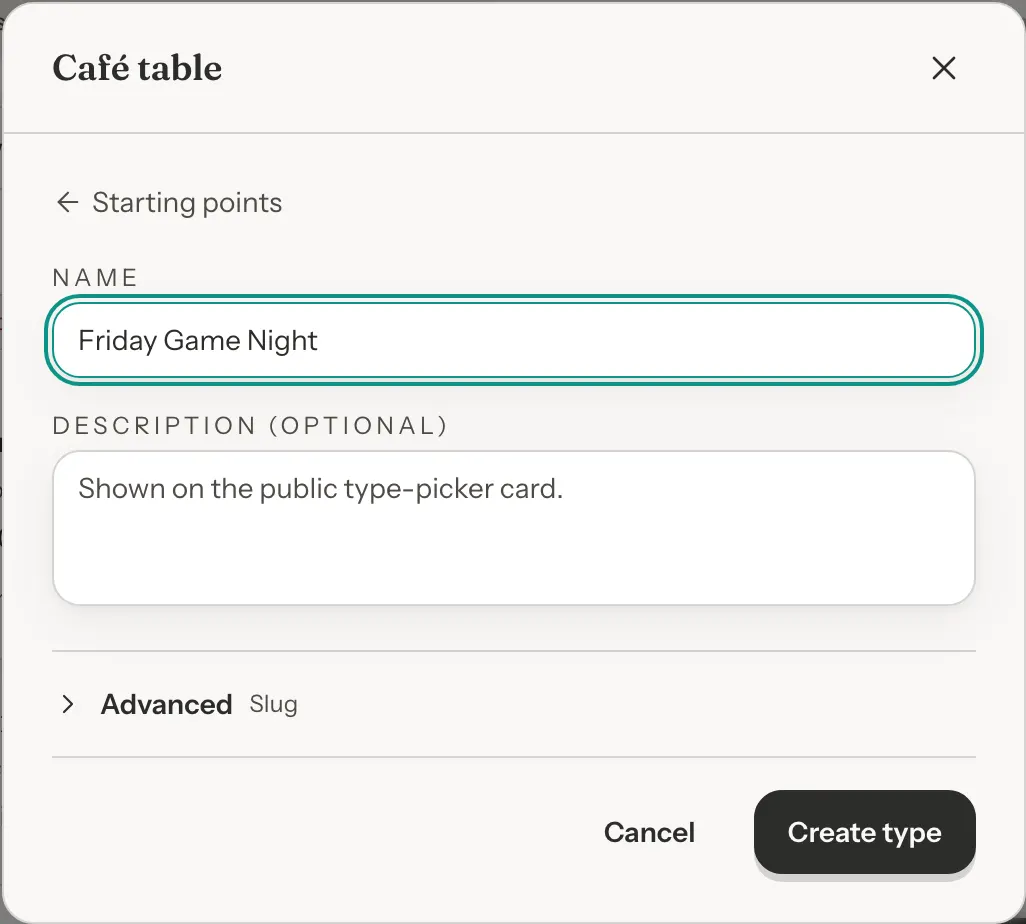
Type a name guests will recognize, like Friday Game Night. You can add a description, which shows on the card guests pick from. Event night and Open seating also ask for Seats, the total number of guests who can book at once. Click Create type.
Under Advanced, the Slug is the type's web address, made from the name. It cannot be changed later. If the name has no letters a to z or numbers, for example because it is in another alphabet, type a slug yourself. manage and default are not allowed.
Step 3: Set it up
You land on Booking Rules. Under the tab names at the top of the page is the Editing bar, a teal-tinted strip with the label Editing:, a drop-down showing your new type's name, and the words "Changes here apply only to" followed by that name. Directly under it, in the same strip, is a one-time line that begins "Set up Friday Game Night:". It lists which settings the type starts with of its own, for example "start times" or "seating (who can book)", or says "everything starts the same as Standard". It ends "It's off, so guests can't book it yet.", and it has two buttons, Turn on bookings and Dismiss. Anything you change here applies only to this type. The next section covers the settings.
Step 4: Turn on bookings
A new type is Off. Guests cannot see or book it until you click Turn on bookings. You can click the button on the "Set up…" line under the Editing bar. After you dismiss that line, use the type's row in the Reservation Types list: each row shows the name, an Off tag while it is off, a summary line, and the buttons Configure, Name & photo, Turn on bookings (or Turn off bookings once it is on) and Delete. Set the type up first, then turn it on.
If your venue has Accept Online Bookings switched off, the line tells you guests still cannot book, and links to that switch on Booking Rules.
Set it up, card by card
Once your venue has a second type, the Editing bar appears on the tabs that hold per-type settings. Open it to switch between Standard and your other types. Types that are off are listed after the ones that are on, with an Off tag. Manage types… at the bottom takes you back to the list.
Most settings a type can change have two choices:
- Same as Standard is the default for a new type. The card shows Standard's current value, and if you later change Standard, the type follows.
- Custom for this type turns the card into an editor, filled in with Standard's value to start from. Choose Same as Standard again at any time to go back. If that would throw away values you set, you are asked to confirm first.
Choose Custom on a card. With your type selected in the Editing bar, find the card you want to change, such as Booking lengths, and choose Custom for this type.
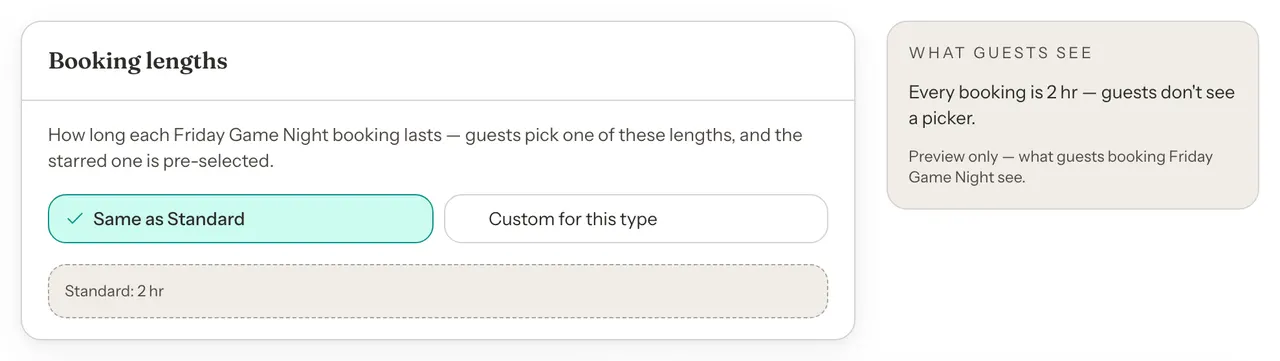
Change the value. The card now shows the lengths as chips, starting from Standard's. For example, to offer one 1 hr 30 min booking when Standard offers 2 hr, click the small arrow on the right of the 2 hr chip (its tooltip reads "Change length (2 hr)") and choose 1 hr 30 min. The chip becomes the only length. You can also click + Add length… to add another length, click the × on a chip to remove it, or click a chip's name to star it as the length guests start on. Under the chips, Presets (Hourly, Half-hour, Long sessions, Fixed) replace the whole list in one click, and From, To and Every with Fill range build a list in minutes. The What guests see preview updates as you edit.
Save for the type. Click Save for Friday Game Night at the bottom of the tab. Only this type's changes are saved, and Standard is not touched. If you switch type or tab with unsaved changes, you are asked before you leave. Special dates are the exception: they save as soon as you add them.
Hours for one type
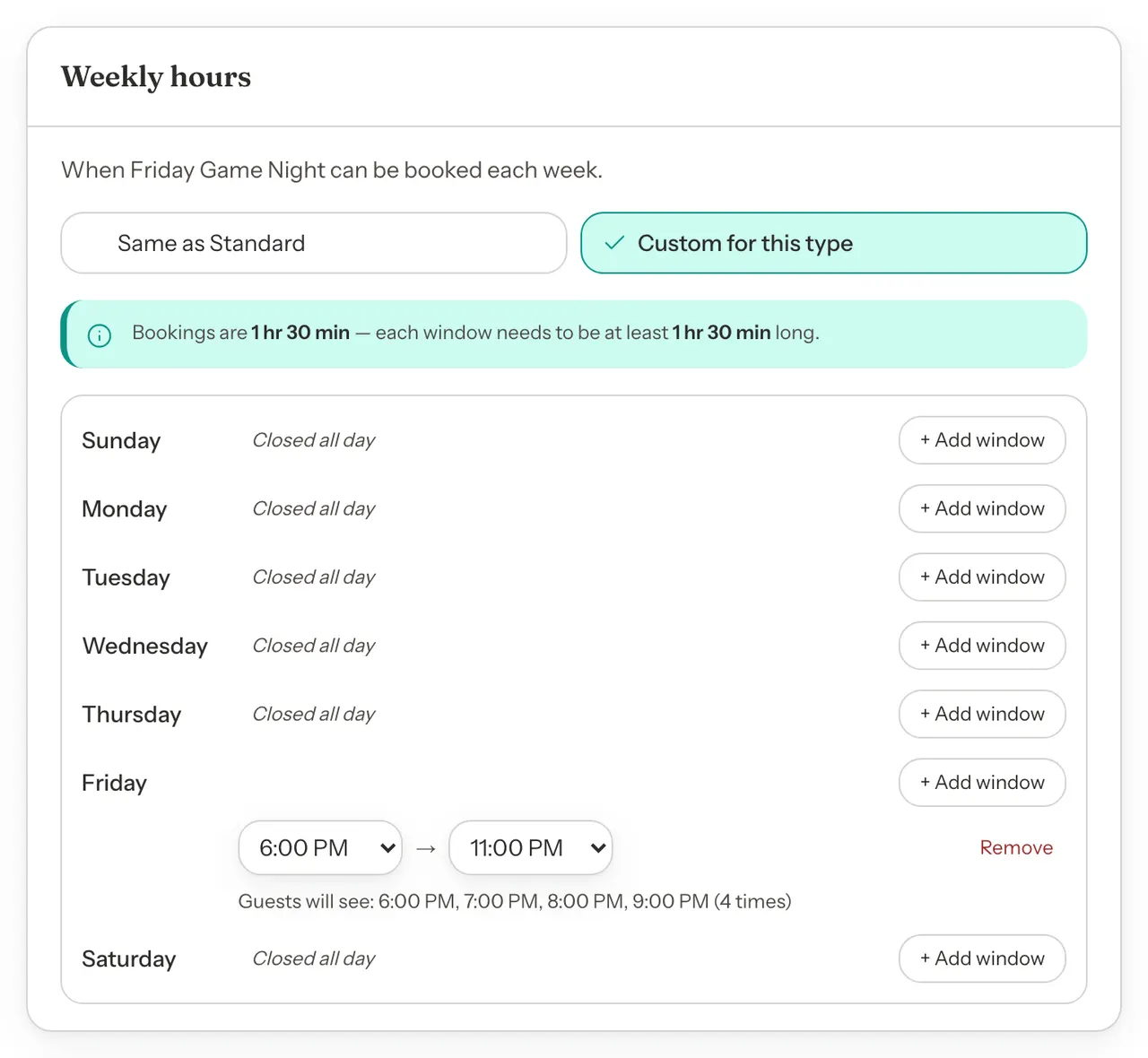
On Hours & Closures, Weekly hours works the same way. Same as Standard follows your venue's weekly hours. Choose Custom for this type to set hours for the type alone. The card starts filled in with your venue's weekly hours, with one window on each day you are open. Change a window's start and end times to adjust that day. Click Remove on a window to close that day, and the day reads "Closed all day". Click + Add window to add a second window on a day, such as a lunch window and an evening window. Windows on the same day cannot overlap. If they do, a message such as "Two windows on Friday overlap. Adjust their times to save." appears, and Save for Friday Game Night cannot be clicked until you fix the times. Under a day's windows, a line shows the start times guests will see.
For a type that runs on one day only, such as Friday Game Night, click Remove on the windows for every other day, then set the times on the day you want.
Settings that apply to every type
Some settings belong to the whole venue, such as Holiday closures and the no-show grace period. While you edit another type, those cards say Applies to every type. Click Switch to Standard to edit to go to that setting with Standard selected.
Standard points to its exceptions
When you are back on Standard, some cards list the types that set their own value. On Booking lengths & buffer, a line such as "Friday Game Night uses different lengths" appears. Click it to switch to that type.
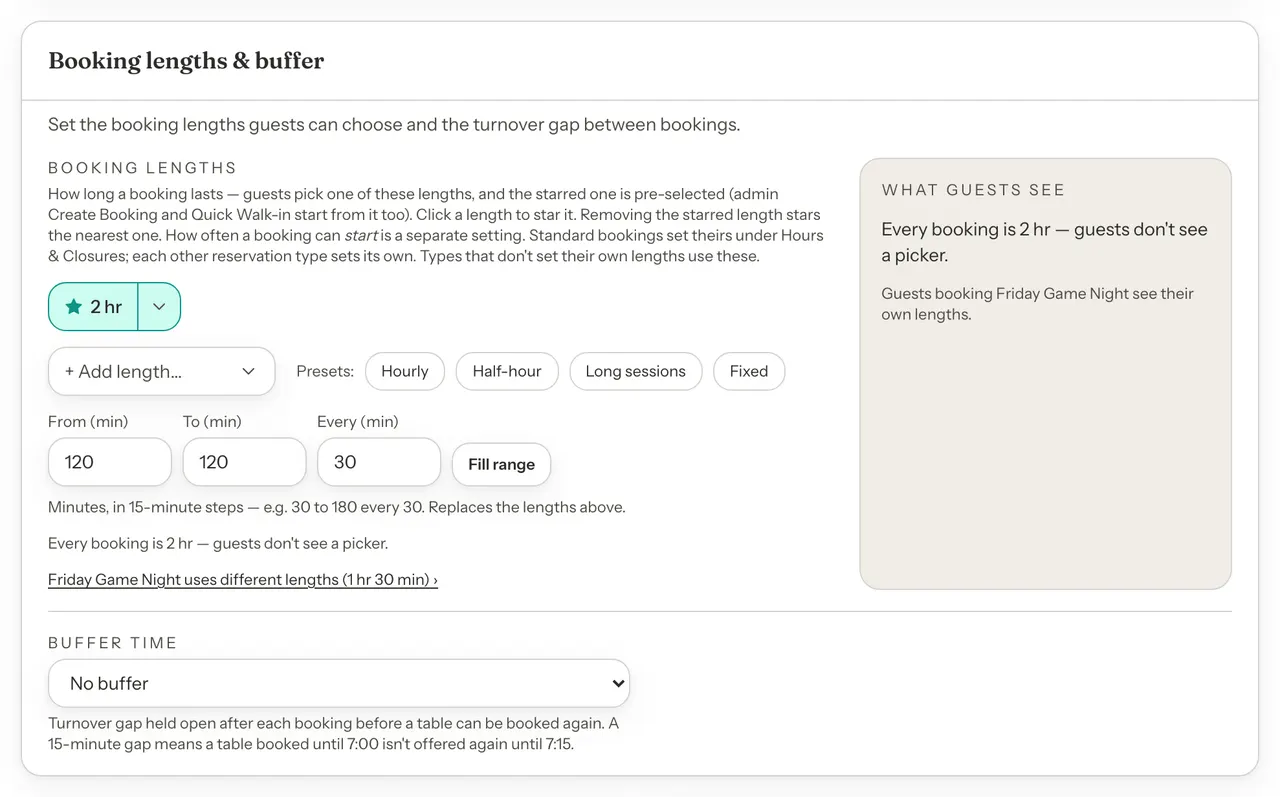
Every setting, and where it lives
Per-type settings follow the Editing bar. Venue-wide settings are the same for every type, and you change them with Standard selected.
| Option | What it does | Default |
|---|---|---|
| Booking lengths (Booking Rules) | How long a booking lasts. Guests pick one of the lengths, and the starred one is pre-selected. | Default: Same as Standard |
| Seating across tables (Booking Rules) | Whether a party that does not fit one table can book a combination of up to 4 tables. Choose Same as Standard, On or Off. | Default: Same as Standard |
| Who can book (Booking Rules) | How the type seats guests, which tables it uses, the largest party, and whether guests pick a game. It belongs to the type, so there is no Same as Standard choice. | Default: Starts from the starting point you chose. Start from scratch and Café table use any active table, up to 200 guests, with the game step on. |
| Weekly hours (Hours & Closures) | When the type can be booked each week. | Default: Same as Standard, except Fixed showtimes and Event night, which start with their own hours |
| How often bookings start (Hours & Closures) | How far apart the start times are. It belongs to the type, so there is no Same as Standard choice. | Default: Default, every 30 minutes |
| Special dates (Hours & Closures) | Close the type for a day, or open different hours on a date. It belongs to the type. | Default: None |
| Accept Online Bookings | Whether guests can book online at all. It applies to every type. | Default: Your venue's setting |
| Buffer Time (Booking Rules) | The turnover gap kept free before and after each booking. It applies to every type. | Default: Your venue's setting |
| Advance Booking | How much notice guests need and how far ahead they can book. It applies to every type. | Default: Your venue's setting |
| Let guests check themselves in | Lets guests tap I'm here on the day. It applies to every type. | Default: Your venue's setting |
| Holiday closures | Closes the whole venue on a date. It closes every type. | Default: None |
| No-Show Grace Period | How long after the start time a booking can be marked as a no-show. It applies to every type. | Default: Your venue's setting |
Because Who can book, How often bookings start and Special dates always belong to the type, they are not shared with Standard. A new type starts with its own, for example no special dates, so check these three cards when you set it up.
Shared seating
Who can book lets a type seat guests in one of two ways: Reserve specific tables, or General capacity (shared seats). Event night and Open seating use shared seats. For a shared-seats type:
- Total seats must be a whole number from 1 to 10,000. It is the number of seats available across all overlapping bookings of that type at any one time.
- Max party size is separate. It caps how large a single party can be, and you can leave it blank for up to 200.
- Tables do not apply, so there is nothing to pick under Any active table or Specific tables.
- Seating across tables does not apply either. The card says the type uses shared seating, so parties are never split across tables.
For a type that reserves tables, Any active table includes tables you add later. Specific tables limits the type to the tables you tick. A type with no active tables ticked cannot be booked, so tick at least one.
Manage your types
Each type in the Reservation Types list shows what it customizes, for example Custom: lengths · hours, or Same as Standard when it changes nothing. A row can also show an Off tag, a No times link when guests see no start times on some days, and the type's slug, game step and largest party.
| Option | What it does | Default |
|---|---|---|
| Configure | Opens Booking Rules with that type selected in the Editing bar. | Default: On every row |
| Name & photo | Changes the name, the description guests see, the type's photo and the sort order. A photo saves as soon as you add or remove it. Lower numbers show first on your booking page. The web address stays the same, so links you have shared keep working. | Default: Sort order 0 |
| Turn on bookings | Lets guests book the type. It shows on a row that is off. | Default: New types start off |
| Turn off bookings | Takes the type off your booking page and keeps its settings. You confirm first. You cannot turn off the only type that is on. | Default: Not shown on Standard |
| Delete | Removes the type for good. You can only delete a type that has never been booked. If any booking uses it, turn it off instead. | Default: Not shown on Standard |
While Standard is still untouched, its row asks you to review its settings on Booking Rules and Hours & Closures, then click Looks good. This confirms Standard's settings, and your dashboard checklist reads it as reviewed.
Give a type a photo
A photo shows guests what they are booking, like the terrain table or the party room, at the top of the type's card on your booking page.
- In the Reservation Types list, click Name & photo on the type's row.
- Click Add photo and choose a JPG, PNG or WebP file up to 25 MB. A large photo from your phone is resized for you.
- Check the preview. It shows the part of the photo guests will see: the middle, twice as wide as it is tall. A landscape photo works best.
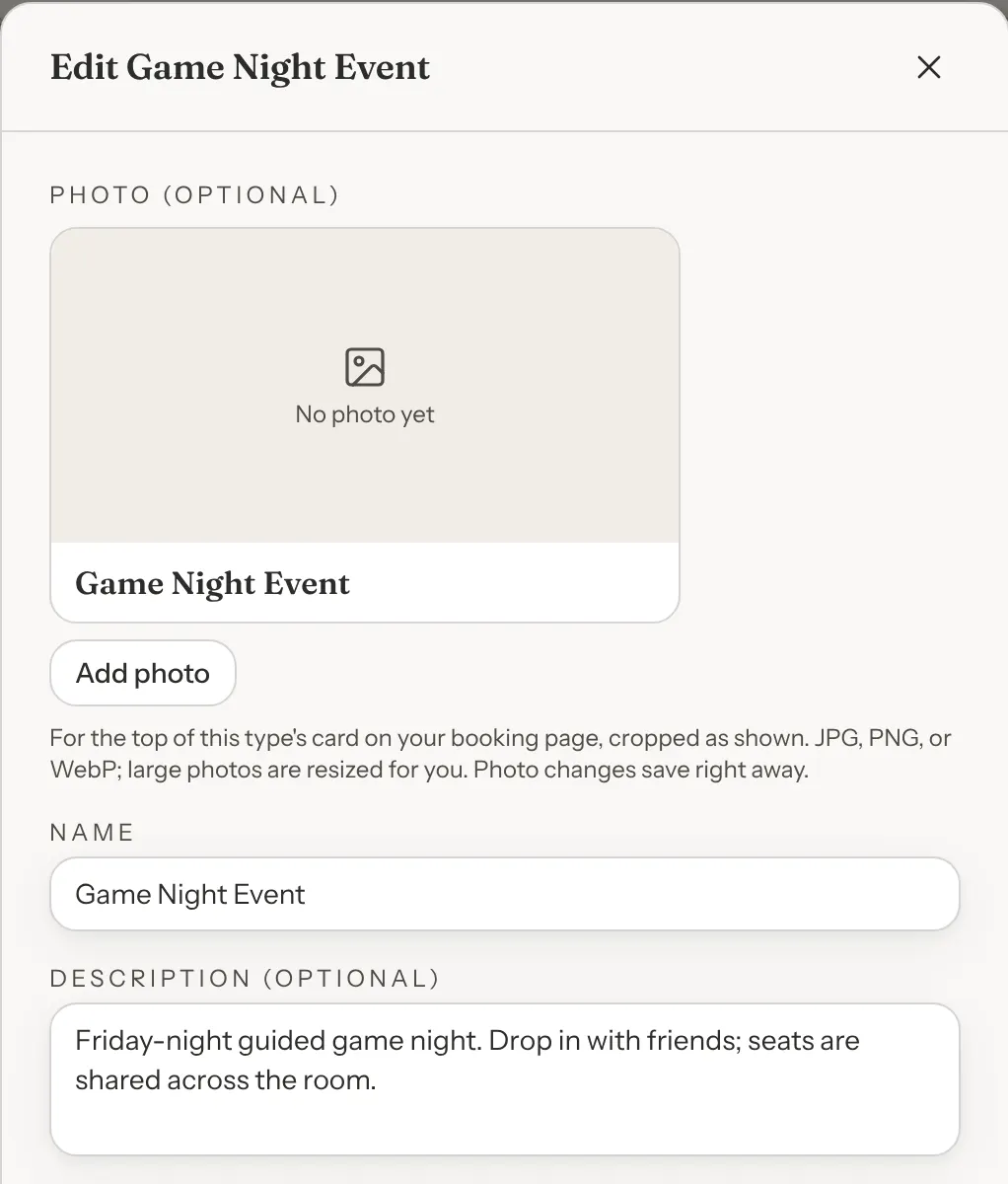
The photo saves as soon as you choose it, so Cancel does not undo it. Use Replace photo to change it. To go back to the coloured band, click Remove photo and confirm. A replaced or removed photo can't be recovered, so keep your own copy if you might want it again.
Any type can have a photo, Standard included. Guests see the photos once your booking page offers two or more types; with one, they skip the cards and go straight into booking.
What guests see
With one type turned on, guests go straight into booking. With two or more on, your booking page first asks "Pick what you'd like to reserve" and shows a card for each type, in sort order. Each card has the type's photo at the top, or a coloured band with the first letter of its name when it has none, then its name and description. When any type has a photo, every card's top is photo-sized, so the cards stay level. Each type also has its own booking link: your booking page address followed by the type's slug. When you share a type's own link, for example in a post or a group chat, its preview shows the type's photo. A type without a photo previews with the same picture as your booking page link. A type that reserves specific tables is left out of the choice if none of its tables are active.
Good to know
- Standard cannot be turned off or deleted. It is your venue's own settings. If your venue only runs events, rename Standard to your main event, for example Board Game Night, and set it up as that.
- A new type is off until you turn it on. Guests cannot book it before then, even if everything else is set up. A type that was turned off is the same: it shows Off and keeps its settings.
- Online bookings must be on. If Accept Online Bookings is off, no type can be booked online, whether it is turned on or not.
- Closures. A holiday closure closes every type. A type's special dates affect only that type.
- Prices and deposits. The starting points Fixed showtimes and Event night begin with a price. Whether guests are charged depends on whether your venue collects payments online, which this guide does not cover.
Your games page is a separate page guests can open before they book. See Your Public Games Page.