Run Tonight From Your Phone
Mark parties arrived, seat them and finish their visit with one tap each from the Tonight screen, and let guests check themselves in.
Last verified
Tonight is one screen for running the floor. Every party booked for today is in order, the ones that need you are at the top, and each step is a single tap: Arrived, Seat, Done. A mis-tap is easy to undo, and the screen tells you when it cannot reach GameLedger instead of quietly showing old information.
Use it from a phone while you walk the floor, or from the host-stand screen. If you want the full picture of your tables and the next two hours, see The Dashboard During Service.
Where to find it
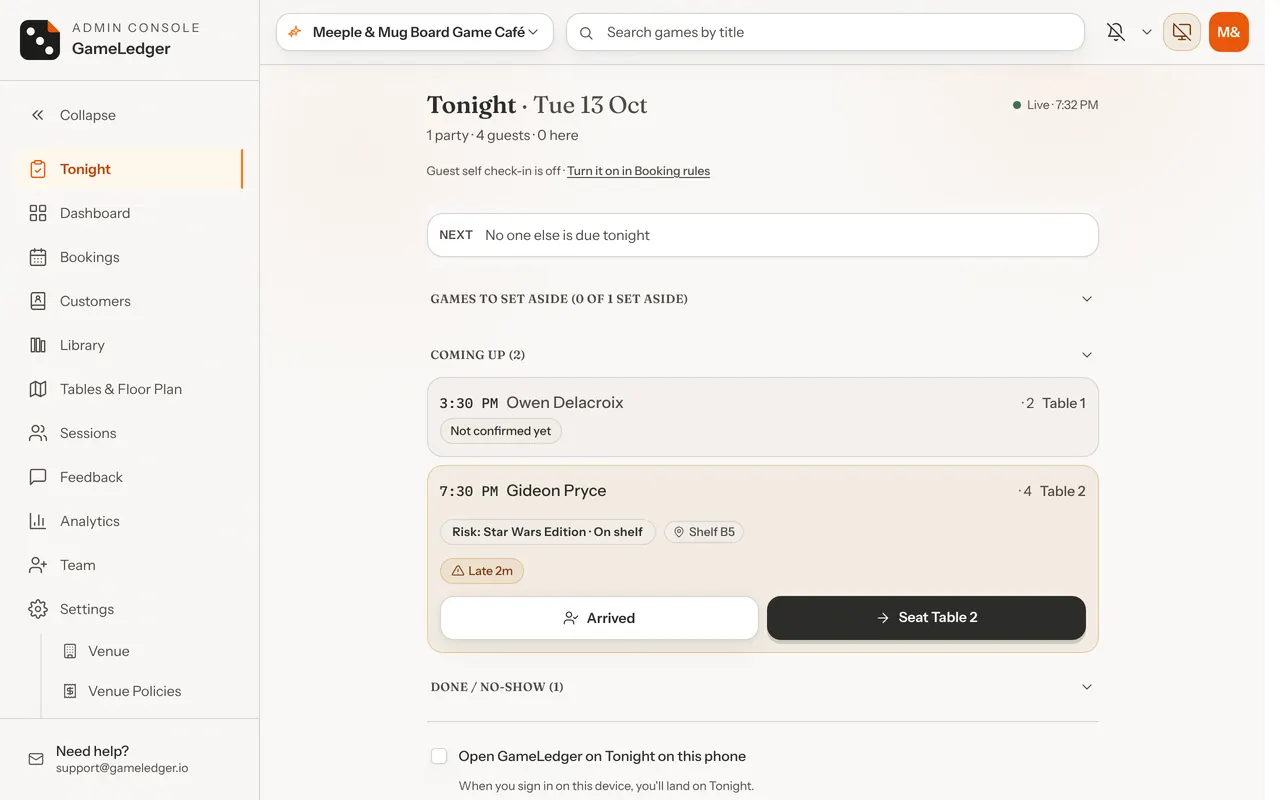
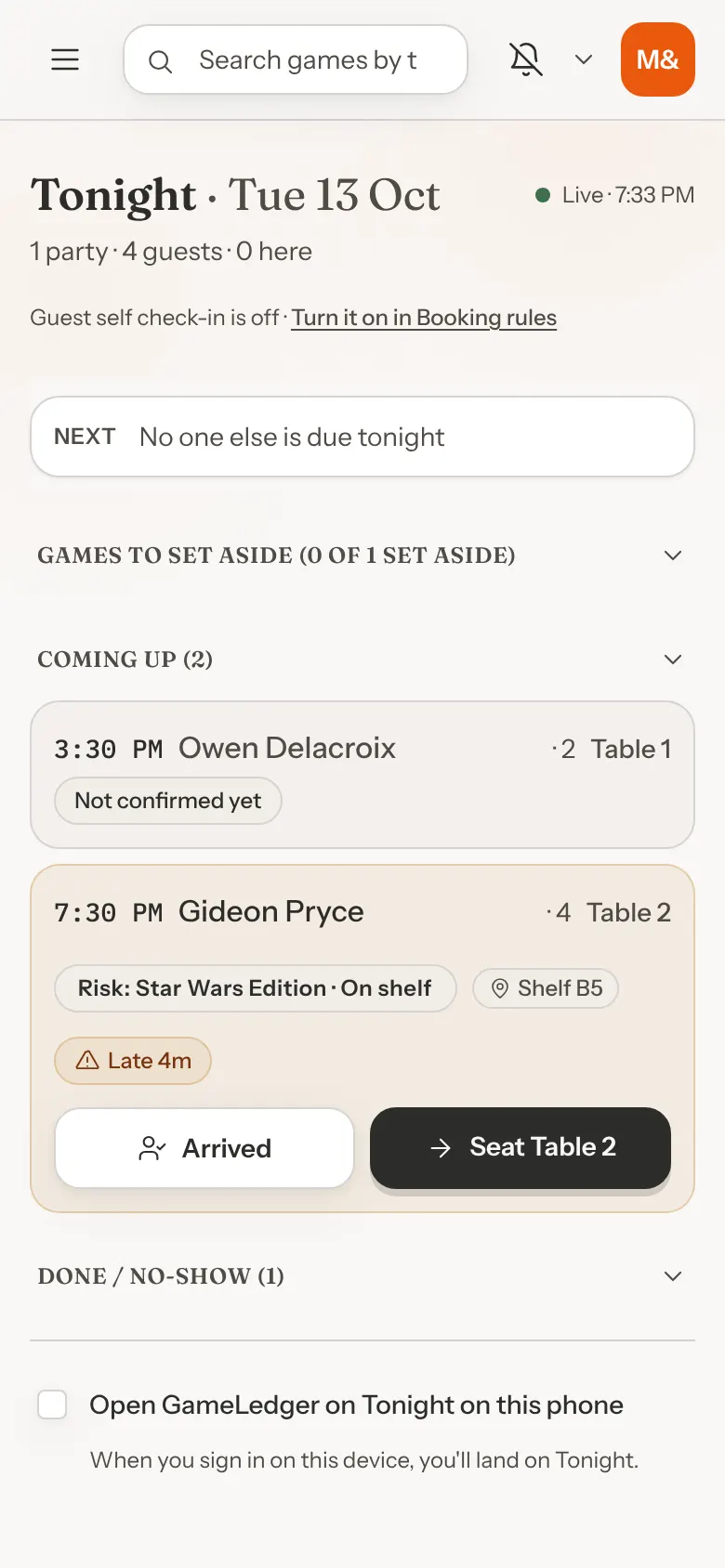
Tonight is the first item in the admin sidebar. On a phone, open the menu (top left) and tap Tonight. You need access to bookings to see it.
To reach it straight away, bookmark the Tonight page, or turn on Open GameLedger on Tonight.
Run the shift
Step 1: Open Tonight
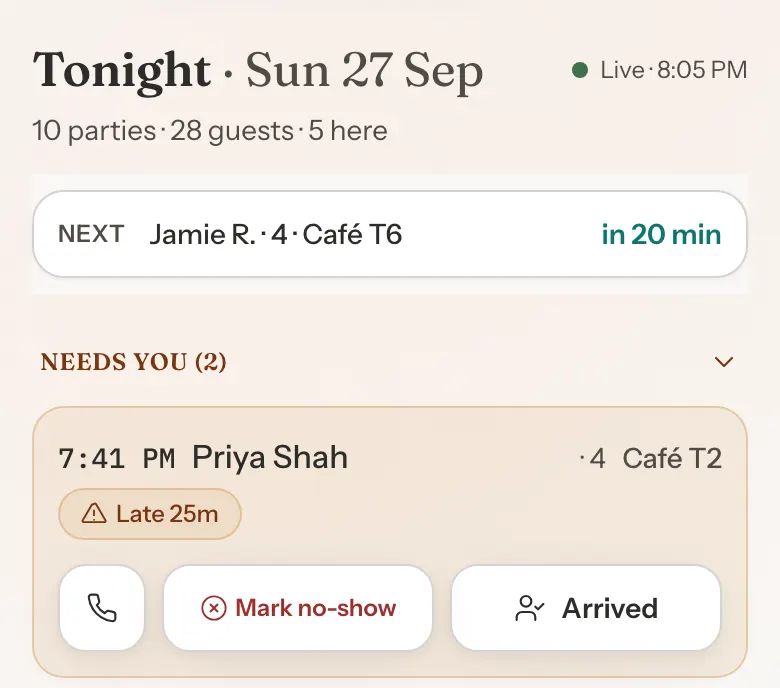
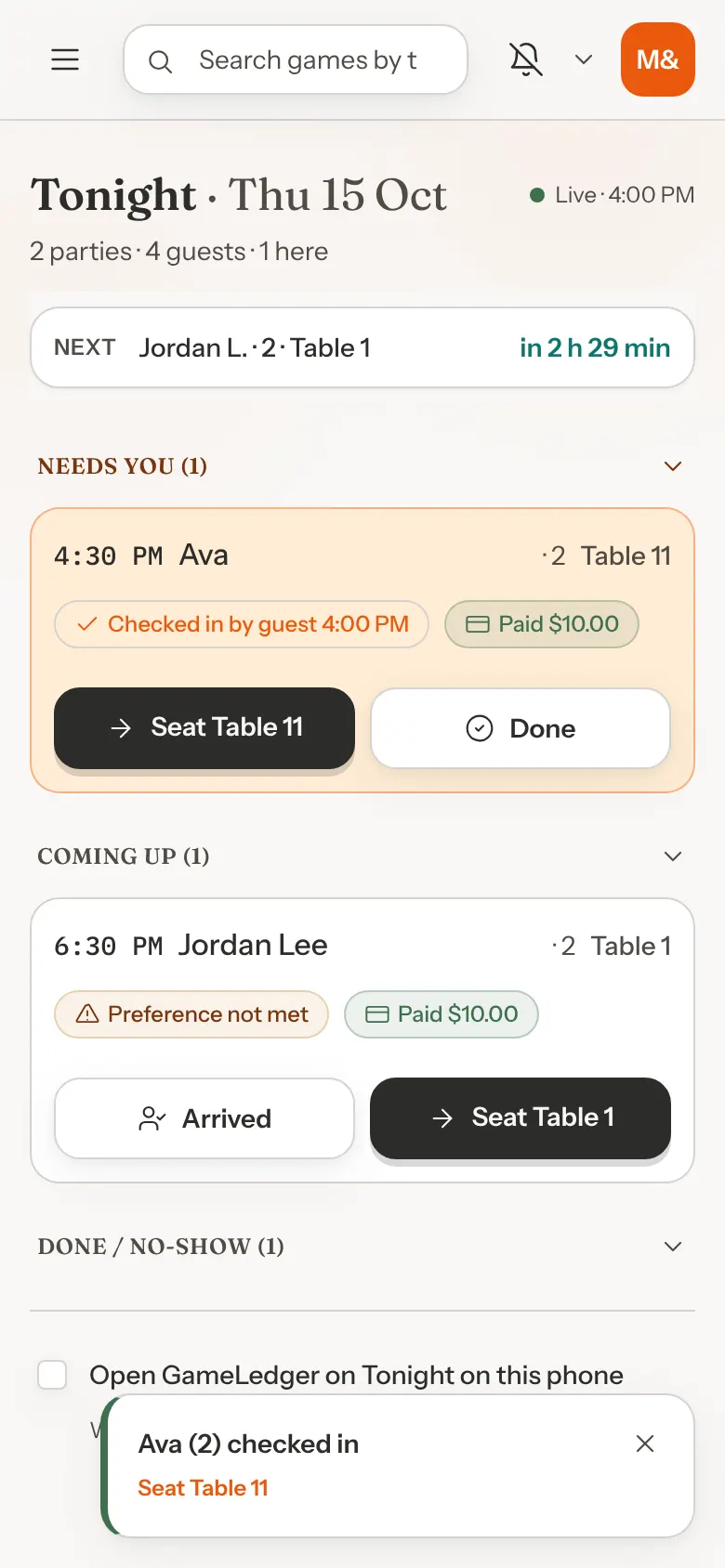
The header shows today's date, whether the screen is live, and a running count such as "10 parties · 28 guests · 5 here". The strip under it names the next party and how long until they are due, for example "Next: Jamie R. · 4 · Café T6 in 21 min". It stays in view as you scroll.
Parties are grouped into Needs you, Coming up, Seated and Done / No-show. Tap a group's heading to fold it away. Needs you and Coming up start open, while Seated and Done / No-show start folded, so tap the heading to open them.
Step 2: Check Needs you
A party moves here when it is late past your no-show grace, when the guest has checked themselves in, when it still owes money online (if your venue takes online payments) and is due within the hour, or when its reserved game is at risk. A late party shows how late it is and three buttons: the phone icon (tap it to call them), Mark no-show, or Arrived.
A guest who checked themselves in has Seat and Done side by side. Tap Seat if they are staying. Tap Done to finish the visit without seating them, for example if they checked in and then left.
Step 3: Tap Arrived when they walk in
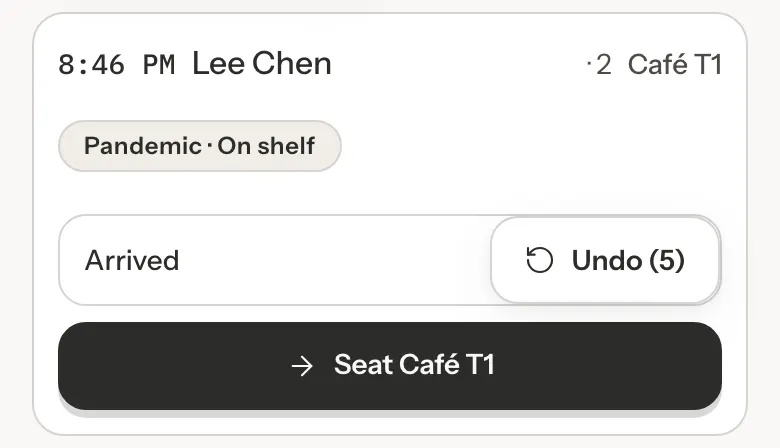
The row changes to "Arrived" with an Undo (5) button counting down. Tap Undo within five seconds if it was the wrong party. Otherwise it saves on its own. There is no confirmation box to get in the way.
If your venue takes online payments and the party paid a deposit that is refunded on arrival, the row says so before it saves.
Step 4: Seat them
The Seat button names the table, for example Seat Café T6. You can tap it straight away, even while Arrived is still counting down. If the table is still in use, GameLedger asks before seating them, just as it does on the Dashboard.
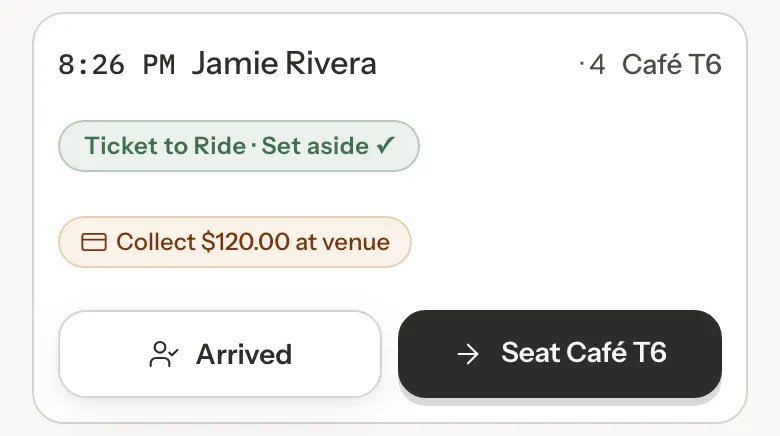
Step 5: Tap Done when they leave
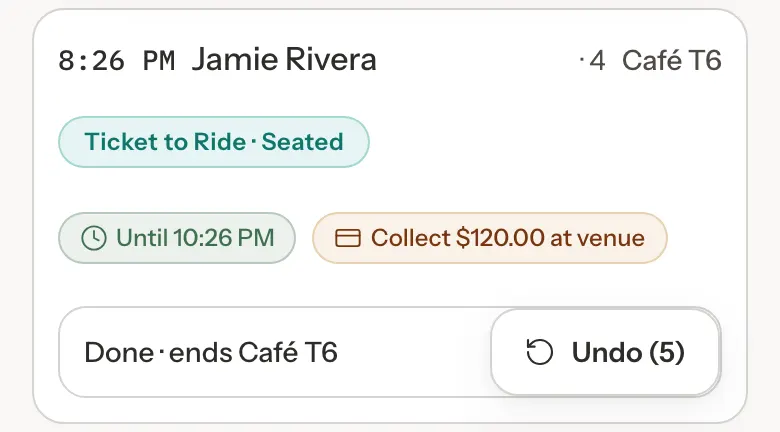
Open Seated first. Seated parties show when their booking ends, such as "Until 10:26 PM". Tap Done and the row tells you which table it closes, "Done · ends Café T6", with five seconds to undo. You need access to sessions as well as bookings to use Done.
If you forget, GameLedger does not close the visit straight away. An hourly check closes it once the booking's end time plus your no-show grace has passed and the table's session has ended. Until then the party stays under Seated.
Step 6: Handle no-shows
Tap Mark no-show on a late party. It asks first, for example Mark Sam Rivera as a no-show?, with a line on any payment, such as No payment was taken., and The guest isn't notified. Tap Mark no-show to confirm, or Not yet to leave the party where it is. Once confirmed, the party moves to Done / No-show. If they turn up after all, open the Done / No-show group and tap Arrived late — restore on their row, then confirm Restore as arrived. The button is on no-show rows for staff who can edit bookings, and only for no-shows from today.
Reading a row
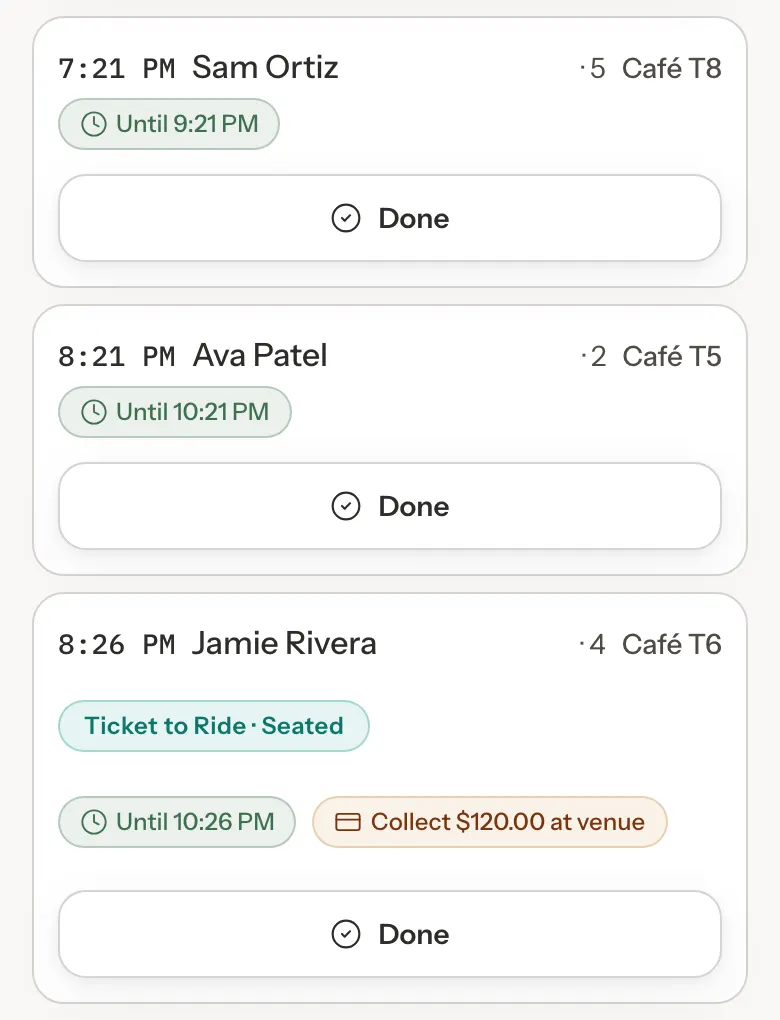
Each row shows the start time, the party's name and size, and their table. Small labels under the name tell you what you need to know at a glance.
- Late 24m
- Minutes past their start time.
- Checked in by guest 8:04 PM
- The guest tapped I'm here on their own booking. See guest check-in below.
- Collect $120.00 at venue
- A booking you will take payment for in person.
- Owes $40.00 · link sent
- A payment link has gone out and has not been paid yet.
- Paid $60.00
- Paid online. Deposits read Deposit $20.00.
- Until 10:26 PM
- When a seated party's booking ends.
- Not confirmed yet
- A booking still waiting on the guest. It has no buttons.
If your venue takes online payments, tap a payment label to open the booking. Tonight shows payments. It does not take them.
If you use seating tags, a row can also show Preference not met, when the party's table doesn't have its tag, or a label such as Add 2 chairs. See What your team sees and, for chairs, Extra chairs.
Games to set aside
When guests reserve a game with their booking, Tonight lists those games under Games to set aside, with a count such as "1 of 2 set aside". It is the same list as on your Dashboard, so ticking it on either screen updates both. For more on the list, see Games to Set Aside.
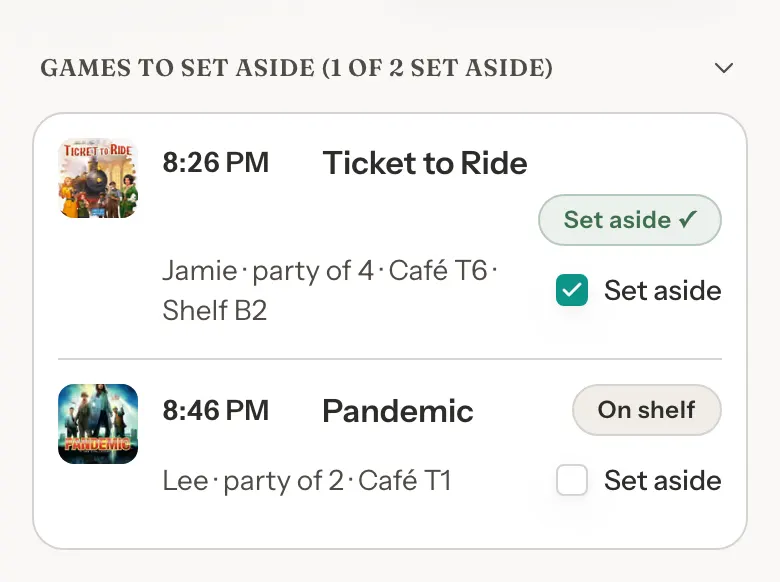
A line above the list says the games were reserved with tonight's bookings. Tick Set aside as you pull each box from the shelf. The list opens on its own while there are games left to pull before your first reservation.
Each party's row also shows where its game is right now, for example "Ticket to Ride · Set aside ✓" or "On Café T3 since 7:14 PM". If a reserved game's only copy is out on another table shortly before the party is due, the party moves into Needs you with a note saying which table has it.
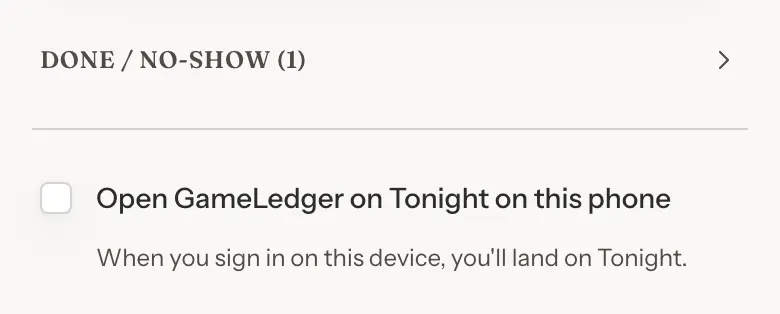
Open GameLedger on Tonight on this phone
At the foot of Tonight, turn on Open GameLedger on Tonight on this phone. From then on, signing in on that device takes you straight to Tonight, while your office computer keeps opening on the Dashboard. The setting belongs to the device, not to your account, so each phone chooses for itself.
The Dashboard link in the sidebar always goes to the Dashboard. If you open a link to a particular admin page while signed out, you land back on that page once you sign in.
Let guests check themselves in
Guests can tell you they have arrived with one tap on their booking page. The party shows up in Needs you and you get a message, so the host stand knows before anyone flags you down. It is off until you turn it on.
Turn it on
- Go to Settings, then Venue Policies, then Booking Rules.
- Tick Let guests check themselves in.
- Save your changes.
A shortcut is the "Guest self check-in is off" line at the top of Tonight, which links straight to this setting. It shows for staff who can change settings.

| Option | What it does | Default |
|---|---|---|
| Let guests check themselves in | Guests see an I'm here — check in button on their booking page on the day of their visit. | Default: Off |
What changes when it is on
- On the day of their visit, guests see an I'm here — check in button on their booking page. It appears 30 minutes before their start time and stays until your no-show grace runs out.
- Your final reminder email, about two hours before the visit, includes the same button, except for guests who should check in with the host. It opens their booking page. The guest still taps to check in.
- When a guest checks in, the party is marked arrived. They are not charged or refunded anything, and no table is opened for them. You still seat them as usual.
- After you seat them, their booking page shows "You're at Café T5" and an Open your table link to that table's page.
- If your venue takes online payments, a guest who still owes money online can pay on the page first, then check in.
- Guests who booked with a deposit (if your venue takes online payments), who pay at the venue, or who have no email on their booking are asked to check in with the host.
- After your no-show grace has passed, every guest is asked to check in with the host.
What your guests see
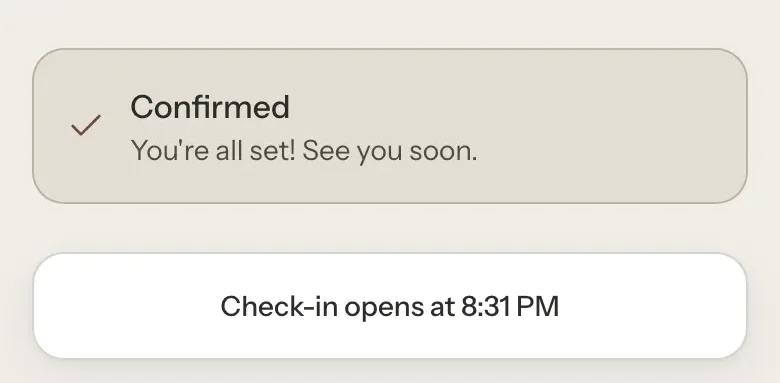
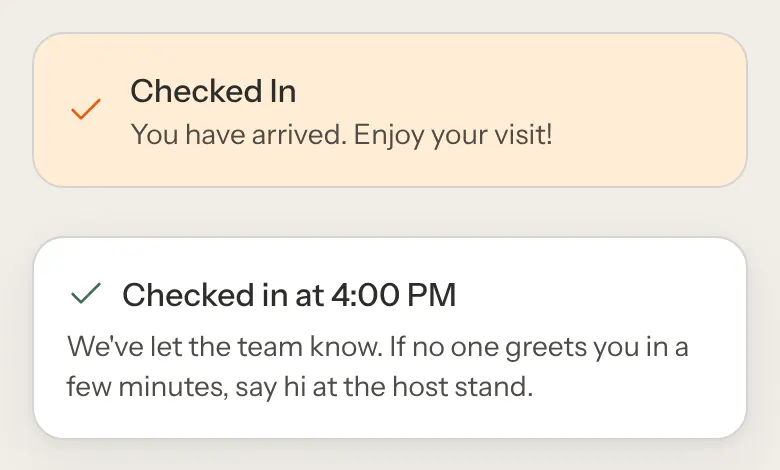
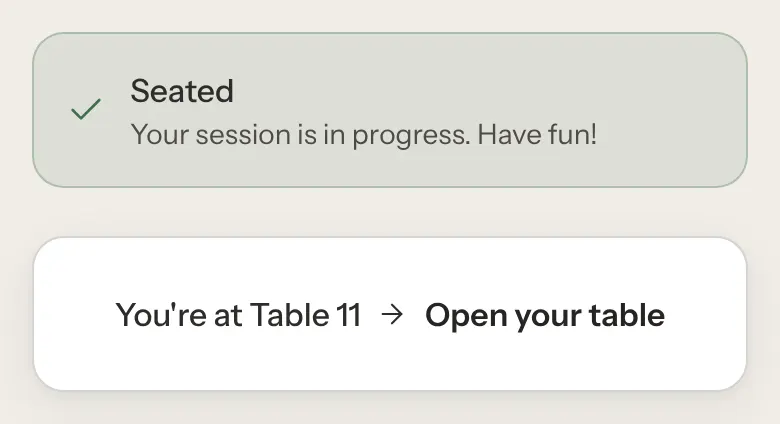
In between, while the window is open, the guest sees I'm here — check in, the line "Tap once you're inside", and your venue's phone number for anyone running late.
What your team sees
Step 1: A message appears on Tonight
Within a few seconds, Tonight shows a message such as "Ava (2) checked in" with a Seat Café T5 button. The party appears in Needs you with a "Checked in by guest" label. If you have the Dashboard open instead, the message appears there.
Each check-in is announced once per device. While the setting is off, Tonight shows a one-line reminder that links to it.
Good to know
- Tonight refreshes about every 15 seconds. It pauses while you have a booking or a confirmation open, so nothing moves under your finger. If it cannot reach GameLedger, the header says so and shows when it last updated, with a Retry button.
- Undo lasts five seconds. Switching to another app saves a pending tap straight away. Reloading the page in those five seconds may lose it, so check the row afterwards.
- A guest check-in is not proof they are in the building. Anyone with the booking link can tap it, so you can still mark the party as a no-show if they are not there.
- Guests who check in but are never seated do not get a thank-you-for-visiting email.
- Tonight means today. It lists today's parties. A visit you do not tap Done on is closed by an hourly check, once the booking's end time plus your no-show grace has passed and the table's session has ended.