Emails your guests get
Every email GameLedger sends your guests, when each goes out and what it says, which ones you can turn off, how guests stop reminders, and how to check what was sent for a booking.
Last verified
GameLedger emails your guests for you when they book, before they arrive, after their visit and when a booking is cancelled. This page lists every email a guest can get, what it says, which ones you can turn off, and how to check what was sent for a booking.
For what guests can do with the links in these messages, see Manage your booking.
Every message at a glance
| Message | When it's sent | What it says | Can you turn it off? |
|---|---|---|---|
| Booking confirmation (email) | When a booking is confirmed: a guest books and nothing is owed, a guest pays, you add a booking with their email, or you confirm a pending booking. | "Your table is reserved", with the date, time, party, any reserved game, payment and your address. Has a calendar invite and a Manage or cancel booking button. | Only for bookings with nothing paid: Send confirmation email in Settings → Guests → Notifications. A guest who paid always gets one. |
| 24-hour reminder (email) | 24 hours before the booking starts. | "See you soon", with the booking details, your hours that day and the confirmation code. | No. Guests can unsubscribe from reminders. |
| Final reminder (email) | A few hours before the booking starts. You choose how many. | The same as the 24-hour reminder. Can include an I'm here — check in button. | No. Guests can unsubscribe from reminders. |
| Post-visit thank-you (email) | About 3 hours after a visit ends, only if the party was marked Arrived, Seated or Completed. | "Thanks for visiting", with one button: share feedback, leave a Google review or book again. | Yes: Send post-visit thank-you email, which starts on. |
| Cancellation (email) | When a guest cancels, or you do. | That the booking is cancelled and by whom, and any refund. | No. |
| Waitlist (email) | When a guest joins your waitlist, and when you click Notify on their entry. | That they're on the list, then that a table may be open, with a link to book. | The second one is only sent when you click Notify. |
| Feedback reply (email) | When you reply to a guest's feedback. | What you wrote, with your subject line. | Only sent when you click Send reply. |
| Payment link (email) | When you click Send payment link on a booking. | The booking and a button to pay. See Connect Stripe. | Only sent when you send it. |
| Payment on its way (email) | When a guest's bank payment is still clearing. | That the payment is processing and a confirmation will follow. See Connect Stripe. | No. |
| Refund issued and Refund update (email) | When a refund goes through after the cancellation email was sent, or you refund a booking later, or a refund fails. | The amount and when to expect it, or that there was a problem and you'll follow up. See Connect Stripe. | No. |
Two other things are worth knowing:
- Chargebacks are emailed to you, not the guest. If a guest's bank questions a payment, GameLedger emails the venue owner at the address they sign in with. See If a guest disputes a payment.
- A guest with no email address gets no messages. GameLedger doesn't send text messages. If a guest booked with only a phone number, phone them yourself if you cancel.
How your emails look
Every email comes from GameLedger, at noreply@gameledger.io. Apart from your feedback replies, which use the subject and words you write, each has your venue's name in the subject line and your details in two places:
- At the top: your logo, from Settings → Venue → Branding. Without one, the GameLedger logo shows.
- At the bottom: your venue's name with Call and your phone number, a link to your venue page, and Instagram if you've added it. The phone number and Instagram come from Settings → Venue → Profile.
Guests who reply to most emails reach an inbox nobody reads. The exceptions are the cancellation, refund issued and refund update emails, which go to the Contact Email in Settings → Venue → Profile if you've set one, and your feedback replies. Make sure your phone number is filled in, so guests have a way to reach you.
Turn emails on or off
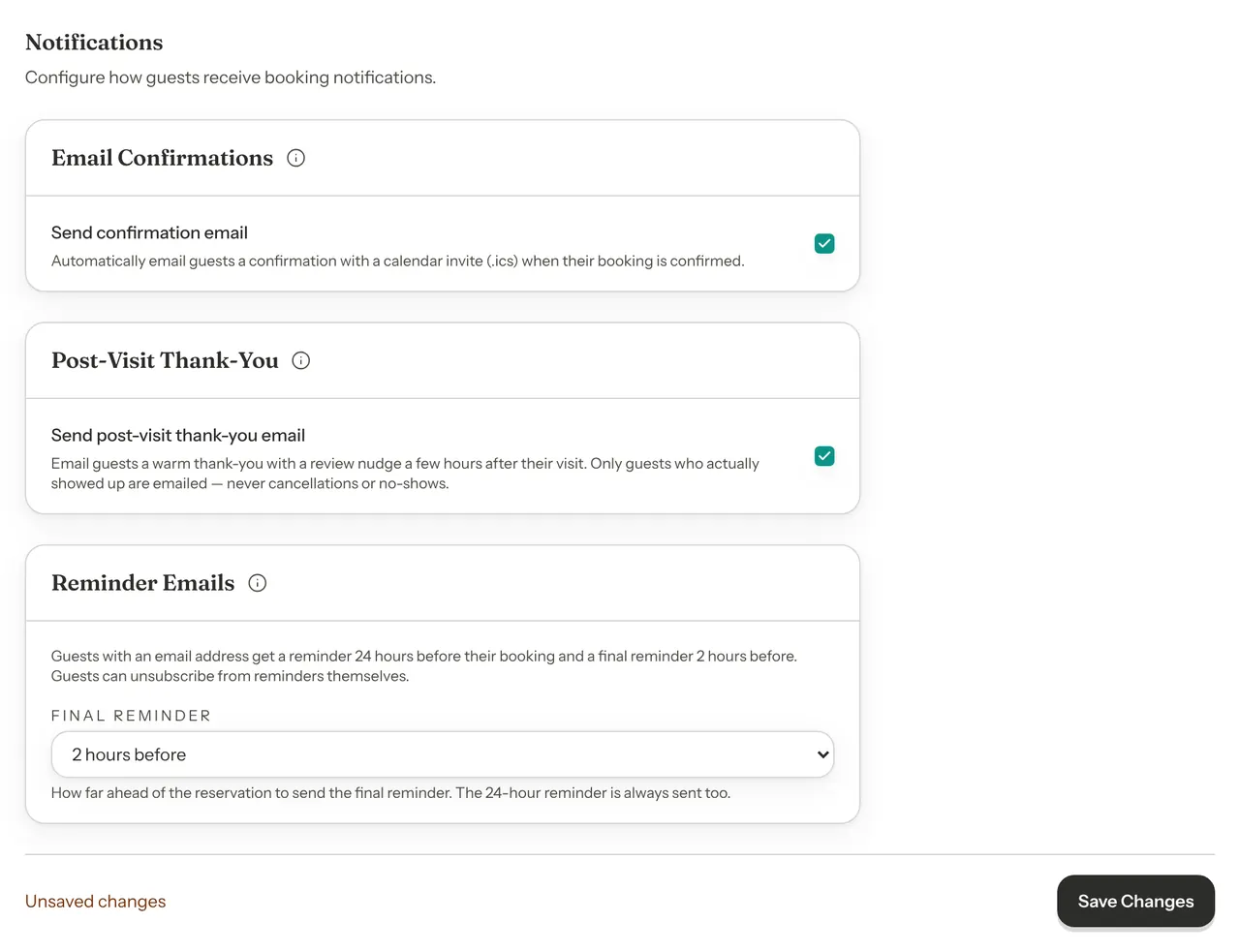
Go to Settings → Guests → Notifications. There are three cards:
| Option | What it does | Default |
|---|---|---|
| Send confirmation email | Emails the guest a confirmation and calendar invite when their booking is confirmed. Turning it off only stops it for bookings with nothing paid. Guests who pay always get one, because it's their receipt and their way back to the booking. | Default: On |
| Send post-visit thank-you email | Emails guests who came a thank-you a few hours after their visit. Never sent for cancellations or no-shows. | Default: On |
| Final reminder | How long before a booking the final reminder email goes out: 1, 2, 3, 4, 6 or 12 hours. It's in the Reminder Emails card. The 24-hour reminder always goes out too. | Default: 2 hours before |
Click Save Changes at the bottom of the page. Changes apply to messages sent from then on, including for bookings already made.
There's no switch for reminder emails or cancellation emails: the Reminder Emails card only sets when the final reminder goes out. They go to every guest with an email address, and guests can stop reminders themselves.
The emails
These are made from the real templates, with a demo café's details.
Booking confirmation
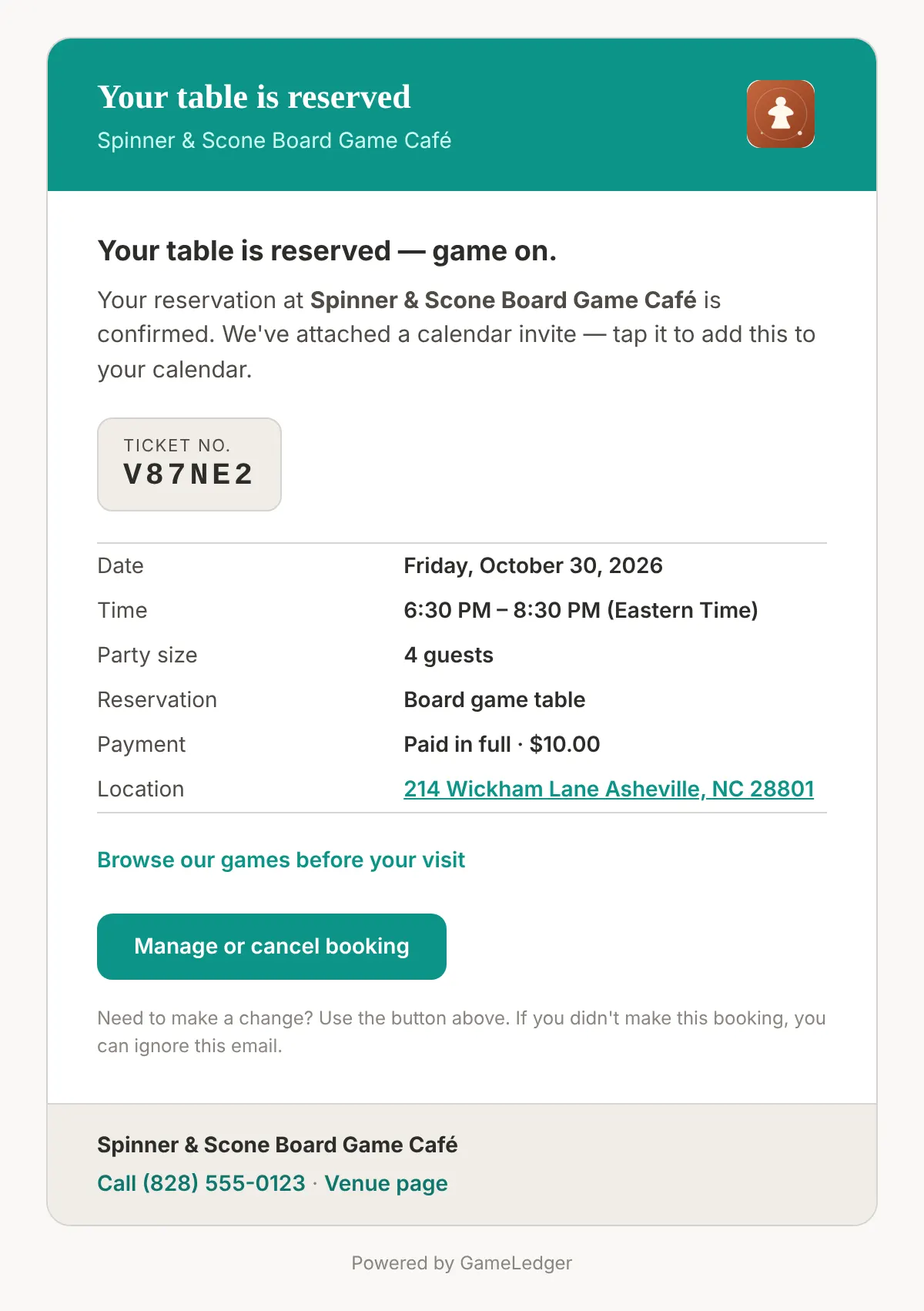
The confirmation lists the date, the time in your venue's timezone, the party size and the reservation type. It also shows these when they apply:
- Your game: the reserved game with its cover, plus "We'll teach you the rules when you sit down." if the guest asked to be taught.
- Payment: for example "Paid in full · $40.00" or "Deposit paid".
- Notes: the booking's guest-visible note, including any special requests the guest typed when booking. Internal notes never appear.
- Browse our games before your visit: a link to your public games page, when it's on and has games.
A calendar invite is attached, and Manage or cancel booking opens the guest's booking page.
Reminders
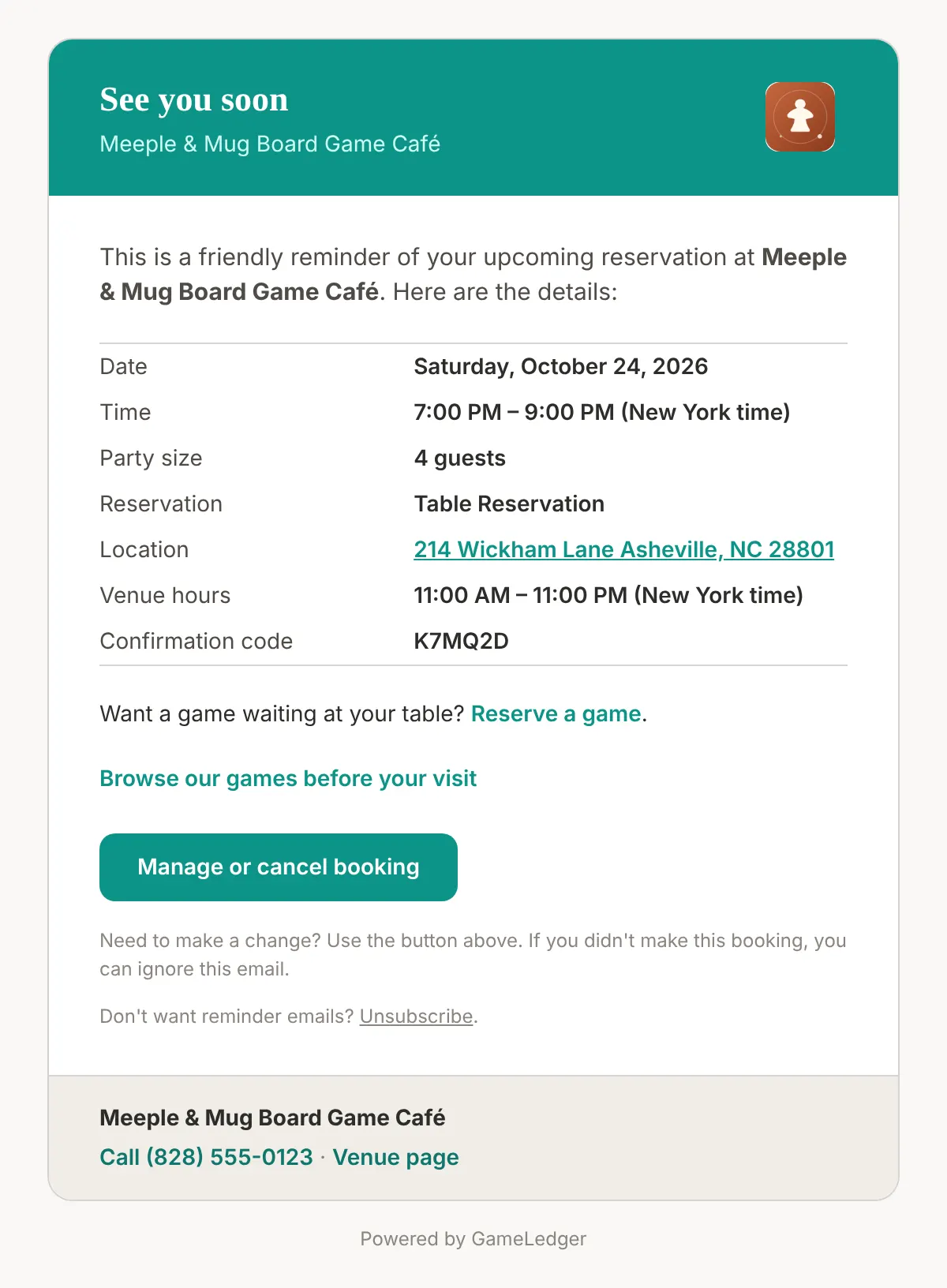
GameLedger checks for reminders to send every 15 minutes:
- The 24-hour reminder goes out 24 hours before the booking starts. If the booking is made later than that, it goes out within about 15 minutes of booking.
- The final reminder goes out at the time you chose under Final reminder. A booking made inside that window only gets the final reminder.
- Only confirmed bookings get reminders. A booking that's still Pending, or already cancelled, gets none.
- Each reminder is sent once. If a guest moves their booking, or you do, the reminders are sent again for the new time. If a send fails, it isn't retried.
- Pausing online bookings doesn't stop reminders. Guests who already booked still get them.
The 24-hour reminder includes "Want a game waiting at your table? Reserve a game." when the guest hasn't reserved one and the reservation type includes the game step. The final reminder can include an I'm here — check in button. It only shows when you let guests check themselves in, the booking isn't on a deposit and there's nothing to collect at the venue. See Run Tonight From Your Phone.
Each reminder ends with "Don't want reminder emails? Unsubscribe."
Post-visit thank-you
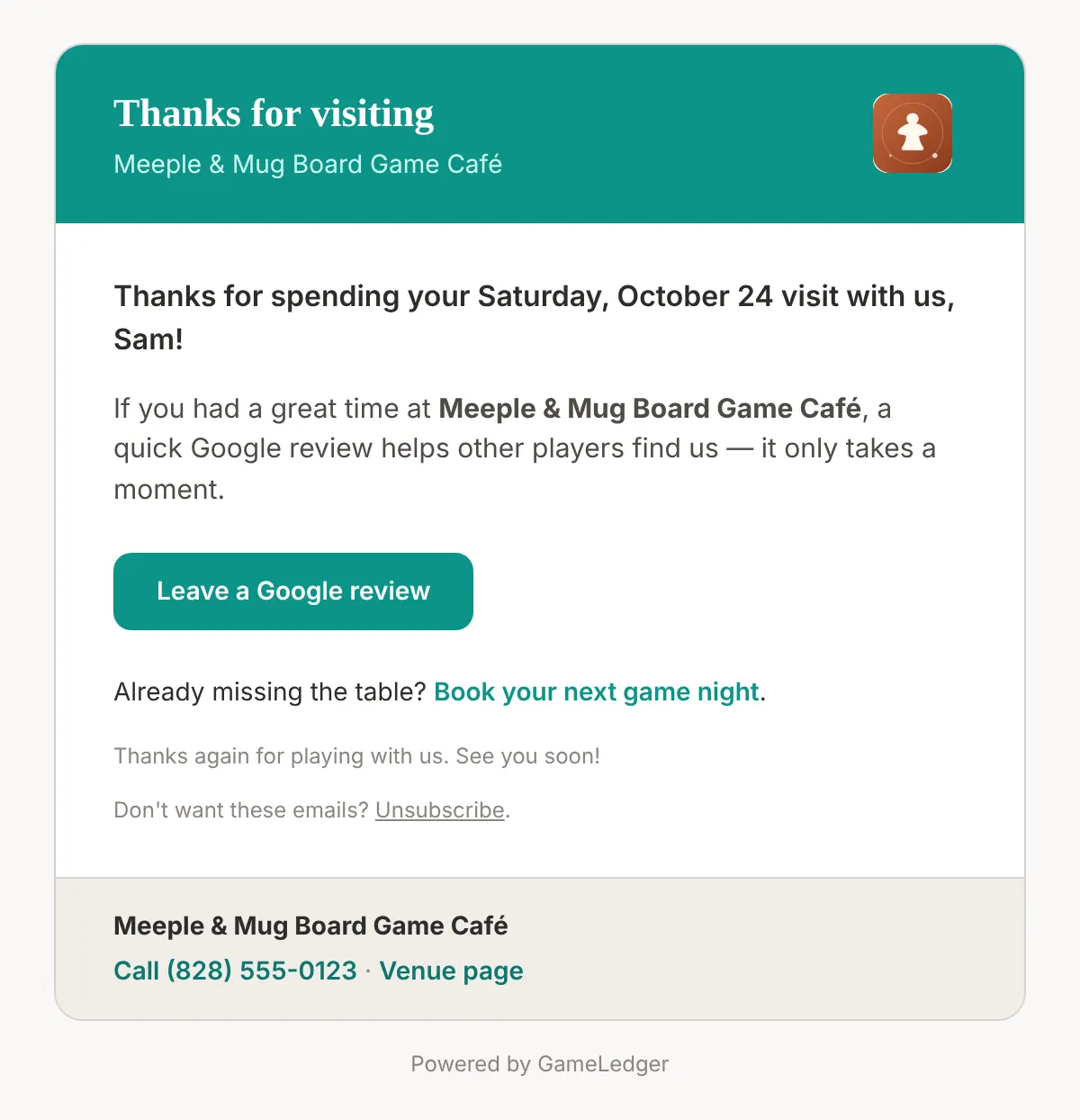
The thank-you goes out about 3 hours after the booking's end time, to parties marked Arrived, Seated or Completed. A guest who checked themselves in but was never seated doesn't get one. It thanks the guest by first name and has one main button:
- Share your feedback, if the party was seated at a table and didn't leave feedback there. It opens a star rating on their booking page.
- Book your next game night, if they already left feedback at their table. The email thanks them for it.
- Leave a Google review, for other visits, if your venue is linked to Google in Settings → Guests → Review Links.
- Book your next game night, for everyone else.
Cancellation
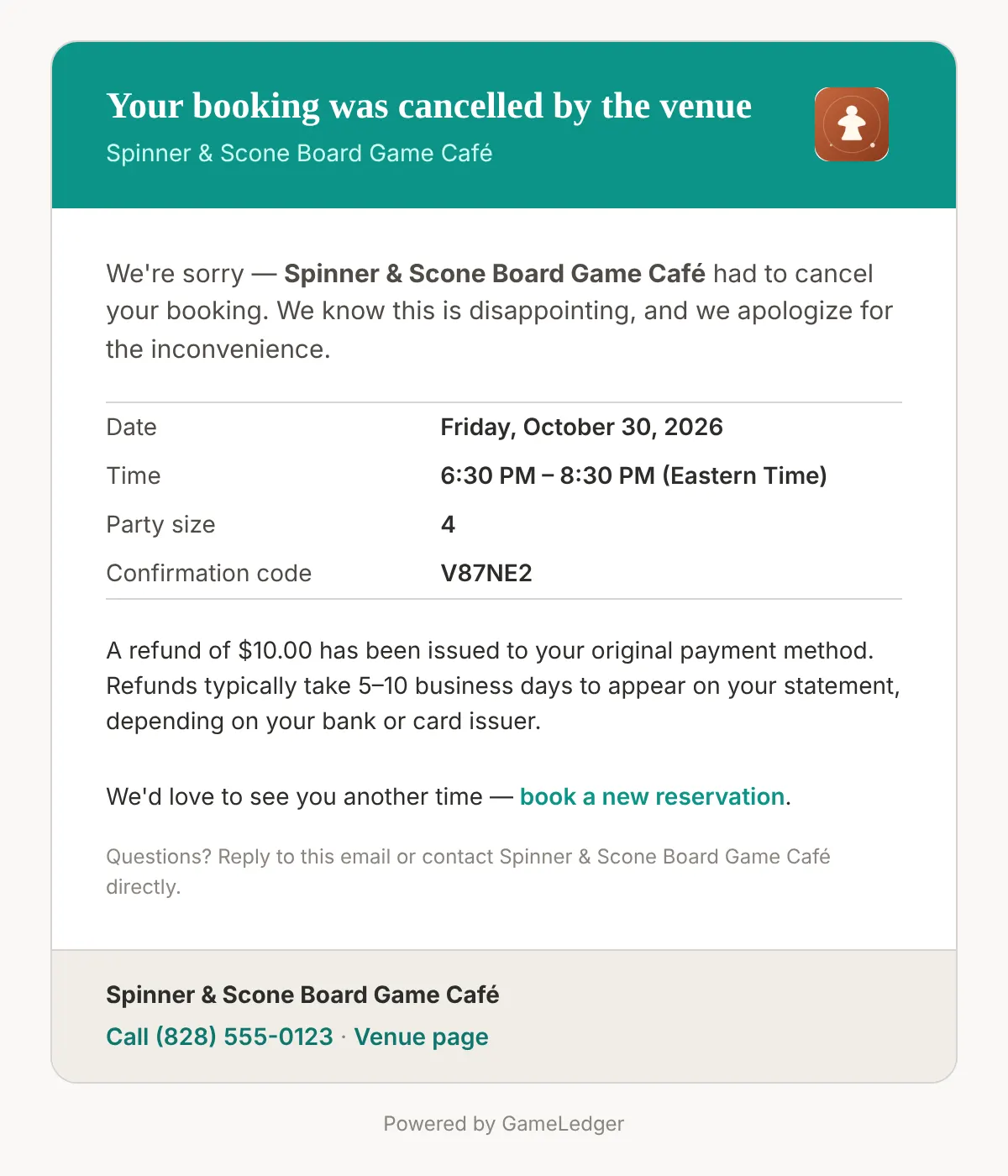
The cancellation email repeats the date, time, party size and confirmation code. When you cancel, it apologises. When the guest cancels, it confirms the cancellation they asked for. If the guest paid, it says whether a refund was issued, is on its way or wasn't due. It always links to your booking page so they can book again.
When a guest unsubscribes
Unsubscribe in a reminder or thank-you email stops reminder and post-visit emails to that address, from every venue on GameLedger. Confirmations, cancellations and other emails about a booking the guest makes still arrive. You can't turn reminders back on for a guest yourself.
See what was sent for a booking
Open a booking on the Bookings page. The History section of its side panel lists each email alongside the booking's other events, such as when it was created and confirmed, with the time each was sent.
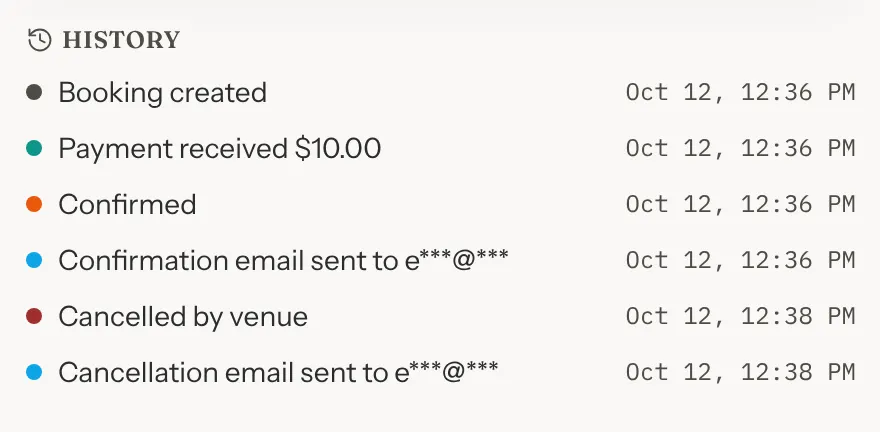
Addresses are partly hidden, for example "e***@***". Each row reads like "Confirmation email sent to e***@***" or "Final reminder email failed to send to e***@***".
| Row says | What it means |
|---|---|
| sent | GameLedger handed the email to its email service. It doesn't tell you whether the guest opened it. |
| failed to send | The email service turned it down, for example because the address doesn't work. GameLedger doesn't try again. |
| skipped (sender not configured) | GameLedger's email service wasn't available, so nothing went out. The row links to your Notifications settings. If those look right, email support@gameledger.io. |
The messages are named Confirmation, 24-hour reminder, Final reminder, Post-visit, Cancellation, Payment link, Payment processing, Refund and Refund update. Waitlist emails and feedback replies aren't linked to a booking, so they don't appear in History. A booking made before October 2026 can also show a text-message row, such as "24-hour reminder text sent to ***47", from when GameLedger sent reminder texts.
Good to know
- Changing a booking doesn't send an email. When you or the guest move a booking, nobody is emailed. The reminders follow the new time.
- No email address means no emails. A booking made with only a phone number gets no confirmation, reminders or cancellation email.
- A guest says they didn't get their confirmation. Open the booking and look in History. If it says sent, ask them to check their spam folder. If there's no row, the booking may still be Pending, it had nothing paid while Send confirmation email was off, or it has no email address. Guests can find their booking again with their code: see Manage your booking.