Table Help Alerts
Find out when a table asks for help or more time, answer from the banner, and turn on a chime or desktop notification.
Last verified
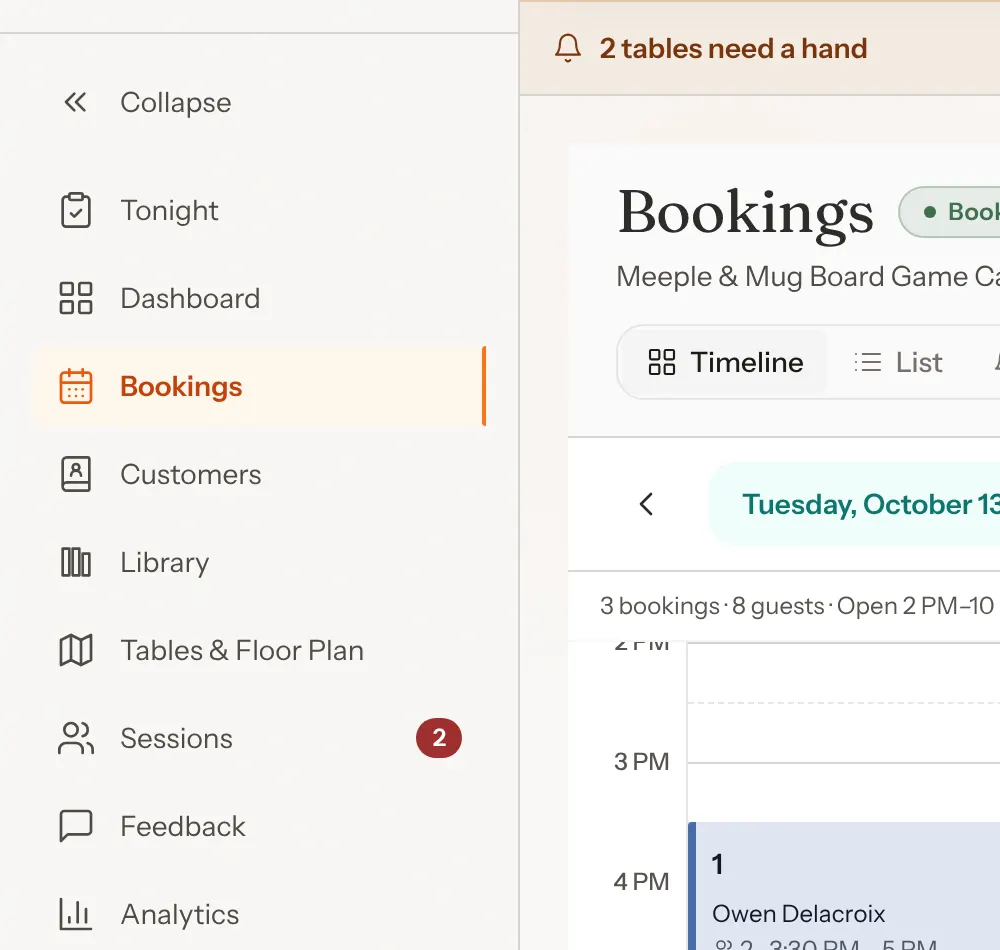
When a guest taps Need a hand? on their table's QR page, or asks for 30 more minutes, you find out wherever you are in GameLedger, whether or not you are looking at the Sessions page. A banner appears at the top of every admin page, with the buttons to answer it.
Use this guide to answer requests quickly and to set up a chime or a desktop notification for the counter computer. Which choices guests can tap, such as help picking a game or the bill, is set in Table Help Options.
Where to find it
You do not need to turn anything on for the banner. As long as a GameLedger admin page is open in your browser, even in a background tab, a new table request shows up within about ten seconds in three places.
| Option | What it does | Default |
|---|---|---|
| Banner | A strip at the top of every admin page, just under the top bar. One line per table: which table, what it asked for, and how long ago. | Default: Always on |
| Sessions count | A red number on Sessions in the side menu, and on the menu button on a phone. On the phone menu button and the collapsed side menu, it shows 9+ above nine requests. It goes away when every request has been answered. | Default: Always on |
| Browser tab | A number in brackets at the front of the tab title, such as (1), plus a red dot on the GameLedger tab icon, so you can spot it among other tabs. | Default: Always on |
You see all three if you can view Sessions. The buttons to answer a request depend on your permissions. On my way and Decline need permission to edit Sessions. Approve +30 needs permission to edit Bookings.

Answer a request
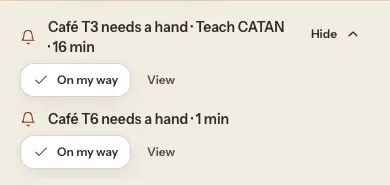
Each line in the banner has the buttons you need. When you answer, the line disappears for you straight away and for everyone else within a few seconds.
A table needs a hand, or wants a game taught
Step 1: Read the line
The line names the table, what it asked for, and how long ago, for example "Café T3 needs a hand · Teach CATAN · 2 min". After "needs a hand" you see what the guest chose.
- Help picking a game
- Teach followed by the game's name
- Food & drinks
- The bill
- The name of one of your own custom options, for example "Extra napkins"
If the guest chose Something else, the line just says the table needs a hand.
Step 2: Tap On my way
The line clears, and the guest's screen changes to "On their way".
A table asks for 30 more minutes
Step 1: Check the line under the request
The line reads, for example, "Café T2 wants 30 more min · 1 min". Under it, you see whether the table can stay longer, for example "Can extend to 10:30 PM", or why it cannot, such as the next booking or your closing time. A table with no booking reads "No booking to extend".

Step 2: Tap Approve +30 or Decline
Approving extends their booking and moves the table's clock on the guest's screen. Declining tells them you could not add time. Add the extra time to their bill at the counter. Approve +30 is greyed out when the table cannot be extended. A more-time request has no On my way button. Approving needs permission to edit Bookings. Declining needs permission to edit Sessions.
Several tables at once
With three or more requests, the banner shrinks to one line, such as "3 tables need a hand". Tap Show to see them, oldest first. Hide shrinks it to one line again. If you hid it and a new request arrives, the banner goes back to automatic: it opens as a list while fewer than three requests are open. With three or more open, it stays a one-line summary until you press Show.

See the table in Sessions
Tap View on any line to open Sessions with that table highlighted.
On your Dashboard
The Dashboard also lists each request at the top of Needs you now, with the same buttons. It replaces the guess that a table "may need help finding a game" once the table has actually asked. See The Dashboard During Service.
Turn on sound
Sound is off until you turn it on. It is set for the device and browser you are using, so turn it on at the counter computer or tablet that stays open during service.
Step 1: Click the bell
In the top bar, click the bell.

Step 2: Listen for the test chime
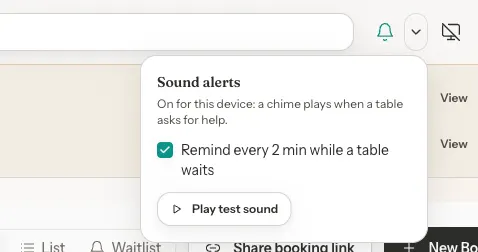
You hear a short test chime and the bell turns teal. From now on, each new request plays the chime once on this device, even if you have GameLedger open in several tabs.

Step 3: Change the reminder, or test it again
Click the small arrow next to the bell. Untick Remind every 2 min while a table waits to stop the repeat chime, or tap Play test sound to hear it again.
Turn sound off
Click the bell again. It goes back to its off look and no chime plays on this device.
If it says "Click to enable sound"
Browsers do not let a page play sound until you have clicked on it after it loads. After you restart your browser or open GameLedger in a new tab, the bell may show Click to enable sound. Click it, or anywhere on the page, and sound is back on.

Turn on desktop alerts
Desktop alerts show a system notification when no GameLedger admin page is on screen, for example while you are working in your point of sale or another tab. They are off until you turn them on, and they work on computers, not phones.
Step 1: Click the screen icon
In the top bar, click the screen icon next to the bell.

Step 2: Allow notifications
When your browser asks, choose Allow. A test notification, "Desktop alerts are on", appears and the icon turns teal.
Step 3: Wait for a request
When a table asks for help and no GameLedger page is on screen, you get one notification, such as "Café T3 needs a hand" with "Teach CATAN · just now" under it. Click it to go straight to that table in Sessions. It disappears by itself once someone answers the request.
Turn desktop alerts off
Click the screen icon again. It stops showing notifications on this computer.
If your browser did not ask, or you blocked it
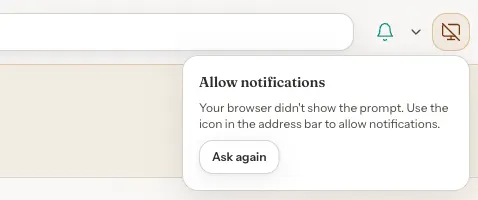
If your browser did not show the prompt, click the icon and then Ask again. If you blocked notifications, the icon turns amber. Click it and follow the hint: allow notifications for this site from the address bar, then reload the page.
What your guests see
Guests are not told someone is coming before anyone has seen the request. What they can ask for depends on the options you chose in Table Help Options.
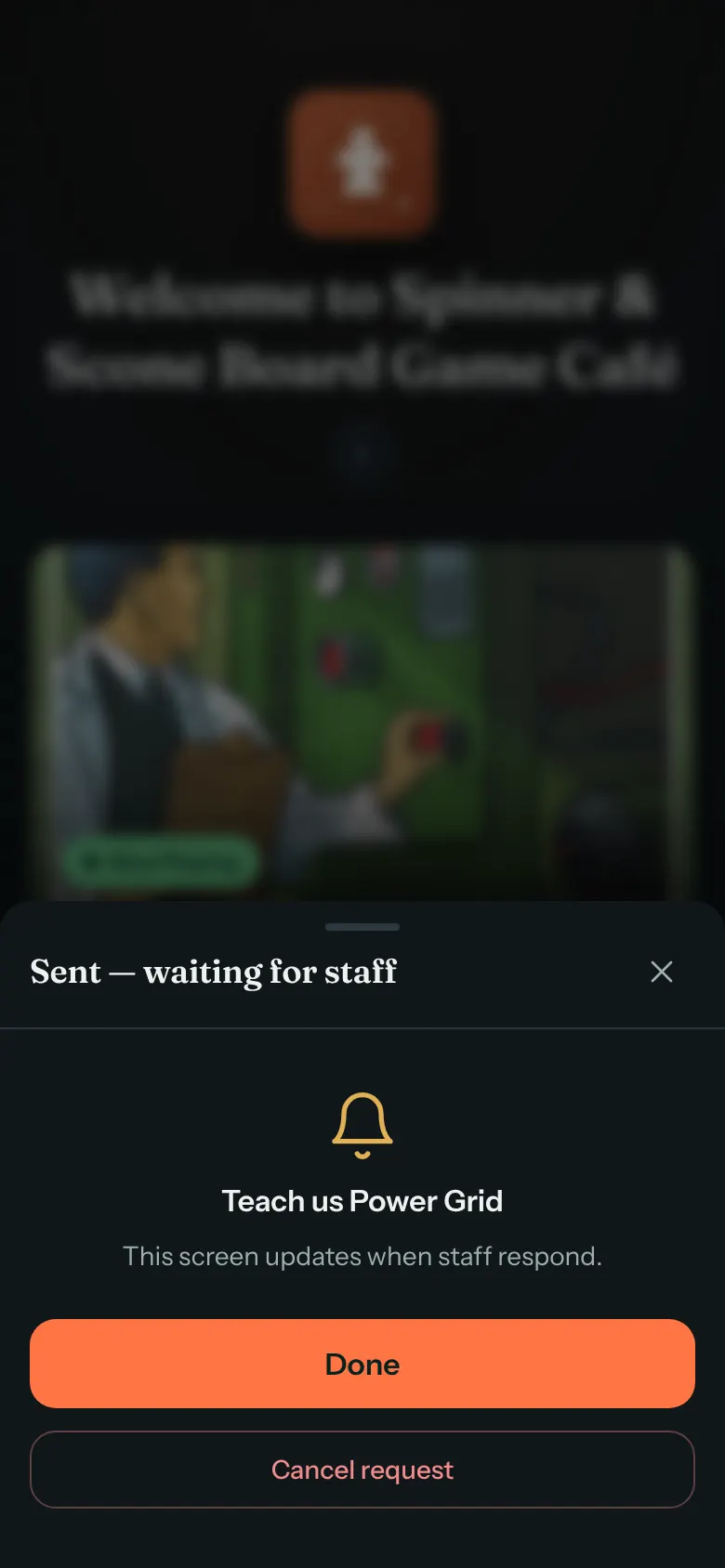
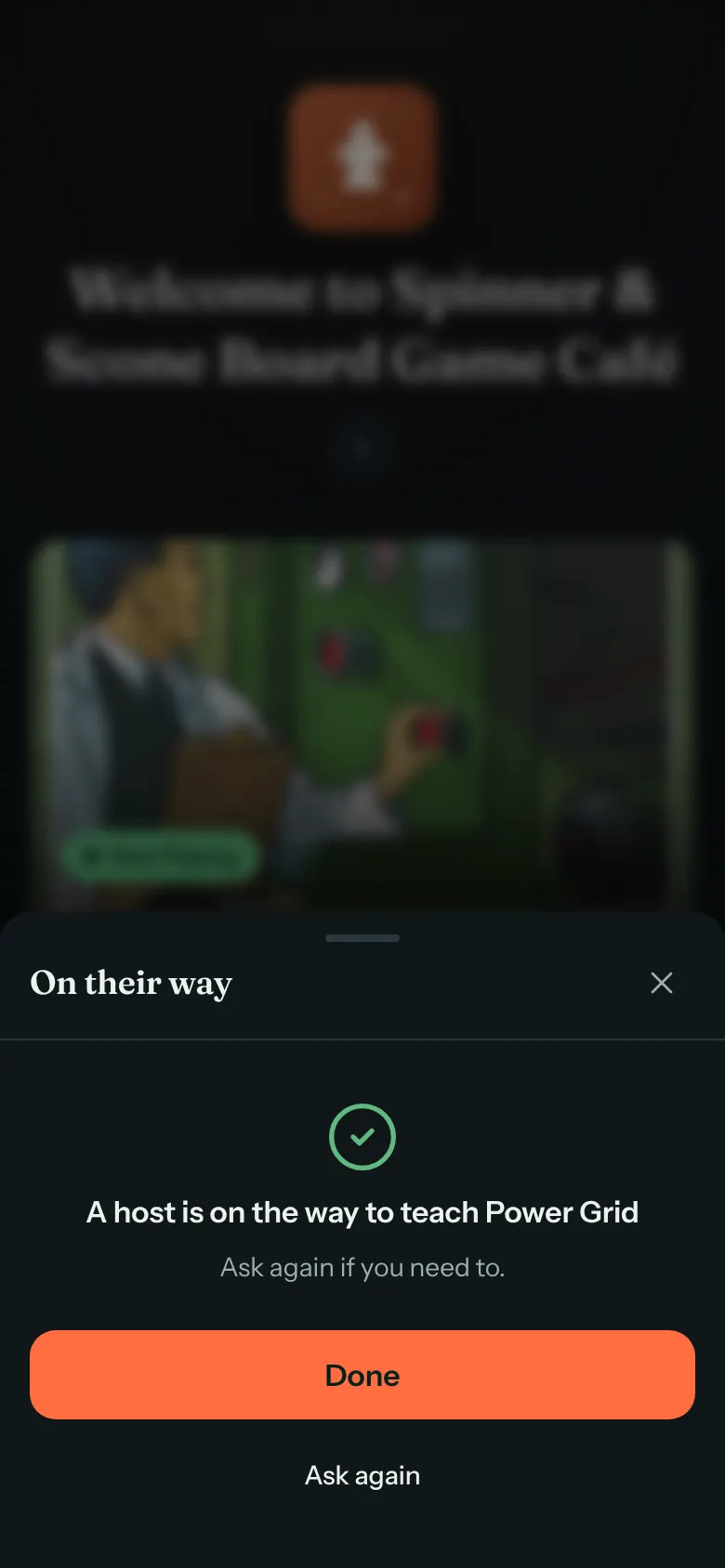
For more time, an approval moves the clock on their screen, and a decline tells them "Staff couldn't add more time just now".
Settings and defaults
| Option | What it does | Default |
|---|---|---|
| Banner, Sessions count, tab title | Everyone who can see Sessions. | Default: Always on |
| Sound | A chime when a table asks. Set for this device and browser. | Default: Off |
| Reminder chime | Repeats every 2 minutes while a request waits. Applies on this device when Sound is on. | Default: On |
| Desktop alerts | A system notification when no GameLedger page is on screen. Set for this computer and browser, once allowed. | Default: Off |
| Banner Hide and Show | Whether the banner shows the list or one line. Applies to this browser tab. | Default: Show for one or two requests, one line for three or more |
Good to know
- Alerts need a GameLedger admin page open in a browser. It can be in the background, but not closed. Nothing reaches a phone that is not showing GameLedger.
- In Chrome, Memory Saver can put long-idle tabs to sleep. If it does, add GameLedger to the sites Chrome keeps active in its performance settings.
- Staff who can view Sessions see the requests. On my way and Decline need permission to edit Sessions, and Approve +30 needs permission to edit Bookings. Without the permission for a button, you do not see it.
- Desktop alerts work in computer browsers. On a device that cannot show them, the icon says "Not supported on this device".