Your customer list
See every guest who has booked with an email address, how often they come, and their booking history. Keep private notes for your team and export the list.
Last verified
Customers is your guest list. It builds itself from your bookings: every guest who has booked with an email address gets a row, with how often they have booked, when they last came, any no-shows, and a private note your team can keep about them. There is nothing to type in by hand.
Use it to look up a regular before they arrive, to note what someone likes or what went wrong last time, and to download your guest list.
Where to find it
Click Customers in the admin sidebar, between Bookings and Library. On a phone, open the menu (top left) first.
Customers uses your team's Bookings permission. There is no separate box for it. See Who can see it.
Who is on the list
GameLedger reads your bookings each time you open the page and gives each email address one row. Capital letters don't matter, so "Sam@example.com" and "sam@example.com" are the same guest.
These bookings put a guest on the list:
- Online bookings made with an email address.
- Bookings your team adds from New Booking with an email address, whether the guest phoned or walked in.
- Waitlist parties once you turn them into a booking.
These never appear:
- Bookings with only a phone number. Guests can book online with a phone number and no email, and so can your team.
- Quick walk-ins, because they don't ask for an email.
- Guests who only scanned a table's QR code. Table sessions don't ask for contact details.
A few things follow from matching on email alone:
- The same person with two email addresses has two rows, each with its own visits and note.
- Two people who share an email address share one row.
- The name and phone shown come from the guest's latest booking, even if that booking was cancelled.
- Guests whose every booking was cancelled still appear, marked Cancelled only. This includes guests who started paying online and didn't finish, because GameLedger cancels those bookings for you.
Each venue has its own list. A guest who books at two cafés that use GameLedger is a separate customer at each, and neither café sees the other's notes.
Read the list
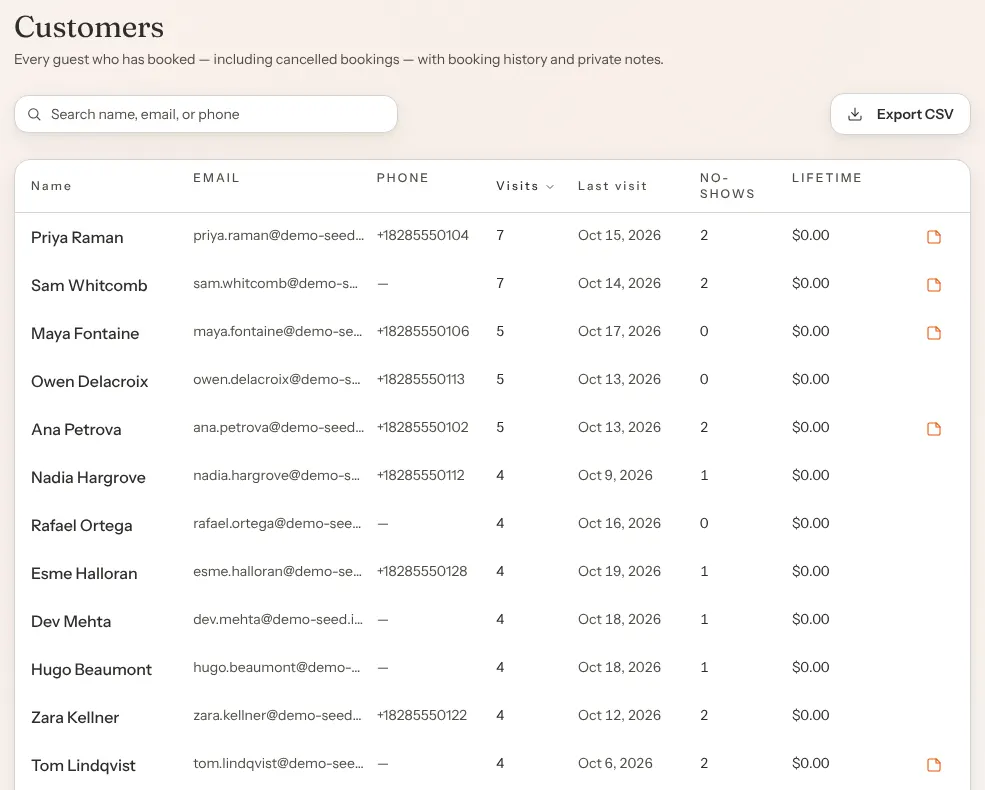
The newest Last visit is at the top. Each row shows:
| Column | What it shows |
|---|---|
| Name | The guest's name from their latest booking. A Cancelled only label means none of their bookings went ahead. |
| Their email address. | |
| Phone | Their phone number, or "—" if they haven't given one. |
| Visits | How many of their bookings were not cancelled. This includes upcoming bookings, bookings still waiting for an online payment, and no-shows. |
| Last visit | The date of the latest of those bookings. If the guest has booked ahead, it is a date in the future. |
| No-shows | How many of their bookings were marked as a no-show, by your team or automatically when nobody checked them in before your no-show grace ran out. These are already counted in Visits. |
| Lifetime | What they have paid online through GameLedger on those bookings, less any refunds. Payments at your counter, food and drink, and money you kept from a cancelled booking are not included. |
| (note icon) | An orange note icon when your team has written a note about them. |
Sort the list by clicking Name, Visits or Last visit at the top of the list. Click the same heading again to reverse it. The other columns can't be sorted.
Search with the box above the list. It looks through names, email addresses and phone numbers as you type. Phone numbers are saved with the country code and no spaces, for example +15551234567, so type a run of digits such as 5551234 rather than "(555) 123-4567".
The whole list shows on one page. There are no filters or groups, such as regulars or lapsed guests.
On a phone, each guest is a small card with their name, email, phone, Visits, last visit date, No-shows, lifetime spend and the note icon. The list stays in Last visit order there, because the column headings are hidden.
Open a guest's details
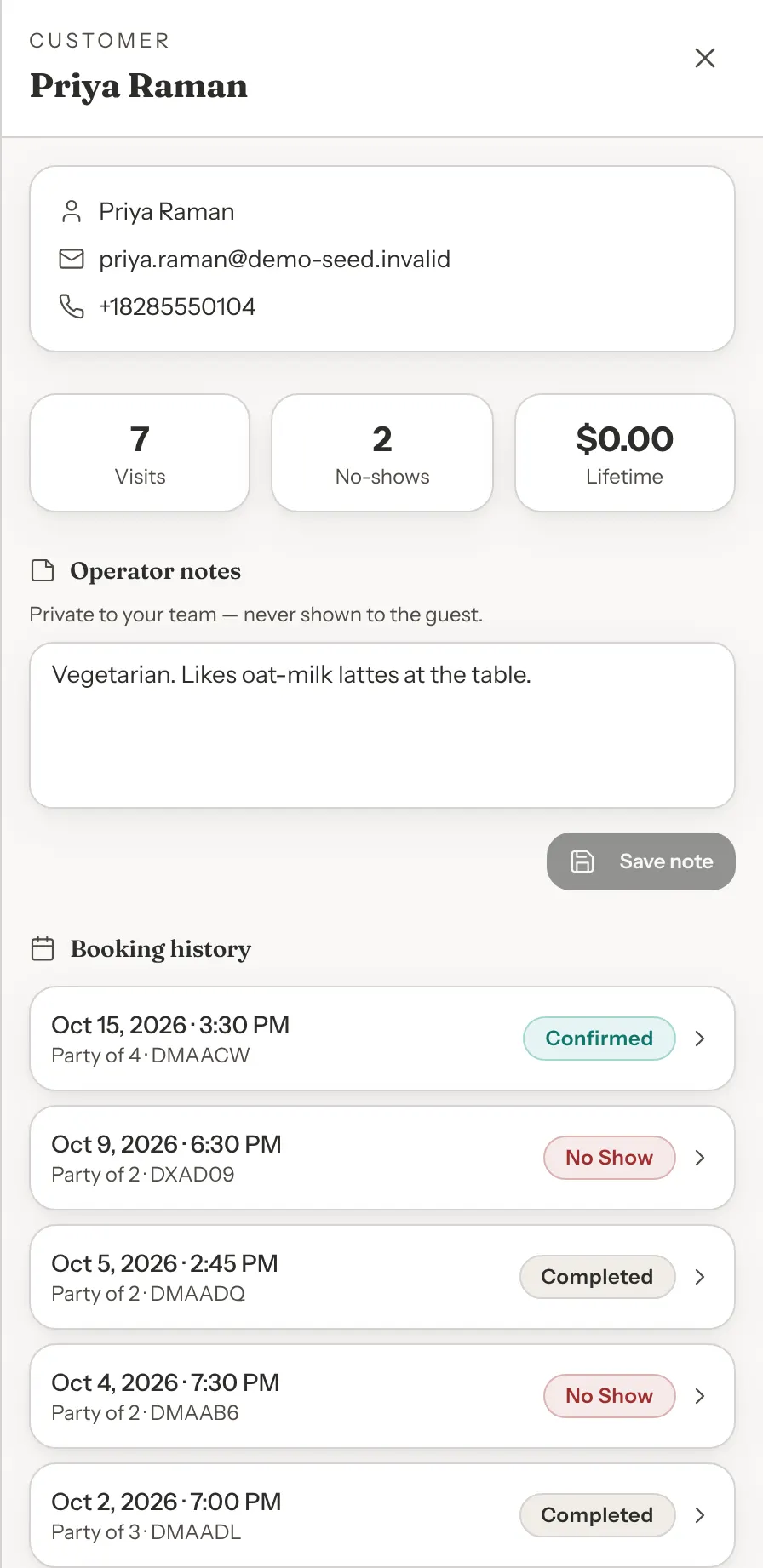
Click a guest's row. Their details open in a panel on the right:
- Their name, email and phone at the top. Click the email address to write to them from your own email app.
- Visits, No-shows and Lifetime, as in the list.
- Operator notes: your team's note about them. See Keep a note about a guest.
- Booking history: every booking they have made, newest first, cancelled ones included. Each shows the date and time, the party size, the confirmation code and the booking's status. Click one to open it on the Bookings page.
The address in your browser changes while the panel is open, so you can copy it and send it to a teammate. The link doesn't contain the guest's email address, and it only opens for people signed in to your venue.
Close the panel with the ×, by clicking outside it, or with the Esc key.
Keep a note about a guest
Notes are for anything your team should know next time: "Prefers the window table", "Allergic to nuts", "Left Catan with pieces missing in March".
Step 1: Open the guest
Click their row on the Customers page. You can also click the guest's name at the top of one of their bookings, or Guest on one of their feedback entries.
Step 2: Write the note
Type in the box under Operator notes, which reads "Add a note about this customer…" while it's empty.
Step 3: Save it
Click Save note. The button only works once you've changed the note. You see "Customer note updated." and the orange note icon appears on their row.
Good to know about notes:
- They are private. "Private to your team — never shown to the guest." Guests never see them on their booking page or in emails.
- Each guest has one note. Saving replaces what was there, so add to the existing text rather than starting over. Saving an empty box removes the note.
- The last save wins. If two people change the same note at once, the second save replaces the first. The note doesn't record who wrote it or when, so sign and date anything that matters.
- Save before you close. Closing the panel throws away text you haven't saved, without asking.
- The note belongs to the email address. If the guest books with a different email, or someone changes the email on their booking, that booking shows under another row without the note.
- Writing a note needs Edit on Bookings. Without it you can read the note, or see "No notes yet.", but not change it.
Spot returning guests while you work
You don't need to open Customers to know who is back:
- On the Bookings page, a guest's second and later bookings carry a Returning label with the visit number, such as "Returning · 3rd visit".
- On a booking's details, the guest's name is a link to their customer details.
- When you add a booking, type the guest's email in New Booking. If they have booked before, GameLedger fills in their name and phone where those boxes are empty. From their third booking on, it also says "Returning guest — 2 visits, last Mar 14." If your team has a note about them, that line ends with a View in Customers link, which opens it in a new tab.
- On the Feedback page, feedback from a guest with a booking shows their name under Guest, linked to their customer details.
See Managing bookings for adding and changing bookings.
Export your guest list
Click Export CSV above the list. A spreadsheet file named like customers-export-2026-10-13.csv downloads with every guest on the list. It ignores what you typed in the search box, although the button is greyed out while your search finds nobody.
The file has these columns: name, email, phone, visits, first_visit, last_visit, no_shows, lifetime_spend_cents and notes.
- Spend is in cents. Divide
lifetime_spend_centsby 100 for the amount. - Values that start with +, -, = or @ start with an apostrophe, for example '+15551234567. That's every phone number, and sometimes a name or note. It stops spreadsheet apps from treating the value as a formula. Delete the apostrophe if you import the file into another system.
- Dates are written year first, such as 2026-10-13.
- Your private notes are in the file. Store and share it carefully.
Who can see it
Customers follows the Bookings boxes in your team's permissions. Owners and admins always have both. See Team and permissions.
| Bookings permission | What they can do on Customers |
|---|---|
| View | Open Customers, search, open a guest's details and booking history, read notes, and export the list. |
| Edit | Also write and change notes. |
Staff start with both boxes ticked, so new team members can see every guest's contact details and export them. Untick Bookings for anyone who shouldn't, which also takes away the Bookings and Tonight pages.
Without View on Bookings, Customers is missing from the menu. Opening it from a saved link shows "Access to customers is restricted".
What you can't change here
- A guest's name, email or phone. These come from their bookings. Change them on the booking itself. See Managing bookings. Changing a booking's email moves that booking to the row for the new email.
- Merging or deleting guests. Two rows for one person stay as two rows. If a guest asks you to erase their details, email support@gameledger.io.
- Your Analytics numbers. The Customer split card on Analytics counts returning guests a little differently, so its totals won't match the Visits column. See Read your analytics.