Team and permissions
Invite staff and admins by email, choose what each person can see and change, and take access away when someone leaves.
Last verified
The Team page is where you give other people their own login to your venue. You invite someone by email, choose whether they are an admin or staff, and for staff you tick which parts of the admin they can see and which they can change. Each person signs in with their own email and password, so you never share yours, and you can take access away at any time.
Use it when you hire someone, when a staff member's job changes, or when someone leaves.
Where to find it
Click Team in the left-hand menu. Only the owner and admins see Team. The page is headed Team, with the line "Manage who can access" followed by your venue's name. The Invite Member button sits at the top right, and the Members list shows everyone you have invited.
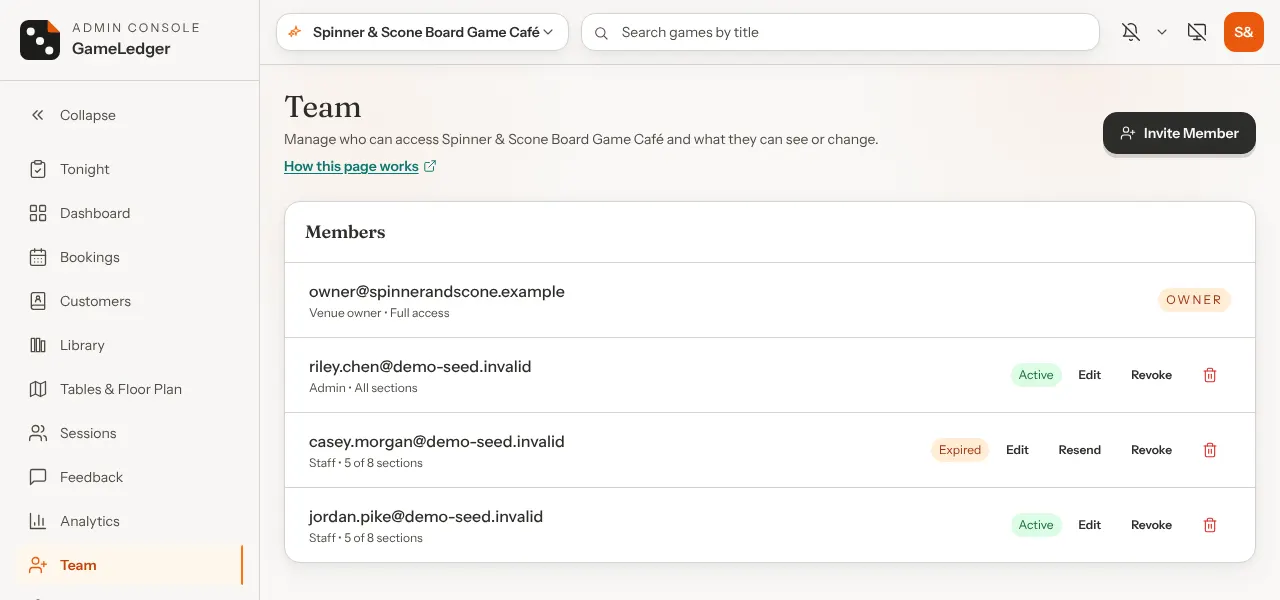
Each row in Members shows the person's email, their role, and a summary of their access: All sections, a count such as 5 of 8 sections, or No access. The tag on the right shows where they are:
- Pending
- Invited. They have not accepted yet.
- Expired
- Invited, but the 7-day link ran out before they accepted. Click Resend to email it again with a fresh 7 days.
- Active
- They accepted and can sign in to your venue.
- Revoked
- Access taken away. They can no longer open your venue, and an unused invitation link stops working.
The three roles
| Role | What they can do |
|---|---|
| Owner | The person who created the venue. Full access to everything. The owner row shows the owner's email and reads Venue owner • Full access, whether you are the owner or an admin looking at the page (or just Venue owner if the email can't be found). It has no buttons: nobody can edit or remove the owner, and you cannot invite a second owner. |
| Admin | Everything except connecting or disconnecting a payment processor. Admins see Team and can invite, edit, resend, revoke and remove any team member, including other admins. You do not set permissions for an admin: their row always reads All sections. |
| Staff | Only the sections you tick. Staff never see Team, so they cannot invite anyone or change their own access. |
Give admin to someone who runs the venue with you, such as a manager. Give staff to everyone else, and tick only what their job needs.
What each section covers
When you invite or edit a staff member, a Permissions box lists each part of the admin with a View box and, for most, an Edit box. View lets them open the page. Edit lets them make changes there. Ticking Edit ticks View for you, and unticking View unticks Edit.
| Option | What it does | Default |
|---|---|---|
| Bookings | View: open Bookings, Tonight and Customers, and see who is arriving. Edit: add, change and cancel bookings, check guests in and seat them, tick off games to set aside, and edit customer notes. | Default: View and Edit |
| Library | View: browse your games. Edit: add, import, change and remove games. | Default: View only |
| Tables & Floor Plan | View: see your tables and the floor map. Edit: add and change tables, zones and the layout. | Default: View only |
| Sessions | View: see who is playing at each table, and get table help alerts. Edit: assign or change a table's game, answer help requests, decline more-time requests and end a session. Approving more time also needs Edit on Bookings. | Default: View and Edit |
| Payments | Only matters if your venue takes payments through GameLedger. | Default: Off |
| Settings | View: open Settings. Edit: save changes to your venue's settings, including booking types. | Default: Off |
| Feedback | View: read guest feedback. Edit: reply to guests and tag feedback. | Default: View only |
| Analytics | View only: open Analytics. That includes your revenue, and card payments and payouts once Stripe can take payments, whether or not Payments is ticked. The Permissions box says so under Analytics. | Default: Off |
Finishing a visit on Tonight needs Edit on both Bookings and Sessions.
The Dashboard is always in a staff member's menu, whatever you tick. Some parts of it, such as guest names, table help alerts and the button for adding a booking, show only if their sections allow them.
The guides for the sections above: Managing bookings, Build your game library and Build your floor plan.
What a new staff member starts with
The boxes start ticked like this every time you invite someone as Staff:
- Bookings: View and Edit
- Sessions: View and Edit
- Library: View
- Tables & Floor Plan: View
- Feedback: View
- Analytics, Settings and Payments: off
That is enough to run a shift: take and seat bookings, run tables, and look things up in the library and on the floor plan. Change any box before you send the invitation.
Invite someone
Step 1: Open the invite form
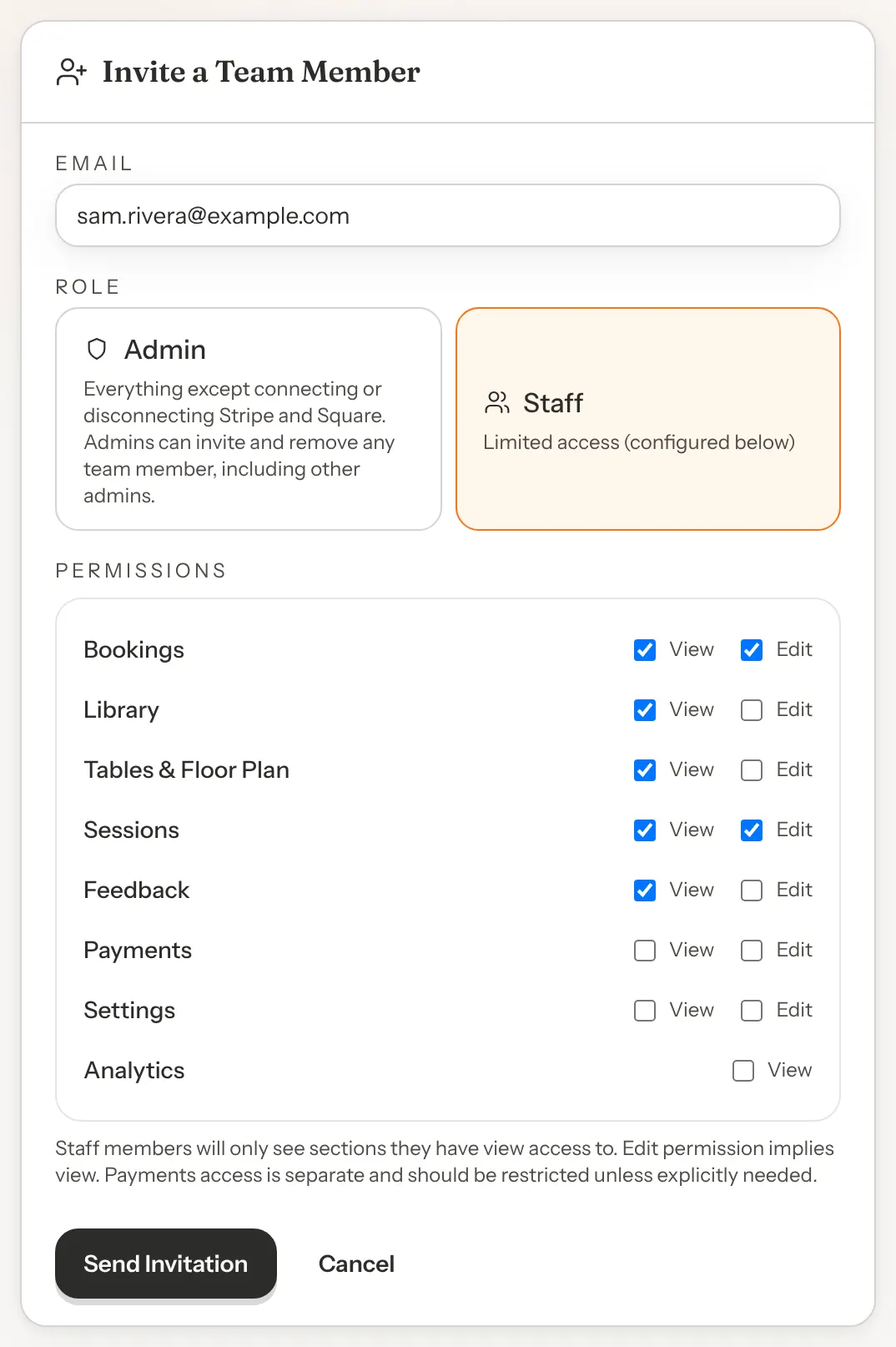
On the Team page, click Invite Member. A card headed Invite a Team Member opens above the Members list.
Step 2: Type their email address
Type the address they will sign in with in Email. They must accept with this exact address, so use the one they will use for work.
Step 3: Choose a role
Under Role, click Admin or Staff. Staff is selected to begin with. The chosen card has an orange border.
Step 4: Set their permissions
If you chose Staff, the Permissions box appears with the starting boxes ticked. Tick or untick View and Edit for each section. For example, to give Bookings only, untick View on Library, Tables & Floor Plan, Sessions and Feedback. That person then has no Sessions page, and no button for finishing visits on Tonight. If you chose Admin, there is nothing to set.
Step 5: Send the invitation
Click Send Invitation. The page reloads and the person appears in Members with a Pending tag. If you change your mind before sending, click Cancel.
If the invitation is saved but the email doesn't go out, a yellow note above the list says so: "Invitation saved for" their address, "but the email didn't send". Their row still shows Pending. Click Resend on their row in a few minutes to try the email again.
They get an email with the subject "You've been invited to join" followed by your venue's name. It says which role you gave them and has an Accept Invitation button. The link works for 7 days.
If you see "An invitation already exists for this email", that address is already in your Members list, whatever its tag.
Accepting an invitation
This part is what your new team member sees. When they open the link in the email:
- If they are not signed in, the page reads "You're invited to" followed by your venue's name. It asks them to sign in or create an account with the invited email, and offers Create an account and Already have an account? Sign in.
- Create an account opens a short form headed Accept your invitation. They type the invited email, choose a password of at least 8 characters, agree to the Terms of Service and Privacy Policy, and click Create account. There is no confirmation email to wait for: they are signed in and taken back to the invitation. If they already have an account, they use Sign in instead.
- Sign in brings them back to the invitation once they are signed in.
- Once signed in with the invited email, the page reads "Join" followed by your venue's name. They click Accept Invitation and land on your venue's dashboard. Their row on your Team page now shows Active.
What can go wrong:
- Signed in with a different email. The page reads Email mismatch and names both addresses. They need to sign out and sign in with the invited one.
- The link is more than 7 days old. The page reads Invitation expired and asks them to have it resent. Click Resend on their row, and they can use the link in the new email.
- You revoked the invitation. The page reads Invitation no longer valid.
- They already accepted. The page reads Already accepted, with a Go to dashboard link.
There is no button to decline an invitation. Someone who does not want to join can ignore the email. You can then revoke it so the link stops working.
Resend an invitation
A Resend button shows on every row tagged Pending or Expired. Click it to email the invitation again. The link gets a fresh 7 days from now, and the link in the earlier email works again too. Nothing asks you to confirm. If the email doesn't go out, a yellow note above the list says so, and you can try Resend again in a few minutes.
If they say the email never arrived, ask them to check their spam folder before you resend.
Change someone's access
Step 1: Open their row
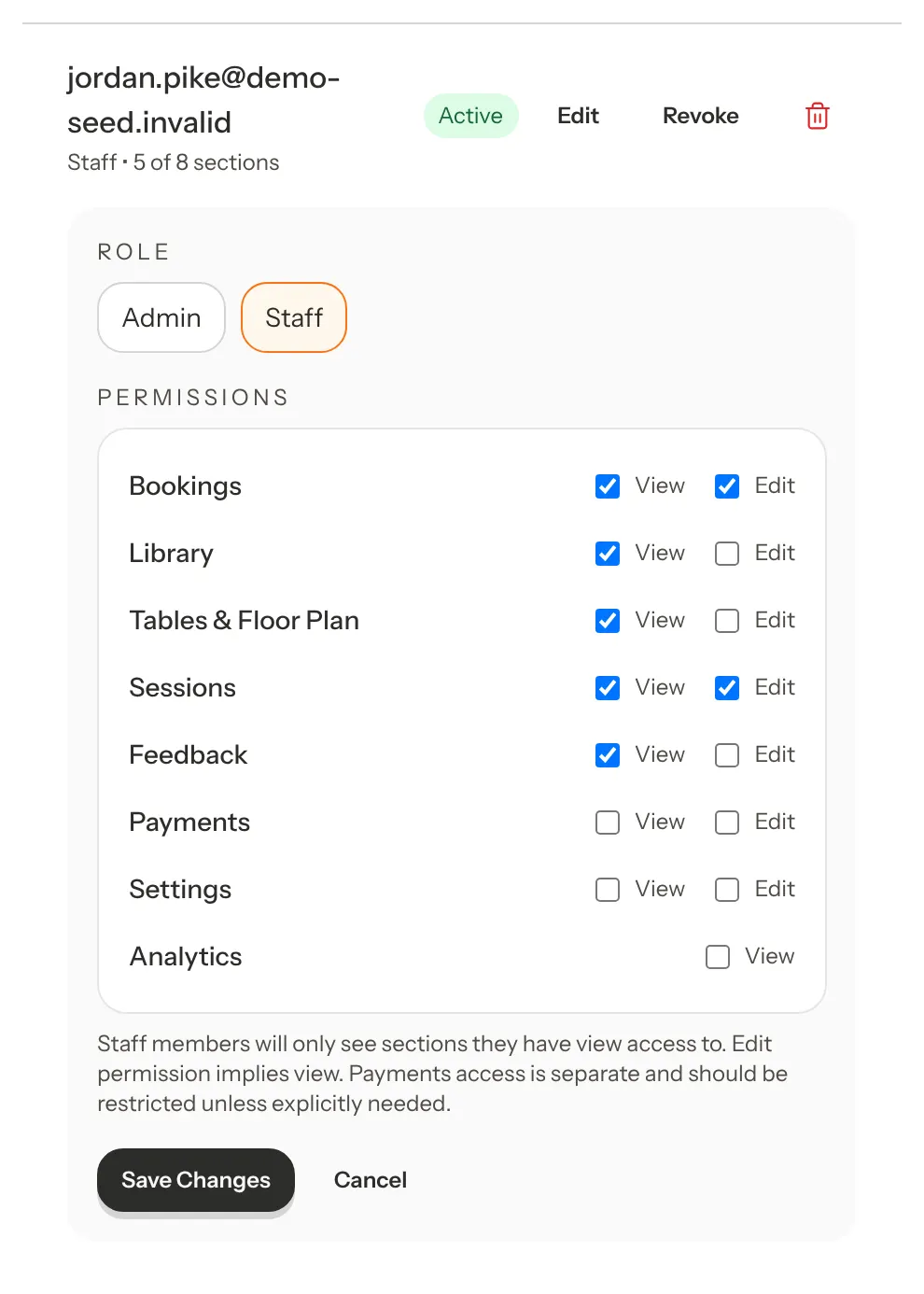
Click Edit on the member's row. A panel opens under the row with their Role and, for staff, the Permissions box with their current ticks. You can also edit a Pending invitation, before it is accepted.
Step 2: Make your changes
Tick or untick the boxes, or switch the role. Switching an admin to Staff shows the starting boxes from the list above, not what they had before. Switching staff to Admin hides the Permissions box, because admins can do everything.
Step 3: Save
Click Save Changes. The page reloads and the row shows the new role and section count. The change applies straight away. Pages they open follow it at once, and their menu catches up the next time they reload the page.
Take access away
You have two ways to do this.
Revoke is on every row that is not already revoked, except your own. Click it, then Revoke access in the "Revoke access?" box. The row's tag changes to Revoked and its Edit, Resend and Revoke buttons go away. The person can no longer open your venue. If they had not accepted yet, the invitation link stops working. The row stays in your list, so you can see who had access.
Remove is the bin icon at the end of each row. The owner and admins see it on every row except their own. Click it, then Remove member in the "Remove this member?" box. The row is deleted for good, and this cannot be undone.
Revoking cannot be reversed from the Team page. To give a revoked person access again, the owner or an admin removes their row first, then anyone who can see Team sends a new invitation to the same address. Without that, the invitation is refused with "An invitation already exists for this email".
What a staff member sees
A section without View is hidden. It is gone from their menu. If they open it from a saved link or bookmark, the page reads "Access to" followed by the section, then "is restricted", and tells them to ask the venue owner for access, by name if the owner has set one (otherwise "your venue owner"). It doesn't show your email address. Tonight is the exception: without Bookings access, it takes them to the Dashboard instead.
A section with View but not Edit is read-only. They can open the page and look things up, but the buttons for making changes are hidden, and settings fields are greyed out. They never see a button that would only fail. Page by page:
- Bookings and Tonight hide the buttons for adding, changing and cancelling bookings, checking guests in and seating them. Finishing a visit needs Edit on both Bookings and Sessions. Sending a payment link needs Edit on Payments.
- Customers hides the notes editor.
- Sessions hides the buttons for assigning or changing a game, answering help requests, more time and ending a session. Ending a session from the bookings calendar follows Edit on Sessions too.
- Library hides the buttons for adding, importing, changing and removing games, and shows each game's details as plain text. Assigning a game to a table, or ending a session, from the Library follows Edit on Sessions.
- Tables & Floor Plan shows the table list, the map and its zones, Print QR Codes and Test Guest View, but not Manage zones, Add table, a table's Edit, Deactivate and Archive, Edit layout, which moves tables around on the map, or Create floor plan, the menu on a floor plan's tab, Use tonight and Days & settings. They can still click a floor plan's tab to look at it. Book This Table on a table's details needs Edit on Bookings.
- Settings shows the fields greyed out, with no Save buttons. Most sections have one line at the top: "You can view these settings. Ask your venue owner if something needs changing." A few, such as Reservation types, Find a Game and Games page, grey out their own controls instead. Payment settings follow Edit on Payments. Their own login details on the Account tab stay editable.
- Feedback shows each guest's tags, but without Edit there is no Reply to guest button and the tags can't be changed.
- The Dashboard hides the buttons for adding a booking, seating guests and assigning games.
If a change is refused anyway, for example because you took away Edit while they had the page open, the message names the section in plain words, such as "You don't have permission to change Tables & Floor Plan. Ask your venue owner for access."
Good to know
- Feedback replies need Edit. Tick Edit on Feedback for anyone who should reply to guests or tag feedback. With View only, they can read feedback but not reply or change tags.
- Team is not in the list. Staff can never see or change the team. A restricted page asks them to come to you for access, so they know who to ask.
- There is no decline button. An invitation stays Pending, then Expired, until it is accepted, revoked or removed.
- Admins cannot be limited. The boxes only apply to staff. If you want someone to run bookings but not change settings, invite them as staff and tick what they need.