Why can't guests book?
Start from what your guest sees on your booking page, confirm the cause in your admin, and change the setting that fixes it.
Last verified
When a guest says they cannot book, the message they saw tells you most of the cause. This page starts from that message. Find what your guest sees, check the place in your admin that confirms the cause, then change the setting named. Changes reach your booking page as soon as you save.
Every path below starts with Settings in the menu on the left of your admin screen. For example, Settings → Venue Policies → Booking Rules means: click Settings, open the Venue Policies tab, then the Booking Rules sub-tab.
| What the guest sees | Where to look |
|---|---|
| A page titled Reservations Not Available | The page says Reservations Not Available |
| One of your reservation types is not offered | A reservation type is missing |
| Days crossed out, or no times on a date | No times show on a date |
| No more times today | No more times today |
| No table seats 9 guests (with their party size) | No table seats this party |
| Fully booked, with a waitlist | Fully booked |
| Times show, but not the one they want | A time the guest expects is missing |
| The party size stops going up | The guest cannot choose their party size |
| Booking works from your link, but not from your website | It works from your link but not on your website |
| Booking Failed at the last step, saying your Stripe setup is not yet active | The booking fails at the last step |
If a guest got as far as paying and says their payment didn't go through, see A guest says their payment didn't go through in Connect Stripe.
Start with Guest view
Guest view is a card in Settings that checks your setup the way your booking page does. For each reservation type that is on, it lists the next times guests are offered. When something stops a type from being booked, it shows a red flag that links to the setting that fixes it. Check it first: it finds the most common causes in one place.
Step 1: Open Booking Rules
Go to Settings → Venue Policies → Booking Rules. Guest view is the card under the sub-tabs. The same card is on Hours & Closures, Reservation Types and Settings → Venue → Location.
Step 2: Read the summary line
When nothing needs fixing, the card is one line that starts "Guests can book", followed by your next offered time. When something does, the card opens by itself and counts the problems, for example "1 thing to fix".
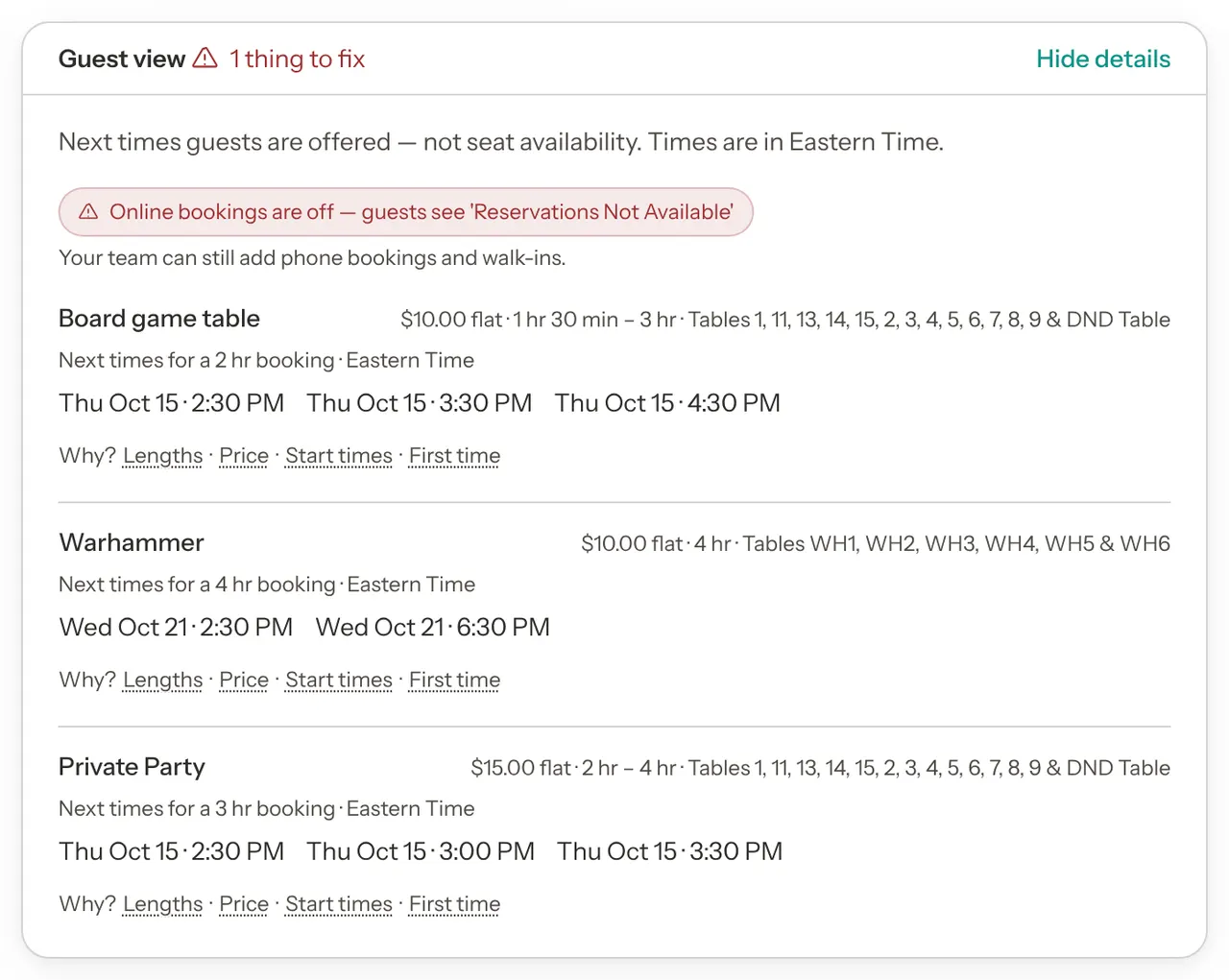
Step 3: Click the flag
Each red flag is a link. Click it and GameLedger opens the card that clears the problem, with that card highlighted (or Tables & Floor Plan, for table problems). The full list of flags is in The flags.
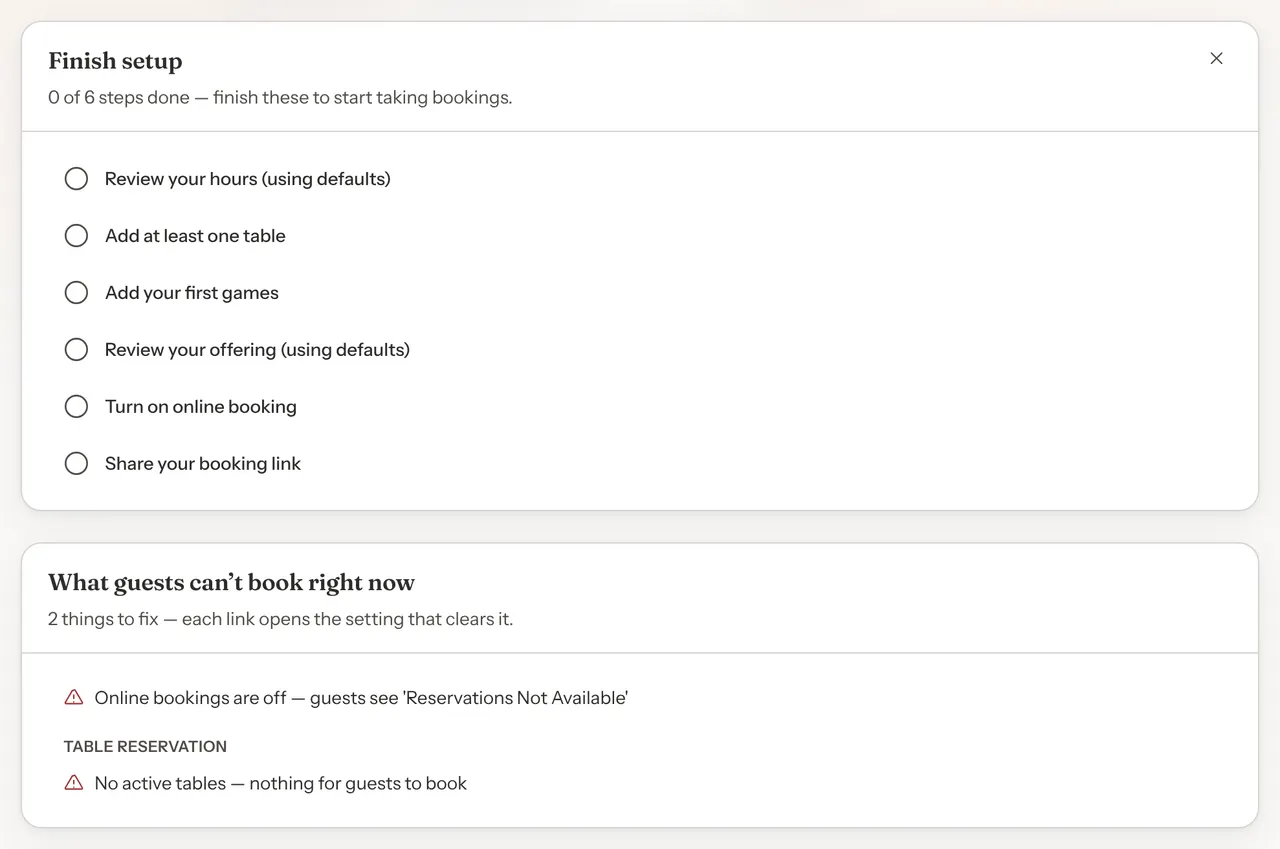
Your dashboard shows the same flags in a card titled What guests can't book right now, only while there is something to fix.
Guest view checks your settings, not who has already booked. If it shows no flags and a guest still cannot book, find what they saw in the sections below.
See it as a guest
To see exactly what your guest saw, open your own booking link on your phone. Copy it from Share booking link on the Bookings page, or from the Your booking page card in Settings → Guests → Booking Page.
The page says Reservations Not Available
What the guest sees: a page titled Reservations Not Available, which says your venue "isn't currently accepting online reservations" and asks them to contact you directly to book a table. There is no booking form.
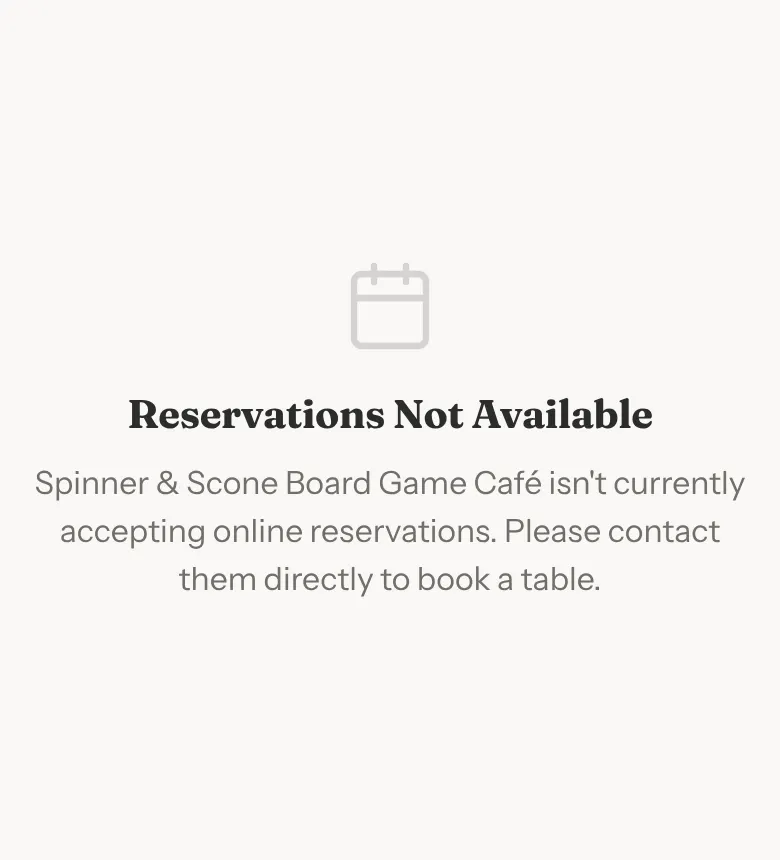
Cause 1: online bookings are turned off
This is the usual cause. New venues start with online bookings off.
How to confirm it:
- Guest view shows the flag "Online bookings are off — guests see 'Reservations Not Available'".
- On the Bookings page, Share booking link shows a warning: "Bookings are paused, so guests who open this link can't make a reservation."
- If the Finish setup checklist is on your dashboard, Turn on online booking shows as not done.
How to fix it:
Step 1: Tick Accept Online Bookings
Go to Settings → Venue Policies → Booking Rules and tick Accept Online Bookings. It is the first card on the page.

Step 2: Save
Click Save Changes. The flag clears, and your booking page opens straight away. If a warning appears under the box saying your venue has no tables, add tables first: see Add your tables.
Your team can still add phone bookings and walk-ins while online bookings are off. For more on this switch, see Turn on online bookings.
Cause 2: every type that is on uses tables that are not active
A reservation type can be limited to Specific tables on its Who can book card. If none of the tables you ticked is active, guests are not offered that type. When this is true of every type that is on, the booking page shows the same Reservations Not Available page, even with online bookings on.
How to confirm it: Guest view shows "No active tables in this offering's table pool" under each of those types.
How to fix it: click the flag. It opens the type's Who can book card on Booking Rules. Tick at least one active table, or choose Any active table, then save. Or make the table active again: in Tables & Floor Plan, click the ⋯ button on its row and choose Activate. See Build your floor plan.
A reservation type is missing
What the guest sees: when two or more types are on, your booking page opens on Pick what you'd like to reserve, with one card per type. A missing type has no card. When only one type is on, there is no choice at all: guests go straight to the first booking step.
If a guest follows a link made for one type, they see one of two pages instead:
- Page Not Found, which says "Looks like this page rolled off the table!", when the type is off.
- A page titled with the type's name and "isn't available right now", with a See what's available button, when none of the type's tables is active.
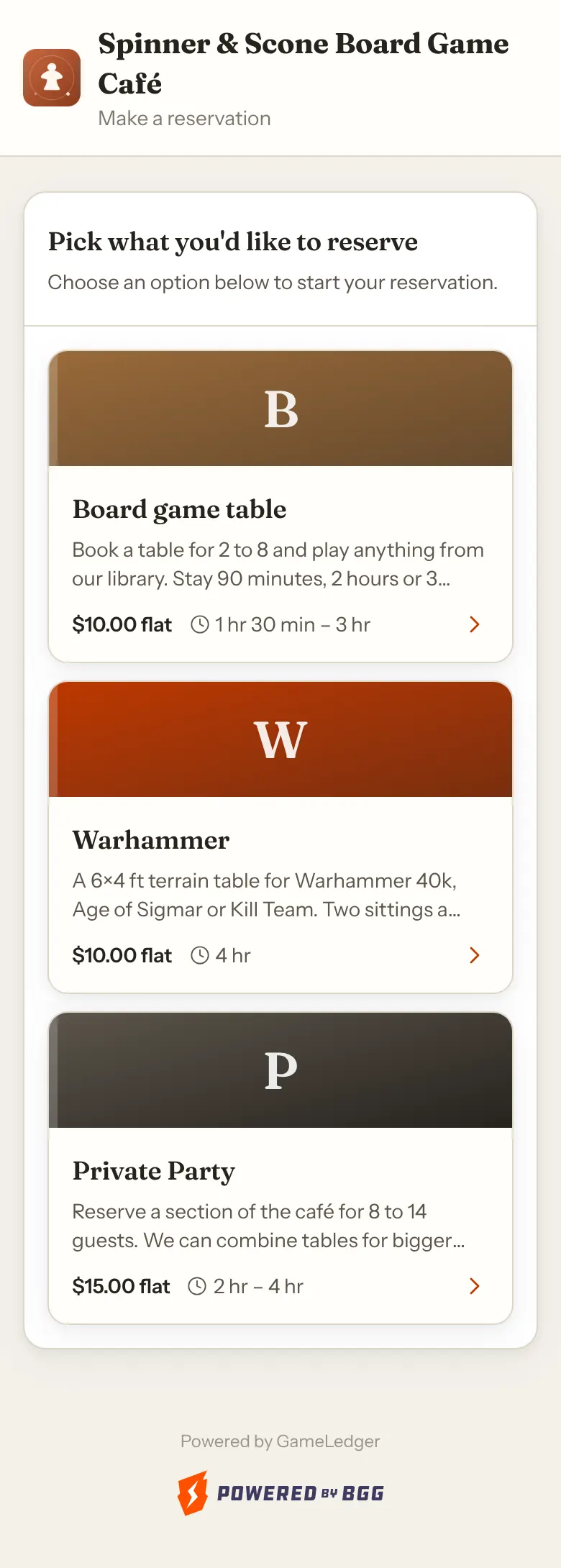
Cause 1: the type is off
New types are always created off, and any type can be turned off later.
How to confirm it: go to Settings → Venue Policies → Reservation Types. A type that is off carries an Off tag. Guest view does not list types that are off.
How to fix it: click Turn on bookings on that type's row. If turning it on is refused, a red message above the list gives the reason. See Manage your types.
Cause 2: none of the type's tables is active
How to confirm it: Guest view shows "No active tables in this offering's table pool" under that type.
How to fix it: click the flag to open the type's Who can book card. Tick an active table, or choose Any active table, then save. Types that use General capacity (shared seats) do not use tables, so this never applies to them.
No times show on a date
The guest's first step, When are you visiting?, has a calendar and a party size. After they tap Find Available Times, the Select a Time step lists the times. Each message below has its own causes.
Days are crossed out, or say Closed on this date
What the guest sees: on the calendar, a closed day is greyed and crossed out. Tapping it shows a short note such as "Tuesday, October 6 — closed". If a guest reaches a day with no start times at all, the next step says Closed on this date.
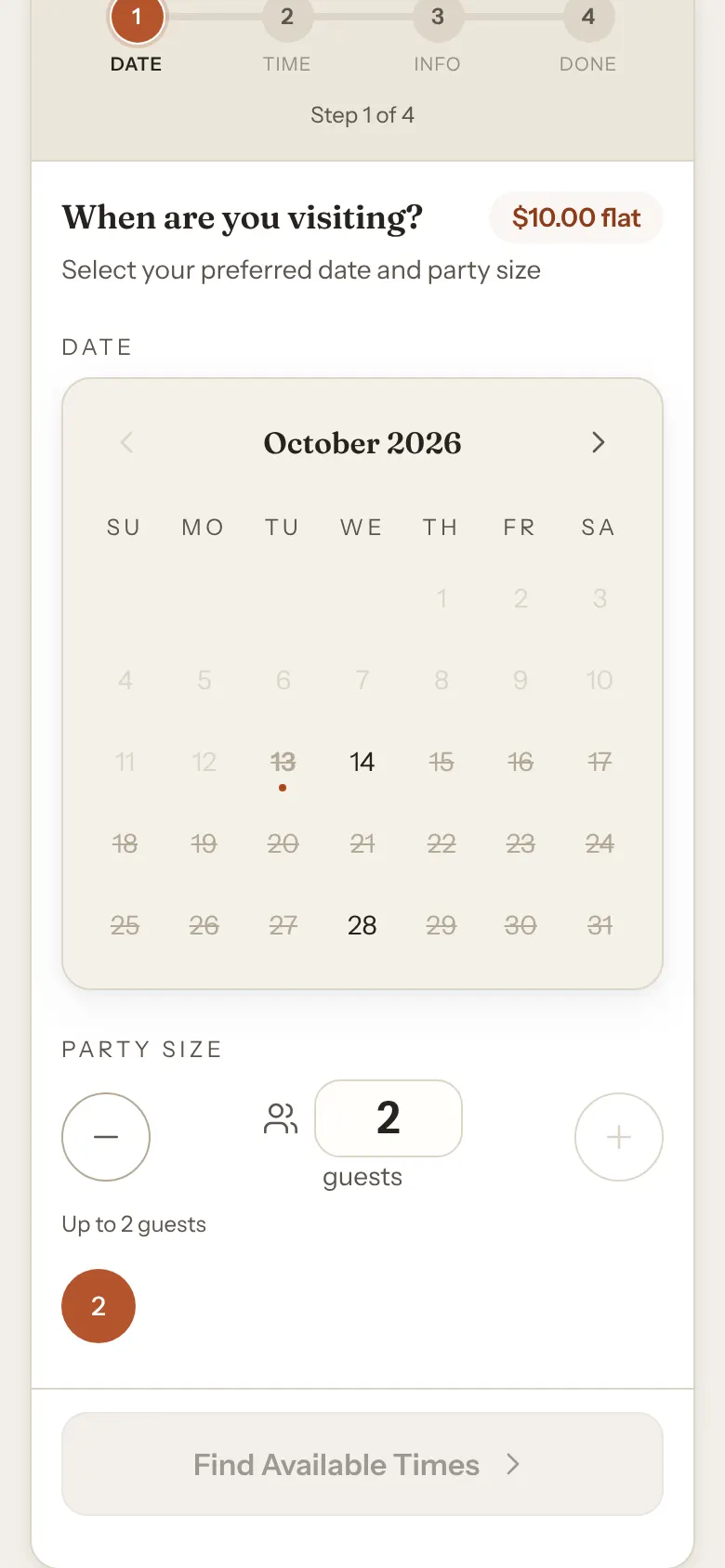
Possible causes, and where to check:
- Your weekly hours are closed that day. Check Operating Hours on Settings → Venue Policies → Hours & Closures. A closed day reads Closed.
- A holiday closure covers the date. Check Holiday closures on the same tab. A closure closes every reservation type for that date.
- A special date closes the type that day. Check Special dates on the same tab, with the type selected in the Editing: bar. Special dates affect only their own type.
- The type has its own weekly hours with nothing that day. A type set to Custom for this type under Weekly hours only opens on the days you gave it. Check Weekly hours on Hours & Closures with that type selected in the Editing: bar.
- The day's hours are shorter than the shortest booking. A day open for 1 hour cannot fit a 1 hr 30 min booking, so guests get no times that day. Guest view flags it, for example "Opening hours on Mon are shorter than the 1 hr 30 min minimum booking". On Operating Hours, the day shows a red line such as "This 1 hr window can't fit a 1 hr 30 min booking." For a type with its own weekly hours, the flag starts "Weekly windows on Mon" instead, and its row on Reservation Types also shows a link such as "No times: Mon", or "No weekly times" when it has no weekly hours at all.
- Your Minimum Notice is longer than a day. With 24 or 48 hours' notice, the next day or two can have no times left. The calendar does not cross these days out, so the guest picks one and sees Closed on this date (or, if they picked a longer length, No 3 hr times fit on this day). See No more times today.
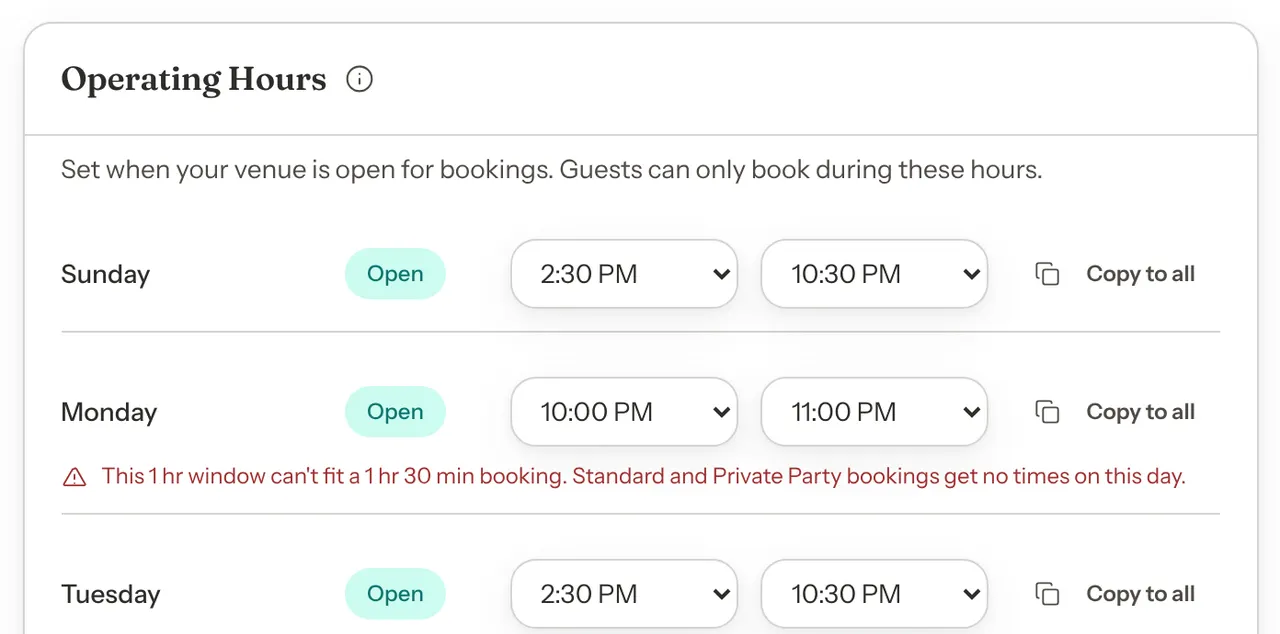
Where to fix it: change the hours or closures on Hours & Closures. See When guests can book. For a type's own hours, see Hours for one type.
Later dates cannot be picked
What the guest sees: dates after a certain day are greyed out and cannot be tapped, and the arrow to the next month stops working. There is no message.
Cause: your Maximum Advance setting. It is on the Advance Booking card on Settings → Venue Policies → Booking Rules, and sets how far ahead guests can book: 1 week, 2 weeks, 1 month, 2 months or 3 months.
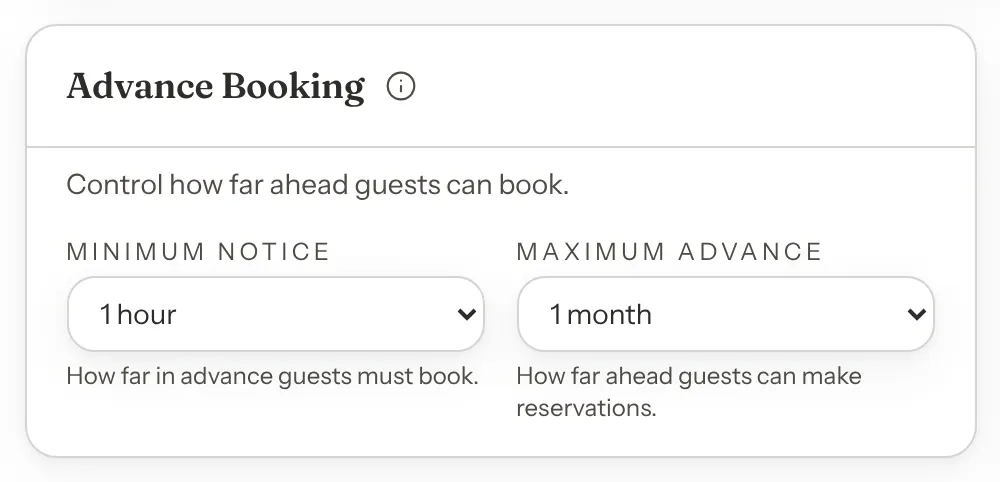
Where to fix it: choose a longer Maximum Advance and click Save Changes.
No more times today
What the guest sees: for today's date, No more times today, with "Sorry, this venue has no more times available today." (For a type other than Standard, it says "this offering".) When you require notice, a line such as "Bookings need at least 2 hours' notice." follows.
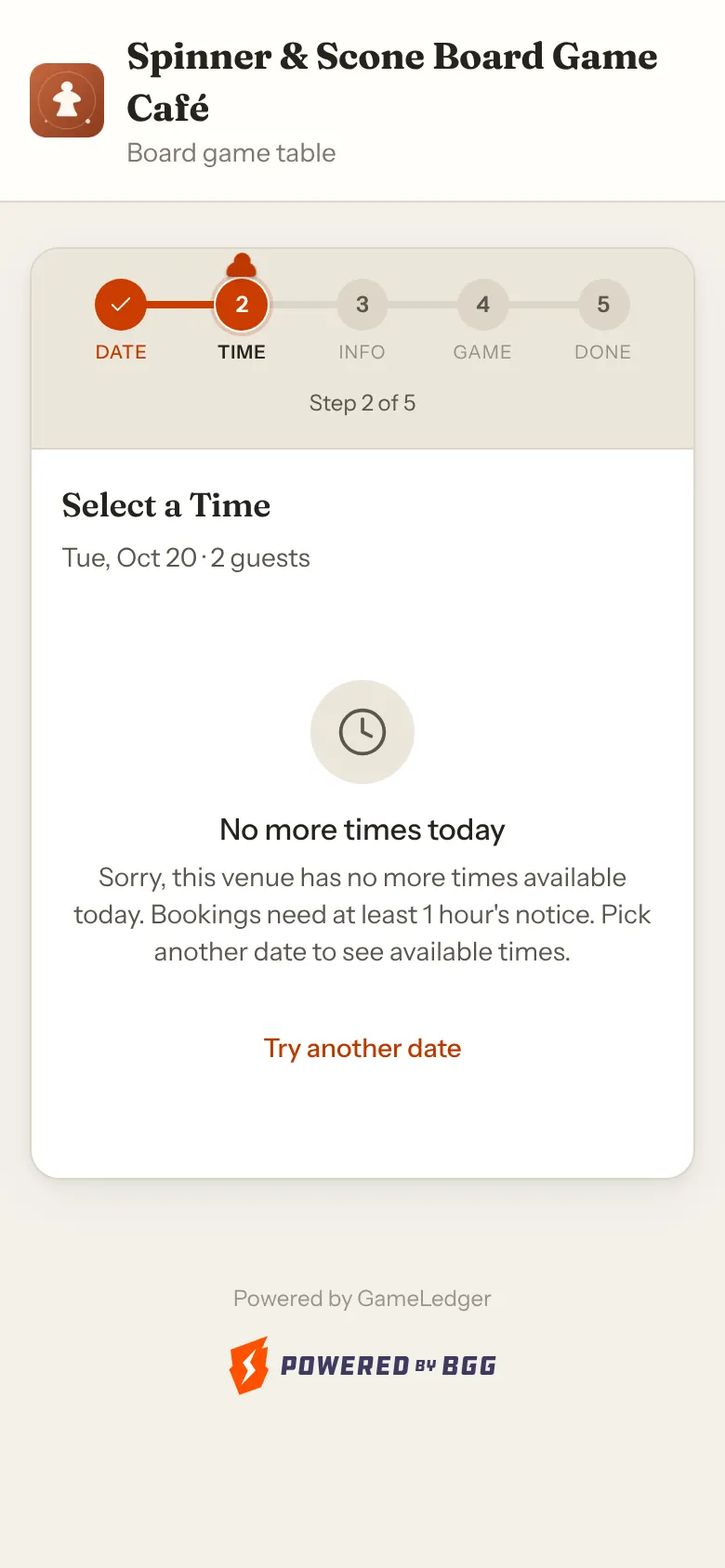
Cause: times that have already passed are never shown, and neither are times inside your Minimum Notice. With 2 hours' notice, a guest looking at 6:30 PM sees nothing before 8:30 PM. Late in the day, nothing is left.
Where to fix it: if same-day guests should be able to book closer to the time, choose a shorter Minimum Notice on the Advance Booking card, then click Save Changes. No minimum removes the rule.
No times fit the length the guest picked
What the guest sees: when a type offers more than one booking length, the guest picks one under How long?. If the picked length does not fit that day, they see a message such as No 3 hr times fit on this day, with "Try a shorter length below, or pick a different date."
Cause: that day's hours are shorter than the length the guest picked. A day open from 9:00 PM to 11:00 PM fits a 2 hr booking but not a 3 hr one. The same message shows when every time at that length is already past or inside your Minimum Notice: see No more times today.
Where to fix it: open longer hours that day on Hours & Closures, or offer shorter lengths. Lengths are on the Booking lengths & buffer card on Booking Rules.
No table seats this party
What the guest sees: No table seats 9 guests (with their party size), and "Try a smaller party.", with a Change party size button.
Possible causes, and where to check:
- No active table seats that many. Each table's capacity is set in Tables & Floor Plan. An inactive table is not offered to guests. In Tables & Floor Plan, click the ⋯ button on its row and choose Activate to bring it back; the top of the list shows how many tables are out of service. Turning a zone off under Manage zones also turns off every table in it. Turning the zone back on does not bring its tables back, so activate them one by one.
- Your venue has no tables yet. A new venue starts with none. If online bookings are on before you add tables, every guest sees this message, whatever their party size (or Fully booked if you have turned on Allow parties across multiple tables). Guest view flags "No active tables — nothing for guests to book", and the Finish setup checklist on your dashboard shows Add at least one table as not done.
- The type is limited to specific tables that are too small. Check which tables are ticked on the type's Who can book card.
- The only table big enough needs extra chairs. A table with extra chairs takes a bigger party only when the booking has one of the table's seating tags, for example when the guest answers Yes to a seating question on the first step. A guest who answers No, or whose booking has no tag, needs a table that seats the party as it is.
Where to fix it: add tables or raise a table's capacity in Tables & Floor Plan, and make sure the tables are active. See Build your floor plan. You can also let large parties book several tables together with Allow parties across multiple tables on Booking Rules (check the type's own setting in the Editing: bar too).
Fully booked
What the guest sees: Fully booked, with "Sorry, all time slots are booked for 2 guests on this date.", a Try a different date button and a Join the waitlist button. Under a single time, "Fully booked" or, for shared seating, "Not enough seats".
Possible causes, and where to check:
- Every table that fits the party is already booked. Look at that date on the Bookings page.
- No table or combination of tables can seat the party. When parties can sit across tables, guests see Fully booked instead of No table seats. Check table capacities in Tables & Floor Plan. For shared seating, check the party is not larger than Total seats.
- Your Buffer Time holds tables before and after each booking. With a 30-minute buffer, a table booked until 7:00 is not offered again until 7:30, and a booking on it has to end 30 minutes before the next one starts. It is on the Booking lengths & buffer card on Booking Rules.
- A shared-seating type has used up its seats. For a type set to General capacity (shared seats), Total seats on its Who can book card is shared across overlapping bookings. "Not enough seats" means some seats are left, but fewer than the party needs.
Where to fix it: if the day really is full, nothing is wrong. Otherwise add tables, shorten the buffer, or raise Total seats, then save.
A time the guest expects is missing
What the guest sees: the Select a Time step lists times, but not the one they wanted. Above the times, a line reads "Times shown in venue local time", with your timezone.
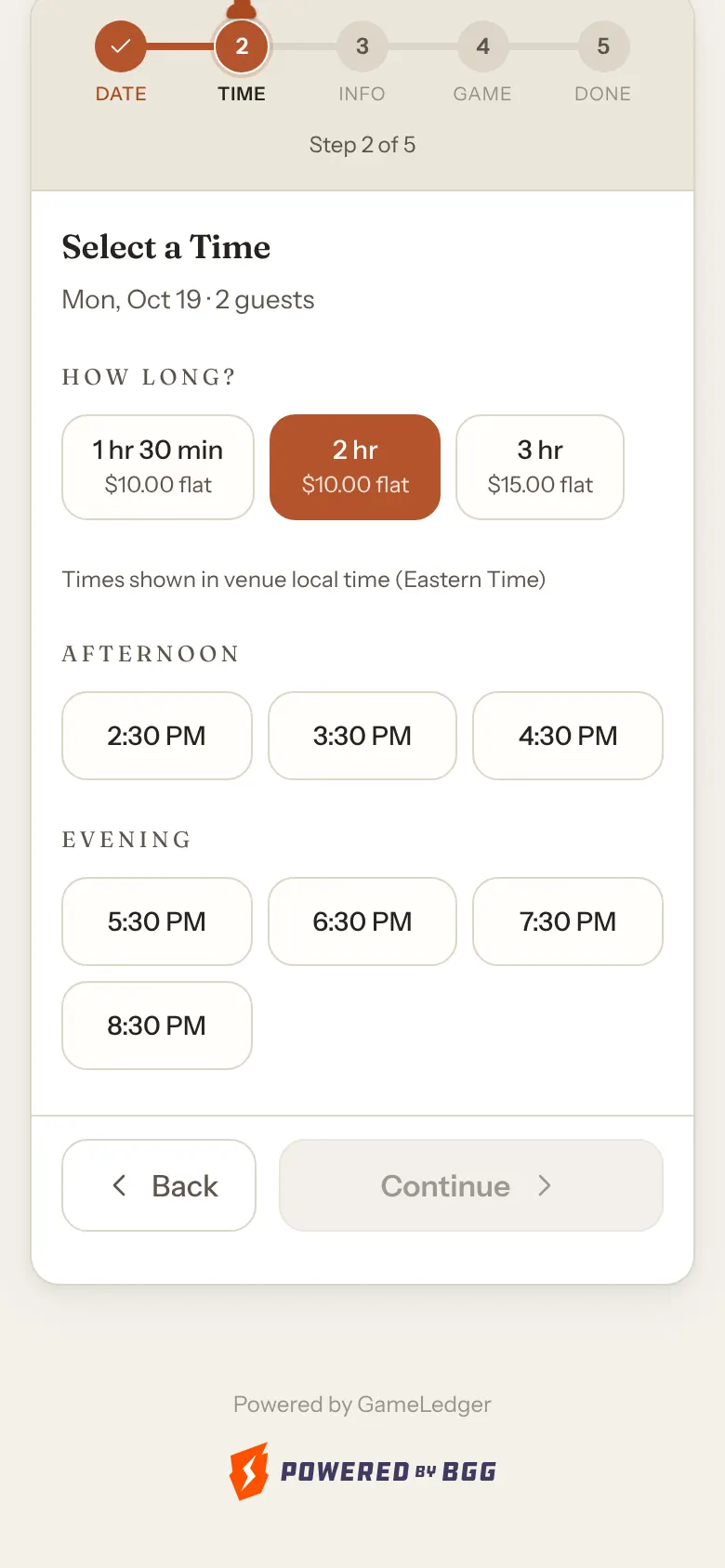
Possible causes, and where to check:
- The booking would run past closing time. The last start time is no later than your closing time minus the booking length. If you close at 11:00 PM and a booking lasts 2 hr, the last start is 9:00 PM. A guest who picks a longer length under How long? sees fewer late times.
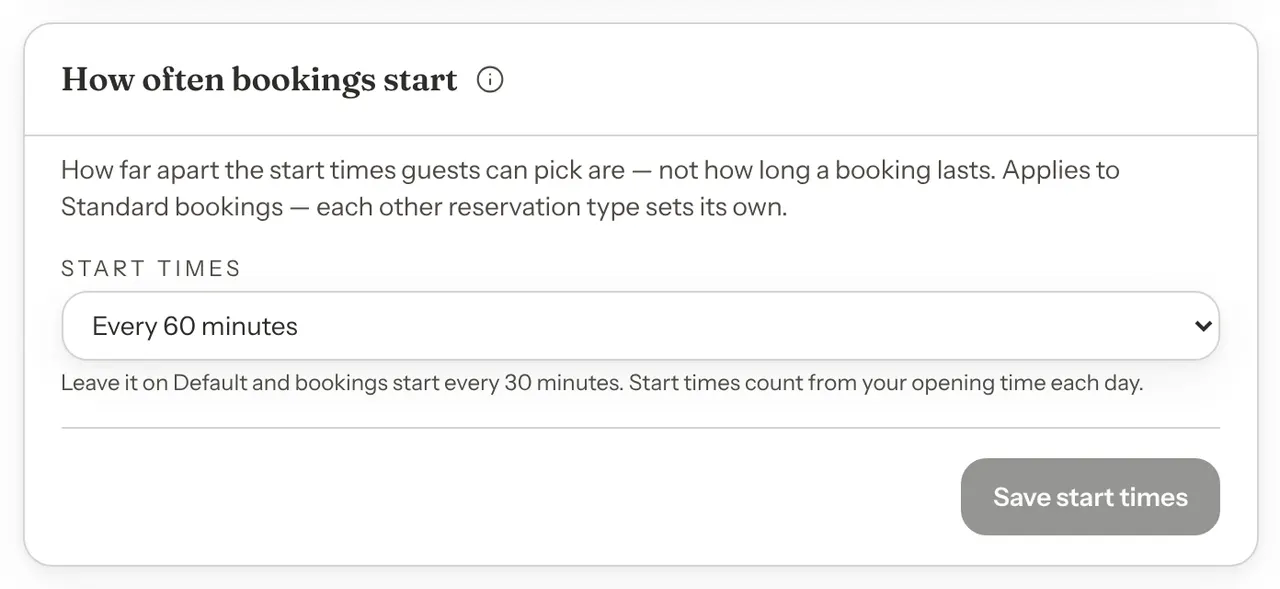
- Start times are spaced further apart. Times start at your opening time and repeat every 30 minutes by default. With Every 60 minutes, a venue that opens at 3:00 PM offers 3:00, 4:00, 5:00 and so on. Check Start times on the How often bookings start card on Hours & Closures. Each type has its own.
- The time is too soon. Times that have passed, and times inside your Minimum Notice, are hidden. See No more times today.
- A special date changes the hours. A special date with different hours for that type replaces its weekly hours on that date. Check Special dates on Hours & Closures.
- The times are shifted by your timezone. Every time is shown in your venue's timezone. If it is wrong, every time is off by the difference. Check the Timezone card on Settings → Venue → Location. Guest view flags a timezone nobody has confirmed.
A time can also show but be greyed out, with "Fully booked" under it. That time exists, but it is taken. See Fully booked.
Where to fix it: change the hours, start times or special dates on Hours & Closures, the notice on Booking Rules, or the timezone on Venue → Location. See When guests can book.
The guest cannot choose their party size
What the guest sees: on When are you visiting?, the + button next to Party Size stops working at a number. When the type has a limit, a line under the size reads, for example, "Up to 14 guests". If the guest types a bigger number, a red line reads "This reservation type allows up to 14 guests" while they type, and once they leave the box it changes back to the limit and the line adds "We've set your party size to 14."
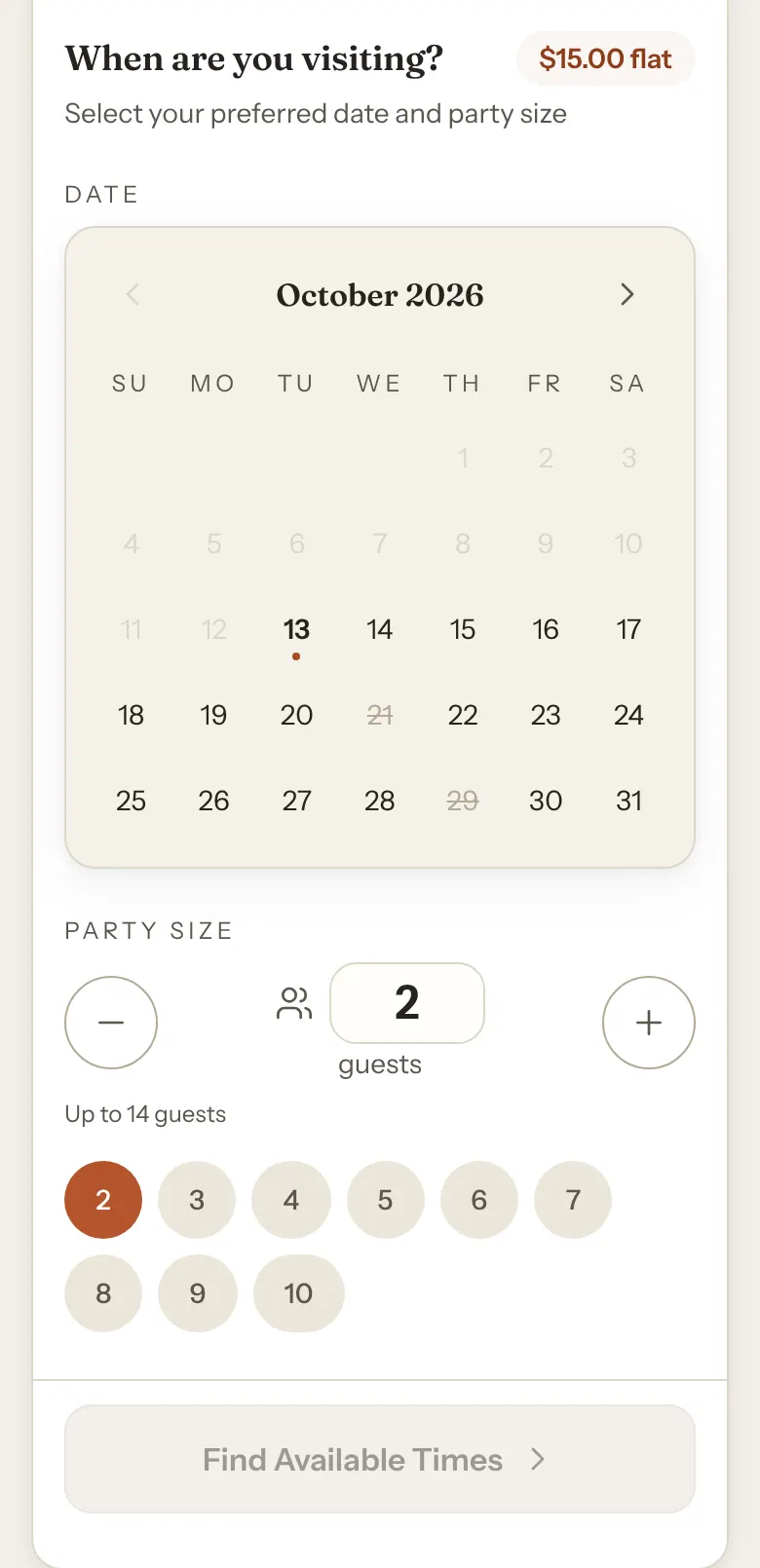
Cause: the type's Max party size. It is on the type's Who can book card on Settings → Venue Policies → Booking Rules. Leave it blank to allow up to 200 guests.
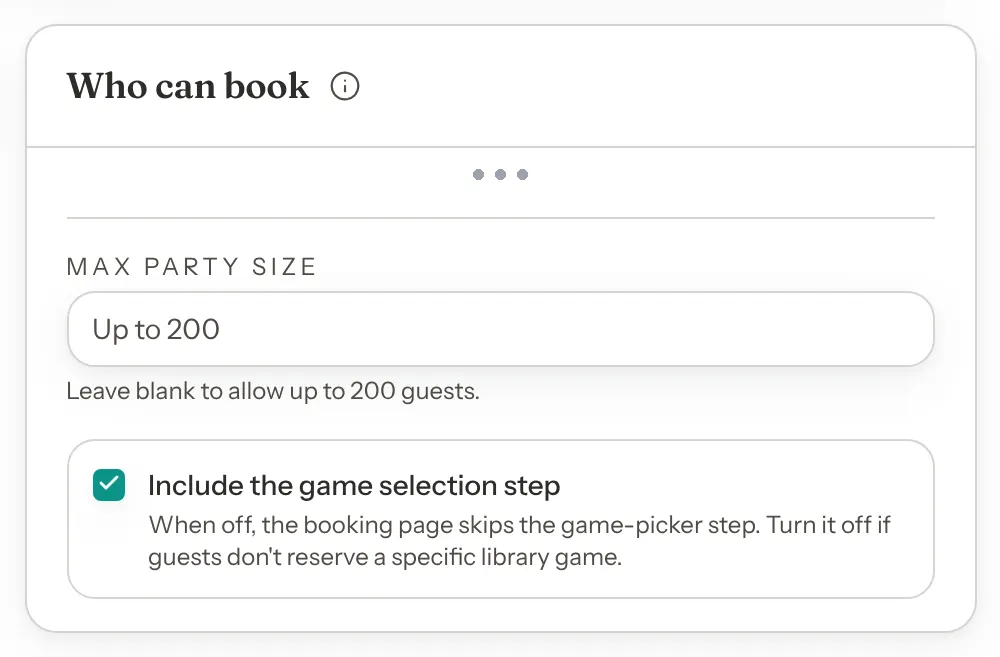
Where to fix it: raise or clear Max party size, then save. To change it for a type other than Standard, pick that type in the Editing: bar first. See Setting Up Your Booking Types.
If the guest can choose the size but then sees No table seats and their party size, the limit is your tables, not this setting. See No table seats this party.
It works from your link but not on your website
If your booking link works but the Book Now button on your own website does not appear, stays blank, or opens a tiny window, the cause is on your website, not in your settings. Work through Troubleshooting in Add booking to your website. If the window opens and says Reservations Not Available, go back to The page says Reservations Not Available.
The booking fails at the last step
What the guest sees: every step works until they tap Confirm Booking on the last one. Then a red Booking Failed box says "This venue is configured to collect payment at booking, but its Stripe setup is not yet active. Please contact the venue to confirm by phone."
Cause: your payment policy asks guests to pay a deposit or the full price when they book, but your Stripe account isn't Connected. It may still be in Onboarding, be Restricted, or have been disconnected. Every guest booking online is turned away, or, when only some reservation types ask for payment, every guest booking those types. Guest view doesn't flag this, so check the places below.
How to confirm it:
- On the Bookings page, the pill at the top reads Bookings: Can't book online instead of Bookings: Live.
- Settings → Venue Policies → Payment Processors shows Guests can't book online right now, and the Stripe card shows a status other than Connected.
Where to fix it: finish or fix your Stripe setup, or switch to No payment at booking until it's sorted. Both are explained in Guests see "Stripe setup is not yet active" in Connect Stripe.
Phone bookings and walk-ins your team adds still work, because they don't take payment online.
Good to know
- Guests are not told why. The messages are written for guests, so apart from the payment messages they never mention your settings. Guest view and this page are how you find the setting behind them.
- Guest view checks settings, not bookings. A time Guest view lists can still be fully booked on the day.
- Changes apply when you save. Your booking page reads your saved settings each time a guest opens it. A guest who already has the page open should reload it.
- Your team can still book. Phone bookings and walk-ins you add yourself do not depend on online bookings being on.