Import your games from a spreadsheet
Add your whole collection at once from a spreadsheet or a BoardGameGeek export: the Title column every file needs, what each other column does, and how BoardGameGeek fills in the rest.
Last verified
If your games are already listed in a spreadsheet, you can add them all to your Library in one go instead of typing each one with Add game. Save the spreadsheet as a CSV file, choose it in GameLedger, and BoardGameGeek can fill in the box art, player counts, play times and descriptions you left out.
This guide covers the one column every file needs, what each other column does, each step of the import, and what to do when a row doesn't come in the way you expected.
Before you start
You need:
- Permission to edit the Library. Owners and admins always have it. A staff member needs View and Edit ticked for Library on the Team page, or the Import CSV button doesn't show. See Team and permissions.
- A CSV file. The file picker only shows files ending in
.csv. In Excel, choose File → Save As and pick CSV UTF-8. In Google Sheets, choose File → Download → Comma Separated Values (.csv). In Numbers, choose File → Export To → CSV. Files separated by semicolons or tabs work too, as long as the name ends in.csv. - The column names in the first row. Delete any heading or empty rows above them.
- One row per game. Put how many copies you own in the
CopiesInRotationcolumn rather than repeating a game on several rows.
Import your games
Step 1: Open the import
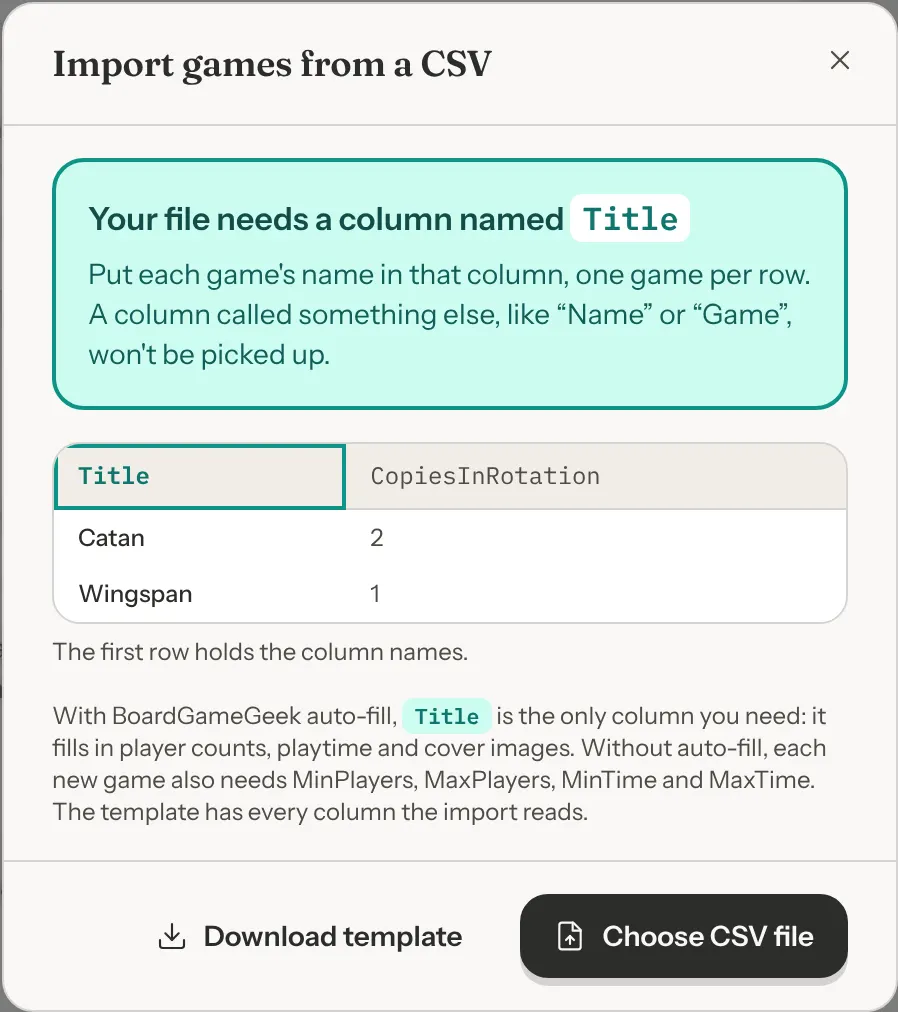
Click Library in the left-hand menu, then Import CSV at the top of the page. The Import games from a CSV window opens with an example of the layout the import reads.
Step 2: Get the template, if you want one
Click Download template to save game_import_template.csv. The Download Template button next to Import CSV at the top of the Library does the same. Its first row has every column the import reads, spelled the way the import expects, so it is the easiest way to build a new file.
The template comes with three sample games: Catan, Ticket to Ride and Wingspan. Delete those rows before you import, or they are added to your Library.
You don't have to use the template. Any CSV works as long as it has a Title column. Other columns only come in when their names match the column list.
Step 3: Choose your file
Click Choose CSV file and pick your file. GameLedger reads it in your browser and checks it before anything is saved:
- If it finds no
Titlecolumn, no names under it, or no rows at all, it says so and imports nothing. See When the file can't be read. - Otherwise it checks your games against your Library, showing Checking which of these games are already in your library... for a moment.
Step 4: Decide what happens to games you already have
If none of your rows match a game in your Library, the window says None of these rows match games already in your library. and there is nothing to choose.
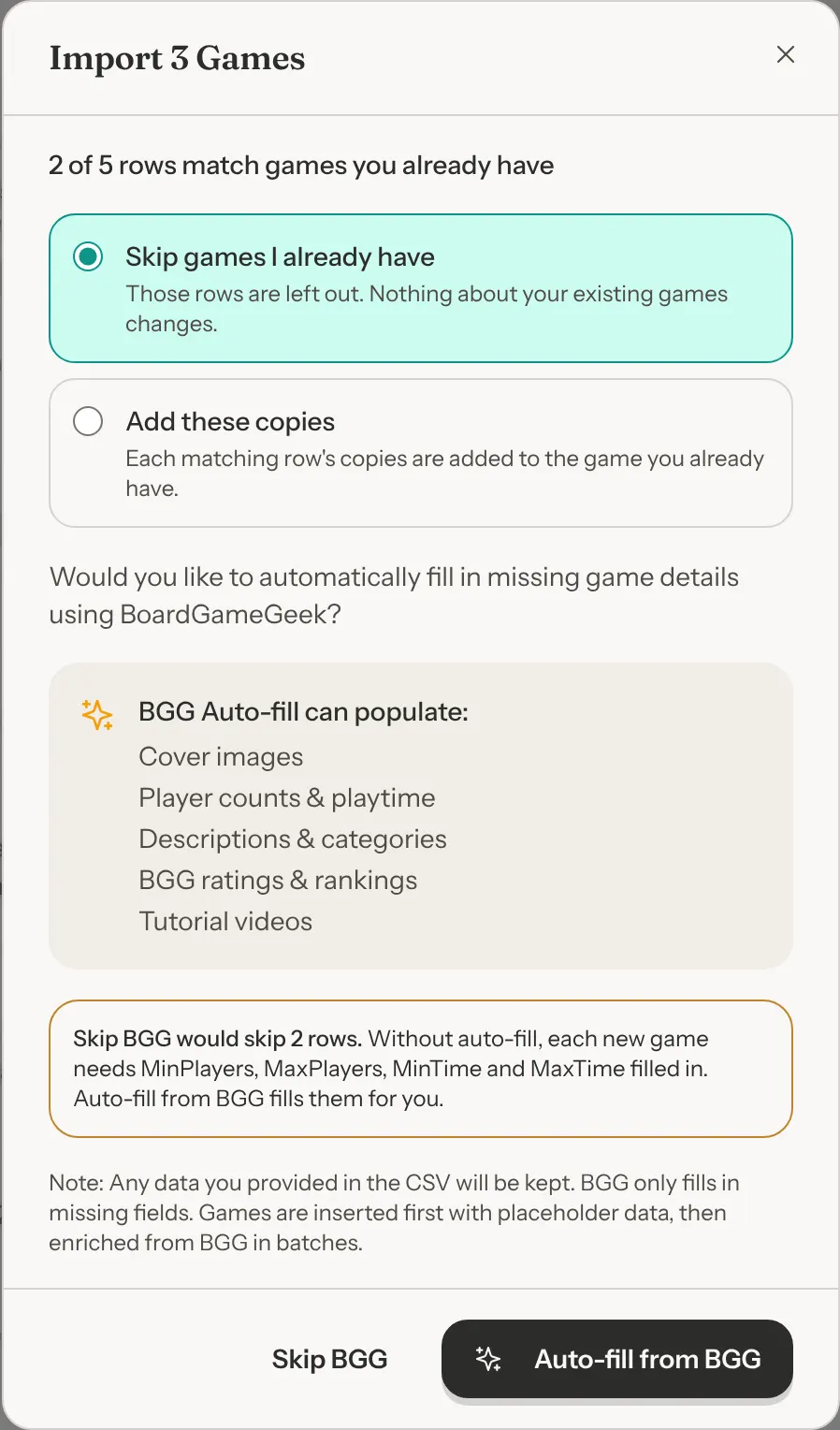
If some do, it says how many, for example 2 of 5 rows match games you already have, and offers two choices:
- Skip games I already have (chosen to start with): those rows are left out, and nothing about your existing games changes.
- Add these copies: each matching row's
CopiesInRotationis added to the copies of the game you already have. Nothing else on that game changes.
The window's title counts the rows it will send, for example Import 3 Games. With Skip games I already have, the rows that match aren't counted. How a row is matched to a game you already have is under Games you already have.
Step 5: Choose whether BoardGameGeek fills the gaps
The window asks Would you like to automatically fill in missing game details using BoardGameGeek?
- Auto-fill from BGG imports your games, then looks each new game up on BoardGameGeek and fills in only what your file left blank. A
Titleon each row is enough. See What BoardGameGeek auto-fill does. - Skip BGG imports exactly what is in your file. Each new game then needs
MinPlayers,MaxPlayers,MinTimeandMaxTime, and a row missing any of them is skipped. If that would skip rows, the window warns you first, for example Skip BGG would skip 12 rows.
When more than 50 of your rows are new games, the window also shows Large import detected: with auto-fill, a big library takes a while.
Both buttons stay greyed out until the check against your Library has finished.
Step 6: Keep the page open while it runs
The window shows Importing 75 / 300 rows... as your games are saved. Large files are sent in batches of about 75 rows.
With auto-fill, games GameLedger already has BoardGameGeek details for are filled in straight away. If any are left to look up, a message says Now filling in details from BoardGameGeek, and a Fetching BGG Data window shows a progress bar. Each of those games takes about 3 seconds. Keep the page open until the summary appears. If you close it, the games it hadn't reached keep only what your file had, with starter values for any blank player counts, play times and complexity.
Step 7: Read the summary
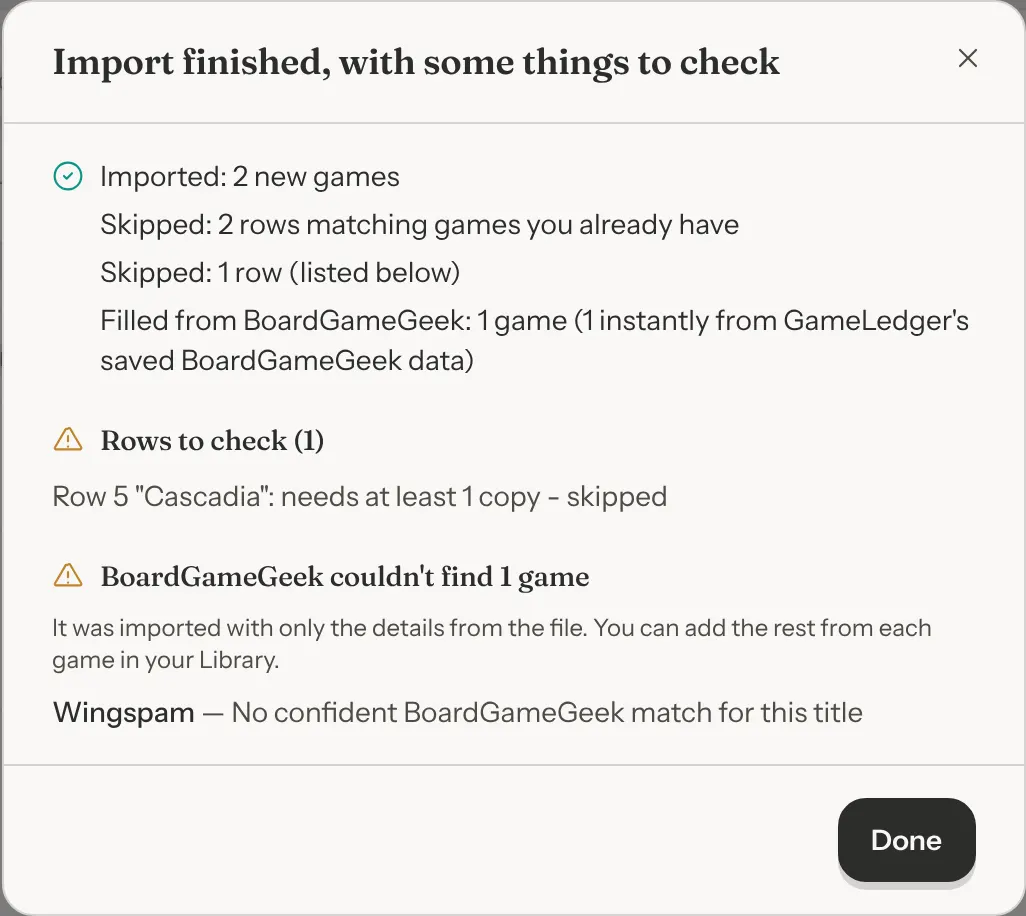
When everything is done, a summary opens and stays until you close it. It is titled Import finished, or Import finished, with some things to check when something needs a look. It shows:
- Imported: how many new games were added.
- Updated: games you already had that got more copies, when you chose Add these copies.
- Skipped ... matching games you already have: when you chose Skip games I already have.
- Skipped ... (listed below): rows that were refused, each named under Rows to check with the reason. That list also names rows with no title, and notes such as a dropped link. See What the messages mean.
- Filled from BoardGameGeek: with auto-fill, how many games got details from BoardGameGeek. Already complete counts games that had nothing left for it to add.
- BoardGameGeek couldn't find and weren't filled from BoardGameGeek: games that were imported with only what your file had, each with the reason, such as No confident BoardGameGeek match for this title or BoardGameGeek didn't answer in time. Open each one in your Library and finish it on its Edit Game form.
Long lists show five entries, then a Show all button.
If your file has no Title column
When your file has no column named Title, the window says This file has no Title column, lists the columns it did find, and asks Which column has your game names?
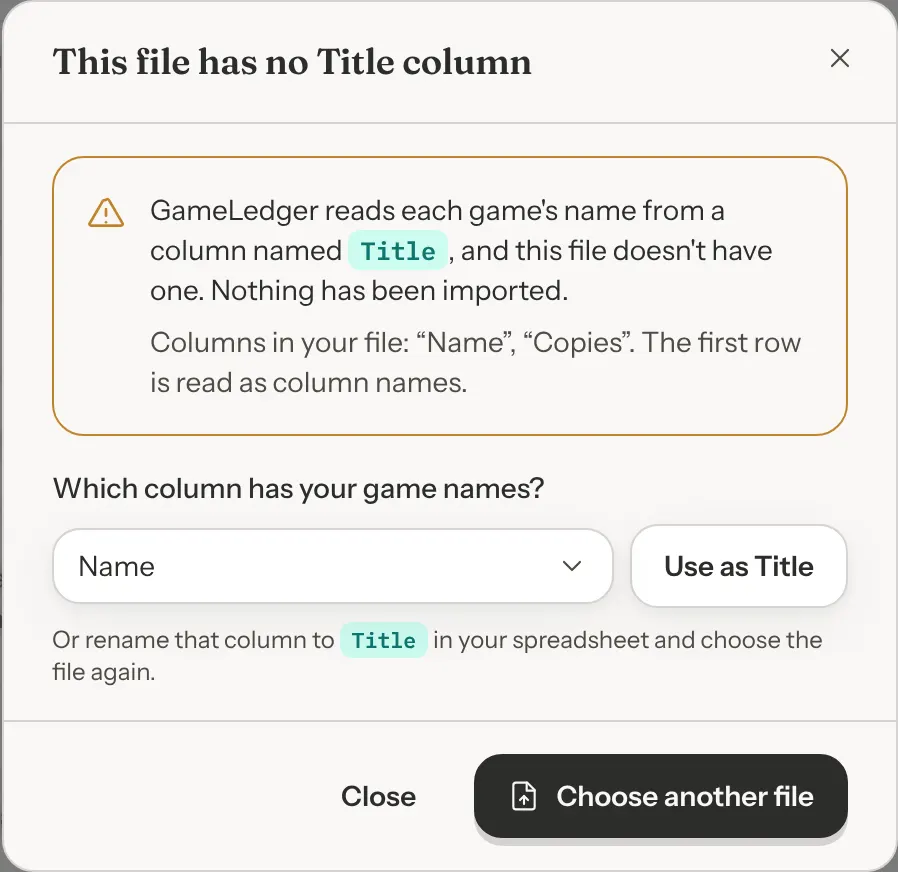
You have two ways to carry on:
- Pick the column and click Use as Title. GameLedger suggests a likely column, such as
Nameorobjectname, when it finds one. The next window shows a few names from that column, for example Game names from your "Name" column: Catan, Azul, Wingspan, …, so you can check you picked the right one. Change column takes you back. - Rename the column to Title in your spreadsheet, save it again and click Choose another file.
Nothing is imported until you do one or the other.
If the columns listed look like a heading rather than column names, your file has something above the column names. Delete those rows in your spreadsheet and choose the file again, rather than using Use as Title. If they look like your first game, such as Catan and 2, your file has no row of column names at all. Add one at the top that includes Title, then choose the file again.
What each column does
Spell each column name exactly as it is below, with the same capital letters and no spaces. Title is the exception: title or TITLE works too. A column the import doesn't know is ignored without a message, so Shelf Location or Min Players with a space don't come in. The template has every name spelled correctly.
You can leave out any column except Title, and put the columns in any order.
| Column | What to put in it | If it's blank |
|---|---|---|
Title | The game's name. Required. | The row isn't imported. |
CopiesInRotation (or Copies) | How many copies you own, as a whole number. A 0 skips the row. A word or a negative number counts as 1. | 1 copy. |
MinPlayers, MaxPlayers | Player counts as whole numbers, 1 or more. MinPlayers can't be more than MaxPlayers. | Auto-fill finds them. With Skip BGG, the row is skipped. |
MinTime, MaxTime | Play time in minutes, as whole numbers. Write 60, not 1 hour. | Auto-fill finds them. With Skip BGG, the row is skipped. |
Complexity | simple, medium or complex. Any other word, or a number, counts as blank. | Auto-fill finds it. With Skip BGG, Medium. |
Description | A short description guests read on the game's page. | Auto-fill adds BoardGameGeek's. |
Vibes | Tags separated by commas, for example strategy, negotiation. Each is saved in Title Case, so co-op becomes Co-Op. | Auto-fill adds up to three of the game's BoardGameGeek categories. |
ShelfLocation | Where the game sits, for example Shelf A3. | Empty. |
Status | in_rotation, out_of_service or retired, with the underscores. | In rotation. |
Condition | new, good, worn or problematic. | Good. |
IsStaffPick | true, yes or 1 for a staff pick. | Not a staff pick. |
SetupSteps | Setup instructions for guests. | Empty. |
RulesBullets | The key rules for guests. | Empty. |
ImageUrl | A link to the box art, starting with https://. | Auto-fill adds BoardGameGeek's box art. |
InstructionalVideoUrl (or VideoUrl) | A link to a how-to-play video, starting with https://. | Auto-fill adds one when BoardGameGeek lists it. |
BggId | The game's number on BoardGameGeek. It's in the game's web address: for boardgamegeek.com/boardgame/13 the number is 13. | Auto-fill looks the game up by its title. |
BggRank, BggRating | The game's BoardGameGeek rank and average rating. | Auto-fill adds them. |
A few things to watch for:
- Use plain numbers. The import reads the digits at the start of a cell and ignores the rest, so
2-4inMinPlayersbecomes 2 and1 hourinMinTimebecomes 1 minute. A0in a player or time column counts as blank. - Status and Condition only take the words above. Anything else, such as
Out of servicewritten with spaces, orLike new, quietly becomes In rotation or Good. Capital letters don't matter. - Links must start with https:// or http://. A link such as
www.example.com/azul.jpgis dropped, the game still comes in, and Rows to check says ignored ImageUrl. - A full stop, comma, semicolon, ! or ? at the end of a title is dropped.
Sushi Go!comes in as Sushi Go, and extra spaces are tidied away. - Cells with commas need quotes. Excel, Google Sheets and Numbers add them for you when they save a CSV, so this only matters if you write the file by hand.
- Missing pieces, notes, preferred seating and Hide from public games page aren't part of the import. Set them on each game in your Library afterwards.
What BoardGameGeek auto-fill does
Auto-fill only fills what your file left blank, or what the import couldn't use, such as a Complexity of 3 or a link that doesn't start with https:// or http://. Everything else in your file is kept. It never changes copies, shelf location, status, condition, staff picks, setup steps or rules.
For each new game it can add the box art, the player counts and play times, a description, up to three categories as vibes, a complexity based on how heavy BoardGameGeek players rate the game, the BoardGameGeek rank, rating and number, and a how-to-play video.
How it finds each game:
- A row with a BggId is matched by that number only, never by its title. If BoardGameGeek has no game with that number, the summary lists it under BoardGameGeek couldn't find. Use just the number: a whole web address in the cell is reported as not a BoardGameGeek id.
- A row without a BggId is matched by its title. GameLedger first looks for the exact title, ignoring capital letters, punctuation and accents. If that finds nothing, it searches BoardGameGeek and takes the closest title, as long as it is close enough. When nothing is, the summary says No confident BoardGameGeek match for this title.
Because the search takes the closest title, a short or misspelled title can pick up a different edition or a game with a longer name. After a big import, look over the box art of your new games. If one is wrong, correct it on its Edit Game form, or delete it and add it again with Add game, where you choose the match yourself. To avoid this, put each game's number in BggId, especially for games with several editions.
A game BoardGameGeek can't fill is still imported with what your file had. Blank player counts and times get starter values so the game can be saved, 1 to 4 players and 30 to 60 minutes, moved to fit any number you did fill in. A blank complexity becomes Medium. Correct them on the game's Edit Game form.
Games you already have
A row matches a game in your Library when the titles are the same, ignoring capital letters, punctuation, extra spaces and accents. So ticket to ride - europe matches Ticket to Ride: Europe, and Pokemon matches Pokémon. The words still have to be the same: Dungeons and Dragons doesn't match Dungeons & Dragons, and Mind doesn't match The Mind. A row that doesn't match is added as a new game, so a different spelling can give you the same game twice.
The import never changes anything on a game you already have except, when you choose Add these copies, its number of copies. To change other details of an existing game, edit it in your Library. A matching row is still checked, so if its player counts are the wrong way round, it is skipped and its copies aren't added.
Importing the same file again
An Export CSV file from your Library uses the same columns as the import, so you can import it into another venue, or import it again.
- With Skip games I already have, rows for games already in your Library are left out, so importing the same file again only adds the games that are new.
- With Add these copies, every matching game gets its copies added again, so importing the same file twice doubles your copy counts. Use it for a delivery of new copies, not to restore a backup.
The same game on two rows
Rows with the same title become one game, with the first row's details and all their copies added together. Two rows of Catan with 1 copy each give one Catan with 2 copies. Each row is still checked on its own, so a repeated row with 0 copies is skipped and the first one still imports.
If the import stops partway
If the connection drops or the server stops answering partway through a large file, the batches already sent stay in your Library. The summary is titled Import stopped partway and says Close this summary to resume the import from where it stopped.
Click Close, and the import window comes back with your file still loaded, for example Import stopped at batch 2 of 4. Click Resume import to send only the rows that weren't saved, with the same choices as before.
- If you chose Skip games I already have, resuming is always safe. Nothing is added twice.
- If you chose Add these copies, resume rather than uploading the whole file again, or the games already saved get their copies added twice. If it stopped in the middle of a save, check the copy counts of the games in the rows it names.
If you close the import window instead, Resume import is gone. Choose the same file again with Skip games I already have: the games saved the first time now count as games you already have, so only the new games that are left are added. If you had chosen Add these copies, this won't add the copies for games you already had in the rows that didn't go through. Add those copies by hand in your Library.
When the file can't be read
| The window says | What to do |
|---|---|
| This file has no Title column | Pick the column with your game names and click Use as Title, or rename it to Title in your spreadsheet. See If your file has no Title column. |
| Every Title in this file is blank | The Title column is there but empty. Put each game's name in it and choose the file again. |
| This file has no games in it | There are no rows under the column names. Put one game per row below the first row. |
| We couldn't check your library for games you already have | Nothing was imported. Click Try again. |
If a spreadsheet file such as .xlsx doesn't show in the file picker, save it as CSV first. If accented names such as Pokémon come in garbled, save the file again as CSV UTF-8.
What the messages mean
Every message under Rows to check starts with the row's number in your file, counting the column names as row 1. Completely empty lines aren't counted.
| Message | What happened |
|---|---|
| Missing title | The row has no name in the Title column, so it wasn't imported. |
| needs at least 1 copy | CopiesInRotation is 0. The row was skipped. |
| min players (5) is more than max players (3) | The player counts are the wrong way round. The row was skipped. |
| min players must be at least 1 | A player count is below 1. The row was skipped. |
| Missing required fields (min_players, max_players, ...) | With Skip BGG, a new game had no player count or play time. These are your MinPlayers, MaxPlayers, MinTime and MaxTime columns. The row was skipped. |
| ignored ImageUrl or ignored VideoUrl | The link didn't start with https:// or http://. The game was imported without it. |
| couldn't be saved | Your Library refused that one game. Other rows weren't affected. |
| couldn't be confirmed | The connection failed while that game was saving, so it may or may not be there. Check your Library before you import that row again. |
| failed to import | A batch of rows didn't finish saving. See If the import stops partway. |
| the database stopped responding, so the import stopped | Several saves failed in a row, so the import stopped trying. Import those rows again later. |
| couldn't add copies, copies not added or copies couldn't be confirmed | With Add these copies, the extra copies for a game you already have weren't added, or may not have been. Check that game's copies in your Library before you try again. |
To bring in skipped rows, fix them in your spreadsheet and import the file again with Skip games I already have. Everything that saved the first time is left alone, so only the fixed rows are added. For rows that were adding copies to games you already had, add those copies by hand instead.