Manage your booking
For guests: find your booking, reserve a game, change the date or time, pay, check in when you arrive, share it with your group, or cancel.
Last verified
This page is for guests who booked a table at a café that uses GameLedger. Your booking has its own page, where you can check the details, reserve a game, change the date or time, pay, check in when you arrive and cancel. This page explains each of those, and how to share your plans with the people you're playing with.
Open your booking
You can get to your booking page in any of these ways:
- From your confirmation email: tap Manage or cancel booking. Reminder emails have the same button.
- Straight after booking: tap Manage Reservation on the confirmation screen.
- From your calendar: if you added the booking to your calendar, the entry has a link back to it.
Keep your confirmation code. It's the six letters and numbers on your booking ticket, in your calendar entry and in your confirmation email, for example K7MQ2D.
If you can't find the link
Use the café's Find Your Reservation page. If you booked with only a phone number, the link in your calendar entry opens it. Otherwise, ask the café for the link, or call them and they can find your booking for you.
Step 1: Enter your confirmation code
Type the code from your ticket, calendar entry or confirmation email.
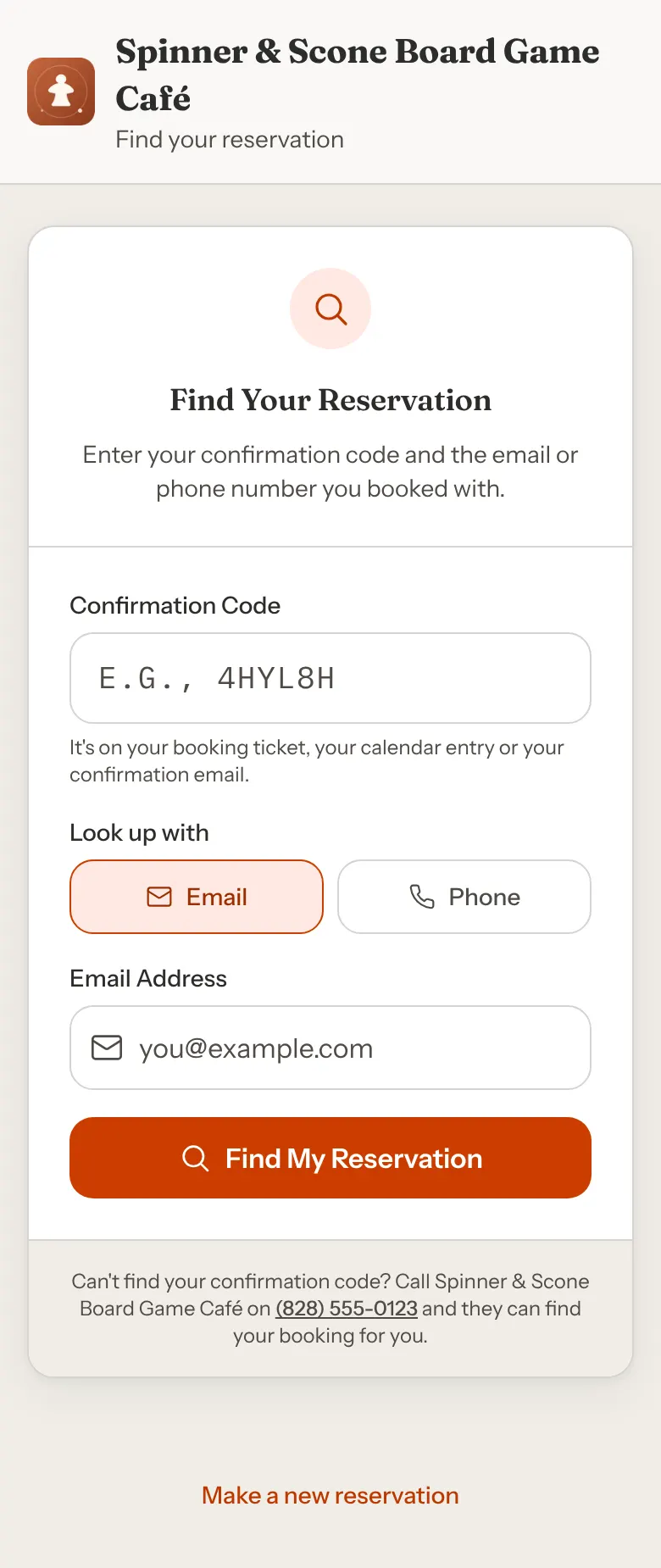
Step 2: Choose Email or Phone
Under Look up with, choose how you booked and type the email address or phone number you used.
If you gave both an email address and a phone number when you booked, choose Email. Looking up by phone only works for bookings made with a phone number and no email.
Step 3: Tap Find My Reservation
Your booking page opens.
If the page says "Reservation not found", check the code and the email or phone number. After several tries the page asks you to wait 15 minutes. If you've lost your code, call the café: the page shows their number, and they can find your booking for you.
What your booking page shows
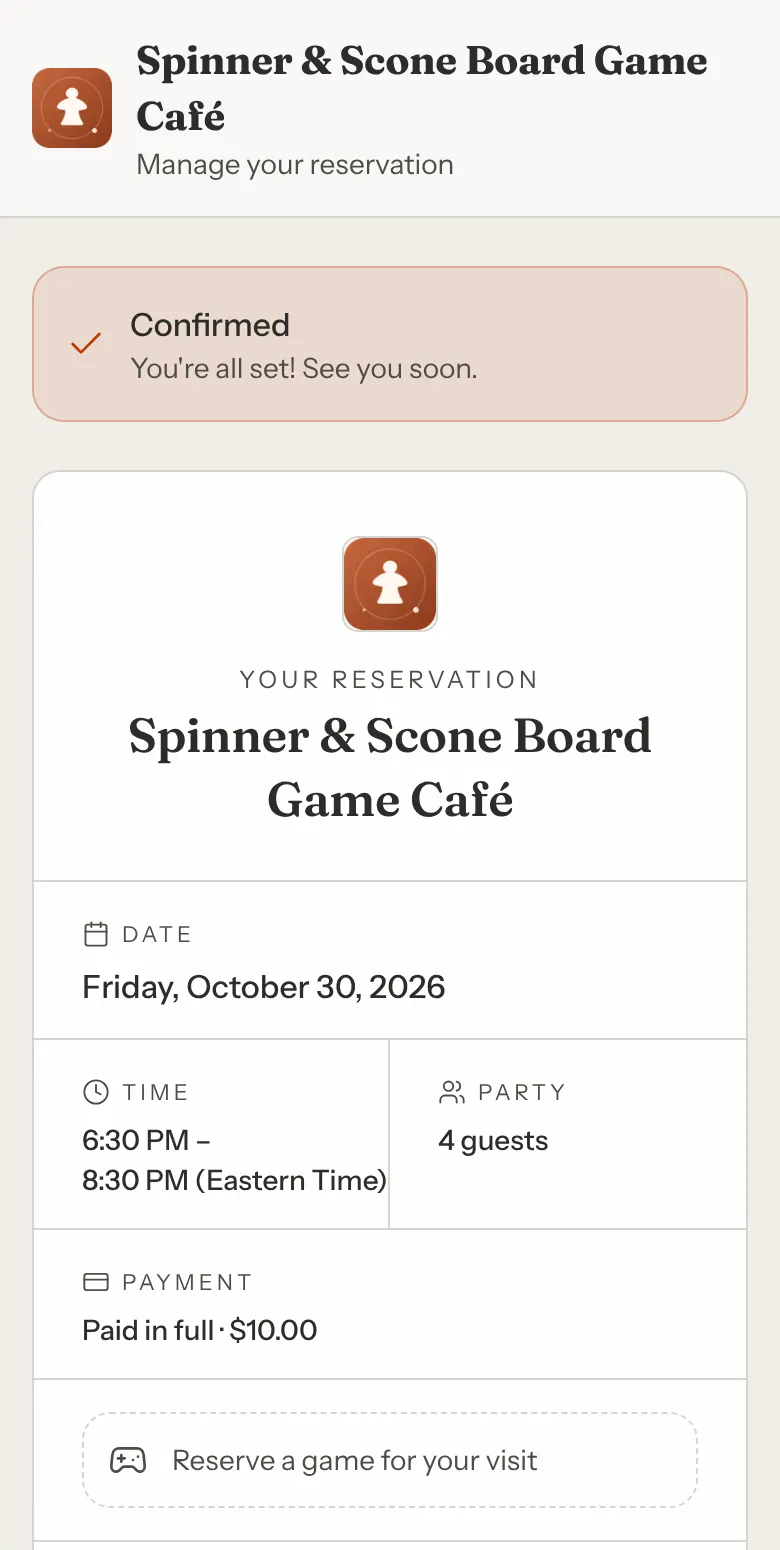
At the top, a banner says where your booking stands:
| Banner | What it means |
|---|---|
| Confirmed | You're booked. See you there. |
| Pending Confirmation | The café hasn't confirmed your booking yet, or your payment hasn't gone through. |
| Reserved — payment due | Your table is held, but the café has asked you to pay. Pay on this page to lock it in. |
| Reserved — pay at the venue | Your table is held, and you pay when you arrive. |
| Reserved — payment in progress | Your bank payment is on its way. The café confirms once it clears. |
| Checked In or Seated | You've arrived. Enjoy your visit. |
| Thanks for visiting or Completed | Your visit is over. |
| No Show | The café marked that you didn't arrive. If you're there now, see the host. |
A cancelled booking shows a Booking Cancelled page instead of a banner, with any refund. It says whether you cancelled or the café did.
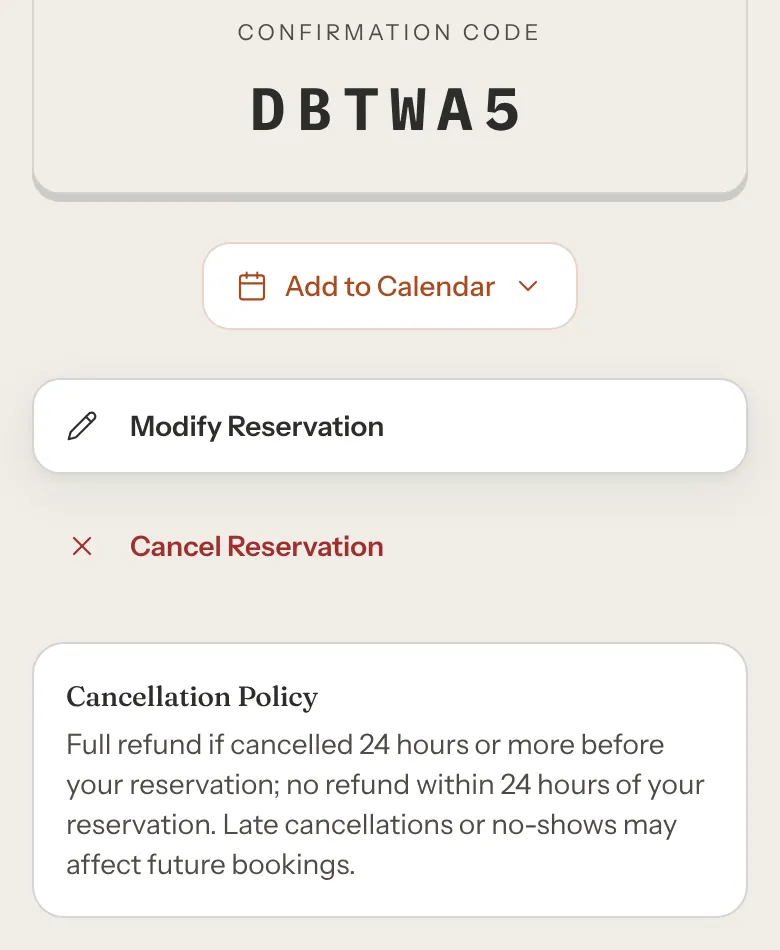
Below the banner is your ticket: the date, the time, how many people, your payment if you paid, any game you've reserved, and the café's address with Get Directions. Booked with shows the email address or phone number on the booking. The café's phone number and email are at the bottom of the page.
Add it to your calendar
Tap Add to Calendar, then choose your calendar app. The button shows on a confirmed booking until it starts. If you change the date or time later, add it to your calendar again.
Reserve a game
Step 1: Tap Reserve a game for your visit
It's on your ticket, under the payment line. The café has it ready at your table when you arrive.
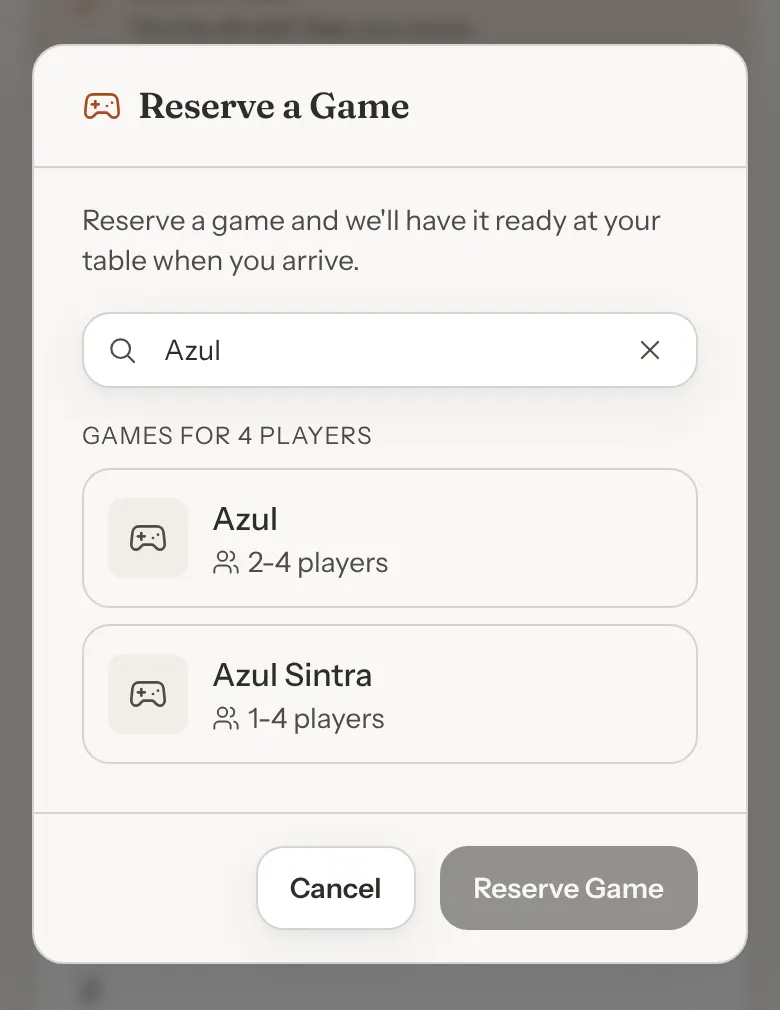
Step 2: Find a game
Search by name, or scroll the list. Games that suit your party size come first. Games for a different number of players are listed under Other matches.
Step 3: Tap the game, then Reserve Game
The game now shows on your ticket.
You can reserve one game per booking. To swap it for another game, contact the café. If you haven't picked a game yet, the 24-hour reminder email may also have a Reserve a game link that opens this window.
Change the date or time
Step 1: Tap Modify Reservation
The window opens on your current date, with your current time marked Current.
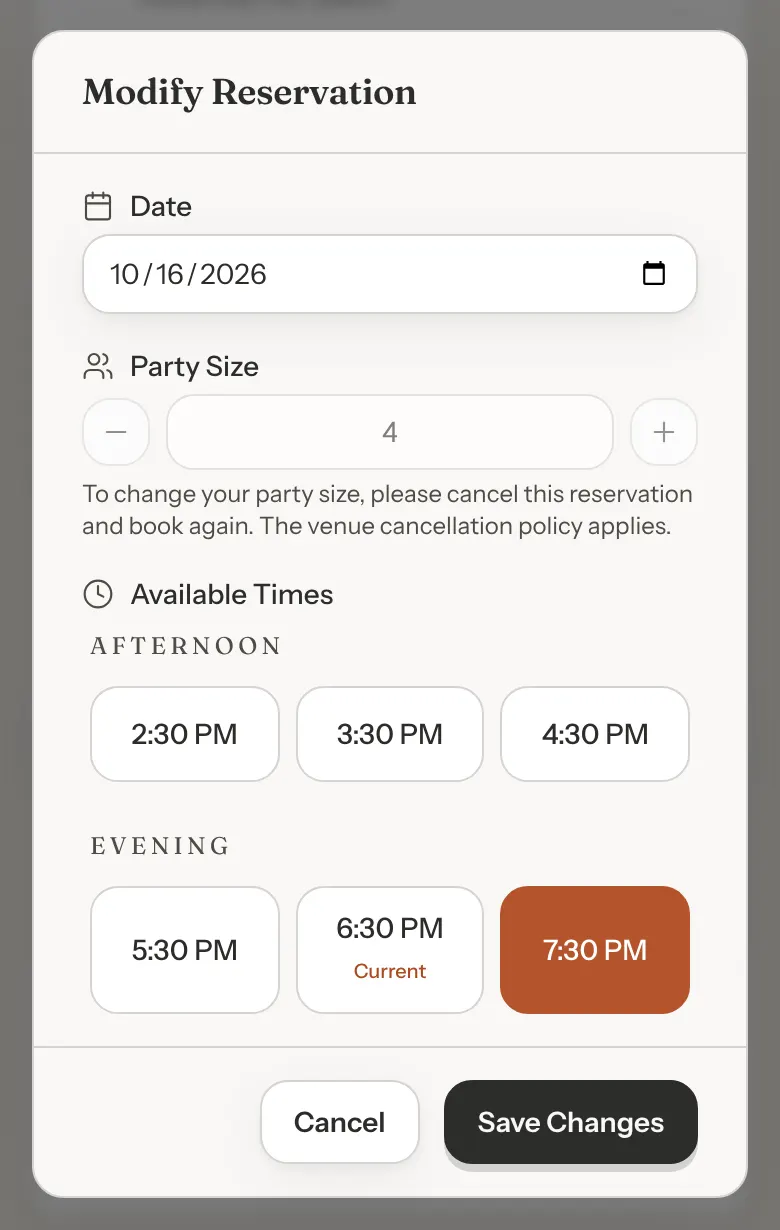
Step 2: Pick a new date and time
Change the date if you need to, then tap a time under Available Times. Only times with room for your party are listed. Your booking stays the same length.
Step 3: Tap Save Changes
Your booking page shows the new date and time straight away. You don't get a new confirmation email, but your reminders are sent for the new time.
A few things can't be changed here:
- Party size, on a booking with a payment. The window says "To change your party size, please cancel this reservation and book again. The venue cancellation policy applies." On a booking with nothing to pay, you can change the number of people too.
- Bookings across more than one table. The window says the reservation "can't be changed online". Contact the café instead.
- Times the café doesn't take bookings for. Some cafés need a few hours' notice, or only take bookings a certain number of days ahead. If your new time breaks one of those rules, the window says so.
Modify Reservation and Cancel Reservation show for a booking that is Pending Confirmation or Confirmed, until the time it starts. After that, or once you've checked in, contact the café to make changes.
Pay for your booking
Usually you pay when you book. If the café added your booking for you, for example after you phoned, they can email you a payment link instead. The email's Pay … for your booking button, with the amount, opens your booking page.
There, a Payment due panel shows the amount. Tap Pay now, enter your card details, then tap the Pay button with the amount. Payments are processed securely by Stripe. Once it goes through, the banner changes and your payment shows on your ticket.
Check in when you arrive
Some cafés let you check yourself in from your phone. If yours does, a panel appears on your booking page on the day.
- Before your time: it says when check-in opens, 30 minutes before your booking starts.
- When it opens: tap I'm here — check in once you're inside. The page says "We've let the team know." If no one greets you in a few minutes, say hi at the host stand.
- Once you're seated: it shows your table, with a link to Open your table.
If you still owe money online for the booking, the panel lets you pay first, or check in with the host and pay there. Some bookings are asked to Please check in with the host instead: bookings made with only a phone number, bookings with a deposit, bookings you pay for at the café, and guests who arrive well after their start time. If you're running late, the panel shows the café's number to call.
If the café hasn't turned this on, just tell the host you've arrived.
Share with your group
Straight after booking, the confirmation screen has a Share with your group button. It sends your friends an invite to the game night, not your booking.
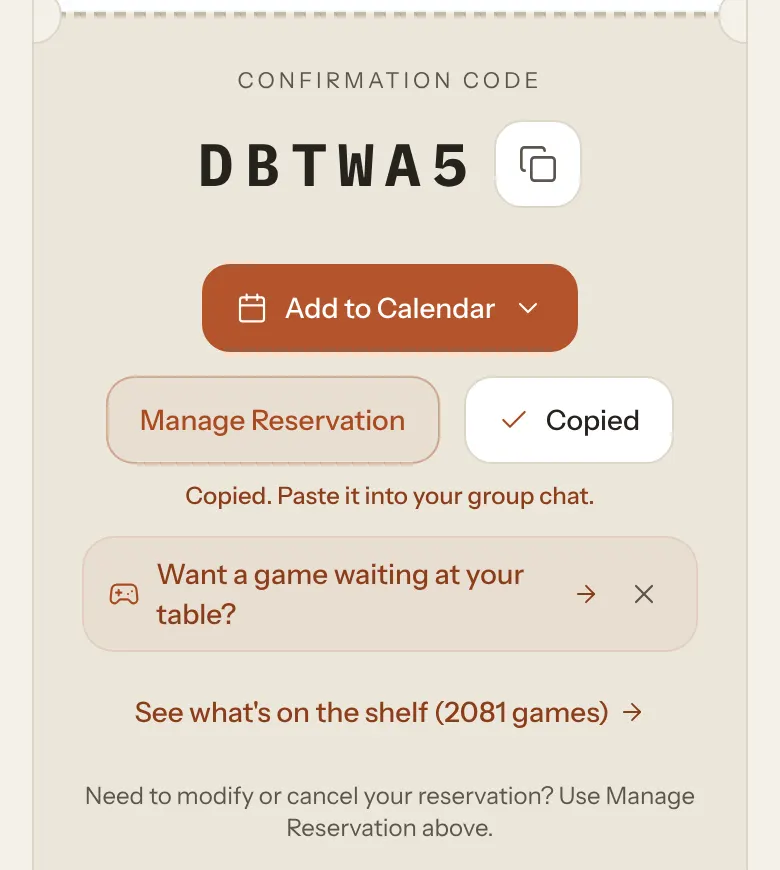
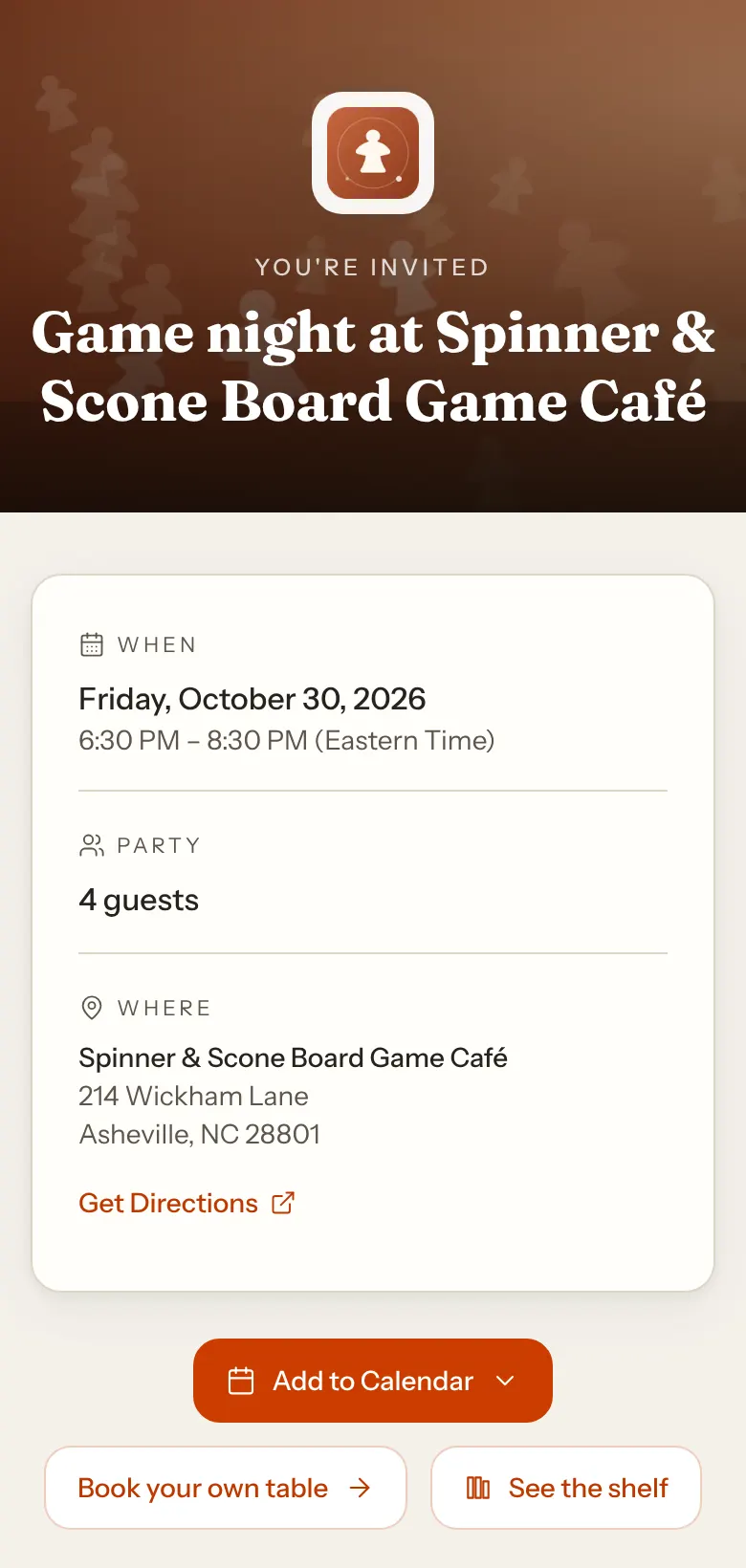
On a phone, tapping it opens your phone's share menu, so you can send the invite in a message. Where sharing isn't available, the invite is copied and the screen says "Copied. Paste it into your group chat."
Your friends see the café, the date and time, how many are coming, any game you've reserved and the address. They can add it to their calendar, see the café's games and book their own table. They don't see your email address, phone number, notes or confirmation code, and they can't change or cancel your booking.
Good to know:
- The Share button is only on the confirmation screen. Your booking page doesn't have one, so share before you close that screen.
- The invite follows your booking. If you change the time, your friends see the new time. If you cancel, the invite says the game night was cancelled.
- Invites expire 7 days after your booking ends.
Cancel your booking
Step 1: Tap Cancel Reservation
The window repeats your date and time. If you paid, it shows how much and the café's refund policy. The box for a reason is optional.
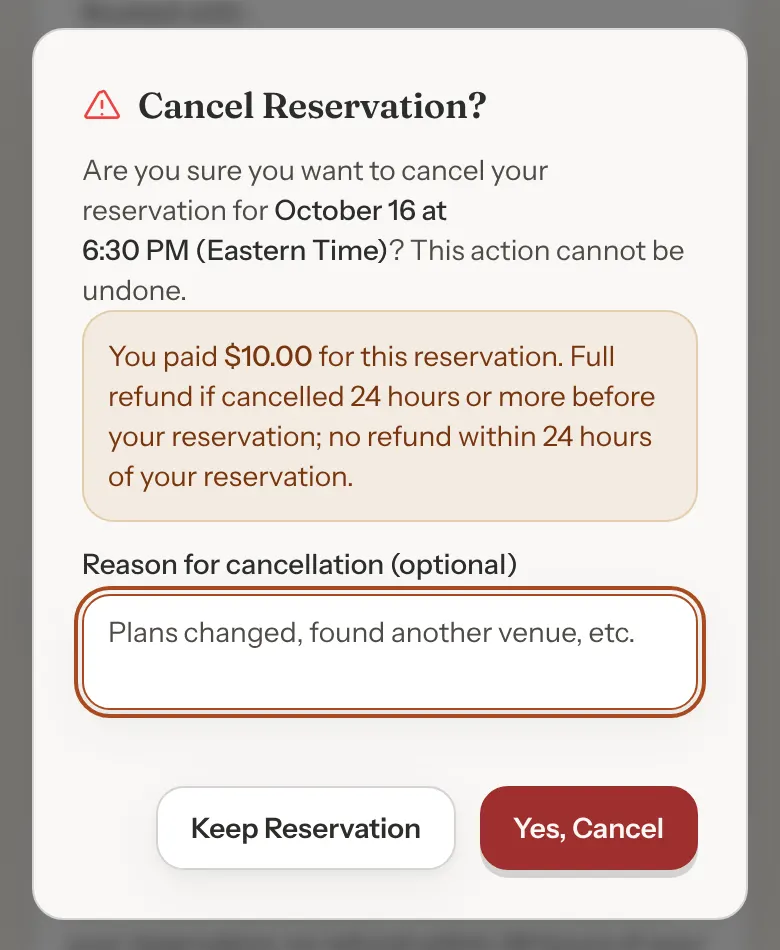
Step 2: Tap Yes, Cancel
The page shows Booking Cancelled, with what happens to your money:
- Refund: the amount refunded to your card.
- Partial refund: part of what you paid, because you cancelled closer to your booking.
- Refund being processed: the refund has started and should reach your card within a few business days.
- No refund: you cancelled too close to your booking for one under the café's policy.
- No payment: you hadn't paid anything, so there's nothing to refund.
Tap Book another time to make a new booking. Keep Reservation closes the window without cancelling.
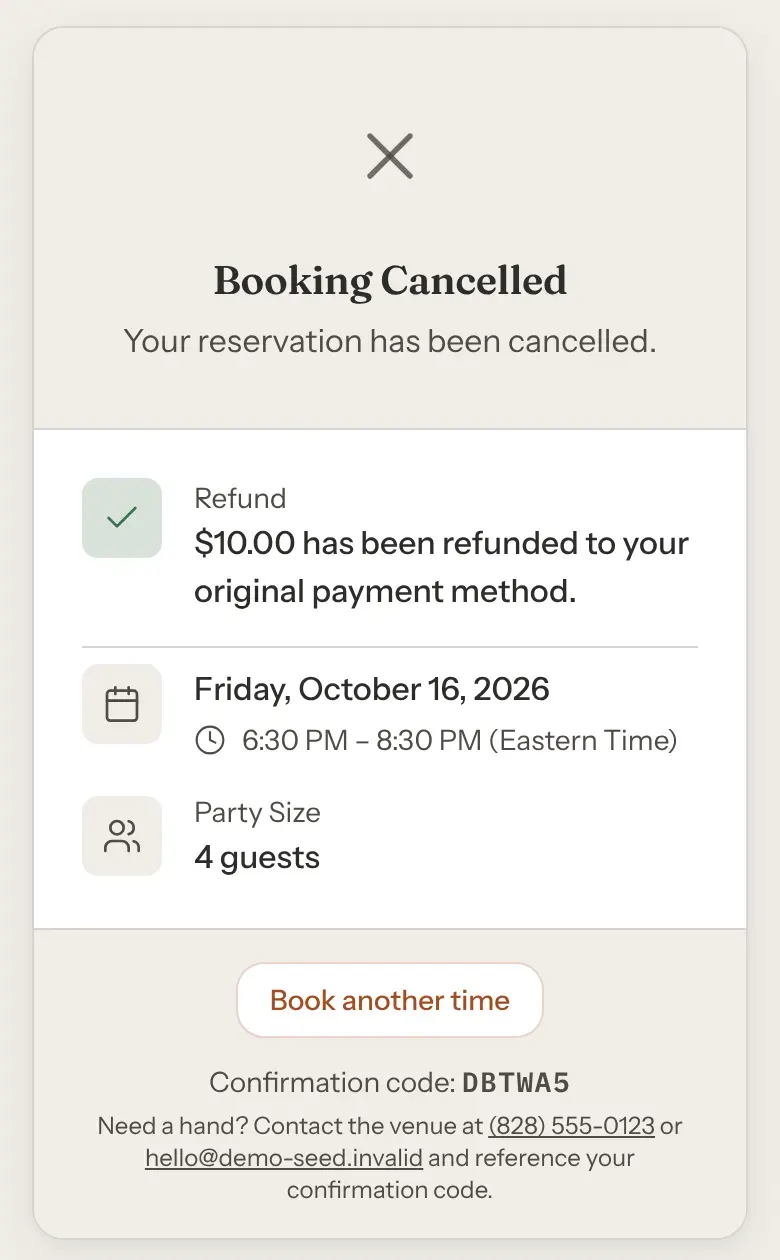
How much you get back depends on the café's policy, shown on your booking page under Cancellation Policy. The more notice you give, the more you usually get back. If the café cancels your booking, you get back everything you paid.
If you gave an email address, you also get an email saying your booking is cancelled, with any refund. Refunds usually reach your account in 5 to 10 business days.
You can't cancel online once your booking has started or you've checked in. Contact the café instead.
After your visit
Some cafés send a thank-you email a few hours after your visit. If you were seated at a table, the email can take you to a How was your visit? panel on your booking page. Pick a star rating from Poor to Excellent, add a comment if you like, and tap Send feedback. The café reads it.
Emails
- Confirmation email: when your booking is confirmed, with a calendar invite attached. Some cafés only send it for paid bookings.
- Reminder emails: the day before, and again a few hours before your booking. To stop them, tap Unsubscribe at the bottom of a reminder, then Confirm unsubscribe. That also stops thank-you emails after a visit. Emails about bookings you make, such as confirmations and cancellations, still arrive.
Replying to most of these emails doesn't reach the café, so use the phone number or email at the bottom of your booking page. Cancellation and refund emails are the exception: if the café has an email address set up, your reply goes to them.
Troubleshooting
"Booking Not Found"
The link may be incomplete, or for a different email address or phone number. Tap Find my reservation and look it up with your confirmation code.
Modify Reservation and Cancel Reservation are missing
Your booking has started, you've checked in, or it's already cancelled or finished. Contact the café.
I can't change my party size
Your booking has a payment, so its party size can't change online. Cancel and book again, or ask the café. Their cancellation policy applies if you cancel.
I didn't get a confirmation email
Check your spam folder. Paid bookings always get one. Some cafés don't send one for bookings that don't need payment. Your booking page has everything the email would, including your confirmation code.