Build your floor plan
Add your tables with their real sizes, group them into zones and lay them out on a map drawn to scale. Keep floor plans for events, dates or days of the week, take a table out of service, and see how each change affects what guests can book.
Last verified
Your tables are what guests book. Each table has a label, a zone, a number of seats and a real size, and a party is only offered a table that can seat them. This page covers adding and editing tables, grouping them into zones, laying them out on a map drawn to scale, keeping more than one floor plan for events, dates or days of the week, and taking a table out of service when it needs a break.
If you are setting up a new venue, the "Add your tables" section of Bookable in 10 Minutes gets you started in four steps. This page is the full reference.
Where to find it
Click Tables & Floor Plan in the left-hand menu. The page opens on Table List. A switch at the top left moves between Table List and Visual Map. On the right are the buttons Test Guest View and Print QR Codes. Manage zones is in the Table List's toolbar, and on the Visual Map beside the zone tabs.
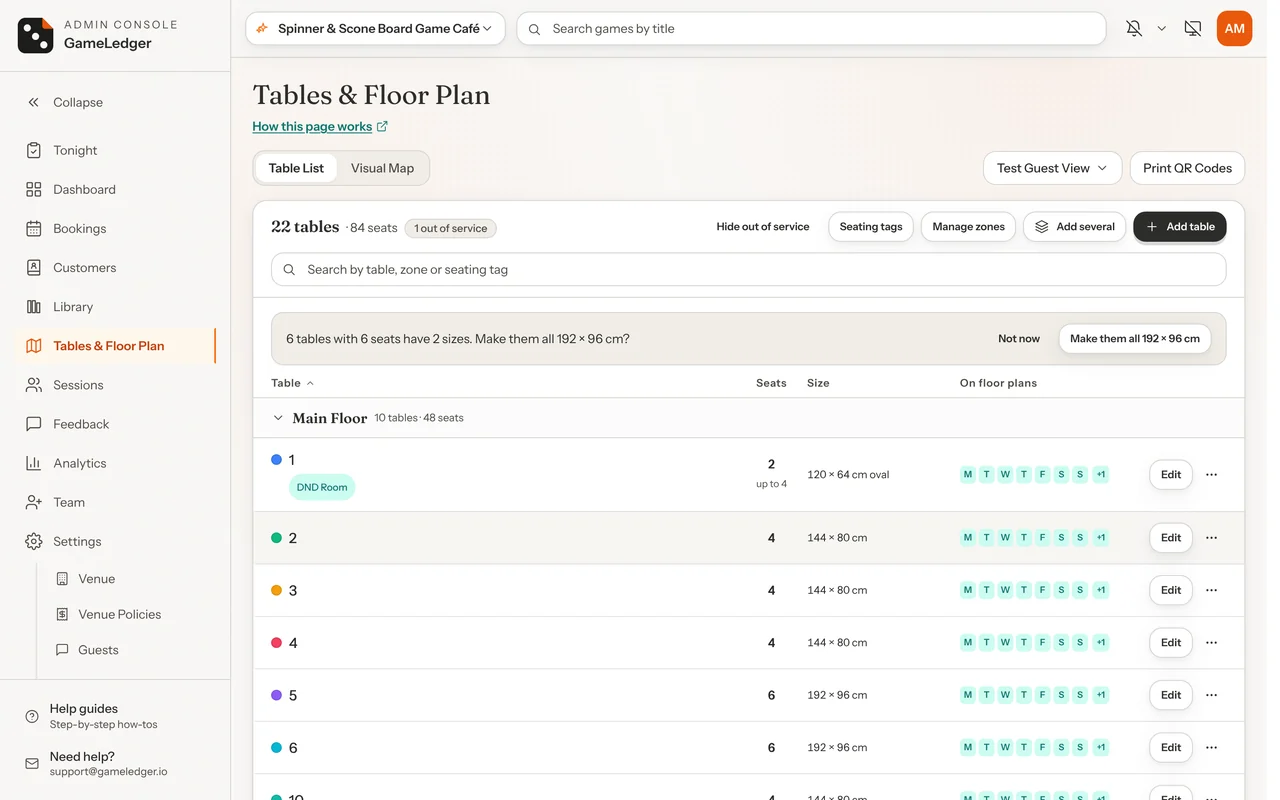
The Table List groups your tables by zone, in your zones' order, with any table that has no zone last under Unassigned. At the top it shows how many tables and seats you have, for example 22 tables · 84 seats, and a 1 out of service tag when a table is out of service. The seats count only tables in service. Each zone's heading shows that zone's tables and seats. Click it to fold the zone away, and again to open it. Each row shows:
- The table's color and label, its seating tags if it has any, and an Out of service tag when guests can't book it.
- Its seats, with "up to 6" underneath when the table takes extra chairs for tagged groups.
- Its size in the Size column (under the table's name on a phone).
- With two or more floor plans, which ones it is on, in the On floor plans column. See See which floor plans a table is on.
- An Edit button and a ⋯ button. The ⋯ menu has Preview guest page (only on tables guests can book), Duplicate, Deactivate or Activate, and Archive.
Type in the search box to find a table by name, zone or seating tag. Click the Table or Seats heading to sort by it, and click again to reverse the order.
Print QR Codes prints a code for each active table (you can untick any). See Table QR Codes. Test Guest View lists your active tables and opens the page a guest sees after scanning a table's code. It appears once you have at least one table.
Add a table
Step 1: Click Add table
On the Table List, click Add table at the top right of the list. If you have no tables yet, the list says "No tables yet" and you can also click Add your first table in the middle.
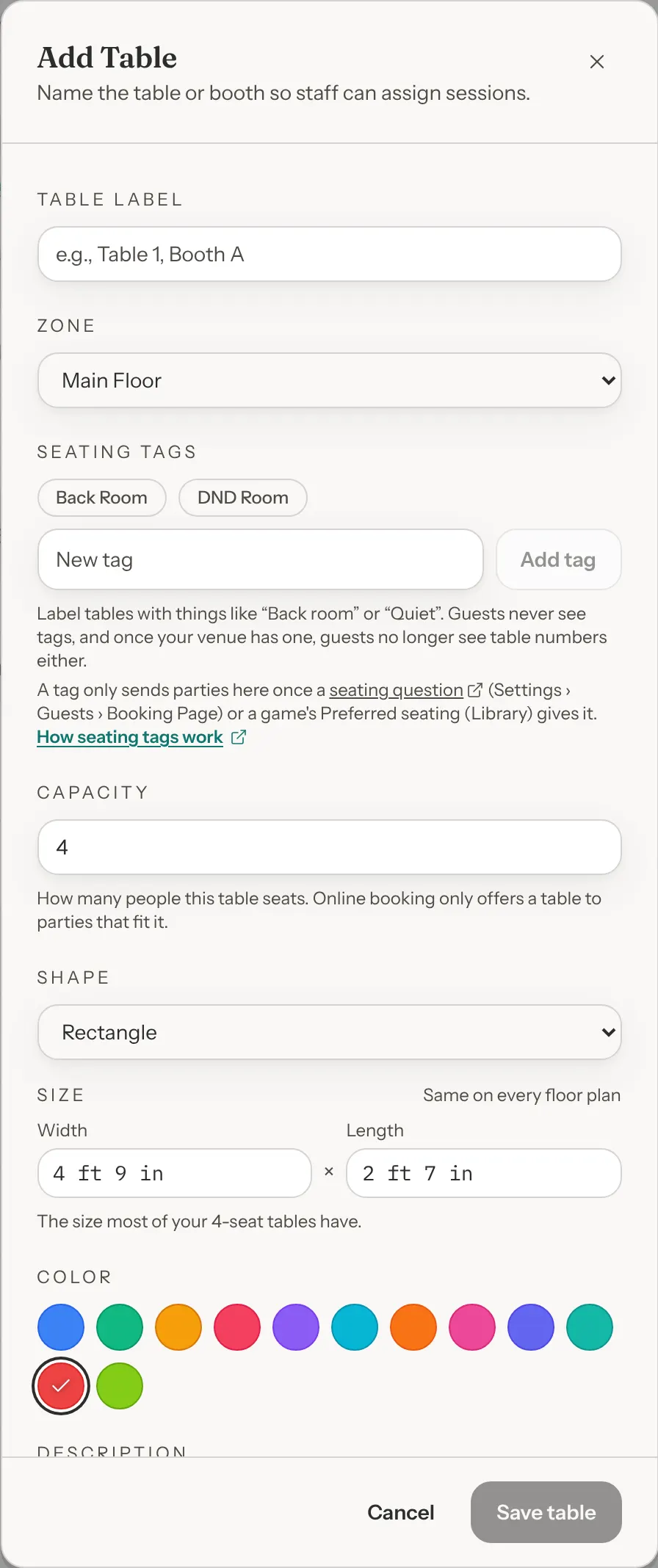
An Add Table window opens.
Step 2: Type a label
Type a Table label, such as "Table 1" or "Booth A". Your team sees it on the floor plan and in bookings. Each table needs its own label.
Step 3: Choose its zone
Choose a Zone. The list starts on your first zone. A new venue has one zone, called Main Floor. See Zones to add more.
Step 4: Set its seats and size
Set Capacity to the most guests the table seats. It starts at 4. Capacity is required: use a whole number of 1 or more. If you leave it empty, the table is not saved and a message asks you to enter one.
Shape and Size follow the seats you type: they take the size most of your tables with the same seats have, so a new 4-seater matches your other 4-seaters. Once you change the size yourself, it stays as you set it. See Table sizes.
Step 5: Pick a color and add a note, if you like
Color starts on a color none of your other tables uses. Once every color is taken, colors repeat. Description is optional.
Step 6: Click Save table
Click Save table. A message says "Table added" and that the table "is ready for use". The table appears in the list under its zone. If online bookings are on, guests can book it straight away for types set to Any active table. See Tables and shared seats.
A booking type set to Specific tables only offers the tables ticked on its Who can book card, so it doesn't offer a new table. The Add Table window says so before you save, and the message names the type. If guests should book this table for that type, tick it on that card. If you can open Settings, the message's Open Who can book button takes you there in a new tab.
A new table is not on the Visual Map yet, on any of your floor plans. It waits under Not on this floor plan until you place it. Placing it is optional, because guests can book a table whether or not it is on the map. See Arrange the Visual Map.
Duplicate a table
In a table's ⋯ menu, click Duplicate. The Add Table window opens filled in from that table: the next free label (Table 20 gives Table 21), the same seats, extra chairs, seating tags, size, shape and zone, and a color no other table uses while one is free. Change anything you like, then click Save table. To copy tables straight onto the map, see Copy, paste and undo.
Add several tables at once
Click Add several beside Add table. Set How many (up to 50), a Name and the number to count From, such as Table from 21, then Seats at each, Shape, Size and Zone. The window shows the labels it will add, such as "Adds Table 21 to Table 30". From starts one after the highest number your tables with that name already have. If one of the labels is already in use, the window names it and nothing is added until you pick another name or number. Click the Add button (it counts them, such as Add 10 tables) and they are all added together, in service, each in a color no other table uses while one is free. Like any new table, they wait under Not on this floor plan until you place them.
The table fields
| Option | What it does | Default |
|---|---|---|
| Table label | The table's name. Required. No two of your tables can share a label, including tables that are out of service. Capital letters and spaces at the ends don't count, so Table 1 and table 1 are the same label. | Default: Empty |
| Zone | The area of your venue the table is in. Required. The same on every floor plan. | Default: Your first zone |
| Seating tags | Labels such as Back room that steer the right parties to this table. Guests never see them. | Default: None |
| Capacity | The most guests the table seats. Required, a whole number of 1 or more. A party is only offered a table whose capacity is at least the party size, unless the party has one of the table's seating tags and the table has extra chairs. | Default: 4 |
| Shape | Rectangle, Round or Booth. The same on every floor plan. | Default: The shape of the size most of your tables with the same seats have, else Round for 1 or 2 seats and Rectangle for more |
| Size | The table's real width and length, or one Diameter for a round table. Type 120, 1.2 m, 4 ft 6 in or 54 in, from 40 cm to 6 m on a side. The same on every floor plan, and it never changes who can book the table. See Table sizes. | Default: The size most of your tables with the same seats have, else a usual size for its seats, such as 120 × 80 cm for 4 |
| Extra chairs | Shows once the table has a seating tag. The most guests the table takes with chairs pulled up, for parties with one of its tags. See Extra chairs in Send the right groups to the right tables. | Default: None |
| Color | The table's color on the Bookings calendar, so you can tell tables apart at a glance. | Default: The next color not already used |
| Description | Notes about the table. Your team sees them in the table's details on the Visual Map. | Default: Empty |
To send certain parties to certain tables, such as D&D groups to your back room, see Send the right groups to the right tables.
A table has no separate minimum or maximum party size. To cap how large a party can book online, use Max party size on the Who can book card under Settings → Venue Policies → Booking Rules.
If you type a label that is already in use, the table is not saved and a message says why: "A table with this label already exists", or, when the table using it is out of service, "A deactivated table already uses this label — reactivate it instead." When you rename a table onto such a label, the message ends "rename or archive it first" instead.
Edit a table
Step 1: Click Edit on the table's row
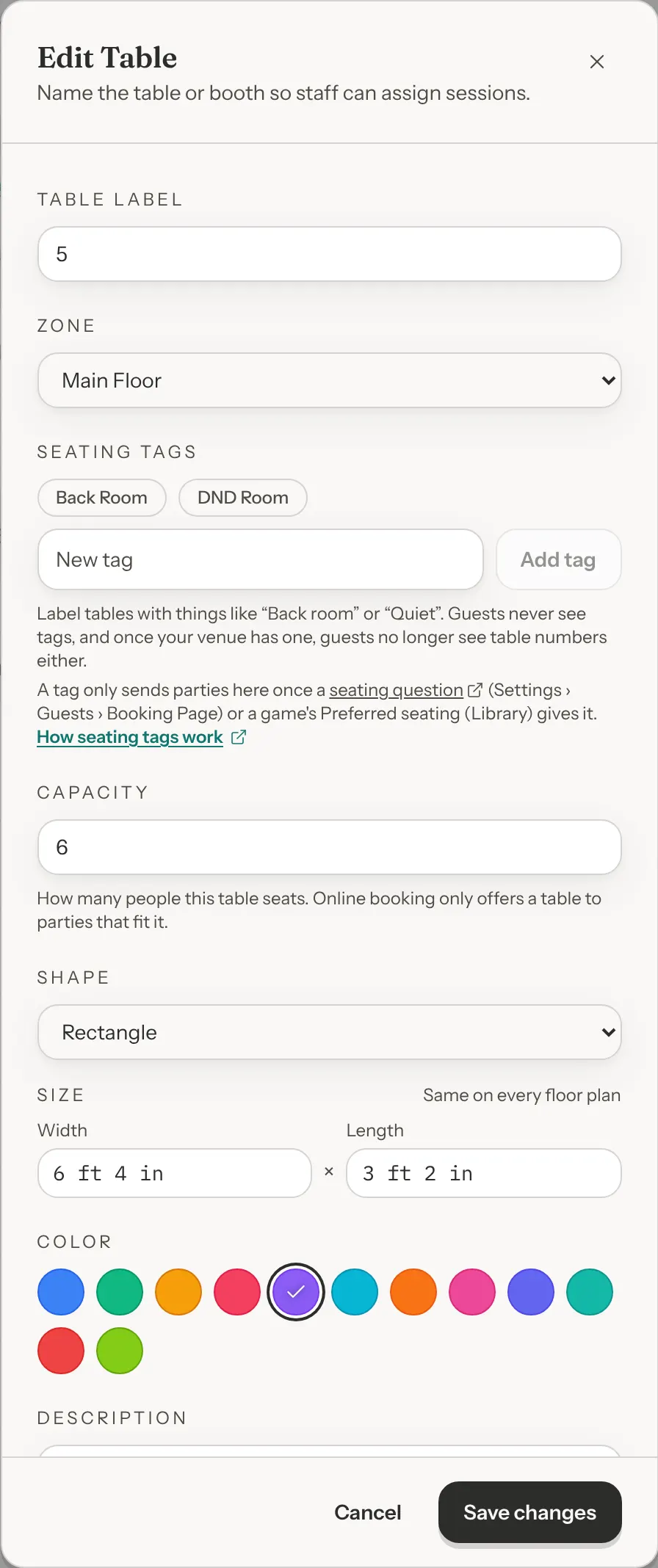
In the Table List, click Edit on the table's row. The Edit Table window opens with the table's current label, zone, seating tags, capacity, shape, size, color and description.
Step 2: Change what you need and save
Change any field and click Save changes. A message says "Table updated".
A new capacity applies to bookings made from then on. Bookings already made are not changed. Editing a table that is out of service leaves it out of service. A table's label, seats, zone, size and shape are the same on every floor plan, so an edit here shows on all of them.
Zones
A zone is an area of your venue, such as Main Floor, Game Loft or Patio. Every table you add belongs to a zone. The Table List groups tables by zone, and the Visual Map shows one zone at a time, with a tab for each, drawn to the room's real size.
Zones and floor plans are different things. A zone is a room or area, and it is the same on every floor plan. A floor plan is one way of setting out the tables in those rooms, such as a D&D night (see Floor plans for events, dates and days). On the Visual Map, the Floor plans tabs are at the top and the Zones tabs are under them.
Click Manage zones to open the Manage Zones window. It is in the Table List's toolbar, beside Add several, and on the Visual Map beside the Zones heading. It works before you have added any tables, from the Table List. Each zone has a row with up and down arrows to change its order, its name, how many tables it has, an on/off button, a delete button, a line for the room's size and a line for a background image. Every change in this window saves as you make it, so there is nothing else to click.
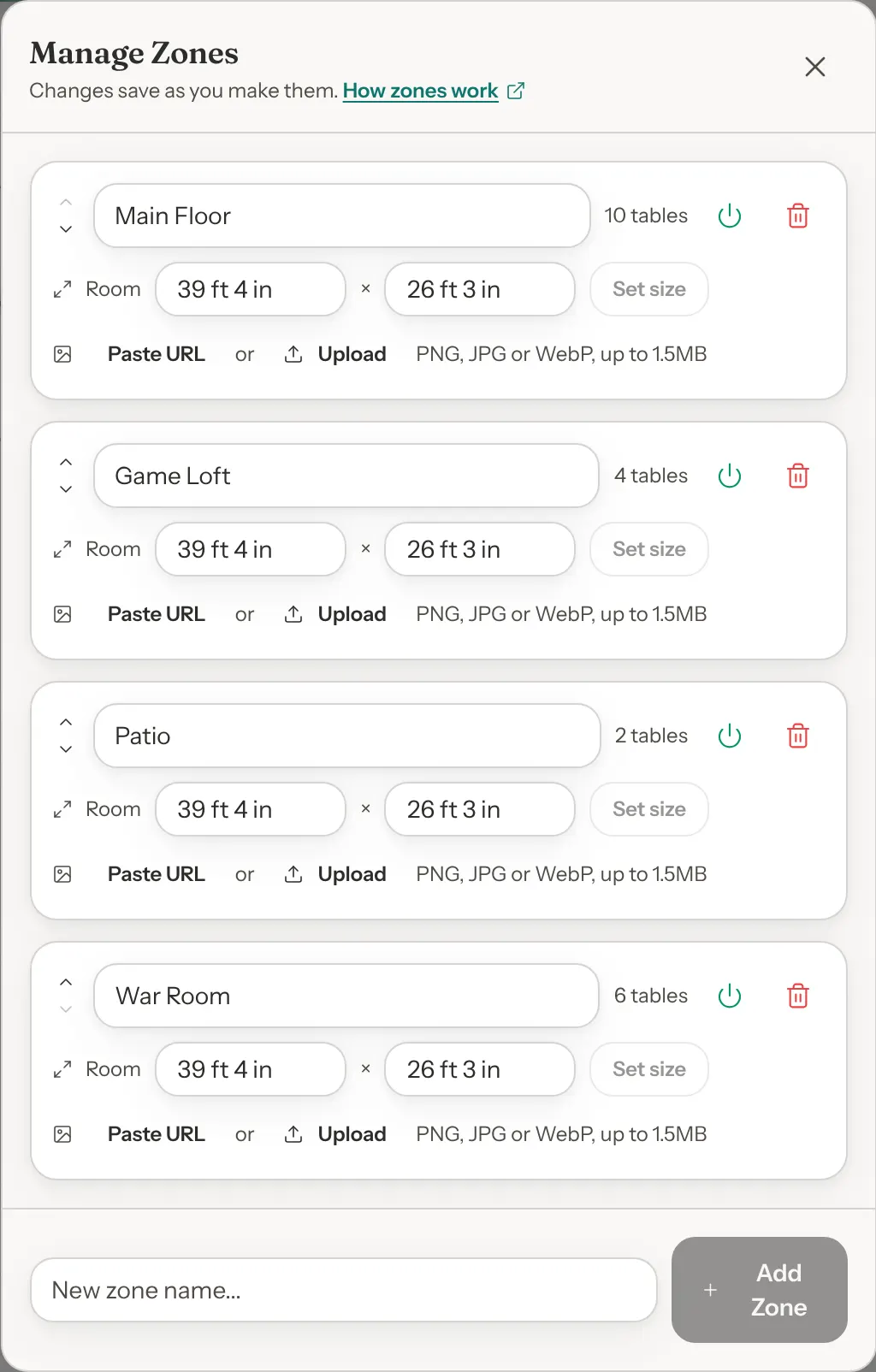
- Add a zone. Type a name in New zone name... at the bottom and click Add Zone. It is saved at once and a message says "Zone created".
- Rename or reorder zones. Type a new name in the zone's box, then press Enter or click anywhere else to save it. Use the arrows (hover names Move up and Move down) to change the order, which saves at once. If a change can't be saved, it goes back to how it was and a message says why.
- Set the room's size. Type the room's width and depth in the zone's Room boxes, then press Enter or click Set size. A new zone is 12 m × 8 m. You can type 9, 9 m or 900 cm, or 30 ft or 30' 6" when sizes show in feet. A room can be 2 m to 100 m (7 ft to 328 ft) each way. Every table keeps its place in the room, on every floor plan. If the room's tables have sizes, you are asked what should happen to them: Keep the tables' real sizes (they take up more or less of the room) or Keep how the map looks (they grow or shrink with the room, for example 120 × 80 cm becomes 90 × 60 cm). When only one side grew, you aren't asked: the tables keep their real sizes. Cancel leaves the room as it was. The room boxes are off while the map has changes you haven't saved: save them or click Discard first.
- Turn a zone off. Click its on/off button (hover name Deactivate zone). Every table in the zone goes out of service at once, and the zone shows "Off: its tables are hidden from booking." With no upcoming bookings on its tables, it switches off at once. Otherwise a line in the zone's row says about how many, for example "Tables in this zone have 3 upcoming bookings. Deactivating will not cancel them.", and you click Deactivate to go ahead or Cancel to stop.
- Turn a zone back on. Click the same button (hover name Activate zone). Its tables stay out of service until you bring each one back, and the window and a message remind you of this. See Bring a table back.
- Delete a zone. Click its delete button (hover name Delete zone). A zone with no tables is deleted at once. A zone with tables asks "Delete this zone?" first, with "This zone has 2 table(s). They will be unassigned. Continue?", and you click Delete zone to go ahead. Its tables become unassigned. They are listed under Unassigned in the Table List. Edit each one to put it in another zone.
Background images are covered under Add a background image.
Arrange the Visual Map
The Visual Map is a picture of each zone with your tables drawn on it, to scale. It is for your team: guests never see it, and where a table sits on the map does not change what guests can book.
Click Visual Map at the top left. The map is one panel, read from the top down:
- Floor plans: a tab for each floor plan, with when it opens under its name and a Today tag on the one that opens today. Click a tab to open that floor plan, and click the open tab again for its menu (rename, delete and more). Create floor plan is on the right. See Floor plans for events, dates and days.
- The open floor plan's line: a sentence saying when it opens, the buttons Use tonight (when it isn't today's floor plan), Days & settings and Print setup sheet, two counts, how many tables are free and how many are in use, and Edit layout. While you arrange a floor plan, the line shows your save buttons instead: click Done to get the others back.
- Zones: a tab for each zone, with Manage zones and the zone's room size, tables and seats, such as Main Floor · 39 ft 4 in × 26 ft 3 in · 10 tables · 48 seats.
- The open zone's map.
Each table is drawn from above with chairs around it for its seats (benches along a booth), its label inside and its seats underneath (such as "4 seats"). Its color shows what is happening there, and the key under the map says what each color means:
- Free: white with a dark outline.
- Playing: teal, with the game's name and how long they have been there, for example "Catan · 42m".
- Choosing a game: amber, with "Choosing" and how long they have been there.
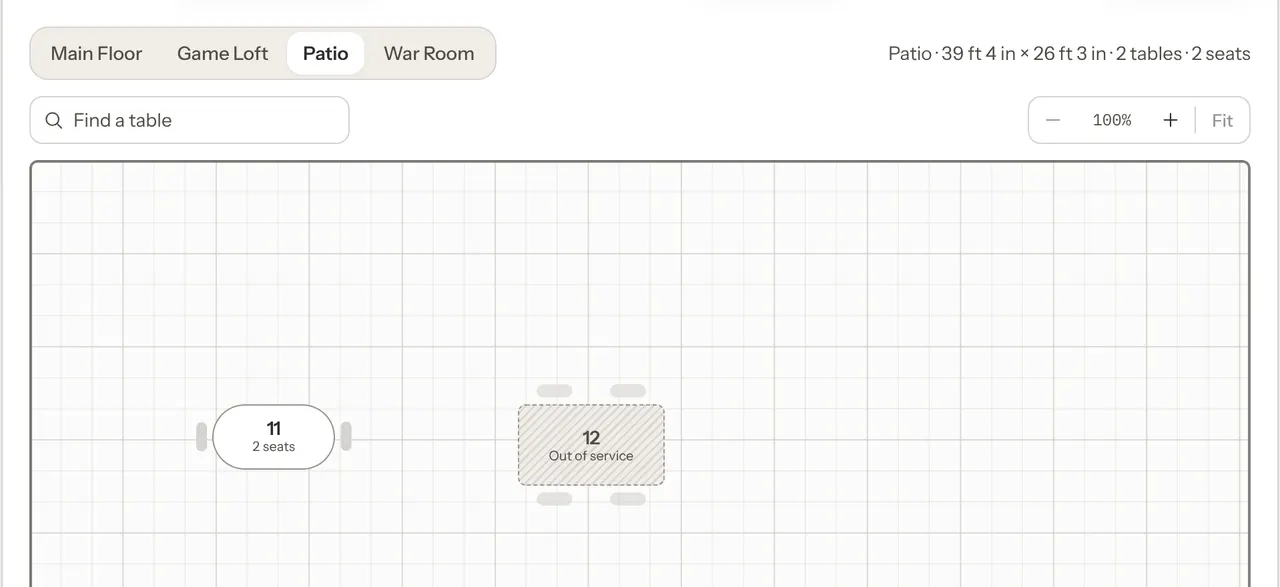
- Out of service: grey stripes and a dashed outline.
A table too small for a second line shows its label only. Hover over a table to see its full name.
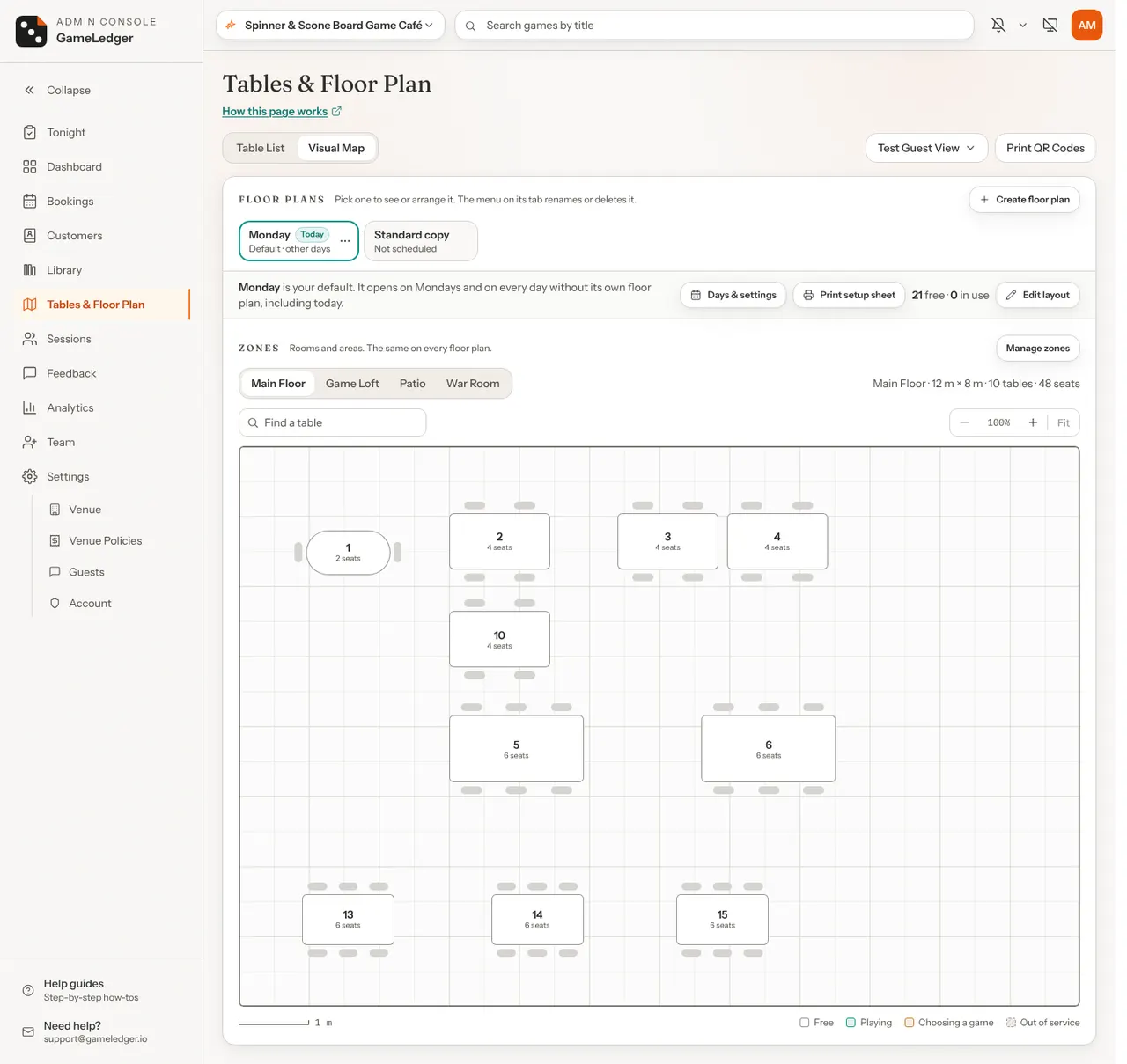
Click a table on the map to open its details: its capacity, its description, its current status and, for a table in service, Book This Table, which starts a new booking at that table.
Move and shape your tables
Step 1: Pick the zone and switch to edit mode
Click the zone's tab. Then click Edit layout, at the right of the open floor plan's line. A toolbar opens above the map, and a panel opens to the right of it (under the map on a phone or small tablet). If the zone's map is empty while tables wait to be placed, the map says how many and shows a Place tables button that does the same.
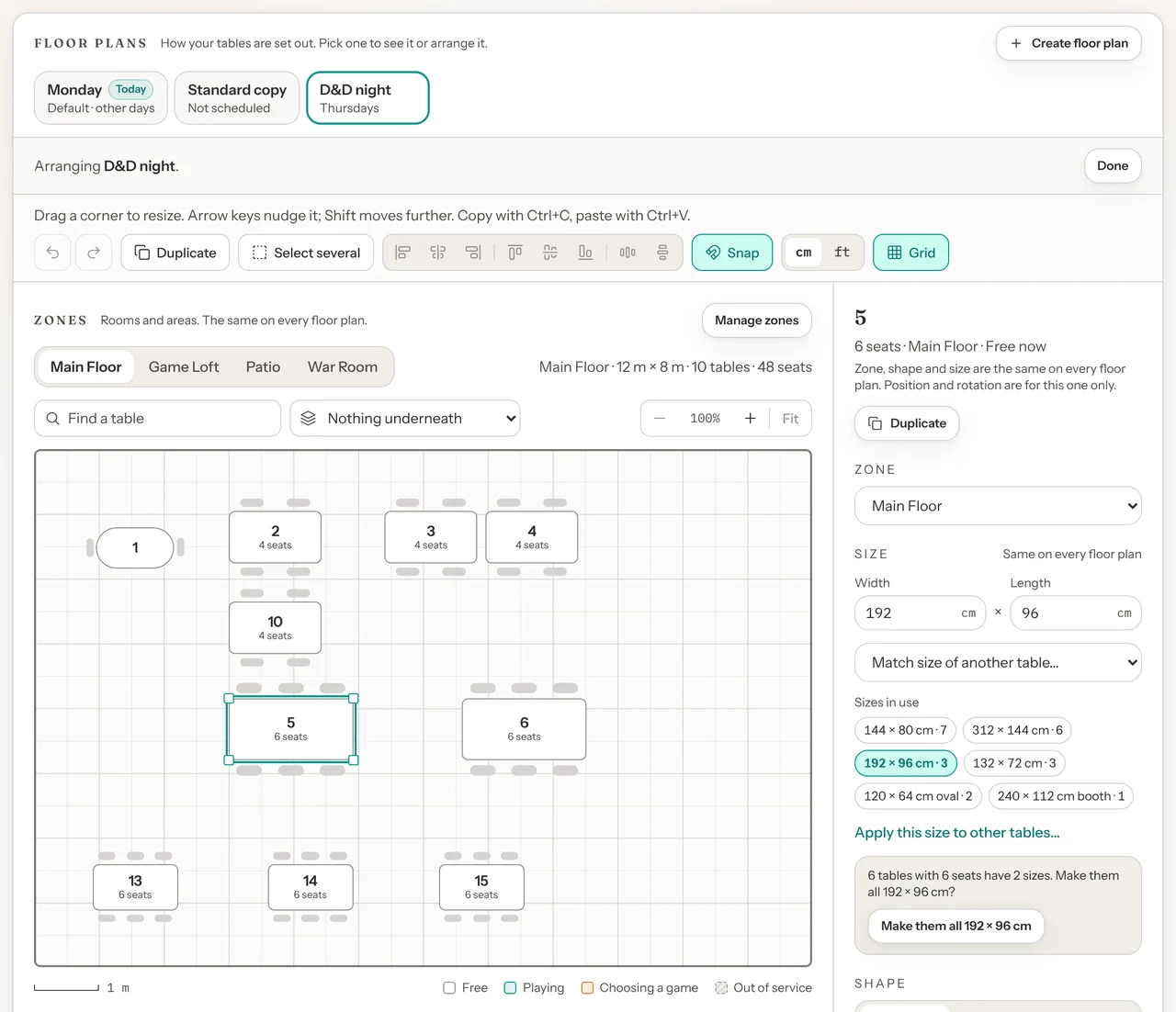
Edit mode changes the floor plan whose tab is open, and its line reads "Arranging D&D night." (with its name). To arrange a different one, click its tab first.
Step 2: Place tables that are not on the map
The panel lists Not on this floor plan: tables that have no spot on the floor plan you are looking at, such as a new table or one you took off this floor plan. Drag one by its row (or by the dotted grip on a phone or tablet) and let go where it goes on the map. You can drag tables of the zone you are looking at, and tables with no zone yet. Or click Place next to it, and it appears near the middle of the zone you are looking at. A table with no size yet gets the size and shape most of your tables with the same seats have, or a usual size for its seats. A table from another zone says which zone it goes to, and goes back to that zone when you place it.
Place all lays every waiting table out in tidy rows on its own zone's map, with room for chairs between them and around the tables already there, ready for you to move into place. A message says how many it placed. Tables with no zone stay in the list (click Place to put one in the zone you are looking at), and so do tables there was no room for.
Step 3: Drag, resize and turn
Drag a table to move it. Click a table to select it: a teal outline with a square handle at each corner appears, and you can drag a handle to resize it. The size snaps to 5 cm steps (whole inches when sizes show in feet) and shows above the table while you drag. The panel shows the table's name, seats, zone and what is happening there, with these settings:
- Zone: moves the table to another zone's map. A table's zone is the same on every floor plan, so this moves it on all of them. Unassigned (off the map) takes it out of its zone, which takes it off every floor plan and lists it under Unassigned in the Table List. To take a table off just this floor plan, use Take off this floor plan instead.
- Size: the table's width and length, the same on every floor plan. See Table sizes.
- Shape: Rectangle, Round or Booth.
- Rotation: buttons for 0°, 90°, 180° and 270°, plus a slider from 0° to 359°.
- Take off this floor plan: takes the table off the floor plan you are looking at only. It keeps its zone, stays bookable, stays where it is on your other floor plans, and waits under Not on this floor plan.
- Deactivate (or Activate) at the bottom. See Take a table out of service.
On a phone or small tablet the panel opens as a sheet at the bottom of the screen when you select a table. Close it with the X at its top right.
The Grid button in the toolbar shows or hides the grid lines. The cm and ft buttons beside it switch how sizes read for your whole venue.
Step 4: Save
As soon as you change something, Unsaved changes, Discard and a save button appear at the right of the open floor plan's line. With one floor plan the button reads Save layout. With more than one, it names the floor plan it saves, such as Save D&D night (or Save this floor plan when the name is long). Click it. A message names the floor plan you saved, such as "Standard saved".
Discard puts your tables back the way they were at your last save. Changes you made in Manage zones are already saved, so Discard does not undo them. Click Done to leave edit mode. If you click it with unsaved changes, you are asked "Discard unsaved changes?" with Discard changes and Keep editing.
Deactivate and Activate are the one thing in the panel that does not wait for you to save: they take effect at once (Deactivate asks first).
Copy, paste and undo
In edit mode, select a table and press Ctrl+C (⌘C on a Mac) to copy it, then Ctrl+V (⌘V) to paste. Each copy lands beside the table with room for chairs between them (or in the nearest free spot if there's no room beside it), and pasting again lays the next copy beside the last one. Ctrl+D (⌘D), Duplicate in the toolbar or Duplicate in the panel does both in one go. A copy has the same seats, extra chairs, seating tags, size, shape, zone and turn, the next free label (Table 20 gives Table 21) and a color no other table uses while one is free. Its description starts empty.
You copy one table at a time, and only a table that is on this floor plan and has its seats set. One save adds up to 50 copies: at 50, a message asks you to save before adding more.
A copy isn't a table yet: it shows Not saved yet in the panel, and you rename it in the Table List once it is saved. When you save, you are asked first, for example "Add 3 tables guests can book?", with their labels, and you click Save and add them. Saving adds them to your Table List, in service, and places them on the floor plan you are looking at. A booking type set to Specific tables offers them only once you tick them on its Who can book card (how Specific tables work). On your other floor plans they wait under Not on this floor plan. Discard drops copies you haven't saved.
Undo and redo. Every change on the map can be undone until you save: moving, resizing, turning, reshaping, changing zone, placing, taking off, pasting and lining up. Use the arrow buttons in the toolbar, or Ctrl+Z (⌘Z) to undo and Ctrl+Shift+Z (⇧⌘Z) or Ctrl+Y to redo. Undo keeps your last 100 steps. Undo never brings back something saved straight away, such as a table you deactivated or archived, a size saved in the Table List, or a room's size. Undo and redo start fresh when you save, click Discard, switch floor plans, leave edit mode, change a room's size or use Use this spot on every floor plan, and when a zone or size changes somewhere else, such as in the Table List or another tab.
Take a table off with the keyboard. Delete or Backspace takes the selected tables off the floor plan you are looking at, the same as Take off this floor plan. It never archives a table. On a copy you haven't saved, it drops the copy.
Arrange many tables at once
Select several tables. In edit mode, hold Shift (or Ctrl, or ⌘ on a Mac) and click tables to add them to the selection (click a selected one the same way to take it out). Or drag a box on an empty part of the floor: every table it touches is selected. Ctrl+A (⌘A on a Mac) selects every table on the zone's map. Click the empty floor, or press Escape, to let go. On a phone or tablet, tap Select several first (in the toolbar, or at the top of the panel once a table is selected): then each tap adds a table, and dragging a finger on the floor draws the box. While it is on, tap a selected table again to take it out, or tap Clear in the panel to let go of them all.
Move, turn and resize them together. Drag any selected table and the others move with it, keeping their places to each other. They stop together at the walls. Drag a corner handle of one (handles show while 12 or fewer are selected) and every selected table grows or shrinks by the same amount. The panel shows how many are selected with their seats, and settings for all of them:
- One size for all: type a size, or click one of the Sizes in use. Each table keeps the way it faces on the map.
- Shape: Rectangle, Round or Booth for all of them.
- Turn each: 0°, 90°, 180° or 270° for every table. Turn the group 90° turns the whole group a quarter turn instead, keeping how the tables stand to each other.
- Take all 5 off this floor plan (the button counts them). They keep their zone, stay bookable and stay where they are on your other floor plans.
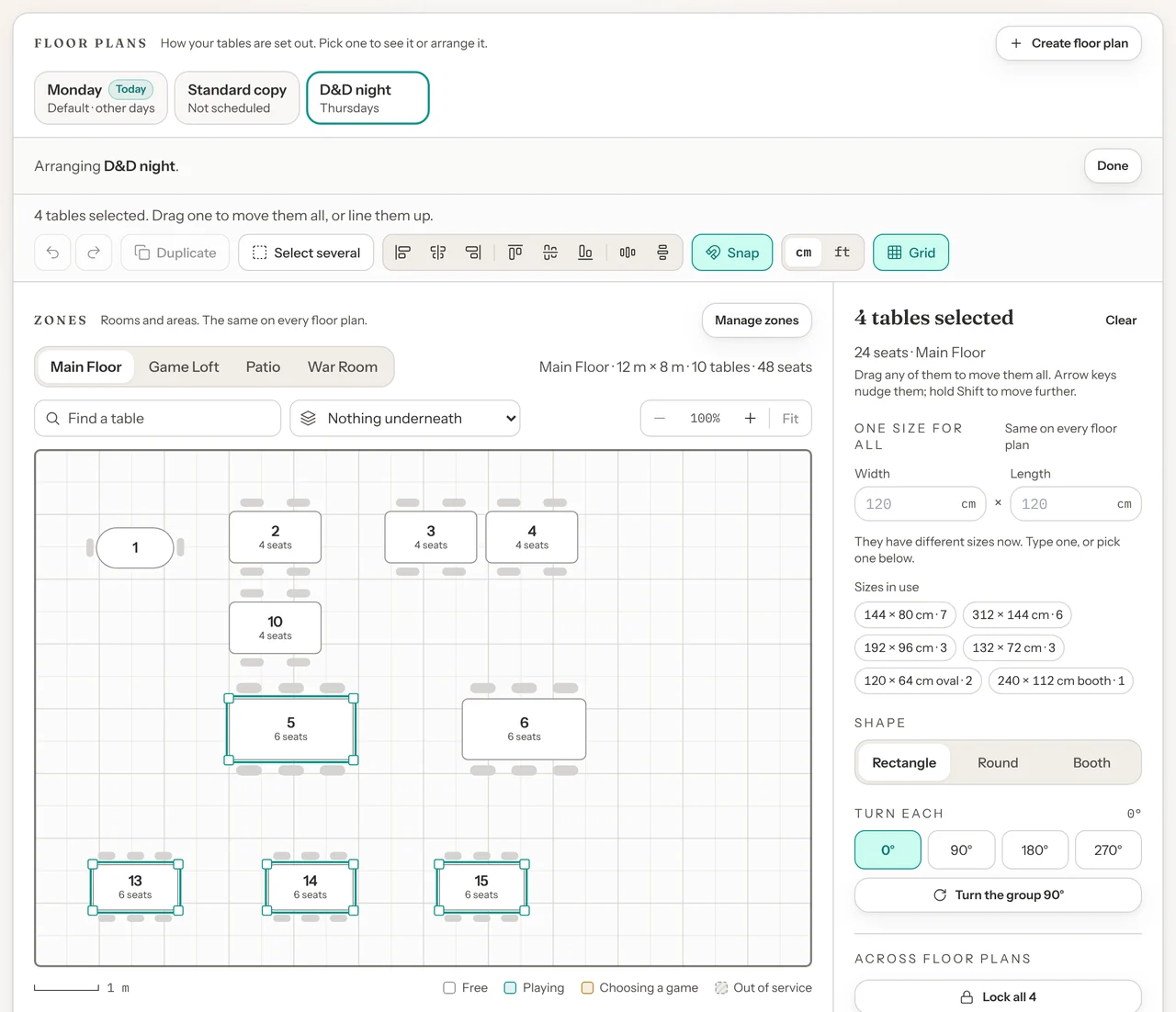
Line them up. With two or more selected, the toolbar's line-up buttons align their left edges, centres, right edges, top edges, middles or bottom edges. On a phone or small tablet, the panel shows them too. With three or more, Space evenly across and Space evenly down keep the first and last where they are and make every gap between them the same. If they would overlap, a row spreads out from its middle instead, with room for chairs between them. Space evenly works on one row at a time (one column, for down). The row can be rough or slanting, but when some of the tables stand one behind another, as in two rows, they are left as they are: space each row on its own.
Snap and gaps. While you drag, a table snaps to the edges and centres of the tables near it, and to the grid's lines while the grid shows. Orange dashed guides show what it lines up with, and a small label, such as "80 cm", shows the space to the next table along that line. Click Snap in the toolbar to turn snapping off, or hold Alt (Option on a Mac) while you drag to move freely, without snapping.
Nudge with the arrow keys. The arrow keys move the selected tables 5 cm at a time (1 inch when sizes show in feet). Hold Shift to move 50 cm (1 ft) at a time.
Zoom and find a table. The buttons above the map zoom in and out, from 100% to 400%, and the percentage between them shows how far. Fit shows the whole room again, and so does opening another zone. You can also zoom with Ctrl (⌘) and the mouse wheel, by pinching on a trackpad, or with two fingers on a phone or tablet. When zoomed in, scroll to move around, or drag the map outside edit mode. In edit mode, drag a finger on the empty floor (with Select several off), or with a mouse hold Space and drag (or drag with the middle button). Find a table, beside the zoom, takes part of a table's name: pick it, and the map opens its zone, brings it into view and rings it in teal. In edit mode it is selected too. Zoom and Find a table work outside edit mode as well.
All of this changes the map only until you save, and each step can be undone. Lining up, turning and placing a group is one step, and so is each drag or arrow press.
Add a background image
A background image, such as a sketch of your room, shows faded behind a zone's tables so they are easier to line up. It belongs to the zone, so it shows on every floor plan.
- Click Manage zones and find the zone.
- Click Upload and choose a PNG, JPG or WebP image of 1.5MB or smaller. The image is saved at once and a message says "Background uploaded". A larger image is not uploaded: a message tells you its size, so you can save a smaller copy (a JPG is usually much smaller) and try again.
- Or click Paste URL, paste a link to an image online, and click Set. The link is saved at once.
To take an image away, click Remove next to it. That is saved at once too.
Table sizes
Give each table its real size, such as 120 × 80 cm or 4 ft × 2 ft 6 in, and the map draws it to scale in its zone's room (see Zones to set a room's size). A table's size is the same on every floor plan. It never changes who can book the table: its seats decide that. A table added before sizes existed shows No size yet in the lists, and gets a size for its seats (the one most of your tables with the same seats have) when you place it on the map or save it in Edit Table.
The darker grid lines are 1 m apart and the lighter ones split them at 50 cm. On a small screen or a big room they step up to 2 m, 5 m, 10 m or 20 m squares. When sizes show in feet, the darker lines are 3 ft apart with a lighter line each foot, stepping up to 10 ft, 30 ft or 60 ft. The scale bar under the map, such as 1 m or 3 ft, is one grid square long.
Set a size
In edit mode, select a table. Under Size in the panel, type its width and length (a round table has one Diameter box), then press Enter or click away. You can type 120, 1.2 m, 4 ft 6 in, 4'6" or 54 in. A number on its own is centimetres, or inches when your sizes show in feet. A number too small for that, such as 1.2 or 4, is read as metres or feet. A side can be 40 cm to 6 m. You can also drag a corner handle, or set the size in the Add Table and Edit Table windows.
Size changes in the panel wait for you to save the map, like moving tables. Sizes changed in the Table List (Tidy sizes) and in the Add Table and Edit Table windows save at once. Either way, the new size shows on every floor plan.
Give tables the same size
Measure one table, then give its size to the others. The panel has four ways to do it:
- Match size of another table. Pick a table in the list under the size boxes. The selected table takes its size and shape exactly, width and length as that table has them.
- Sizes in use. The panel lists up to 8 sizes your tables have and how many tables have each, such as "120 × 80 cm · 6". Click one to give that size and its shape to the selected table. A table turned the other way, such as 80 × 120 cm, counts as the same size, and keeps the way it faces.
- Apply this size to other tables. Opens a list of your tables. Tick the ones that should get the selected table's size and shape, or click Tick every table with 4 seats, then click Give 3 tables this size (the button counts the tables you ticked). Each table keeps the way it faces on the map.
- Tidy sizes. When tables with the same seats and the same shape have several sizes, you are offered one click to give them all the size most of them have, for example "6 tables with 4 seats have 3 sizes. Make them all 120 × 80 cm?". Round and rectangle tables are never tidied together, and tables with no size yet are left out. The panel offers it for the selected table's group, and waits for you to save the map. The Table List offers it for your largest group and saves at once. Not now in the Table List hides that offer until you reload the page or switch to the Visual Map, and shows the next group's offer, if there is one.
To set one size for many tables you have already selected on the map, use One size for all (see Arrange many tables at once).
Centimetres or feet and inches
Sizes show in feet and inches when your venue's country is the United States or isn't set, and in centimetres everywhere else. The choice is for your whole venue, and switching never changes a table's size. You can switch in two places:
- Settings → Venue → Location, in Floor plan units: choose Automatic (follows your country), Centimetres or Feet and inches, then click Save units.
- The cm and ft buttons in the edit-mode toolbar. A click saves at once, and from then on your venue keeps that choice even if its country changes. To follow your country again, choose Automatic in Settings.
Floor plans for events, dates and days
Keep more than one arrangement of the same tables: a D&D night with tables pushed together for long campaigns, a Weekend layout with the patio set out, or one for a room you clear for a tournament. You don't have to: every venue starts with one floor plan, Standard, and nothing changes until you make another. Make as many or as few as your venue needs, up to 15.
How floor plans work
- A floor plan holds where tables sit. Each one keeps where every table is on the map and which way it is turned. A table can be on one floor plan and off another.
- Everything else belongs to the table. Its label, seats, zone, size, shape, seating tags and QR code are the same on every floor plan. So guests, bookings and QR codes never depend on which floor plan is open, and copying a floor plan never makes new tables.
- Rooms and backgrounds belong to the zone. A zone's room size and background image show on every floor plan.
- Each floor plan saves on its own. Saving the map saves where tables sit on the floor plan you are arranging, and your other floor plans keep theirs. A size, shape or zone you change while arranging belongs to the table, so it shows on every floor plan.
Make a floor plan for an event
Step 1: Click Create floor plan
On the Visual Map, click Create floor plan, at the right of the Floor plans row. It is off while the map has changes you haven't saved: save or discard them first.
Step 2: Name it and choose what it starts from
Type a name, such as D&D night or Patio closed (up to 40 characters, and each floor plan needs its own name). Under Start from, A copy of begins on the floor plan that is on the map. Pick another floor plan in its list to copy that one instead, or pick Empty to place every table yourself.
Step 3: Click Create floor plan, then arrange it
Click Create floor plan at the bottom of the window. The new floor plan gets its own tab and opens on the map in edit mode, and a message says "D&D night is ready" (with its name). Move only the tables that change (with Empty, place the ones you need from Not on this floor plan), then click the save button, which names the floor plan, such as Save D&D night, and Done.
Made one by mistake, or gave it the wrong name? Click its tab to open its menu, then Delete or Rename (see Manage your floor plans). The menu works in edit mode too.
Step 4: Choose when it opens, if you like
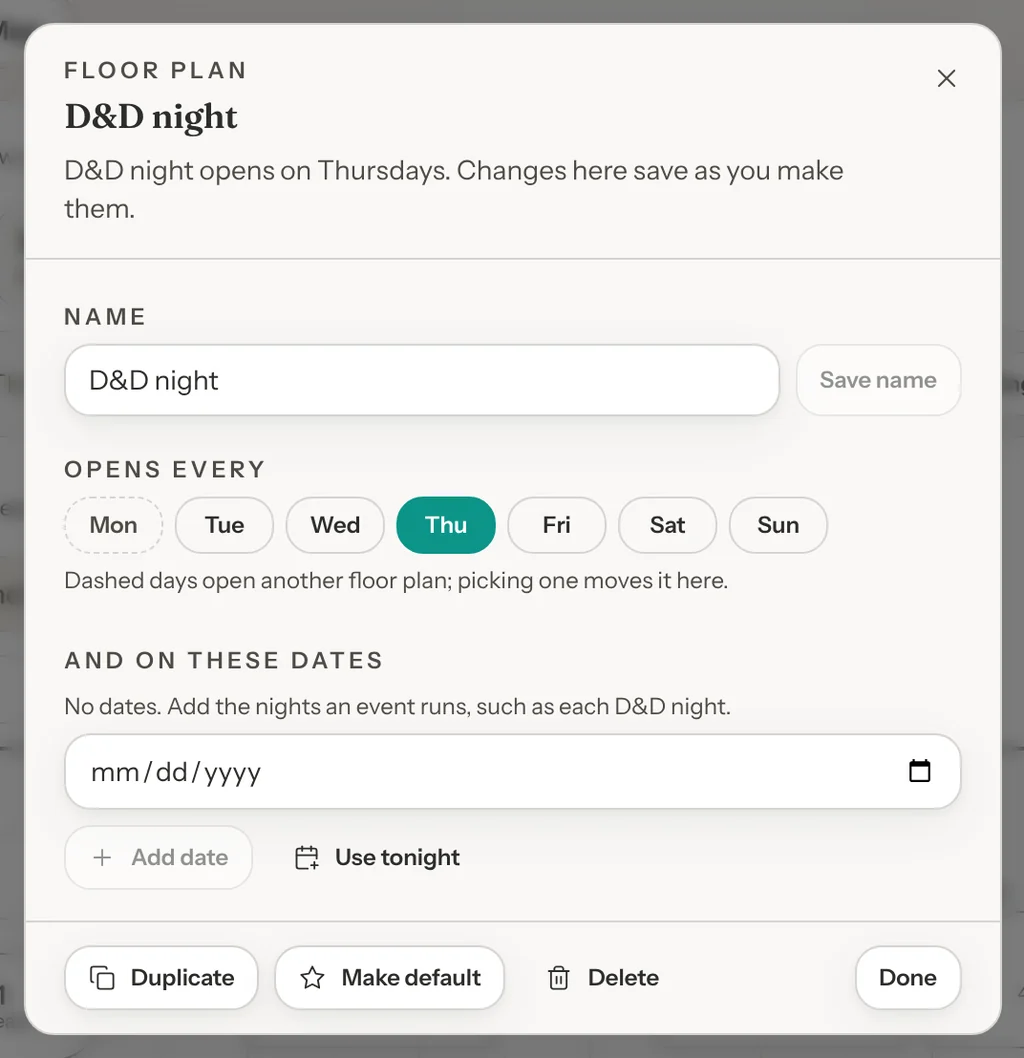
Click Days & settings on the open floor plan's line, or Days and dates in the menu on its tab. The window is for the floor plan on the map, and everything in it saves as you make it:
- Under And on these dates, pick a date and click Add date, once for each night the event runs. Use tonight adds today.
- Or under Opens every, click the weekdays it opens on, such as Thu for a weekly D&D night.
Click Done when you have finished. You can leave both empty. A floor plan with no days or dates never opens by itself: click its tab when you need it, or use Use tonight.
One floor plan per weekday
If you set your room up differently on different days, make the floor plans for the week in one go. Arrange the floor plan you want to copy first, so every new one starts from it.
- On the Visual Map, click Create floor plan.
- Check Start from: each floor plan the template makes is a copy of it, or empty.
- Under "Or make several at once", click One per weekday to make Monday to Sunday, each set to its own day, or Weekdays and weekend to make Weekdays (Mon to Fri) and Weekend (Sat and Sun). A template only uses days that don't have a floor plan yet, and a message says how many it made, such as "Made 7 floor plans". If a name is taken, the new one gets a number, such as Weekend 2. When every weekday already has a floor plan, or there isn't room for them all under the 15 a venue can have, the button is off and says why.
- Click each new tab, then Edit layout, and move only the tables that change that day.
If most days look the same, you don't need a floor plan for every day. Make floor plans only for the days that differ: every other day opens your default.
Which floor plan opens
The Visual Map opens on today's floor plan by itself, so your team sees the right one without picking it:
- A floor plan set for today's date comes first.
- Then one set for today's weekday.
- Then the default (Standard, unless you made another the default).
"Today" is your venue's date, in the time zone set under Settings → Venue → Location, in Timezone. Today's floor plan has a Today tag on its tab. Under each tab's name is when it opens, such as Thursdays, Sat 8 Nov + 2 more, Default · other days or Not scheduled (hover over a tab for the full wording). The open floor plan's line says it in a sentence, such as "D&D night opens on Thursdays, including today." or "Standard is your default. It opens on every day without its own floor plan.", and when the open floor plan isn't today's, it adds which one is, such as "Today's floor plan is D&D night."
Switch floor plans
Click another floor plan's tab to look at it or arrange it. The default comes first, then the rest in the order you made them. When there are more tabs than fit, the row scrolls sideways (an arrow shows on each side that has more), and an All button, such as All 9, lists every floor plan. If you have unsaved changes, you are asked "Discard changes to Standard?" (with the floor plan's name) first: Discard and switch opens the other one, and Keep editing stays where you are.
Use tonight. With a floor plan open that isn't today's, click Use tonight on its line. It sets that floor plan for today's date, so the map opens on it for the rest of the day, and a message names the date, such as "D&D night is set for tonight, Thu 22 Oct". It goes by the calendar date, so clicking it after midnight sets the new day.
Manage your floor plans
The open floor plan's tab has a menu for renaming or deleting it. Click a tab to open that floor plan, then click the tab again, or the ⋯ button at its right (hover name Rename, days, duplicate or delete). The menu is headed with the floor plan's name, and has:
- Rename. Opens Days & settings with the name selected. Type the new name, then click Save name or press Enter.
- Days and dates. Opens Days & settings, to choose when it opens.
- Duplicate. Makes a copy, opens it on the map and opens Days & settings on the copy's name, ready for a new one.
- Make default. Not on the default. A message says "D&D night is now your default" (with its name).
- Delete. You are asked first, for example "Delete D&D night?" with "Where tables sit on D&D night is deleted for good. Thursdays go back to the default, Standard. Tables, bookings and QR codes stay as they are." Click Delete floor plan, or Keep it to stop. When it is today's floor plan, the message also says which floor plan the map opens for the rest of today. Once it is deleted, a message says "Deleted D&D night" and the map opens today's floor plan.
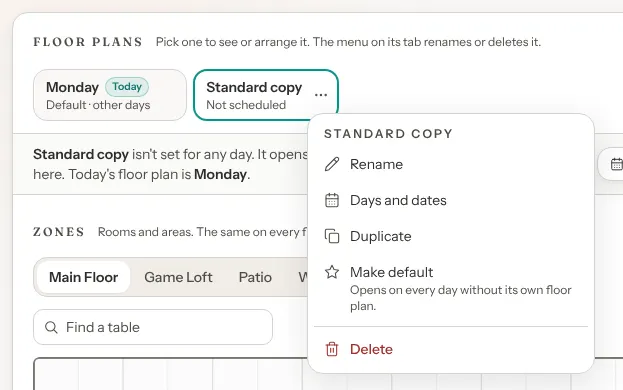
The default can't be deleted, so Delete is off on its menu and says why: make another floor plan the default first. When you have only one floor plan, it can't be deleted.
The menu works in edit mode too, so a floor plan made by mistake can go straight away. While the map has changes you haven't saved, the menu says "Save or discard your changes on the map first." and everything in it is off.
Days & settings, on the open floor plan's line, opens the same window as Rename and Days and dates. The window is for the floor plan on the map, with a Default tag when it is the default, and everything in it saves as you make it. In it you can:
- Rename it. Change its Name and click Save name.
- Choose its weekdays. Click days under Opens every to turn them on or off. A day with a dashed outline opens another floor plan (hover over it to see which): picking it moves that day to this one. Days you leave off open the default.
- Choose its dates. Pick a date under And on these dates and click Add date, or click Use tonight. You can pick today or a later date. A date another floor plan has moves to this one, as with weekdays. Remove a date with its X, and that day opens its weekday's floor plan, or the default. A date beats a weekday, and dates that have passed drop off the list.
- Duplicate it. The copy is called, for example, "D&D night copy" (then "D&D night copy 2"), and opens on no days or dates until you choose some. It opens on the map, and the window moves to it, ready for a new name and days.
- Make default. The default opens on every day that has no floor plan of its own.
- Delete it. You are asked first, in the window, with the same words as the menu's Delete, and Delete floor plan and Keep it. The default can't be deleted: make another floor plan the default first. Once it is deleted, the map opens today's floor plan.
A venue can have up to 15 floor plans. At 15, the Floor plans row says so, and Create floor plan and Duplicate are off until you delete one from the menu on its tab.
Keep floor plans in step
A few tools in edit mode help you keep the tables that never move, such as the bar or a booth, in the same place on all your floor plans. Locking a table works even with one floor plan. The rest show once you have two or more.
See another floor plan underneath. Above the map, open the list that reads Nothing underneath and pick another floor plan, such as Show Standard underneath. Its tables are drawn faintly, with dashed outlines, under the floor plan you are arranging, and the tables you drag snap to them, so you can line tables up with where they sit there. It shows the other floor plan as saved. Pick Nothing underneath to hide it again.
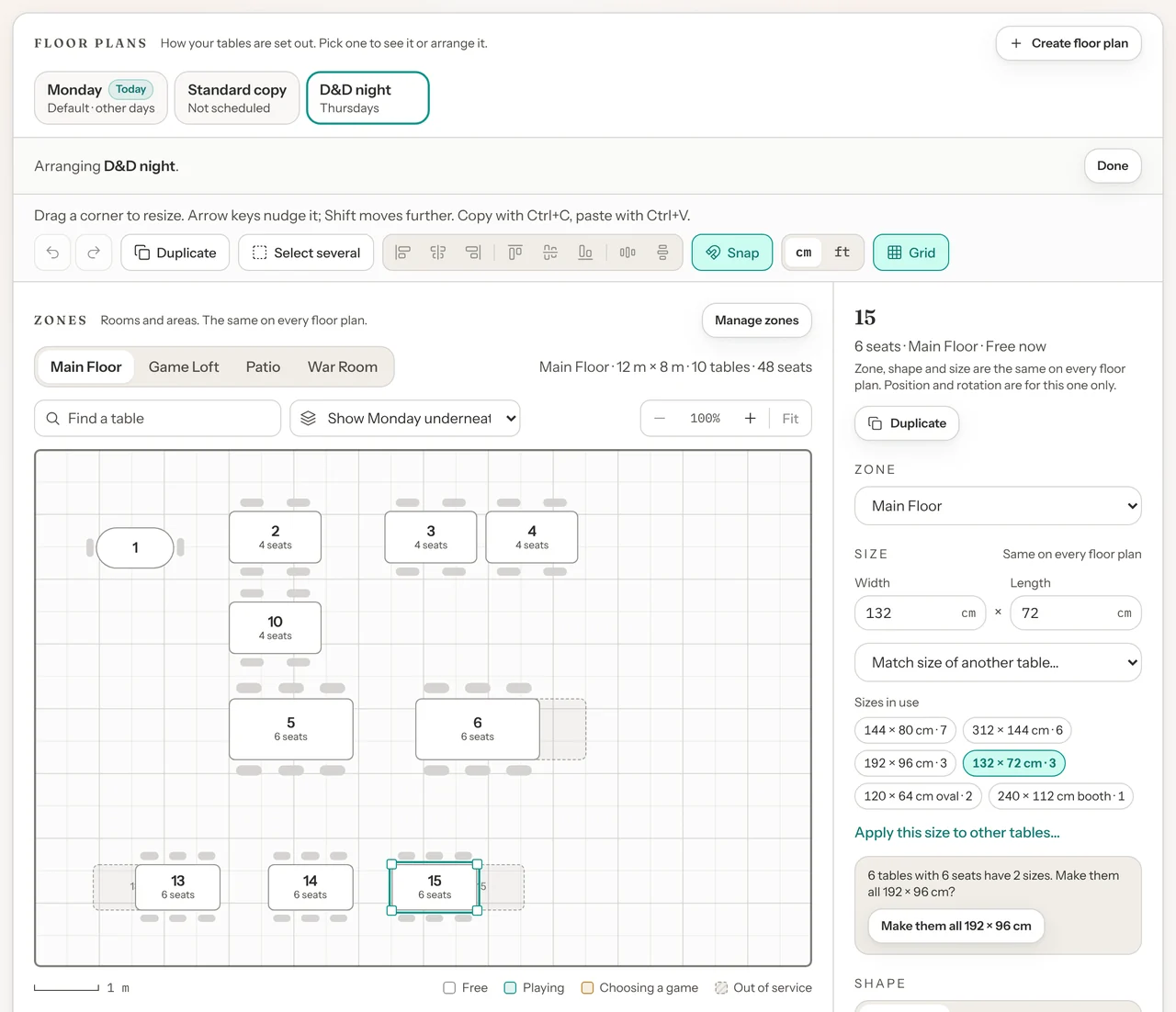
Across floor plans. Select a table, and its panel has an Across floor plans section:
- Lock in place keeps the table where it is on this floor plan, so a stray drag, arrow key or turn can't move it. A locked table shows a small lock while you edit, has no resize handles, and its Take off this floor plan button is off until you click Unlock. You can still change its size in the panel, its shape and its zone. Changing a locked table's size can move it slightly if it's against a wall. The lock belongs to this floor plan only. Like a move, it waits for you to save, and undo takes it back. A copy of a locked table isn't locked.
- Use this spot on every floor plan puts the table in the same place, with the same turn and lock, on all your floor plans, including those where it waits under Not on this floor plan. You are asked first, for example "Put Bar here on every floor plan?", and click Use on every floor plan. It saves straight away, any other changes on the map stay unsaved, and undo starts fresh. If the connection drops part way, a message says it "Couldn't tell whether that reached your other floor plans": click Reload to see them as they are (this drops your unsaved changes). A copy you haven't saved, a table that isn't on this map, and a table whose new zone isn't saved yet need saving or placing first.
- Copy its spot from: pick another floor plan, and the table moves to where it sits there, with its turn and lock. A locked table, and a table that floor plan doesn't have, stays where it is. Nothing is saved until you save, and undo puts it back.
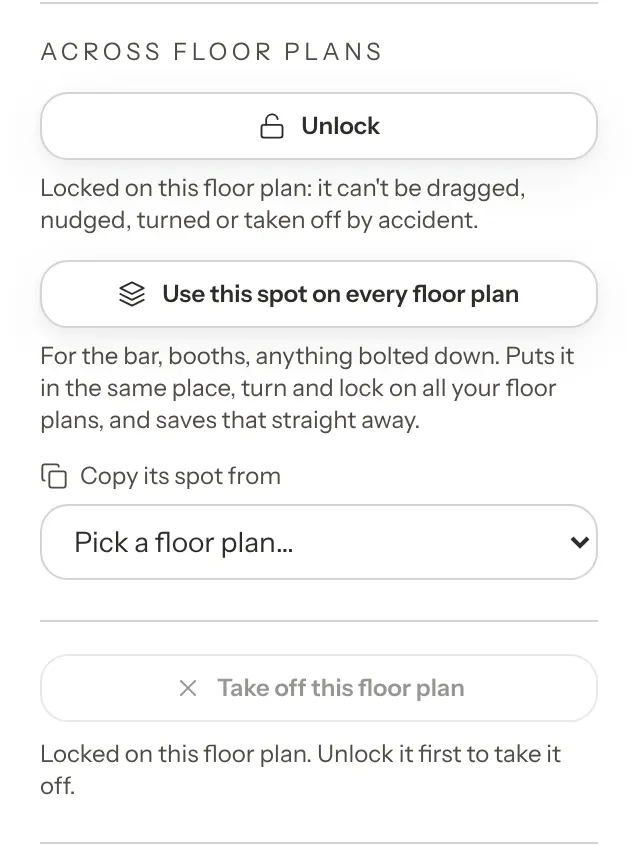
With several tables selected, the section offers Lock all 4 (or Unlock all 4), Use this spot on every floor plan and Copy their spots from. With only one floor plan, the section is called Lock in place and has just the lock.
Locked tables stay put while you arrange the rest. Drag a group and the locked ones stay behind (dragging a locked table moves nothing). Line a group up and the others line up with the locked ones. With locked tables in the selection, Take all 4 off this floor plan becomes, for example, Take 3 unlocked off this floor plan and leaves the locked ones on. Space evenly won't move a locked table: leave it out of the selection, or keep it at one end.
Print a setup sheet
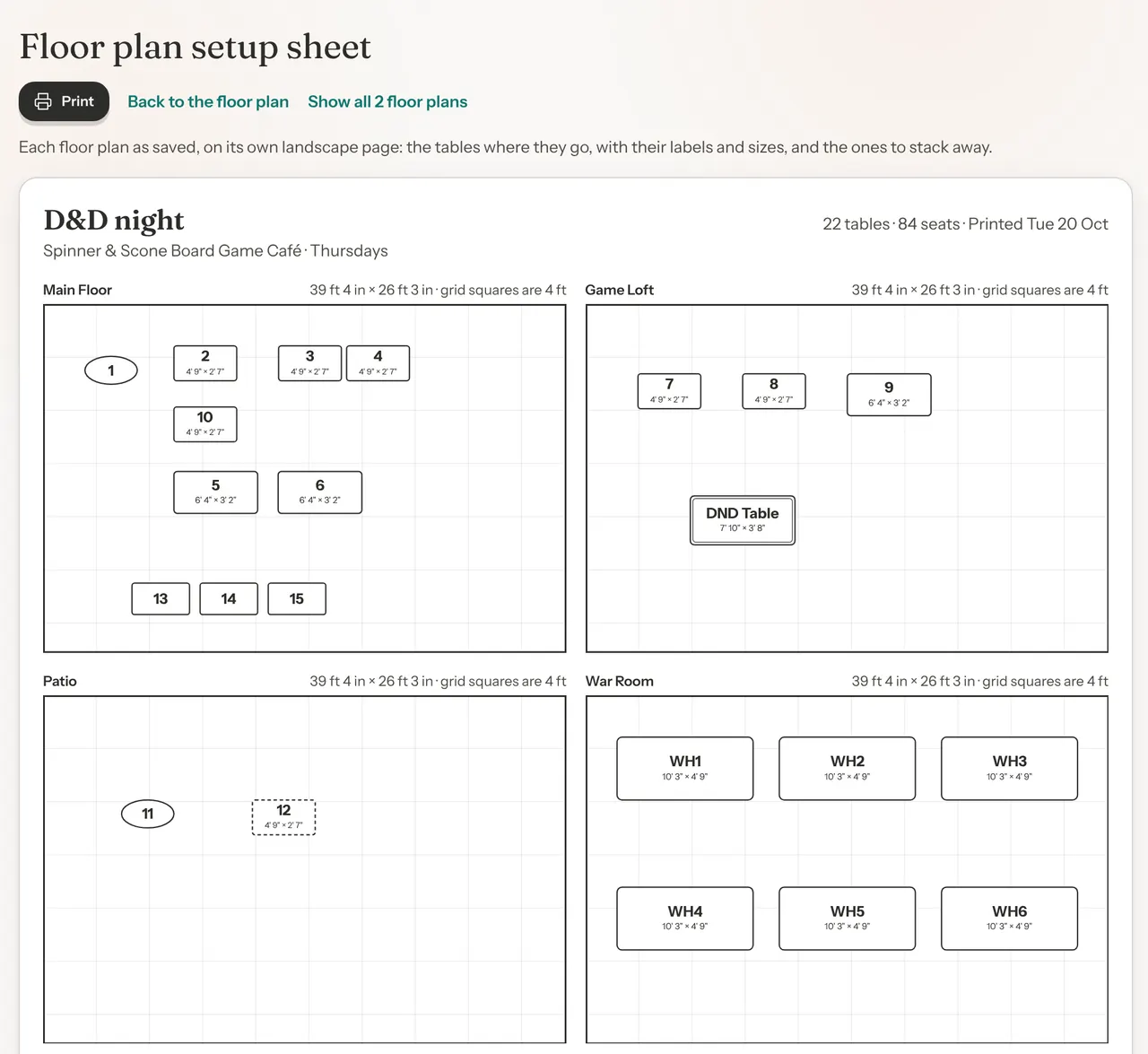
Click Print setup sheet on the open floor plan's line. A new tab opens with the floor plan that is on the map, drawn for whoever sets the room up: each zone's room to scale with every table where it sits, turned as it is, with its label (and its size, where that fits inside the table). Underneath, it lists each zone's tables with their seats and sizes, and the tables Not on this floor plan to stack away. Click Print: each floor plan prints on one landscape page. Show all 2 floor plans (the buttons count your floor plans) puts every floor plan on the sheet, one page each, and Print all 2 prints them.
The sheet shows floor plans as saved. If the map has changes you haven't saved, save them first.
See which floor plans a table is on
With two or more floor plans, the Table List has an On floor plans column (under the table's name on smaller screens). It has a chip for each weekday, Monday first: filled when the table is on the floor plan that opens that day, and dashed when it waits under Not on this floor plan there. A + chip after the weekdays counts your floor plans that no weekday opens, such as one kept for a D&D night, and is filled when the table is on any of them. Hover over a chip to see the floor plan's name and whether the table is on it.

Take a table out of service
Take a table out of service when it is broken, being cleaned up, or not in use for a while. The buttons call this Deactivate and Activate. It is not permanent: you can bring the table back any time.
Step 1: Choose Deactivate in the table's menu
In the Table List, find the table, click its ⋯ button and choose Deactivate. A red line opens under the row, for example Deactivate 11? It checks for upcoming bookings on the table, then tells you what happens:
- "No upcoming bookings. The table stops being offered for new bookings right away. You can reactivate it any time."
- Or, when there are some: "This table has 2 upcoming bookings. They stay on the books and are not cancelled; the table just stops being offered for new bookings. You can reactivate it any time."

Step 2: Click Deactivate table
Click Deactivate table, or Cancel to leave it as it is. A message says "Table deactivated" and that the table "is now hidden from bookings". Its row shows an Out of service tag, and a tag at the top of the list counts your tables out of service.
You can do the same on the Visual Map in edit mode: select the table and click Deactivate at the bottom of the panel. The same question opens in a window, with the same Deactivate table button.
While a table is out of service:
- Guests are not offered it for new bookings.
- Bookings already on it stay, and are not cancelled. Move them to another table yourself. See Managing Bookings.
- Anyone who scans its QR code sees "This table link is not valid".
- It stays in the Table List with an Out of service tag. Click Hide out of service at the top of the list to hide such tables, and Show out of service to list them again.
- On the Visual Map it is drawn in grey stripes with a dashed outline, on every floor plan it is on, and reads Out of service when there is room.
- The dashboard names it in one line under The Floor, instead of giving it a tile.
Bring a table back
Step 1: Choose Activate in the table's menu
In the Table List, click the table's ⋯ button and choose Activate. There is no question this time. A message says "Table activated" and that the table "is now available for bookings". Its Out of service tag goes and guests can book it again. If a booking type set to Specific tables doesn't have it ticked on its Who can book card, the message says that type doesn't offer it, with an Open Who can book button if you can open Settings.

A table cannot come back in two cases, and a message says why:
- Its zone is turned off. You see a message like: The “Patio” zone is inactive — activate the zone first.
- Another active table now has the same label. You see a message like: Another active table is already called “11”. Rename one of them, then reactivate.
Archive a table
Archive a table you no longer use. Unlike taking it out of service, archiving cannot be undone.
Step 1: Choose Archive in the table's menu
In the Table List, click the table's ⋯ button and choose Archive. A red line opens under the row, for example Archive "11" for good?, with: "Archived tables can't be reactivated and their QR codes stop working. To take it out of service for now, deactivate it instead." If the table has upcoming bookings, it first says how many and that archiving will not cancel them.
Step 2: Confirm
Click Archive table, or Archive anyway when the table has upcoming bookings. A message says "Table archived". The table disappears from Tables & Floor Plan, including every floor plan, and its label is free for a new table.
| Out of service | Archived | |
|---|---|---|
| Can guests book it? | No | No |
| Bookings already on it | Kept | Kept |
| Its QR code | Shows "This table link is not valid" until you bring it back | Stops working for good |
| Listed on this page | Yes, with an Out of service tag | No |
| Can you undo it? | Yes, click Activate | No. Add it again as a new table |
Tables and shared seats
Each booking type takes bookings in one of two ways. You choose on the type's Who can book card under Settings → Venue Policies → Booking Rules. For a type other than Standard, first pick it in the Editing: bar at the top of that page (see Setting Up Your Booking Types):
- Reserve specific tables: each booking takes one of your tables. With Any active table, every table you add later is included automatically. With Specific tables, only the tables you tick are used, so tick a new table there before guests can book it for that type.
- General capacity (shared seats): bookings count against a Total seats number shared across the room. Your tables are not used, so nothing on this page changes what that type offers.
See Shared seating for how to set this up.
What guests can book
- No active tables means no table bookings. With no tables, or every table out of service, a guest who picks a type that reserves tables finds no time to book: the page says "No table seats 4 guests" and "Try a smaller party." A type set to Specific tables whose ticked tables are all out of service is hidden from your booking page. Guest view in Settings flags both.
- Seats decide who gets a table. A party is only offered a table whose capacity is at least the party size. The one exception is a table with extra chairs, which can take a bigger party that has one of its seating tags. See Extra chairs.
- Changes take effect at once. A new table is offered straight away for types set to Any active table (a Specific tables type needs it ticked first; see Tables and shared seats), and a table you take out of service stops being offered straight away.
- The map does not matter to guests. Placing, moving or reshaping a table on the Visual Map, a table's size, and which floor plan is open change nothing they can book.
- A zone that is turned off takes all its tables out of service.
Seating one large party across more than one table is a separate setting and is not covered here.
Team members with view-only access
On the Team page, each staff member has a View and an Edit box for Tables & Floor Plan. Owners and admins can always make changes. See Team and Permissions.
- View only: the team member sees the Table List, the Visual Map with its floor plan tabs (to look at another floor plan) and zone tabs, a table's details, Print setup sheet, Print QR Codes and Test Guest View. The buttons for changing anything are hidden: Manage zones, Add table, each table's Edit, Deactivate and Archive, Edit layout on the map, and Create floor plan, the menu on a floor plan's tab, Use tonight and Days & settings, so they can't move tables or change floor plans either. An active table's ⋯ menu still has Preview guest page. On a venue with no tables yet, they see "No tables yet" and nothing to add.
- Book This Table on a table's details also needs Edit on Bookings. Without it, the button isn't shown.
- No View: Tables & Floor Plan is missing from their menu, and opening the page shows "Access to the floor plan is restricted".
Good to know
- Every table needs a capacity. Guests are only offered a table that seats their party, so a table can't be saved without one.
- Only the map waits for you to save. Adding, editing, taking out of service, archiving, Tidy sizes in the Table List, the cm and ft buttons, Use this spot on every floor plan, and every change in Manage zones, Create floor plan, a floor plan's tab menu and Days & settings save at once. Moving, resizing, reshaping, turning and taking tables off a floor plan on the Visual Map wait for the save button in edit mode (Save layout, or Save and the floor plan's name).
- Two people arranging the same floor plan. If someone saves a floor plan while you have it open in another tab or on another device, your next save of it is refused, and a message says it "was changed in another tab". Your changes stay on the map, but aren't saved: reload to see the other version (this drops your changes). Arranging two different floor plans at the same time is fine. The exception is Use this spot on every floor plan: it changes your other floor plans too, so someone with one of them open gets that message at their next save.
- Set up zones before your first table. Manage zones works on a venue with no tables yet, so you can name your zones first and then add tables to them.
- Turning a zone back on does not bring back its tables. Bring each table back with Activate.