Your venue page and branding
Set the name, logo, cover photo, colors, address and welcome note guests see on your venue page and booking page, and let guests ask for a rules teach.
Last verified
Every venue on GameLedger has a public venue page at an address like www.gameledger.io/v/your-venue, and a booking page at the same address with /book on the end. This guide shows what guests see on each, and which setting changes each part: your name and contact details, logo, cover photo, accent color, address, a welcome note, and whether guests can ask you to teach them the rules.
Everything here lives in Settings. Changes show to guests the next time they load the page.
Where to find it
- Settings → Venue → Profile: your name, web address, description and contact details.
- Settings → Venue → Branding: your accent color, logo and cover photo, plus Theme Density, which only changes your own admin screens.
- Settings → Venue → Location: your address, country and time zone.
- Settings → Guests → Booking Page: your booking link, your note to guests, and Offer to teach the rules.
What guests see on your venue page
Your venue page is the page to link from Google, Instagram or your own website. Guests can read about you, find you and book from it. From top to bottom it shows these parts. The last column names the tab in Settings where you change each one.
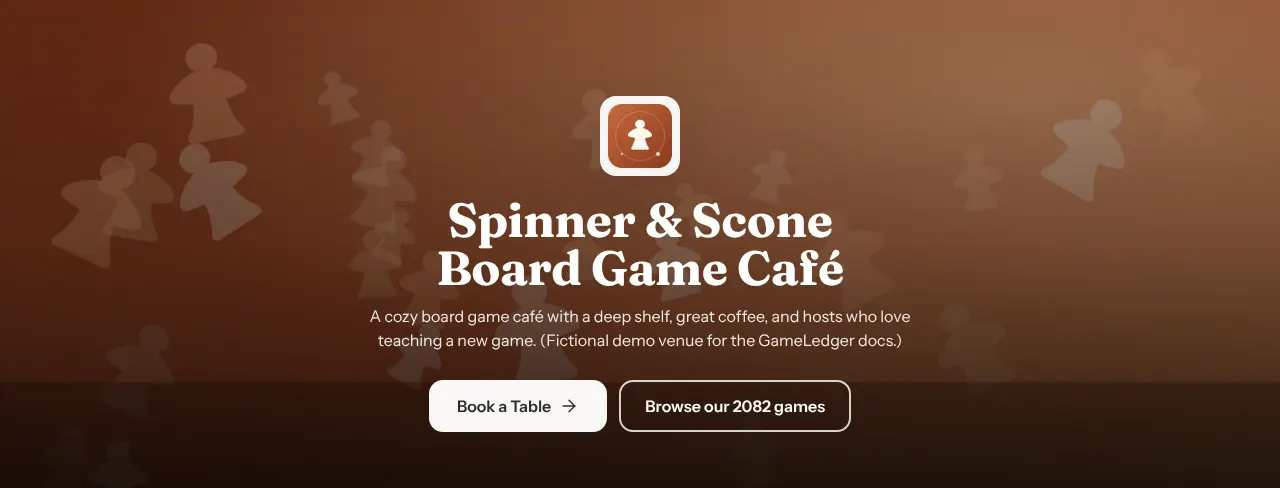
| On the page | What it shows | Where you change it |
|---|---|---|
| Cover photo | The wide photo behind the top of the page, darkened slightly so the text stays readable. | Branding |
| Logo | The square tile above your name. | Branding |
| Name and description | Your name as the page heading, with your description under it. | Profile |
| Book a Table | Opens your booking page. It shows whether or not online bookings are on. | Always shown |
| Browse our games | Opens your public games page, with the number of games on it. Only shows while that page is on and has at least one game. | Guests → Games page |
| A note from the host | Your Booking Page Message, in its own panel. | Guests → Booking Page |
| Hours and Open now | Your weekly hours, with today highlighted, and a badge such as "Open now · closes 10:00 PM". | Venue Policies → Hours & Closures |
| Find us | Your address. Tapping it opens Google Maps directions. | Location |
| Get in touch | Call, Email, Website, Instagram and Facebook buttons, one for each detail you have filled in. | Profile, and Facebook in Guests → Review Links |
At the bottom, Ready to pull up a chair? repeats the booking button with your name on it, and the footer says Powered by GameLedger.
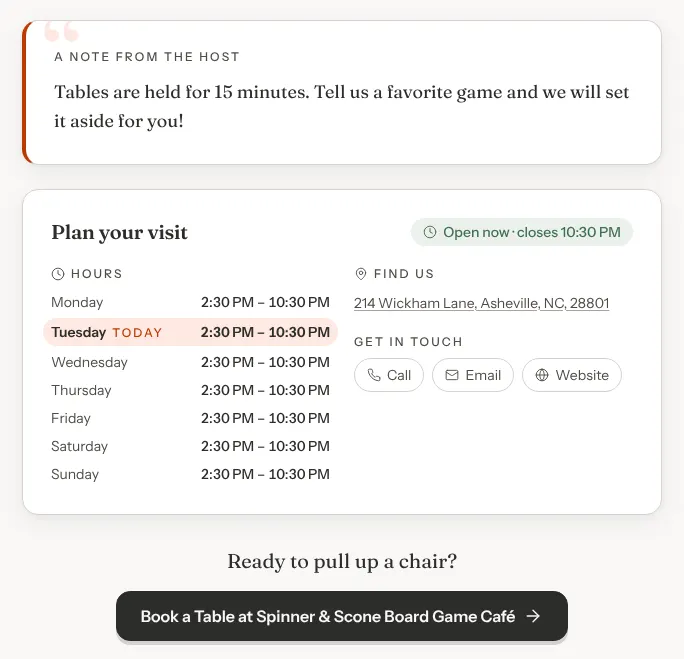
Anything you leave empty is left off the page, so it never shows a blank. Your opening hours only appear once you have saved them in Hours & Closures, or brought them in from Google, so the page never shows hours you haven't checked.
Your name, web address and contact details
Go to Settings → Venue → Profile. The Venue Profile card holds what guests read about you. If you see Find my café on Google above the card, it can fill in your name, phone and website from Google, along with your address, time zone and opening hours. Description, Contact Email and Instagram are yours to fill in. See Fill in your café's details from Google.
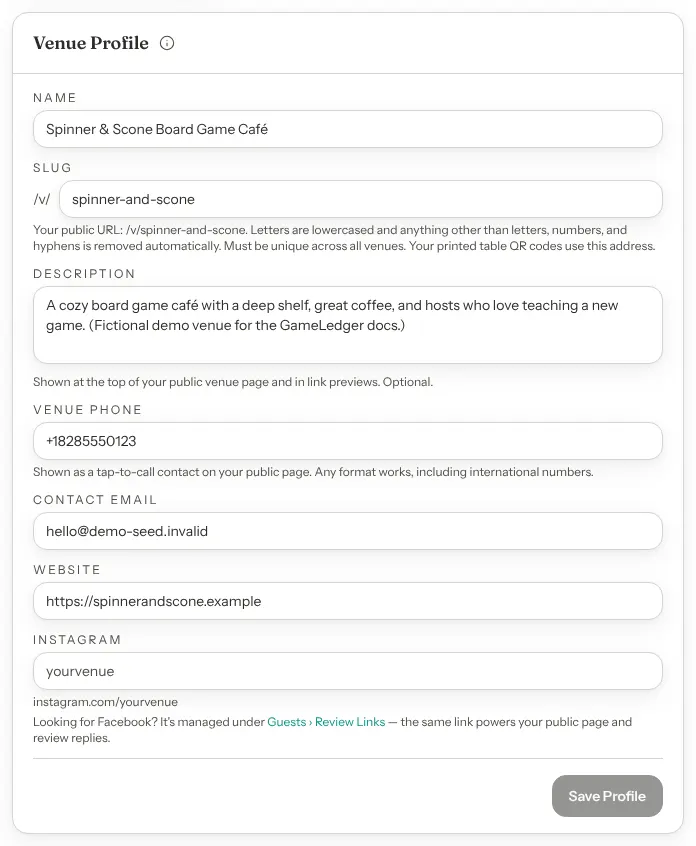
| Option | What it does | Default |
|---|---|---|
| Name | Your venue's name. It heads your venue page, your booking page and your guests' emails. | Default: What you entered at setup |
| Slug | The last part of your web address, after /v/. Letters become lowercase, and anything other than letters, numbers and hyphens is removed as you type. No other venue can use the same one. | Default: What you chose at setup |
| Description | A line or two at the top of your venue page. It is also the text under your venue page link when someone shares it. | Default: Empty, or what you entered at setup |
| Venue Phone | The Call button on your venue page, and a Call link at the foot of your guests' emails. Any format works, including international numbers. | Default: Empty, or what you entered at setup |
| Contact Email | The Email button. When a guest replies to a cancellation or refund email, or to your answer to their feedback, the reply comes here. | Default: Your login email, unless you changed it at setup |
| Website | The Website button. | Default: Empty, or what you entered at setup |
| Your Instagram handle, without the @. The Instagram button, and the Instagram link at the foot of your guests' emails, open instagram.com/ followed by it. | Default: Empty, or what you entered at setup |
Click Save Profile when you are done. It stays greyed out until you change something, and while Name or Slug is empty.
Facebook is not on this card. Add your Facebook page in Settings → Guests → Review Links, under Facebook page URL. The same link gives your venue page its Facebook button.
Your logo
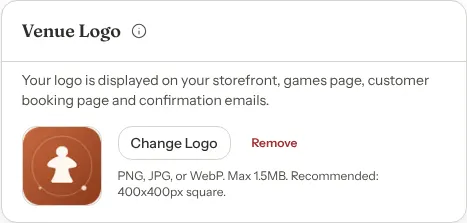
Go to Settings → Venue → Branding. The Venue Logo card shows your current logo, or No logo.
Step 1: Click Upload Logo
Choose a PNG, JPG or WebP file under 1.5 MB. A square image about 400 × 400 pixels works best. The button reads Uploading... for a moment, then your logo appears in the preview. There is no separate save button: your guests see it straight away.
If the file is too big or the wrong type, the card says so in red and nothing changes.
Step 2: Change or remove it later
Click Change Logo to upload a different one. Click Remove, then Remove logo in the box that opens, to take it off. Changing or removing your logo deletes the old file from GameLedger, so keep your own copy.
Your logo shows on your venue page, at the top of your booking page next to your name, on your games page and at the top of the emails guests get from you. Until you upload one, those places show the GameLedger logo instead.
Your cover photo
The Cover Photo card comes after the Venue Logo card on Branding. Click Upload Cover and choose a JPG, PNG or WebP up to 5 MB. Large photos are resized for you. A wide, landscape photo of your space works best, because it is shown wide and cropped to fit. To change it, click Replace Cover. To take it off, click Remove, then Remove cover photo. Either way the old file is deleted, so keep your own copy.
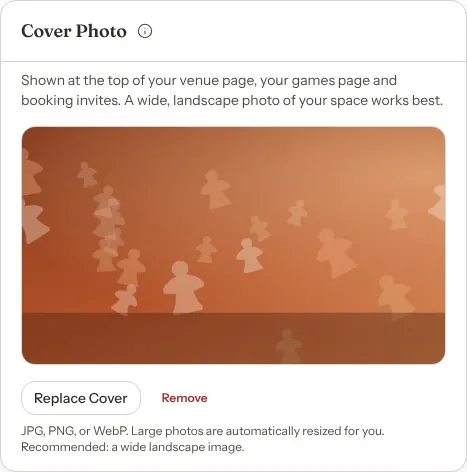
Your cover photo appears at the top of your venue page, your games page, and the "You're invited" page that a guest's friends open when the guest shares their booking. Without one, those places show a designed color pattern instead, so they never look empty. It is also the picture shown when someone shares your venue page or booking link. With no cover photo, your logo is used.
Your games page can have a different photo of its own. See Your Public Games Page.
Your accent color
The Accent Color card sets the color of buttons, links and highlights on your guest pages. Pick one of the eight ready-made colors (Teal, Terracotta, Honey, Forest, Indigo, Plum, Rose or Espresso) or Custom to type your own brand color. The Guest page preview shows your choice before you save. Click Save Accent Color to use it. New venues start on Teal.
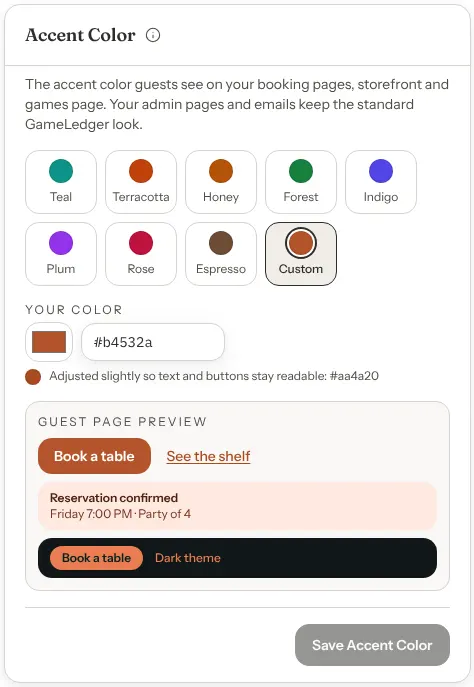
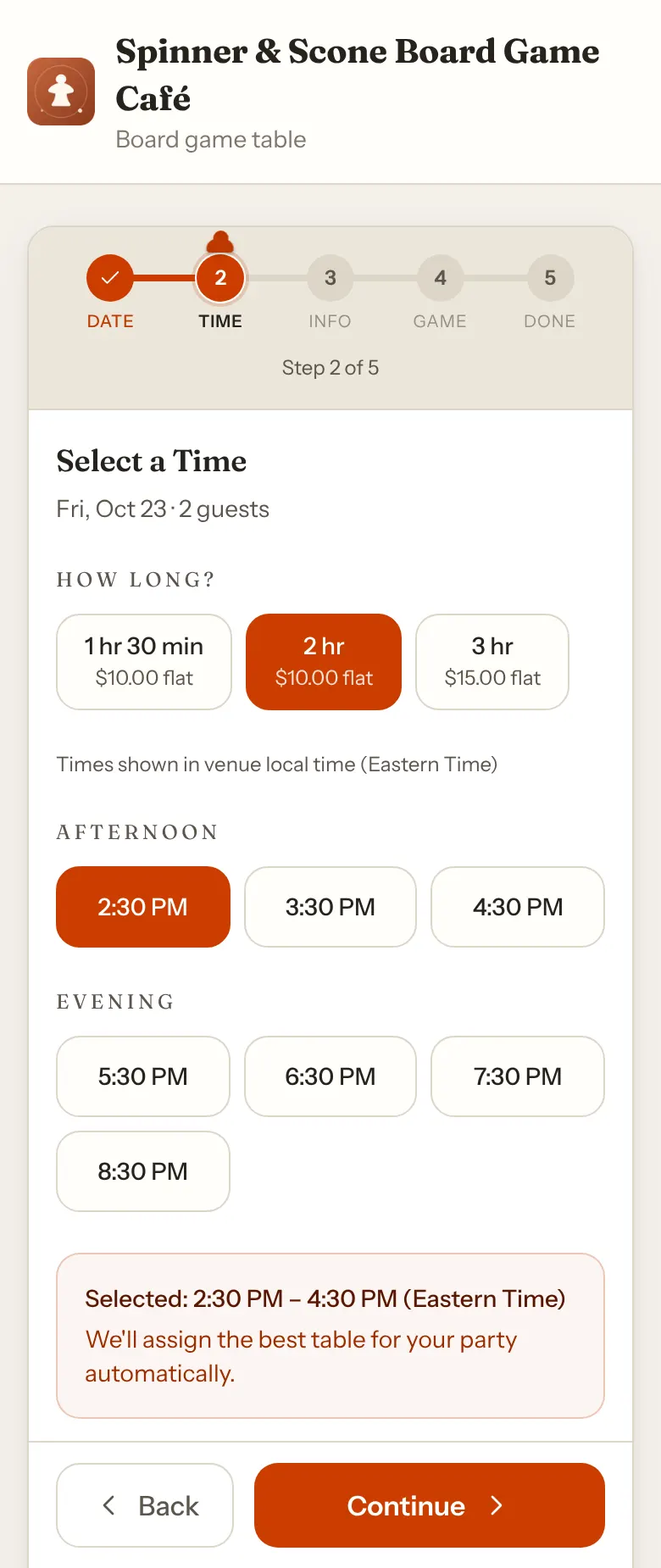
Your accent color is used on your venue page, your booking pages, your games page and the pages guests open from a table QR code. On your booking page it colors the buttons and the selected date and time.
If your own color is too light for white text on a button, GameLedger uses a deeper shade of it and shows you which, so buttons stay readable. Your brand color in the games page guide walks through a custom color step by step.
Your admin screens, and the emails guests get from you, keep GameLedger's own colors whatever you choose.
Your address
Go to Settings → Venue → Location. Fill in Street Address, City, State / Province, Postal Code and Country, then click Save Changes at the bottom of the page.
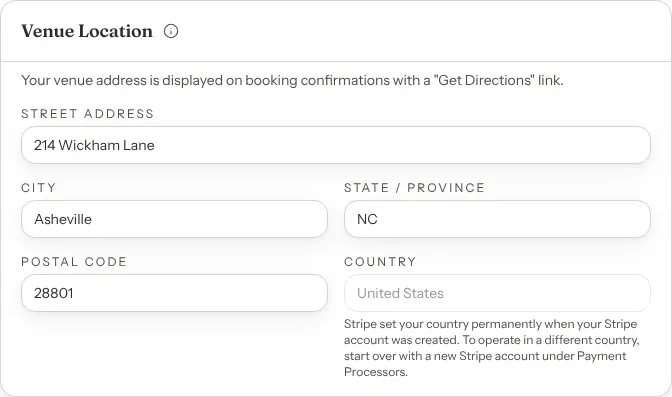
Guests see your address on your venue page under Find us, on their booking confirmation and in their confirmation and reminder emails, each with a link to directions in Google Maps.
Country also sets the dial code guests' phone numbers start with, whether table sizes show in centimetres or feet, and the country your Stripe account is created in. If it's empty, phone numbers and table sizes follow the United States, and Connect with Stripe asks you to choose a country first.
Once your venue has a Stripe account, Country is locked, because Stripe fixed your country when the account was created. The card tells you so.
The Timezone card is also on this tab. Every time guests are offered is in this zone, so check it is right. See Confirm your timezone.
A note for your guests
Go to Settings → Guests → Booking Page. Type in the Booking Page Message box and click Save Changes at the bottom of the page. Use it for a welcome, arrival instructions or a house rule, for example "Tables are held for 15 minutes."
Guests see it in two places:
- On your venue page, under the heading A note from the host.
- On the last step of booking, just above the confirm button, under A note from and your venue's name.
Your line breaks are kept in both places.
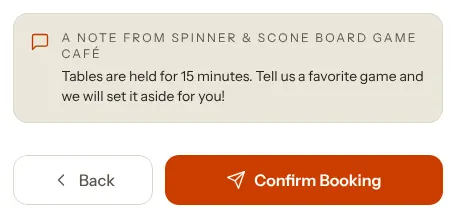
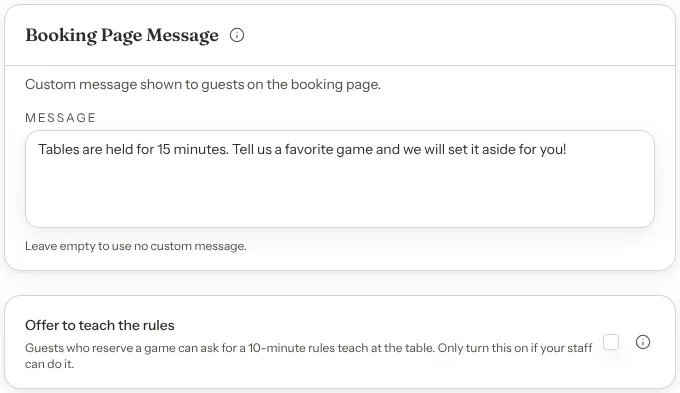
There is no character limit, but guests read it on a phone just before they confirm, so a few lines works best. To stop showing a note, empty the box and save. New venues start with no note.
Offer to teach the rules
Further down Settings → Guests → Booking Page, Offer to teach the rules lets guests who reserve a game ask for a short rules teach when they sit down. It starts off. Only turn it on if your team can do it on a busy night. Tick it and click Save Changes.
What guests see. On the last step of booking, a guest who picked a game gets a tick box: Teach us the rules (10 min, free), with the line "A staff member will walk you through the rules when you sit down." It never shows for a booking without a game. Asking for a teach doesn't make the booking longer.
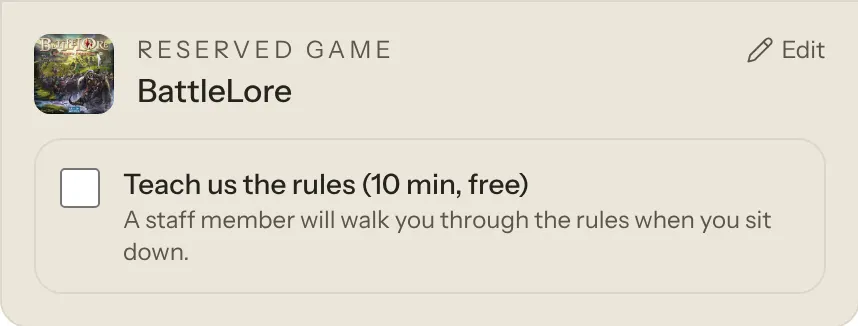
A guest who asked sees "We'll teach you the rules when you sit down." on their booking confirmation, in their confirmation and reminder emails, and on the "You're invited" page their friends open.
What your team sees. When a guest asks:
- The booking says Teach the rules under its game on the Bookings timeline, and Prep: teach the rules next to the game when you open it.
- When you seat the party, a teach request for their game goes straight into your table help alerts, so nobody has to ask again at the table. See Table Help Alerts.
If you turn the offer off later, new bookings can't ask. Bookings that already asked keep Teach the rules on the timeline, and those guests still see the promise on their confirmation, their reminder email and their invite page. Seating them no longer raises a help request, so teach them anyway or let them know.
This is separate from the Teach us button guests can tap at their table, which you set in Settings → Guests → Table help. See Table Help Options.
Your booking link
The Your booking page card at the top of Settings → Guests → Booking Page shows your Booking link with Copy link and Open buttons. While your games page is on, its link is there too. Share your booking link lists the other places to copy it from.
While Accept Online Bookings is off, anyone who opens your booking link sees Reservations Not Available and "[Your venue] isn't currently accepting online reservations. Please contact them directly to book a table." Your venue page still shows, and its Book a Table button leads to that message. See Pause online bookings.
Theme Density
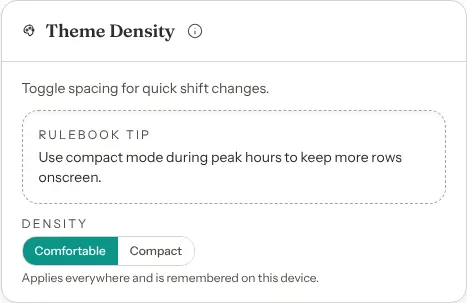
The last card on Settings → Venue → Branding changes your own admin screens, not your guest pages. Choose Comfortable for more room, or Compact to fit more rows on screen during a busy shift. It changes straight away, with no save button, and applies on every admin page. It is remembered on this device only, so each computer or tablet keeps its own choice. Guests never see it.
Good to know
- Who can change these settings. Anyone who can edit your venue's settings: the owner, admins and staff given that access. Everyone else sees these tabs read-only, with the line "You can view these settings. Ask your venue owner if something needs changing." Theme Density works for everyone. See Team and permissions.
- Logo and cover changes are instant. They save the moment the upload finishes or you confirm Remove. The other cards wait for their save button.
- When someone shares your link. Messaging apps and social sites show your cover photo, or your logo if you have no cover photo. A shared venue page link shows your name and description. A shared booking link shows "Book a Table at" your name, with a short line inviting guests to reserve.
- Your color and photo are shared. The cover photo and accent color you set in Branding are used on your games page too. A games page photo and the games page's light or dark theme only change the games page.
- Your Stripe checkout has its own branding. The logo and color on Stripe's payment screens are set in your Stripe account. See Look after your connection.