Create your account and finish setup
Sign up, answer the setup wizard about you and your café, and work through the dashboard checklist until you have a booking link to share.
Last verified
This guide takes you from no account to a venue with a booking link. You create your login, confirm your email, and answer a short setup wizard about you and your café. GameLedger then creates your venue and gives you a setup checklist on the dashboard. When you reach the end, Bookable in 10 minutes takes over and gets your booking page ready for guests.
Setup takes a few minutes. Have these ready: an email address you can open now, a password of at least 8 characters, your name, your venue's name, and its time zone. Everything else is optional and can be added later.
Create your account
Go to gameledger.io/signup. The sign-in page does not link to it, so use that address or the sign-up link you were sent.
Step 1: Fill in the form
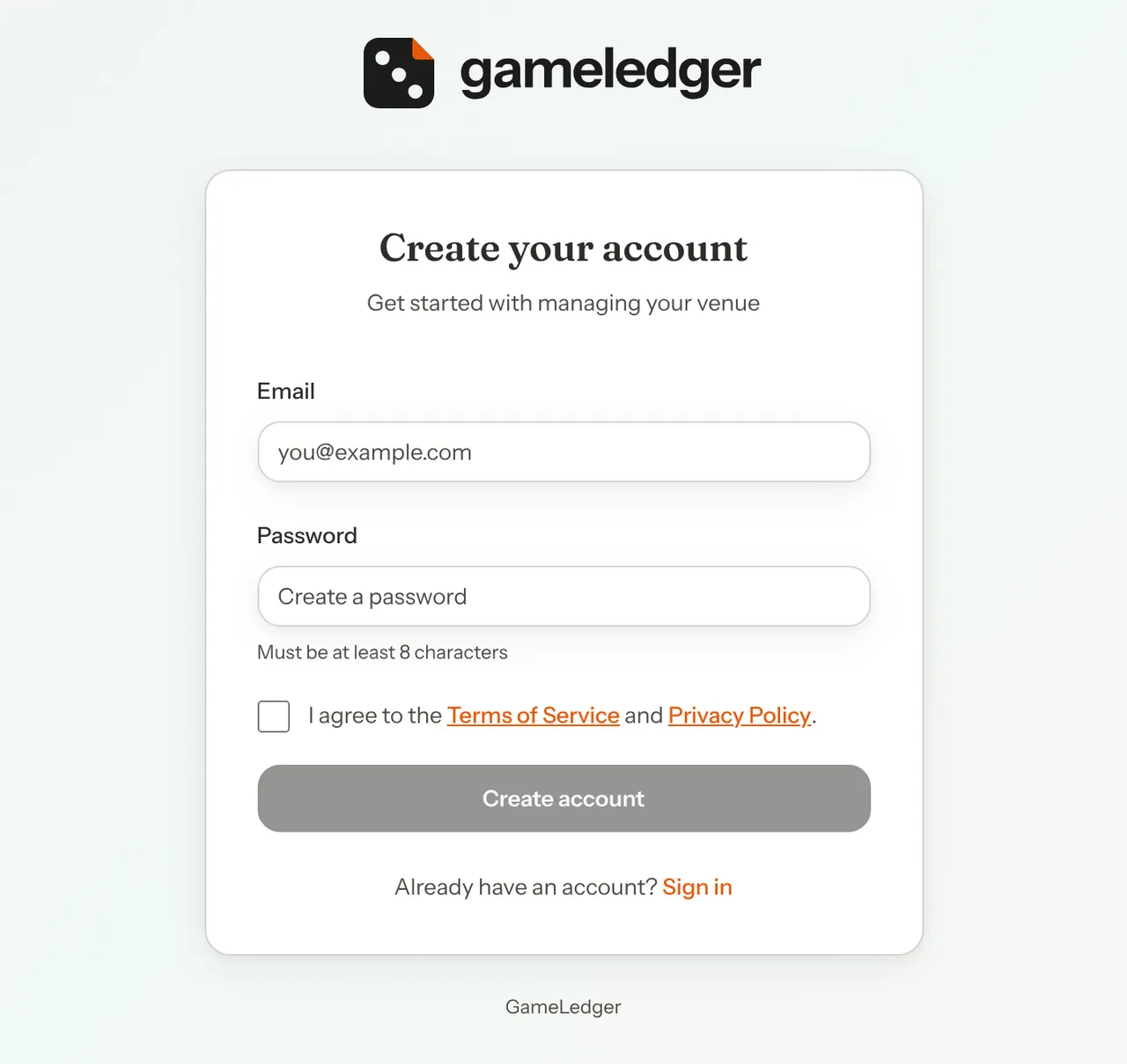
The page is titled Create your account. Type your Email and a Password of at least 8 characters. This email is your login. It is not shown to guests.
Tick I agree to the Terms of Service and Privacy Policy. Both links open in a new tab. The Create account button stays greyed out until the box is ticked.
Step 2: Click Create account
The card changes to a green tick and the message "Check your email for a confirmation link to complete your registration."
If something goes wrong, a red message above the form says what, and nothing is created.
Step 3: Open the confirmation link
Open the email and click the confirmation link. It signs you in and opens the setup wizard, described below.
Open the link in the same browser you signed up in. If you open it somewhere else, you land on the sign-in page instead: sign in there with your email and password and you go on to the setup wizard.
No email? Check your spam folder. You can also go to the sign-in page and sign in with the email and password you chose. GameLedger tells you the address isn't confirmed yet and shows a Resend confirmation email button. Type your password again, then click it.
Sign in
Step 1: Open the sign-in page
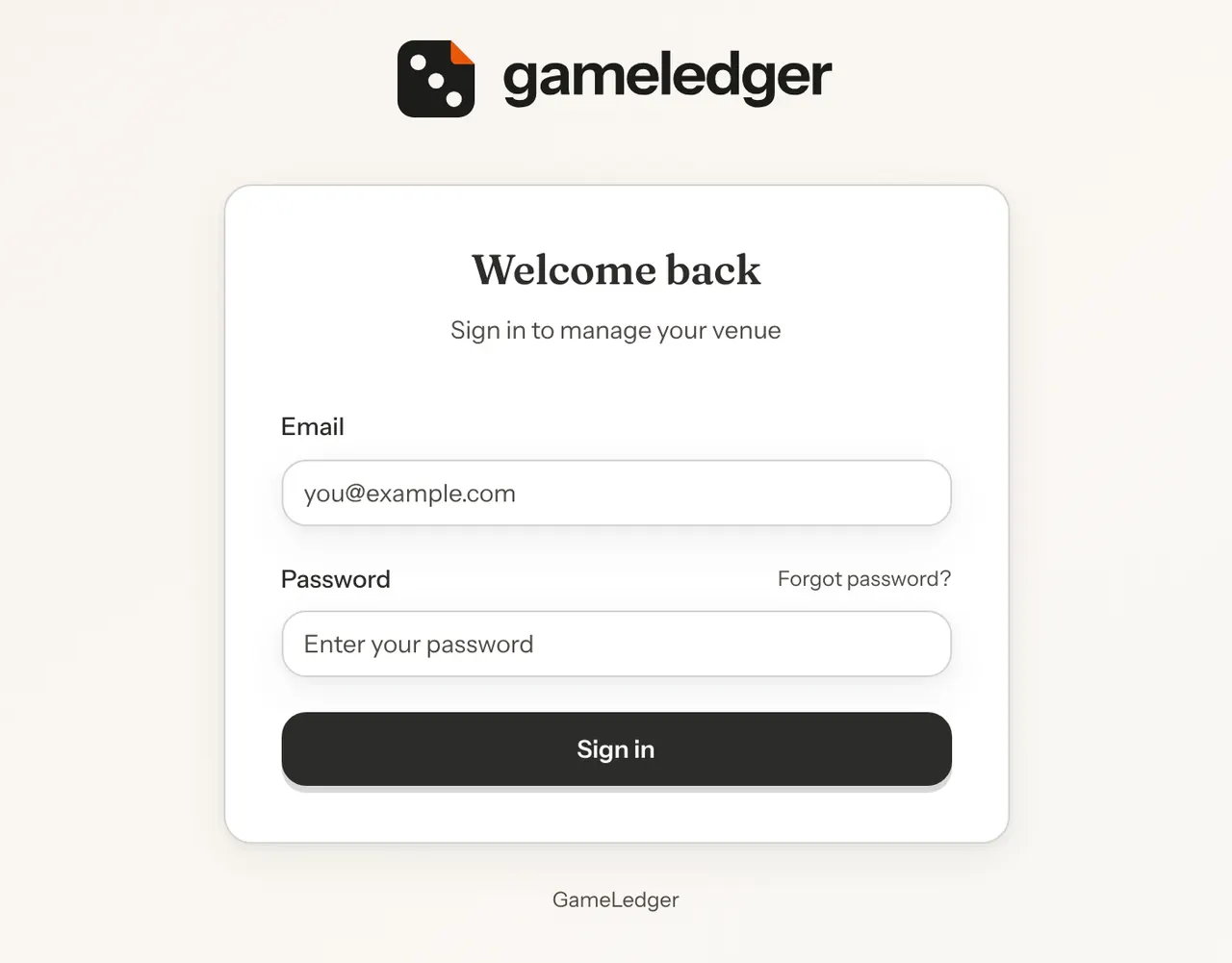
The page is titled Welcome back. Type your Email and Password and click Sign in.
Step 2: See where you land
You land on the Dashboard. If you turned on Open GameLedger on Tonight on this device, you land on Tonight instead. If your login has no venue yet, you land on the setup wizard.
If the email or password is wrong, the form says "Incorrect email or password. Please try again."
Reset a forgotten password
Step 1: Ask for a reset link
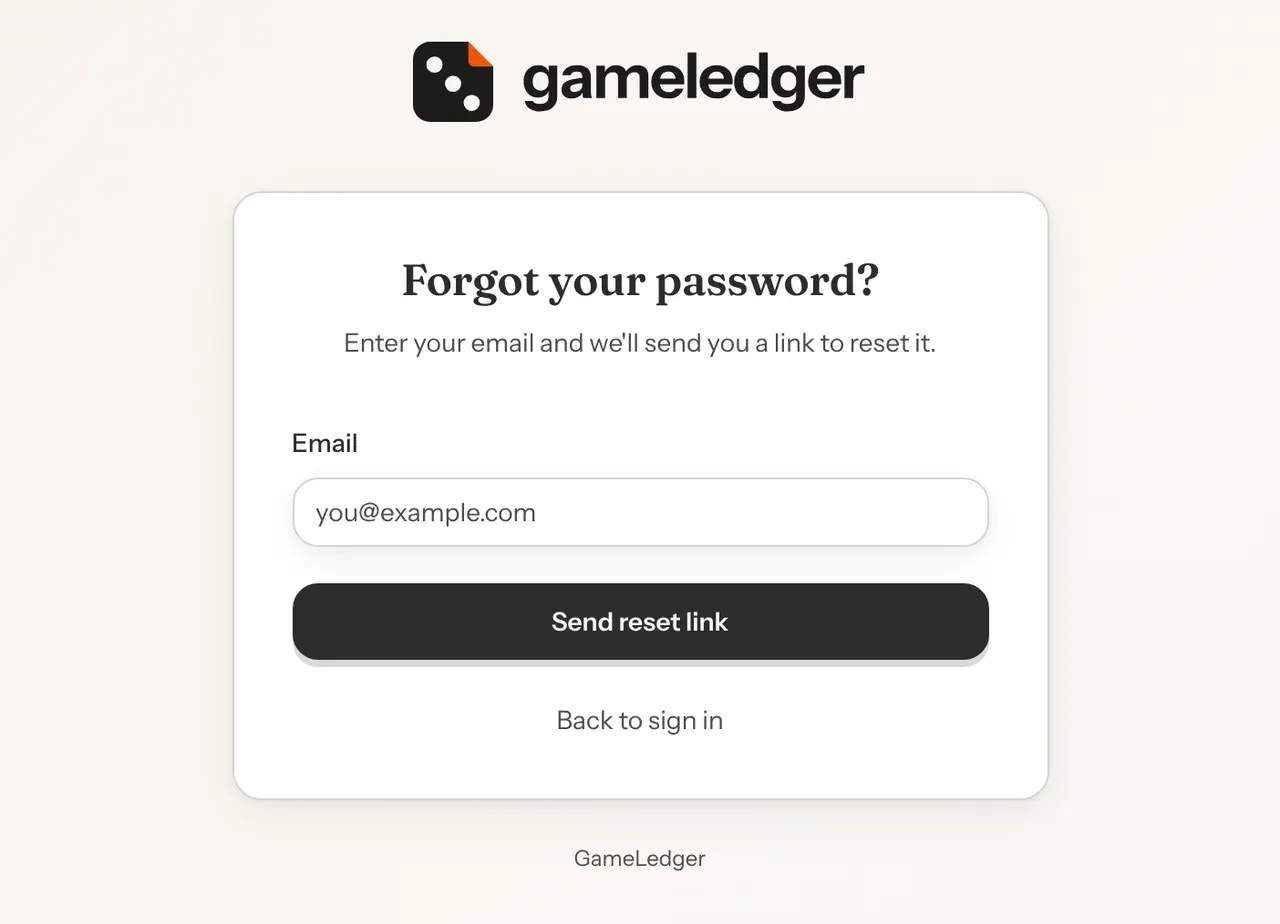
On the sign-in page, click Forgot password?. Type your Email and click Send reset link.
Step 2: Check your email
The page changes to Check your email. It says a link is on its way if an account exists for that address, and that the link expires in one hour. To send another, click try again.
Step 3: Choose a new password
Click the link in the email. A page titled Set a new password opens. Type a New password of at least 8 characters, type it again in Confirm new password, and click Update password. You go straight to your dashboard, signed in.
If the link is more than an hour old or was already used, you land back on the sign-in page with a message saying so. Click Forgot password? to get a new link.
Set up your venue
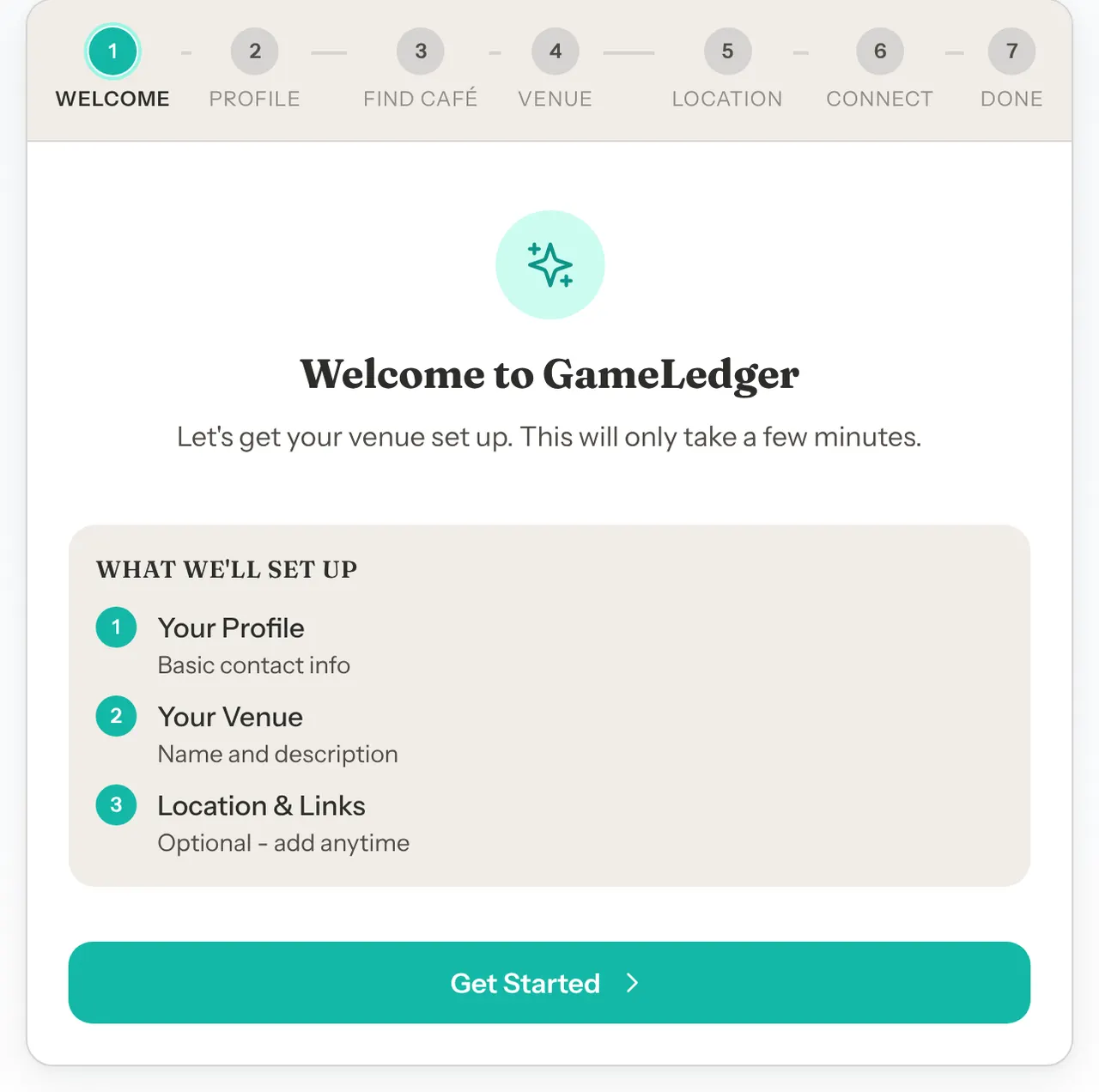
The setup wizard opens the first time you sign in without a venue. A progress bar across the top shows where you are: Welcome, Profile, Find café, Venue, Location, Connect and Done. On a phone the labels are shorter. Find café only appears when Google lookup is available. Every screen after Welcome has a Back button, and nothing is saved until the last one.
Step 1: Welcome
The first screen, Welcome to GameLedger, lists what the wizard covers. Click Get Started.
Step 2: Tell us about yourself
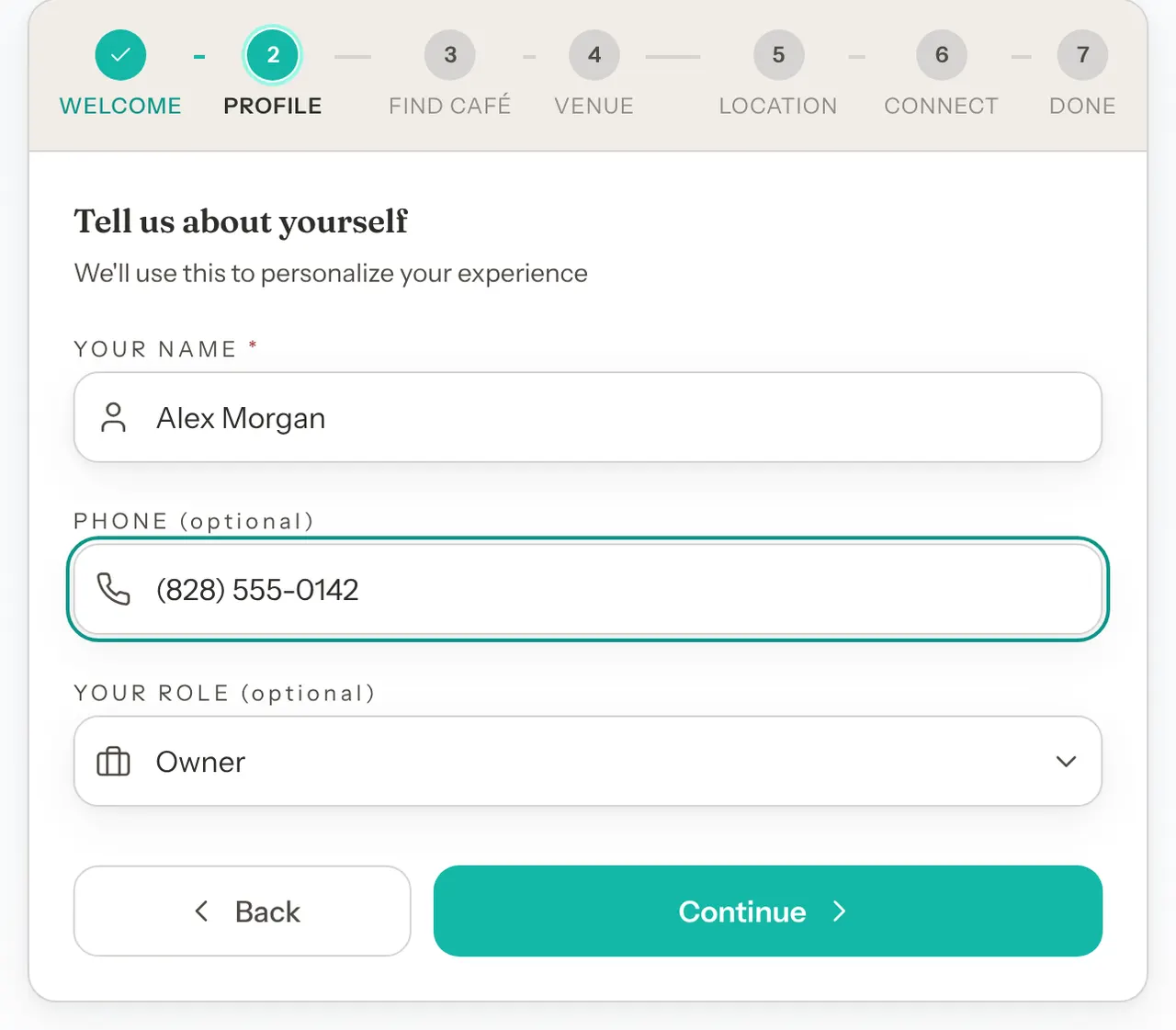
Type Your Name (required, at least 2 characters). Phone and Your Role (Owner, Manager, Staff or Other) are optional. Click Continue.
Step 3: Find your café on Google (optional)
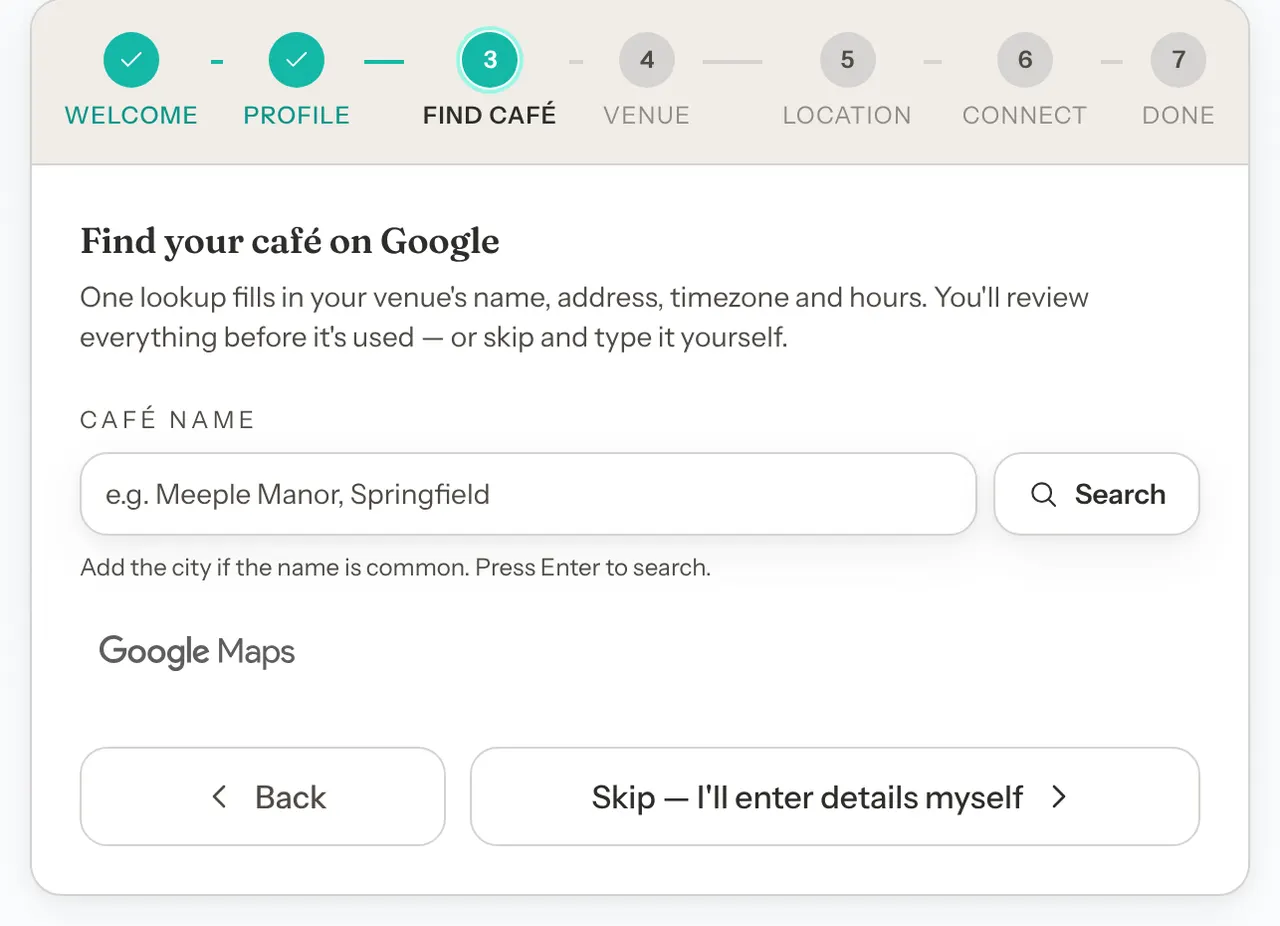
Type your café's name in Café name and click Search. Add the city if the name is common. Pick your listing from the results, untick anything that is wrong, and click Apply and continue. The details it found fill in the next screens for you, where you can still change them. If you leave the hours row ticked, your opening hours come from Google too.
The review works the same way as the Google lookup in Settings, described in Fill in your café's details from Google.
To type everything yourself, click Skip — I'll enter details myself.
Step 4: Tell us about your venue
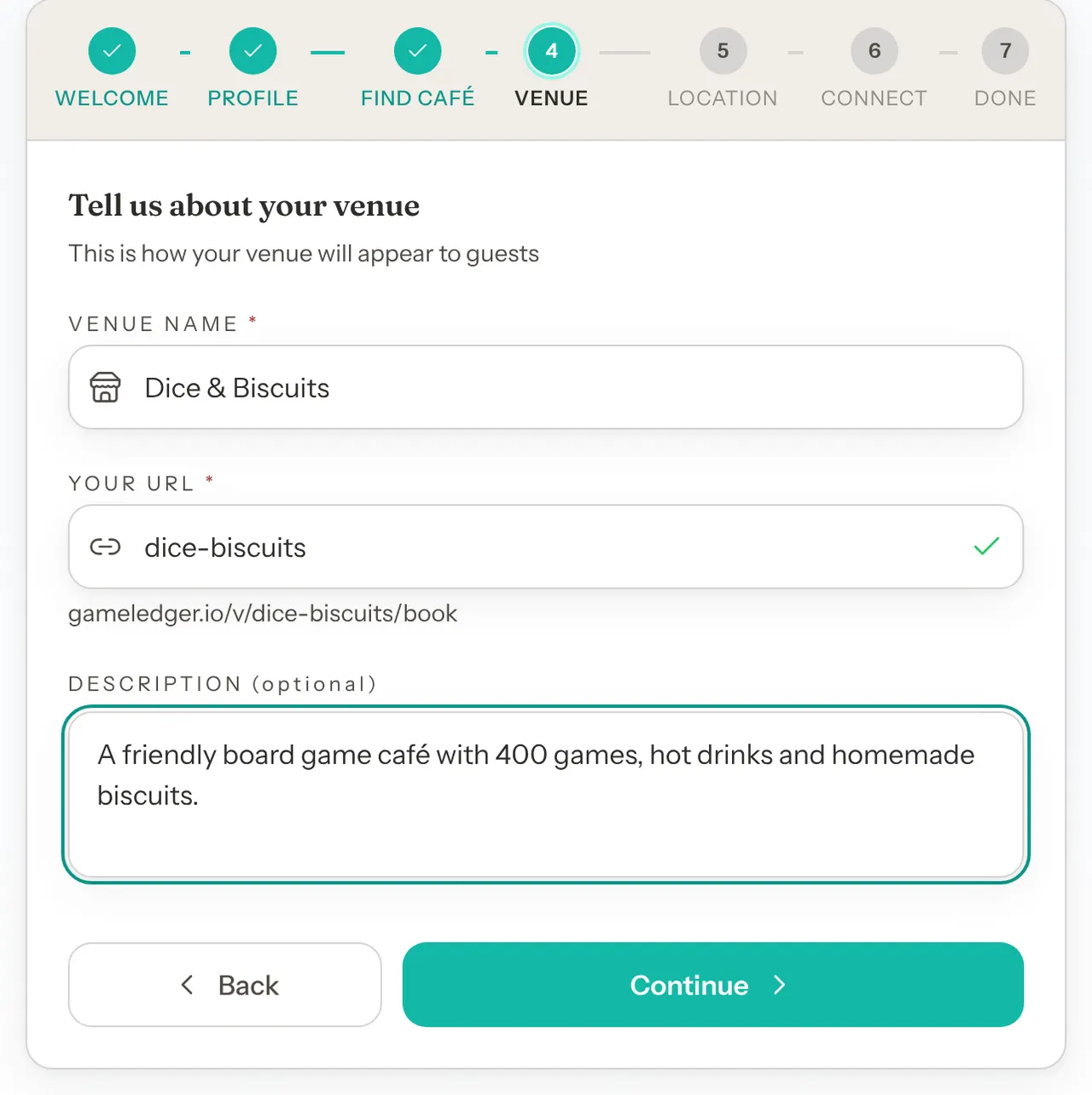
Type your Venue Name (required). Your URL fills itself in from the name. It is the end of your booking page's address, shown in full under the box, for example www.gameledger.io/v/spinner-and-scone/book. A green tick means it is free. "This URL is already taken" means you need another one.
Check it before you continue. Only lowercase letters, numbers and hyphens are kept, so symbols disappear and accented letters are dropped: "Spinner & Scone Board Game Café" becomes spinner-scone-board-game-caf. Type a shorter one if you like.
Description is optional. Click Continue.
Step 5: Where are you located?
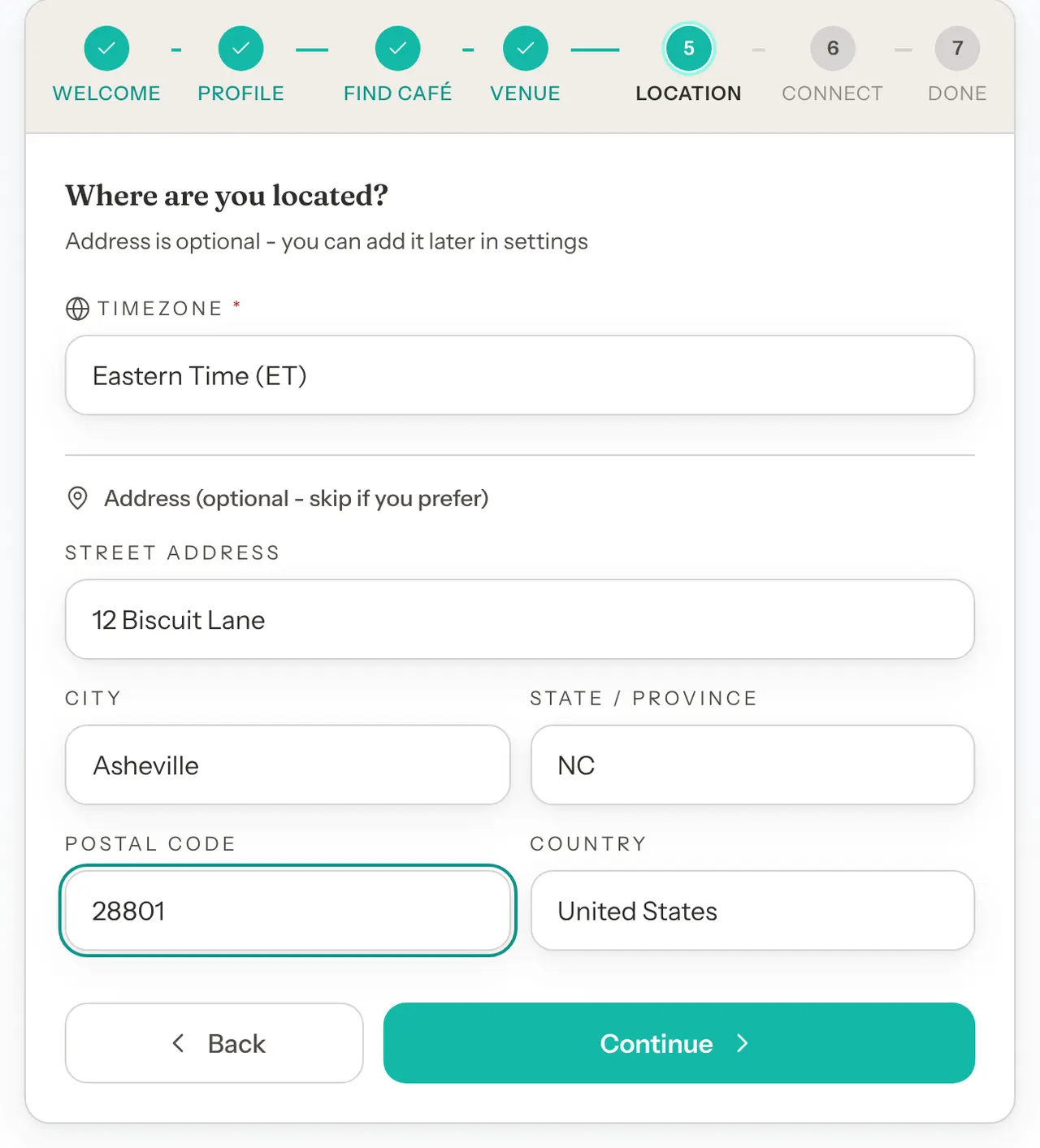
Country and Timezone are required. Timezone starts with your computer's time zone, and Country with the country that uses it, for example United Kingdom for London time. If your computer's zone has no country, such as UTC, choose your country yourself. Every time guests are offered is in this zone, so pick yours from the list if it's wrong, for example Eastern Time (ET). Until you choose a country yourself, it follows the time zone you pick. If the two don't match, a note under Timezone asks you to check both.
The address is optional: Street Address, City, State / Province and Postal Code. Click Continue.
Step 6: Connect with guests
Everything here is optional: Website, Venue Phone and Contact Email under Contact Information, and Instagram and Facebook under Social Media. Contact Email starts with your login email. Change it if guests should write to a different address.
Click Complete Setup. The button reads "Creating your venue..." for a moment, then the completion screen opens.
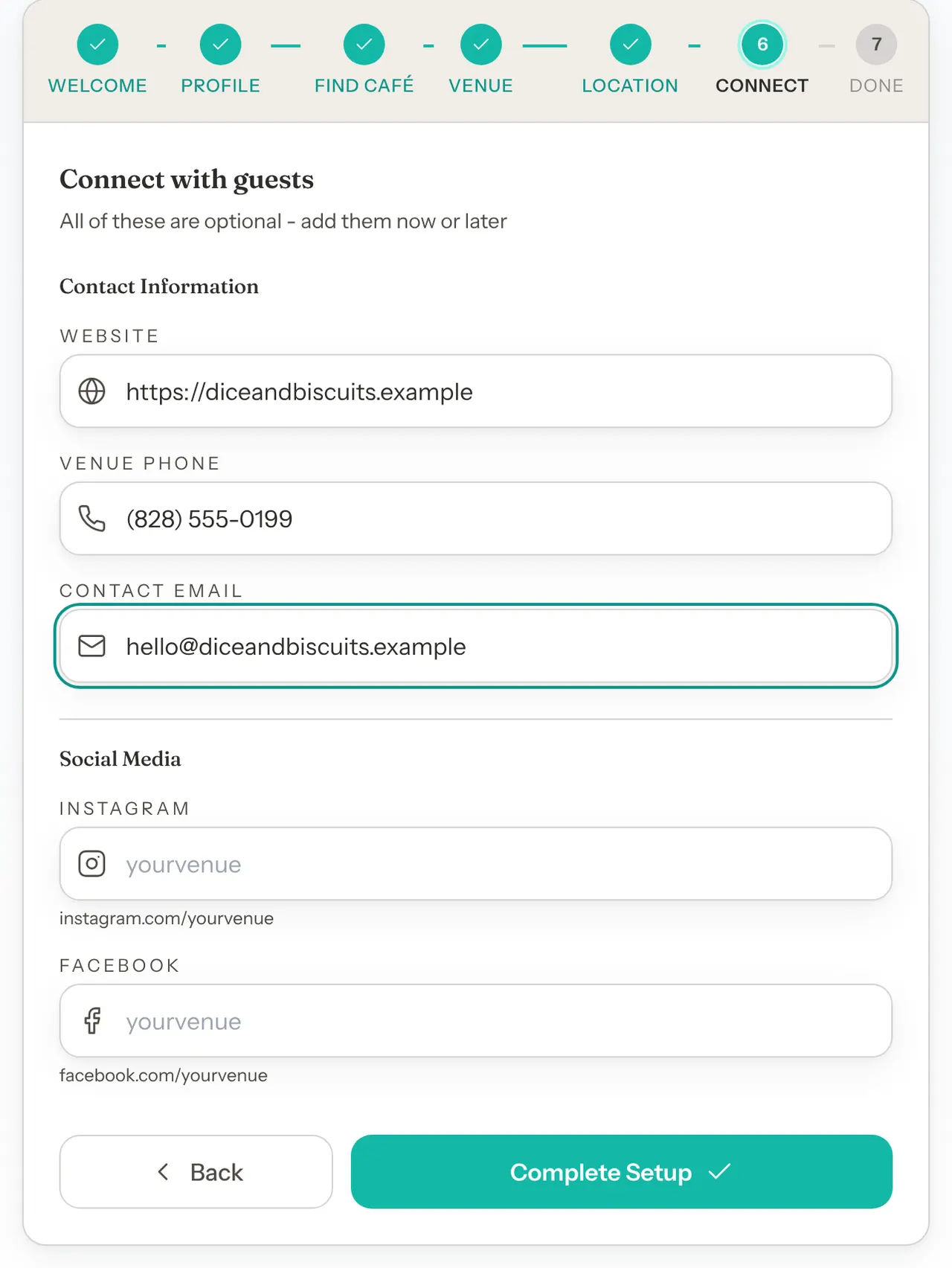
Every field in the wizard
| Option | What it does | Default |
|---|---|---|
| Your Name | Your own name. Required, at least 2 characters. | Default: Empty |
| Phone, Your Role | Your own phone and job title. Optional. | Default: Empty |
| Venue Name | Your venue's name on your public pages. Required, at least 2 characters. | Default: Empty, or Google's name if you used the lookup |
| Your URL | The last part of your booking link. Lowercase letters, numbers and hyphens, and no other venue can have it. Required. | Default: Made from the venue name |
| Description | A few lines about your café. Optional. | Default: Empty |
| Timezone | The zone your hours and booking times use. Required. | Default: Your computer's time zone, or Google's if you used the lookup |
| Street Address, City, State / Province, Postal Code | Your venue's address. Optional. | Default: Empty, or Google's address |
| Country | Your venue's country. Required. | Default: The country your computer's time zone is in (empty for a zone like UTC), or Google's country |
| Website, Venue Phone | Shown to guests. Optional. | Default: Empty, or what Google has |
| Contact Email | The venue's email for guests. Optional. | Default: Your login email |
| Instagram, Facebook | Your handles, without the @. Optional. | Default: Empty |
You can change most of this later. Your venue's details are under Settings → Venue (Profile and Location tabs). Facebook is under Settings → Guests → Review Links. Your own name is under My Profile in the account menu (the teal square with your initials, top right). Your phone and role can't be changed after setup.
What setup creates for you
When you click Complete Setup, your venue starts with:
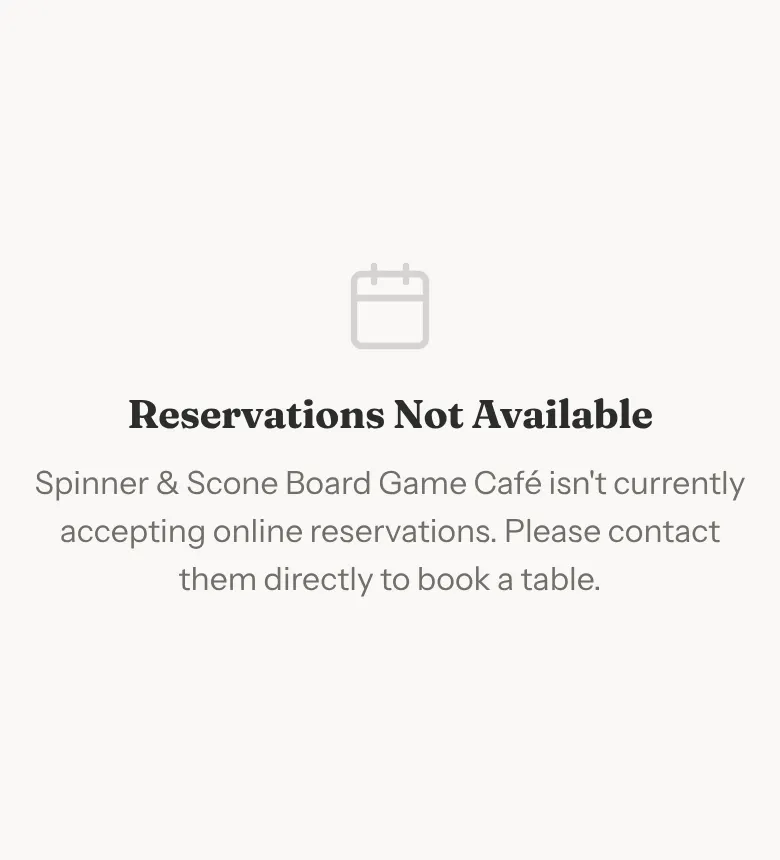
- Online bookings switched off. Guests who open your booking link see "Reservations Not Available" until you turn them on.
- Opening hours of 10 am to 10 pm, until 11 pm on Friday and Saturday, closed on Monday. If you kept Google's hours in the lookup, you get those instead.
- One reservation type, Table Reservation. Settings calls it Standard. Its booking form includes a step where guests can pick a game to have waiting, or skip it. Its booking length starts at 2 hours.
- One zone called Main Floor, and no tables. Guests can't book until you add at least one table.
- Your time zone, marked as confirmed only if you picked it from the list or took it from Google. If you left the zone the wizard started with, Settings asks you to confirm it later. See Confirm your timezone.
The completion screen
The completion screen says Your table is set. above your venue's name.
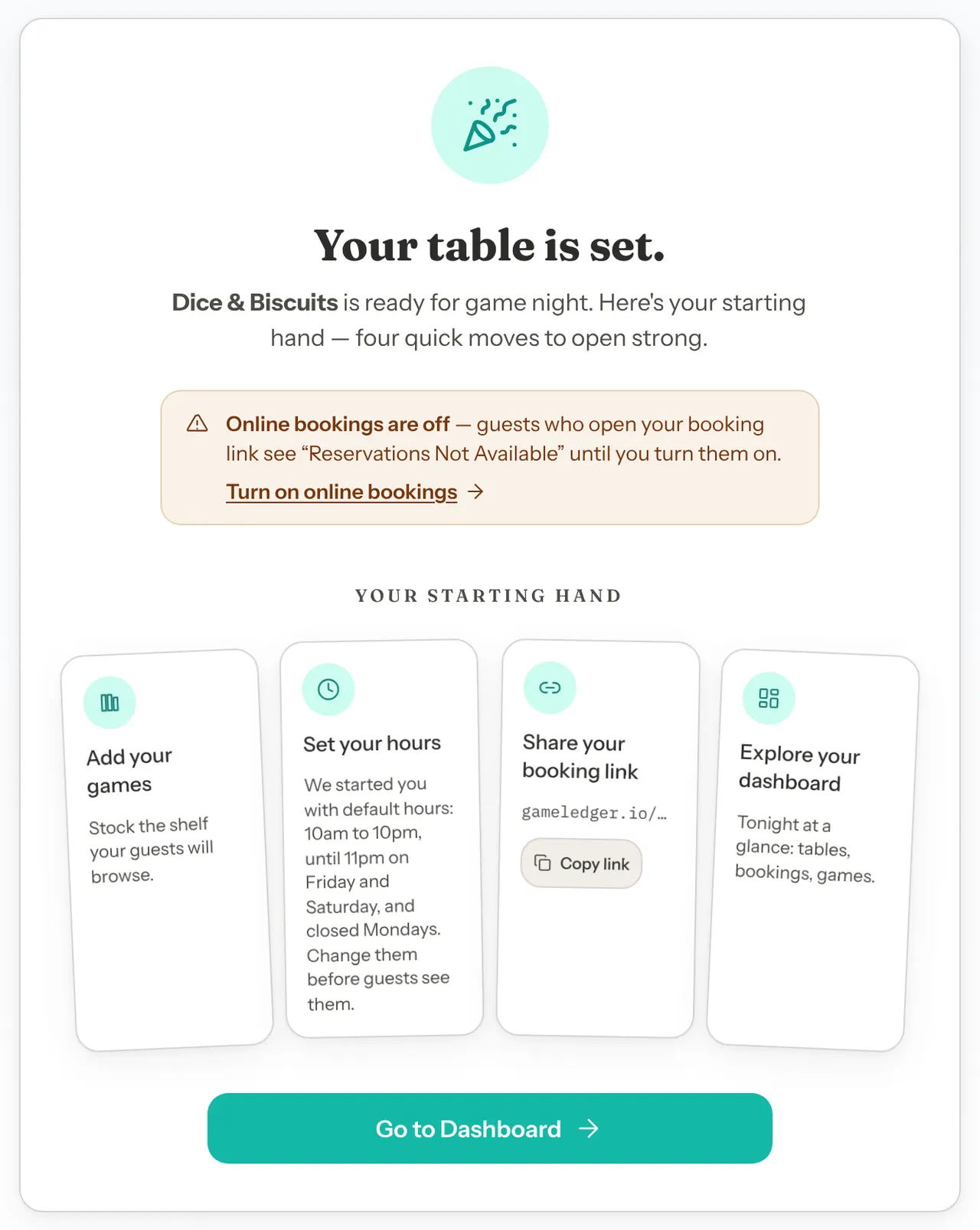
- A box says Online bookings are off, with a Turn on online bookings link. Add your tables before you turn them on, as Bookable in 10 minutes explains.
- Your starting hand has four cards: Add your games, Set your hours (it reminds you which default hours you have), Share your booking link and Explore your dashboard. The share card shows your full booking link and a Copy link button, which changes to Copied for a moment.
- Go to Dashboard takes you to the dashboard and its setup checklist.
Finish setup from the dashboard
Where to find it
Click Dashboard in the left-hand menu. The Finish setup card sits at the top, above tonight's numbers. Under its title it counts your progress, for example "0 of 6 steps done — finish these to start taking bookings." Once guests can book, that line reads "You're taking bookings — these finish your setup." instead. If you've saved a deposit or full payment but Stripe isn't active, guests who book online are turned away, so instead of "You're taking bookings" the line reads "Guests can't book online right now", with a link to Deposits & Payment where you can fix it.
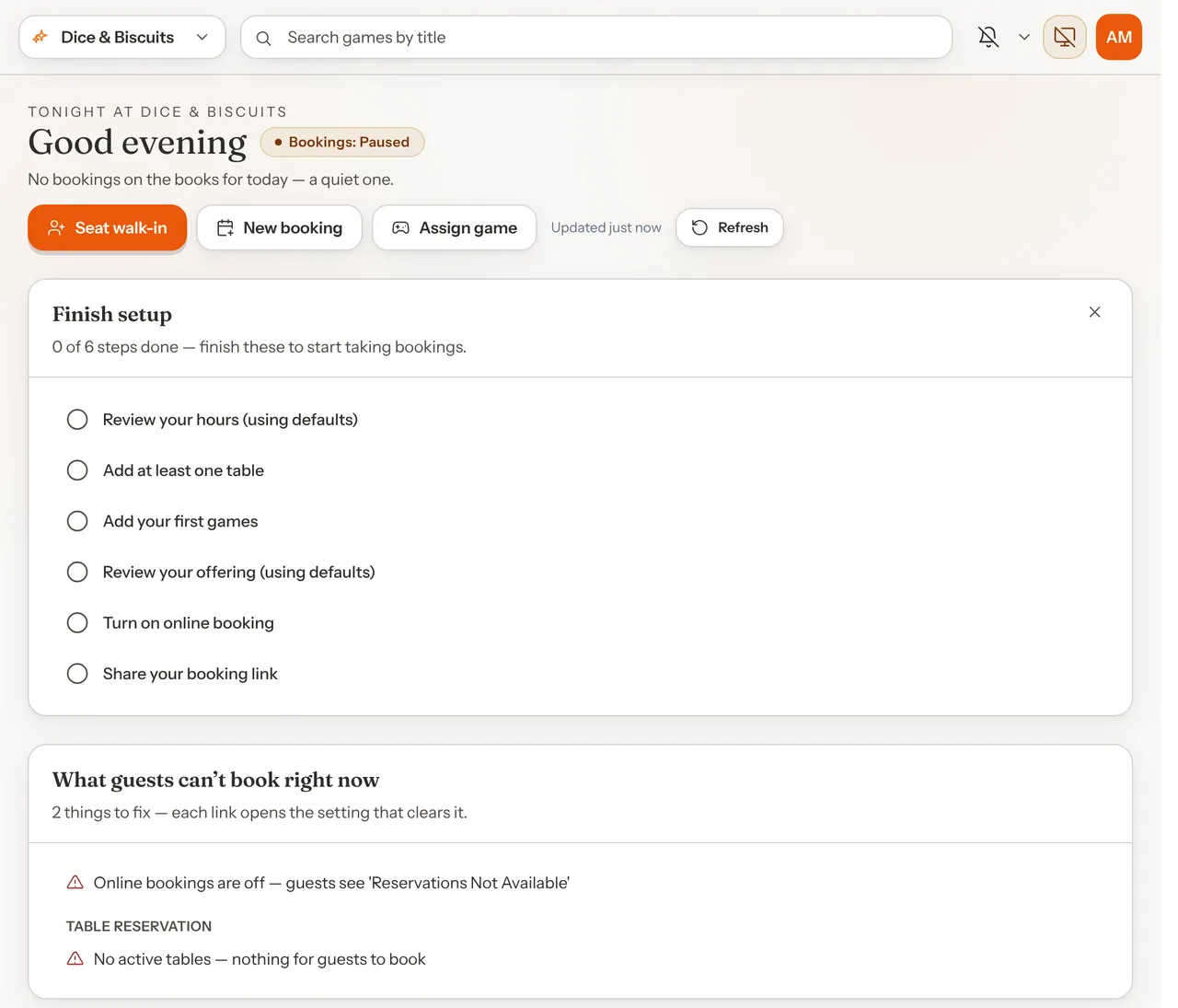
The steps
Each row is a link to the place that finishes it. A row ticks itself when the job is done, so you never tick anything by hand.
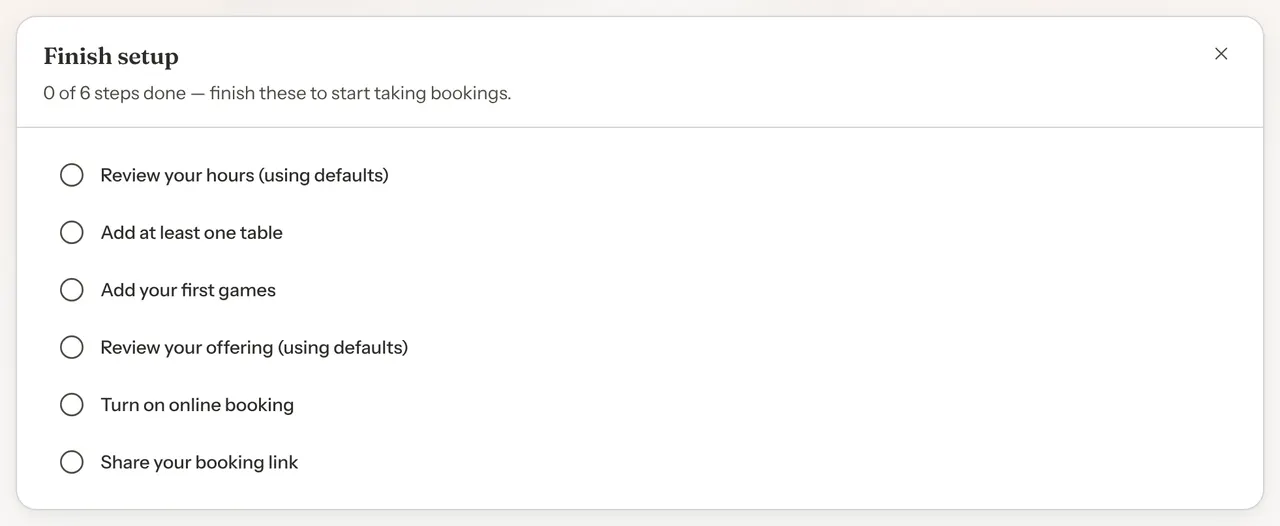
| Step | It ticks when | Clicking it opens |
|---|---|---|
| Review your hours (using defaults) | You click Save Changes under your hours once, even without changing anything. Hours imported from Google count straight away. After that, the ticked row reads Set your operating hours. | Settings → Venue Policies → Hours & Closures. See When guests can book. |
| Add at least one table | You have at least one active table. | Tables & Floor Plan. See Add your tables. |
| Add your first games | Your library has at least one game. | Library, with the add-a-game window open. See Build your game library. |
| Review your offering (using defaults) | You click Looks good on the Standard row, or add another reservation type and turn it on. | Settings → Venue Policies → Reservation Types. See below. |
| Turn on online booking | Online bookings are switched on. | Settings → Venue Policies → Booking Rules. See Turn on online bookings. |
| Share your booking link | You click Copy link or Open on the booking link in the panel this row opens, or you get your first online booking. | A small panel with your booking link. See Share your booking link. |
If your account takes online payments, a seventh step about choosing how guests pay appears before Turn on online booking. Payments are covered separately.
Review your offering
Step 1: Open the Reservation Types list
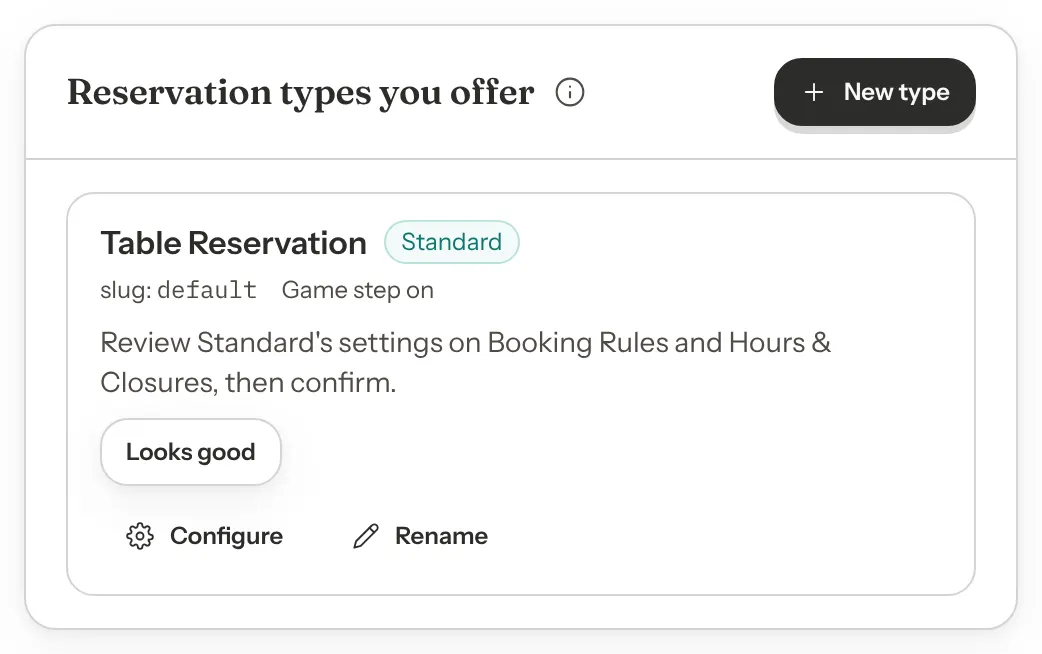
Click Review your offering (using defaults). The Reservation Types list opens. While the step is unticked, the Standard row says "Review Standard's settings on Booking Rules and Hours & Closures, then confirm."
Step 2: Check Standard, then click Looks good
Look over the Booking Rules and Hours & Closures tabs. They sit in the same row as Reservation Types, under Venue Policies. When they are right, come back and click Looks good. The line disappears and the checklist row ticks. To add more kinds of booking, see Add a reservation type from a starting point.
Dismissing the checklist
Click the X at the top right of the card to hide it. How long it stays hidden depends on whether guests can book yet:
- Guests can't book yet (online bookings are off, or you have no active tables): the card comes back the next time you open the dashboard 24 hours or more later.
- Guests can book: the card stays hidden.
Once every step is ticked, the card hides itself.
Under the checklist, a card titled What guests can't book right now lists anything still stopping guests from booking, with a link to the fix. It is explained in Check what guests are offered.
What "bookable" means
Your venue is bookable when a guest can open your booking link and finish a booking. Two things must both be true:
- Online bookings are on. While they are off, your booking page says "Reservations Not Available". Your team can still add phone bookings and walk-ins.
- You have at least one active table. With no tables, your booking page tells guests that no table seats their party and asks them to try a smaller party, whatever size they pick.
Your opening hours, a reservation type that is switched off, or a time zone that is not confirmed can still leave guests with fewer times than you expect. Why can't guests book? goes through each cause.
Share your booking link
Your booking link ends in the address you chose for Your URL. You can copy it from three places. Settings copies the booking page itself (ending in /book, for example www.gameledger.io/v/spinner-and-scone/book). The dashboard and Bookings panels copy your venue page, which has a Book a Table button. Both work. Each has a Copy link button, which reads Copied for a moment, and an Open button, which opens the page in a new tab.
Step 1: From the dashboard checklist
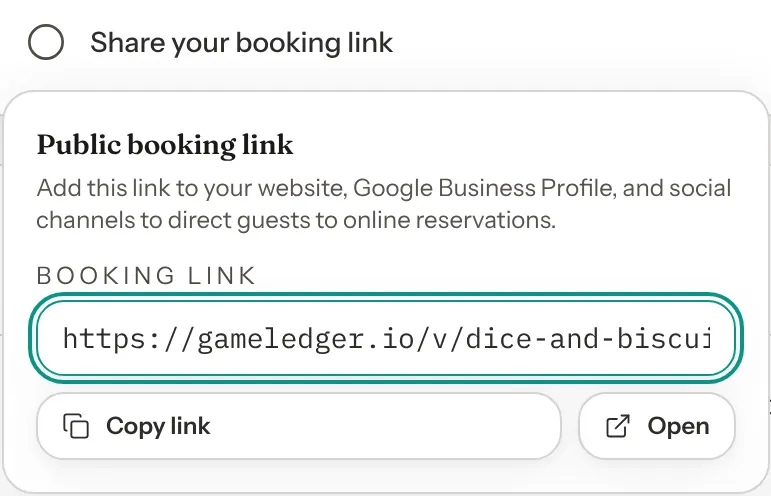
Click Share your booking link in the Finish setup card. A panel titled Public booking link opens with your Booking link. Copying or opening it here ticks the checklist row in this browser. Your first online booking ticks it on every device.
Step 2: From the Bookings page
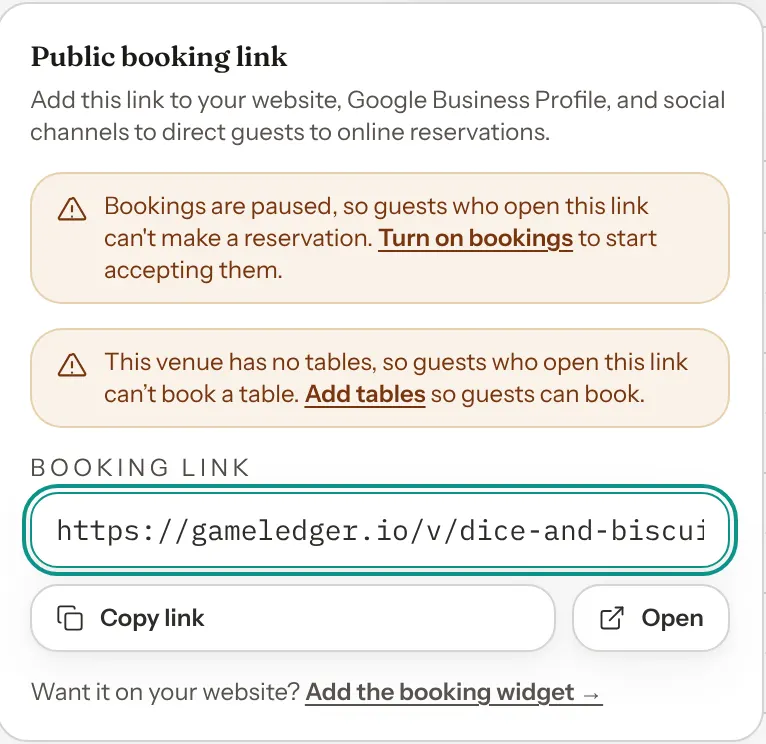
Click Bookings in the left-hand menu, then Share booking link at the top of the page. The same panel opens. It also warns you when bookings are paused or when you have no tables, because guests who open the link couldn't book.
Step 3: From Settings
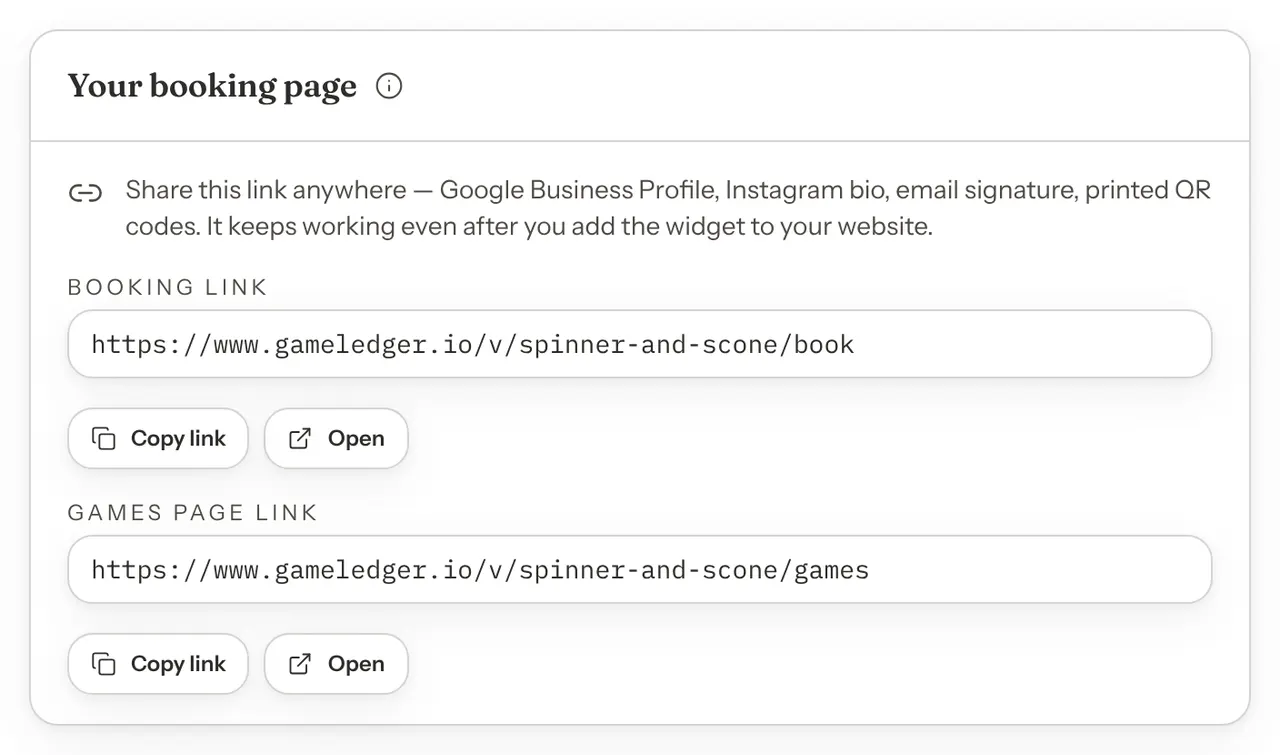
Go to Settings → Guests → Booking Page. The Your booking page card has the link, ready for your Google Business Profile, Instagram bio or a printed QR code. The card below it adds a booking button to your own website: see Add booking to your website.
What guests see
Until you turn online bookings on, anyone who opens your booking link sees "Reservations Not Available". Your public venue page leaves your opening hours off until you save them once in Hours & Closures, unless they came from Google.
Good to know
- Each login sets up one venue. If your login already belongs to a venue, as its owner or as a team member, the wizard is skipped and you go to the dashboard.
- You can change Your URL later in Settings → Venue → Profile (the Slug field). Your booking link changes with it, so share the new one everywhere you posted the old one.
- The checklist remembers a dismissal, and whether you shared your link, in this browser only. On another computer or phone it can show again, and the share row can be unticked there until you get your first online booking.
- The setup wizard does not ask for your tables, games or prices. You add those after setup.
Next: make your venue bookable
Your account and venue are ready. To open for bookings, follow Bookable in 10 minutes. It fills in your café's details from Google, sets up what guests can book, checks what they are offered, adds your tables and turns on online bookings.