Connect Stripe and take booking payments
Connect your own Stripe account, fill in every page of the Stripe sign-up, and choose whether guests pay a no-show deposit or the full price when they book.
Last verified
Connect your own Stripe account to GameLedger and your guests can pay when they book: a no-show deposit or the full price, by card, Apple Pay or Google Pay. The money goes straight into your Stripe account and on to your bank. This guide takes you from no Stripe account to your first paid booking: what to have ready, every screen of Stripe's sign-up, how to choose what guests pay, and what to do if something goes wrong.
Every path in this guide starts with Settings in the menu on the left of your admin screen. For example, Settings → Venue Policies → Payment Processors means: click Settings, open the Venue Policies tab, then the Payment Processors sub-tab.
How payments work
- The money is yours from the start. Guests pay into your own Stripe account, not into GameLedger. Stripe pays it out to your bank account on your Stripe payout schedule.
- Stripe charges its processing fees to you. Stripe takes its fee from each payment. GameLedger adds no fee of its own to bookings. See Stripe's pricing page for the rates in your country.
- You have your own Stripe login. GameLedger creates a new Stripe account for your venue. If you already use Stripe, sign in with the same email and the new account sits alongside your existing one. You use that login to see your payments and payouts in your Stripe Dashboard, change your bank account, and set the branding guests see.
- Connecting charges nobody. Guests only pay once you choose a payment policy after connecting. Until then, they keep booking without paying.
Before you start
You need:
- To be the venue owner. Only the owner can connect Stripe, continue its sign-up, start over or disconnect it. Other team members don't get those buttons. Once you've connected, admins, and staff who can open Settings and have Edit ticked for Payments, can click Re-verify with Stripe and Refresh from Stripe.
- The right email to hand. Stripe's first page starts with your venue email filled in, or your GameLedger login email if the venue has none. You can change it to the address you want to sign in to Stripe with.
- Your venue's country set correctly. It's under Settings → Venue → Location. Your Stripe account is created in that country, and its currency follows from it. You can't change either once the Stripe account exists. If the country is empty, Connect with Stripe asks you to choose one first.
- About 10 to 15 minutes, plus the details Stripe asks for: your business type and legal name, your business address and phone number, a tax ID where your country needs one, the name, date of birth and address of the person responsible for the business, and the bank account your payouts go to. Stripe may ask for a photo of an ID document.
Start in GameLedger
Step 1: Click Connect with Stripe
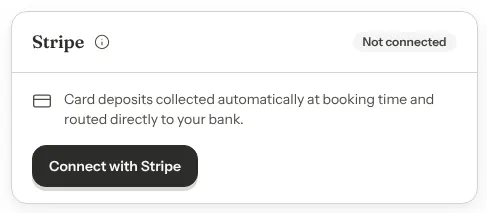
Go to Settings → Venue Policies → Payment Processors. On the Stripe card, click Connect with Stripe.
GameLedger creates your Stripe account in your venue's country and opens Stripe's sign-up pages in the same tab. Every Stripe page has a Return to GameLedger link on the left.
Fill in Stripe's pages
Stripe asks the questions below. The order can differ a little, and Stripe skips any page it doesn't need for your type of business. What you type here goes to Stripe, not to GameLedger.
Use your real details. Stripe checks them against government and bank records, and a mismatch is the most common reason an account ends up Restricted.
You can stop at any point. Stripe saves what you've entered. To pick up where you stopped, click Continue Stripe onboarding on the Stripe card.
Step 1: Enter your email
| Box | What to enter |
|---|---|
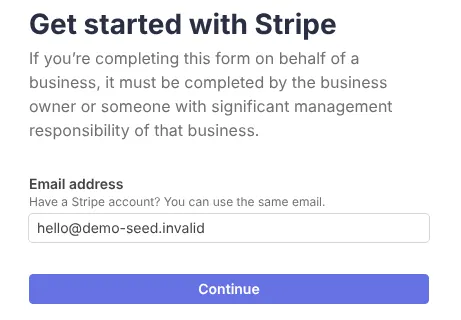
| Email address | The email you want to use to sign in to Stripe. GameLedger fills in your venue email, or your login email if the venue has none. Stripe also sends payout, receipt and dispute emails here. Already have a Stripe account? Use the same email and sign in. |
Stripe may show a quick check that you're a person.
The first page also says who should fill this in: the business owner, or someone with significant management responsibility for the business.
Step 2: Secure your Stripe login
If your email is new to Stripe, you're creating a Stripe login as well as an account. Stripe shows a page called Set up two-step authentication, so that signing in to Stripe needs a second step, such as a code from your phone.
- With an authenticator app, such as Google Authenticator, Microsoft Authenticator or Authy: scan the QR code Stripe shows, or click Enter code manually instead. Then click Next and type the 6-digit code from the app.
- Without one: click Use your phone or a security key instead and follow Stripe's steps.
If Stripe gives you a backup code, keep it somewhere safe. You need it to get back in if you lose your phone.
Step 3: Say what kind of business you are
| Box | What to enter |
|---|---|
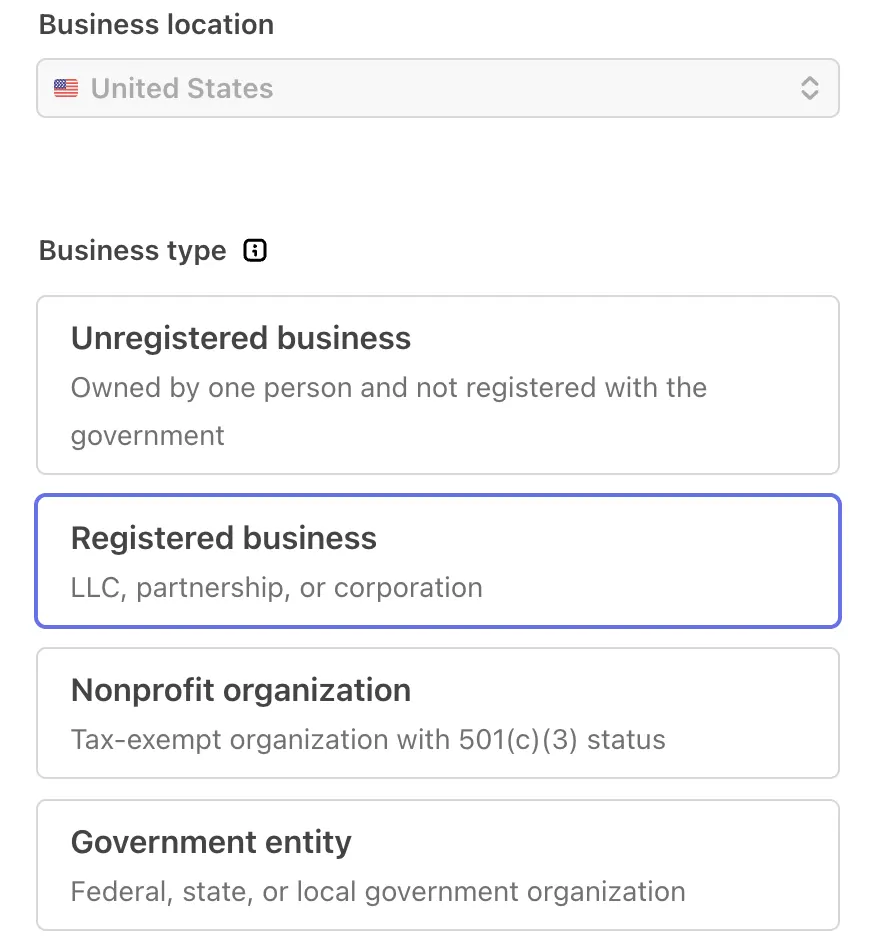
| Business location | The country your café is registered in. GameLedger fills it in from your venue's country, and you can't change it here. If it's wrong, see The Stripe card says Onboarding to start over. |
| Business type | Registered business if your café is an LLC, partnership or corporation. Unregistered business if you own it alone and trade in your own name without registering it with the government. Nonprofit organization only if it has tax-exempt status, such as 501(c)(3) in the US. |
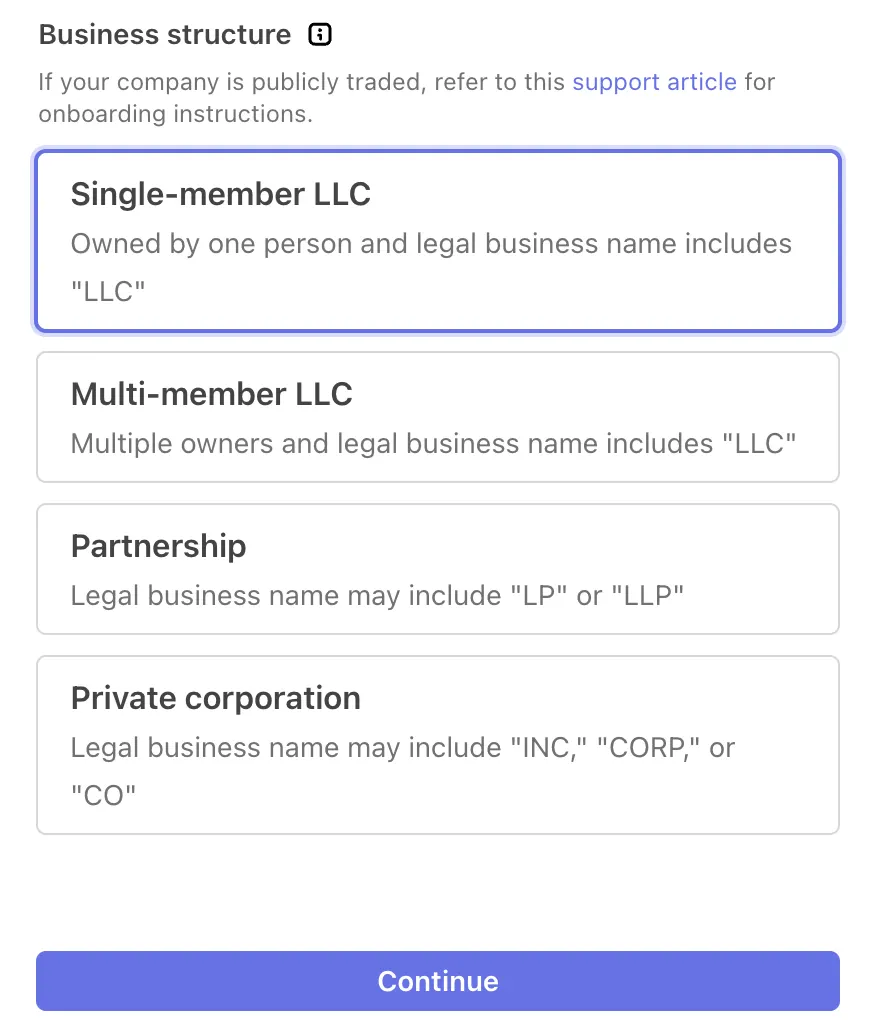
| Business structure | Stripe asks this after you pick Registered business. Choose the one on your registration papers: Single-member LLC, Multi-member LLC, Partnership or Private corporation. Stripe's hint helps: an LLC's legal name includes "LLC", and a corporation's often includes "Inc", "Corp" or "Co". Not sure? Ask your accountant. |
Step 4: Tell Stripe about your business
| Box | What to enter |
|---|---|
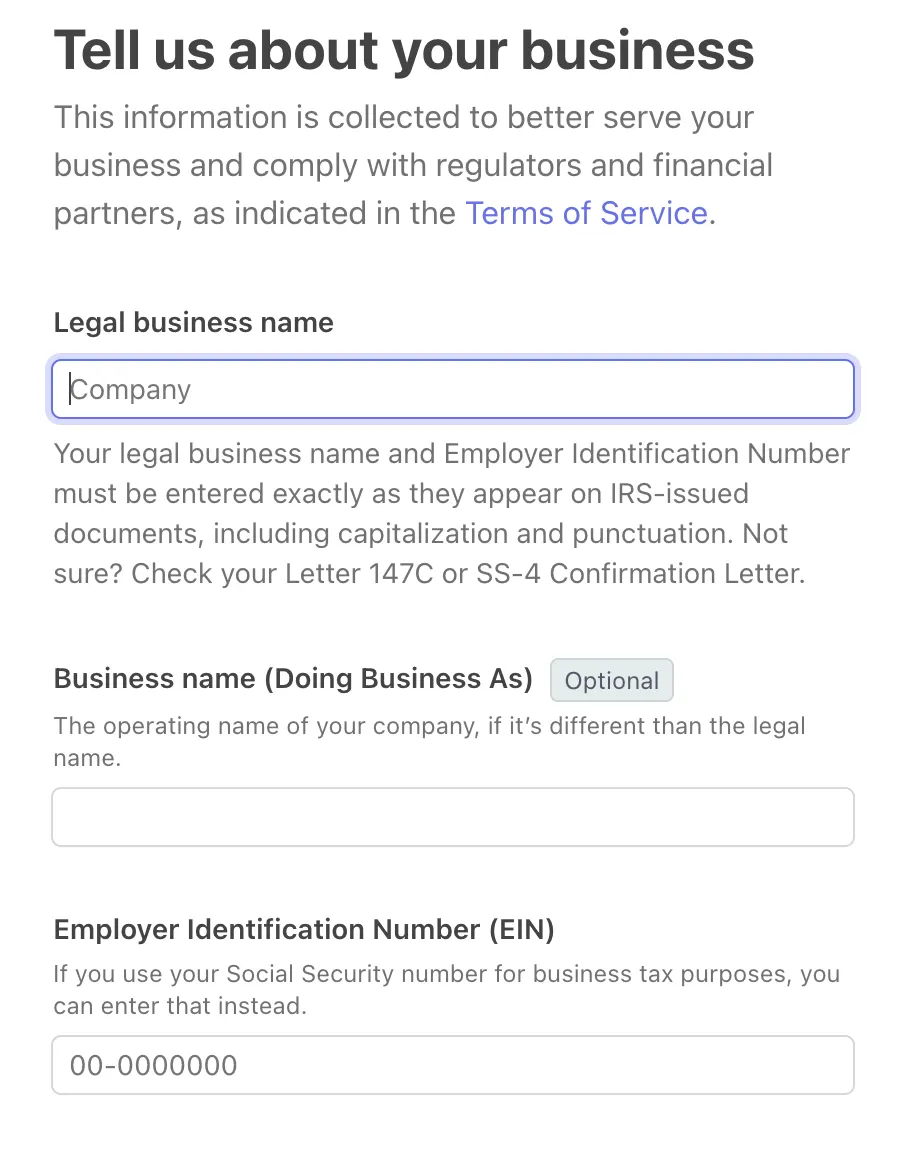
| Legal business name | Exactly as it appears on your tax documents, with the same capitals and punctuation. In the US, use the name on the letter the IRS sent when it gave you your EIN, or on a Letter 147C. For example, "Spinner & Scone LLC". |
| Business name (Doing Business As) | The name guests know your café by, if it's different from the legal name. For example, "Spinner & Scone Board Game Café". It's optional. |
| Employer Identification Number (EIN) | Your business's 9-digit tax ID. If you use your Social Security number for business taxes, you can enter that instead. Outside the US, Stripe asks for your country's business or tax number. |
| Business address | Your café's street address, where guests visit. |
Step 5: Choose your industry and describe what you sell
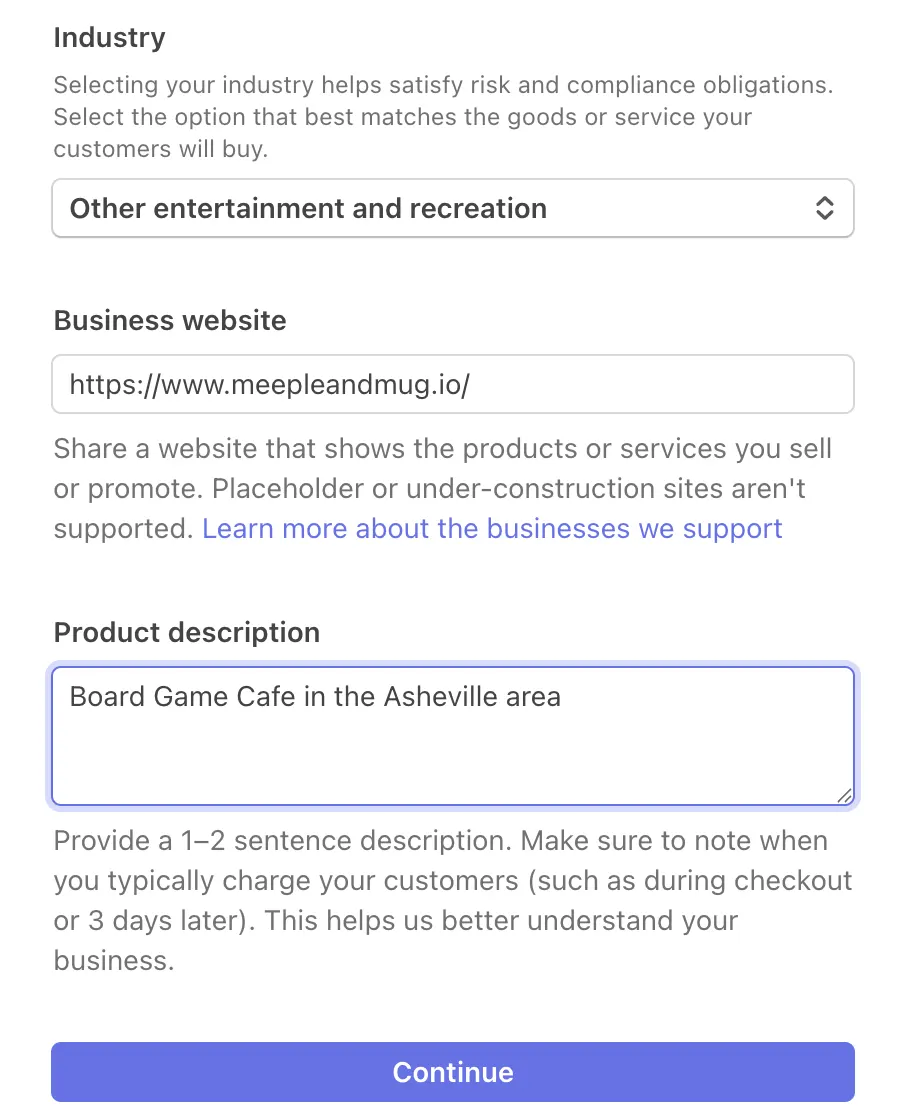
The same page continues with three more boxes.
| Box | What to enter |
|---|---|
| Industry | Choose Other entertainment and recreation. It matches what guests pay for when they book through GameLedger: a table and time to play. |
| Business website | Your café's website. No website? A social media page for the café, such as Instagram or Facebook, works as long as it shows what you offer. Stripe doesn't accept a placeholder or "coming soon" page. |
| Product description | One or two sentences on what you sell and when guests pay. Stripe asks you to say when you charge, so include "when they book". For example: "Board game café in Asheville. Guests book a table online and pay a deposit or the full price when they book. We also sell food and drinks at the café." |
Step 6: Add your personal details
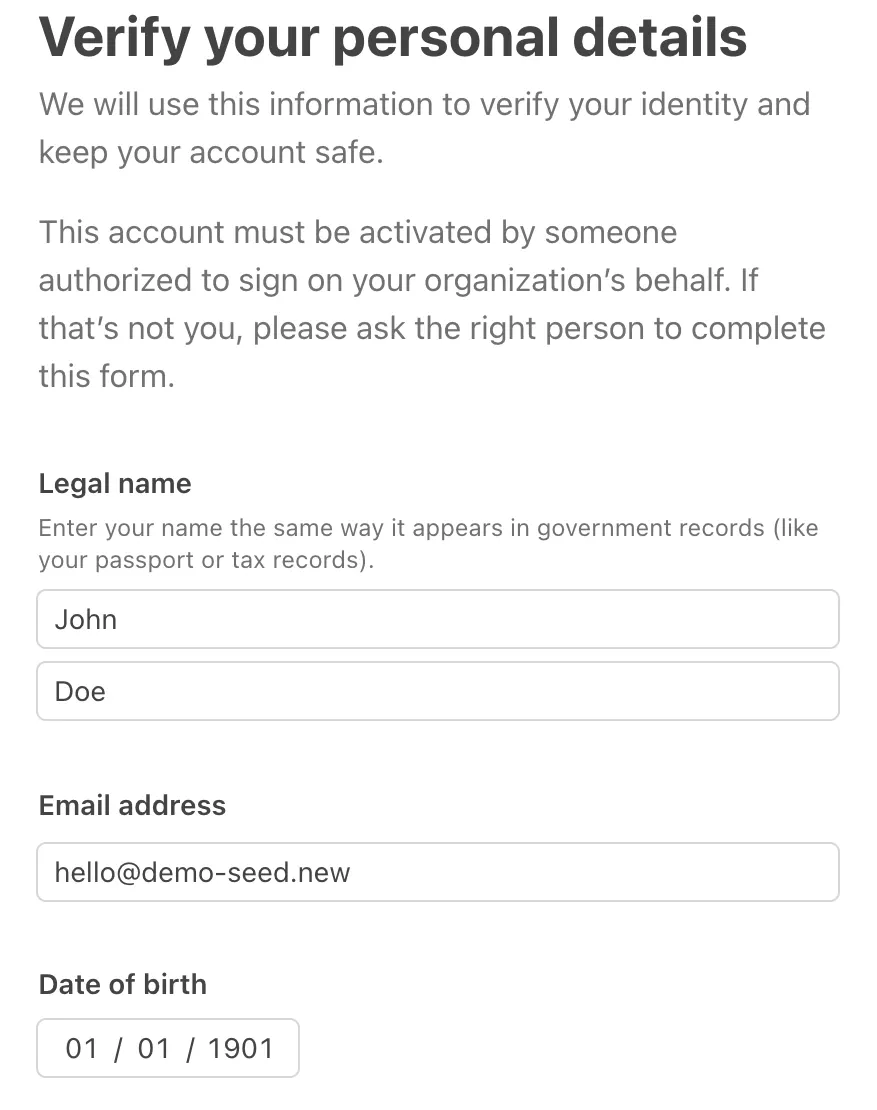
Stripe calls this page Verify your personal details. It's about you, the account representative. Stripe says the account must be activated by someone authorized to sign on your business's behalf, so if that isn't you, ask the person who is to fill in this page.
| Box | What to enter |
|---|---|
| Legal name | Your first and last name as they appear on government records, such as your passport or tax records. |
| Email address | Your own. Stripe uses it to reach you about the account. |
| Date of birth | Yours, exactly as it is on your ID. |
| Home address | Your home address, not the café's. |
| Phone number | Your own mobile number. |
| Last 4 digits of Social Security number | In the US, the last 4 digits of your SSN. If Stripe can't confirm who you are with those, it asks for all 9. No SSN? Click Provide a government-issued ID number instead. Other countries ask for their own ID number. |
| Job title | If Stripe asks, your role, for example "Owner". |
If other people own part of the business, Stripe may also ask you to list anyone who owns 25% or more, or to confirm that you're the only owner.
Step 7: Add the details guests see
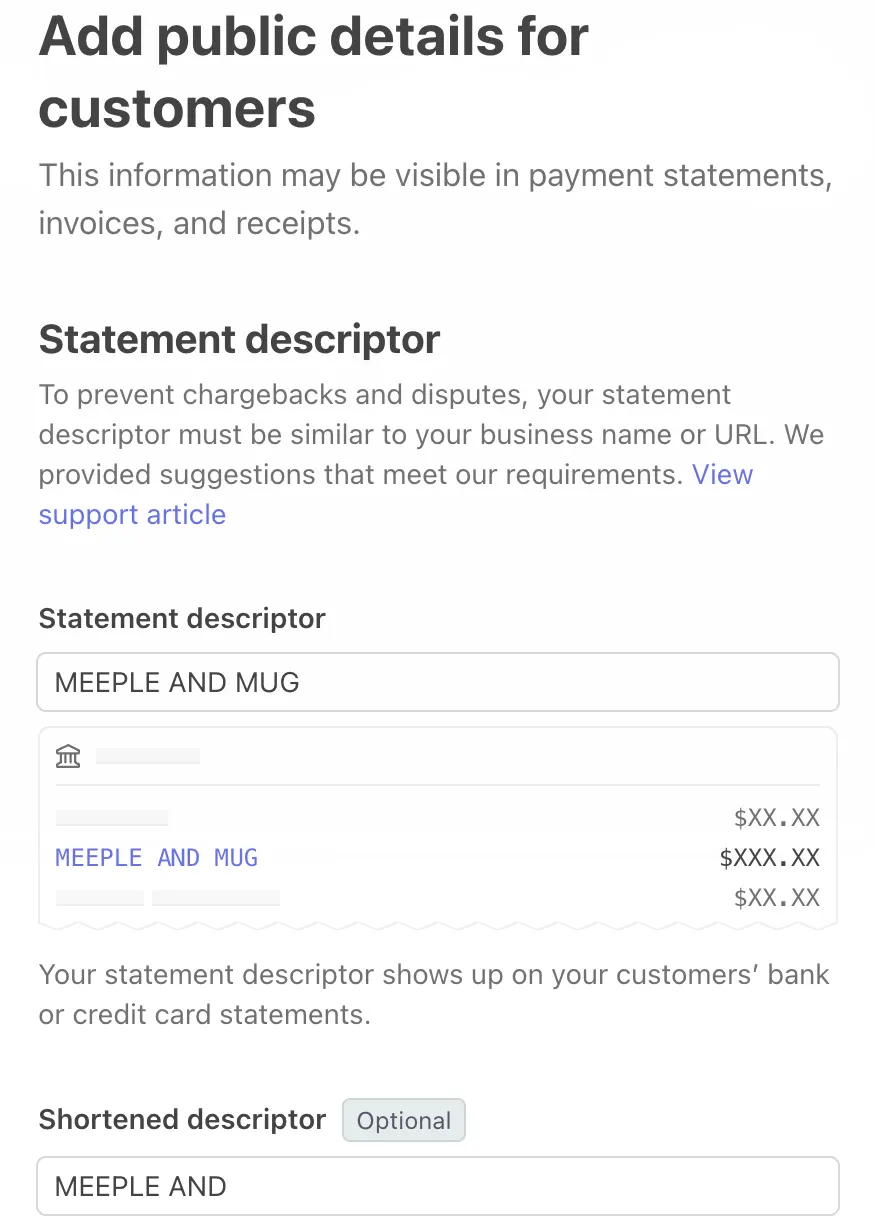
Stripe says this information may show on statements, invoices and receipts.
| Box | What to enter |
|---|---|
| Business name (Doing Business As) | If Stripe shows this box here, the name guests know your café by. |
| Statement descriptor | The text on your guests' card statements: 5 to 22 characters. Stripe suggests one based on your business name. Keep it close to the name guests know, such as "SPINNER AND SCONE". Guests who don't recognize a charge are more likely to dispute it. |
| Shortened descriptor | Stripe marks it optional and fills it in from your statement descriptor. Make sure it still reads as your café, because booking charges use it: guests see the shortened descriptor followed by the start of your venue's name. Stripe allows 2 to 10 characters. |
| Customer support phone and address | Use the café's phone number and address. Guests can see them on receipts. |
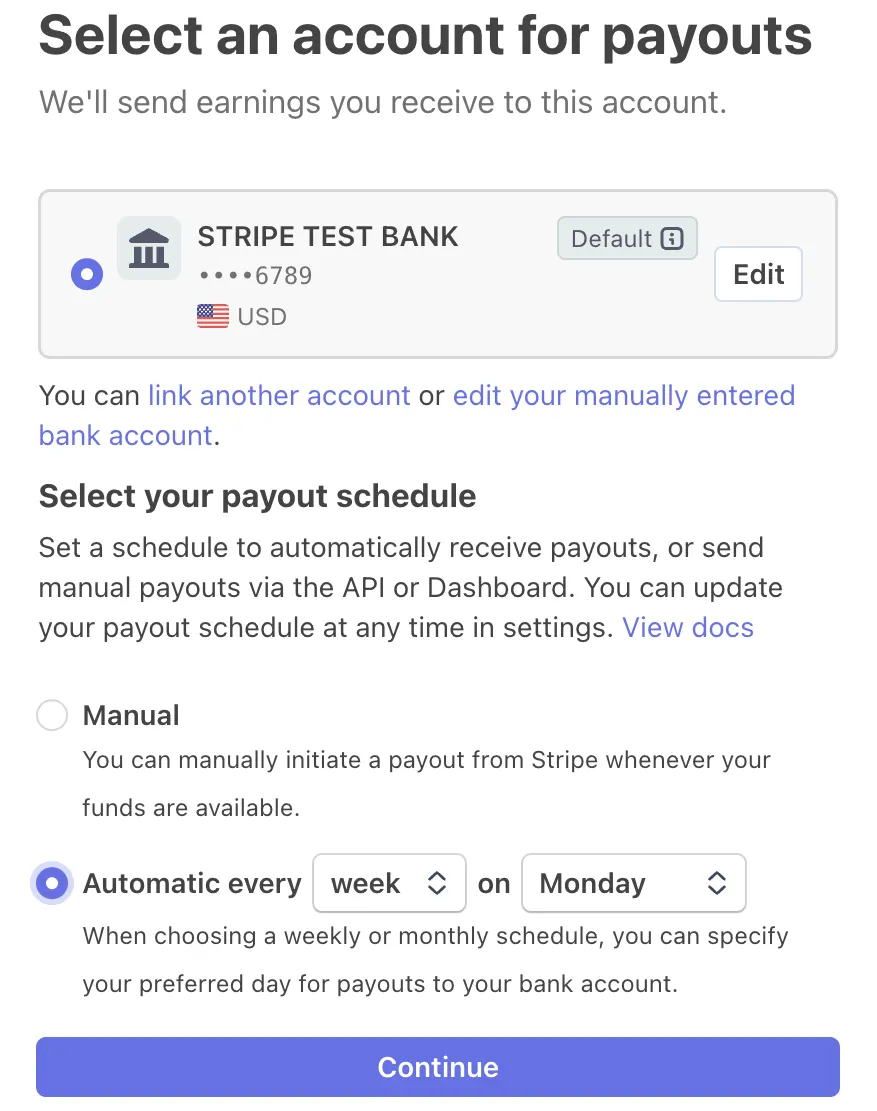
Step 8: Choose where your money goes
| Box | What to enter |
|---|---|
| Bank account | Pick your bank and sign in to link it, or enter its routing and account numbers by hand. Use the café's business account. In the US it must be a checking account. |
| Payout schedule | Choose Automatic, then how often: every day, every week or every month. With Manual, money stays in your Stripe balance until you start each payout yourself in Stripe. You can change this later in your Stripe Dashboard. |
Step 9: Pick fraud protection
Stripe's fraud screening is called Radar. The page lists three paid levels: Standard, Plus and Pro. The big button continues with whichever one is highlighted. The paid levels charge a fee on each payment they check. See Stripe's Radar page for their prices.
For most cafés, the included level is enough: click Use baseline protection with Lite (included), the link under the big button. If you pick a paid level by mistake, change it under Fraud protection plan on the review page, or later in your Stripe Dashboard.

Step 10: Skip or join Stripe Climate
Stripe offers to give a share of your revenue to carbon removal. It's optional. Click No thanks to skip it, or pick a share and continue.
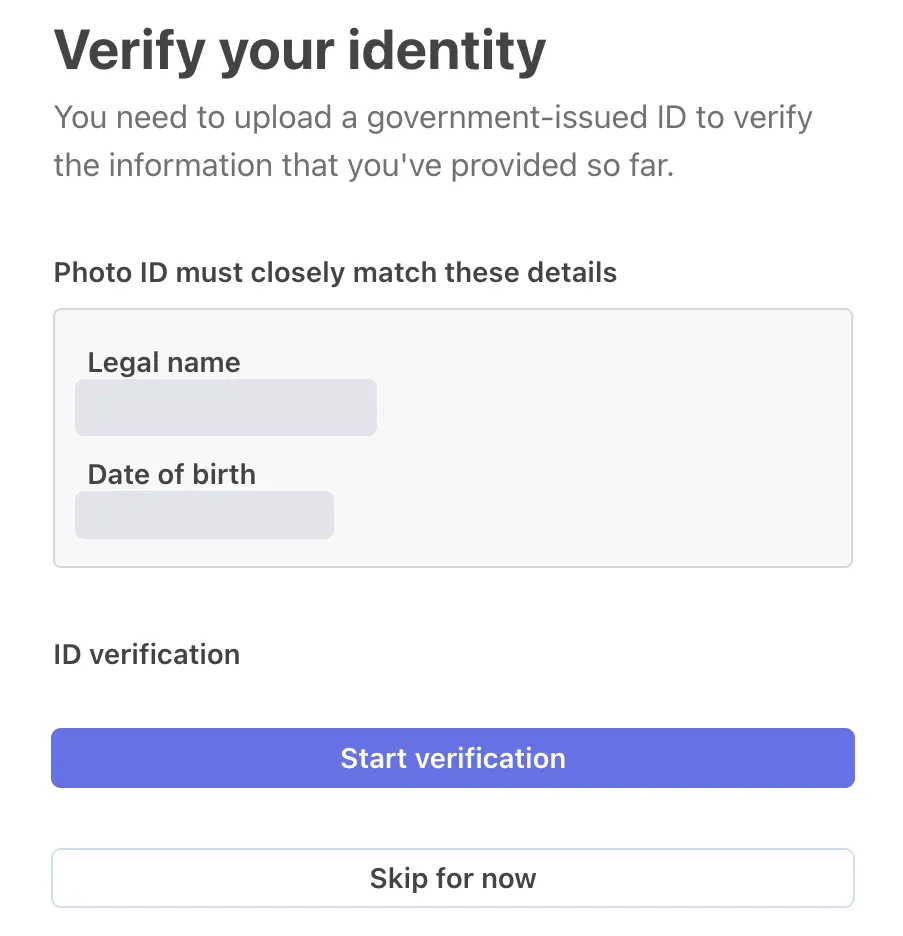
Step 11: Verify your identity if Stripe asks
Stripe sometimes asks for a photo of a government-issued ID, such as a driver's license or passport. The name and date of birth on it must closely match what you entered. Click Start verification and follow Stripe's steps.
You can click Skip for now, but until you send it, Stripe may not let you take payments or receive payouts, and GameLedger shows your account as Restricted.
Step 12: Review and submit
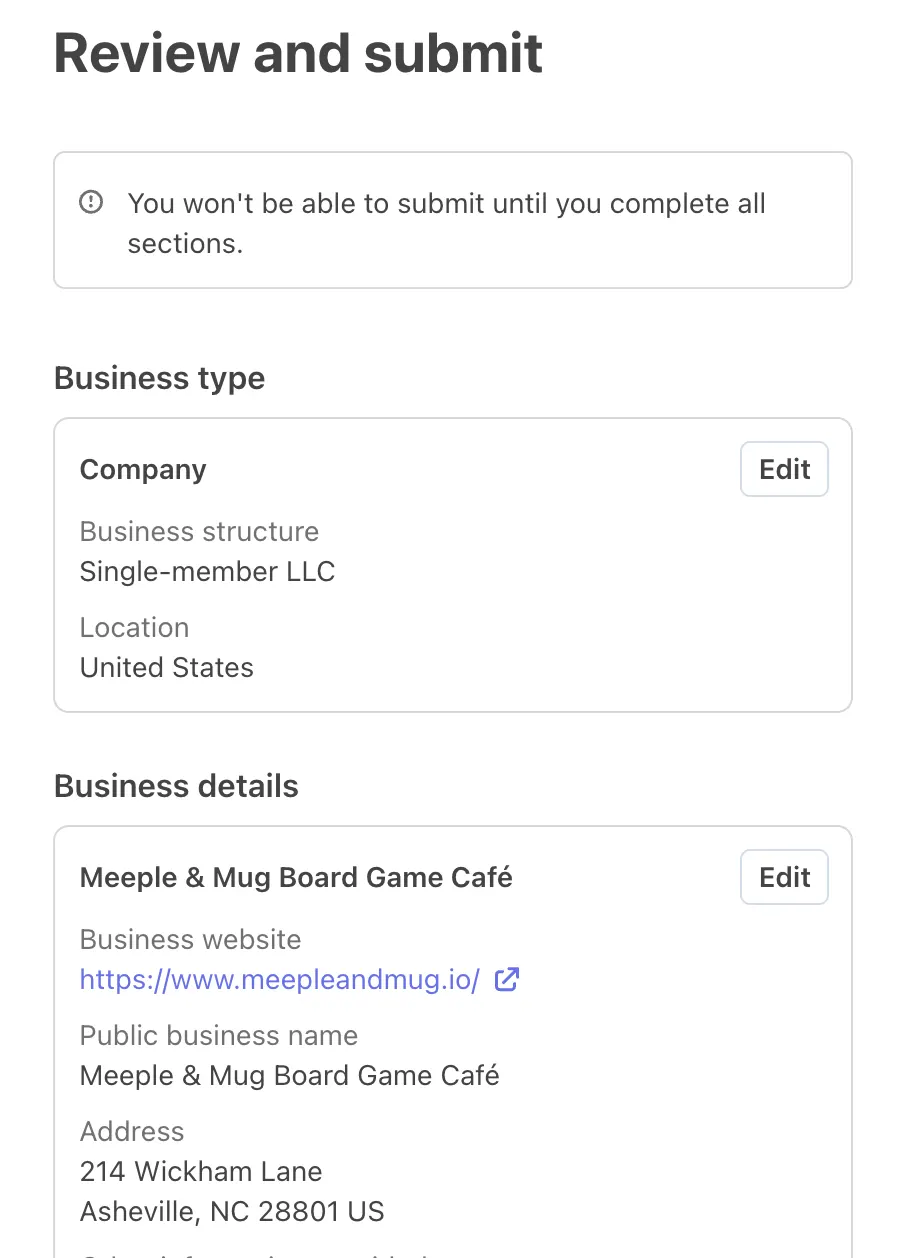
Stripe shows everything you entered, section by section. A Registered business shows as Company here. Click Edit next to anything that's wrong. If a section is still missing something, Stripe says you can't submit until every section is complete.
Near the bottom, Other details lists three extras:
| Item | What to check |
|---|---|
| Fraud protection plan | Shows the Radar level you picked. If it names a paid plan with a fee per payment and you wanted Lite, click Edit. |
| Tax monitoring and calculation | Optional. GameLedger doesn't use it, so you can leave it Off. |
| Climate commitment | Optional. Off unless you joined Stripe Climate. |
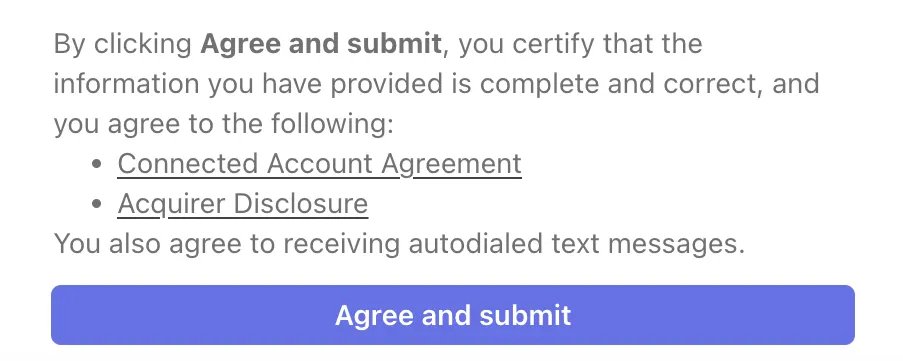
When it all looks right, click Agree and submit at the bottom.
Stripe then sends you back to GameLedger. If it doesn't, click Return to GameLedger on the left of the page.
After you submit
Back in GameLedger, the badge on the Stripe card shows where you are. Connected means you're done, and you can choose how guests pay.
Stripe checks your details after you submit, so the card often says Restricted for the first few minutes. Wait a few minutes and refresh the page. If it still says Restricted, Stripe may need more time or something more from you, and it emails you if it does. See The Stripe card says Restricted.
The message at the top of the page when you come back matches the badge. It's green and says "Stripe is connected" only when Stripe has approved you. While Stripe is still checking your details or needs more from you, it says "Your Stripe account isn't ready to take payments yet." If you left Stripe's sign-up before the end, it says "You haven't finished Stripe's setup yet" and points you to Continue Stripe onboarding.
Choose how guests pay
Connecting Stripe doesn't change what guests are asked for. Your payment policy starts at No payment at booking, so guests keep booking for free until you choose otherwise.
Once your Stripe card says Connected, GameLedger points you to the next step: a Next step card on Payment Processors with a Set up deposits & payment button, and a Choose how guests pay step in the setup checklist on your dashboard. If Stripe has approved you by the time you come back, or when you refresh the page after it does, the message at the top also says "Stripe is connected. Next: choose how guests pay under Deposits & Payment."
Until Stripe is Connected, the Deposits & Payment and Cancellations & No-Shows tabs show a lock and the message "Connect Stripe to enable deposits & refunds".
Step 1: Open Deposits & Payment and pick a policy
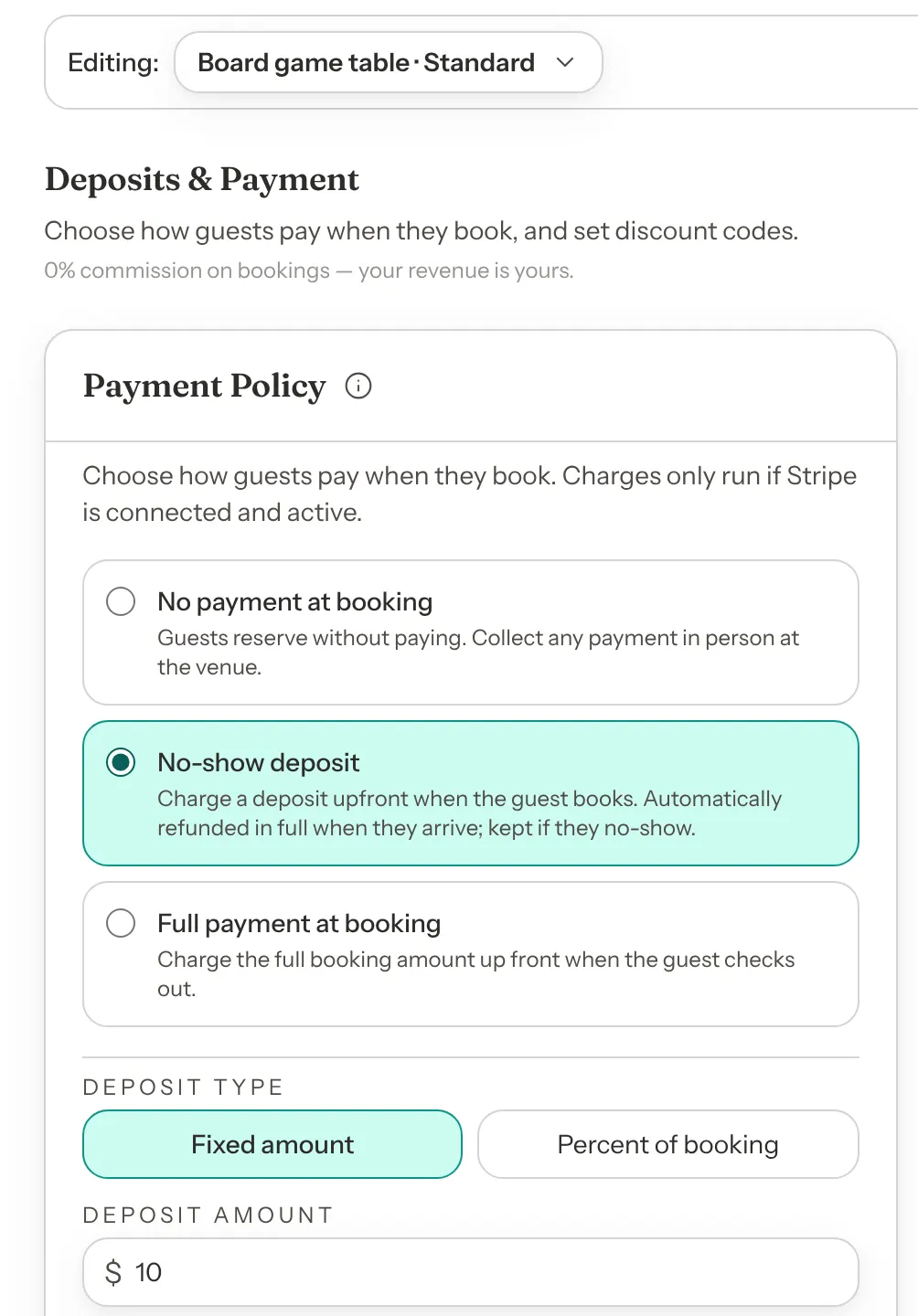
Go to Settings → Venue Policies → Deposits & Payment. In the Payment Policy card, choose one of three options.
| Option | What it does | Default |
|---|---|---|
| No payment at booking | Guests reserve without paying. Collect any payment in person at the venue. | Default: Selected for every new venue |
| No-show deposit | Guests pay a deposit when they book. It's refunded in full when they arrive and kept if they don't show. | Default: Off |
| Full payment at booking | Guests pay the full booking price when they book. | Default: Off |
Step 2: For a deposit, set the amount
Under Deposit type, choose Fixed amount or Percent of booking.
- Fixed amount: type the Deposit amount. It starts at zero, and GameLedger won't save a zero deposit because it charges nothing.
- Percent of booking: type the Deposit percent, above 0 and up to 100. The deposit is that share of what the booking costs, worked out from your prices, so set them too (next step).
Step 3: Set your price
You need a price for Full payment at booking and for a percent deposit. A fixed deposit doesn't use it.
| Setting | What it does |
|---|---|
| Booking price | The price of a booking. With Full payment, it's what guests pay. With a percent deposit, the deposit is a share of it. |
| Billing model | Flat per booking: one price per booking, whatever the party size. Per guest: the price is multiplied by the number of guests. Per table: the price is multiplied by the number of tables the booking uses. A note under it explains how this works for your reservation types. |
| Price by length | For Flat per booking, tick it to charge a different price for each booking length. Per guest and Per table always show a row per length. |
| Prices by booking length | One row for each booking length you set in Booking Rules. A length you leave empty uses the Booking price. |
Changing the Billing model clears every price in Prices by booking length, so set the billing model first.
Step 4: Click Save Changes
Click Save Changes at the bottom. GameLedger won't save a policy that would charge a guest nothing, for example a Full payment policy with no booking price, or a length priced at zero. It tells you which setting to fix before you click.
New bookings from now on follow the policy. Bookings already made keep the policy they were made under, both what the guest paid and whether it's refunded when they arrive.
Different prices for different reservation types
Each reservation type follows your Standard settings unless you change it. At the top of Deposits & Payment, switch Editing to a reservation type. Its Pricing card and its Payment policy card each offer Same as Standard or Custom for this type. Click Save for and the type's name to keep a change.
A fixed deposit is always the amount set in Standard. If Standard itself doesn't use a fixed deposit, set that amount in the Fixed deposit for reservation types box on Standard's settings. To charge a different deposit for one type, give that type a Percent of booking deposit.
Refunds when guests cancel
Set refunds in Settings → Venue Policies → Cancellations & No-Shows, in the Cancellation Policy card. Each refund tier pairs a notice period with a refund percentage, for example 24 hours' notice for 100% back and 12 hours for 50%. GameLedger refunds automatically when a booking is cancelled:
- A guest cancels: they get the refund for the notice they gave. With no tiers set, they get a full refund. With tiers set, cancelling with less notice than your shortest tier gets nothing back.
- You cancel: the guest always gets everything they paid back.
Guests see your cancellation policy before they pay. For cancelling and refunding from a booking, see Managing bookings.
Discount codes
The Discount codes card on the same tab makes percent-off codes guests can type when they book. A code lowers what they pay now: the full price, or the deposit. Codes save on their own, without Save Changes, and work until you click Deactivate.
How deposits are refunded
With No-show deposit, the refund depends on your team marking the guest in:
- The guest arrives: when anyone on your team clicks Mark Arrived or Seat Party, GameLedger refunds the deposit in full, automatically, even if you've changed your policy since the guest booked.
- The guest doesn't show: you keep the deposit. Your team can click Mark no-show once the no-show grace period has passed. If nobody does, GameLedger marks the booking as a no-show within the hour.
- Marked a no-show by mistake: if the guest turns up later that day, click Arrived late — restore on the booking, then Restore as arrived. GameLedger refunds the deposit then.
Guests can't check themselves in for a booking with a deposit. They're asked to check in with your host, so the refund always comes from your team marking them in.
If you mark someone arrived and the refund doesn't go through, the booking still counts as arrived. Use Issue refund on the booking to send the money back.
What your guests see
Step 1: Guests see what they'll pay before they confirm
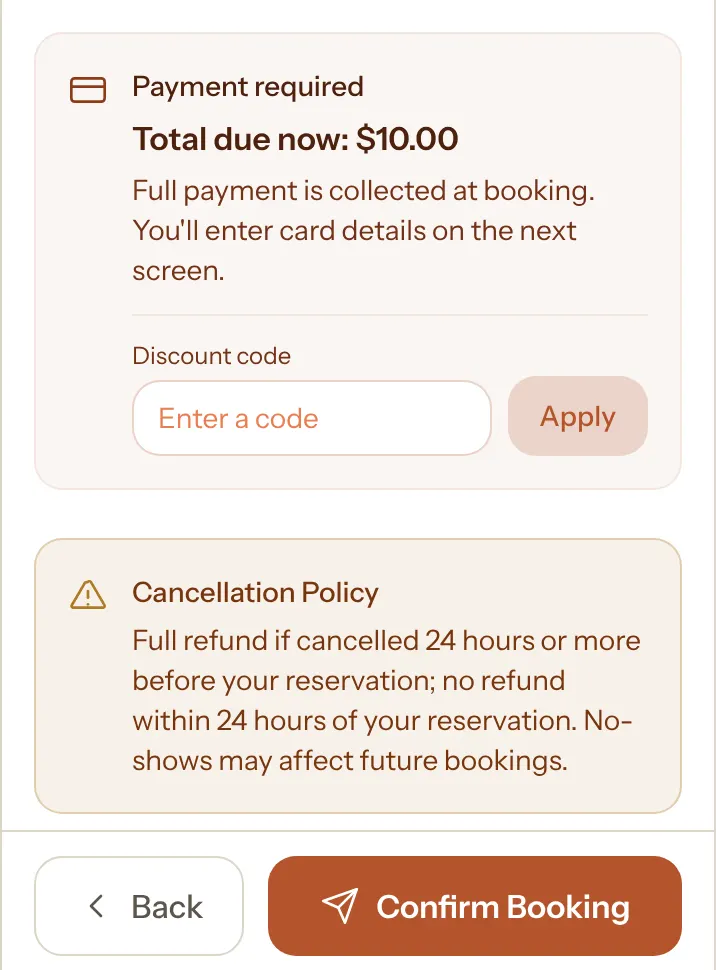
At the last step of booking, a Payment required panel shows the amount: "Refundable deposit due now" or "Total due now". Below it, a line explains the deposit or full payment, a Discount code box, and your Cancellation Policy. The guest clicks Confirm Booking.
Step 2: Guests pay on the next screen
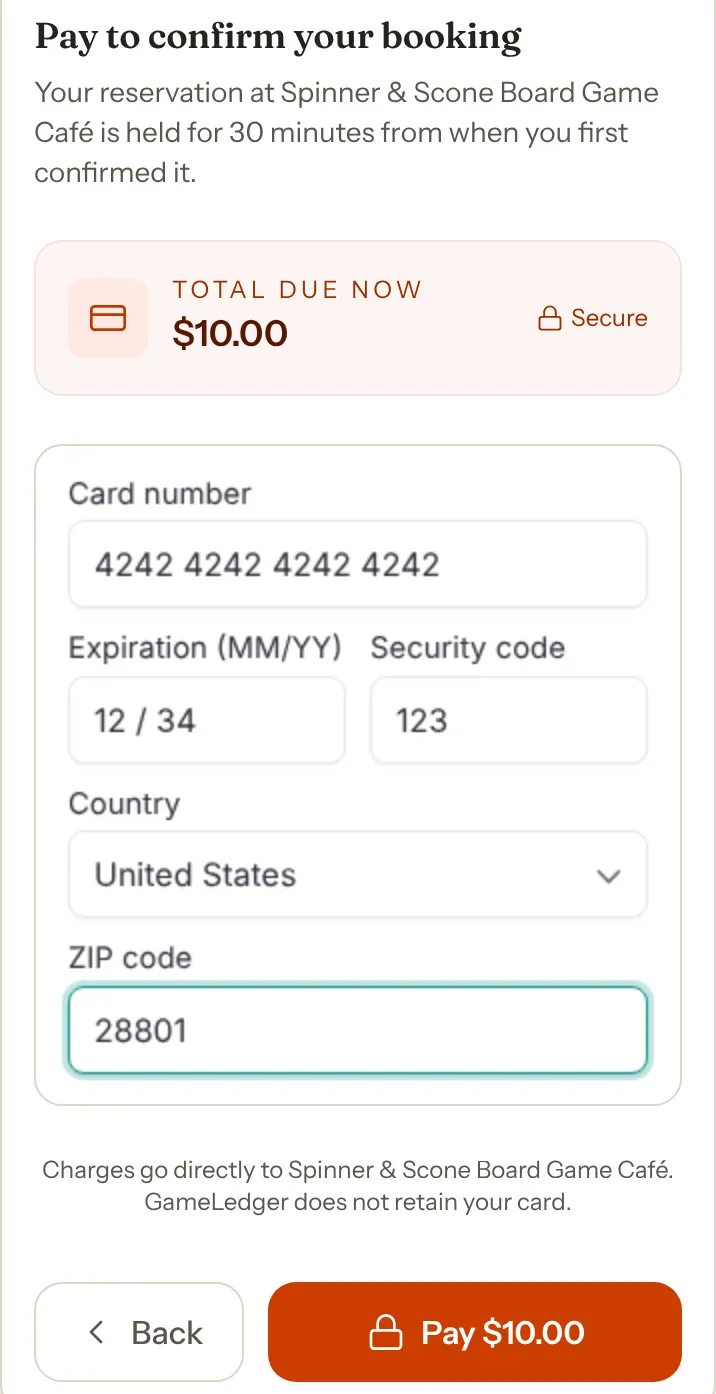
The page is titled Pay to confirm your booking. It shows the amount again and says the reservation is held for 30 minutes from when they first confirmed it. Guests pay by card, or with Apple Pay or Google Pay where their device supports it. On your own website, Apple Pay and Google Pay need the website registered first (see below). The page says "Charges go directly to" your venue and that GameLedger doesn't keep their card.
If their bank wants an extra check, such as a code sent to their phone, it appears on the same page.
Step 3: Guests get their confirmation
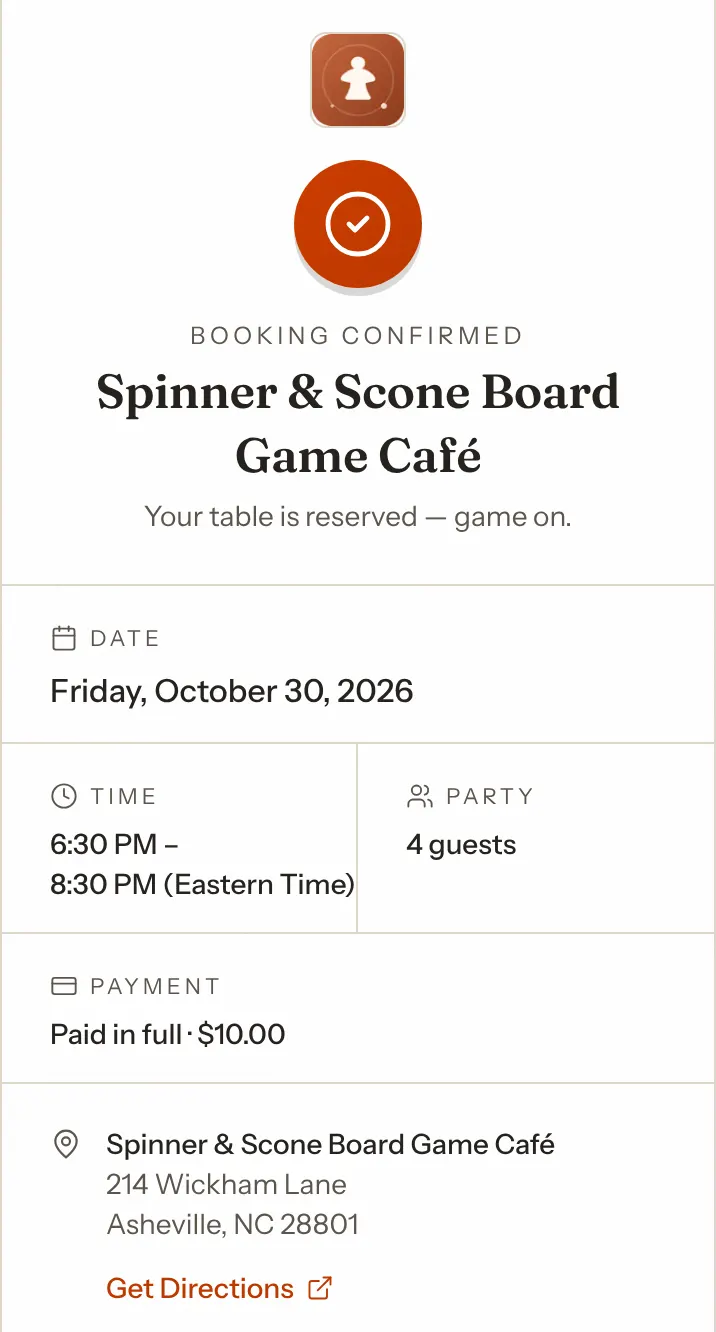
After paying, the guest sees their booking with a Payment line: Deposit paid or Paid in full, with the amount. Guests who gave an email address get your confirmation email, even if you've turned confirmation emails off, and a receipt from Stripe. On their card statement, the charge shows a short form of your statement descriptor and your venue's name. The confirmation email has the same Payment line.
If a card is declined, or the bank's extra check fails, the guest sees Payment failed or Card authentication failed with the reason, and can try again on the same page with the same card or another one. They aren't charged until a payment goes through.
If a guest leaves at the payment step without paying, or their bank's check fails, their booking holds the table for 30 minutes from when they confirmed it and shows as Pending in Bookings. After that, GameLedger cancels the booking and frees the table. To free it sooner, cancel the booking yourself. If the guest presses Pay after that, the page says This checkout has closed, tells them they haven't been charged, and asks them to book again. If your team confirmed the booking without payment in the meantime, they see You're booked instead and aren't charged.
Payment links for bookings your team adds
Bookings your team adds for a guest who phoned or walked in are never charged online. To have them pay ahead, open the booking and click Send payment link. GameLedger emails the guest a link to pay, so the booking needs their email address. Links can only be sent while Stripe can take payments. Until then, the booking says why in the button's place.
Apple Pay and Google Pay
Card payments work everywhere straight away. Apple Pay and Google Pay only appear on websites registered with Stripe for your account.
Once your Stripe card says Connected, GameLedger registers its own booking page with Stripe for you, so guests booking there can use Apple Pay and Google Pay with no setup.
If you've put booking on your own website, register that website too. A Website domains card appears on Payment Processors once Stripe is Connected. It says Not needed yet until you've saved a deposit or full payment policy. After that, type the domain of the website where you pasted your booking widget, for example www.yourcafe.com, and click Register with Stripe. The list also shows GameLedger's own domain, marked GameLedger (required). The full steps are in Add booking to your website.
Look after your connection
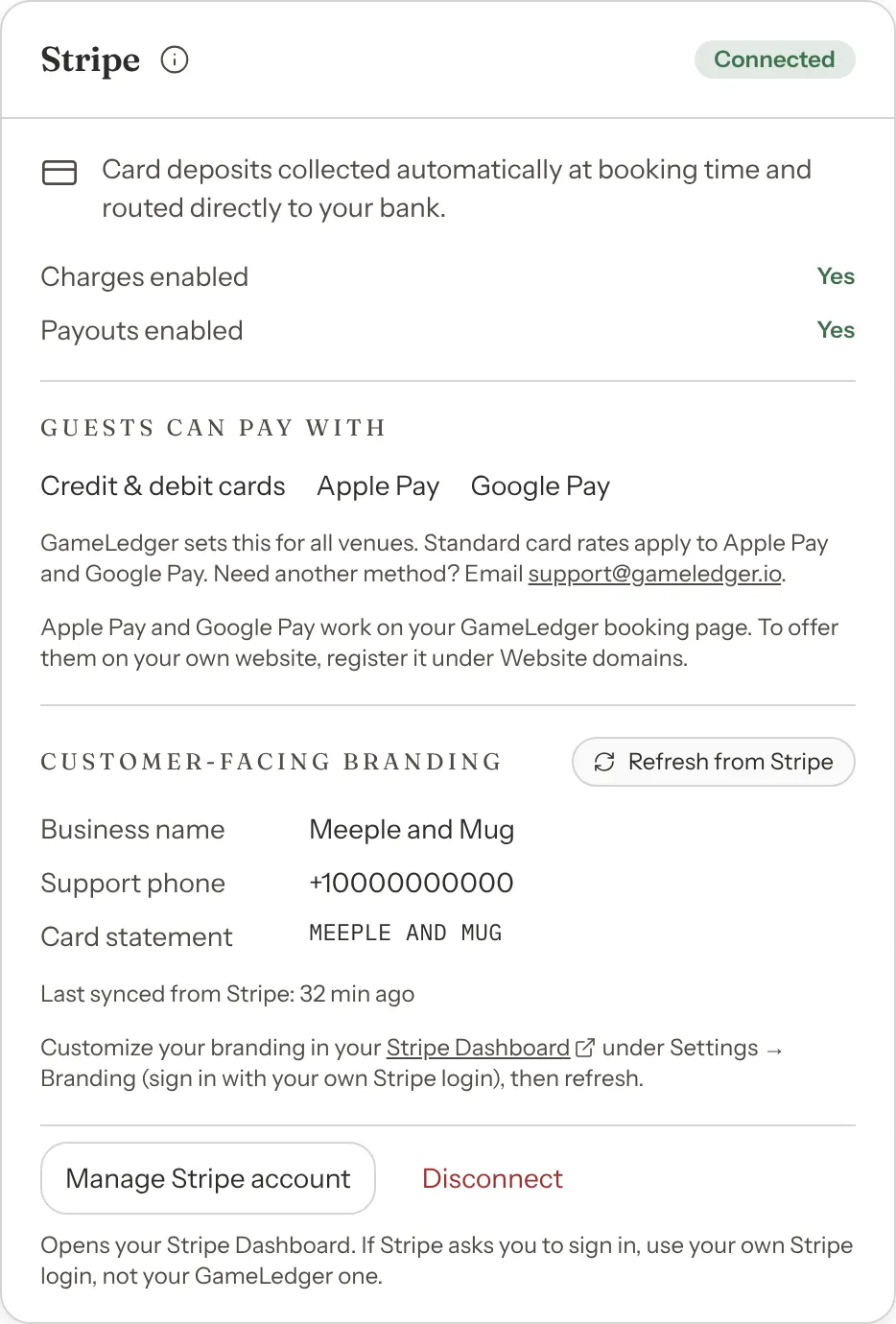
When your account is Connected, the Stripe card shows:
- Charges enabled and Payouts enabled, both Yes.
- Guests can pay with: credit and debit cards, Apple Pay and Google Pay. GameLedger sets this list for every venue. It shows once you've chosen a deposit or full payment.
- Customer-facing branding: the logo, color, business name, support email and phone, and card statement text guests see. Change the logo and color in your Stripe Dashboard under Settings → Branding, and the business name, support details and statement text under Settings → Business → Public details. Then click Refresh from Stripe.
- Manage Stripe account: opens your Stripe Dashboard. Sign in with your own Stripe login, not your GameLedger one. That's where you see payments and payouts, change your bank account or payout schedule, and answer disputes.
- Disconnect: stops GameLedger taking payments through this account. Payouts already on their way aren't affected. If you reconnect later, GameLedger picks up the same Stripe account.
If a guest disputes a payment
A guest can ask their bank to reverse a booking payment. This is called a dispute, or a chargeback. You answer it in your Stripe Dashboard, and GameLedger emails you so you don't miss the deadline.
The email goes to the venue owner, at the address they sign in to GameLedger with. It doesn't go to your venue's contact email, your team or the guest. You get one when the dispute opens and one when it closes:
- A chargeback opens. The subject reads, for example, "Chargeback on a booking at Spinner & Scone: respond by Oct 21". The guest's bank has reversed the payment, and the amount has been taken out of your Stripe balance while the bank decides.
- The bank has a question. The subject reads, for example, "A guest's bank has a question about a booking at Spinner & Scone". It isn't a chargeback yet and no money has been taken back, but if it goes unanswered it can become one.
- The dispute closes. The email says how it ended: decided in your favor, with the amount returned to your Stripe balance; decided in the guest's favor, so the amount stays with them; or the bank's question closed without a chargeback. Now and then a dispute is resolved before it becomes a chargeback, or closes some other way. That email asks you to check your Stripe Dashboard for how it ended.
Each email lists the guest, the booking's date and time, the disputed amount, the bank's reason in plain words and the booking's confirmation code. The email sent when a dispute opens also gives the date to respond by. GameLedger doesn't cancel or change the booking.
Step 1: Open your Stripe Dashboard
Click Respond in Stripe in the email. Sign in to GameLedger if it asks. If Stripe asks you to sign in, use your own Stripe login, not your GameLedger one.
Step 2: Find the payment
Look for the payment with the guest's name and the amount from the email.
Step 3: Respond before the date in the email
Answer the bank's question, or send your evidence for a chargeback, through Stripe. If you don't respond to a chargeback in time, the bank decides in the guest's favor. The booking's details in GameLedger, such as its history, can help you show what happened.
Sometimes the bank doesn't allow a response. The email then says so, and its button reads View in Stripe. There's nothing for you to send.
You only get these emails for booking payments taken through GameLedger, not for anything else you charge on your Stripe account.
What each Stripe status means
- Not connected
- No Stripe account is linked. Guests can't pay online. Click Connect with Stripe to start.
- Onboarding
- You started Stripe's sign-up but haven't finished it. Click Continue Stripe onboarding to pick up where you stopped.
- Connected
- Stripe has approved your account. Charges and payouts are both on, and guests can pay.
- Restricted
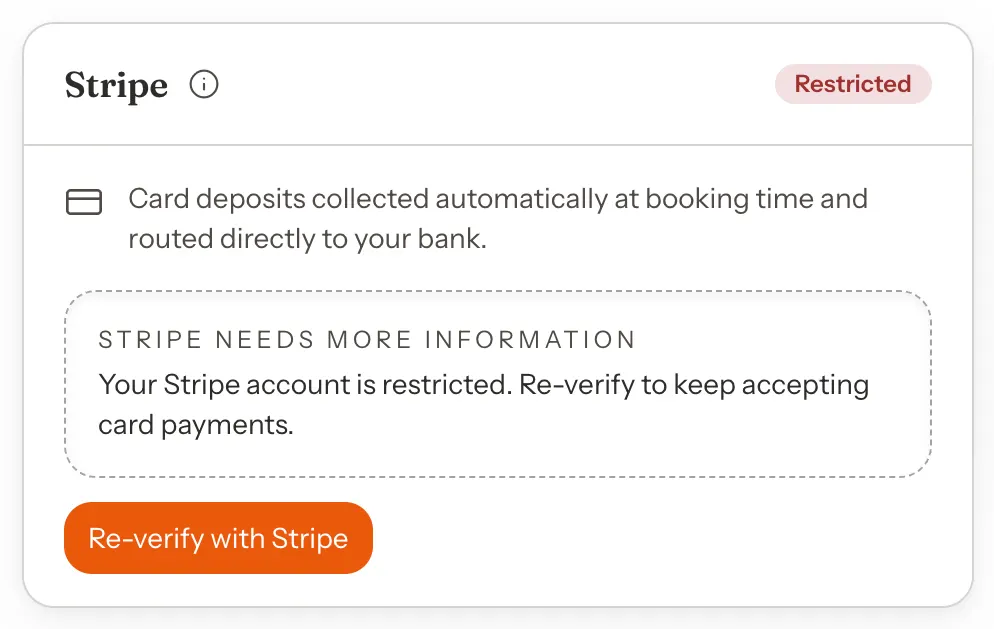
- Stripe needs more information before it lets you take payments or receive payouts. Click Re-verify with Stripe.
Limits to know about
- Stripe only. Booking payments go through Stripe. Square does not collect booking deposits or payments yet.
- Cards, Apple Pay and Google Pay only. Guests can't pay with Klarna, Afterpay, Link, Cash App, PayPal or a bank transfer. GameLedger sets this for every venue. Email support@gameledger.io if your guests need another method.
- Some countries can't take online payments. Stripe can't be connected where the currency has no smaller unit, like cents, or uses three decimal places. That includes Japan, South Korea, Vietnam, Chile, Paraguay, Uganda, Rwanda, Madagascar, Bahrain, Jordan, Kuwait, Oman and Tunisia, and the countries that use the CFA franc or the CFP franc. Bookings without payment work as normal there.
- Your country and currency are fixed once your Stripe account exists. Guests pay in your Stripe account's currency.
- One fixed deposit amount. Reservation types can't each have their own fixed deposit. Use a percent deposit for a type that needs a different amount.
- Disputes happen in Stripe. When a guest disputes a charge with their bank, you answer it in your Stripe Dashboard. GameLedger emails you when one opens and when it closes. See If a guest disputes a payment.
Troubleshooting
The Stripe card says Onboarding
You haven't finished Stripe's pages. Click Continue Stripe onboarding to pick up where you stopped.
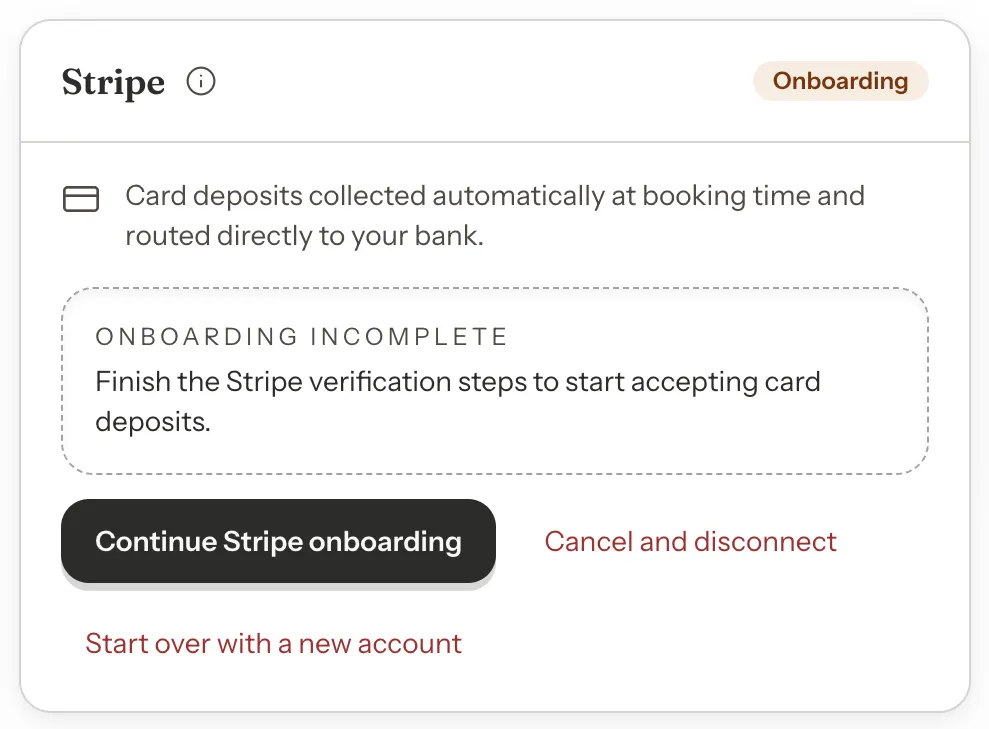
If you set it up with the wrong details, such as the wrong country, click Start over with a new account and confirm. GameLedger stops using the unfinished account. Correct your venue's country under Settings → Venue → Location, then click Connect with Stripe to start again from the first page. You can only start over before you've submitted your details to Stripe. After that, email support@gameledger.io.
The Stripe card says Restricted
Stripe needs something before it lets you take payments or receive payouts. Click Re-verify with Stripe and Stripe shows you what's missing.
Common reasons:
- You've only just submitted, and Stripe is still checking what you sent. This often takes a few minutes, and sometimes longer. Refresh the page, and look for an email from Stripe.
- You skipped Verify your identity.
- A detail doesn't match official records, such as your legal business name, tax ID or date of birth.
Guests can't pay while your account is Restricted, even if Stripe still lets you take some payments.
Guests see "Stripe setup is not yet active"
Your payment policy asks guests to pay, but your Stripe account isn't Connected. Fix the status shown on the Stripe card. While this lasts, the pill at the top of Bookings reads Bookings: Can't book online, and the What guests can't book right now card on your dashboard says so, with a link to where you fix it.
To take online bookings again while you sort out Stripe, go to Settings → Venue Policies → Deposits & Payment, click Switch to No payment at booking, then Save Changes. If a reservation type is listed there, open it and switch it too, then click Save for and the type's name. Collect any payment when guests arrive. Switching doesn't change bookings already made. If you don't see the button, ask the venue owner or an admin to make the switch.
Connect with Stripe shows an error
- "Choose your venue's country under Settings › Venue › Location before connecting Stripe." Your venue has no country set. Choose it under Settings → Venue → Location, click Save Changes, then click Connect with Stripe again.
- "Online payments aren't available for venues in" your country: see Limits to know about.
- "We couldn't check your venue's country, so Stripe wasn't started." Wait a minute and try again.
- "We couldn't reach Stripe to start onboarding." Wait a minute and try again.
Save Changes is refused
GameLedger won't save a payment policy that charges a guest nothing. Read the message under the setting: it names what to fix, such as a zero deposit amount, no booking price for Full payment, or a booking length priced at zero.
It also won't save a new deposit or full payment policy while your Stripe card isn't Connected, because guests couldn't pay. The message says nothing was saved. Refresh the page to see your Stripe card's current status, fix Stripe under Payment Processors, and keep No payment at booking until then.
A guest says their payment didn't go through
Look in Bookings for the booking under their name.
- Pending: the guest hasn't paid, so they haven't had a confirmation email or a code to look the booking up with. While the payment page is still open, they can try again there with the same card or another one. Otherwise, cancel the booking so the table is free and ask them to book again. If nobody cancels it, GameLedger does about 30 minutes after it was made.
- Cancelled: the 30 minutes ran out, or someone cancelled it. The guest wasn't charged and can book again.
- Confirmed, with a note like Collect $10.00 at venue: someone on your team confirmed it without payment. The guest is booked and wasn't charged, so collect the payment at the venue.
To keep a guest's table without waiting for them to pay, open the Pending booking and click Confirm Booking, then Confirm anyway. That cancels their online checkout, so collect payment at the venue. They get your confirmation email if confirmation emails are on. If they press Pay on their payment page afterwards, they see You're booked and aren't charged.
A deposit wasn't refunded
Deposits are refunded when your team marks the guest Arrived or seats them. Check the booking's status. If the guest was there, use Issue refund on the booking.
A refund shows as processing
Stripe takes refunds from your Stripe balance. If the balance is too low, the refund waits until there's enough money in it.
Apple Pay or Google Pay doesn't appear
On your own website, register it under Website domains. Apple Pay can show Inactive for a little while after you register: click Register with Stripe again later to re-check. GameLedger's own booking page is registered for you once Stripe is Connected. Guests also need a device and browser with Apple Pay or Google Pay set up.