Your account, your data and closing your venue
Change your display name and password, sign out, download your bookings, customers and games, and find out how to close your venue.
Last verified
Your GameLedger login is yours alone, even when several people work at your venue. This guide covers the settings for your own login: the name in the top bar, your password and signing out. It also covers downloading your bookings, customers and games, and what to do if you want to close your venue.
Where to find it
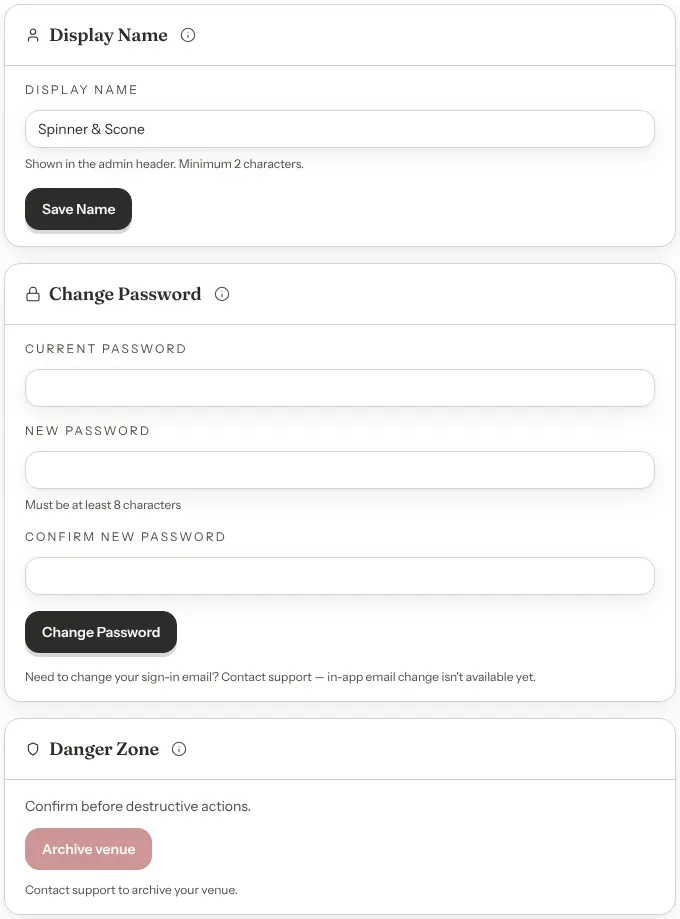
Go to Settings → Account. It has three cards: Display Name, Change Password and Danger Zone. Each person only ever changes their own login there.
Settings opens for the owner, admins and staff who have been given access to it. New staff don't have it unless you give it to them: see Change someone's access. Without it, a team member changes their name from My Profile in the menu at the top right, and changes their password by signing out and using Forgot password? on the sign-in page.
You can also click the badge with your initials at the top right of any admin page. Its menu shows your name and email, then My Profile, Venue Settings and Sign Out.
Change your display name
Your display name shows in the menu at the top right, and your initials on the badge come from it. Guests never see it.
Step 1: Type your name
In the Display Name card, type your name. It needs at least 2 characters.
Step 2: Click Save Name
The card says Display name updated. and the top bar changes straight away.
My Profile, in the menu at the top right, opens an Edit Profile box with the same Display Name field and a Save Changes button, for a quick change without leaving the page you are on.
If you set up the venue, your display name starts as the name you entered then. If you joined someone else's venue, it starts empty and the top bar shows the part of your email address before the @.
Change your password
You need your current password to choose a new one. If you have forgotten it, sign out and use Forgot password? on the sign-in page instead: see Reset a forgotten password.
Step 1: Fill in the three fields
In the Change Password card, type your Current password, then a New password of at least 8 characters, and type the new one again in Confirm new password.
Step 2: Click Change Password
The button reads Changing... for a moment, then the card says Password updated. and clears the fields. You stay signed in. Use your new password the next time you sign in.
If a box is empty, or a new password is shorter than 8 characters, your browser points at that box and nothing is sent. Otherwise, if something is wrong, the card says what in red and your password doesn't change:
| Message | What to do |
|---|---|
| New passwords do not match. | The two new passwords are different. Type them again. |
| New password must be different from your current password. | Choose a password you haven't been using. |
| Current password is incorrect. | Check it, or sign out and reset it from the sign-in page. |
Changing your password only changes your own login. Your team keep their own passwords.
Your sign-in email
You can't change the email you sign in with from GameLedger yet. The Edit Profile box shows it greyed out, with "Email cannot be changed". To change it, email support@gameledger.io from the address you sign in with now.
This is separate from the Contact Email guests see on your venue page, which you can change at any time in Settings → Venue → Profile. See Your venue page and branding.
Sign out
Click the badge with your initials at the top right, then Sign Out. You land on the sign-in page.
Signing out signs your login out everywhere, not just on this device: any other computer, tablet or phone where you are signed in with the same login has to sign in again, within about an hour. If several people share one login on the floor, give each of them their own instead. See Team and permissions.
Download your data
You can download your bookings, your customer list and your game library as CSV files, which open in Excel, Google Sheets or Numbers. Each download is named with the day's date.
| Download | Where | What you get |
|---|---|---|
| Bookings | Bookings, then List, then Export CSV | Every booking that matches the list's date range and filters, not just the rows on screen. Choose Historical for past bookings. |
| Customers | Customers, then Export CSV | Every guest in your customer list, whatever is in the search box: name, email, phone, number of visits, first and last visit, no-shows, total spent (in cents) and your private notes. |
| Games | Library, then Export CSV | Every game in your library, whatever your search or filters show. |
Each Export CSV button is greyed out while its list is empty. Downloading bookings or customers needs access to view Bookings.
The bookings and customers files hold your guests' names, emails and phone numbers. Keep them somewhere safe, and delete copies you no longer need.
More detail: Export the list as CSV and Export your library to CSV.
Close your venue
You can't close or delete your venue yourself yet. The Danger Zone card in Settings → Account has an Archive venue button, but it is always greyed out, with the line "Contact support to archive your venue." Nothing on the card changes your venue or what guests see.
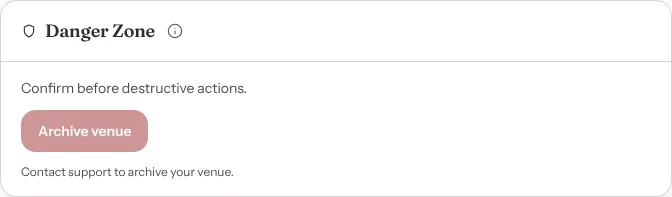
To close your venue, email support@gameledger.io. Write from the email you sign in with if you can, and include your venue's name and its web address. We may need to confirm the request is yours before we act on it.
Before you write to us
Do these first:
- Download your data. Export your customers and your games, and your bookings twice: once with All Future and once with Historical, so you have both upcoming and past bookings.
- Stop new bookings. Untick Accept Online Bookings in Settings → Venue Policies → Booking Rules and click Save Changes. Your booking page then tells guests reservations are not available. See Pause online bookings.
- Look after upcoming bookings. Guests who already booked still expect a table. Contact them, or cancel their bookings from Bookings. See Managing bookings.
- Take GameLedger off your website. Remove the booking button or game list code from your own site, and your booking link from your Instagram bio, Google Business Profile and anywhere else you posted it.
- Disconnect Stripe, if you use it. Your Stripe account is your own. Disconnecting it from GameLedger doesn't close it, and payouts already on their way aren't affected. You keep your Stripe login for your payment history, refunds and disputes. See Look after your connection.
What happens to your data
What GameLedger keeps after a venue closes, and for how long, is set out in our Privacy Policy, under Data retention. To ask for your data to be deleted, say so in your email. The Privacy Policy explains what we have to keep even after a deletion, such as earlier text-message opt-in and opt-out records.
Good to know
- One login, one venue at setup. Each login sets up one venue. If you joined someone else's venue as a team member, you look after your own login the same way: from the Account tab if you can open Settings, otherwise from My Profile and Forgot password?.
- Leaving a team. A team member who leaves can't remove themselves. Ask the owner or an admin to take your access away: see Take access away.