Build your game library
Add games one at a time from BoardGameGeek or by hand, keep copies, condition and missing pieces up to date, and take a game away from guests when you need to.
Last verified
Your Library is the list of every game on your shelves. GameLedger uses it to recommend games at the table, to let guests reserve a game with a booking, and to fill your public games page. This guide shows how to add games one at a time, keep each one up to date, and take a game away from guests when it is damaged, waiting for repair or gone for good.
Where to find it
Click Library in the left-hand menu. Along the top you have five buttons: Fix Data, Export CSV, Download Template, Import CSV and Add game. Under the title you may see a strip about your public games page. Below that come the search box and quick filters, then one row per game.
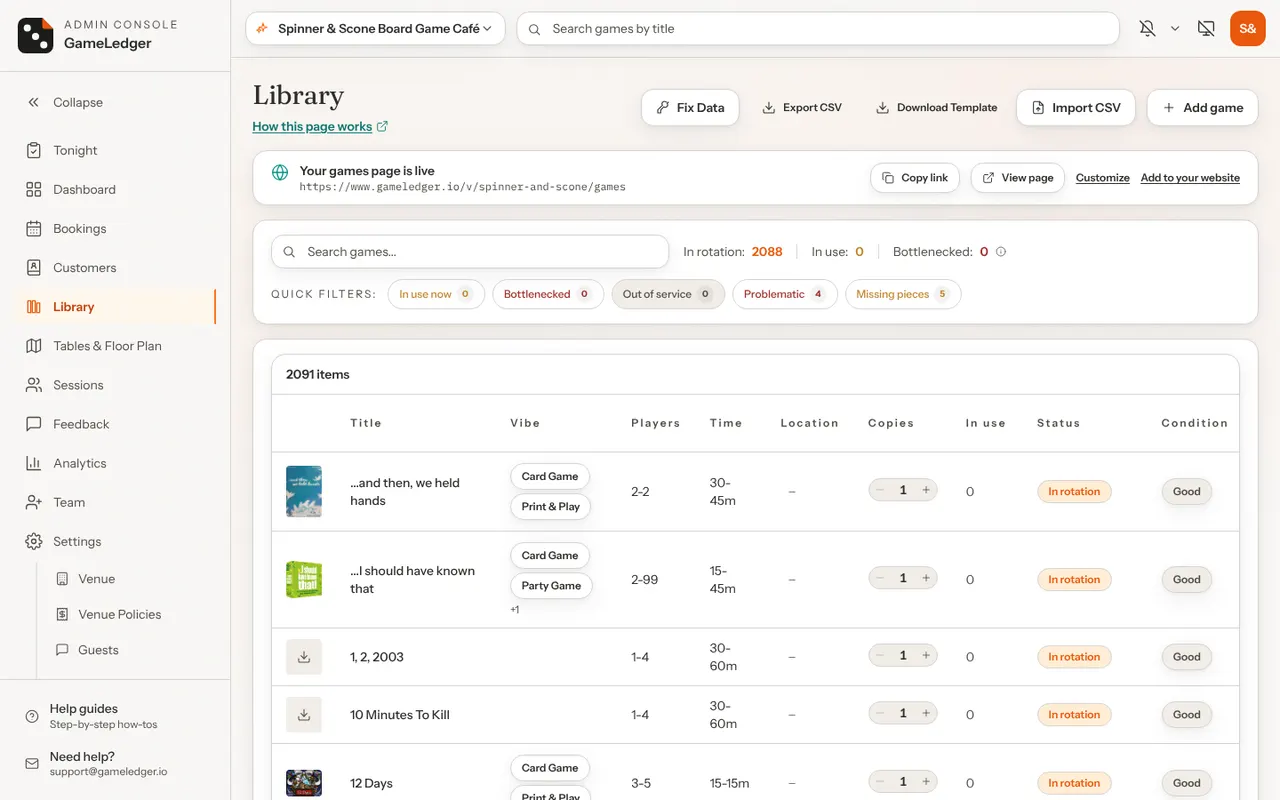
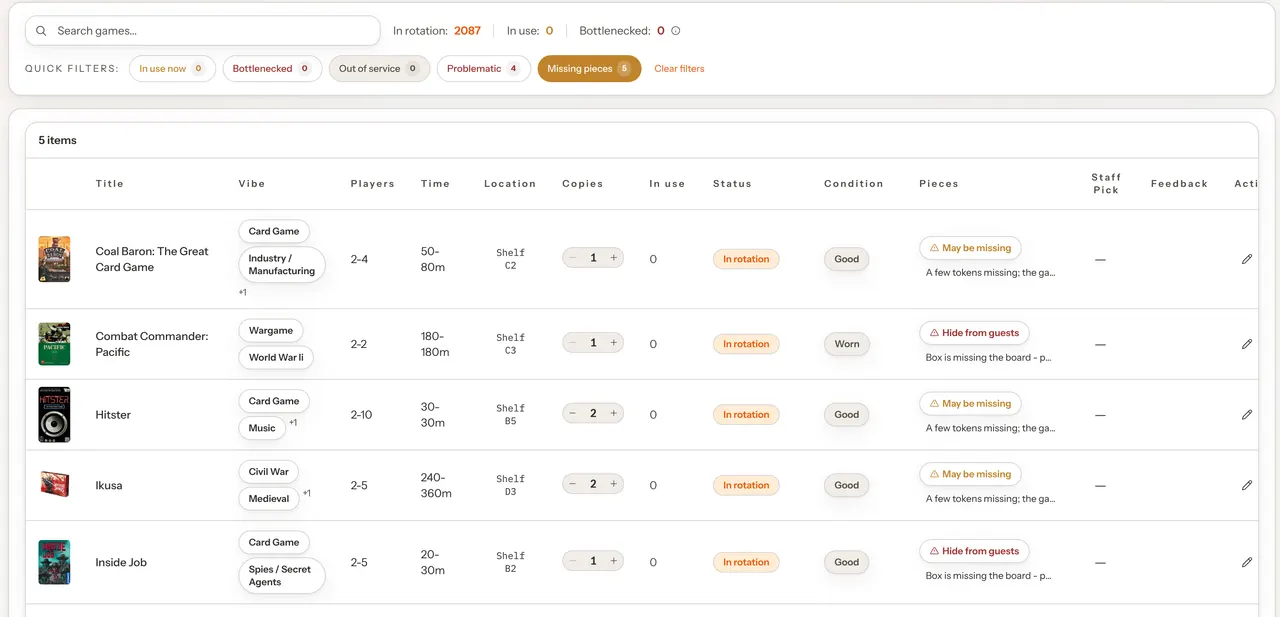
Each row has these columns:
| Column | What it shows |
|---|---|
| Cover | The game's image: box art from BoardGameGeek, or your own photo. If there is none, a download button tries to fetch the box art from BoardGameGeek. |
| Title | The game's name, its average guest rating from the last 90 days when it has one, and a 🔥 when it is trending on BoardGameGeek. |
| Vibe | The first two vibes, plus how many more. |
| Players and Time | The player count and play time range. |
| Location | Where it sits on your shelves. Click to type it. |
| Copies | How many copies you own, with – and + buttons. |
| In use | How many copies are at tables right now. Click the number to see which tables. |
| Status, Condition, Pieces | Click to change. See Take a game away from guests. |
| Staff Pick | Click to mark or unmark the game as a staff pick. |
| Feedback | An eye button when guests have rated the game. |
| Actions | Edit game (pencil), Delete game (bin) and Fetch, which looks up a how-to-play video on BoardGameGeek. Once the game has a video, the button reads Video. Assign also shows when a copy is free and a table is still choosing a game. |
Changes you make in a row save straight away, and a short message confirms each one, for example Status updated or Copies set to 2.
A new library
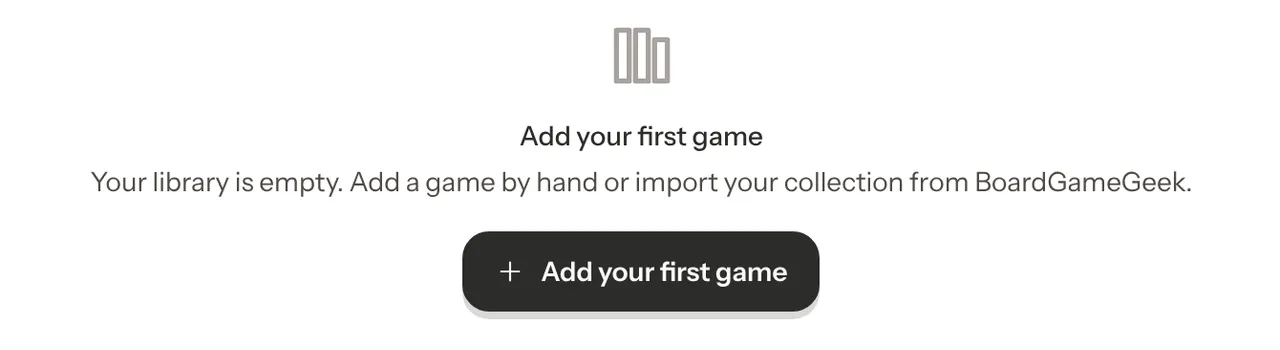
A new venue starts with no games. The page shows Add your first game with the line Your library is empty. Add a game by hand or import your collection from BoardGameGeek. The Add your first games step on your dashboard's setup checklist opens the same add form.
Add a game from BoardGameGeek
Most games are on BoardGameGeek, the large online board game database. Search for the title and GameLedger fills in most of the form for you.
Step 1: Open the add form
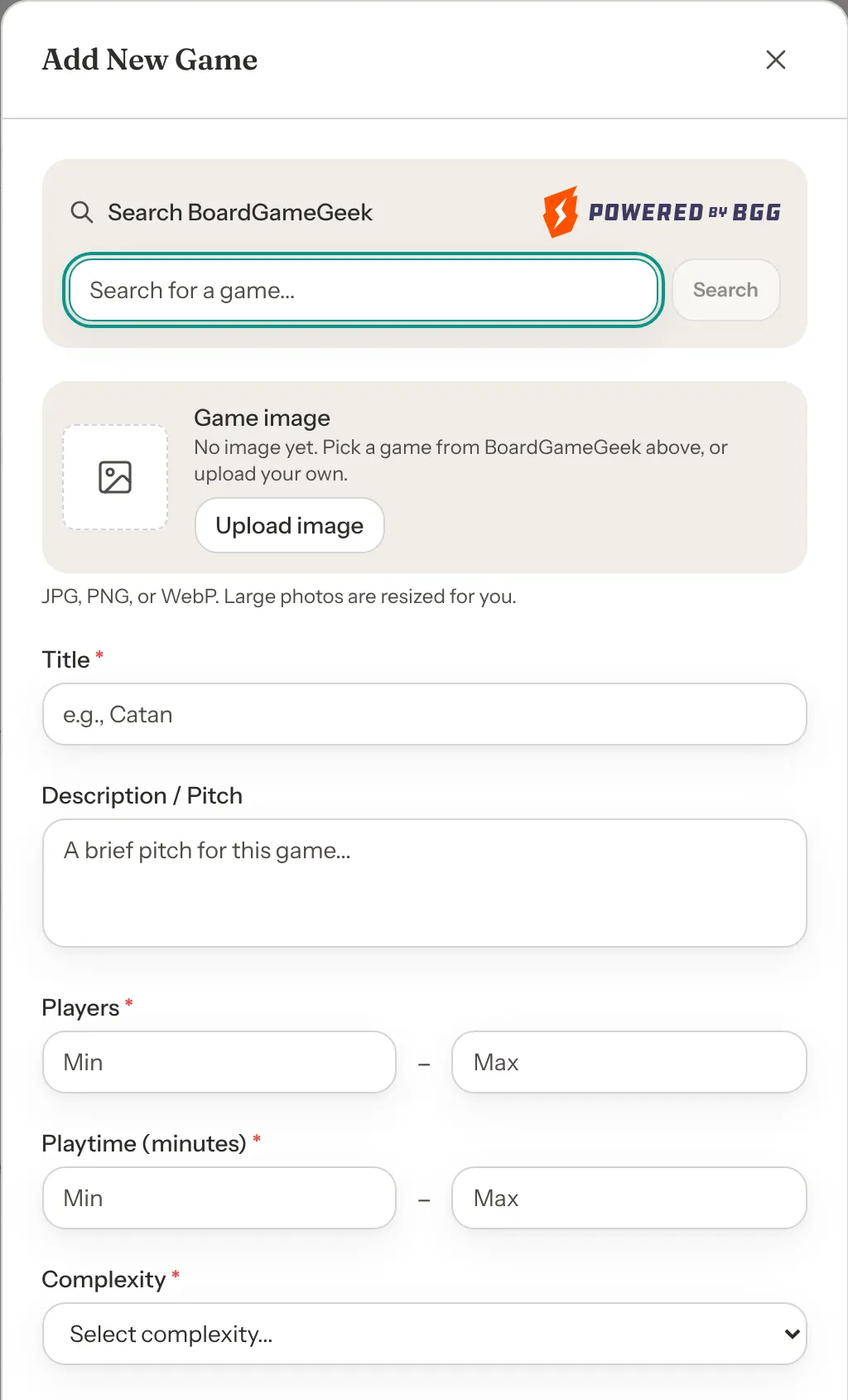
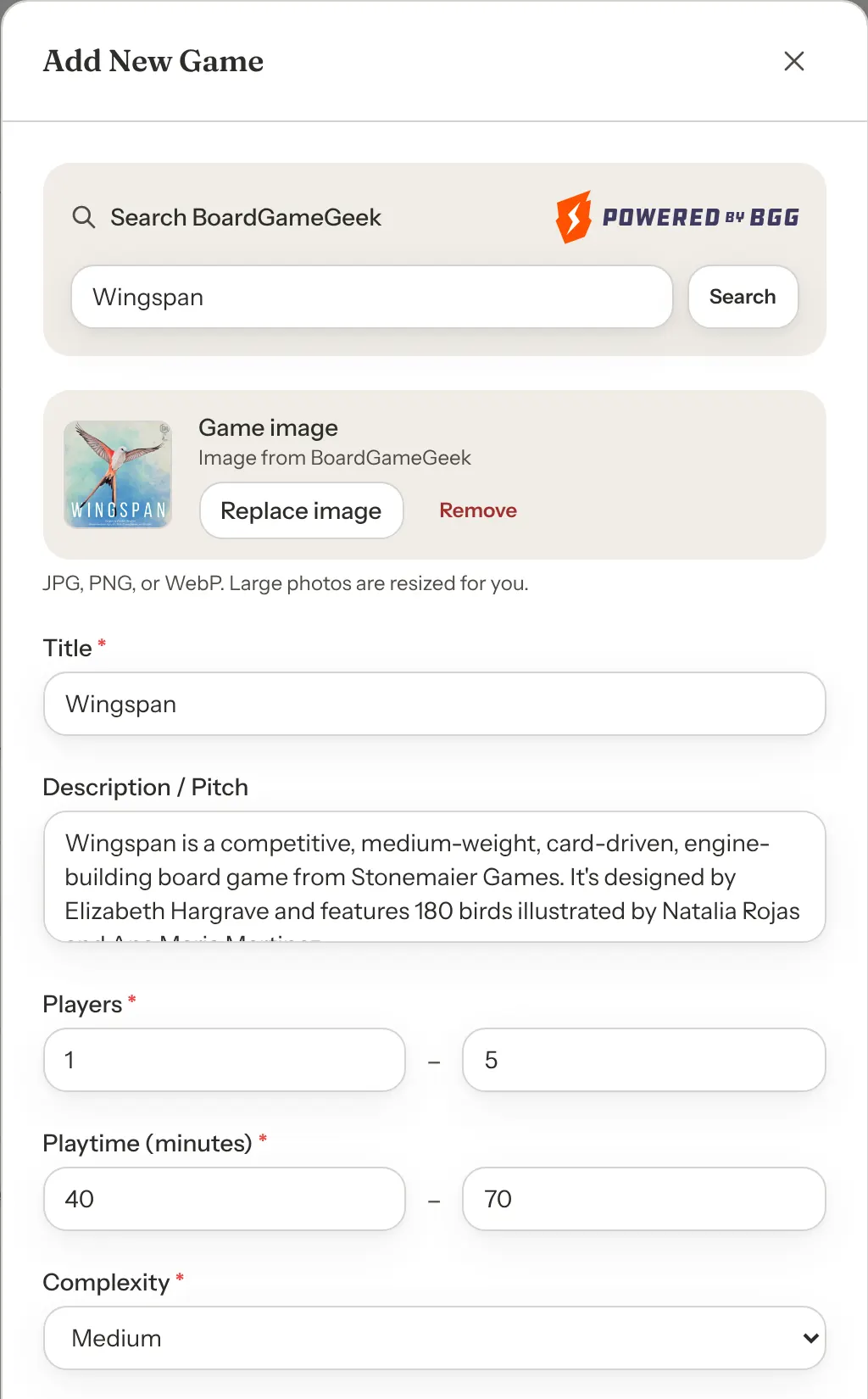
Click Add game. The Add New Game form opens with Search BoardGameGeek at the top, next to the Powered by BoardGameGeek logo.
Step 2: Search for the title
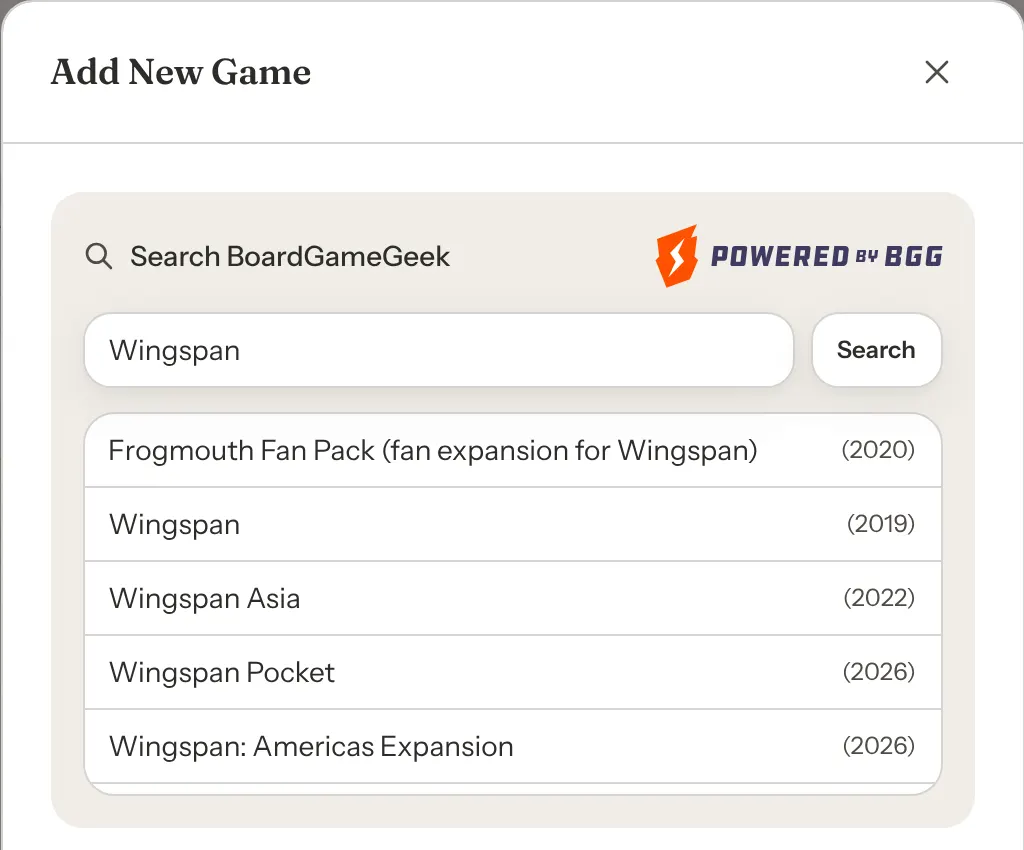
Type the game's name in Search for a game... and press Enter or click Search. A list of matches appears, with the year each one was published when BoardGameGeek has it. Pick the right one carefully: many games have several editions or expansions with similar names.
If nothing matches, you see No games found. Try a different search term.
Step 3: Choose the match
Click the match. Loading game details... shows for a moment, then the form fills in. The Game image row shows a small preview of the box art, with Image from BoardGameGeek under it.
Step 4: Add your own details
Check what was filled in, then add what only you know: how many copies you own in Number of copies, where the game lives in Location / Shelf, and whether it is a Staff Pick. You can change any filled-in value too, and swap the box art for your own photo with Replace image. See Use your own game image.
Step 5: Save the game
Click Add Game. The form closes, Game added confirms it, and the Library jumps to the new game's row and highlights it for a few seconds.
What BoardGameGeek fills in
| Field | What you get |
|---|---|
| Title | The game's name on BoardGameGeek. |
| Description / Pitch | BoardGameGeek's description of the game. Long descriptions are shortened. |
| Players | The minimum and maximum player count. |
| Playtime (minutes) | The minimum and maximum play time. |
| Complexity | Simple, Medium or Complex, based on how heavy BoardGameGeek players rate the game. If nobody has rated it, you get Medium. |
| Vibes / Tags | Up to three of the game's BoardGameGeek categories. |
| Tutorial Video | The best how-to-play video on YouTube that BoardGameGeek lists for the game. If it lists none, the field stays empty. |
| BGG Rank and BGG Rating | The game's overall rank and its average rating, when it has them. |
| Game image | The box art. To use your own photo instead, click Replace image. |
Nothing else is filled in. Location / Shelf, Number of copies, Status, Staff Pick, Setup Steps and Rules Overview keep their defaults until you change them.
You can also import a whole list of games from a spreadsheet with Import CSV. See Import your games from a spreadsheet.
Add a game that is not on BoardGameGeek
Skip the search and fill in the form yourself. Four things are required, marked with a red star:
- Title
- Players: a minimum and a maximum, each between 1 and 99.
- Playtime (minutes): a minimum and a maximum, each between 1 and 999.
- Complexity: Simple, Medium or Complex.
If one is missing or out of range, the field turns red and says what to fix, for example Enter a number between 1 and 99. If the minimum is more than the maximum, a message at the top of the form says so, for example Minimum players cannot exceed maximum players. Click Add Game when you are done.
A game you type in yourself starts with no image. Click Upload image in the Game image row to add your own photo: see Use your own game image.
If you save a game without an image, its row in the Library shows a download button instead. Clicking it looks the title up on BoardGameGeek, so it only helps if a similar title exists there, and it can pick a similarly named game. Check the cover it picks.
Use your own game image
Every game can have your own photo instead of BoardGameGeek's box art, for example a picture of your well-loved copy, or of a game BoardGameGeek doesn't have. Your image replaces the box art everywhere the game shows: in your Library, at the table, on your public games page and when guests reserve a game with their booking.
Step 1: Open the game's form
Click Add game for a new game, or the pencil (Edit game) on the game's row. The Game image row near the top shows the image the game has now, with where it came from: Image from BoardGameGeek, Your own image, Image from a web link (for example, one imported from a spreadsheet) or No image yet.
Step 2: Pick your photo
Click Upload image, or Replace image if the game already has one, and choose a JPG, PNG or WebP file. Large photos are resized for you. Your photo shows in the row with Your new image. It saves with the game.
Step 3: Save the game
Click Add Game or Save Changes. Nothing is uploaded until you do. Before you save, Cancel upload brings back the image you had.
To take an image off a game, click Remove in the Game image row, then save. The game's row in the Library then shows the download button, which fetches the box art from BoardGameGeek again if you want it back.
If the file can't be used, the form says why under the row:
- Game image must be a JPG, PNG, or WebP file. Save the picture in one of those formats and pick it again.
- That image is over 25MB. Pick a smaller one.
- Couldn't read that image. Try another JPG, PNG, or WebP file. The file is damaged, or it is another kind of file renamed to look like a picture.
- That image is still too large after resizing. Try a smaller one.
Edit a game
Click the pencil (Edit game) on the game's row. The Edit Game form opens with everything you have saved. It is the same form as Add New Game, without the search box. Change what you need and click Save Changes. Game updated confirms it.
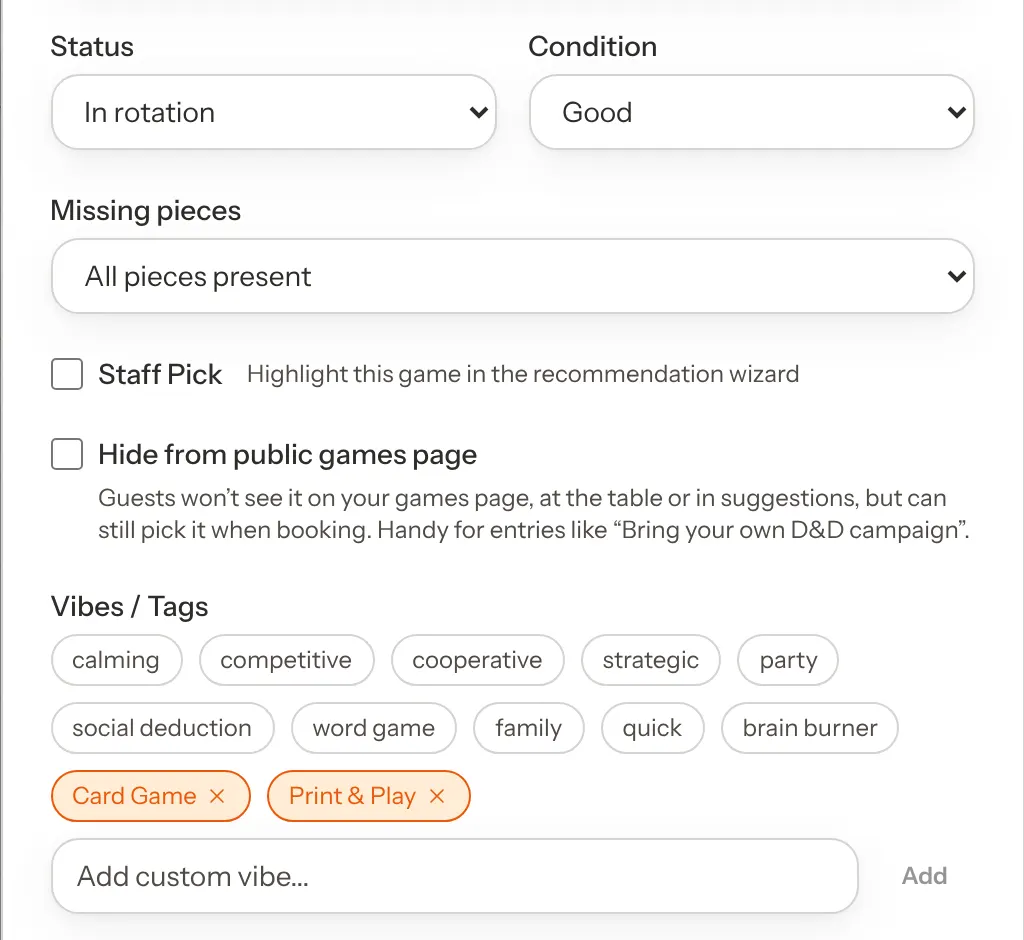
If you close the form with unsaved changes, GameLedger asks Discard changes? (on the add form, Discard this game?). Click Keep editing to go back, or Discard to close without saving. Clear Form at the bottom empties every field.
Every field and its default
| Option | What it does | Default |
|---|---|---|
| Game image | The game's picture: BoardGameGeek's box art, or your own JPG, PNG or WebP. Your own image replaces the box art. | Default: None, or the box art when you pick a match from BoardGameGeek |
| Title | The game's name. Required. | Default: Empty |
| Description / Pitch | A short pitch. Guests see it on the game's page at the table, under Why you might like it. | Default: Empty |
| Players | The minimum and maximum player count, 1 to 99. Required. | Default: Empty |
| Playtime (minutes) | The minimum and maximum play time, 1 to 999 minutes. Required. | Default: Empty |
| Complexity | Simple, Medium or Complex. Required. | Default: None chosen |
| Status | In rotation, Out of service or Retired. Only games in rotation are offered to guests. | Default: In rotation |
| Condition | New, Good, Worn or Problematic. A problematic game is hidden from guests. | Default: Good |
| Missing pieces | All pieces present, Warn — may be missing pieces, or Hide from guests. Any choice but the first adds a Note (optional) box, up to 200 characters. | Default: All pieces present |
| Staff Pick | Highlights the game for guests. | Default: Off |
| Hide from public games page | Hides the game from your public games page, the table app and suggestions, while guests can still pick it when booking. Its row shows Not public. | Default: Off |
| Vibes / Tags | Moods guests can pick a game by. Ten quick picks, plus your own with Add custom vibe. | Default: None |
| Location / Shelf | Where the game sits, for example Shelf A3. Guests see it on the game's page at the table. | Default: Empty |
| Preferred seating | A seating tag for guests who reserve this game, so they get a table with that tag when one is free. Only shows once you have a seating tag. | Default: No preference |
| Number of copies | How many copies you own. Use 1 or more. | Default: 1 |
| Setup Steps | One step per line. Guests see them, numbered, under Setup on the game's page at the table. | Default: Empty |
| Rules Overview | One point per line. Guests see them under How to play on the game's page at the table. | Default: Empty |
| Tutorial Video | A YouTube link to a how-to-play video. Guests see Watch video tutorial on the game's page at the table. | Default: Empty |
| BGG Rank | The game's BoardGameGeek rank, 1 or higher. | Default: Empty |
| BGG Rating | The game's BoardGameGeek rating, 0 to 10. Your public games page can show it. | Default: Empty |
Preferred seating and Hide from public games page work with seating tags. See Send the right groups to the right tables.
Copies and copies in use
Number of copies is how many copies of the game you own. Each copy can be at one table at a time, and guests are only recommended a game while its status is In rotation and a copy is free. Copies also limit how many bookings can reserve the game at the same time.
In the Library, change copies with the – and + buttons in the Copies column:
- A game always keeps at least 1 copy. The – button greys out at 1.
- You can't go below the number of copies being played right now. GameLedger says Can't reduce copies and how many are at tables. End those sessions first.
- When every copy is at a table, the In use column shows a red Full chip. Hover over it to read All copies in use.
On the form, Number of copies must be 1 or more. If you enter 0, the form says A game needs at least 1 copy. To take it off the shelf, set its status to Out of service or Retired. To stop guests seeing a game, change its status instead, as described below.
If fewer copies would leave an upcoming booking without the game it reserved, GameLedger asks before saving. See When a game is reserved.
Condition, missing pieces and notes
Condition records the state of the box: New, Good, Worn or Problematic. Only Problematic changes anything for guests. The game is hidden from them, and your dashboard shows an alert such as Azul needs attention until you change the condition.
Missing pieces has three settings. The Pieces column in the Library uses shorter names than the form:
| In the Library row | On the form | What guests see |
|---|---|---|
| All pieces | All pieces present | Nothing special. |
| May be missing | Warn — may be missing pieces | The game stays available, with a May be missing pieces badge and your note on its page at the table. |
| Hide from guests | Hide from guests | The game is hidden from guests. |
When a game is flagged, an Add note link appears under the flag in its row. Click it, type what is missing (for example, missing 3 red dice) and press Enter. Notes can be up to 200 characters.
Vibes
Vibes are the moods guests pick a game by, such as "party" or "cooperative". When you add a game from BoardGameGeek, its vibes are BoardGameGeek's categories for that game. On the form you can turn on any of ten quick picks (calming, competitive, cooperative, strategic, party, social deduction, word game, family, quick and brain burner) and click a quick pick again to turn it off. Remove any other vibe with its ×, or type your own in Add custom vibe... and click Add.
Guests see vibes as mood chips on your public games page and on each game's page at the table, and the table app uses them to recommend games. In the table app, a vibe only matches games with exactly the same wording, so "Party" and "party" count as two different vibes. The form says so under Vibes / Tags, with a link to Find a Game's questions if you can open Settings. Fix Data in the Library header rewrites every vibe in Title Case so they line up. Before it starts, it asks Fix library data? so you can confirm. That window also warns that a Find a Game answer using a tag it renames stops matching those games, and links Find a Game's questions if you can open Settings. The form's quick picks and your own vibes are saved in lower case, so run Fix Data again after adding or editing vibes, and before you choose tags for Find a Game's answers. Find a Game's built-in Competitive and Co-op answers start with the lower-case tags "competitive" and "cooperative", so after Fix Data, pick their Title Case tags again in Find a Game's questions. It also tidies stray spaces and punctuation at the end of titles and fetches missing box art from BoardGameGeek, which can take a few minutes for a big library.
Staff picks
Tick Staff Pick on the form, or click the Staff Pick column in the row, to recommend a game yourself. Staff picks get their own row at the table. Once your public games page is published, they get a Staff pick badge there while its Staff picks switch is on, and a row of their own when you have two or more; see Your public games page. A staff pick also gets a Staff pick badge when it's suggested to a guest who is booking.
Take a game away from guests
There are four ways to stop guests seeing a game, plus deleting it. All four hide the game from guests in the same places: the table app (recommendations, search, staff picks and trending games), the list of games guests can reserve with a booking, and your public games page. The public games page can take up to 5 minutes to catch up.
The quickest way: click the game's Status in its row and choose Out of service or Retired. It saves straight away.
| What you set | Guests | In your Library and dashboard |
|---|---|---|
| Status: Out of service | Hidden | Counted under the Out of service quick filter. Your dashboard shows an alert such as Azul is out of service, with Put it back in rotation from the Library when it's ready. |
| Status: Retired | Hidden | Stays in the list. No quick filter and no dashboard alert. |
| Condition: Problematic | Hidden | Counted under the Problematic quick filter. Your dashboard shows an alert such as Azul needs attention. A game that is both Problematic and Out of service gets only this alert. |
| Missing pieces: Hide from guests | Hidden | Counted under the Missing pieces quick filter. |

To keep a game off your public games page and the table app while guests can still reserve it with a booking, tick Hide from public games page on its form instead. See Every field and its default.
Which one to choose:
- Out of service is for a game that is coming back, for example one waiting for replacement parts. The dashboard reminds you it is out.
- Retired is for a game that has left your shelves for good, while you keep its history.
- Problematic and Hide from guests describe what is wrong with the box. Use them when you want your team to see the reason.
To bring a game back, set its status to In rotation and clear any Problematic condition or Hide from guests flag.
When a game is reserved
If guests have reserved the game with an upcoming booking, and your change would mean they can't have it, GameLedger asks before saving. The title reads, for example, Wingspan is reserved by 2 upcoming bookings, followed by After this change it can't be booked — and these parties are expecting to play it. The bookings are listed, soonest first.
Click Keep as is to leave the game as it was, or Change anyway to save. Changing anyway does not cancel or change the bookings, so let those guests know.
Delete a game
Click the bin (Delete game) on the game's row. GameLedger asks, for example, Delete Azul? and explains that this permanently removes the game. Click Delete to confirm. The game is gone from your Library. Past visits and bookings keep their records, but no longer show which game it was. You can't undo it.
You can't delete a game while it is at a table, or while an upcoming booking has reserved it. GameLedger tells you why. For a reserved game, it suggests setting the status to Retired instead, which hides the game from guests and keeps the bookings intact.
Find games in a big library
The Library lists your games A to Z, 25 to a page. Use Prev and Next under the list to move between pages.
- Search: type in Search games... to show games whose title contains what you typed. Capitals don't matter. Click the × in the box to clear it.
- Quick filters: click In use now, Bottlenecked, Out of service, Problematic or Missing pieces. Each shows how many games it matches. Bottlenecked means every copy is at a table. Pick more than one to see games that match any of them, and click Clear filters to show everything again.
- Sort: click the Title, Players or Time column heading. Click it again to reverse the order. Players and Time sort by the smallest number in the range.
Next to the search box you see three counts: In rotation, In use and Bottlenecked. If your search and filters match nothing, the list says No games match.
Export your library to CSV
Click Export CSV in the Library header. Your browser downloads a file named like games-export-2026-10-06.csv with every game in your Library, whatever your search or filters show. The button is greyed out while the Library is empty.

The file has one row per game and these columns, in this order:
Title, MinPlayers, MaxPlayers, MinTime, MaxTime, Complexity, CopiesInRotation, Description, ShelfLocation, BggRank, BggRating, ImageUrl, Status, Condition, Vibes, SetupSteps, RulesBullets, BggId, IsStaffPick, InstructionalVideoUrl
Status, condition and complexity are written as short codes, such as in_rotation, out_of_service, good or simple. Vibes are in one cell, separated by commas. Missing pieces flags and their notes are not in the file.
What guests see
Guests see your games in three places. Each one shows only games that are In rotation, not Problematic and not hidden for missing pieces. A game with Hide from public games page ticked is also left out at the table and on your public games page, but guests can still pick it when they book.
- At the table, after scanning a table's QR code: recommendations, search and each game's own page, with its description, location, setup steps, rules, how-to-play video and any May be missing pieces badge. See Table QR codes.
- On your public games page, if you have turned it on: box art, players, play time, weight (your Complexity setting), vibes, staff picks and, if you choose, the BoardGameGeek rating. See Your public games page.
- When they book, if they can reserve a game with their booking.
Guest pages that show BoardGameGeek data carry the Powered by BoardGameGeek logo. So does the Add New Game form's search box. Your Library shows it under the list of games when any game in your current search and filters has BoardGameGeek box art or is trending there. The Edit Game form shows it next to the image when the image came from BoardGameGeek, or above BGG Rank and BGG Rating when only the game's details did. In your Library and on the game forms, your own images are never credited to BoardGameGeek.
Who can change the library
On the Team page, each staff member has a View and an Edit box for Library. See Team and permissions.
- View and Edit: everything in this guide.
- View only: the member sees the Library read-only. Fix Data, Download Template, Import CSV, Add game, and each row's Edit game, Delete game and Fetch buttons are hidden, and Location, Copies, Status, Condition, Pieces and Staff Pick show as plain text. They can still search, filter, sort, export, see which tables are playing a game, and read guest feedback.
- No View: Library is not in their menu, and opening the page shows Access to the library is restricted.
Assign, and the End session and Assign to browsing table buttons you see after clicking an In use number, put a game on a table, so they follow the member's Edit box for Sessions instead of Library.
Owners and admins can always view and edit the library.
Good to know
- The search and video lookups rely on BoardGameGeek. If a search you expect to match says No games found or Failed to search BoardGameGeek, BoardGameGeek may be busy. Wait a minute and try again. The Fetch buttons may say BGG API rate limit reached. Please wait a moment and try again. You can still add the game by hand.
- Your own image always wins. Picking a BoardGameGeek match doesn't replace a photo you uploaded, and Fix Data only fetches box art for games with no image.
- Retired games have no quick filter. They stay in your list, so search for them by title.
- Deleting is permanent. If you might want the history later, set the game to Retired instead.