Booking lengths, buffers and large parties
Choose how long guests can book for, keep tables free between bookings, and let a party too big for one table book up to four tables together.
Last verified
Three settings on Booking Rules decide how much of your floor each online booking takes: how long a booking lasts, how much time you keep free between bookings, and whether a party too big for one table can book several tables together. This guide covers all three, what each starts on, and what guests and your team see as a result.
Use it when you first set up bookings, when you want to sell longer or shorter sessions, when tables need time to be cleared, or when large groups tell you they can't book online.
Where to find it
Click Settings in the left-hand menu, open the Venue Policies tab, then the Booking Rules sub-tab. Two cards hold everything in this guide:
- Booking lengths & buffer: the lengths guests can choose, the one they start on, and Buffer Time.
- Allow parties across multiple tables: whether a party that doesn't fit one table can book a combination of tables.
Both save with Save Changes at the bottom of the tab. You need permission to edit settings to change them. Without it, you can read the cards but every control is greyed out.
A new venue starts with one booking length, 2 hr, no buffer, and parties across tables switched off.
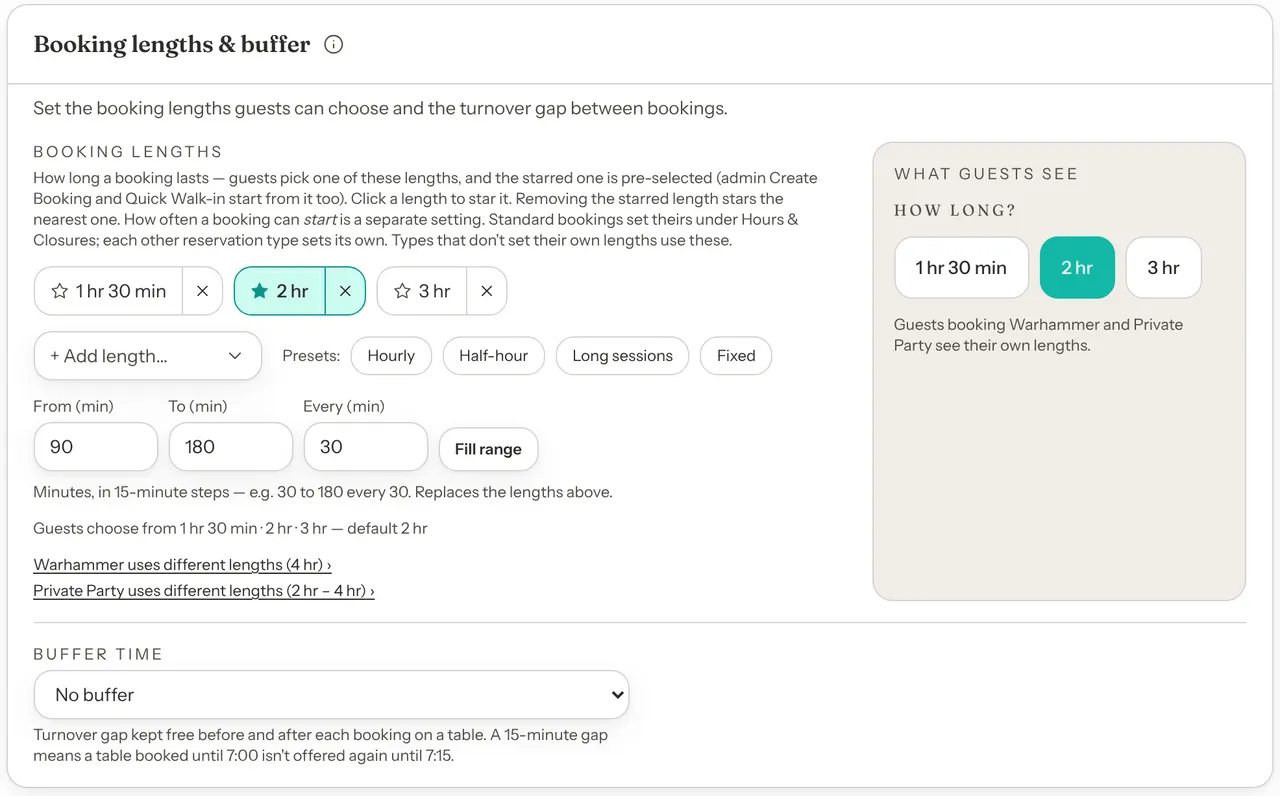
Choose your booking lengths
The lengths are the booking lengths guests can pick from, such as 1 hr 30 min, 2 hr and 3 hr. The starred length is the one they start on. With one length, every booking is that long and guests aren't asked.
Step 1: Open the Booking lengths & buffer card
Go to Settings → Venue Policies → Booking Rules. Under Booking lengths, each length is a chip. The starred chip, in teal, is your default.
Step 2: Add, remove or star lengths
- To add a length, open + Add length… and choose one. Lengths go in 15-minute steps, up to 8 hr.
- To remove a length, click the × on its chip. If you remove the starred length, the star moves to the nearest length that's left (the shorter one, if two are equally close). Hover over the × to see which.
- To change which length guests start on, click the length's name. The star moves to it.
- With only one length, its chip has a small arrow instead of an ×, because you can't remove your last length. Click the arrow to swap it for another length.
Step 3: Or start from a preset or a range
Presets replace your whole list in one click:
| Preset | Lengths | Guests start on |
|---|---|---|
| Hourly | 1 hr, 2 hr, 3 hr | 2 hr |
| Half-hour | 30 min, 1 hr, 1 hr 30 min, 2 hr | 1 hr |
| Long sessions | 2 hr, 3 hr, 4 hr | 3 hr |
| Fixed | Your starred length only | That length |
To build a list yourself, type From (min), To (min) and Every (min) in minutes, then click Fill range. For example, 60 to 180 every 30 gives 1 hr, 1 hr 30 min, 2 hr, 2 hr 30 min and 3 hr. It replaces the lengths above, and keeps your starred length if it's still in the list. Otherwise the shortest length gets the star. Each number has to be a 15-minute step, and From and To can't be more than 480 (8 hr).
Step 4: Check the preview and click Save Changes
The line under the chips says what guests get, for example "Guests choose from 1 hr 30 min · 2 hr · 3 hr — default 2 hr", or "Every booking is 2 hr — guests don't see a picker." The What guests see box beside it shows the picker as guests will see it. Click Save Changes at the bottom of the tab.
Changing your lengths never changes bookings you already have. They keep the length they were booked with.
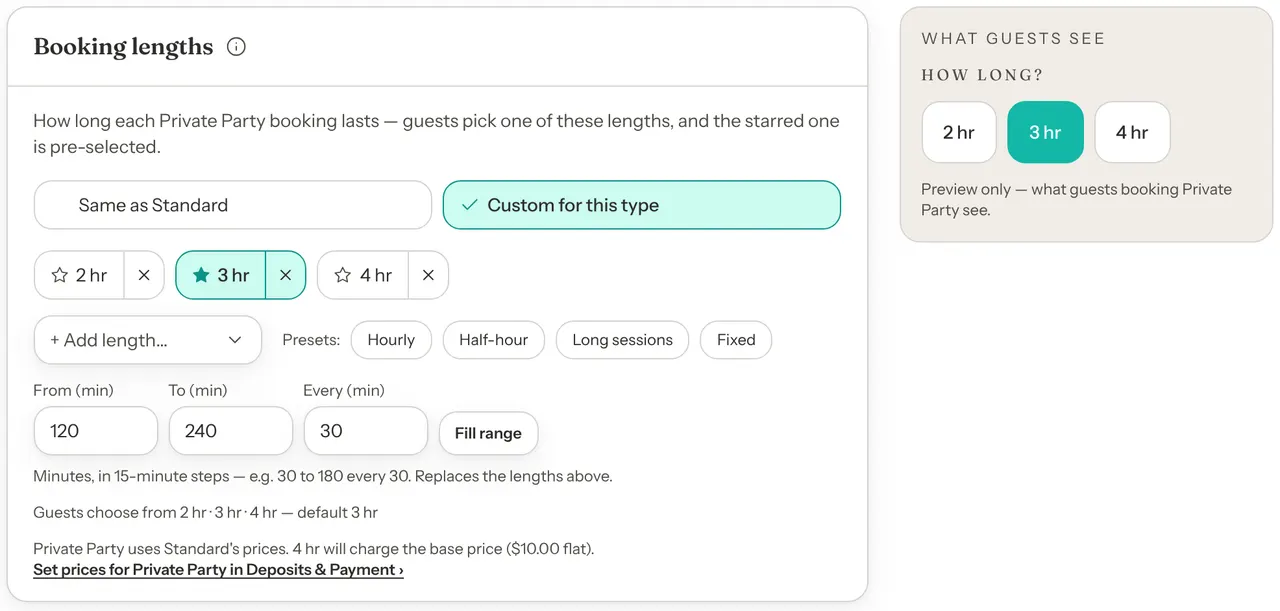
If you have other reservation types, the card lists every type that sets its own lengths under the chips, for example "Private Party uses different lengths (2 hr – 4 hr)". Click one to go to that type's lengths. Types that don't set their own use these. See Settings for one reservation type.
If you charge a different price for each length, removing a length also removes its price when you save. A note at the top of the tab then tells you which prices went. Prices are set on Deposits & Payment; see Choose how guests pay.
What guests see
With two or more lengths, guests see How long? on the step where they pick a time, with your starred length already chosen. Picking another length reloads the times for that length. If you charge by length, each choice also shows its price.
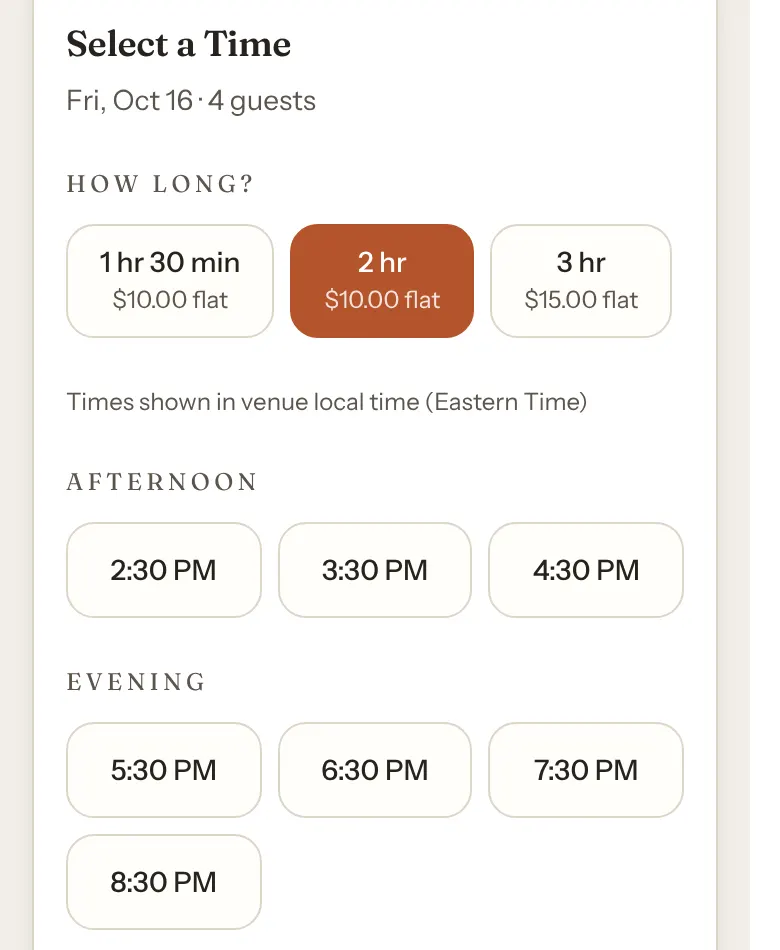
A longer booking has fewer start times, because every booking has to end by closing time. Open 3:00 PM to 11:00 PM, a 2 hr booking can start as late as 9:00 PM, and a 3 hr booking only until 8:00 PM. If a length doesn't fit a day at all, guests see a message such as No 3 hr times fit on this day and can choose a shorter length. See Why can't guests book?.
How far apart start times are is a different setting, How often bookings start, on Hours & Closures. See Choose how often bookings start.
Bookings your team adds
New Booking starts on your starred length, and your team can pick any of your lengths or type another one with Other…. Seat walk-in on the Dashboard always books your starred length, ending it at midnight if it would run later. See Add a booking for a guest who phoned.
Keep a gap between bookings
Buffer Time keeps a table free for a while either side of each booking, so your team has time to clear and reset it. It is under the lengths on the Booking lengths & buffer card.
| Option | What it does | Default |
|---|---|---|
| Buffer Time | How long a table stays free around each booking before guests can book it online. Choose No buffer, 15 minutes, 30 minutes, 45 minutes or 60 minutes. | Default: No buffer |
Choose a buffer, then click Save Changes.
How the buffer works
The buffer applies to each table, on both sides of every booking on it. With a 30-minute buffer and a table booked from 7:00 PM to 9:00 PM:
- guests can't book that table online for a time that starts before 9:30 PM, and
- a booking that would end after 6:30 PM can't go on that table before it.
Another free table can still take the guest at 9:00 PM. When the buffer leaves no table free at a time, that time shows greyed out with Fully booked under it.
Start times still follow How often bookings start. With a 15-minute buffer and start times every 30 minutes, the table above is free again at 9:15 PM, but the next start time guests can pick is 9:30 PM.
The buffer is for online bookings only:
- Bookings your team adds ignore it. New Booking, Seat walk-in, converting someone from the waitlist and changes made with Edit Booking can put bookings back to back on a table.
- Guests changing their booking keep it. When a guest moves their booking to another date or time from their booking page, the new time has to respect the buffer too.
- Shared seating doesn't use it. A reservation type set to General capacity (shared seats) counts seats, not tables, so the buffer has no effect on it.
The buffer is the same for every reservation type. While you edit another type, it shows on the Venue-wide settings card as Buffer between bookings, with Switch to Standard to edit.
Let large parties book several tables
When Allow parties across multiple tables is off, a party bigger than your largest table can't book online. Guests see No table seats 10 guests (with their party size) and "Try a smaller party." Turn it on, and that party can book two, three or four tables together, as one booking with one payment.
Turn it on
Step 1: Tick Allow parties across multiple tables
It's the card under Who can book on Booking Rules. While it's off, the card shows how big your largest table is, for example "Your largest table seats 8. Without splitting, parties larger than 8 can't book online: they're told no table seats them."
Step 2: Click Save Changes
The line under the switch says which reservation types it reaches, for example "Applies to 2 table-seated types · no overrides". If a type has its own setting, the line names it instead, for example "2 types override this: Warhammer (Off), Private Party (On)". Click a name to go to that type's setting.

Your Max party size still applies. A party bigger than it can't book online, however many tables you have. It's on the Who can book card; see Who can book.
Which tables GameLedger offers
Online, GameLedger only joins tables when no single free table seats the party at that time. A party that fits one table always gets one table.
When it does join tables, it looks at the free tables the reservation type can use and finds ways to seat the party on two to four of them, leaving out any table the party doesn't need. It only tries the 12 smallest free tables, and shows guests up to 8 options. It puts them in this order:
- Fewest tables.
- Fewest spare seats.
- For a party with a seating tag, every table carries its tag.
- Every table in the same zone.
- By table name, compared as text, so table 13 comes before table 3.
GameLedger doesn't know which of your tables stand next to each other, apart from their zones. If you only want to join tables that are close together, put them in the same zone, but other combinations can still be offered when that zone has nothing free. Zones are covered in Build your floor plan.
The buffer counts here too: a table only joins a combination if it's free for the whole booking, plus the buffer.
What guests see
Guests do nothing different until they pick a time. On the times step:
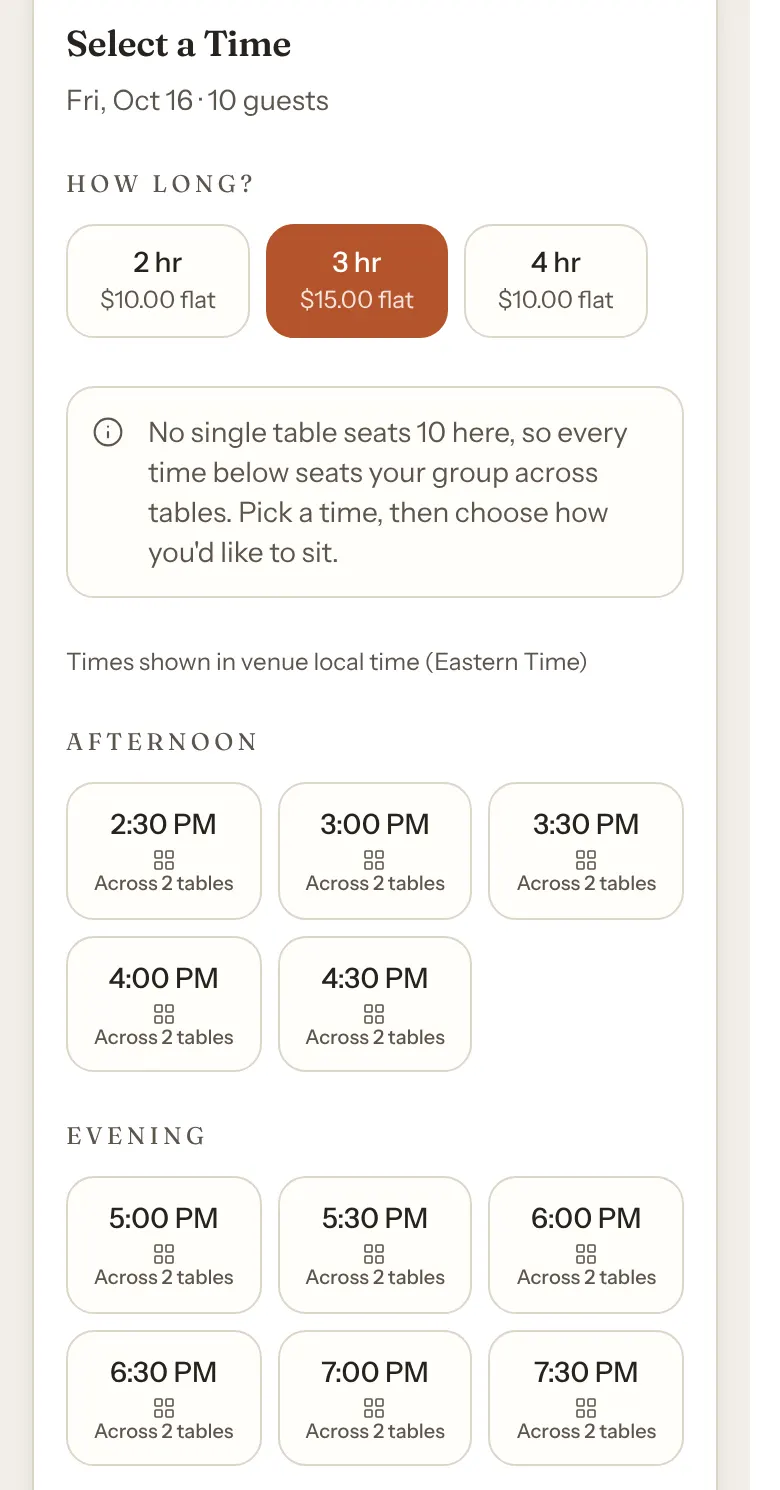
- A time that only joined tables can seat shows Across 2 tables (or 3, or 4) under it.
- When every time on that day needs joined tables, a line above the times says "No single table seats 10 here, so every time below seats your group across tables. Pick a time, then choose how you'd like to sit."
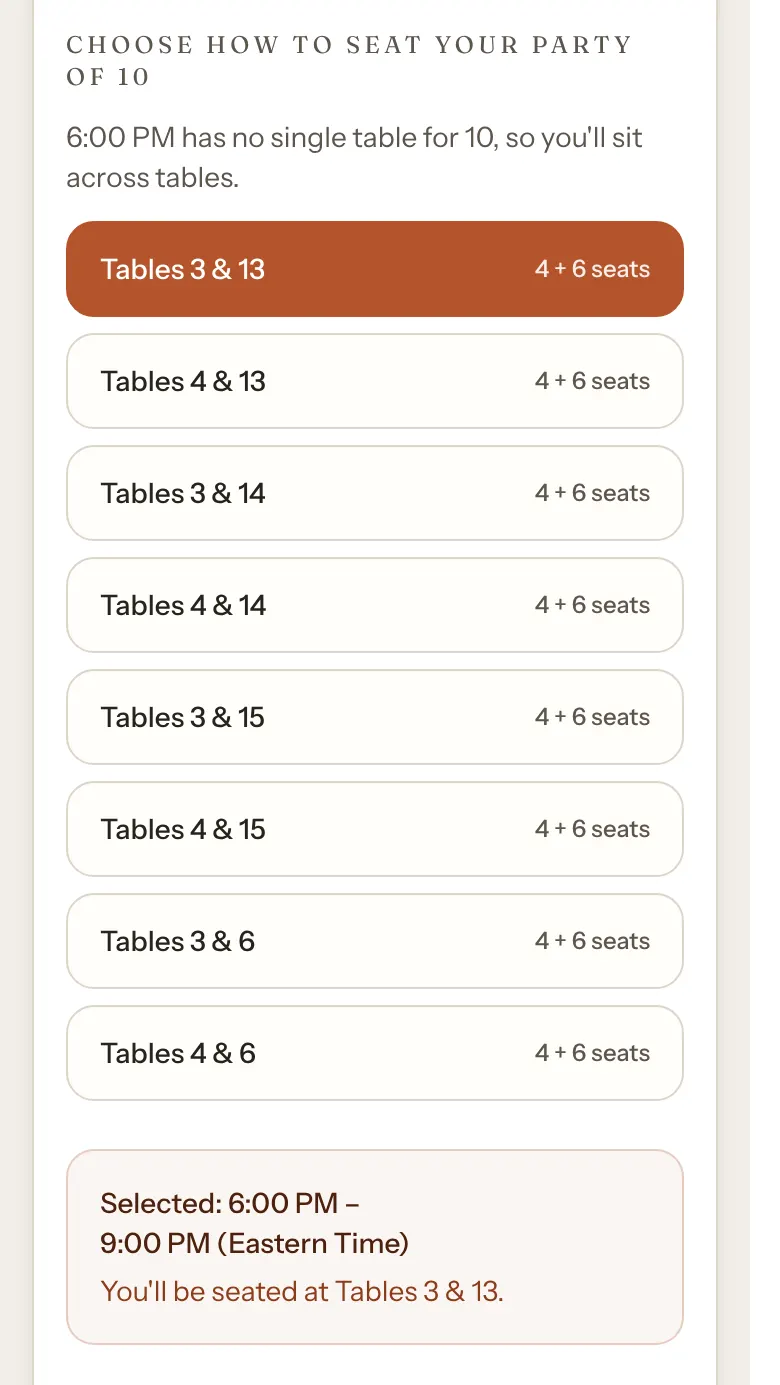
When the guest picks one of those times, Choose how to seat your party of 10 opens below, with the best combination already chosen. Each option lists the tables and their seats, for example Tables 3 & 13 and "4 + 6 seats". The guest can pick another option or keep the first, and the summary under it says, for example, "You'll be seated at Tables 3 & 13."
If your venue uses seating tags, guests don't see table numbers, so the options read "2 tables" instead and only one option is listed for each mix of seats.
A party that books joined tables can't change its booking from its booking page. It says the reservation spans multiple tables and asks the guest to contact you.
When joined tables are allowed, a party GameLedger can't seat sees Fully booked instead of No table seats, with the option to join your waitlist. That happens whether the tables are taken or no four of them are big enough together. See The waitlist.
What it costs
One booking means one payment. The price only changes with the number of tables when you charge Per table: then two tables cost twice the table price, and a line above the options says, for example, "Billed per table — $15.00 × 2 tables". With Per guest or Flat per booking, joining tables changes nothing, and neither does a fixed deposit. Billing models are on Deposits & Payment; see Choose how guests pay.
What your team sees
- One booking, several tables. The booking shows its tables together, for example Tables 5 & 6, in the List, on the booking itself, and in the Dashboard's arrivals. In the Timeline's Day view it is one block with a Split badge, and hovering over it shows "Split across 5 + 6".
- Seating them. Seat Party seats the party at all of its tables at once. A booking at joined tables can only be seated at its own tables, so Seat elsewhere isn't offered for it.
- Editing it. Edit Booking keeps the booking's tables as they are, and says so: "This reservation spans multiple tables. Its tables are kept as-is when you save; to seat it differently, cancel and rebook."
- Making one yourself. In New Booking, tick Seat across multiple tables and click up to four tables. See Pick a table. The tick box only shows for reservation types that allow joined tables.
A party at joined tables never gets extra chairs. Extra chairs are for one table only.
Settings for one reservation type
If your venue has more than one reservation type, pick a type in the Editing: bar at the top of Booking Rules to change its settings alone. Setting Up Your Booking Types explains types and the Editing: bar in full.
- Booking lengths: choose Same as Standard to use the lengths above, or Custom for this type to give the type its own. Custom starts from Standard's lengths, and you change them with the same chips, presets and Fill range. See Set it up, card by card.
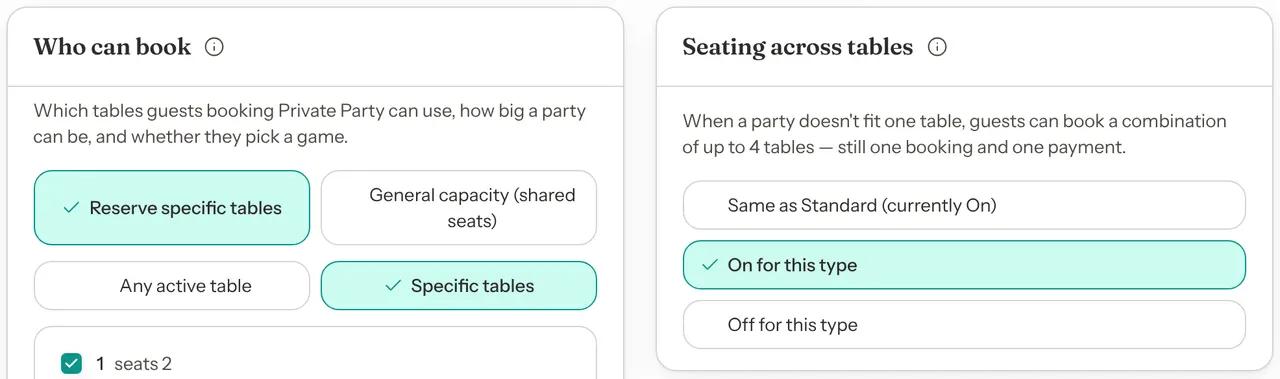
- Seating across tables: choose Same as Standard (the card shows whether Standard's is on or off), On for this type or Off for this type. A type that uses shared seating shows a note instead: it never splits a party across tables.
- Buffer: the same for every type. It shows on the Venue-wide settings card.
Click Save for followed by the type's name at the bottom of the tab to save the type's settings.
If a type's own lengths differ from Standard's and you choose Same as Standard again, you're asked first, for example "Use Standard's booking lengths for Private Party?" Click Use Standard's to replace its lengths with Standard's when you save.